Wireframing and Fidelity
|
This content was generated with the assistance of AI and should be verified against the official Figma documentation before being relied on in production. This sub-section’s Figma bibliography lists the reference material consulted while preparing these pages. |
This page was written on 2026-10-30 against the UI3 interface of Figma Design. Wireframing needs nothing beyond the basic drawing tools, frames, auto layout and components, which are generally available in Figma Design, and anyone who can edit a file (in practice a Full seat) can build wireframes. Connecting screens into an interactive wireframe uses the Prototype tab in Figma Design, also generally available. Plan and seat limits on Community libraries, branching or variable modes may affect how you organise a wireframe kit, so check Plans, Seats and AI Credits before assuming a feature on your plan.
A wireframe is a deliberately plain drawing of a screen that settles what is on it and where, before anyone argues about colour or typefaces. The running example is the Bookshelf catalogue: a search field, a grid of book cards (cover, title, author, an "Add to shelf" button) and a tab bar. The research that tells you what the catalogue must contain is in Research, Personas and Journey Maps, the screen list comes from Information Architecture and User Flows, and the whole process is framed in the UX process page.
Fidelity: lo-fi, mid-fi and hi-fi
Fidelity is how closely a drawing resembles the finished product. Figma’s own wireframing guide describes three levels, whereas one of Figma’s blog posts describes only two (low and high), so treat the labels as a convenient vocabulary rather than a standard. A practical reading:
-
Low fidelity (lo-fi): grey boxes, crossed rectangles for images, bars for text, a single line weight. It answers "what is on the screen and in which order?". It is the cheapest level to change, and people give feedback on structure rather than colour.
-
Mid fidelity (mid-fi): the same grey look, but with real copy, real labels, real counts, the main states (empty, loading, error) and a first pass at spacing. It answers "does the content fit and does the flow make sense?".
-
High fidelity (hi-fi): colour, typography, imagery, components from the design system, and often motion. It answers "does it look and feel right?" and is the level developers receive.
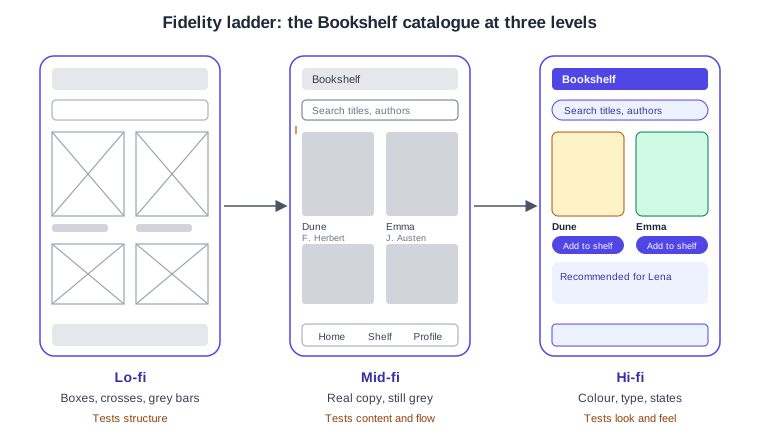
Fidelity is not one dial. A screen can have hi-fi typography and lo-fi imagery, and a flow can be mid-fi on the screens under test and lo-fi elsewhere. Decide per question which dimension needs to be real: layout, content, interaction, visuals or motion.
Content-first wireframes
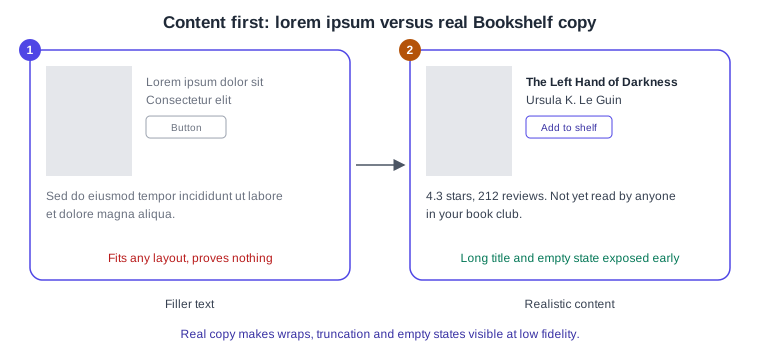
Content-first means you write or collect the real content before you draw the boxes that will hold it. Filler text hides the problems that real content causes: a long title that wraps to three lines, a missing cover, an author with no ratings, an empty shelf. For Bookshelf this means working from a short content list (title, author, cover, rating, "Add to shelf", search, filter) and filling the cards with a handful of real books, including one with a very long title.
Source: Figma blog: How to wireframe
-
Filler text: the layout looks fine because lorem ipsum has no long words or edge cases.
-
Real copy: the long title, the rating count and an empty-state sentence expose wrapping and truncation while changes are still cheap.
Content-first also helps the people you work with: a stakeholder can review the wording of a label without a designer explaining what a placeholder stands for. If you do not have content yet, write plausible copy yourself and mark it as provisional in the layer name or in a comment.
Building a wireframe in UI3
Everything you need is in the bottom toolbar and the right sidebar. The commonly used keys are Frame (F), Rectangle ®, Line (L), Text (T), Add auto layout (Shift A) and Create component (Command Option K on macOS, Control Alt K on Windows). For frame presets, clip content and nesting see Frames, Groups and Sections; for resizing behaviour see Auto Layout and Grid Flow.
Procedure: wireframe the catalogue
-
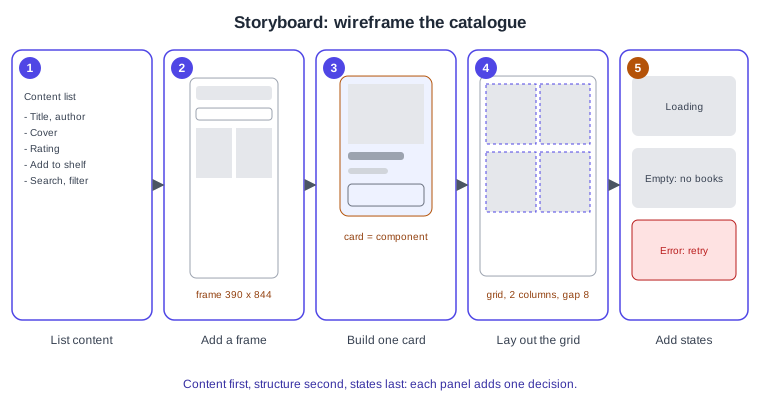
Write the content list for the screen: what must the user see and do? For Bookshelf: title, author, cover, rating, "Add to shelf", search and filter.
-
Press F, choose a phone preset in the right sidebar (or type a size such as 390 by 844) and name the frame "Catalogue / Mobile". Add a top bar and a search field with rectangles and one text layer.
-
Draw one book card: a grey rectangle for the cover, two text layers for title and author, and a rectangle with the label "Add to shelf". Select the pieces, press Shift A to add auto layout, set a small gap, then press Command Option K (Control Alt K) to make it a component named "Wireframe / Book card".
-
Place instances of the card in a parent auto layout frame. Use the auto layout grid flow or a wrapping horizontal flow so the cards form two columns with an 8 pt gap. Replace the sample text in each instance with a real book.
-
Duplicate the frame for the other states: loading (grey placeholders), empty ("No books on your shelf yet") and error (a message with a retry button). Name them "Catalogue / Loading", "Catalogue / Empty" and "Catalogue / Error".
Panel 5 matters most for developers: states are part of the design, and a wireframe is the cheapest place to find the ones you forgot.
Source: Figma Learn: Create a component
Keep names short and structured with slashes, because they become the vocabulary of the whole team. Use sections to group screens by flow rather than scattering frames; see Frames, Groups and Sections.
Wireframe kits
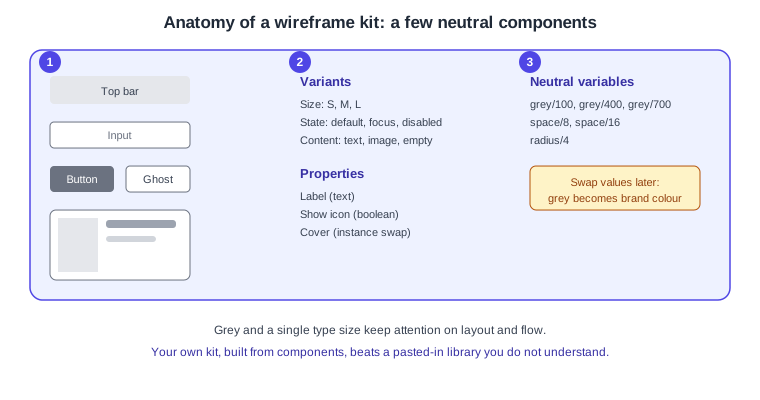
A wireframe kit is a library of neutral, grey components (top bar, input, button, card, list row, tab bar) plus a few page templates, so you do not redraw the same boxes on every project. Figma Community hosts many free and paid wireframe kits and templates, and Figma’s templates pages list some of them. Quality, licensing and maintenance vary from kit to kit, and some kits state that they are meant for non-commercial use, so read the licence in the file’s description before using one at work. Community files are third-party content, not Figma features.
Source: Figma: Wireframe kits
-
Components: the few shapes every screen needs, drawn in grey with one text size.
-
Variants and properties: size, state and content variants, with a text property for the label, a boolean for an icon and an instance swap for the cover; see Variants and Component Properties.
-
Neutral variables: grey values, a small spacing scale and one corner radius, so a later move to brand values means changing values rather than redrawing; see Variables, Collections and Modes.
Two ways to start: duplicate a Community kit into a draft, or build your own from five or six components. A kit you built yourself is easier to adapt than a large one you do not understand, and a kit can be published as a library for the team (see Libraries and Publishing). The books mention a plugin called Wireframer; it is a Community file, not a Figma feature, so confirm that it is still maintained before relying on it. The grey wireframe kit is also the natural precursor to the Bookshelf design system in Design Systems: when you move to hi-fi, the same component names can be re-skinned instead of replaced.
Interactive wireframes
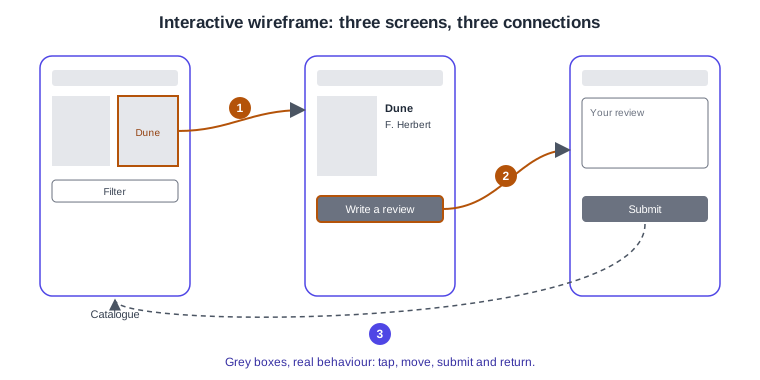
An interactive wireframe is a lo-fi or mid-fi design with prototype connections, so a person can tap through it. It tests flow and navigation long before anything is polished. In Figma Design, open the Prototype tab in the right sidebar, drag a connection from a layer (for example the "Dune" card) to the next frame, and choose a trigger (On click or tap), an action (Navigate to) and an animation (Instant is enough for a wireframe).
-
Card to detail: On click on the book card navigates to the detail screen.
-
Button to form: On click on "Write a review" navigates to the review form.
-
Return: Submit navigates back to the catalogue, closing the "find a book and leave a review" loop.
Procedure: make the catalogue wireframe clickable
-
Select the catalogue frame and open the Prototype tab in the right sidebar. Add a starting point to the frame.
-
Click the book card instance, drag the connection handle to the "Book detail" frame, and set On click, Navigate to, Instant.
-
On the detail frame, connect "Write a review" to the review form, and connect Submit on the form back to the catalogue.
-
Press Shift Space to preview inline, or Command Option Return (Control Alt Enter) to open presentation view, and walk the "find a book and leave a review" flow yourself.
-
Fix dead ends before you share the link. Sharing and test preparation are covered on Presenting and Testing Prototypes, and the connections themselves on Prototyping Basics.
Keep interactions simple at this stage. Instant navigation and one starting point are enough. Smart Animate and microinteractions belong to later fidelity; see Interactive Components and Microinteractions. When you put an interactive wireframe in front of users, tell them it is a rough design; the plan for sessions, tasks and findings is on Usability Testing and Iteration.
When to raise fidelity
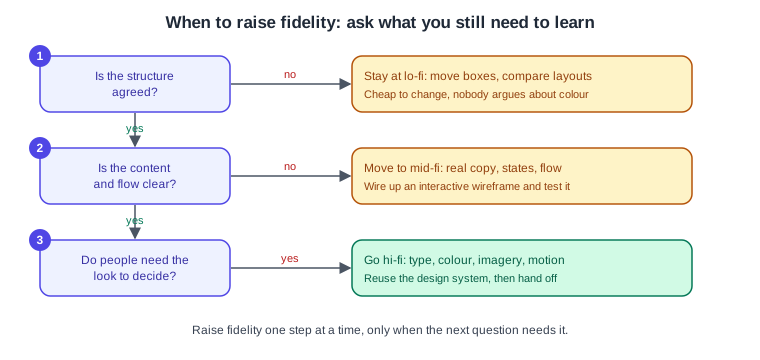
Raise fidelity because the next question requires it, not because the schedule says it is time for the next phase.
-
Is the structure agreed? If not, stay at lo-fi: move boxes, compare two layouts side by side and reject one.
-
Are content and flow clear? If not, go to mid-fi: real copy, states, and an interactive wireframe to test.
-
Do people need the look to decide? If they do (brand approval, visual hierarchy, an investor demo), go hi-fi with type, colour, imagery and the design system’s components.
Signals that it is time to go up: the team stops disagreeing about layout and starts disagreeing about colour; test participants cannot judge a feature without seeing real imagery; developers need exact spacing. Signals to stay or go down: each review produces new structural changes, or stakeholders comment on fonts when you want comments on flow. You can also skip a level: Figma’s blog notes that going from low fidelity straight to a prototype is a legitimate path. Responsive behaviour is a separate concern; see Responsive Design before you commit to breakpoints, and Accessible and Inclusive Design for the checks that are cheaper to do early (reading order, touch target size, text size). The accessibility background is on Web Accessibility.
Common mistakes
-
Polishing too early: spending hours on shadows while the structure is still being argued about.
-
Using filler text everywhere and discovering the long-title problem after hi-fi.
-
Drawing only the happy path and forgetting empty, loading and error states.
-
Wireframing in one huge frame instead of separate named frames per screen and state.
-
Treating a wireframe as a contract with developers; it is a conversation, so label what is decided and what is open.
-
Letting a kit’s colours and icons sneak in and turning a lo-fi review into a visual critique.
Where older guides are outdated
-
The 2022 and 2024 books describe the pre-UI3 interface (top toolbar, old properties panel). UI3 has been the only interface since 2025-04-30, so use the toolbar and right sidebar locations given above.
-
Auto layout in the older books has no grid flow, no wrap and no CSS-like layout version, so their card-grid wireframes use manual duplication or nested rows. Grid flow reached general availability on 2026-05-22.
-
Plan and seat wording in older books ("editor", "viewer", "paid Team plan") predates the Full, Dev, Collab and View seats (since 2025-03-11).
-
Trigger names such as "Mouse move inside" in older prototype instructions were renamed Mouse enter and Mouse leave.
-
Third-party plugins and kits named in the books, such as Wireframer, must be re-checked in Figma Community; they are ecosystem, not Figma features.