Camera, Media and Photos
|
This content was generated with the assistance of AI and should be verified against the official documentation before being relied on in production; see the section bibliography for the reference material consulted while preparing these pages. |
A field note is often more photo than text: a plant, a trail marker, a page of a notebook. This page gives
FieldNotes its media features. The user can attach photos from the library, take a photo with the camera
without leaving the note, see thumbnails of what is attached, play back video and audio recordings, and control
that playback from the Lock Screen. Everything targets the 27 releases (iOS 27, iPadOS 27, macOS 27,
watchOS 27 and visionOS 27), built with Xcode 27 and Swift 6.4. FieldNotes keeps a deployment
minimum of 26, so APIs that exist only on the 27 releases are marked "new in 27" and guarded with
if #available or @available.
Media work leans on Swift concurrency more than most features: capture sessions block while they configure, delegates call back on their own queues, and decoded images are large. The language side is covered in the Swift reference, and this page only applies it:
-
Async/Await and Tasks explains continuations, which turn the photo-capture delegate into an
asyncfunction below. -
Actors, Isolation and Sendable explains why the capture session lives inside an actor.
-
Swift Concurrency in Apps shows the app-level patterns (default main actor isolation,
nonisolateddelegate classes,@concurrent) that these examples follow.
The examples extend the FieldNotes types from App Architecture the Apple
Way and the part 2 model additions: Note gains attachments: [PhotoAttachment], and the image bytes live in
PhotoRecord, a SwiftData model with external storage, defined on
Persisting Models with SwiftData. This page adds three canonical views and models:
NotePhotoPicker, CameraCaptureModel and AttachmentThumbnail.
Choosing the Right Media API
Apple offers several ways to get a picture into an app, and each asks the user for a different amount of trust. The rule is to choose the least access that does the job.
| Need | API | Permission prompt | FieldNotes uses it for |
|---|---|---|---|
Let the user pick existing photos |
|
None: the picker runs out of process and returns only what the user selects |
|
Save a new photo to the library |
|
Add-only prompt ( |
An optional "Also save to Photos" setting |
Browse or edit the whole library |
PhotoKit ( |
Full or limited library prompt ( |
A "Recent photos near this note" strip |
Take a photo inside the app |
AVFoundation capture ( |
Camera prompt ( |
|
Play video or audio |
AVKit ( |
None |
Attached clips and field recordings |
Show playback on the Lock Screen |
Now Playing (new in 27); MediaPlayer’s |
None |
|
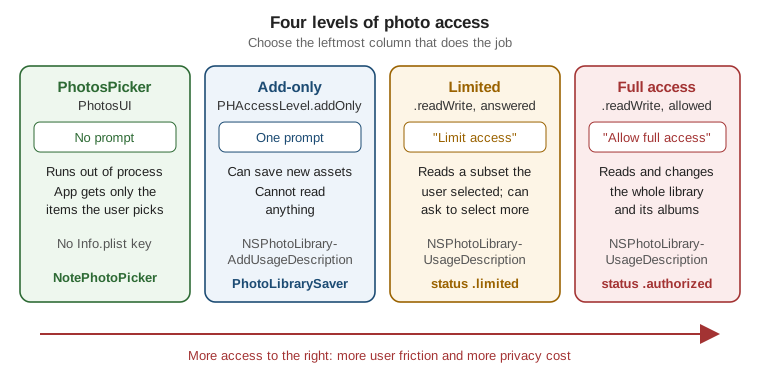
Attaching Photos Without a Permission Prompt: NotePhotoPicker
PhotosPicker is the SwiftUI view for picking photos and videos. The picker’s interface runs in a separate
process that the system owns, so the app never sees the library: it receives only the items the user selects,
as PhotosPickerItem values. Because nothing else leaks out, the picker needs no permission prompt and no
usage-description key. This is why it is the right default for attaching photos to a note.
A PhotosPickerItem is a promise, not the data. The app asks for the content through loadTransferable(type:),
which accepts any Transferable type. Data is the simplest choice and keeps the original encoding (HEIF or
JPEG), which is what FieldNotes stores.
FieldNotes saves the bytes in two places, matching the model split on the SwiftData page. The Note value gets
a small PhotoAttachment (an identifier and a file name) so lists and widgets stay light. The bytes go to a
PhotoRecord in SwiftData, whose @Attribute(.externalStorage) keeps large blobs outside the SQLite file. A small
page-local protocol, PhotoDataStoring, gives views a way to reach that storage without knowing about SwiftData:
// Packages/FieldNotesKit/Sources/FieldNotesServices/Persistence/PhotoDataStoring.swift
import Foundation
import SwiftData
import FieldNotesModel

/// Stores and loads the bytes behind a `PhotoAttachment`.
public protocol PhotoDataStoring: Sendable {
    func savePhoto(_ data: Data, as attachment: PhotoAttachment, toNote noteID: Note.ID) async throws
    func photoData(for attachmentID: PhotoAttachment.ID) async throws -> Data?
}

public enum PhotoStoreError: Error {
    case noteNotFound
    case storeUnavailable
}

// SwiftDataNotePersistence is the @ModelActor defined on the SwiftData page; this extension adds photo storage.
extension SwiftDataNotePersistence: PhotoDataStoring {
    public func savePhoto(_ data: Data, as attachment: PhotoAttachment, toNote noteID: Note.ID) async throws {
        var descriptor = FetchDescriptor<NoteRecord>(predicate: #Predicate { $0.id == noteID })
        descriptor.fetchLimit = 1
        guard let note = try modelContext.fetch(descriptor).first else { throw PhotoStoreError.noteNotFound }
        note.photos.append(PhotoRecord(id: attachment.id, fileName: attachment.fileName, data: data))
        try modelContext.save()
    }

    public func photoData(for attachmentID: PhotoAttachment.ID) async throws -> Data? {
        var descriptor = FetchDescriptor<PhotoRecord>(predicate: #Predicate { $0.id == attachmentID })
        descriptor.fetchLimit = 1
        return try modelContext.fetch(descriptor).first?.data
    }
}
See Apple Developer Documentation -- Attribute(_:originalName:hashModifier:) and Apple Developer Documentation — FetchDescriptor.
The work runs inside the model actor, so fetching and saving never touch the main thread. #Predicate is
explained on Macros. The app hands the store to its views through
the environment, next to the NoteStore:
// FieldNotes/Photos/PhotoStoreEnvironment.swift
import SwiftUI
import FieldNotesServices

extension EnvironmentValues {
    @Entry var photoStore: (any PhotoDataStoring)? = nil
}

// FieldNotes/FieldNotesApp.swift (excerpt: the Settings, MenuBarExtra and ImmersiveSpace scenes are unchanged)
@main
struct FieldNotesApp: App {
    // AppServices (Background Execution) owns the store and the SwiftData persistence it writes through.
    @State private var store = AppServices.shared.store
    private let persistence = AppServices.shared.persistence

    var body: some Scene {
        WindowGroup {
            ContentView()
                .environment(store)
                .environment(\.photoStore, persistence)
                .task { await store.load() }
        }
    }
}Both the picker and the camera attach a photo the same way, so the steps live in one place. The bytes are saved
first and the attachment appears in the note only once they are stored. Before saving, the helper waits for
NoteStore's queued writes (see SwiftData), so a photo added to a note created a
moment ago doesn’t fail with noteNotFound:
// FieldNotes/Photos/NoteStore+Photos.swift
import Foundation
import FieldNotesModel
import FieldNotesServices

extension NoteStore {
    func attachPhoto(_ data: Data, as attachment: PhotoAttachment, toNote noteID: Note.ID,
                     using photoStore: (any PhotoDataStoring)?) async throws {
        guard let photoStore else { throw PhotoStoreError.storeUnavailable }
        await waitForPendingWrites()
        try await photoStore.savePhoto(data, as: attachment, toNote: noteID)
        if let index = notes.firstIndex(where: { $0.id == noteID }) {
            notes[index].attachments.append(attachment)
        }
    }
}Now the picker itself. NotePhotoPicker takes the note’s identifier, lets the user choose up to five images, and
turns each choice into an attachment. The selection is cleared afterwards, so picking the same photo again
later still triggers onChange:
// FieldNotes/Photos/NotePhotoPicker.swift
import SwiftUI
import PhotosUI
import FieldNotesModel
import FieldNotesServices

struct NotePhotoPicker: View {
    @Environment(NoteStore.self) private var store
    @Environment(\.photoStore) private var photoStore
    @State private var selection: [PhotosPickerItem] = []
    @State private var isImporting = false
    @State private var failedImports = 0
    let noteID: Note.ID

    var body: some View {
        PhotosPicker(selection: $selection,
                     maxSelectionCount: 5,
                     selectionBehavior: .ordered,
                     matching: .any(of: [.images, .screenshots]),
                     preferredItemEncoding: .current) {
            Label("Add Photos", systemImage: "photo.badge.plus")
        }
        .disabled(isImporting)
        .onChange(of: selection) { _, items in
            guard !items.isEmpty else { return }
            Task { await importPhotos(items) }
        }
        .alert("\(failedImports) photos couldn't be added", isPresented: .constant(failedImports > 0)) {
            Button("OK") { failedImports = 0 }
        }
    }

    private func importPhotos(_ items: [PhotosPickerItem]) async {
        isImporting = true
        defer { isImporting = false; selection = [] }
        for item in items {
            do {
                guard let data = try await item.loadTransferable(type: Data.self) else { continue }
                let fileExtension = item.supportedContentTypes.first?.preferredFilenameExtension ?? "jpg"
                let attachment = PhotoAttachment(id: UUID(), fileName: "\(UUID().uuidString).\(fileExtension)")
                try await store.attachPhoto(data, as: attachment, toNote: noteID, using: photoStore)
            } catch {
                // A failed item is counted and reported; the others still import.
                failedImports += 1
            }
        }
    }
}

#Preview {
    let note = Note(title: "Oak by the river")
    NotePhotoPicker(noteID: note.id)
        .environment(NoteStore(notes: [note]))
}
See Apple Developer Documentation — PhotosPicker and Apple Developer Documentation — Bringing Photos picker to your SwiftUI app.
A few details are worth knowing:
-
matching:takes aPHPickerFilter. Filters combine with.any(of:),.all(of:)and.not(_:), so "images but not screenshots" is.all(of: [.images, .not(.screenshots)]). Filters also exist for videos, Live Photos, bursts, panoramas and spatial media. -
preferredItemEncoding: .currentasks for the current representation (HEIF on most iPhones) instead of a transcoded JPEG. Use.compatiblewhen the bytes must open anywhere. -
loadTransferable(type:)can returnnil, when the item can’t be represented as the requested type, and can throw, for example when an iCloud Photos original fails to download. Handle both per item. -
Memory:
Dataloads the full original into memory. For large videos, load a customTransferabletype that uses aFileRepresentation, which hands you a temporary file URL instead. -
The store:
attachPhotoadds the attachment to the note in memory only aftersavePhotohas stored the bytes, so what’s on screen never refers to a photo that isn’t saved; the SwiftData page mapsNoteRecord.photosback toNote.attachmentson load. Failures are counted and reported instead of being skipped silently.
See Apple Developer Documentation — PhotosPickerItem and Apple Developer Documentation — Transferable.
Embedding the Picker Inline
The picker can also be embedded in the app’s own layout, which suits an iPad editor where the library sits next
to the note. photosPickerStyle(.inline) embeds it, and photosPickerDisabledCapabilities and
photosPickerAccessoryVisibility trim its chrome so it looks like part of the screen:
// FieldNotes/Photos/InlinePhotoStrip.swift
#if os(iOS) || os(macOS)
import SwiftUI
import PhotosUI

struct InlinePhotoStrip: View {
    @Binding var selection: [PhotosPickerItem]

    var body: some View {
        PhotosPicker("Photos", selection: $selection, maxSelectionCount: 5, matching: .images)
            .photosPickerStyle(.inline)
            .photosPickerDisabledCapabilities([.selectionActions, .collectionNavigation])
            .photosPickerAccessoryVisibility(.hidden, edges: .all)
            .frame(height: 220)
    }
}
#endifEven inline, the picker still runs out of process, so it still needs no permission. The inline style exists on iOS, iPadOS and macOS only, hence the guard; on watchOS and visionOS the picker is always presented.
Showing Attachments: AttachmentThumbnail
A photo from a modern iPhone decodes to tens of megabytes of pixels. Decoding the full image just to draw a
64-point thumbnail wastes memory and time, and a list of them can get the app terminated for memory pressure. The
fix is downsampling: ImageIO can decode an image straight to a small size without ever building the full
bitmap. CGImageSourceCreateThumbnailAtIndex does this, and it works the same on every platform, so
AttachmentThumbnail needs no UIImage/NSImage split.
// FieldNotes/Photos/AttachmentThumbnail.swift
import SwiftUI
import ImageIO
import FieldNotesModel

struct AttachmentThumbnail: View {
    @Environment(\.photoStore) private var photoStore
    @Environment(\.displayScale) private var displayScale
    @State private var image: CGImage?
    let attachment: PhotoAttachment
    var size: CGFloat = 72

    var body: some View {
        Group {
            if let image {
                Image(decorative: image, scale: displayScale)
                    .resizable()
                    .scaledToFill()
            } else {
                Rectangle().fill(.quaternary)
                    .overlay { ProgressView() }
            }
        }
        .frame(width: size, height: size)
        .clipShape(.rect(cornerRadius: 10))
        .accessibilityLabel("Photo attachment")
        .task(id: attachment.id) {
            guard let data = try? await photoStore?.photoData(for: attachment.id) else { return }
            image = await Self.downsample(data, maxPixelSize: size * displayScale)
        }
    }

    /// Decodes a thumbnail off the main actor without building the full-size bitmap.
    @concurrent
    private static func downsample(_ data: Data, maxPixelSize: CGFloat) async -> CGImage? {
        let sourceOptions = [kCGImageSourceShouldCache: false] as CFDictionary
        guard let source = CGImageSourceCreateWithData(data as CFData, sourceOptions) else { return nil }
        let thumbnailOptions = [
            kCGImageSourceCreateThumbnailFromImageAlways: true,
            kCGImageSourceCreateThumbnailWithTransform: true,   // respect the EXIF orientation
            kCGImageSourceShouldCacheImmediately: true,         // decode now, not on first draw
            kCGImageSourceThumbnailMaxPixelSize: maxPixelSize
        ] as CFDictionary
        return CGImageSourceCreateThumbnailAtIndex(source, 0, thumbnailOptions)
    }
}.task(id:) restarts the load when a reused view shows a different attachment, and cancels it when the view
disappears. @concurrent moves the decoding to the global concurrent executor, as described on
Swift Concurrency in Apps. NoteDetail shows the attachments in a
horizontal strip. The ForEach uses the attachments' stable id, never an index or the value itself:
// FieldNotes/Views/NoteDetail.swift (excerpt)
if !note.attachments.isEmpty {
    ScrollView(.horizontal) {
        LazyHStack(spacing: 8) {
            ForEach(note.attachments) { attachment in
                AttachmentThumbnail(attachment: attachment)
            }
        }
        .padding(.horizontal)
    }
    .scrollIndicators(.hidden)
}The full-size view reuses PhotoAttachmentView from
Liquid Glass and the Design System, fed with a larger
maxPixelSize.
Full and Limited Library Access with PhotoKit
PhotoKit is the framework behind the Photos app: PHAsset for items, PHAssetCollection for albums,
PHImageManager for images, and PHPhotoLibrary for authorization and changes. An app needs it only to read the
library without the picker, to organize albums, or to edit assets in place.
Reading needs NSPhotoLibraryUsageDescription in the target’s Info properties and a call to
requestAuthorization(for: .readWrite). Since iOS 14 the user can answer with limited access: the app sees
only the photos the user chose, and it cannot tell how many others exist. Treat .limited as a normal,
successful answer.
// FieldNotes/Photos/PhotoLibraryAccess.swift
#if os(iOS) || os(macOS) || os(visionOS)   // PhotoKit's library APIs aren't on watchOS
import Photos

enum PhotoLibraryAccess {
    /// Asks for read access once; later calls return the stored answer without a prompt.
    static func requestReadAccess() async -> PHAuthorizationStatus {
        let current = PHPhotoLibrary.authorizationStatus(for: .readWrite)
        guard current == .notDetermined else { return current }
        return await PHPhotoLibrary.requestAuthorization(for: .readWrite)
    }

    /// Photos taken within `interval` seconds of the note's date, newest first.
    static func photos(near date: Date, within interval: TimeInterval = 3_600) -> PHFetchResult<PHAsset> {
        let options = PHFetchOptions()
        options.predicate = NSPredicate(format: "mediaType == %d AND creationDate > %@ AND creationDate < %@",
                                        PHAssetMediaType.image.rawValue,
                                        date.addingTimeInterval(-interval) as NSDate,
                                        date.addingTimeInterval(interval) as NSDate)
        options.sortDescriptors = [NSSortDescriptor(key: "creationDate", ascending: false)]
        return PHAsset.fetchAssets(with: options)
    }
}
#endif
See Apple Developer Documentation — PHPhotoLibrary and Apple Developer Documentation — PHAccessLevel.
The statuses mean:
PHAuthorizationStatus |
Meaning for FieldNotes |
|---|---|
|
Not asked yet: show the "Recent photos near this note" feature’s explainer, then ask. |
|
Full access to the library. |
|
Access to the user’s chosen subset; offer a "Select More Photos" button. |
|
The user said no: hide the feature and link to Settings. |
|
Parental controls or a device profile forbid access; the user can’t change it. |
With limited access, UIKit’s PHPhotoLibrary.shared().presentLimitedLibraryPicker(from:) lets the user extend
the selection. The system shows its own "select more" prompt at most once per app launch; set
PHPhotoLibraryPreventAutomaticLimitedAccessAlert to YES in the Info properties to suppress it when the app
offers its own button.
To show many assets, PHCachingImageManager prefetches thumbnails for the rows about to scroll on screen. It
calls back with a degraded image first and the final one later, so the handler runs more than once:
// FieldNotes/Photos/NearbyPhotosLoader.swift
#if os(iOS) || os(macOS) || os(visionOS)
import Photos
#if canImport(UIKit)
import UIKit
typealias PlatformImage = UIImage
#else
import AppKit
typealias PlatformImage = NSImage
#endif

struct NearbyThumbnail {
    let image: PlatformImage?
    let isFinal: Bool
}

@MainActor
final class NearbyPhotosLoader {
    private let imageManager = PHCachingImageManager()
    private let targetSize = CGSize(width: 200, height: 200)

    func prefetch(_ assets: [PHAsset]) {
        imageManager.startCachingImages(for: assets, targetSize: targetSize,
                                        contentMode: .aspectFill, options: nil)
    }

    func requestThumbnail(for asset: PHAsset, update: @escaping @MainActor (NearbyThumbnail) -> Void) {
        imageManager.requestImage(for: asset, targetSize: targetSize,
                                  contentMode: .aspectFill, options: nil) { image, info in
            let isDegraded = (info?[PHImageResultIsDegradedKey] as? Bool) ?? false
            MainActor.assumeIsolated { update(NearbyThumbnail(image: image, isFinal: !isDegraded)) }
        }
    }
}
#endif
See Apple Developer Documentation — PHCachingImageManager and Apple Developer Documentation — PHImageManager.
With the default options, requestImage delivers its results on the main thread when it is called from the main
thread, which is what MainActor.assumeIsolated asserts. PhotoKit’s image requests are not available on
watchOS; the watch app only shows thumbnails synced through SwiftData.
Saving a Captured Photo with Add-Only Access
Saving to the library needs only PHAccessLevel.addOnly and NSPhotoLibraryAddUsageDescription. The app can
write new assets but can never read any. A PHAssetCreationRequest inside performChanges adds the photo
exactly as captured, keeping its metadata:
// FieldNotes/Photos/PhotoLibrarySaver.swift
#if os(iOS) || os(macOS) || os(visionOS)   // PhotoKit's library APIs aren't on watchOS
import Photos

enum PhotoLibrarySaver {
    static func save(_ photoData: Data) async throws {
        var status = PHPhotoLibrary.authorizationStatus(for: .addOnly)
        if status == .notDetermined {
            status = await PHPhotoLibrary.requestAuthorization(for: .addOnly)
        }
        guard status == .authorized || status == .limited else { return }

        try await PHPhotoLibrary.shared().performChanges {
            let request = PHAssetCreationRequest.forAsset()
            request.addResource(with: .photo, data: photoData, options: nil)
        }
    }
}
#endifCapturing Photos with AVFoundation: CameraCaptureModel
The picker handles photos that already exist; the camera takes new ones without leaving the note. AVFoundation’s
capture architecture has three parts. Inputs wrap a device (a camera or microphone) as an
AVCaptureDeviceInput. Outputs turn the stream into something useful: AVCapturePhotoOutput for stills,
AVCaptureMovieFileOutput for video files, AVCaptureVideoDataOutput for raw frames. An AVCaptureSession
connects them, creating an AVCaptureConnection for each compatible input-output pair, and controls the flow
with startRunning() and stopRunning(). A preview layer, AVCaptureVideoPreviewLayer, shows the live feed.
Figure: The Capture Pipeline
builtInWideAngleCamera, back"] MIC["AVCaptureDevice
microphone"] DI["AVCaptureDeviceInput
(camera)"] MI["AVCaptureDeviceInput
(microphone)"] CAM --> DI MIC --> MI end S["AVCaptureSession
owned by CameraSessionActor
preset: photo
deferred start: automatic"] subgraph OUT["Outputs"] PL["AVCaptureVideoPreviewLayer
starts first, never deferred"] PO["AVCapturePhotoOutput
deferred start"] MO["AVCaptureMovieFileOutput
video mode only"] end DI --> S MI -. "video mode only" .-> S S -- "AVCaptureConnection" --> PL S -- "AVCaptureConnection" --> PO S -. "AVCaptureConnection" .-> MO PO -- "AVCapturePhoto
fileDataRepresentation()" --> D["Data
HEIF or JPEG"] D --> PR["PhotoRecord
SwiftData external storage"] D -. "optional, add-only access" .-> PH["PHPhotoLibrary"]
FieldNotes follows the structure of Apple’s AVCam sample, refreshed for Xcode 27. Configuring and
starting a session are blocking calls, so all capture work lives in an actor, CameraSessionActor, that keeps
it off the main thread. An @Observable @MainActor model, CameraCaptureModel, is what SwiftUI sees.
Authorization and Configuration
Camera access needs NSCameraUsageDescription (and NSMicrophoneUsageDescription for video with sound) in the
target’s Info properties; without the key the app is terminated on first access.
<!-- FieldNotes/Info.plist (excerpt) -->
<key>NSCameraUsageDescription</key>
<string>FieldNotes uses the camera to attach photos to your notes.</string>
<key>NSPhotoLibraryAddUsageDescription</key>
<string>FieldNotes can save the photos you take to your library.</string>
<key>NSPhotoLibraryUsageDescription</key>
<string>FieldNotes can show photos you took near a note.</string>The actor owns the session, the photo output and a rotation coordinator:
// FieldNotes/Camera/CameraSessionActor.swift
#if os(iOS)
import AVFoundation

actor CameraSessionActor {
    enum CameraError: Error { case noCamera, cannotAddInput, cannotAddOutput, noPhotoData }

    // AVCaptureSession isn't Sendable. The main-actor preview only hands it to its preview layer, as AVCam's
    // preview source does; every configuration call happens inside this actor.
    nonisolated(unsafe) let session = AVCaptureSession()
    private let photoOutput = AVCapturePhotoOutput()
    private var rotationCoordinator: AVCaptureDevice.RotationCoordinator?
    private var inFlightCaptures: [Int64: NotePhotoCaptureDelegate] = [:]
    private var isConfigured = false

    var isAuthorized: Bool {
        get async {
            let status = AVCaptureDevice.authorizationStatus(for: .video)
            if status == .notDetermined {
                return await AVCaptureDevice.requestAccess(for: .video)   // shows the camera prompt once
            }
            return status == .authorized
        }
    }

    func configure() throws {
        guard !isConfigured else { return }
        session.beginConfiguration()
        defer { session.commitConfiguration() }

        guard let camera = AVCaptureDevice.default(.builtInWideAngleCamera, for: .video, position: .back) else {
            throw CameraError.noCamera
        }
        let input = try AVCaptureDeviceInput(device: camera)
        guard session.canAddInput(input) else { throw CameraError.cannotAddInput }
        session.addInput(input)

        session.sessionPreset = .photo
        // Deferred start (iOS 26+) shows the preview first and prepares the photo output a moment later.
        // Linking the 26 SDK turns it on by default; the assignments document the choice.
        session.automaticallyRunsDeferredStart = true
        photoOutput.isDeferredStartEnabled = photoOutput.isDeferredStartSupported
        photoOutput.maxPhotoQualityPrioritization = .quality
        guard session.canAddOutput(photoOutput) else { throw CameraError.cannotAddOutput }
        session.addOutput(photoOutput)

        rotationCoordinator = AVCaptureDevice.RotationCoordinator(device: camera, previewLayer: nil)
        addCameraControl(for: camera)
        isConfigured = true
    }

    func start() {
        guard !session.isRunning else { return }
        session.startRunning()
    }

    func stop() {
        guard session.isRunning else { return }
        session.stopRunning()
    }
}
#endif
See Apple Developer Documentation — AVCaptureSession and Apple Developer Documentation — AVCam: Building a camera app.
The pieces, in the order AVCam uses them:
-
beginConfiguration()/commitConfiguration()batch changes so the session applies them atomically; thedefermakes sure the commit happens even when athrowleaves early. -
canAddInput(_:)/canAddOutput(_:)must be checked first; adding something the session can’t take raises an Objective-C exception, not a Swift error. -
sessionPreset = .phototunes the pipeline for high-resolution stills. Video mode would switch to.highand add anAVCaptureMovieFileOutput. -
Deferred start (iOS 26 and later) splits start-up: the preview path starts first, and the photo output prepares after the first frame is on screen. Enabling it on an output that doesn’t support it throws, hence the
isDeferredStartSupportedcheck. Apple’s Building a responsive camera app that launches quickly sample, updated for Xcode 27, covers the rest, such as hiding capture controls until the session runs. -
RotationCoordinatorreports the angle that keeps photos level with the horizon, whatever way the device is held.
Capturing a Photo as an async Call
AVCapturePhotoOutput.capturePhoto(with:delegate:) reports progress to an AVCapturePhotoCaptureDelegate over
several callbacks. AVCam wraps it in a checked throwing continuation so the caller simply awaits the photo. The
delegate is a nonisolated class, because AVFoundation calls it on its own queue, not the main actor:
// FieldNotes/Camera/NotePhotoCaptureDelegate.swift
#if os(iOS)
import AVFoundation

nonisolated final class NotePhotoCaptureDelegate: NSObject, AVCapturePhotoCaptureDelegate {
    private let continuation: CheckedContinuation<Data, any Error>
    private var photoData: Data?

    init(continuation: CheckedContinuation<Data, any Error>) {
        self.continuation = continuation
    }

    func photoOutput(_ output: AVCapturePhotoOutput, didFinishProcessingPhoto photo: AVCapturePhoto,
                     error: (any Error)?) {
        if error == nil { photoData = photo.fileDataRepresentation() }
    }

    // Always the last callback for a capture: resume the continuation exactly once, here.
    func photoOutput(_ output: AVCapturePhotoOutput,
                     didFinishCaptureFor resolvedSettings: AVCaptureResolvedPhotoSettings, error: (any Error)?) {
        if let error {
            continuation.resume(throwing: error)
        } else if let photoData {
            continuation.resume(returning: photoData)
        } else {
            continuation.resume(throwing: CameraSessionActor.CameraError.noPhotoData)
        }
    }
}
#endif

// FieldNotes/Camera/CameraSessionActor.swift (continued; same file, so it can use the private properties)
#if os(iOS)
extension CameraSessionActor {
    func capturePhoto() async throws -> Data {
        let settings = AVCapturePhotoSettings()
        settings.photoQualityPrioritization = .balanced
        if let connection = photoOutput.connection(with: .video), let rotationCoordinator {
            connection.videoRotationAngle = rotationCoordinator.videoRotationAngleForHorizonLevelCapture
        }
        let id = settings.uniqueID
        defer { inFlightCaptures[id] = nil }
        return try await withCheckedThrowingContinuation { continuation in
            let delegate = NotePhotoCaptureDelegate(continuation: continuation)
            inFlightCaptures[id] = delegate   // keep the delegate alive until the capture finishes
            photoOutput.capturePhoto(with: settings, delegate: delegate)
        }
    }
}
#endif
See Apple Developer Documentation — AVCapturePhotoOutput and Apple Developer Documentation — AVCapturePhotoCaptureDelegate.
didFinishCaptureFor is the one callback that always arrives last, whether the capture succeeded or not, so it
is the safe place to resume. Resuming twice, or never, is a bug that CheckedContinuation reports at run time;
see Async/Await and Tasks. photoOutput,
rotationCoordinator and inFlightCaptures are private, so capturePhoto() sits in the actor’s own file. The
continuation’s closure runs on the actor, so storing the delegate in inFlightCaptures needs no await.
The Observable Model and the Preview
CameraCaptureModel is the main-actor face of the camera. Views read its status, and it forwards every
blocking call to the actor with await:
// FieldNotes/Camera/CameraCaptureModel.swift
#if os(iOS)
import AVFoundation
import Observation

@Observable
@MainActor
final class CameraCaptureModel {
    enum Status: Equatable { case idle, unauthorized, running, failed(String) }

    private(set) var status: Status = .idle
    private(set) var isCapturing = false
    @ObservationIgnored private let service = CameraSessionActor()

    /// The session, for the preview layer only.
    var session: AVCaptureSession { service.session }

    func start() async {
        guard await service.isAuthorized else { status = .unauthorized; return }
        do {
            try await service.configure()
            await service.start()
            status = .running
        } catch {
            status = .failed(error.localizedDescription)
        }
    }

    func stop() async {
        await service.stop()
        status = .idle
    }

    func capturePhoto() async -> Data? {
        isCapturing = true
        defer { isCapturing = false }
        do {
            return try await service.capturePhoto()
        } catch {
            status = .failed(error.localizedDescription)
            return nil
        }
    }
}
#endifSwiftUI has no view for a capture preview, so, like AVCam, FieldNotes hosts an AVCaptureVideoPreviewLayer as
the backing layer of a UIView and wraps it in UIViewRepresentable (the representable pattern is covered on
UIKit and AppKit Interop):
// FieldNotes/Camera/CameraPreview.swift
#if os(iOS)
import SwiftUI
import AVFoundation

final class CameraPreviewUIView: UIView {
    override class var layerClass: AnyClass { AVCaptureVideoPreviewLayer.self }
    var previewLayer: AVCaptureVideoPreviewLayer { layer as! AVCaptureVideoPreviewLayer }
}

struct CameraPreview: UIViewRepresentable {
    let session: AVCaptureSession

    func makeUIView(context: Context) -> CameraPreviewUIView {
        let view = CameraPreviewUIView()
        view.previewLayer.session = session
        view.previewLayer.videoGravity = .resizeAspectFill
        return view
    }

    func updateUIView(_ uiView: CameraPreviewUIView, context: Context) {}
}
#endifThe capture screen combines the preview, a shutter button and the save path. It starts the session in .task,
which also cancels cleanly if the screen closes, and stops it when the screen goes away:
// FieldNotes/Camera/CameraCaptureView.swift
#if os(iOS)
import SwiftUI
import FieldNotesModel
import FieldNotesServices

struct CameraCaptureView: View {
    @Environment(NoteStore.self) private var store
    @Environment(\.photoStore) private var photoStore
    @Environment(\.dismiss) private var dismiss
    @AppStorage("savePhotosToLibrary") private var savePhotosToLibrary = false
    @State private var camera = CameraCaptureModel()
    @State private var captureError: String?
    let noteID: Note.ID

    var body: some View {
        ZStack(alignment: .bottom) {
            CameraPreview(session: camera.session)
                .ignoresSafeArea()
            if camera.status == .unauthorized {
                ContentUnavailableView("Camera Access Off", systemImage: "camera.fill",
                                       description: Text("Allow camera access in Settings to take photos."))
            }
            Button("Take Photo", systemImage: "camera.circle.fill") {
                Task { await takePhoto() }
            }
            .labelStyle(.iconOnly)
            .font(.system(size: 64))
            .disabled(camera.status != .running || camera.isCapturing)
            .opacity(camera.status == .running ? 1 : 0)   // hidden until the session runs, as in AVCam
            .padding(.bottom, 32)
        }
        .overlay(alignment: .topLeading) {
            Button("Close", systemImage: "xmark") { dismiss() }
                .padding()
        }
        .task { await camera.start() }
        .onDisappear { Task { await camera.stop() } }
        .alert(captureError ?? "", isPresented: .constant(captureError != nil)) {
            Button("OK") { captureError = nil }
        }
    }

    private func takePhoto() async {
        guard let data = await camera.capturePhoto() else { return }
        let attachment = PhotoAttachment(id: UUID(), fileName: "\(UUID().uuidString).heic")
        do {
            try await store.attachPhoto(data, as: attachment, toNote: noteID, using: photoStore)
        } catch {
            captureError = "The photo couldn't be saved to this note."   // shown by the view's alert
            return
        }
        if savePhotosToLibrary { try? await PhotoLibrarySaver.save(data) }
    }
}
#endifThe note editor presents it full screen on iOS only, as announced on
Navigation and Presentation. The editor already reads
store and photoStore from its environment; passing them to the cover explicitly keeps CameraCaptureView
independent of where it is presented from:
// FieldNotes/Views/NoteEditor.swift (excerpt)
#if os(iOS)
@Environment(NoteStore.self) private var store
@Environment(\.photoStore) private var photoStore
@State private var isShowingCamera = false

Button("Camera", systemImage: "camera") { isShowingCamera = true }
    .fullScreenCover(isPresented: $isShowingCamera) {
        CameraCaptureView(noteID: noteID)
            .environment(store)
            .environment(\.photoStore, photoStore)
    }
#endifRunning the camera needs a physical iPhone or iPad: the simulator has no camera, so AVCaptureDevice.default
returns nil there and the view shows its failure state. A free Apple Account is enough to run it on your own
device.
Camera Control, Interruptions and the Lock Screen
Three platform features round out a camera screen:
-
Camera Control. On iPhones with the Camera Control button, a session can add system controls such as
AVCaptureSystemZoomSlider(iOS 18 and later). The session requires a controls delegate before it accepts any control. -
Interruptions. A phone call, Split View on iPad or another app taking the camera interrupts the session. Observe
AVCaptureSession.wasInterruptedNotificationandinterruptionEndedNotificationto show a paused state instead of a frozen preview. On iPad,isMultitaskingCameraAccessSupportedtells whether the camera can keep running in Split View or Stage Manager. -
Lock Screen capture. The LockedCameraCapture framework lets a camera app launch from the Lock Screen, Control Center, the Action button or Camera Control, through a capture extension. AVCam shows how; FieldNotes instead offers a "New photo note" control, see Widgets, Complications and Controls.
// FieldNotes/Camera/CameraSessionActor+Controls.swift
#if os(iOS)
import AVFoundation

// Stateless, so it can be Sendable and shared from a static property.
nonisolated final class CameraControlsDelegate: NSObject, AVCaptureSessionControlsDelegate, Sendable {
    func sessionControlsDidBecomeActive(_ session: AVCaptureSession) {}
    func sessionControlsWillEnterFullscreenAppearance(_ session: AVCaptureSession) {}
    func sessionControlsWillExitFullscreenAppearance(_ session: AVCaptureSession) {}
    func sessionControlsDidBecomeInactive(_ session: AVCaptureSession) {}
}

extension CameraSessionActor {
    private static let controlsDelegate = CameraControlsDelegate()
    private static let controlsQueue = DispatchQueue(label: "com.example.fieldnotes.camera.controls")

    /// Called from `configure()`, inside the begin/commit configuration pair.
    func addCameraControl(for camera: AVCaptureDevice) {
        guard session.supportsControls else { return }
        session.setControlsDelegate(Self.controlsDelegate, queue: Self.controlsQueue)
        let zoom = AVCaptureSystemZoomSlider(device: camera)
        if session.canAddControl(zoom) { session.addControl(zoom) }
    }
}
#endif
See Apple Developer Documentation — Enhancing your app experience with the Camera Control and Apple Developer Documentation — AVCaptureSystemZoomSlider.
Interruptions are handled in the capture view: two .task loops listen for the session’s notifications, and
SwiftUI cancels both when the screen closes. On iPad, the actor also opts in to camera use while multitasking
when the device supports it:
// FieldNotes/Camera/CameraCaptureView.swift (excerpt)
#if os(iOS)
@State private var isInterrupted = false

CameraPreview(session: camera.session)
    .overlay {
        if isInterrupted {
            ContentUnavailableView("Camera Paused", systemImage: "pause.circle")
        }
    }
    .task {
        for await _ in NotificationCenter.default.notifications(named: AVCaptureSession.wasInterruptedNotification,
                                                                 object: camera.session) {
            isInterrupted = true
        }
    }
    .task {
        for await _ in NotificationCenter.default.notifications(named: AVCaptureSession.interruptionEndedNotification,
                                                                 object: camera.session) {
            isInterrupted = false
        }
    }

// FieldNotes/Camera/CameraSessionActor.swift, inside configure()
if session.isMultitaskingCameraAccessSupported {
    session.isMultitaskingCameraAccessEnabled = true   // keep the camera running in Split View and Slide Over
}
#endifOn macOS, the same AVCaptureSession API captures from built-in, external and Continuity cameras; the preview is
hosted with NSViewRepresentable instead. On visionOS, camera access through AVFoundation is limited to the
Persona front camera for most apps, and main-camera access is an enterprise entitlement; FieldNotes uses the
photo picker there. watchOS has no camera API.
Playing Video: VideoPlayer and AVPlayerViewController
AVKit provides the standard playback interface. In SwiftUI it is VideoPlayer, which wraps an AVPlayer and
shows the system transport controls on every platform. An overlay closure can place views over the video (not
over the controls):
// FieldNotes/Media/AttachmentVideoPlayer.swift
import SwiftUI
import AVKit

struct AttachmentVideoPlayer: View {
    let url: URL
    let caption: String
    @State private var player: AVPlayer?

    var body: some View {
        VideoPlayer(player: player) {
            Text(caption)
                .font(.footnote)
                .padding(8)
                .background(.thinMaterial, in: .capsule)
                .padding()
                .frame(maxWidth: .infinity, maxHeight: .infinity, alignment: .topLeading)
        }
        .aspectRatio(16 / 9, contentMode: .fit)
        .task(id: url) { player = AVPlayer(url: url) }
        .onDisappear { player?.pause() }
    }
}VideoPlayer covers most needs. For Picture in Picture, custom info panels on tvOS or the full visionOS
immersive viewing experience, wrap AVPlayerViewController, which is available on iOS, iPadOS, tvOS and visionOS
but not on macOS or watchOS (the Mac uses AVPlayerView in AppKit):
// FieldNotes/Media/SystemVideoPlayer.swift
#if os(iOS) || os(visionOS)
import SwiftUI
import AVKit

struct SystemVideoPlayer: UIViewControllerRepresentable {
    let player: AVPlayer

    func makeUIViewController(context: Context) -> AVPlayerViewController {
        let controller = AVPlayerViewController()
        controller.player = player
        controller.allowsPictureInPicturePlayback = true
        controller.canStartPictureInPictureAutomaticallyFromInline = true
        return controller
    }

    func updateUIViewController(_ controller: AVPlayerViewController, context: Context) {
        controller.player = player
    }
}
#endifPicture in Picture also needs the audio session set to .playback (below) and the Audio, AirPlay and Picture
in Picture background mode, set in the target’s Signing & Capabilities tab; background modes are covered on
Background Execution.
Audio Sessions
On iOS, iPadOS, watchOS, tvOS and visionOS, every app shares the device’s audio hardware with the rest of the
system through AVAudioSession. The app states its intent with a category, and the system decides mixing,
ducking, routing and whether the silent switch mutes it. macOS has no AVAudioSession; apps there simply play.
| Category | Behavior | FieldNotes use |
|---|---|---|
|
Mixes with other audio; silenced by the Ring/Silent switch and the screen lock. |
UI sound effects |
|
Stops other audio; silenced by the switch and lock. |
Not used |
|
Plays with the screen locked and the switch on silent; interrupts others unless mixing is set. |
Field recording and video playback |
|
Records only; silences playback. |
Not used |
|
Records and plays at once. |
Recording a voice memo while listening |
// FieldNotes/Media/AudioSessionConfigurator.swift
#if os(iOS) || os(watchOS) || os(visionOS)
import AVFAudio

enum AudioSessionConfigurator {
    static func activateForPlayback() throws {
        let session = AVAudioSession.sharedInstance()
        try session.setCategory(.playback, mode: .spokenAudio)
        try session.setActive(true)
    }

    static func activateForRecording() throws {
        let session = AVAudioSession.sharedInstance()
        try session.setCategory(.playAndRecord, mode: .default, options: [.defaultToSpeaker, .allowBluetoothHFP])
        try session.setActive(true)
    }

    /// Lets music or a podcast that FieldNotes interrupted resume.
    static func deactivate() throws {
        try AVAudioSession.sharedInstance().setActive(false, options: .notifyOthersOnDeactivation)
    }
}
#endif
See Apple Developer Documentation — AVAudioSession and Apple Developer Documentation -- setCategory(_:mode:options:).
Two notifications complete the picture: AVAudioSession.interruptionNotification (a call or alarm took the
audio; pause, then resume if the shouldResume option is set) and routeChangeNotification (headphones were
unplugged; pause, as Apple’s guidelines ask). Recording also needs NSMicrophoneUsageDescription. A capture
session configures the app’s audio session by itself unless automaticallyConfiguresApplicationAudioSession is
turned off.
For apps that stream microphone audio to a live conversational agent, see ElevenLabs Agents for the vendor SDK route and Voice in the Browser for the web-client counterpart.
Now Playing (New in 27)
When FieldNotes plays a field recording (birdsong at the trailhead, say), the user expects to pause it from the
Lock Screen, Control Center, headphones or a car. The Now Playing framework, new in iOS, iPadOS, macOS,
watchOS, tvOS and visionOS 27, publishes that session to the system from an @Observable model. The app
conforms a type to MediaSessionRepresentable, which provides four things: an id, the content (metadata), a
playbackSnapshot (state and position) and the commands it supports. The framework observes the model and
updates the system whenever those properties change, with no manual dictionary pushing.
// FieldNotes/Media/FieldRecordingPlayer.swift
import AVFoundation
import NowPlaying
import Observation

@available(iOS 27, macOS 27, watchOS 27, visionOS 27, *)
@Observable
@MainActor
final class FieldRecordingPlayer: MediaSessionRepresentable {
    let id = UUID().uuidString
    var recordingTitle: String
    var noteTitle: String
    private(set) var isPlaying = false
    private(set) var elapsedTime: TimeInterval = 0
    private(set) var timestamp = Date.now
    @ObservationIgnored private let player: AVPlayer
    @ObservationIgnored private let duration: TimeInterval
    @ObservationIgnored private var session: MediaSession<FieldRecordingPlayer>?

    init(url: URL, recordingTitle: String, noteTitle: String, duration: TimeInterval) {
        self.player = AVPlayer(url: url)
        self.recordingTitle = recordingTitle
        self.noteTitle = noteTitle
        self.duration = duration
    }

    // What the Lock Screen shows.
    var content: (any MediaContentRepresentable)? {
        GenericContent(id: id, title: recordingTitle, subtitle: noteTitle,
                       type: .audio, duration: .finite(duration), artwork: nil)
    }

    // State plus a timestamp, so the system can extrapolate the position between updates.
    var playbackSnapshot: MediaPlaybackSnapshot? {
        MediaPlaybackSnapshot(state: isPlaying ? .playing() : .paused,
                              elapsedTime: elapsedTime, timestamp: timestamp)
    }

    // The controls the system offers.
    var commands: [MediaCommand] {
        [
            .play { self.play() },
            .pause { self.pause() },
            .seekToPosition { position in self.seek(to: position) },
        ]
    }

    func activate() async throws {
        #if os(iOS) || os(watchOS) || os(visionOS)
        try AudioSessionConfigurator.activateForPlayback()   // macOS has no AVAudioSession
        #endif
        let session = MediaSession(self)
        self.session = session
        try await session.requestToBecomeSystemPrimary()   // must be called while in the foreground
        play()
    }

    func deactivate() {
        pause()
        session = nil   // removes it from the Lock Screen and Control Center
    }

    func play() { player.play(); isPlaying = true; markTime() }
    func pause() { player.pause(); isPlaying = false; markTime() }

    func seek(to position: TimeInterval) {
        player.seek(to: CMTime(seconds: position, preferredTimescale: 600))
        elapsedTime = position
        timestamp = .now
    }

    private func markTime() {
        elapsedTime = player.currentTime().seconds
        timestamp = .now
    }
}
See Apple Developer Documentation — Now Playing and Apple Developer Documentation — Publishing media sessions.
The rules are simple. requestToBecomeApplicationPrimary() makes a session the app’s main one;
requestToBecomeSystemPrimary() also puts it on the Lock Screen and in Control Center, and works only while the
app is in the foreground. Setting the session reference to nil removes it. Commands are opt-in: add .next,
.previous, .skipForward(preferredIntervals:_:) and others only when they make sense, and use .enabled(_:) to
grey one out. Content types other than GenericContent (MusicContent, PodcastContent, MovieContent,
BookContent and more) unlock richer system layouts.
Because the deployment minimum is 26, the call site checks availability and falls back to MediaPlayer’s
MPNowPlayingInfoCenter and MPRemoteCommandCenter, the pre-27 way of doing the same thing:
// FieldNotes/Media/RecordingPlaybackController.swift
import AVFoundation
import MediaPlayer
import Observation
import FieldNotesModel

@Observable
@MainActor
final class RecordingPlaybackController {
    @ObservationIgnored private var nowPlayingPlayer: AnyObject?   // a FieldRecordingPlayer on 27
    @ObservationIgnored private var legacyPlayer: AVPlayer?

    func play(_ recording: URL, title: String, in note: Note, duration: TimeInterval) async {
        if #available(iOS 27, macOS 27, watchOS 27, visionOS 27, *) {
            let player = FieldRecordingPlayer(url: recording, recordingTitle: title,
                                              noteTitle: note.title, duration: duration)
            try? await player.activate()
            nowPlayingPlayer = player
        } else {
            let player = AVPlayer(url: recording)
            legacyPlayer = player
            MPNowPlayingInfoCenter.default().nowPlayingInfo = [
                MPMediaItemPropertyTitle: title,
                MPMediaItemPropertyArtist: note.title,
                MPMediaItemPropertyPlaybackDuration: duration,
                MPNowPlayingInfoPropertyElapsedPlaybackTime: 0.0,
                MPNowPlayingInfoPropertyPlaybackRate: 1.0,
            ]
            let commands = MPRemoteCommandCenter.shared()
            commands.playCommand.addTarget { _ in player.play(); return .success }
            commands.pauseCommand.addTarget { _ in player.pause(); return .success }
            player.play()
        }
    }
}Before 27 the app has to keep nowPlayingInfo up to date itself (elapsed time and rate on every play, pause
and seek), which is exactly the bookkeeping the Now Playing framework’s observation removes. Apps that
publish sessions for media playing on another device (a speaker, say) use the framework’s remote sessions,
RemoteMediaSession, instead.
Augmented Reality on iOS
The camera is also the input for augmented reality. On iPhone and iPad, ARKit’s ARSession fuses the camera with
motion data to track the device in the world, and RealityKit’s RealityView renders 3D content over the camera
feed when its camera is set to .spatialTracking (iOS 18 and later). A minimal check and view look like this:
// FieldNotes/AR/ARCapabilityCheck.swift
#if os(iOS)
import SwiftUI
import ARKit
import RealityKit

struct ARPreviewLauncher: View {
    var body: some View {
        if ARWorldTrackingConfiguration.isSupported {
            RealityView { content in
                content.camera = .spatialTracking   // ARKit world tracking under the hood
                let marker = ModelEntity(mesh: .generateSphere(radius: 0.03),
                                         materials: [SimpleMaterial(color: .orange, isMetallic: false)])
                let anchor = AnchorEntity(.plane(.horizontal, classification: .any, minimumBounds: [0.2, 0.2]))
                anchor.addChild(marker)
                content.add(anchor)
            }
            .ignoresSafeArea()
        } else {
            ContentUnavailableView("AR Not Supported", systemImage: "arkit")
        }
    }
}
#endifAR needs the camera prompt too, and a physical device with an A12 chip or later. The full AR feature of
FieldNotes, pinning notes to places with FieldNotesARView, NotePinComponent and NotePinSystem, is on
Augmented Reality with ARKit and RealityKit. On Apple Vision Pro, ARKit
works differently (ARKitSession with data providers, inside an immersive space) and is covered on
visionOS: Windows, Volumes, Immersive Spaces and RealityKit.
Requirements and Platform Availability
What each feature on this page needs before it runs:
-
PhotosPicker,AttachmentThumbnail,VideoPlayer, Now Playing: nothing beyond the SDK; they run in the simulator. -
PhotoKit reads:
NSPhotoLibraryUsageDescription; saving to Photos:NSPhotoLibraryAddUsageDescription. -
Camera capture:
NSCameraUsageDescriptionand a physical iPhone or iPad (a free Apple Account is enough to run on your own device). -
Recording audio:
NSMicrophoneUsageDescription; Picture in Picture and background audio: the Audio, AirPlay and Picture in Picture background mode. -
AR:
NSCameraUsageDescriptionand a physical device with an A12 chip or later.
Platform availability
| API or feature | iOS | iPadOS | macOS | watchOS | visionOS |
|---|---|---|---|---|---|
|
Yes |
Yes |
Yes |
Yes |
Yes |
|
Yes |
Yes |
Yes |
Not available |
Not available |
PhotoKit |
Yes |
Yes |
Yes |
Not available |
Yes |
|
Yes |
Yes |
Yes |
Not available |
Yes |
|
Yes |
Yes |
Yes |
Not available |
Limited (Persona camera; main camera for enterprise) |
|
Yes |
Yes |
Yes |
Not available |
Not available |
Deferred start ( |
New in 26 |
New in 26 |
New in 26 |
Not available |
Not available |
Camera Control ( |
Yes (18+, devices with the button) |
Not available |
Not available |
Not available |
Not available |
ImageIO downsampling |
Yes |
Yes |
Yes |
Yes |
Yes |
|
Yes |
Yes |
Yes |
Yes |
Yes |
|
Yes |
Yes |
Not available ( |
Not available |
Yes |
|
Yes |
Yes |
Not available |
Yes |
Yes |
Now Playing ( |
New in 27 |
New in 27 |
New in 27 |
New in 27 |
New in 27 |
|
Yes |
Yes |
Yes |
Yes |
Yes |
ARKit |
Yes |
Yes |
Not available |
Not available |
Not available ( |
|
Yes |
Yes |
Not available |
Not available |
Not available (immersive spaces instead) |
For image loading libraries, HLS playback, cover frames and compressing and uploading captured media, see Media Optimization in Apps.
References
-
Apple Developer Documentation — Bringing Photos picker to your SwiftUI app
-
Apple Developer Documentation — Implementing an inline Photos picker
-
Apple Developer Documentation -- Attribute(_:originalName:hashModifier:)
-
Apple Developer Documentation -- CGImageSourceCreateThumbnailAtIndex(_:_:_:)
-
Apple Developer Documentation — Requesting authorization to capture and save media
-
Apple Developer Documentation — AVCam: Building a camera app
-
Apple Developer Documentation — Building a responsive camera app that launches quickly
-
Apple Developer Documentation — AVCapturePhotoCaptureDelegate
-
Apple Developer Documentation — AVCaptureDevice.RotationCoordinator
-
Apple Developer Documentation — Enhancing your app experience with the Camera Control
-
Apple Developer Documentation — Accessing the camera while multitasking on iPad
-
Apple Developer Documentation — fullScreenCover(isPresented:onDismiss:content:)
-
Apple Developer Documentation -- setCategory(_:mode:options:)
-
WWDC26 — Build a responsive camera app that launches quickly