Slots
|
This content was generated with the assistance of AI and should be verified against the official Figma documentation before being relied on in production. This sub-section’s Figma bibliography lists the reference material consulted while preparing these pages. |
This page was checked on 2026-10-30 against the UI3 interface of Figma Design. A slot is a component property that turns a frame inside a main component into an area where each instance can hold different layers. Figma Learn describes slots as available on all plans, and changing them needs edit access to the file, which means a Full seat. Publishing a library update that contains slots needs a paid plan. The release history gathered for this section lists an open beta from 2026-03-05 and new slot settings on 2026-06-01. The help articles consulted do not label slots as beta or generally available, so check the slots article and the Figma release notes for the current status.
The running example is the Bookshelf book card: a cover, a title and an Add to shelf button, plus a "details" area that one screen fills with a rating and another with tags. Components themselves are covered on Components and Instances, and the other property types on Variants and Component Properties.
What a slot is
Before slots, designers who wanted a flexible area had to build a placeholder component and an instance swap property, or a set of variants imitating the area. A slot is a frame that keeps the component’s padding, fills, effects and auto layout, but lets every instance add, remove or rearrange layers inside it. Instances stay linked to the main component, so library updates still apply to the parts you did not change.
Creating a slot
Work inside a main component, with a nested frame selected.
-
Select the nested frame, then right-click and choose Convert to slot. You can also use the Convert to slot button in the right sidebar, or press Cmd Shift S on macOS or Ctrl Shift S on Windows.
-
For text layers, groups, instances or several objects, right-click and choose Wrap in new slot instead.
-
Alternatively, select the main component, choose Create property, pick Slot, and then assign it to a frame with Convert to slot.
-
On a component set, use multi-edit to select the similar layers across variants and add the slot property to all of them at once.
-
Name the property and adjust its settings.
A slot supports most frame properties, including auto layout, minimum and maximum dimensions, fills, effects and variables. A component can be published with an empty slot or with default content.
Slot settings
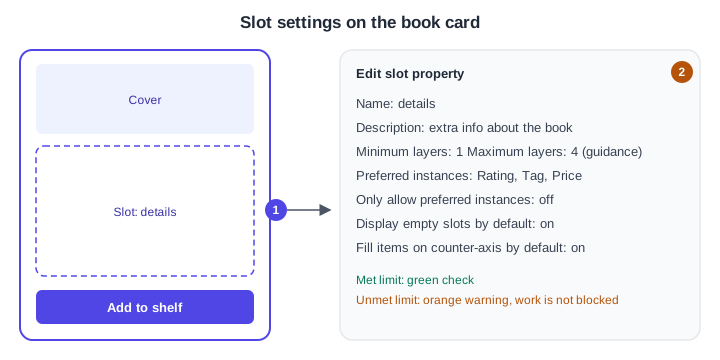
Hover over the slot property and choose Edit property (also reachable from Edit slot property in the Properties section of the right sidebar).
-
Name and description of the property.
-
Minimum and maximum layers. These are guidance: exceeding a limit turns the label orange and shows a warning, a met limit shows a green check, and nothing is blocked.
-
Preferred instances, a curated list chosen with Select preferred instances. They do not restrict what can be inserted, but the Add instances filter defaults to Preferred when any are set.
-
Only allow preferred instances, which tells designers to use only that list.
-
Display empty slots by default. Otherwise an empty slot shows a pink box only on hover.
-
Fill items on counter-axis by default, which applies Fill container to added items on the axis opposite the slot’s flow direction.
Procedure: the Bookshelf card with a details slot
-
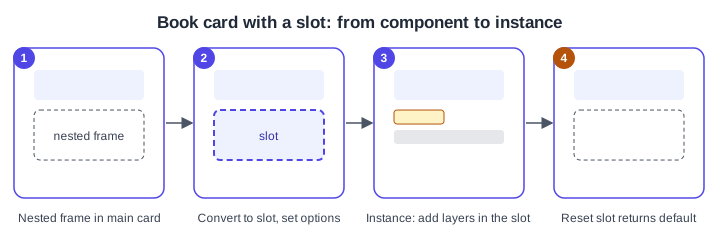
Open the BookCard main component and add a vertical auto layout frame between the cover and the button.
-
Select it, press Cmd Shift S (Ctrl Shift S on Windows) and name the property "details".
-
In Edit property, set a maximum of four layers and choose the Rating and Tag components as preferred instances.
-
Publish or use the component, then drag an instance onto a screen. Select the slot and use Add instances, or drag layers in from the canvas or the Assets panel.
-
On the instance you may change the slot’s fill, stroke, opacity, effects, layer name and export settings. Position, auto layout flow and constraints stay locked to the main component.
-
To undo your changes, select the slot layer, open More actions and choose Reset slot. To empty it, choose Delete contents.
Removing a slot and limitations
Deleting the slot property keeps the frame and its contents in the main component but resets modified slot areas in instances, which removes layers added there. To keep the property and drop only the frame, use Cmd Shift G (Ctrl Shift G on Windows). Known limitations listed by Figma:
-
Component properties cannot be applied to layers inside a slot; bind variables instead, or keep property bindings outside the slot boundary.
-
Moving a layer that has a component property into a slot in another main component removes that property.
-
A slot property cannot be bound to the top-level layer of a component.
-
Layer count limits guide designers but do not enforce anything.
-
Code Connect can map slot content to code; the article says MCP support is coming soon, so check its current state.
Choosing between slots, instance swaps and variants
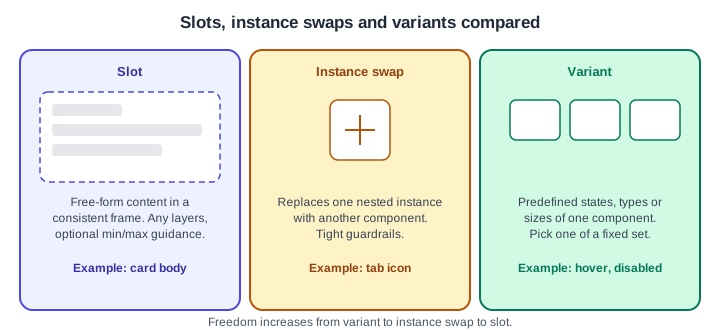
Use an instance swap property when a component needs tight guardrails, such as an icon that can be replaced but stays in place. Use a slot when designers need free-form content inside a consistent base, such as a modal with the same padding, radius and shadow but different content. Use variants for states, types and sizes of one component. Figma recommends migrating older variant-based imitations of slots to the native feature.
Migrating a library to slots
-
Audit the library: search for "Slot", and look for main components named Slot reused in other components, placeholder frames and instance swap placeholders.
-
Shared placeholder component: in each parent component detach (or delete) the nested placeholder, make sure a frame with the same layout and size exists, convert it to a slot, set name, description and optional preferred values, then test insertion, layout, constraints and resizing. Finally move the old placeholder away and hide it from publishing.
-
Variant-based placeholder: remove the nested builder instance and insert a frame, convert it, then deprecate the builder component set. This is effectively a rebuild: variant logic and existing slot swap bindings are lost, so instances do not update automatically.
-
Publish the library update, which needs a paid plan.
Where older guides are outdated
The books and tutorials consulted for this section predate slots and do not mention them, so they teach placeholder components, instance swap properties or variants for flexible areas. Their click paths also follow the interface retired on 2025-04-30. Source: Figma release notes