Figma Specs
|
This content was generated with the assistance of AI and should be verified against the official Figma documentation before being relied on in production. This sub-section’s Figma bibliography lists the reference material consulted while preparing these pages. |
This page was checked on 2026-10-30 against the UI3 interface. Specs is a product of the Figma family that is labelled as an open beta, and Figma says it is rolling out gradually, so your account may see it later than your team. The Specs guide lists the Education, Starter, Professional, Organization and Enterprise plans and requires edit access to the file. It does not state a seat requirement beyond edit access, so check the Guide to Specs in Figma for the current rules. Beta features can change, so treat the names and locations below as a snapshot. Public launch coverage places the Specs launch at Config India 2026 on 2026-10-15.
Figma describes a Spec as a multiplayer Markdown editor for documenting and sharing intent with your team and with agents. The running example is the Bookshelf app: a short brief for the book card that explains why it exists, what it must do and which frames show it. For the products around Specs see Introduction and Product Family, and for the plan side see Plans, Seats and AI Credits.
What a Spec is and where it lives
A Spec is a document made of blocks, kept in Figma next to the work it describes. It can exist in three places.
-
A standalone Spec file, created from the file browser.
-
A Spec inserted on the canvas of a Figma Design file.
-
A Spec inserted on a FigJam board.
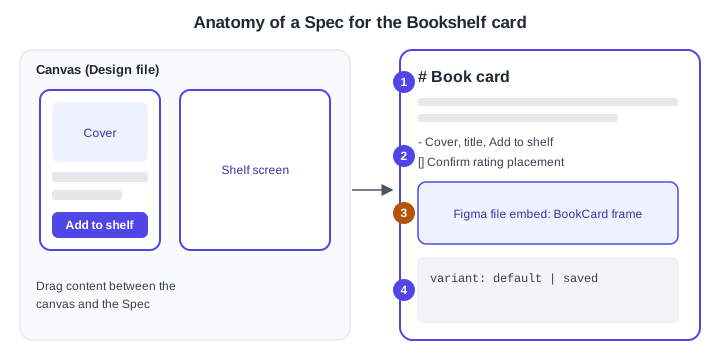
The point is that written intent, the designs and the code context stay in one place and can move between them. In Design files and FigJam you can drag content between the Spec and the canvas or board.
-
A Heading 1 block with the brief’s title.
-
A bullet list of requirements and a to-do for an open question.
-
A Figma file embed block that shows the card frame from the canvas.
-
A code block with the intended component properties.
Creating a Spec
-
Standalone file: in the file browser click Spec at the top, or open figma.com/spec/new in a browser.
-
Inside a Design file or a FigJam board: click Spec in the toolbar, or press D.
-
In FigJam only: select objects on the board and click Summarize AI to turn them into a Spec, for example to summarise a design critique.
-
With the agent: prompt the Figma agent to create a Spec, such as a brief from frames, a critique agenda from selected frames, or design system documentation.
Once the feature reaches your account you see a Spec option in the file browser and a Spec icon in the Design and FigJam toolbars.
Blocks and Markdown shorthand
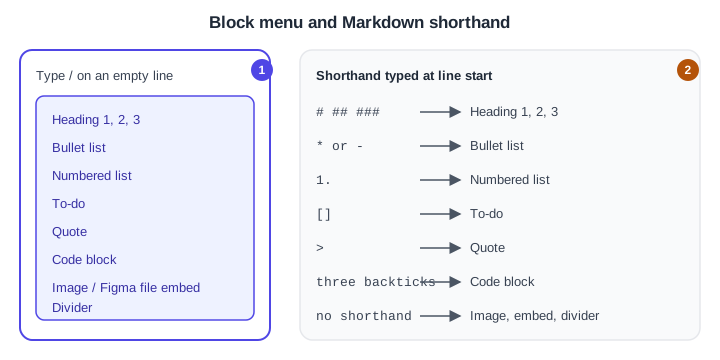
Type / inside a Spec to open the block menu. Some blocks also accept Markdown shorthand typed at the start of a line.
| Block | Markdown shorthand |
|---|---|
Heading 1, 2 and 3 |
|
Bullet list |
|
Numbered list |
|
To-do |
|
Quote |
|
Code block |
three backticks |
Image, Figma file embed, divider |
none, use the block menu |
To change the type of an existing block, click the block’s handle, choose Turn into and pick the new type. In a Design file or FigJam board the top-right corner of the Spec offers View as scrollable page and Open full-screen editor.
-
The block menu, opened by typing / on an empty line, lists every block type.
-
Markdown shorthand typed at the start of a line creates the same blocks; images, embeds and dividers have no shorthand.
Embedding frames, boards and files
The block menu contains a Figma file embed block, which is how a Spec points at design content. The guide does not give step-by-step instructions for choosing which frame or board an embed shows, nor the permission rules for viewers of the embedded file, so expect the exact prompts to differ and check the guide. Figma’s Specs product page also says you can pull diagrams, tables and designs from Figma into a Spec. Because a Spec inserted into a Design file already sits beside the frames, dragging a frame into it from the canvas is the shortest path.
Source: Figma Learn: Guide to Specs in Figma and Figma: Specs
Collaborating
Share the Spec like other Figma files, leave comments on it, and spotlight yourself during a presentation. Sharing permission levels are not described in the Specs guide, so rely on the general rules in Files, Folders, Teams and Sharing.
Specs with the agent and MCP
Specs are designed to be read and written by agents as well as by people.
-
The Figma agent can create Specs from frames, and can generate technical specification documents from designs. See The Figma Agent and Skills.
-
Coding agents connected to the Figma MCP server can use the figma-spec skill to read, create and update standalone and embedded Specs. Figma states that edits are targeted and that comments stay attached to the right text. See The Figma MCP Server.
-
Specs can bring in context from connected tools, such as a GitHub connector, and push context out, such as updating Linear issues or a GitHub repository from a Spec.
-
The guide describes a round trip: turn a requirements document into designs and code, or designs and code into a technical spec.
Using the agent with Specs consumes AI credits, and the amount varies with the task and the attached context; hovering over the receipt after each prompt shows its cost. Writing and editing directly in a Spec does not use the agent and costs no credits. The agent has been generally available since 2026-10-06, so an older Figma article that says it uses no credits during its beta is out of date; check the current credit rules on Plans, Seats and AI Credits.
-
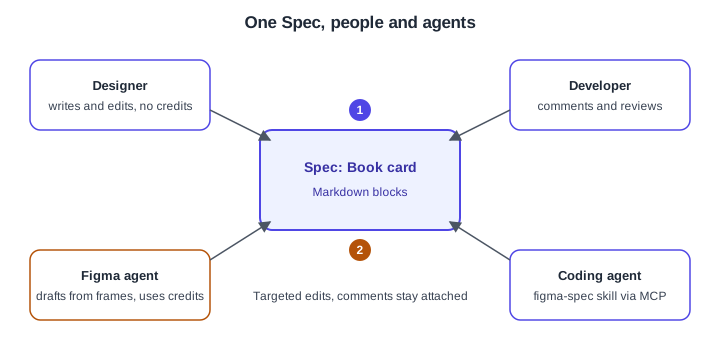
People write, edit and comment in the Spec directly, which costs no AI credits.
-
Agents read and update the same Spec: the Figma agent uses AI credits, and a coding agent works through the figma-spec skill of the MCP server, with targeted edits that keep comments attached.
Procedure: write the Bookshelf card brief
-
Open the Bookshelf file in Figma Design and press D, or click Spec in the toolbar, to insert a Spec next to the book card frames.
-
Type # and a title, such as "Book card", then press Enter. The line becomes a Heading 1 block.
-
Type / and add a short paragraph, a bullet list of requirements (cover, title, Add to shelf button) and a to-do list of open questions, using
*and[]as shorthand. -
Type / and choose Figma file embed to reference the card design, or drag the frame from the canvas into the Spec.
-
Add a code block with three backticks for the intended component properties.
-
Select a block, click its handle and choose Turn into if a bullet should become a to-do.
-
Share the file, leave a comment for the developer, and optionally ask the agent to turn the brief into a technical spec.
Pitfalls
-
The feature is in open beta and rolling out gradually; a missing Spec button usually means it has not reached the account yet.
-
Edit access to the file is needed to add or change a Spec.
-
A Spec is documentation, not a handoff replacement: inspection of measurements and code stays in Dev Mode.
-
Older books and guides predate Specs, as they predate the agent and the MCP server, so they describe annotations and external documents instead.