Code Connect
|
This content was generated with the assistance of AI and should be verified against the official Figma documentation before being relied on in production. This sub-section’s Figma bibliography lists the reference material consulted while preparing these pages. |
This page was written on 2026-10-30 against the UI3 interface of Figma Design and Dev Mode. Code Connect is available on the Professional, Organization, Government and Enterprise plans and needs a Full or Dev seat. On a Professional plan the team can have one active library and one active framework; Organization and Enterprise plans can have several active frameworks. The Code Connect UI is generally available, and the CLI with template files is the actively maintained way to author connections. Parser-based files (framework-specific APIs) are legacy and no longer receive updates.
Code Connect links components in a code repository to components in a Figma library. Connected components show real production code in Dev Mode (see Dev Mode), and the Figma MCP server uses the same links to give AI agents references to your code (see The Figma MCP Server). The running example is the Bookshelf Button, whose Figma component is the one designed on Variants and Component Properties and published as described on Libraries and Publishing.
What Code Connect solves
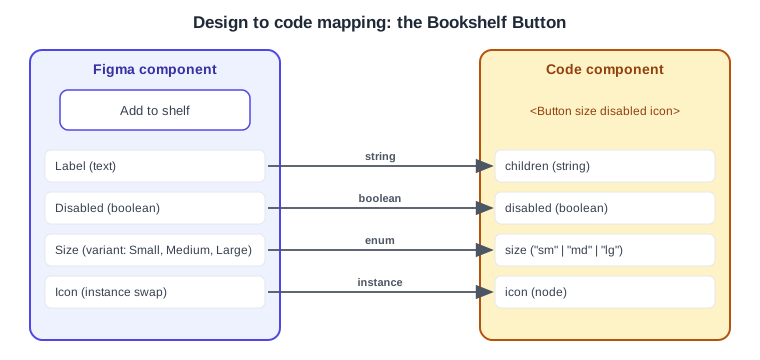
Without it, Dev Mode generates generic snippets from layer styles (CSS, for example). With it, a developer who selects the Bookshelf button sees the snippet your team actually writes, with the design’s property values filled in. The key idea is a mapping between two vocabularies: Figma component properties (text, boolean, variant, instance swap) and the props or parameters of your code component.
-
A text property is read as a string.
-
A boolean property is read as a boolean.
-
A variant property is mapped value by value to the code’s enum values.
-
An instance-swap property becomes a nested component, such as an icon.
Plans, seats and requirements
| Item | Requirement |
|---|---|
Plan |
Professional, Organization, Government or Enterprise |
Seat |
Full or Dev |
Library |
A Figma file that contains the design system components, with published components |
Professional limits |
One active library and one active framework, set when the team first publishes; an admin can change them under Admin, Settings, Resources, Code Connect. Connections for inactive libraries or frameworks are kept but marked as deactivated and are not returned by the MCP server |
Token (CLI) |
A personal access token with the Code Connect scope set to Write and the File content scope set to Read |
GitHub (UI) |
You must own the file or be an organization admin; GitHub Enterprise Server is not supported |
Older guides describe Inspect without Code Connect or tie it to the old "Paid Team plan" wording; the seat model has been Full, Dev, Collab and View since 2025-03-11 and Dev Mode has needed a Dev or Full seat since 2024-01-31. Plans and seats are summarised on Plans, Seats and AI Credits.
Source: Figma Learn: Code Connect
Code Connect UI versus CLI
| Code Connect UI | Code Connect CLI | |
|---|---|---|
Where it runs |
Inside Figma, in Dev Mode |
Terminal, in a local repository |
Setup |
Quick; works with any language |
Install the package, add a configuration file and write template files |
Mapping |
A file path and optionally a component name per framework; one design component can link to several implementations |
Template files map Figma properties to your component API |
Snippets in Inspect |
Not shown |
Shown, with property values filled in |
Editing |
In Figma |
CLI connections appear in the UI but can only be edited in the CLI |
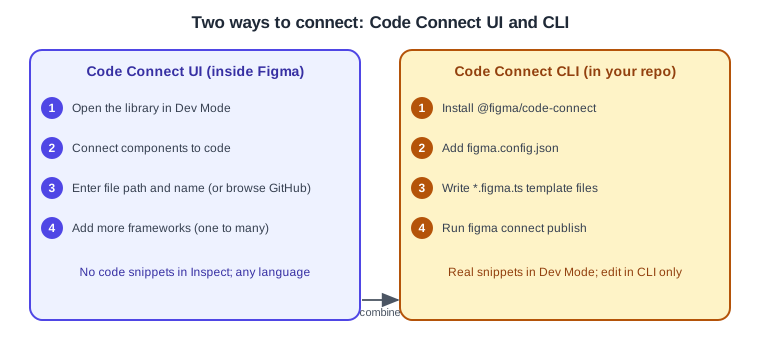
You can use both. Choose the UI to get references (and MCP guidance) in place quickly, and the CLI when developers want real snippets that react to the selected variant.
Connect components with the UI
-
Open the Bookshelf Design System library file and switch to Dev Mode.
-
Use the dropdown next to the file name, choose Library, then choose "Connect components to code".
-
Review the list of published components.
-
Optionally click the settings icon to link a GitHub repository for path autocomplete; otherwise type paths by hand.
-
For the Button, enter the file path (for example
src/components/Button.tsx) and, optionally, the component name. -
To add another implementation, hover the connected row and use the add button, then enter the path and name for SwiftUI or Jetpack Compose.
-
Optionally select a connected component and choose "Add instructions for MCP" to describe props, accessibility needs or team conventions.
-
Select the component, change its properties and review the preview. The preview can differ slightly from what the MCP server produces.
To connect the components used in one frame, open the Inspect panel in Dev Mode and choose "Connect components".
Set up the CLI
Install the package (the quickstart states Node.js 18 or newer) and keep the token in the environment, never in a file that is committed.
npm install --global @figma/code-connect@latest

# read by the CLI when --token is omitted
export FIGMA_ACCESS_TOKEN="<your-token-from-a-secret-store>"
Add figma.config.json at the project root. label and language describe the code that appears in Dev Mode; use Swift and swift for a SwiftUI project.
{
  "codeConnect": {
    "include": ["**/*.figma.ts"],
    "label": "React",
    "language": "jsx"
  }
}
For autocomplete and type checking in template files, add the package’s type definitions to tsconfig.json:
{
  "compilerOptions": {
    "types": ["@figma/code-connect/figma-types"]
  }
}Template files
A template file is a .figma.ts file, normally next to the component, that describes how a selected Figma instance becomes code. Templates are framework-agnostic: the same API produces JSX, Swift or Kotlin text, because the output is just a code snippet. The file starts with header comments: // url= (required, copied with "Copy link to selection" on the component in Figma), and optionally // source= and // component=, which Figma displays.
The figma module offers figma.selectedInstance and these instance methods.
| Method | Purpose |
|---|---|
|
Read a text property |
|
Read a boolean property |
|
Map a variant value to a code value |
|
Find a nested instance by layer name |
|
Find a nested instance through an instance-swap property |
|
Render a nested instance’s own snippet |
|
Reference a slot property (see Slots) |
Wrap the snippet in the figma.code tagged template. Do not build it by string concatenation, because the structure lets Dev Mode render property pills and errors. The default export holds example, imports, an id and optional metadata.
// url=https://www.figma.com/file/<file-key>/Bookshelf-Design-System?node-id=<node-id>
// source=src/components/Button.tsx
// component=Button
import figma from 'figma'

const instance = figma.selectedInstance
const label = instance.getString('Label')
const disabled = instance.getBoolean('Disabled')
const size = instance.getEnum('Size', {
  Small: 'sm',
  Medium: 'md',
  Large: 'lg',
})

export default {
  example: figma.code`
    <Button size="${size}" disabled={${disabled}}>
      ${label}
    </Button>
  `,
  imports: ['import { Button } from "components/Button"'],
  id: 'bookshelf-button',
}SwiftUI and Jetpack Compose
With templates, only the text inside figma.code changes: write the SwiftUI call or the Composable instead of JSX, and set label to Swift and language to swift (or the Kotlin equivalents) in the configuration. For slots, the documentation notes the equivalents are a @ViewBuilder parameter in SwiftUI and a content lambda in Compose. The official template page gives no complete SwiftUI or Compose template, so check the Template API before relying on a form not shown here.
The legacy parser-based guides, which Figma no longer updates, use native syntax. They are useful when you maintain existing files. The first listing is the SwiftUI form (a struct that conforms to FigmaConnect) and the second the Compose form (an annotated class).
struct Button_connection: FigmaConnect {
  let component = Button.self
  let figmaNodeUrl: String = "https://www.figma.com/..."

  @FigmaString("Label")
  var label: String = "Add to shelf"

  @FigmaBoolean("Disabled")
  var disabled: Bool = false

  var body: some View {
    Button(label: label, disabled: disabled)
  }
}@FigmaConnect(url = "https://www.figma.com/...")
class ButtonDoc {
@FigmaProperty(FigmaType.Text, "Label")
val label = "Add to shelf"
@FigmaProperty(FigmaType.Boolean, "Disabled")
val disabled = false
@Composable
fun Component() {
ButtonComponent(label = label, disabled = disabled)
}
}Both listings are shortened from the legacy guides and use the Bookshelf names; the guides also list @FigmaEnum, @FigmaInstance and @FigmaChildren (SwiftUI) and Figma.mapping, FigmaType.Enum, FigmaType.Instance and @FigmaChildren (Compose). The Swift package and the Gradle plugin are separate from the npm CLI. For the platform side see SwiftUI Views and Modifiers and Compose Fundamentals.
Legacy React files and migration
Before templates, React connections were written with figma.connect and prop helpers: figma.string, figma.boolean, figma.enum, figma.instance, figma.children, figma.nestedProps and figma.className, plus a variant restriction to map a specific code component to one Figma variant. These files are not executed; a ternary in the example appears verbatim in the generated snippet. If you inherit such files, the CLI can convert them (npx figma connect migrate), and a preview command renders snippets locally without publishing. For React itself see Components and Props.
Publish
Run publishing from the repository root. The token is read from the environment, or passed with --token.
# check what would be published without publishing
npx figma connect publish --dry-run

npx figma connect publish
Open Dev Mode on the connected component and check the Inspect panel for the snippet. To remove connections, run npx figma connect unpublish; with --node you must also pass --label. Other commands are parse (prints parsed files as JSON), create (generates a template from a component URL), migrate and preview. In continuous integration use --exit-on-unreadable-files, and see the CI/CD guide. If a connection was created in the UI, publish --force overwrites the conflicting mapping.
-
Write
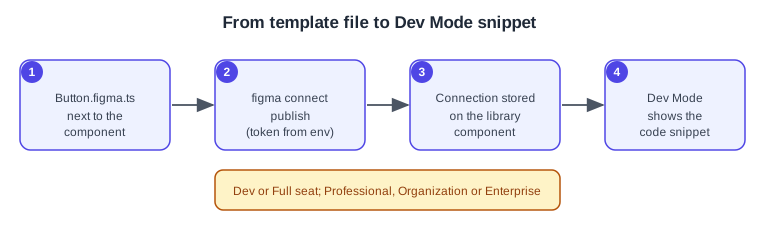
Button.figma.tsnext to the component. -
Publish with the CLI, with the token in the environment.
-
Figma stores the connection on the library component.
-
Developers see the snippet in Dev Mode.
Pitfalls
-
Template files are executed, so conditionals on property values work in them; the legacy
figma.connectfiles are not executed, and a ternary in one appears verbatim in the snippet. -
Mismatched property names (case and spaces) between Figma and the template produce empty values; copy them from the component’s properties panel.
-
A Professional team that publishes in one framework first is locked to it until an admin changes it.
-
UI-created connections show no snippets in Inspect; use the CLI for that.
-
Never commit a token; read it from the environment or the CI secret store.
Source: Figma Learn: Code Connect