Exporting Assets
|
This content was generated with the assistance of AI and should be verified against the official Figma documentation before being relied on in production. This sub-section’s Figma bibliography lists the reference material consulted while preparing these pages. |
This page was written on 2026-10-30 against the UI3 interface of Figma Design. Exporting is available on all plans, but it depends on access to the file: a person with edit access can create slices and export settings, and a person with view access can export only when the file owner has allowed copying and sharing. Dev Mode shows the same Export section, and Dev Mode itself needs a Full or Dev seat on a paid plan. Everything described here is generally available; none of it is in beta.
The running example is the Bookshelf mobile app. The goal is to hand a developer the shelf icon as @2x and @3x PNG files for iOS and Android bitmaps and as one SVG, with predictable file names, and to export a whole screen for a presentation. Layers and frames are described on Frames, Groups and Sections, and vector artwork on Shapes, Vectors and the Pen Tool.
Where exporting lives in UI3
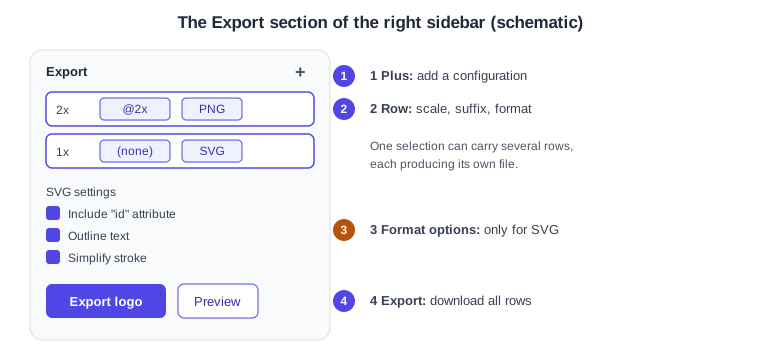
The Export section is at the bottom of the right sidebar of the Design tab when you can edit the file, under the Properties tab when you can only view it, and in the right sidebar of Dev Mode when an object is selected. You can export layers, frames, components, groups, sections, a slice, the whole canvas of a page (deselect everything first) or the whole file as a local .fig copy.
-
The plus icon adds an export configuration (a row) to the selection.
-
Each row sets a scale, an optional suffix and a format.
-
Format-specific options appear for the selected format, for example the SVG options.
-
The Export button downloads one file for every row; Preview shows the result, but it is not offered when several objects are selected.
Formats
| Format | Nature | Typical use |
|---|---|---|
PNG |
Lossless raster with an alpha channel (32-bit RGBA); PNG always includes the alpha channel |
Logos, charts, illustrations mixing images and text, bitmap icons |
JPG |
Lossy raster, smaller files, no transparency |
Photos, web images |
SVG |
Vector; scales without loss and supports transparency |
Icons, logos and illustrations in responsive designs |
Fixed layout (PDF 1.7) that keeps text, fonts, vectors and images |
Slide decks, iOS assets in Xcode, print mock-ups |
Format availability can differ per product; this page covers static exports from Figma Design. Animated layers are exported with Figma Motion, which has its own article.
Scales and suffixes
The scale field accepts a preset or a custom value. A number followed by x is a multiplier (2x), w fixes the width in pixels (512w) and h fixes the height (512h). Exports are 72 dpi at 1x, so 2x is 144 dpi and 3x is 216 dpi. SVG and PDF exports are limited to 1x because they are resolution independent; to resize an SVG, change its width and height in code.
The suffix is text appended to the file name, so you do not have to rename layers: a frame called HomePage exported with the suffix draft becomes HomePagedraft.png. Add the separator yourself, for example @2x, -dark or _draft.
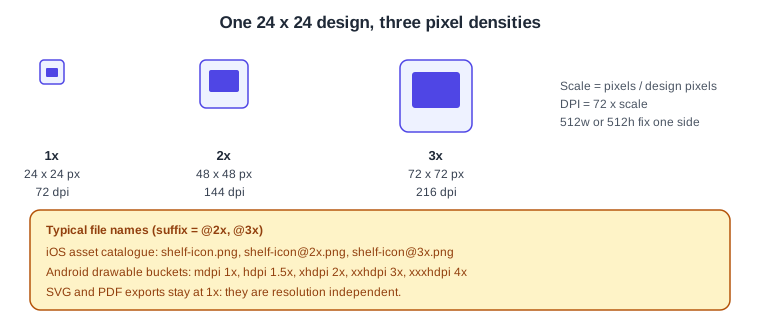
The mapping to platforms below is a convention of those platforms, not a Figma feature: iOS asset catalogues expect 1x, 2x and 3x images, and Android groups bitmaps by density bucket (mdpi 1x, hdpi 1.5x, xhdpi 2x, xxhdpi 3x, xxxhdpi 4x). Prefer vector formats (SVG, or PDF for iOS) for icons whenever the platform accepts them.
Format options
| Setting | PNG | JPG | SVG | |
|---|---|---|---|---|
Ignore overlapping layers |
yes |
yes |
yes |
no |
Include bounding box (text layers) |
yes |
yes |
yes |
no |
Include "id" attribute |
no |
no |
yes |
no |
Outline text |
no |
no |
yes |
no |
Simplify stroke |
no |
no |
yes |
no |
-
Color profile defaults to the file’s profile; you can pick sRGB or Display P3.
-
Ignore overlapping layers is on by default: only the selected layers are exported. Turn it off to include layers that intersect the selection.
-
Include "id" attribute adds an
idbased on the layer name to the SVG, so a script or stylesheet can target it. -
Outline text converts SVG text to glyphs (the default for text layers); turn it off to keep text editable, at the cost of depending on installed fonts.
-
Simplify stroke is on by default for vector networks with inside or outside strokes. SVG supports only centre strokes, so this keeps other renderers faithful; turning it off adds a mask and extra lines to the code.
-
JPG quality defaults to High and PDF to Medium. Image resampling (JPG, PNG, PDF) is Detailed (bicubic, for photos and gradients) or Basic (nearest neighbour, for icons, logos and pixel art), under the advanced export settings.
-
Known limits: SVG strokes are exported as fills, background blurs must be applied directly to the layer, and the Plus darker and Plus lighter blend modes are not supported in PDF.
Slices
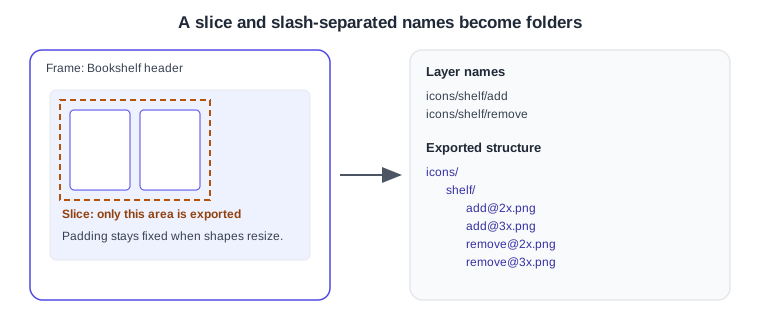
A slice is a rectangle, drawn with the Slice tool from the Region tools dropdown in the toolbar, that defines which part of the canvas is exported. Only content inside its bounds is exported, and its size does not change when the shapes beneath it resize, so it is the way to keep fixed padding around an icon or to export a crop of a screen. Creating a slice needs edit access. A slice inside a frame or group with Ignore overlapping layers on exports only content from that same container.
Export presets and reuse
The articles consulted for this page describe adding several rows to one selection but do not describe a separate "export presets" feature, so none is claimed here. In practice, reuse comes from setting the rows once on a main component or on a slice, and from naming layers consistently; confirm in the editor whether the rows travel with copies before relying on it.
Naming for multi-platform delivery
A slash in a layer name creates nested folders on export: button/pill/default becomes the folders button and pill and a file named default. Combine this with suffixes to get one deliverable layout.
| Layer name | Row (scale, suffix, format) | Files |
|---|---|---|
|
2x, |
|
|
1x, none, SVG |
|
|
1x, |
|
Use lowercase, no spaces and a stable pattern; it keeps asset catalogues, drawable folders and code references predictable. The browser saves downloads to its download location; the desktop app asks for a file name and place.
Bulk export
Several selections that each carry export settings can be exported together: choose File, then Export from the main menu, or press Shift Cmd E on macOS or Shift Ctrl E on Windows. The dialog lists every selection on the current page that has export settings, with its scale, format and dimensions; clear the ones you do not want and click Export. To hide a frame’s fill in exports, clear Show in exports in its Fill section.
Exporting from Dev Mode
In Dev Mode the Export section appears in the right sidebar when an object is selected. Dev Mode can also detect icons and list them as downloadable assets above the export settings: hover an item, choose a file type and click the download icon. For an image, the Assets section offers the original image file or a layer export at its current size, and the image export settings icon lets you choose PNG, JPEG, SVG or PDF. The Code section generates CSS, iOS and Android snippets; it is hidden when copying and sharing are disabled for the file.
Source: Figma Learn: Guide to inspecting
SVG optimisation
Figma’s SVG already outlines text and converts strokes as described above. Beyond that, a common workflow is to run the exported file through a third-party optimiser such as SVGO; that is an ecosystem tool, not a Figma feature, and was not verified for this page. Keep layer names clean before export because they become id values when that option is on, and check the optimised icon visually, since aggressive settings can remove attributes that a stylesheet needs.
Procedure: export the Bookshelf icon for iOS and Android
-
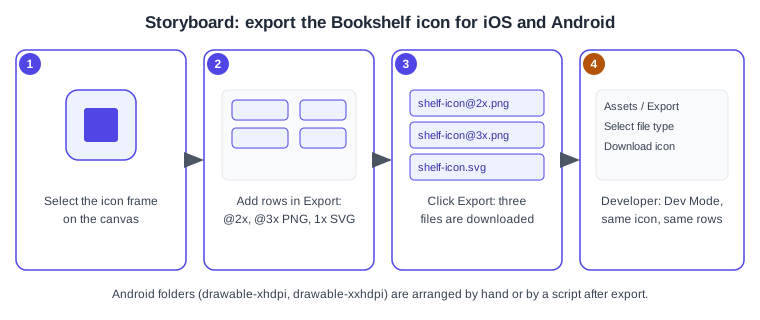
Open the Bookshelf design file and select the frame named
icons/shelf/add. -
In the Export section of the right sidebar click the plus icon and set the scale to 2x, the suffix to
@2xand the format to PNG. -
Click the plus icon again and add 3x,
@3x, PNG. -
Add a third row with scale 1x, no suffix and format SVG. Leave Outline text and Simplify stroke on, and turn on Include "id" attribute only if a script will target the icon.
-
Click Preview to check the result, then click Export. Three files download, in the folders implied by the layer name.
-
Share the file with the developer. In Dev Mode, select the same frame; the same Export section is available, so the developer can download without asking you.
-
For Android, copy the files into the density folders in the project; this step is done outside Figma.
Source: Figma Learn: Guide to inspecting
Pitfalls
-
A Dev Mode user on the Starter plan cannot open Dev Mode without a paid seat; the Export section is still available in Design mode.
-
Exporting SVG at 2x does nothing: SVG and PDF are fixed at 1x.
-
Text that is outlined cannot be edited later; keep the source in Figma.
-
If the Export section is missing, refresh the page; if it is still missing the owner may have restricted copying or exporting.
-
A frame exported with a transparent fill needs a background; clear or keep Show in exports deliberately.
What older guides say
Older tutorials describe the Inspect tab as the place where developers copy values and download assets, and show the pre-UI3 right panel. UI3 has been the only interface since 2025-04-30 and Inspect was replaced by Dev Mode, a paid Dev or Full seat feature since 2024-01-31. Export itself, with rows, slices and the format list above, remains the same idea.