Text and Typography
|
This content was generated with the assistance of AI and should be verified against the official Figma documentation before being relied on in production. This sub-section’s Figma bibliography lists the reference material consulted while preparing these pages. |
This page was written on 2026-10-30 against the UI3 interface of Figma Design, the only interface since the old one was retired on 2025-04-30. Text features are available on every plan: according to the help articles, creating and editing text needs edit access to the file, which means a Full seat on a file that allows editing, while Collab and View seats can read and comment but not restyle text. Uploading fonts to share across an organization is limited to certain plans (see below). Everything described here is generally available; none of it was labelled beta in the articles consulted.
The running example is the Bookshelf mobile app. The goal is to give the catalogue screen a readable type system: a title style for book cards, a body style for descriptions and a numeric style for prices and page counts. Frames that hold the text are described in Frames, Groups and Sections, and the colour of text is a fill, covered in Color, Fills and Images.
Where text lives in UI3
Text is created with the text tool in the bottom toolbar or by pressing T. Once a text layer is selected, the right sidebar shows a Typography section in the Design tab with the font, weight and size, the alignment and the line height and letter spacing fields. A Type settings control (a chevron next to the section) opens a panel with a Basics tab, a Details tab and, only when the font is a variable font, a Variable tab. The resizing behaviour of the text box is part of the Layout section of the same sidebar.
Text layers
Selecting the text tool and clicking the canvas creates a text layer with auto width that grows as you type. Clicking and dragging creates a text layer with a fixed size, in which longer text wraps onto new lines. Double-clicking a text layer, or pressing Enter with it selected, edits its content, and the multi-edit feature changes the text of several layers at once. Properties can be applied to the whole layer or to a selected range of characters, which is how a single word in a sentence receives a different weight.
Resizing modes
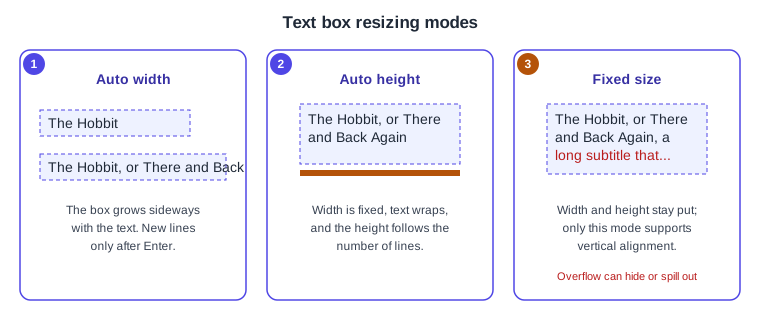
The Layout section offers three resizing modes for a text box.
-
Auto width: the box grows with the text and a new line starts only when Enter or Return is pressed. It suits short labels such as a button caption.
-
Auto height: the width is fixed and the height follows the number of lines. It suits titles and descriptions inside a card.
-
Fixed size: width and height stay as set. It is the only mode that supports vertical alignment, and text that is too long can overflow the box.
Dragging a handle of a text box normally switches it from auto width to a fixed or auto-height mode. When text sits in an auto layout frame, the resizing of the text interacts with the resizing of its parent, which is described with auto layout in the Layout and Auto Layout pages of the official help.
Fonts and font weights
The font picker opens by clicking the font name at the top of the text section. Hovering over a font previews it on the selection, and the font can be applied to a whole layer, to several layers or to part of a text layer. The picker has filters: All fonts, In this file, Popular, Used at your organization, Installed by you, Google fonts and Variable fonts. Figma remembers the last filter used during a session. Besides Google Fonts, designs can use fonts installed on the computer, which must be TrueType (.ttf) or OpenType (.otf) files, and, on some plans, fonts uploaded for the organization. In a browser, locally installed fonts need the Figma font helper, while the desktop app reads them directly (see Desktop, Mobile and VS Code).
When a required font is not available, a missing font alert appears. Collaborators should use the same version of a font, because different versions of one family can make text reflow or become impossible to edit. Uploading fonts to share across teams is available, according to the guide, on the Education (K-12), Organization, Government and Enterprise plans.
The weight of a font (Light, Regular, Semibold, Bold and so on) is chosen in the style menu next to the font name or with shortcuts.
| Action | macOS | Windows |
|---|---|---|
Create a text layer |
T |
T |
Edit the selected text layer |
Enter |
Enter |
Heavier or lighter font weight |
Option Cmd > or < |
Ctrl Alt > or < |
Larger or smaller font size |
Shift Cmd > or < |
Ctrl Shift > or < |
Larger or smaller letter spacing |
Option > or < |
Alt > or < |
Larger or smaller line height |
Shift Option > or < |
Alt Shift > or < |
Underline |
Option U |
Ctrl U |
Line height, letter spacing and paragraph spacing
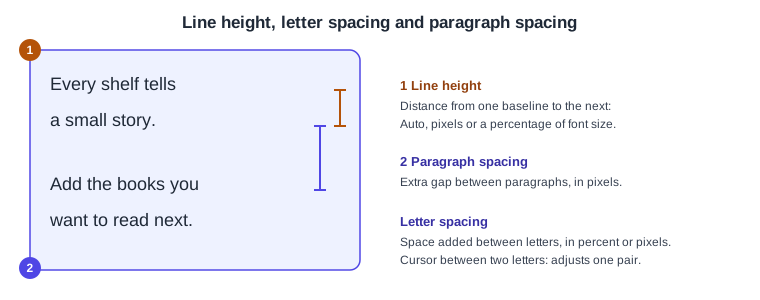
Line height can be Auto, which uses the font’s default, a fixed pixel value or a percentage of the font size, and Figma converts between them, rounding to the nearest pixel. Letter spacing applies to a layer or to selected text, and placing the cursor between two letters adjusts that single pair, which imitates kerning. Paragraph spacing is the extra gap, in pixels, between paragraphs and can also be set by dragging over its icon. The help article states that letter spacing equals tracking divided by 1000, which helps when a design brief gives tracking values from print.
Further options in the same panel are paragraph indent (it offsets the first line and works only with left alignment), hanging quotes and hanging lists (they move opening quotes or list markers outside the text box), text case (uppercase, lowercase, capitalize and small caps, applied without changing the typed characters), decoration (underline with solid, dotted or wavy style, thickness and offset, and strikethrough) and vertical trim, which removes extra space above and below the text so that the box hugs it. Vertical trim shows as leading-trim: both; in Dev Mode.
Lists, truncation and wrap style
Text layers can be numbered or bulleted lists, and the gap between items is the list spacing, which defaults to 0 pixels and can be changed in the field or in the Type details panel. Truncate text hides the overflow and adds an ellipsis, and Max lines sets how many lines are shown before truncation. Max lines requires truncation to be on and the resizing set to auto height or auto width, and inside an auto layout frame the vertical resizing must be Hug contents.
The wrap style controls how lines break: Auto is the default, Balance evens out line lengths and works best on short text such as headings, and Pretty avoids a single word on the last line. The wrap style can be set on a layer, on a paragraph or in a text style.
OpenType features
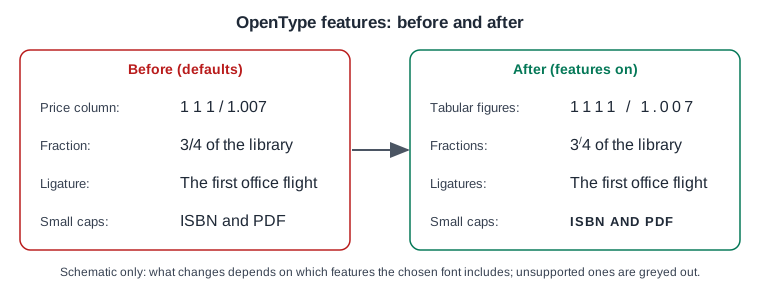
OpenType features are typographic options that a font may contain. They are opened from the Typography section by clicking the Type settings menu and choosing the Details tab. The groups are letterforms (ligatures, rare ligatures, contextual alternates and ordinals), stylistic sets, character variants, horizontal spacing (kerning) and more features such as fraction numerators and denominators. Hovering over a feature previews its effect on the selected text, and features the font does not include are greyed out. Figma supports OpenType across all fonts, but each font’s designer decides which features exist, so the same panel can show many options for one family and few for another. The feature is available on all plans and needs edit access. Text styles can store OpenType features, so a numeric style for prices can be reused.
Variable fonts
A variable font packs a range of styles into one file, where a static font holds one. Its axes are customizable properties, typically weight, width, optical size and slant, and the font’s author decides which axes exist. For a text layer that uses a variable font, the Type settings panel shows a Variable tab with sliders and input boxes, and hovering over an axis previews it. The font style drop-down lists recently used axis settings for that font so they can be reapplied. The Variable fonts filter in the font picker lists fonts with at least one axis.
If a variable version of a font exists, it can replace the static one. Figma looks first in shared organization fonts, then in locally installed fonts and then in its default web fonts. If the variable version lacks styles that the static one had, Figma keeps the static files for those styles, and a missing font dialog can appear. Replacing shared fonts is limited to the Organization and Enterprise plans. Developers can read a layer’s variable font properties in Dev Mode. The article consulted did not describe saving axis values into text styles, so test that in the file before promising it to a team.
Source: Figma Learn: Use variable fonts
Typographic scale and font pairing
A typographic scale is a short list of sizes that grow by a fixed ratio, so every text role has one agreed size, line height and weight. The Bookshelf scale uses a base of 16 pixels and a ratio of 1.25, with tighter line height for large sizes and the most open spacing for body text. The numbers are an example for this scenario, not a Figma default. Font pairing follows a similar rule of thumb: use one family with several weights, or two families with clear roles, for example one for headings and one for reading text, and avoid more than two.
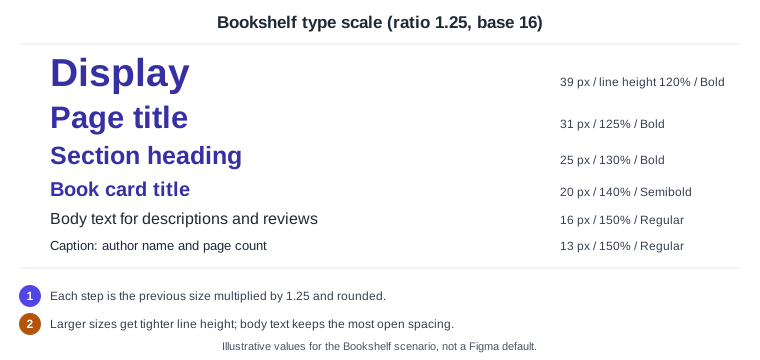
The scale is stored as text styles: a text style saves a set of type properties, including the wrap style, so it can be reused across designs. Text styles can hold OpenType features, letter spacing, line height and decoration but not colour or resizing. They are explained in detail on Styles; the variables that can carry spacing and colour for the design system are covered on Variables, Collections and Modes.
Procedure: style a book card title
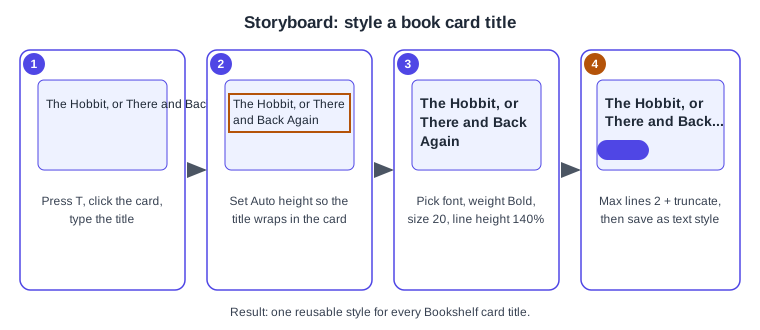
The storyboard shows the procedure on the Bookshelf catalogue screen.
-
Press T, click inside the book card frame and type "The Hobbit, or There and Back Again", then press Esc to leave editing.
-
With the layer selected, set the resizing in the Layout section to Auto height and drag the width to fit the card, so the title wraps.
-
In the Typography section pick the font from the font picker, choose a Bold or Semibold weight (Option Cmd > or Ctrl Alt > steps the weight up), set the size to 20 and the line height to 140%.
-
Open Type settings and the Details tab, choose Balance as the wrap style, turn on Truncate text and set Max lines to 2 (the frame must use Hug contents for height if it is in an auto layout).
-
Save the properties as a text style named for its role, such as Title/Card, and apply it to the other cards.
Procedure: tabular figures for prices
-
Select the price text layer on a book card.
-
Open Type settings, then the Details tab.
-
Hover over the numeric features, such as tabular figures or fractions, to preview them, and click one to apply it. If the options are greyed out, the font does not include them; choose another family.
-
Add the layer to the text style used for numbers so every price aligns.
Pitfalls and what older guides get wrong
-
Different font versions between collaborators cause reflow and uneditable text, so agree on one version, or use organization fonts where the plan allows.
-
In a browser, locally installed fonts are invisible without the font helper; the desktop app avoids this.
-
Fixed size text clips or overflows without warning; prefer auto height inside cards.
-
Max lines does nothing unless truncation is on and the sizing is compatible.
-
Older books describe the previous interface, with the properties panel on the right, a Resources button and quick actions. UI3 has been mandatory since 2025-04-30, the left navigation bar was redesigned on 2026-01-07, and the Actions menu replaced quick actions, so some menu names in older tutorials differ.