Components and Instances
|
This content was generated with the assistance of AI and should be verified against the official Figma documentation before being relied on in production. This sub-section’s Figma bibliography lists the reference material consulted while preparing these pages. |
This page was written on 2026-10-30 against the UI3 interface of Figma Design. Components are generally available on all plans, and creating or editing one needs edit access to the file, which in practice means a Full seat. Sharing components with other files through a team library and publishing changes needs a paid plan; that is covered on Libraries and Publishing. Variants, component properties and slots are newer additions described on Variants and Component Properties, so this page stays with the core idea: one definition, many linked copies.
The running example is the Bookshelf app. The "Add to shelf" button appears on every book card, on the detail screen and in the review flow. Instead of copying it, you define it once as a component and place instances of it. When the brand radius changes, one edit updates every screen. Frames, which a component is built from, are described on Frames, Groups and Sections, and the button’s inner layout on Auto Layout.
The model
-
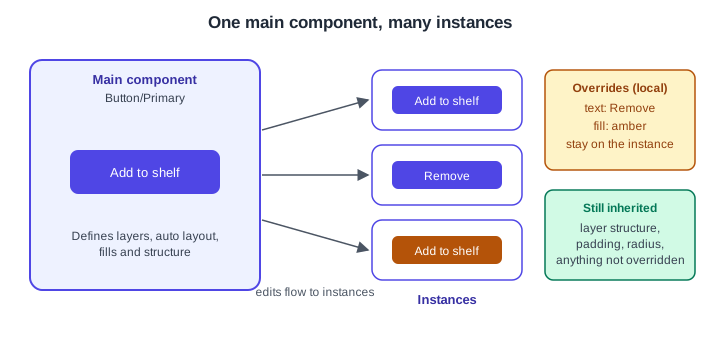
Component: a reusable element made from any layers. The component you draw and edit is the main component, marked by a purple component icon in the Layers panel.
-
Instance: a copy linked to a main component. It receives updates made to the main component.
-
Override: a local change on an instance that is kept on that instance, while everything not overridden keeps following the main.
-
Library: a file whose published components can be used from other files.
Where it lives in UI3 and the shortcuts
Select layers and use the Create component button in the right sidebar, or right-click and choose Create component. Selecting a component or an instance shows its configuration in the Design tab of the right sidebar, where you can add a description and a documentation link. The Assets panel in the left sidebar lists the components of the file and of enabled libraries.
| Action | macOS | Windows |
|---|---|---|
Create component |
Option Command K |
Ctrl Alt K |
Go to main component |
Control Option Command K |
Ctrl Alt Shift K |
Detach instance |
Option Command B |
Ctrl Alt B |
Quick insert (find a component) |
Shift I |
Shift I |
The detach shortcut is from the keyboard shortcut list of Figma at the time of writing; confirm it in the shortcut list of your app, because shortcuts can change.
Source: Figma Learn: Create a component
Creating components
Select the layers, then create the component. Figma wraps the layers in a component frame. Creating several at once is possible through the Create component options menu and Create multiple components: one component is made per frame, group, boolean operation or path, and any other selected layer becomes its own component. Deleting a main component leaves its instances in the file. To bring a deleted main component back, use Restore component in the library file, or Restore main component in the right-click menu of an instance; from another file, go to the main component in the library and choose Restore in the dialog.
Source: Figma Learn: Create a component
Naming with slashes
Use a path-like convention with slashes, for example Button/Primary or Icon/Alert. The Assets panel mirrors the file structure (file, page, frame), and Figma uses the prefix before a slash and the frame or section a component sits in to decide which components are related, which is what the Swap instance menu lists first. Agree a naming structure with your team before publishing, because renaming later is more work than naming well.
Instances and overrides
An instance can override, among other things, text properties, fills and strokes, effects, layout guides, nested instances (for example swapping an icon), export settings and layer names. It cannot override layer order, layer position (including inside auto layout), constraints or text layer bounds; for those, edit the main component or detach the instance. When the main component changes, overrides are preserved, as long as the layer names still match. Changing the variant or swapping the component keeps an override only when the layer name matches and the original property matched across both versions; text overrides are more forgiving and survive when the layer name matches and the hierarchy is similar.
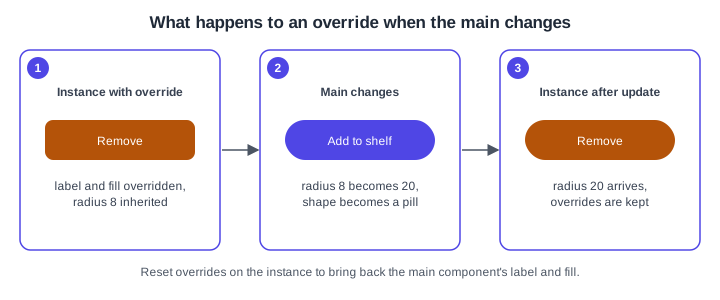
Give layers unique, stable names in the main component. Duplicated or renamed layers are the usual reason an override disappears after an edit.
Editing the main component and publishing
Edit a main component only in the file where it lives. In the same file, instances update immediately. If the component belongs to a published library, other files receive the change only after you publish it, and publishing needs a paid plan. From an instance in another file, Go to main component opens the library, and Figma can offer a Return to instance action afterwards.
Resetting, swapping, pushing and detaching
-
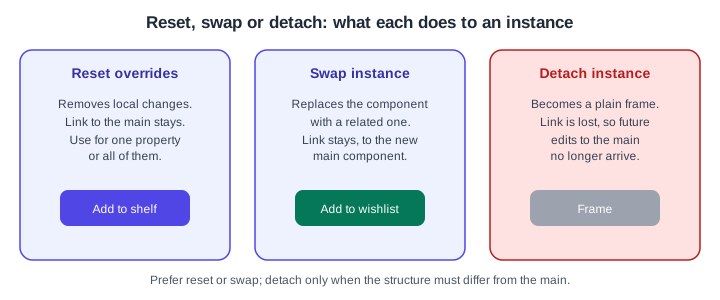
Reset: select the instance or one layer inside it, open More actions, choose Reset and then a single property or Reset all changes.
-
Swap: select the instance and click the component name in the right sidebar to choose a replacement (search by name, switch library, grid or list view). Alternatives are dragging a component from the Assets panel over the instance while holding the modifier key, Quick insert with Shift I, and the right-click Swap instance menu, which shows only related components. Through the Assets panel only text overrides carry over, while the Instance menu tries to keep all of them.
-
Push changes to the main component: select the instance itself, not a layer inside it, then choose Push changes to main component from More actions. It works only when the main component is in the same file, and not for a component nested inside another component.
-
Detach: turns the instance into a plain frame with no link, so later edits to the main component no longer reach it. Use it only when the structure must really differ.
Nested instances
A component can contain instances of other components: the book card contains the button and a rating. Each nested instance can be overridden or swapped on its own, and the nested modifier combination for dragging from the Assets panel is Option Command on macOS and Alt Ctrl on Windows. You cannot push overrides onto a component that is nested inside another one; edit that component directly instead. Prefer small, focused components (button, rating, cover) composed into larger ones (card, list).
Procedure: create the Add to shelf button component
-
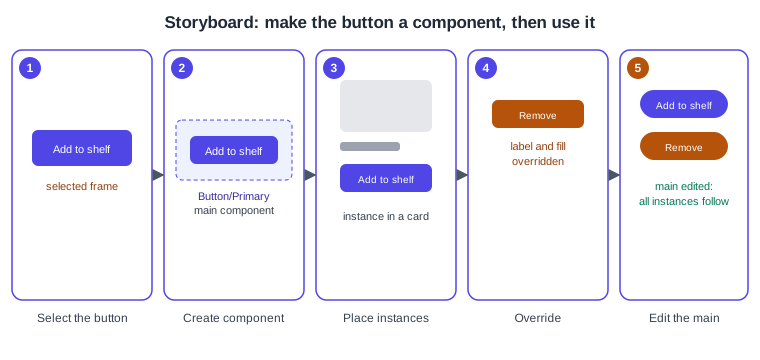
Select the "Add to shelf" button frame built with auto layout (panel 1).
-
Press Option Command K (macOS) or Ctrl Alt K (Windows), or click Create component in the right sidebar (panel 2).
-
Rename it
Button/Primaryin the Layers panel and add a short description in the Design tab. -
Open the Assets panel, drag
Button/Primaryinto a book card, then duplicate the card a few times (panel 3). -
Select one instance, change its label to "Remove" and its fill to the amber colour (panel 4). The other instances do not change.
-
Select the main component and raise the corner radius. Notice that every instance follows while the overridden label and fill stay (panel 5).
-
Select the overridden instance and use More actions, Reset, Reset all changes to return it to the main component’s look.
Source: Figma Learn: Create a component
Common mistakes
-
Detaching to make a small change that a text, fill or swap override could do, which loses all future updates.
-
Renaming layers inside the main component and then losing overrides on instances.
-
Editing an instance and expecting the main to change; use Push changes to main component, and only for same-file main components.
-
Drawing the same button several times with copy and paste instead of making a component.
-
Expecting an instance to reorder layers or change their position; those need an edit of the main component.
-
Forgetting to publish library changes, so other files keep the old version.
Where older guides are outdated
Older books and tutorials describe components with the previous interface, where the Assets panel and toolbar looked different; UI3 has been the only interface since 2025-04-30, and the left navigation changed again on 2026-01-07. They also name seats editor and viewer, replaced by Full, Dev, Collab and View seats on 2025-03-11. They predate slots, animated components and Check designs, which are covered on the variants page and the design systems page (Design Systems). Source: Figma release notes