Administration and Security
|
This content was generated with the assistance of AI and should be verified against the official Figma documentation before being relied on in production. This sub-section’s Figma bibliography lists the reference material consulted while preparing these pages. |
This page describes how an organization administers Figma, as checked against the official help centre on 2026-10-30, in the current interface (UI3). It concerns the account and security layer around every Figma product (Design, FigJam, Slides and the rest), so it has no single GA or beta status: the controls below are generally available, but most of them exist only on the Organization and Enterprise tiers, and a few only on Enterprise or on the Governance+ add-on. Each section names its tier. Plans are named by tier only and this page quotes no prices. A "Content seat" announced at a conference in 2025 does not appear on any current official page, so it is not documented here.
The running example is the Bookshelf team, which has outgrown a handful of shared files. Its design lead now needs to sign people in through the company directory, add and remove contractors safely, and decide who may share files with "anyone with the link". For the seat and plan model behind this, see Plans, Seats and AI Credits; for permissions on individual files, see Files, Folders, Teams and Sharing.
Where administration lives in UI3
Almost every control on this page sits in one place: open the file browser, choose your organization, and select Admin in
the left sidebar. The Admin area has tabs such as People, Activity and Settings, and the Settings tab groups controls
under headings such as Login and provisioning, AI and Content. The Actions menu, a command search, opens with
Cmd+K on macOS or Ctrl+K on Windows. It is a quick way to jump around the editor but is not an admin shortcut: admin
tasks are done in the Admin area of the file browser, not inside a design file.
Figma renames headings from time to time, and the help pages themselves do not always agree: some describe SAML under Login and provisioning, others under Access > Authentication. Treat the labels here as a dated snapshot and follow the heading that your own admin view shows.
Admin roles and scope
Every plan has at least one admin, but the kinds of admin depend on the tier.
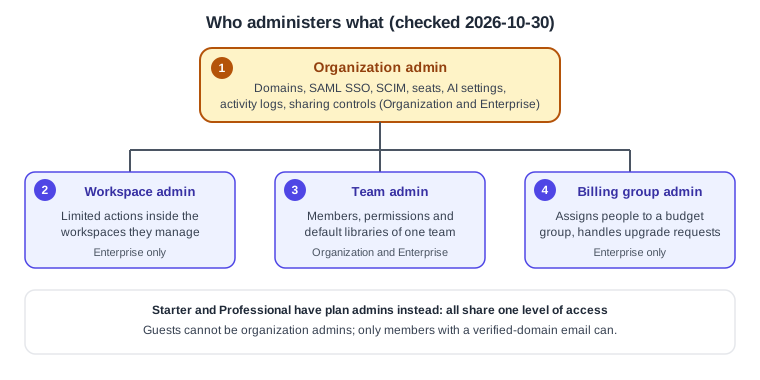
Source: Figma Learn: Admins in Figma
-
Organization admin (Organization and Enterprise tiers) is the highest level. It manages domains and the login and provisioning settings including SAML SSO and SCIM, seats for members and guests, activity logs, access to products, features and guests, organization-wide libraries, fonts, plugins and widgets, and billing. It can see all teams, visible and hidden.
-
Workspace admin (Enterprise only) ranks below the organization admin. It performs limited actions in the workspaces it manages and acts as team admin for the teams in those workspaces that are not hidden.
-
Team admin (Organization and Enterprise) manages one team: member permissions, default libraries, and the team name. Figma usually makes the person who created the team its admin.
-
Billing group admin (Enterprise only) assigns people to a billing group, handles upgrade requests and moves people between free and paid seats.
-
On Starter and Professional, plan admins all share one level of access; Professional plan admins also manage libraries, seats and billing.
Two points are easy to miss. Guests cannot be made organization admins, only members whose email matches a verified organization domain can. An organization must always keep at least one organization admin, and only organization admins can remove other organization admins. To give someone admin rights without adding to organization billing, the help page suggests changing their seat to View, which yields a view-only admin.
Domains and domain capture
A domain is the email domain that identifies your members. Anyone whose email matches a verified domain is a member; anyone else who joins is a guest. Verifying a domain is the base for domain capture, SAML and SCIM.
Domain capture automatically adds people with a matching company email address to the organization with a View seat. For existing Figma accounts, the personal files in Drafts to move move to the organization’s Drafts, while files in Starter or Professional teams stay where they are. Domain capture is available on Education (K-12), Organization, Government and Enterprise, and only organization admins can manage it. A verified domain does not cover its subdomains: verify each one you use.
Add and verify the Bookshelf domain
-
In the file browser, select Admin, then the Settings tab.
-
Under Login and provisioning, choose Manage domains.
-
Choose + Domain, enter the domain, and add it. It first appears as Unverified.
-
Select Unverified and copy the text snippet Figma shows.
-
At your DNS provider, create a TXT record using the name and value from that snippet.
-
Return to the domains page, select Unverified, and choose Verify.
-
To enable domain capture, open the Domain capture banner on the same page, turn on the toggle and save. All added domains must be verified first.
Two consequences deserve care. Per the same page, domain capture cannot be turned off from the admin settings; you contact Figma support. And removing a captured domain converts its members to guests, which limits their access.
Single sign-on with SAML
SAML SSO lets members sign in through your identity provider (IdP) such as Google Workspace, Okta, OneLogin or Microsoft Entra ID instead of a Figma password. It is available on Education (K-12), Organization, Government and Enterprise, and only organization admins can configure it. Figma supports SAML 2.0.
The authentication setting offers these choices:
-
Any method (the default) lets members use Google SSO, SAML SSO or an email and password. Use it while you configure or change SAML so nobody is locked out.
-
Enforce Google SSO requires a Google sign-in.
-
Enforce SAML SSO requires sign-in through your IdP. Figma for Government requires SAML and does not offer email and password sign-in.
SAML applies to organization members only. Guests can always sign in with Google or an email and password, even when SAML is required, which is one reason guest access needs its own controls (see below).
For a supported IdP, the help pages say the Tenant ID is the main value you need. For a custom configuration you enter the
IdP’s entity ID, its SSO target URL and its signing certificate in Figma, and copy Figma’s service provider (SP) entity ID
and ACS URL into the IdP. The ACS URL is the entity ID with /consume appended. The name ID should use the email address
format. The values below are placeholders only; copy the real ones from your own admin view, since some older help pages
show a different URL scheme.
# Copy FROM Figma (Admin > Settings > SAML SSO) INTO your identity provider
SP Entity ID : <SP_ENTITY_ID_SHOWN_BY_FIGMA>
SP ACS URL   : <SP_ENTITY_ID_SHOWN_BY_FIGMA>/consume
NameID format: urn:oasis:names:tc:SAML:1.1:nameid-format:emailAddress

# Copy FROM your identity provider INTO Figma (custom "Other" provider)
IdP Entity ID   : <IDP_ENTITY_ID>
IdP SSO URL     : <IDP_SSO_TARGET_URL>
Signing cert    : <PASTE_PUBLIC_CERTIFICATE_HERE>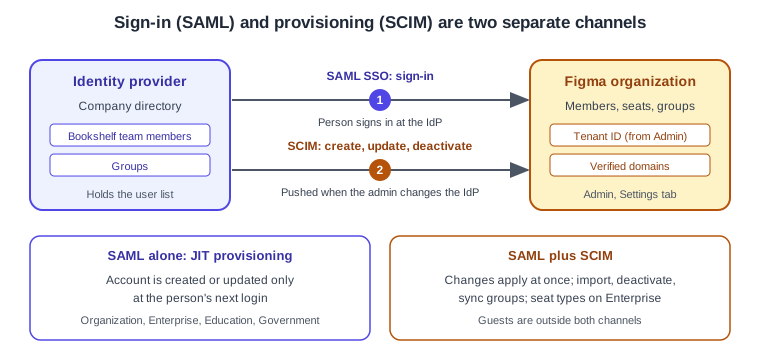
Automatic provisioning with SCIM
Every SAML setup supports just-in-time (JIT) provisioning: an account is created or updated only when the person next logs in. SCIM instead pushes changes as they happen, and also imports and deactivates users, syncs groups and, on Enterprise, sets seat types. It is available on Education (K-12), Organization, Government and Enterprise and is set up by organization admins, on top of SAML.
The setup, as the help page describes it:
-
Find your Tenant ID in the admin settings, in the SAML SSO area.
-
Build the SCIM base URL from the Tenant ID (shown below).
-
Generate an API token in the SCIM provisioning area and copy it once into your IdP. With Governance+ and several IdPs, you generate tokens per IdP from the identity providers page instead.
-
In the IdP, enable Create Users, Update User Attributes and Deactivate Users.
-
Assign users or groups to the Figma application in the IdP.
# SCIM connection values (placeholders)
Base URL (Figma organizations): https://www.figma.com/scim/v2/<TENANT_ID>
Authentication                : bearer token, taken from the environment, e.g. $FIGMA_SCIM_TOKEN
Provisioning features         : Create Users, Update User Attributes, Deactivate Users
Never paste the generated token into a document, chat or repository; store it in the IdP’s secret field or a secret manager. Figma for Government uses a different base host, listed on the source page.
Figma documents IdP-specific guides for Google Workspace, Okta, Microsoft Entra ID and OneLogin; for another IdP it does not provide a custom guide, so configure SAML first and then ask the IdP’s vendor about SCIM.
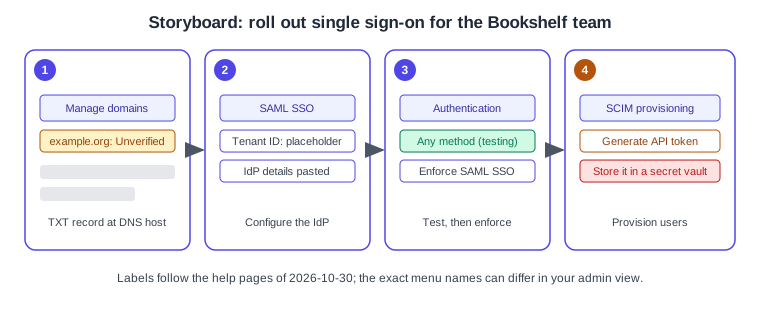
Roll out SSO safely
-
Verify the Bookshelf domain (see above).
-
Configure SAML for your IdP while the setting is still Any method.
-
Sign in with a test account through the IdP and confirm it lands in the organization.
-
Only then switch the authentication setting to Enforce SAML SSO.
-
Set up SCIM and assign the Bookshelf group in the IdP.
-
If you must change the SAML configuration later, switch back to Any method first, as the help page advises.
User groups
User groups are named sets of members and guests you can invite to a file, folder or team in one step, so access follows membership. They are available on Organization and Enterprise. By default every member can create and manage groups, and organization admins can manage all of them. On Enterprise, an admin can limit creation to organization admins in the Settings tab under team and user group creation.
Create a group and share with it
-
In the file browser, open All workspaces or All teams.
-
In the User group section of the right sidebar, choose the plus icon.
-
Name the group, for example Bookshelf Designers, and add people.
-
Open a Bookshelf folder, choose Share, type the group name, choose Can edit or Can view, and invite.
On Enterprise with SCIM, groups pushed from your IdP can be synced under Admin > People > User groups with Sync from IdP. Once synced, membership is managed in the IdP and manual edits may be disabled. Enabling SCIM alone does not sync groups; they must be pushed from the IdP first.
Workspaces
A workspace groups teams, people and resources in a large organization. Workspaces are an Enterprise feature (they are also listed for Education K-12 and Government), and only organization admins create them. You name the workspace, assign at least one workspace admin, and may mark it hidden so it does not appear in All workspaces for non-members. Hiding a workspace does not change who can open the teams, folders or files inside it. Separately, a hidden team does not appear in search or the file browser, and people can join only by invitation; organization admins can still see all teams in Admin.
Source: Figma Learn: Create a workspace
Workspaces also let you override some organization defaults, for example link-sharing and AI settings, for just that workspace.
Activity logs
The Activity tab in Admin records how members and guests use organization resources. It is available on Education (K-12), Organization, Government and Enterprise; Starter and Professional teams are not tracked. Only organization admins can view it. Logging starts when the organization upgrades and events are not backfilled.
-
Filter by member email, date range, event type and team.
-
Each event shows the event type, member, time in UTC, product, team and IP address.
-
Get CSV requests an export by email for the selected date range.
-
Covered events include seat changes, AI credits, SSO, SCIM provisioning, domain management, sharing and workspace changes.
-
Known gaps, per the help page: no login events for guests, and sessions closed without logging out are not recorded.
-
The Activity Logs API gives programmatic access on Enterprise only. See REST API and Webhooks for the developer platform in general.
The help page states no retention period or export size limit, so do not assume one; export what you need to keep.
AI and credit controls
Two separate things are controlled: whether AI features are available at all, and who may spend paid AI credits.
-
AI features on or off. Only organization admins can change AI settings; workspace and team admins cannot. On Enterprise, go to Admin > Settings > AI > AI features and enable or disable AI for the whole organization, with per-workspace settings that override the organization default. When AI is off, members cannot use it in that organization or workspace but still can in drafts and in workspaces where it is on. On Organization, the help page says the control is an Enable AI option that exists only if AI was disabled during the beta.
-
Content training. On Organization and Enterprise the help page states that content training is currently disabled and cannot be turned on; on Starter and Professional it is on by default and can be turned off by admins.
-
Paid credit limits per person. In Admin > People, select a person and use the AI credits section to choose full access, a custom monthly limit or no access. Limits apply only to paid credits; the credits included with a seat are not affected. If a billing group also has a limit, whichever is reached first stops paid use. On Enterprise an organization-wide default can be set under Admin > Settings > Billing, and limits can be managed through SCIM, in which case Figma shows them but you change them in the IdP.
For what the credits are and how to read the balance, see Plans, Seats and AI Credits; for the features themselves, Figma AI Tools.
Guest and link controls
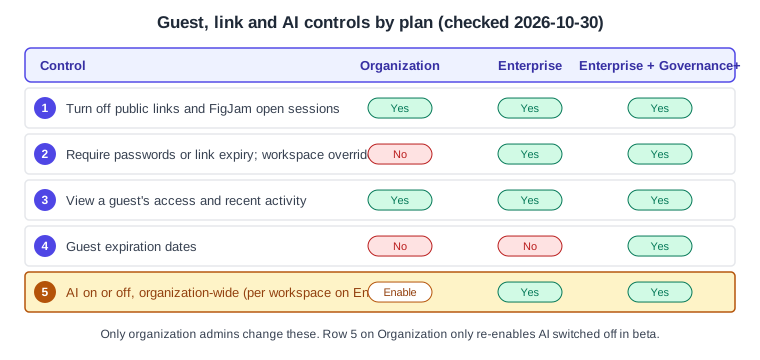
Guests are external collaborators, such as contractors or clients, whose email does not match an organization domain. Guest access is available on Education (K-12), Organization, Government and Enterprise. Admins can open the People tab, filter User type to guests, and choose View guest access to see the teams, folders and files a guest can reach plus their recent activity, then decide whether to downgrade or remove them. Setting an expiration date on guests, individually or as a default, is part of Governance+, an add-on for Enterprise (and Government); the Governance+ help page states no GA or beta label, so ask Figma sales for current availability.
Public links are controlled in the Settings tab. Every organization allows public sharing by default, and the other options are opt-in.
-
Disable public links (Organization and Enterprise) removes the "Anyone with the link" options, so files become private while members can still invite people directly. It sits under the Content area on Organization and under External access on Enterprise.
-
Disable open sessions (Organization and Enterprise) stops FigJam open sessions.
-
Require passwords, autogenerated passwords only and require link expirations (Enterprise) tighten public links further. The expiry limit range is stated on the source page; confirm it there, since Figma’s pages describe different maximums.
-
Workspace-specific settings (Enterprise) override the organization defaults for a workspace’s files.
-
Changes to these settings are recorded in the activity log.
Lock down public links for a client review
-
In the file browser, select Admin, then the Settings tab.
-
Open the sharing area (Content on Organization, External access on Enterprise).
-
Turn off public link sharing, or on Enterprise require a password and an expiry.
-
Invite the client as a guest on the single Bookshelf folder instead, and set the minimum permission.
-
Later, open People, filter to guests and use View guest access to confirm what the client can reach.
Source: Figma Learn: View guest access
What older guides get wrong
Older books and videos describe an earlier model. Their "editor" and "viewer" roles, "paid Team plan" and per-feature plan gating predate the Full, Dev, Collab and View seats, which have applied since 2025-03-11; the Bookshelf admin should pick seats from the current table, not from those guides. They also predate the AI credit system and its admin limits, the Figma agent and the Figma MCP server (see Figma MCP Server). The full list of corrections is collected in What’s Changed Since Older Guides. When you bring files in from other tools, see Importing and Migrating.
Common mistakes
-
Enforcing SAML before testing it, which can lock out admins; stay on Any method until a test sign-in works.
-
Assuming SAML or SCIM covers guests: it does not, so guests need their own review.
-
Enabling domain capture without verifying every subdomain, or expecting to switch it off yourself later.
-
Pasting a SCIM token or certificate into a ticket or chat; keep secrets in the IdP or a vault.
-
Expecting a workspace or team admin to change AI settings; only organization admins can.
-
Relying on a remembered limit (credits, link expiry, log retention): these change, so re-read the source page.