Navigation, Shortcuts and Actions
|
This content was generated with the assistance of AI and should be verified against the official Figma documentation before being relied on in production. This sub-section’s Figma bibliography lists the reference material consulted while preparing these pages. |
This page was written on 2026-10-30 against the UI3 interface of Figma Design, which has been the only interface since the old one was retired on 2025-04-30. The left navigation bar was redesigned again on 2026-01-07, so a button shown in an older tutorial may have moved. Navigation, selection and the shortcuts below are available in every plan and to every seat that can open a file: View and Collab seats can pan, zoom and select, while changing the design (nudging, regrouping, reordering layers) needs a Full seat on a file with edit access. Everything on this page is generally available; none of it is in beta.
The running example is the Bookshelf mobile app. The goal of this page is to move around its file quickly: find the catalogue screen, zoom to the "Add to shelf" button, select it, nudge it, and do the same without touching the mouse. How the editor is laid out is described on Interface Tour; this page concentrates on actions and keys.
Where things live in UI3
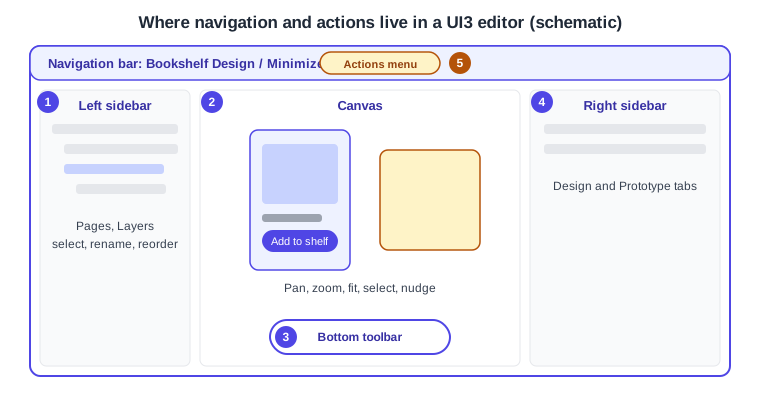
The editor has a navigation bar on top, a left sidebar with the pages and the layers, the canvas in the middle with a floating toolbar at the bottom, and a right sidebar with the Design and Prototype tabs. Most navigation happens on the canvas, selection happens on the canvas or in the Layers list, and everything that has no obvious button can be found with the Actions menu.
-
The left sidebar holds the pages and the Layers list, where layers are selected, renamed and reordered.
-
The canvas is where panning, zooming, selecting and nudging happen.
-
The bottom toolbar holds the tools; it can be focused from the keyboard.
-
The right sidebar shows the properties of the selection.
-
The Actions menu is a search box that runs any command by name.
Panning and zooming
Zooming is the move that is repeated most. Figma documents the following controls; all of them work on both platforms with the modifier replaced.
| Action | macOS | Windows |
|---|---|---|
Zoom to fit all content |
Shift 1 |
Shift 1 |
Zoom to the selection |
Shift 2 |
Shift 2 |
Zoom in or out |
Cmd + or Cmd - |
Ctrl + or Ctrl - |
Pan with nothing selected |
Arrow keys |
Arrow keys |
Pan faster |
Shift with the arrow keys |
Shift with the arrow keys |
Dragging with the Space key held, scrolling and trackpad gestures are the pointer-based ways to pan and zoom, and they do not change the file. The scale of the Figma interface itself is a separate setting, described in the UI scale article, and does not affect the zoom of the canvas.
Selecting and nudging
A click on the canvas selects the top-level layer under the pointer, a double click enters a group or frame, and clicking a row in the Layers list selects that layer directly. Layers added later appear at the top of the Layers list, or at the top of the frame, group or section that contains them. The Collapse layers control at the top right of the Layers panel folds the list, leaving the selected layer expanded, which is the fastest way to tidy a long list.
Selected layers are moved with the arrow keys: one press moves the layer by a small step and Shift with an arrow key by a larger step. The exact step sizes and the shortcuts for grouping, framing a selection and changing layer order are listed in the in-app shortcuts panel (see below), which is the authority because it always matches the installed version. The commonly used ones, as shown there at the time of writing, are Cmd G or Ctrl G to group, Option Cmd G or Alt Ctrl G to wrap the selection in a frame, and Cmd ] or Ctrl ] to bring a layer forward; they were not part of the help articles fetched for this page, so confirm them in the panel before relying on them in a training document.
The Actions menu
The Actions menu is a search field that finds a command, plugin, widget or setting by name and runs it, so a command does not have to be found in a menu. It opens with Cmd K on macOS and Ctrl K on Windows, and it replaces the "quick actions" box of older versions of the interface. Typing a word such as "align" lists the alignment commands. The menu also lists the keyboard shortcuts panel, which is why it is the starting point when a shortcut has been forgotten.
The keyboard shortcuts panel
The in-app shortcuts panel lists every shortcut for the installed version and the selected keyboard layout. It opens with Control Shift ? on macOS and Ctrl Shift ? on Windows, from the Help and resources menu, or by typing "Keyboard shortcuts" in the Actions menu. People who use a non-US keyboard can pick the matching layout so that shortcuts that need a symbol key are mapped to a reachable key.
Minimizing the UI
The Minimize control next to the file name collapses the navigation bar and both sidebars so that the canvas fills the window. The shortcut is Cmd Shift \ on macOS and Ctrl Shift \ on Windows. While the UI is minimized, selecting an object expands the right sidebar to show its properties, and deselecting everything minimizes it again. This replaces the "Hide UI" command of the old interface.
The navigation bar tabs for the file and the assets are reachable with Option 1 and Option 2 on macOS, and Alt 1 and Alt 2 on Windows. Option 3 or Alt 3 opens the libraries dialog.
Using Figma with the keyboard only
Figma supports working without a mouse, which matters for people who cannot use a pointer and for speed. The keyboard box selection tool starts with Option Space on macOS and Ctrl Space on Windows. The arrow keys move a cursor over the canvas, Return selects the object under it, Tab and Shift Tab move between the child layers of the selected parent, holding Cmd (macOS) or Ctrl (Windows) with the arrow keys draws a selection box, and Esc closes the tool. F6 on macOS, or Ctrl F6 on Windows, moves focus to the toolbar, where the arrow keys pick a tool and Return places a new object.
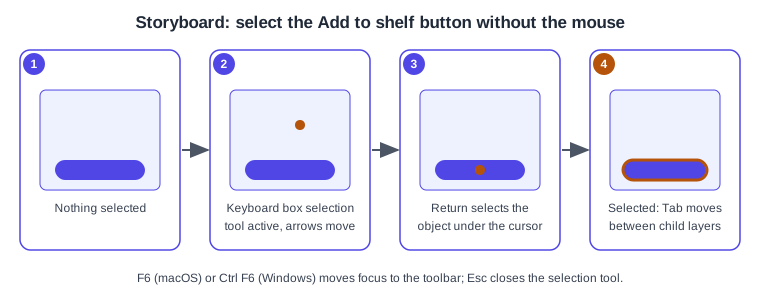
Procedure: select a button with the keyboard.
-
Open the Bookshelf catalogue page.
-
Press Option Space (macOS) or Ctrl Space (Windows) to start the keyboard box selection tool.
-
Use the arrow keys to place the cursor over the "Add to shelf" button.
-
Press Return to select it.
-
Press Tab to move to the next child layer, for example the button label, and Shift Tab to go back.
-
Press Esc to close the tool.
Procedure: find and run a command by name.
-
Press Cmd K (macOS) or Ctrl K (Windows).
-
Type part of the command name, for example "align" or "keyboard shortcuts".
-
Choose the result with the arrow keys and press Return.
Common mistakes
-
Pressing arrow keys with a layer selected moves the layer instead of panning the canvas; deselect first with Esc or a click on empty canvas.
-
Looking for the quick actions box, the Resources button or the Hide UI command of the old interface. They are the Actions menu and Minimize now.
-
Assuming that a View or Collab seat can nudge or regroup layers; those seats can look and comment, not edit.
Where older guides are outdated
Guides written before April 2025 show the old interface, with a top toolbar, a Resources button, a quick actions box and a Hide UI command. Their click paths do not match UI3, which has the Actions menu on Cmd K or Ctrl K and the Minimize control. The seat names used by those guides (editor and viewer) were replaced by Full, Dev, Collab and View seats on 2025-03-11. Their general ideas about selecting, nudging and zooming still apply.
Source: Figma release notes