Auto Layout
|
This content was generated with the assistance of AI and should be verified against the official Figma documentation before being relied on in production. This sub-section’s Figma bibliography lists the reference material consulted while preparing these pages. |
This page was written on 2026-10-30 against the UI3 interface of Figma Design. Auto layout is available on all plans, and anyone with edit access to a file can use it, which in practice means a Full seat. It also works in Figma Sites, and in the design mode of Figma Slides and Figma Buzz. Horizontal and vertical flows are generally available. The grid flow is covered on Grid Flow, and the layout version described near the end is the newest change, so check the release notes before relying on its details.
The running example is the Bookshelf app. An "Add to shelf" button must grow with its label when the text is translated, a book card must stack a cover, a title, an author and that button with even spacing, and a row of cards must reflow on a narrower screen. Auto layout lets a frame manage this itself: its children are placed in a flow, and the frame resizes when the children change. Plain frames are described on Frames, Groups and Sections, and the manual alternative (constraints) on Masks, Constraints and Layout Guides. Using auto layout so a design adapts across screen sizes continues on Responsive Design.
The model
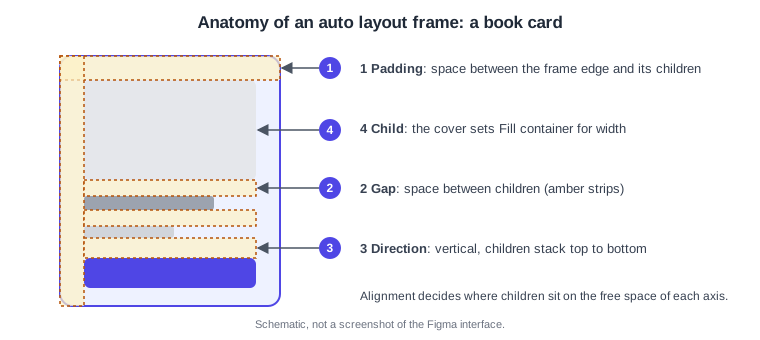
An auto layout frame arranges its children along one direction, one after another, instead of at coordinates you drag them to. The frame has these properties, shown in the Auto layout section of the right sidebar.
-
Direction: vertical (the y axis), horizontal (the x axis) or grid. Grid flow is a separate model with tracks and spans.
-
Gap: the space between children, as a number or as Auto.
-
Padding: the space between the frame edge and its children, uniform, per axis or per side.
-
Alignment: where children sit on the free space of the frame.
-
Resizing of the frame and of each child: Hug contents, Fill container or Fixed, optionally with minimum and maximum values.
-
Wrap: whether children move to a new row or column when they run out of space.
Where it lives in UI3 and the shortcuts
Select one or more layers (or a frame) and use the Auto layout section of the right sidebar: the plus button adds auto layout. Selecting several layers wraps them in a new auto layout frame; selecting a frame turns that frame into one. Shortcuts are the same on macOS and Windows unless noted.
| Action | macOS | Windows |
|---|---|---|
Add auto layout |
Shift A |
Shift A |
Suggest auto layout |
Control Shift A |
Ctrl Alt Shift A |
Remove auto layout |
Option Shift A |
Alt Shift A |
Edit padding on all sides |
Command-click the padding field |
Ctrl-click the padding field |
Set Hug contents |
Double-click an edge |
Double-click an edge |
Set Fill container |
Option double-click an edge |
Alt double-click an edge |
Direction, gap and padding
Choose horizontal for rows (a button label next to an icon, a row of cards) and vertical for stacks (the book card). The gap is the distance between neighbouring children and is set in the spacing field next to the direction buttons.
Auto gap replaces the number with a distribution, available for horizontal and vertical flows only: Between puts the first and last child at the edges and spreads the rest, Around adds half-size space at the ends, and Evenly makes all spaces equal. A gap can also be negative to overlap children on purpose, for example stacked avatars.
Padding is set with one field for horizontal and one for vertical padding, or expanded to four fields, one per side. Command-click (macOS) or Ctrl-click (Windows) edits all sides together.
Alignment
The alignment box is a grid of nine positions. Which axis a click controls depends on the direction: in a vertical frame, the horizontal position is the cross axis and the vertical one the main axis. The arrow keys move the alignment, W, A, S and D align to an edge, B toggles baseline alignment (useful to align text of different sizes on one line) and X toggles the gap between Auto and a number.
Hug, fill and fixed
Each child, and the frame itself, has a width and a height behaviour.
-
Hug contents: the frame shrinks or grows with its children plus padding. It applies to auto layout frames and to text.
-
Fill container: the child stretches into the available space of its auto layout parent. It is not available for top-level frames.
-
Fixed: the size stays constant. Typing a value or resizing by hand switches the property to Fixed.
If a child is set to Fill container on an axis where its parent hugs, the parent’s size on that axis becomes Fixed, because a parent that hugs and a child that fills would depend on each other.
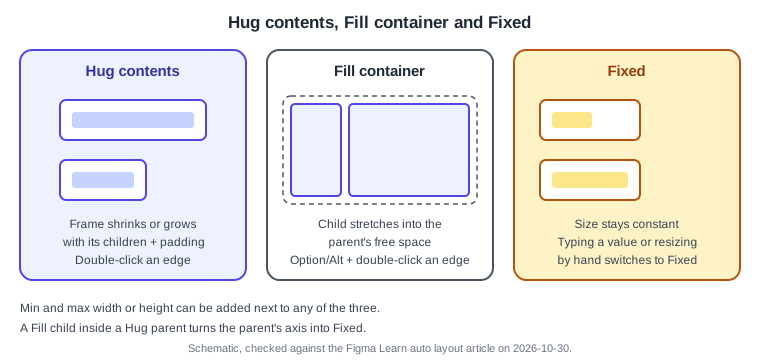
Min and max values can be added to any auto layout frame and to its children, next to Hug, Fill or Fixed. They hold either a number or a number variable, which ties a limit to a design token (see Variables, Collections and Modes). A typical use is a card that fills its column but never grows past 360 pixels, or a button that hugs its label but is never narrower than 88 pixels.
Wrap
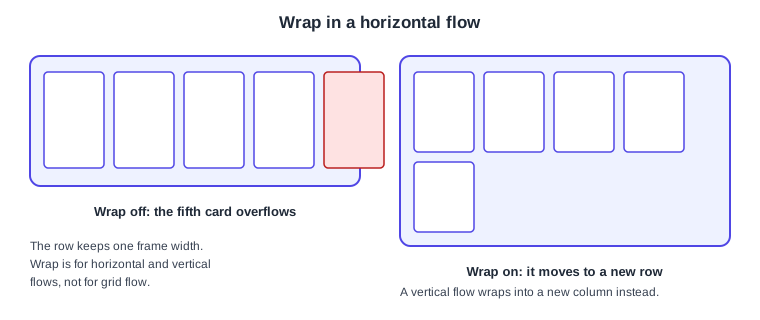
Wrap moves children to a new row (horizontal flow) or a new column (vertical flow) when they no longer fit. It is not a masonry layout: the order of children is preserved. Vertical wrap was added on 2026-09-25; before that only horizontal flows could wrap. Grid flow has no wrap, because items can span rows or columns instead.
Source: Figma release notes
Ignore auto layout (absolute position)
Ignore auto layout, formerly called absolute position, takes a child out of the flow while keeping it in the frame. It is how a "New" badge sits on the corner of a book cover without pushing the cover. An ignored child cannot use the resizing options, but it can use constraints, which are otherwise not available for children that are part of the flow.
Nested auto layout
Auto layout frames can contain other auto layout frames, each with its own direction, gap and padding. This is how real screens are built: a screen is a vertical stack, the catalogue is a horizontal row inside it, each card is a vertical stack inside the row, and the title and author are a small vertical stack inside the card. A frame with auto layout inside a regular frame can take constraints, which is how a layout stays pinned to the bottom of a screen while its contents adapt.
Auto layout is added to each component individually. Instances can adjust padding and gap but cannot reorder, add or delete layers, so the structure is decided in the main component (see Components and Instances).
Procedure: build the "Add to shelf" button and a book card
-
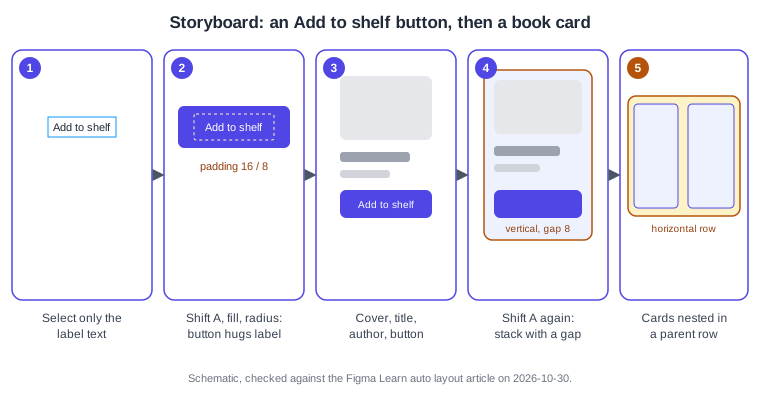
Create a text layer with the label "Add to shelf" and select only that text layer (panel 1).
-
Press Shift A. The text is wrapped in a new auto layout frame. Give the frame a fill and a corner radius so it looks like a button (panel 2).
-
Set horizontal padding to 16 and vertical padding to 8, and set the width to Hug contents. Change the label text and notice that the button resizes.
-
Add a minimum width of 88 so a short label such as "Add" does not shrink the button too much.
-
Select the cover, the title, the author and the button (panel 3) and press Shift A. Set the direction to vertical, the gap to 8 and the padding to 12 (panel 4).
-
Select the cover and set its width to Fill container so it follows the card width. Select the button and do the same.
-
Duplicate the card, select the cards and press Shift A, choosing horizontal direction, so the cards become a row (panel 5). Turn on wrap and give the row a fixed width to see the cards reflow.
-
Add a small "New" badge to the first cover, then choose Ignore auto layout for it and position it at the corner.
The CSS-like layout version
Auto layout has a layout version. The new, CSS-like version has been the default for newly created frames since July 2026; existing frames stay on the legacy version until you upgrade them. The main differences are that padding is always respected (a frame cannot become narrower than its padding, and max width is ignored in that case), inside strokes count in the layout while outside and centre strokes do not, Fill container children share space by content area like the CSS border-box model, and auto gap never goes below 0, so children collapse towards the start rather than overlap. A single child in a Between stack aligns to the start; with Around or Evenly it stays centred.
To upgrade, select a frame and change the layout version in the auto layout settings, or run "Update layout version for selection" or "Update layout version for page" from the Actions menu (Command K on macOS, Ctrl K on Windows). The visual changes can be reviewed first, and undo reverts them. Instances cannot override the version, so upgrade the main component and republish. According to the help article, you can switch between versions until January 2027, after which the setting becomes an Update button for legacy frames and new frames can no longer be switched to legacy.
Mapping to CSS Flexbox
Auto layout was designed with CSS in mind, and the correspondence is useful when a developer builds the screen, but it is approximate: always compare against real output in Dev Mode (see Dev Mode). The CSS side is explained on Layout: Float, Flexbox and Grid.
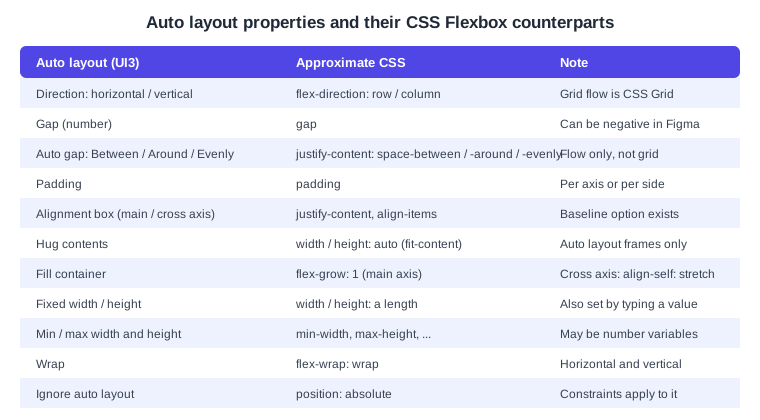
The mapping is a rule of thumb written for this page, not an official specification. For example, the book card corresponds roughly to this CSS.
.book-card {
  display: flex;
  flex-direction: column;
  gap: 8px;
  padding: 12px;
}
.book-card .cover { align-self: stretch; }Common mistakes
-
Adding constraints to a child in the flow: they are not available there; use resizing options, or Ignore auto layout.
-
Setting a child to Fill container inside a parent that hugs and being surprised that the parent turned Fixed.
-
Fixed-size text, which does not resize with its content and may overlap its neighbours; prefer Hug contents for labels.
-
Setting max height and max lines on a text layer at the same time, which Figma does not allow.
-
Expecting an instance to reorder or delete layers of its main component.
-
Mixing frames on the legacy and the CSS-like version in one design and wondering why padding and strokes behave differently.
Where older guides are outdated
Books and tutorials written before 2026 describe auto layout with horizontal and vertical flows only, with no wrap (or horizontal wrap only), no grid flow and no CSS-like layout version. Grid flow became generally available on 2026-05-22, vertical wrap on 2026-09-25, and the new layout version became the default in July 2026. Older guides also show the old interface; the click paths do not match UI3, which has been the only interface since 2025-04-30. Ignore auto layout was called absolute position, and the seat names editor and viewer were replaced by Full, Dev, Collab and View seats on 2025-03-11. Source: Figma release notes