Widgets, Complications and Controls (WidgetKit)
|
This content was generated with the assistance of AI and should be verified against the official documentation before being relied on in production; see the section bibliography for the reference material consulted while preparing these pages. |
Notifications, APNs and Live Activities put a Live
Activity on the Lock Screen while a field trip is running. This page adds FieldNotes's other glanceable surfaces,
all built with WidgetKit: a Pinned Notes widget for the Home Screen, Lock Screen, StandBy, CarPlay,
Apple Watch and Apple Vision Pro, and a Quick Capture control for Control Center, the Lock Screen and the
Action button. Everything targets the 27 releases (iOS 27, iPadOS 27, macOS 27, watchOS 27 and visionOS
27), built with Xcode 27 and Swift 6.4. FieldNotes keeps a deployment minimum of 26, so
anything that exists only on the 27 releases is labelled and guarded with if #available. Most of WidgetKit’s
recent additions — push updates, controls on the Mac and the watch, visionOS widgets and RelevanceConfiguration — arrived in 26, so they need no availability check here.
A widget is not a small app. It is a SwiftUI view that the system renders ahead of time from data your code hands it, archives, and shows later without running your code again. Understanding that one sentence explains most of WidgetKit’s rules: why a provider returns a timeline of entries instead of drawing live, why reloads are rationed, and why a tap either opens the app with a URL or runs an App Intent instead of calling a closure.
How WidgetKit Works
WidgetKit replaced the older Today Extension mechanism (NCWidgetProviding), which showed a live view in the
Today section of Notification Center. A widget lives in a widget extension, a separate bundle inside the app that
the system launches on demand.
The extension declares one or more widgets. Each widget has a provider that WidgetKit asks for three things:
-
a placeholder entry, drawn with redacted content while nothing better is available;
-
a snapshot entry, shown in the widget gallery and during transitions;
-
a timeline: an array of dated entries plus a reload policy that says when to ask again.
WidgetKit renders each entry’s view at its date, and the widget changes on schedule even though the extension is no longer running. User interaction is limited to two kinds: a tap that opens the app at a URL, and a button or toggle that runs an App Intent in the background, after which WidgetKit asks for a fresh timeline.
Figure: From Provider to Tap
saves notes to the App Group store"] -->|"WidgetCenter.reloadTimelines(ofKind:)"| Provider Push["APNs widgets push
(WidgetPushHandler token)"] -->|reload| Provider Provider["PinnedNotesProvider
placeholder / snapshot / timeline"] --> Timeline["Timeline of PinnedNotesEntry
entries + reload policy"] Timeline --> Render["WidgetKit renders PinnedNotesWidgetView
for each entry date and family"] Render --> Surface["Home Screen, Lock Screen, StandBy,
CarPlay, watch face, visionOS wall"] Surface -->|"tap row: widgetURL / Link"| URL["fieldnotes://note/UUID
opens the app, onOpenURL routes"] Surface -->|"tap pin button"| Intent["TogglePinIntent.perform()
runs in the extension"] Intent -->|"saves, then WidgetKit reloads"| Provider
The widget-strategy guide is the best overview of when a widget, a Live Activity or a control fits.
The FieldNotesWidgets Extension
Multiplatform Projects reserved a FieldNotesWidgets target. Create it
with File › New › Target › Widget Extension, name it FieldNotesWidgets, and tick Include Control so Xcode
generates a control template too. Leave Include Configuration App Intent ticked: FieldNotes's widget is
configurable. Then, in the target’s General tab, add Apple Vision to the supported destinations next to
iPhone, iPad and Mac, because visionOS 26 runs native widgets. Apple Watch needs its own widget extension, embedded
in FieldNotesWatch and named FieldNotesWatchWidgets; it compiles the same widget sources, as
Watch Complications and the Smart Stack shows.
The extension’s entry point is a widget bundle. It lists every widget, control and Live Activity the extension provides, and their order is the order in the widget and control galleries:
// FieldNotesWidgets/FieldNotesWidgetBundle.swift
import WidgetKit
import SwiftUI

@main
struct FieldNotesWidgetBundle: WidgetBundle {
    var body: some Widget {
        PinnedNotesWidget()
        #if os(iOS)
        FieldTripLiveActivity()          // from Notifications and Live Activities; ActivityKit is iOS-only
        #endif
        #if os(iOS) || os(macOS)
        QuickCaptureControl()            // controls: iOS 18+, macOS 26+ (the watch bundle lists it for watchOS 26+)
        LastNotePinControl()
        #endif
    }
}FieldTripLiveActivity is defined on
Notifications, APNs and Live Activities; it sits in the same
bundle because Live Activities are WidgetKit configurations too. The watch extension has its own bundle, shown
below.
Sharing Data Through the App Group
The widget extension is a different process with its own sandbox, so it can’t see the app’s memory, its
NoteStore, or its private container. Everything the widget shows comes from the App Group
group.com.example.fieldnotes, which both targets join under Signing & Capabilities › App Groups. Two things
already live there:
-
the SwiftData store that
ModelContainer.fieldNotes(inMemory:)opens, reached through theNotePersistingprotocol and itsSwiftDataNotePersistenceactor from Persisting Models with SwiftData; -
UserDefaults.fieldNotesShared, the App Group defaults suite from Preferences, Files and Document-Based Apps, for small values.
A tiny helper, compiled into the app and both widget extensions, gives every process the same entry point to the shared store:
// Shared/SharedNoteAccess.swift  (target membership: FieldNotes, FieldNotesWatch, FieldNotesWidgets, FieldNotesWatchWidgets)
import SwiftData
import FieldNotesModel
import FieldNotesServices

enum SharedNoteAccess {
    /// Widget and control kinds, shared so the app can reload them without linking the extension's types.
    static let pinnedNotesWidgetKind = "PinnedNotesWidget"
    static let lastNotePinControlKind = "com.example.fieldnotes.LastNotePinControl"

    /// One container per process: the app, each extension and every intent in it share this instance, so a
    /// process never opens the store (or, in the app, its CloudKit mirroring) twice.
    private nonisolated static let shared = Result {
        SwiftDataNotePersistence(modelContainer: try ModelContainer.fieldNotes())
    }

    /// The App Group store for this process.
    static func persistence() throws -> SwiftDataNotePersistence {
        try shared.get()
    }

    /// Only pinned notes are fetched (see `pinnedNotes(limit:)` on the SwiftData page), so a reload never loads
    /// the whole library into the widget extension's small memory budget.
    static func pinnedNotes(taggedWith tag: String? = nil, limit: Int = 4) async throws -> [Note] {
        let persistence = try persistence()
        guard let tag else { return try await persistence.pinnedNotes(limit: limit) }
        // `tags` is an array attribute, so the tag filter runs in Swift, over the pinned notes only.
        return Array(try await persistence.pinnedNotes().filter { $0.tags.contains(tag) }.prefix(limit))
    }
}Needs the App Groups capability on the app and on each widget extension; a group registered in the developer account is required on iOS, iPadOS, watchOS and visionOS. The same helper serves the App Intents on App Intents and System Integration, which also run inside the extension when a widget button is tapped.
PinnedNotesWidget
The Pinned Notes widget shows the most recent pinned notes, optionally filtered by one tag the user picks when they edit the widget. Its pieces are an entry, a configuration intent, a provider and the widget itself.
The Entry and the Configuration Intent
A timeline entry is a Sendable value with a date. It carries plain Note values, never the store:
// FieldNotesWidgets/PinnedNotes/PinnedNotesEntry.swift
import WidgetKit
import FieldNotesModel

struct PinnedNotesEntry: TimelineEntry {
    let date: Date
    let notes: [Note]
    let tag: String?

    static let sample = PinnedNotesEntry(
        date: .now,
        notes: [Note(title: "Heron nest, north bank", tags: ["birds"], isPinned: true),
                Note(title: "Water sample B-3", tags: ["water"], isPinned: true)],
        tag: nil)
}The user-facing options are an App Intent that conforms to WidgetConfigurationIntent. The system builds the
edit-widget sheet from its @Parameter properties, so there is no settings UI to write:
// FieldNotesWidgets/PinnedNotes/PinnedNotesConfiguration.swift
import AppIntents

struct PinnedNotesConfiguration: WidgetConfigurationIntent {
    static let title: LocalizedStringResource = "Pinned Notes"
    static let description = IntentDescription("Shows your most recent pinned notes.")

    @Parameter(title: "Only notes tagged")
    var tag: String?
}The Provider
PinnedNotesProvider conforms to AppIntentTimelineProvider, whose snapshot and timeline methods are async
and receive the configuration intent:
// FieldNotesWidgets/PinnedNotes/PinnedNotesProvider.swift
import WidgetKit

struct PinnedNotesProvider: AppIntentTimelineProvider {
    func placeholder(in context: Context) -> PinnedNotesEntry {
        .sample
    }

    func snapshot(for configuration: PinnedNotesConfiguration, in context: Context) async -> PinnedNotesEntry {
        if context.isPreview { return .sample }                  // widget gallery: never wait on disk
        return await entry(for: configuration, limit: Self.limit(for: context.family))
    }

    func timeline(for configuration: PinnedNotesConfiguration, in context: Context) async -> Timeline<PinnedNotesEntry> {
        let entry = await entry(for: configuration, limit: Self.limit(for: context.family))
        // Pinned notes change on events, not on a clock. The app and push updates ask for reloads;
        // the four-hour fallback only keeps relative dates honest if nothing else happens.
        return Timeline(entries: [entry], policy: .after(.now.addingTimeInterval(4 * 60 * 60)))
    }

    private func entry(for configuration: PinnedNotesConfiguration, limit: Int) async -> PinnedNotesEntry {
        let notes = (try? await SharedNoteAccess.pinnedNotes(taggedWith: configuration.tag, limit: limit)) ?? []
        return PinnedNotesEntry(date: .now, notes: notes, tag: configuration.tag)
    }

    private static func limit(for family: WidgetFamily) -> Int {
        switch family {
        case .systemSmall, .accessoryRectangular: 1
        case .systemMedium: 3
        case .accessoryCircular, .accessoryInline: 1
        default: 6
        }
    }
}

// watchOS has no edit-widget sheet, so recommendations are how a watch face offers this widget: each one is a
// preconfigured `PinnedNotesConfiguration` the user picks when adding the complication. On iOS, iPadOS, macOS
// and visionOS the configuration UI is used instead and these recommendations are ignored. The default
// `recommendations()` is unavailable on watchOS, so a provider shared with `FieldNotesWatchWidgetBundle` must
// implement it.
extension PinnedNotesProvider {
    static let recommendedTags = ["birds", "plants", "water"]    // common field-trip tags; tags are free-form

    func recommendations() -> [AppIntentRecommendation<PinnedNotesConfiguration>] {
        let all = AppIntentRecommendation(intent: PinnedNotesConfiguration(), description: "All pinned notes")
        let tagged = Self.recommendedTags.map { tag in
            let intent = PinnedNotesConfiguration()
            intent.tag = tag
            return AppIntentRecommendation(intent: intent, description: "Pinned: \(tag)")
        }
        return [all] + tagged
    }
}The Widget
The widget ties a kind string, the configuration intent, the provider and the view together, and declares which
families it supports:
// FieldNotesWidgets/PinnedNotes/PinnedNotesWidget.swift
import WidgetKit
import SwiftUI

struct PinnedNotesWidget: Widget {
    static let kind = SharedNoteAccess.pinnedNotesWidgetKind

    var body: some WidgetConfiguration {
        AppIntentConfiguration(kind: Self.kind,
                               intent: PinnedNotesConfiguration.self,
                               provider: PinnedNotesProvider()) { entry in
            PinnedNotesWidgetView(entry: entry)
        }
        .configurationDisplayName("Pinned Notes")
        .description("Your latest pinned field notes at a glance.")
        .supportedFamilies(Self.families)
        .containerBackgroundRemovable(true)                // StandBy and CarPlay remove the background
        .pushHandler(PinnedNotesPushHandler.self)          // 26: WidgetKit push updates
        #if os(iOS)
        .disfavoredLocations([.carPlay], for: [.systemMedium, .systemLarge])
        #elseif os(visionOS)
        .supportedMountingStyles([.elevated, .recessed])
        .widgetTexture(.paper)
        #endif
    }

    private static var families: [WidgetFamily] {
        #if os(watchOS)
        [.accessoryCircular, .accessoryRectangular, .accessoryInline, .accessoryCorner]
        #elseif os(macOS)
        [.systemSmall, .systemMedium, .systemLarge]
        #elseif os(visionOS)
        [.systemSmall, .systemMedium, .systemLarge, .systemExtraLargePortrait]
        #else
        [.systemSmall, .systemMedium, .systemLarge, .systemExtraLarge,
         .accessoryCircular, .accessoryRectangular, .accessoryInline]
        #endif
    }
}The view reads the family from the environment and chooses a layout. Every widget must set a container
background with containerBackground(_:for:); the system removes it where it doesn’t fit, such as in StandBy or on
the Lock Screen:
// FieldNotesWidgets/PinnedNotes/PinnedNotesWidgetView.swift
import WidgetKit
import SwiftUI
import FieldNotesModel

struct PinnedNotesWidgetView: View {
    let entry: PinnedNotesEntry
    @Environment(\.widgetFamily) private var family

    var body: some View {
        Group {
            switch family {
            case .accessoryInline:
                Text(entry.notes.first?.title ?? "No pinned notes")
            case .accessoryCircular:
                Gauge(value: Double(entry.notes.count), in: 0...6) { Image(systemName: "pin.fill") }
                    .gaugeStyle(.accessoryCircularCapacity)
            #if os(watchOS)
            case .accessoryCorner:
                if let note = entry.notes.first { NoteGlance(note: note) }
            #endif
            case .systemSmall, .accessoryRectangular:
                if let note = entry.notes.first {
                    NoteGlance(note: note)
                        .widgetURL(PinnedNotesWidgetView.url(for: note))
                } else {
                    ContentUnavailableView("No pinned notes", systemImage: "pin.slash")
                }
            default:
                PinnedNotesWidgetList(notes: entry.notes)
            }
        }
        .containerBackground(.fill.tertiary, for: .widget)
    }

    static func url(for note: Note) -> URL {
        URL(string: "fieldnotes://note/\(note.id.uuidString)")!
    }
}NoteGlance and PinnedNotesWidgetList are small views in the same file, shown in the sections below.
Timelines and the Reload Budget
WidgetKit gives each widget instance a daily reload budget. Apple’s guide puts it at typically 40 to 70 refreshes a day for a frequently viewed widget, roughly one every 15 to 60 minutes, and it varies with how often the widget is seen. Reloads don’t count against the budget when the app is in the foreground, when the widget runs an App Intent (a tap on its button), or when the system itself changes locale, Dynamic Type or appearance.
That shapes FieldNotes's policy:
-
Reload on events, from the app. When the user pins, unpins, adds or deletes a note, the app asks for a reload of this one kind. While the app is in the foreground that’s free.
-
Don’t poll. Pinned notes don’t change with time, so the timeline has one entry and a long
.afterfallback. Relative dates such as "2 h ago" useText(date, style: .relative), which the system keeps current without a reload. -
Push when the server knows first. A note edited on another device reaches the widget through a WidgetKit push, shown under Push Updates with WidgetPushHandler.
The app-side reload goes where the store changes are observed, in the app target:
// FieldNotes/FieldNotesApp.swift (excerpt): the parts this page adds
import SwiftUI
import WidgetKit
import FieldNotesServices

@main
struct FieldNotesApp: App {
    @State private var store = AppServices.shared.store   // the single owner, see Background Execution
    @Environment(\.scenePhase) private var scenePhase

    var body: some Scene {
        WindowGroup {
            ContentView()
                .environment(store)
                .onChange(of: store.notes.filter(\.isPinned)) {
                    WidgetCenter.shared.reloadTimelines(ofKind: SharedNoteAccess.pinnedNotesWidgetKind)
                }
        }
        .onChange(of: scenePhase) { _, phase in
            if phase == .background {
                #if os(iOS) || os(macOS)
                ControlCenter.shared.reloadControls(ofKind: SharedNoteAccess.lastNotePinControlKind)
                #endif
            }
        }
    }
}reloadTimelines(ofKind:) is better than reloadAllTimelines(): it spends budget only on the widget whose data
changed, not on the Live Activity or the controls.
Families and Surfaces
A family is a size and shape. A surface is where the system shows it. The same PinnedNotesWidget
declaration appears on every surface that supports one of its families, and the system decides the rendering
mode, background and margins per surface.
Figure: Widget Family × Surface × OS
| Family | Surfaces | iOS | iPadOS | macOS | watchOS | visionOS |
|---|---|---|---|---|---|---|
|
Home Screen, Today view, StandBy, CarPlay, Mac desktop and Notification Center, visionOS surfaces |
✓ |
✓ |
✓ |
— |
✓ (26) |
|
Home Screen, Today view, Mac desktop, visionOS surfaces |
✓ |
✓ |
✓ |
— |
✓ (26) |
|
Home Screen, Today view, Mac desktop, visionOS surfaces |
✓ |
✓ |
✓ |
— |
✓ (26) |
|
iPad Home Screen; iPhone/iPad apps running on visionOS (shown portrait) |
— |
✓ |
✓ |
— |
compatible apps only |
|
visionOS walls and surfaces (native visionOS apps) |
— |
— |
— |
— |
✓ (26) |
|
iPhone and iPad Lock Screen, watch faces and Smart Stack; visionOS |
✓ |
✓ |
— |
✓ |
✓ (new in 27) |
|
Lock Screen, watch faces and Smart Stack; visionOS |
✓ |
✓ |
— |
✓ |
✓ (new in 27) |
|
Lock Screen (above the clock), watch faces |
✓ |
✓ |
— |
✓ |
— |
|
watch face corners, curved around the dial |
— |
— |
— |
✓ |
— |
Controls (not a family) |
Control Center, Lock Screen, Action button |
✓ (18) |
✓ (18) |
✓ (26) |
✓ (26) |
— |
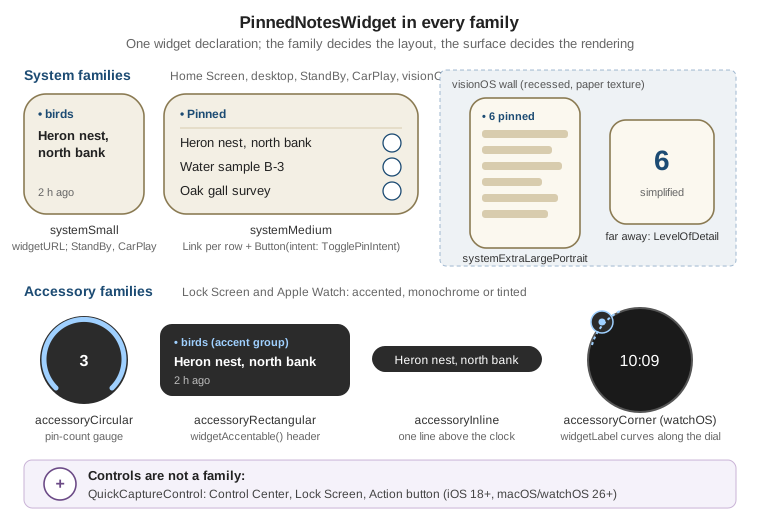
Accessory Families on the Lock Screen and the Watch
Accessory families are drawn in a monochrome or tinted style, so they rely on shape and text, not colour. The rectangular glance marks what should take the accent colour, and the corner family adds a curved label:
// FieldNotesWidgets/PinnedNotes/PinnedNotesWidgetView.swift (continued)
struct NoteGlance: View {
    let note: Note
    @Environment(\.widgetFamily) private var family

    var body: some View {
        #if os(watchOS)
        if family == .accessoryCorner {
            Image(systemName: "pin.fill")
                .widgetLabel { Text(note.title) }            // curved text along the dial
        } else {
            summary
        }
        #else
        summary
        #endif
    }

    private var summary: some View {
        VStack(alignment: .leading, spacing: 2) {
            Label(note.tags.first ?? "Pinned", systemImage: "pin.fill")
                .font(.caption2)
                .widgetAccentable()
            Text(note.title).font(.headline).lineLimit(2)
            Text(note.createdAt, style: .relative).font(.caption2).foregroundStyle(.secondary)
        }
    }
}StandBy and CarPlay
StandBy (an iPhone charging on its side) and CarPlay show systemSmall widgets, full-screen-ish and without their
background. containerBackgroundRemovable(true) above allows that. A widget that isn’t a good fit for a location
says so with disfavoredLocations(_:for:); that doesn’t hide it, it only lowers it in the gallery. FieldNotes's
larger layouts aren’t useful while driving, so PinnedNotesWidget.body above marks them:
// From PinnedNotesWidget.body, iOS only
#if os(iOS)
.disfavoredLocations([.carPlay], for: [.systemMedium, .systemLarge])
#endifIn CarPlay, a tap opens the app only if the app itself supports CarPlay, which FieldNotes doesn’t; buttons still work in vehicles with a touchscreen.
Opening the App: widgetURL and Link
A widget can’t run code on tap; it opens the app with a URL. widgetURL(_:) sets the URL for the whole widget and
is the only option for small and accessory families. Medium and larger widgets can also wrap parts of the view in
Link so each row opens a different note. Both reuse the custom scheme from
Navigation and Presentation, so the existing DeepLink
parser and onOpenURL handler route the tap with no widget-specific code in the app:
// FieldNotesWidgets/PinnedNotes/PinnedNotesWidgetView.swift (continued)
struct PinnedNotesWidgetList: View {
    let notes: [Note]

    var body: some View {
        VStack(alignment: .leading, spacing: 6) {
            Label("Pinned", systemImage: "pin.fill").font(.caption).widgetAccentable()
            ForEach(notes) { note in                     // Note.id is the stable identity
                HStack {
                    Link(destination: PinnedNotesWidgetView.url(for: note)) {   // fieldnotes://note/<uuid>
                        Text(note.title).lineLimit(1)
                    }
                    Spacer()
                    #if !os(visionOS)
                    Button(intent: TogglePinIntent(note: NoteEntity(note))) {
                        Image(systemName: "pin.slash")
                    }
                    .buttonStyle(.plain)
                    #endif
                }
                .invalidatableContent()
            }
        }
    }
}
See Apple Developer Documentation — Linking to specific app scenes from your widget or Live Activity.
The custom scheme is right here: the URL never leaves the device, and onOpenURL receives it whether the app was
running or not. Universal links (https://fieldnotes.example.com/note/<uuid>;) are for links that travel, in
messages and on the web; they’re configured on
App Intents and System Integration.
Interactive Widgets with App Intents
Since iOS 17, a widget can contain Button(intent:) and Toggle(isOn:intent:). A tap runs the intent’s
perform() inside the widget extension without opening the app, then WidgetKit reloads the timeline (without
charging the budget). The list above uses TogglePinIntent, one of FieldNotes's App Intents; it’s declared on
App Intents and System Integration, and its source file
has target membership in both the app and FieldNotesWidgets, which is what lets the widget run it. Because it
works through SharedNoteAccess, it writes the same App Group store the app reads.
A toggle suits a state that the entry already knows. The large layout offers "pinned" as a toggle, so the switch reflects the entry’s value immediately:
// A row variant for .systemLarge
Toggle(isOn: note.isPinned, intent: TogglePinIntent(note: NoteEntity(note))) {
    Text(note.title).lineLimit(1)
}
.toggleStyle(.button)invalidatableContent() on the rows tells the system which content may change as a result of the tap, so it can
show a subtle pending state until the new timeline arrives. Apple’s reference lists Button(intent:) and
Toggle(isOn:intent:) for iOS, iPadOS, macOS and watchOS, which is why the button above is left out of the
visionOS build.
Push Updates with WidgetPushHandler (26)
When another device edits a pinned note, the server knows before this device does. Since the 26 releases a widget
can receive a WidgetKit push: the server sends a widgets push, and WidgetKit reloads the timelines, much as
reloadAllTimelines() would. Pushes are budgeted like reloads and complement timeline updates rather than replace
them.
The extension gets its token from WidgetKit, not from UIApplication's remote-notification registration. The
handler is called with the first token and every change. It can’t do slow work, so FieldNotes stores the token in
the App Group, and the app uploads it with NotesAPIClient the next time it runs (see
Networking):
// FieldNotesWidgets/PinnedNotes/PinnedNotesPushHandler.swift
import WidgetKit

struct PinnedNotesPushHandler: WidgetPushHandler {
    func pushTokenDidChange(_ pushInfo: WidgetPushInfo, widgets: [WidgetInfo]) {
        let hex = pushInfo.token.map { String(format: "%02x", $0) }.joined()
        UserDefaults.fieldNotesShared.set(hex, forKey: "widgetPushToken")
        UserDefaults.fieldNotesShared.set(widgets.map(\.kind), forKey: "widgetPushKinds")
    }
}The handler is attached with .pushHandler(PinnedNotesPushHandler.self) in the widget’s configuration, as shown
earlier. On the server, the request uses the widgets push type and a topic with the .push-type.widgets suffix,
and the payload only says "content changed":
{
  "aps": {
    "content-changed": true
  }
}The headers are apns-push-type: widgets and apns-topic: com.example.fieldnotes.push-type.widgets. Needs the
Push Notifications capability on the widget extension, a paid developer account for the APNs key, and a physical
device to receive pushes. Broadcast channels can’t update widgets. The APNs connection itself (token auth, the
HTTP/2 request) is covered on Notifications, APNs and Live
Activities, and the provider-server side is compared with other messaging systems in
Messaging.
Controls
A control is a one-tap button or toggle that people place in Control Center, on the Lock Screen, or on the Action button. Controls arrived in iOS 18 and, since the 26 releases, also run on macOS (Control Center and the menu bar) and watchOS (Control Center and the Action button on Apple Watch Ultra). A control has no timeline: the system runs its body when it’s shown, asks a value provider for its current state, and runs an App Intent when it’s used.
QuickCaptureControl
The Quick Capture control opens FieldNotes straight into the capture sheet. A control that opens the app uses an
intent that conforms to OpenIntent, and Apple requires that intent’s file to belong to both the app and the
extension. FieldNotes uses OpenFieldNotesScreenIntent with its FieldNotesScreen enum, both explained on
App Intents and System Integration:
// FieldNotesWidgets/Controls/QuickCaptureControl.swift  (also in FieldNotesWatchWidgets, see watchOS)
#if os(iOS) || os(macOS) || os(watchOS)
import WidgetKit
import SwiftUI
import AppIntents

struct QuickCaptureControl: ControlWidget {
    static let kind = "com.example.fieldnotes.QuickCaptureControl"

    var body: some ControlWidgetConfiguration {
        StaticControlConfiguration(kind: Self.kind) {
            ControlWidgetButton(action: OpenFieldNotesScreenIntent(screen: .capture)) {
                Label("Capture Note", systemImage: "square.and.pencil")
            }
        }
        .displayName("Quick Capture")
        .description("Start a new field note.")
    }
}
#endifThe watchOS build of FieldNotes can offer the same control from FieldNotesWatchWidgets by widening the guard to
os(watchOS). Testing the Action button placement needs a physical iPhone or Apple Watch that has one.
A Toggle Control: LastNotePinControl
A toggle control shows state. FieldNotes's "Pin Last Note" toggle pins or unpins the newest note. The value
comes from a ControlValueProvider, and the action is a SetValueIntent, whose value the system fills with the
new state:
// FieldNotesWidgets/Controls/LastNotePinControl.swift
#if os(iOS) || os(macOS)
import WidgetKit
import SwiftUI
import AppIntents

struct LastNotePinControl: ControlWidget {
    static let kind = SharedNoteAccess.lastNotePinControlKind

    var body: some ControlWidgetConfiguration {
        StaticControlConfiguration(kind: Self.kind, provider: Provider()) { isPinned in
            ControlWidgetToggle("Pin Last Note", isOn: isPinned, action: SetLastNotePinnedIntent()) { isOn in
                Label(isOn ? "Pinned" : "Not pinned", systemImage: isOn ? "pin.fill" : "pin")
            }
        }
        .displayName("Pin Last Note")
    }

    struct Provider: ControlValueProvider {
        var previewValue: Bool { false }

        func currentValue() async throws -> Bool {
            let notes = try await SharedNoteAccess.persistence().fetchNotes()
            return notes.max(by: { $0.createdAt < $1.createdAt })?.isPinned ?? false
        }
    }
}

struct SetLastNotePinnedIntent: SetValueIntent {
    static let title: LocalizedStringResource = "Pin Last Note"

    @Parameter(title: "Pinned")
    var value: Bool

    func perform() async throws -> some IntentResult {
        let persistence = try SharedNoteAccess.persistence()
        guard var last = try await persistence.fetchNotes().max(by: { $0.createdAt < $1.createdAt }) else {
            return .result()
        }
        last.isPinned = value
        try await persistence.save(last)
        WidgetCenter.shared.reloadTimelines(ofKind: SharedNoteAccess.pinnedNotesWidgetKind)
        return .result()
    }
}
#endifWhen the app changes the state behind a control, it asks for a reload with
ControlCenter.shared.reloadControls(ofKind:), as FieldNotesApp does above when it moves to the background.
Watch Complications and the Smart Stack
Since watchOS 9, complications are built with WidgetKit rather than the older ClockKit complication APIs; Apple’s
Migrating ClockKit complications to
WidgetKit guide moves an existing ClockKit complication across. On Apple Watch, widgets in the accessory families
are complications: the same PinnedNotesWidget source,
compiled into FieldNotesWatchWidgets, appears in a watch face slot or in the Smart Stack, the scrolling stack
of widgets people reach by turning the Digital Crown. The watch extension’s bundle lists the watch-only widget
alongside it:
// FieldNotesWatchWidgets/FieldNotesWatchWidgetBundle.swift
#if os(watchOS)
import WidgetKit
import SwiftUI

@main
struct FieldNotesWatchWidgetBundle: WidgetBundle {
    var body: some Widget {
        PinnedNotesWidget()
        FieldTripRelevanceWidget()
    }
}
#endifThe Smart Stack orders widgets by relevance. A timeline widget contributes relevance through the provider’s
relevance() method. FieldNotes says the pinned notes matter during the working day:
// FieldNotesWidgets/PinnedNotes/PinnedNotesProvider+Relevance.swift
import WidgetKit
import RelevanceKit

extension PinnedNotesProvider {
    func relevance() async -> WidgetRelevance<PinnedNotesConfiguration> {
        let today = Calendar.current.dateInterval(of: .day, for: .now)!
        let workday = DateInterval(start: today.start.addingTimeInterval(8 * 3600), duration: 10 * 3600)
        return WidgetRelevance([
            WidgetRelevanceAttribute(configuration: PinnedNotesConfiguration(),
                                     context: .date(interval: workday, kind: .scheduled))
        ])
    }
}watchOS 26 adds RelevanceConfiguration, for widgets that exist only when something is relevant. Instead of
a timeline, a RelevanceEntriesProvider returns relevance clues, and the system asks for an entry when a clue
matches. FieldNotes uses it for "notes near here": each note with a NoteLocation becomes a location clue, so
the note appears in the Smart Stack when the wearer is back at that place:
// FieldNotesWatchWidgets/FieldTripRelevanceWidget.swift
#if os(watchOS)
import WidgetKit
import SwiftUI
import RelevanceKit
import CoreLocation
import FieldNotesModel

struct FieldTripRelevanceEntry: RelevanceEntry {
    let note: Note?
}

struct NearbyNoteConfiguration: WidgetConfigurationIntent {
    static let title: LocalizedStringResource = "Nearby Note"
    @Parameter(title: "Note ID") var noteID: String?
    init() {}
    init(noteID: UUID) { self.noteID = noteID.uuidString }
}

struct FieldTripRelevanceProvider: RelevanceEntriesProvider {
    func relevance() async -> WidgetRelevance<NearbyNoteConfiguration> {
        let notes = (try? await SharedNoteAccess.persistence().fetchNotes()) ?? []
        let attributes = notes.compactMap { note -> WidgetRelevanceAttribute<NearbyNoteConfiguration>? in
            guard let place = note.location else { return nil }
            let region = CLCircularRegion(center: .init(latitude: place.latitude, longitude: place.longitude),
                                          radius: 150, identifier: note.id.uuidString)
            return WidgetRelevanceAttribute(configuration: NearbyNoteConfiguration(noteID: note.id),
                                            context: .location(region))
        }
        return WidgetRelevance(attributes)
    }

    func entry(configuration: NearbyNoteConfiguration, context: Context) async throws -> FieldTripRelevanceEntry {
        let notes = try await SharedNoteAccess.persistence().fetchNotes()
        return FieldTripRelevanceEntry(note: notes.first { $0.id.uuidString == configuration.noteID })
    }

    func placeholder(context: Context) -> FieldTripRelevanceEntry {
        FieldTripRelevanceEntry(note: PinnedNotesEntry.sample.notes.first)
    }
}

struct FieldTripRelevanceWidget: Widget {
    var body: some WidgetConfiguration {
        RelevanceConfiguration(kind: "FieldTripRelevanceWidget", provider: FieldTripRelevanceProvider()) { entry in
            if let note = entry.note {
                NoteGlance(note: note)
                    .widgetURL(PinnedNotesWidgetView.url(for: note))
                    .containerBackground(.fill.tertiary, for: .widget)
            }
        }
        .configurationDisplayName("Nearby Note")
    }
}
#endifLocation clues use the location the watch already has; the widget doesn’t request location permission itself. When notes change, the watch app asks the system to read the clues again:
// FieldNotesWatch: after a note gains or loses a location
WidgetCenter.shared.invalidateRelevance(ofKind: "FieldTripRelevanceWidget")The watch app’s own structure, and how its complications relate to the watch face, is on watchOS: App Structure, Connectivity, Workouts and the Smart Stack.
visionOS Widgets
On Apple Vision Pro people pin widgets to walls and tables, where they stay as physical-looking objects. visionOS 26 runs FieldNotes's widgets natively, from the same extension. Three things are different:
-
Mounting style. Widgets can sit elevated on a surface or recessed into a wall. Both are allowed by default;
supportedMountingStyles(_:)narrows the choice. A widget that is recessed-only can’t be placed on a table. -
Texture. Widgets are covered by glass by default;
widgetTexture(.paper)gives a poster-like, matte look that suits a notebook page, and FieldNotes uses it. -
Level of detail. The same widget is read from across the room and from arm’s length. The
levelOfDetailenvironment value switches to.simplifiedwhen the person is far away, and the system animates the change.
The configuration modifiers are already in PinnedNotesWidget above. The view adapts to distance:
// FieldNotesWidgets/PinnedNotes/PinnedNotesWidgetView.swift (continued)
#if os(visionOS)
struct PinnedNotesSpatialHeader: View {
    let count: Int
    @Environment(\.levelOfDetail) private var levelOfDetail

    var body: some View {
        if levelOfDetail == .simplified {
            Label("\(count)", systemImage: "pin.fill")
                .font(.system(size: 44, weight: .bold))           // readable across the room
        } else {
            Label("\(count) pinned notes", systemImage: "pin.fill")
                .font(.headline)
        }
    }
}
#endifwidgetTexture(_:) is visionOS-only, and the extra-large visionOS size is systemExtraLargePortrait for native
visionOS apps. More on spatial layout is on visionOS: Windows, Volumes, Immersive Spaces and RealityKit.
Accented Rendering and Liquid Glass
When someone picks a tinted or clear Home Screen, or a coloured theme on visionOS, the system renders widgets in the accented rendering mode. It removes the background, draws primary content in white (or the watch face colour on watchOS), tints the accent group, and flattens opaque images to a single colour. The Liquid Glass look of the 27 releases is built on the same mode, described on Liquid Glass and the Design System.
A widget adapts in three ways: it reads widgetRenderingMode, marks the views that should take the accent with
widgetAccentable(), and tells images how to render with widgetAccentedRenderingMode(_:):
// FieldNotesWidgets/PinnedNotes/NotePhotoBadge.swift
import WidgetKit
import SwiftUI

struct NotePhotoBadge: View {
    let image: Image
    @Environment(\.widgetRenderingMode) private var renderingMode

    var body: some View {
        image
            .resizable()
            .widgetAccentedRenderingMode(.desaturated)      // keep a photo recognisable, not a flat blob
            .scaledToFill()
            .frame(width: 44, height: 44)
            .clipShape(.rect(cornerRadius: 8))
            .opacity(renderingMode == .fullColor ? 1 : 0.8)
    }
}
See Apple Developer Documentation — Optimizing your widget for accented rendering mode and Liquid Glass.
FieldNotes uses the badge in the large layout for notes with a photo. Apple reserves .fullColor for media such as album art; for a field photo, .desaturated or .accentedDesaturated
keeps the widget in harmony with the rest of the Home Screen. The Label headers in NoteGlance and
PinnedNotesWidgetList already call widgetAccentable(), so they take the tint while the note text stays primary.
Previews
Widgets preview in Xcode’s canvas with the widget-specific #Preview(as:) macro: give it a family, the widget,
and the entries to page through. Xcode shows each entry and animates between them, which is also how you check the
transitions WidgetKit will play:
// FieldNotesWidgets/PinnedNotes/PinnedNotesWidget+Previews.swift
import WidgetKit
import SwiftUI

#if !os(watchOS)
#Preview("Medium", as: .systemMedium) {
    PinnedNotesWidget()
} timeline: {
    PinnedNotesEntry.sample
    PinnedNotesEntry(date: .now, notes: [], tag: "birds")
}
#endif

#if os(watchOS)
#Preview("Nearby", widget: {
    FieldTripRelevanceWidget()
}, relevanceEntries: {
    FieldTripRelevanceEntry(note: PinnedNotesEntry.sample.notes.first)
})
#endifThe preview uses PinnedNotesEntry.sample, so it never touches the App Group store; NoteStore isn’t involved,
and no .environment(store) is needed because no widget view reads it. To debug a real timeline, run the
FieldNotesWidgets scheme. Xcode hosts the widget, attaches the debugger to the extension, and breakpoints in
timeline(for:in:) then work. Environment variables in the scheme’s Arguments pane pick what to host:
# Edit Scheme > Run > Arguments > Environment Variables, FieldNotesWidgets scheme
_XCWidgetKind=PinnedNotesWidget
_XCWidgetFamily=medium
_XCWidgetDefaultView=timelinePlatform availability
| API or feature | iOS | iPadOS | macOS | watchOS | visionOS |
|---|---|---|---|---|---|
|
Yes (17) |
Yes (17) |
Yes (14) |
Yes (10) |
New in 26 |
System families ( |
Yes |
Yes |
Yes |
Not available |
New in 26 |
Accessory families (Lock Screen, complications) |
Yes (16) |
Yes (17) |
Not available |
Yes (9) |
Not available |
|
Yes (17) |
Yes (17) |
Yes (14) |
Yes (10) |
Not listed |
|
New in 26 |
New in 26 |
New in 26 |
New in 26 |
New in 26 |
Controls ( |
Yes (18) |
Yes (18) |
New in 26 |
New in 26 |
Not available |
|
Yes (18) |
Yes (18) |
Yes (15) |
Yes (11) |
New in 26 |
|
Not available |
Not available |
Not available |
New in 26 |
Not available |
|
Yes (26, for iPhone apps on visionOS) |
New in 26 |
Not available |
Not available |
New in 26 |
|
Not available |
Not available |
Not available |
Not available |
New in 26 |
|
Yes (18) |
Yes (18) |
Yes (15) |
Yes (11) |
New in 26 |
|
Yes (17) |
Yes (17) |
Not available |
New in 26 |
Not available |
Live Activities in the same bundle ( |
Yes |
Yes |
Not available |
Not available |
Not available |
The 27 releases keep all of these; nothing on this page needs a 27-only API. The watch Smart Stack and visionOS widgets need a real device to judge properly: the simulator renders them, but relevance clues and distance-based level of detail only behave realistically on hardware.
References
-
Apple Developer Documentation — Developing a WidgetKit strategy
-
Apple Developer Documentation — Making a configurable widget
-
Apple Developer Documentation — Building widgets using WidgetKit and SwiftUI
-
Apple Developer Documentation — Creating accessory widgets and watch complications
-
Apple Developer Documentation — Adding StandBy and CarPlay support to your widget
-
Apple Developer Documentation — Linking to specific app scenes from your widget or Live Activity
-
Apple Developer Documentation — Adding interactivity to widgets and Live Activities
-
Apple Developer Documentation — Updating widgets with WidgetKit push notifications
-
Apple Developer Documentation — Creating controls to perform actions across the system
-
Apple Developer Documentation — Widget suggestions in Smart Stacks
-
Apple Developer Documentation — Updating your widgets for visionOS
-
Apple Developer Documentation — Optimizing your widget for accented rendering mode and Liquid Glass
-
Apple Developer Documentation — Previewing widgets and Live Activities in Xcode