Figma Agent and Skills
|
This content was generated with the assistance of AI and should be verified against the official Figma documentation before being relied on in production. This sub-section’s Figma bibliography lists the reference material consulted while preparing these pages. |
This page was written on 2026-10-30 against the UI3 interface and the official Figma help centre. The Figma agent is a chat-based assistant inside Figma Design that creates and edits designs, runs repetitive tasks and gives feedback. It is available on the Starter, Professional, Education (not K-12), Organization and Enterprise plans. A Full seat with edit access can chat and change the file; View, Dev and Collab seats, or view-only access, can chat without editing the file, and anyone can chat and request edits in their own drafts. It runs only in the desktop app and the web browser, not on mobile. Status needs care: this site’s version baseline records the agent as generally available since 2026-10-06, and trade press reported the same, but none of the official help articles read for this page states a status, and one Figma article still says the agent does not use AI credits while it is in beta. Treat the status and the credit rules as subject to change and check the pages listed in References. Several parts have their own status: shaders and library guidelines are in open beta, code layers are in open beta, and the agent inside FigJam and Slides is in a closed beta.
The running example is Bookshelf. A designer wants the agent to draft a book-card screen with the Bookshelf Design System library, apply a team review skill, pull the product requirements from a connector and add a subtle shader to the hero banner. For the language-model tools that sit beside the agent (rename layers, rewrite text, image tools) read Figma AI Tools; for the prompt-to-app product read Figma Make; for the server that lets an external coding agent work with Figma read Figma MCP Server; and for credit allowances by plan read Plans, Seats and AI Credits.
What the agent is and where it lives
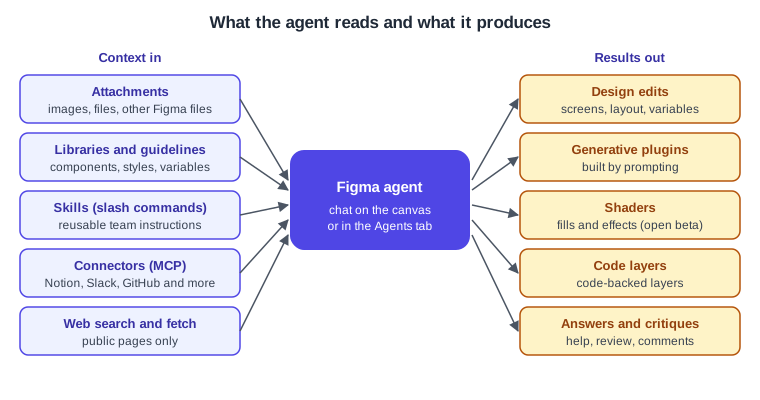
The agent can use Figma’s existing AI tools and answer how-to questions from the help centre. The documented abilities include generating screens from prompts, editing layout and auto layout, editing component instances, applying styles and variables, populating data, rewriting or translating copy, replacing placeholder images in bulk, generating or editing images, converting static images to vector layers, renaming layers, searching libraries, adding comments, giving accessibility and persona-based critiques, animating elements with Figma Motion, and updating main components, variants and variables. The help centre lists vector editing and Draw tools, icon creation, slots and prototyping as coming soon, and says that exporting assets, creating charts or diagrams (use FigJam AI) and contacting support are not supported.
Opening the agent in UI3
-
On the canvas: select a layer, then click Agents in the prompt that appears or press
Cmd Enter(macOS) orCtrl Enter(Windows). You can dictate a prompt or type it and click Send. -
In the sidebar: click Agents in the left navigation bar for a persistent chat panel that lists the file’s chats by recency. In the desktop app you can pop the panel out into its own window.
-
To stop the on-canvas prompt appearing, turn off Show AI Chat on canvas in Preferences from the main menu.
-
You can run several prompts at once; each shows a loading indicator on the canvas that opens its chat. Click Stop to end a running task and Undo to revert the most recent change. To compare, duplicate the AI version first and then undo on the original.
-
Connect a library from the prompt box so results use your components, styles and variables, and type
@to reference specific items.
How a request loops
The agent works in a loop of reading context, acting and waiting for your judgement. The diagram below is a simplification assembled from the documented behaviours (consent before connector tools, Stop, Undo, follow-up prompts), not an official architecture diagram.
Chat visibility
Since 2026-06-23, new agent chats in Figma Design are visible to anyone with access to the file on Professional, Organization and Enterprise plans; chats created before that date stay private unless made public. Anyone with file access can read a shared chat, but only its creator can continue it. A private chat is visible only to you and disappears from collaborators' lists. Only the creator can change visibility, and it applies to the whole conversation. To change one chat, open Agents in the left navigation, open the chat, choose More options in its header and pick Shared chat or Private chat. In the Agents Chats view, More options also offers Make your existing chats private. Use private chats for sensitive work.
Attachments
You can give the agent more context than the selection. In the prompt box open the attach menu, choose Attach Figma files to paste a link or browse (Design files, FigJam boards and, for the agent, Slides decks), or choose Add images and files to upload from your computer. Pasting frames and images directly into the chat also works. Attachments are available on all plans, with the same seat rules as the agent and edit access to the file.
| Kind | Formats named in the documentation | How the agent uses it |
|---|---|---|
Images |
JPEG, PNG, GIF, SVG |
Visual reference, or placed on the canvas if you ask; replication is not guaranteed to be exact |
Text, markup and code |
for example |
The most reliable type for the agent |
Documents |
|
PDFs are reference only; data files work well |
Video and audio files are supported only in Figma Make. The agent has no limit on the number of attachments per chat, but there are size limits per type (for example 1 MB for text files, 5 MB for PDFs and 20 MB for spreadsheets and presentations; check the article for the current table). Attachments can raise AI credit use, and designs with many images, SVGs or vector illustrations are harder for the agent. Figma recommends saying whether you want an exact one-to-one build or a style reference, attaching one or two designs at a time, working screen by screen and using auto layout in the source design.
Custom skills
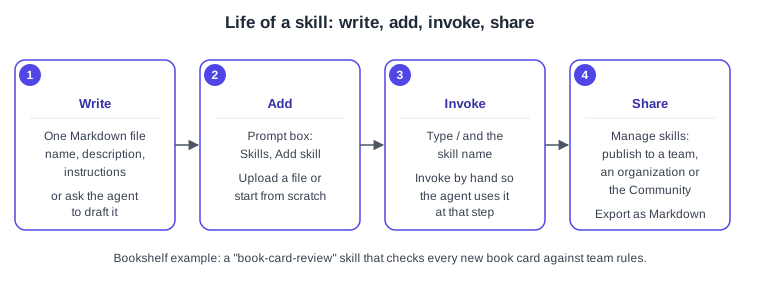
A skill packages a repeatable workflow as reusable instructions. Skills work in both the agent and Figma Make, are available on all plans, and need edit access to the file. Once added, a skill stays available across your files. Each skill is a single Markdown file that follows the Agent Skills specification; the optional scripts/, references/ and assets/ directories are not supported, and the name you give a skill becomes its slash command. Skills complement a design system: the library supplies components and patterns, while skills add team expertise such as review rules or writing standards. Figma has also said that skills will come to its MCP server so other clients can use them, which was announced as upcoming and is not covered here.
Skill file format
The Agent Skills specification requires YAML frontmatter with a name (lowercase letters, digits and hyphens, at most 64 characters) and a description (up to 1024 characters that say what the skill does and when to use it), followed by Markdown instructions. The example below is an original Bookshelf skill with placeholders only; it contains no credentials.
---
name: book-card-review
description: Reviews a Bookshelf book card frame against the team checklist. Use when asked to review, critique or QA a book card.
---

# Book card review

1. Confirm the card uses the Book card component from the Bookshelf Design System library.
2. Check that spacing, colour and type use variables and styles, not raw values.
3. Check the cover image has alt text noted in a comment.
4. Report findings as a short list: passed, needs fixing, questions.
Source: Agent Skills: Specification
Create a skill
Figma documents three ways, from the chat sidebar or inside Figma Make:
-
Prompt the agent to write one: ask it to turn a conversation, a set of prompts or an attached file into a skill, or to merge two skills.
-
Upload an existing skill: in the prompt box choose Skills, then Add skill, upload the file, review the name, description and content, and click Add.
-
Write it manually: choose Skills, Add skill, then Start from scratch; enter a name, a description and instructions, and click Add.
Phrase trigger conditions as requirements rather than restrictions so automatic invocation fires reliably, and use a specific name (a team or company prefix) if you plan to publish, to avoid clashes.
Invoke, manage and share
-
Type
/and the skill name in the prompt box, or choose Skills, Use skills, pick the skill and click Send. Invoke skills manually when you need the agent to use one at a given step; the agent may also match a skill to your request on its own. -
To list everything, open Add context, then Skills, then Manage skills. You can edit, export as Markdown, switch a skill off without deleting it, or delete it (deleting a published skill removes it for everyone, so export first).
-
To publish, select the skill in Manage skills and publish it to a team or to the whole organization (the file you publish from must be in that team), or to the Community with a thumbnail, name, tagline, description, category and a support contact. Publishing changes uses Publish changes; unpublishing keeps your own copy.
-
To use a Community skill, open Community from the file browser or figma.com/community, open the Extensions menu, choose Skills, then click Try in or Save. Community skills are on Starter, Professional, Education, Organization and Enterprise plans and are not available in Figma for Government.
Known issues listed by Figma: if one prompt mentions several skills, only the first used is invoked, and in Figma Make only standalone skill files can be uploaded.
Connectors
Connectors link the agent and Figma Make to external tools through the Model Context Protocol. They are available on all plans and need edit access to the file; custom connectors for servers not on Figma’s list require a paid plan, and some partner connectors add their own requirements. To connect, open Add context in the chat box, choose Connectors, click Connect beside a tool and complete the sign-in in that tool. Each person connects their own accounts. The documentation lists 22 featured connectors as of this check (for example Slack, Notion, GitHub, Linear, Atlassian and Google Drive).
Type @ to select a connector in a prompt. The agent shows the connector and tool it plans to use and asks for consent; Run lets it proceed. Each tool can be set to Ask to run, Always run or Never run, write tools are off by default, and Figma warns you to watch for prompt injection from external sources. If Connectors is missing from the menu, an administrator may have disabled it. For how MCP clients, servers and security work in general, read Model Context Protocol, MCP architecture and MCP security.
Web search
The agent can search the web, which returns cited results, or fetch a specific URL; it chooses from your prompt, and you can ask for either explicitly. Web search needs a Professional, Education (not K-12), Organization or Enterprise plan and edit access. In Figma Design it is off by default: click the plus in the prompt box and select Web search, and a checkmark shows it is on. In Figma Make it is on by default and is controlled in Make settings under Chat preferences. If the toggle is missing, an administrator has disabled it. It reaches only public pages, so for login-protected documentation use a custom connector, and sites that block scraping may refuse the fetch.
Generative plugins and shaders
Generative plugins are Figma plugins you build by prompting the agent, which writes the code. They can create content, modify existing layers or act as file utilities, and are documented for Figma Design, Draw and Motion. They are available on Starter, Professional, Education (not K-12), Organization and Enterprise plans and require access to the agent. The article gives no formal release status, and it says generative plugins cannot be monetized yet. For classic, hand-coded plugins read Building Plugins and Using Plugins and Widgets.
Shaders are generated visuals that run on the GPU. Shader fills are standalone visuals such as patterns, gradients and procedural textures, and shader effects change existing layers (blur, distortion, grain, pixelation, dithering, colour adjustment). They are in open beta in Figma Design on all plans for anyone with access to the agent, and Figma documents that they need a browser and system that meet its minimum requirements. Fills apply from the Fill and Stroke sections of the right sidebar and effects from the Effects section. A shader can be saved as a style and published to a library, and an animated shader can be keyframed in Figma Motion. Only one animated or interactive shader runs per page at a time. Editing creates a new version and keeps earlier ones.
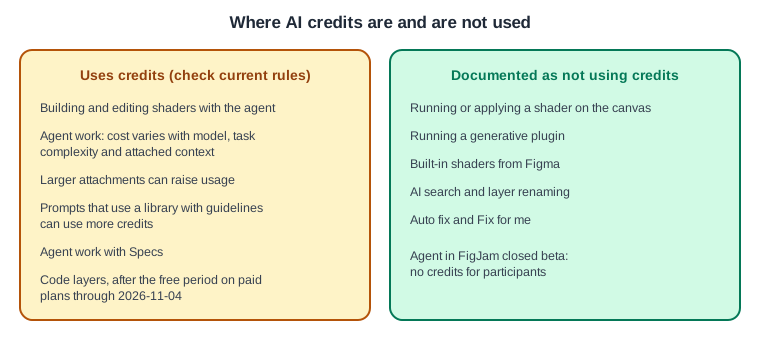
Building and editing shaders with the agent uses AI credits, while running or applying a shader does not; running a generative plugin is also documented as free. The shaders article is explicit about the cost of building shaders but the plugin article is not explicit about the cost of building plugins, so assume that building both uses credits. Anyone who can open a file can read the source of a shader or plugin, so never place keys or tokens in them.
-
Open a Figma Design file and click Agents in the left navigation bar to start a new chat.
-
Type "Build me a shader" and describe the result, for example a slow warm gradient for the Bookshelf hero banner; name the controls you want, such as a colour picker and a speed slider.
-
Test the shader and iterate with follow-up prompts; test on a duplicate of the file. To build a plugin instead, type "Build me a plugin" and describe what it should do.
-
Apply the shader as a fill or effect, and for an animated one select the layer and click Play above its top-right corner.
-
Optionally save it as a style and publish it to a team library.
External coding agents can list, read, create and update shaders and generative plugins through the Figma MCP server; see the developer documentation page on generative plugins and shaders.
Library guidelines
Guidelines are written instruction files attached to a published design library so that the agent follows your rules when a prompt uses that library. They are Markdown, plain text or JSON files; the combined size of all files in a library cannot exceed 200 KB, and Figma suggests a few focused files well below that. The feature is in beta (listed as open beta for Professional, Organization and Enterprise plans in the Config India 2026 summary, while the guidelines article names Professional, Education, Organization and Enterprise plans) and requires edit access to the library file. You write and upload the files yourself, though the agent can help draft them. Suggested files are an overview, guidelines, components, examples, anti-patterns and best practices; concentrate on common mistakes and ambiguous decisions, with do and don’t examples and reasons. Prompts with guidelines can use more AI credits, and guidelines in a published Design library are not used when creating a Make kit. For the library itself read Libraries and Publishing and Design Systems.
-
Open the Figma Design file that contains the Bookshelf Design System library.
-
From the file menu choose Library, then Manage guidelines.
-
Upload your files (for example
overview.md,components.md,anti-patterns.md) and click Apply changes. -
To rename, replace or delete a file, use the options menu beside it and click Apply changes again; the agent stops using a removed file once the change applies.
-
Test with a prompt that uses the library and tighten rules the agent misses.
AI credit use
Every seat includes a monthly allocation of AI credits that depends on the plan and seat type; credits reset monthly, do not roll over and cannot be shared. Administrators can add credits by subscription or pay-as-you-go. This page quotes no allowances or prices; see Plans, Seats and AI Credits and the official article. Agentic features, including the agent, Make, Specs and code layers, vary by model, task complexity and context such as attached files or libraries, whereas some actions (AI search and layer renaming, for example) are documented as free. To see your balance open the file’s main menu and choose AI balance; hovering over the credits icon after a task shows its cost. Administrators track team use in the admin dashboard; see Administration and Security.
Source: Figma Learn: How AI credits work
The consumption rates in that article are stated as of 2026-10-15, and the rule that the agent is free while in beta conflicts with the reported general availability, so always confirm the current rule in your own balance before running large jobs.
Where older guides are outdated
Books and tutorials from before 2026 predate the agent. Some describe FigJam AI as being in beta; Figma Make was in beta in a 2025 book but has been generally available since 2025-07-24; the "AI text suggestions" feature they mention has been retired; and none of them cover AI credits. The agent, generative plugins and custom skills all post-date these books, so treat any older instruction on AI in Figma as a starting point and follow the current help centre instead.
Pitfalls
-
Do not assume the agent is generally available everywhere: the agent in FigJam and Slides, shaders, code layers and guidelines carry separate beta labels.
-
Skills are only reliably applied when invoked with a slash command.
-
A skill file must be one Markdown file; bundled scripts or reference folders are ignored by Figma.
-
Web search is off by default in Figma Design and reaches public pages only.
-
Shared chats are visible to collaborators by default on paid plans; mark sensitive chats private.
-
Never put keys, tokens or signed URLs in skills, guidelines, shaders or plugins.