Building and Publishing
|
This content was generated with the assistance of AI and should be verified against the official documentation before being relied on in production; see the section bibliography for the reference material consulted while preparing these pages. |
Every page so far has run Places from a development build: Metro serving a bundle over the network, Fast
Refresh on, a debug-signed app on a simulator or a tethered device. Publishing replaces every one of those
conveniences with its release-time counterpart — the bundle is compiled into the binary instead of fetched,
the app is signed with a key a store trusts rather than a throwaway debug key, and the identifiers that were
scaffolding during development become permanent: once com.irurueta.places is live on Google Play and the App
Store, it can never be changed for that listing.
This page covers getting a signed artifact built and a listing published, once. Automating that — running the build from CI on every merge, and shipping JavaScript-only changes between store releases — is CI/CD and Over-the-Air Updates's subject, and this page deliberately stops at the point where that one picks up.
The baseline is the same as the rest of the section: React Native 0.87 (Android Gradle Plugin 9, compileSdk
37, Kotlin 2.2, and precompiled iOS binaries — shipped since 0.84 — so a clean iOS build no longer compiles
React Native’s own C++ from source), React 19.2, and Expo SDK 57.
App Identity
Four pieces of identity travel with every build, and three of them are effectively permanent.
Bundle Identifier and Application ID
iOS calls it the bundle identifier, Android the application id; both are reverse-DNS strings, and
Places uses com.irurueta.places for its production listing on both platforms. Keeping them identical across
platforms is a convention rather than a requirement, but it makes deep-link configuration, analytics, and push
registration far easier to reason about.
The identifier is the primary key of a store listing. Google Play refuses to publish two apps under one application id and refuses to ever reuse one, even after an app is unpublished; on iOS the bundle identifier is bound to an App ID record in the developer portal and to one App Store Connect app. Picking it carelessly is one of the few genuinely irreversible decisions in a mobile project.
Non-production builds get their own identifier — com.irurueta.places.dev, com.irurueta.places.preview — so that a developer build, a staging build, and the App Store build can all sit on the same phone at once
without overwriting each other. On Android this also means three distinct entries in the launcher, which is why
the display name gets an environment suffix to match.
Display Name, Version, and Build Number
The display name is what the launcher and the home screen show; it is short, it is not the same as the
store listing title, and on Android it is truncated aggressively. Places ships as Places in production and
Places (Dev) / Places (Preview) elsewhere.
Two numbers travel with every build and they do different jobs:
-
The version (
versionin Expo config,CFBundleShortVersionStringon iOS,versionNameon Android) is the human-facing marketing version —1.4.0. Users see it; stores display it; it is what a release note refers to. -
The build number (
ios.buildNumber/CFBundleVersionon iOS,android.versionCodeon Android) is the machine-facing counter. It must strictly increase with every artifact uploaded to a store, and an upload that reuses a number is rejected outright. Android’sversionCodeis an integer; iOS’sbuildNumberis a dot-separated string, conventionally just an integer too.
The build number is the single most common cause of a failed upload, and it is exactly the kind of bookkeeping
worth handing to a tool: EAS Build’s autoIncrement (below) tracks the last number it used and bumps it,
either locally from the project files or — with cli.appVersionSource set to remote — from EAS’s own
server-side record, which is what makes the counter correct even when builds are triggered from several
machines.
app.json and app.config.ts
An Expo project’s identity lives in one config object. app.json is the static form and is enough for a
project whose identity never varies; app.config.ts is the same object produced by a TypeScript function, and
is what a project needs the moment any value depends on which environment is being built. The two can coexist — app.config.ts receives the parsed app.json as config and spreads it — and that is the arrangement
Places uses.
That config is not merely metadata. With Expo’s Continuous Native Generation workflow, npx expo prebuild
generates the android/ and ios/ directories from it, which means the identity, the icons, the splash
screen, and every config-plugin-driven native setting are derived from a single checked-in TypeScript file
rather than hand-edited in Info.plist and AndroidManifest.xml. A project that keeps android/ and ios/
in version control instead (the bare workflow, discussed in
Tooling: Metro and Project Structure) edits
those native files directly and uses the Expo config only for what the JavaScript side reads.
Icons and Splash Screens
The app icon is a single square source image — 1024x1024 PNG, no transparency, no rounded corners, since both platforms apply their own mask — from which the build generates every size each platform wants. Android additionally wants an adaptive icon: a foreground layer plus a background colour or image, which the launcher composes and animates into whatever shape the device’s theme uses, so anything important must stay inside the central safe zone rather than running to the edges.
Splash screens are configured through the expo-splash-screen config plugin, which writes the native launch
screen on both platforms from one declaration: an image, its width, a resize mode, a background colour, and a
separate dark-mode variant. At runtime the same package controls when the splash screen goes away — SplashScreen.preventAutoHideAsync() at module scope holds it up, and SplashScreen.hideAsync() dismisses it
once fonts are loaded and the first screen is ready to paint, which is what keeps a user from seeing an empty
white frame between the launch screen and the app. Producing and sizing the underlying image assets is
Images and Icons's subject.
Places: app.config.ts and Per-Environment Configuration
Places's config file maps an APP_ENV value onto an identity — bundle id, display name, and API base URL — and reads EXPO_PUBLIC_API_URL from the environment so that a build profile (or a CI job, or a developer’s
shell) can override the default without editing any code:
// app.config.ts
import type { ConfigContext, ExpoConfig } from 'expo/config';

type Environment = 'development' | 'preview' | 'production';

interface EnvironmentIdentity {
  bundleId: string;
  name: string;
  defaultApiUrl: string;
}

const identities: Record<Environment, EnvironmentIdentity> = {
  development: {
    bundleId: 'com.irurueta.places.dev',
    name: 'Places (Dev)',
    defaultApiUrl: 'http://localhost:8080',
  },
  preview: {
    bundleId: 'com.irurueta.places.preview',
    name: 'Places (Preview)',
    defaultApiUrl: 'https://staging.api.places.example.com',
  },
  production: {
    bundleId: 'com.irurueta.places',
    name: 'Places',
    defaultApiUrl: 'https://api.places.example.com',
  },
};

const environment = (process.env.APP_ENV ?? 'development') as Environment;
const identity = identities[environment];

// EXPO_PUBLIC_API_URL is set per build profile in eas.json; the map above is only the fallback
// for a developer running `npx expo start` with nothing exported.
const apiUrl = process.env.EXPO_PUBLIC_API_URL ?? identity.defaultApiUrl;

export default ({ config }: ConfigContext): ExpoConfig => ({
  ...config,
  name: identity.name,
  slug: 'places',
  version: '1.4.0',
  orientation: 'portrait',
  scheme: 'places',
  userInterfaceStyle: 'automatic',
  icon: './assets/icon.png',
  ios: {
    bundleIdentifier: identity.bundleId,
    buildNumber: '1',
    supportsTablet: true,
  },
  android: {
    package: identity.bundleId,
    versionCode: 1,
    adaptiveIcon: {
      foregroundImage: './assets/adaptive-icon.png',
      backgroundColor: '#ffffff',
    },
  },
  plugins: [
    [
      'expo-splash-screen',
      {
        image: './assets/splash-icon.png',
        imageWidth: 200,
        resizeMode: 'contain',
        backgroundColor: '#ffffff',
        dark: { backgroundColor: '#101418' },
      },
    ],
  ],
  extra: {
    environment,
    apiUrl,
  },
});
Two things are worth being precise about. First, the EXPO_PUBLIC_ prefix is what makes a variable readable
from app code as process.env.EXPO_PUBLIC_API_URL — Metro inlines it into the bundle at build time, which is
how apiClient.ts picks up the right base URL without any runtime configuration fetch. Second, and for exactly
that reason, an EXPO_PUBLIC_* value is public: it ships inside the binary and anyone with the .ipa or
.aab can read it back out. An API base URL, a non-sensitive project id, or a feature-flag default belong
there; a signing secret or a privileged API key never does, as
Security covers at length.
version and the two build numbers are shown inline here for clarity; with autoIncrement enabled on the
production profile, EAS overrides buildNumber and versionCode at build time, so the checked-in values are
only the starting point.
EAS Build and EAS Submit
Building a release artifact locally means having the full native toolchain installed and correct: Xcode with a
matching command-line tools selection and a populated Keychain for iOS, a JDK plus the Android SDK and NDK for
Android, and — because App Store submission requires signing on macOS — a Mac for anything iOS at all.
EAS Build moves that onto Expo’s hosted macOS and Linux workers: eas build uploads the project, runs the
native build there, and returns a downloadable artifact, with the machine configuration, the credentials, and
the toolchain versions all described by files in the repository rather than by whatever happens to be
installed on one laptop.
eas.json is where that description lives. Each entry under build is a profile — a named set of build
options — and profiles can extend one another. Places uses the three conventional ones:
{
  "cli": {
    "version": ">= 16.0.0",
    "appVersionSource": "remote"
  },
  "build": {
    "base": {
      "node": "24.4.0",
      "android": {
        "image": "latest"
      },
      "ios": {
        "image": "latest"
      }
    },
    "development": {
      "extends": "base",
      "developmentClient": true,
      "distribution": "internal",
      "channel": "development",
      "env": {
        "APP_ENV": "development",
        "EXPO_PUBLIC_API_URL": "http://localhost:8080"
      },
      "android": {
        "buildType": "apk"
      },
      "ios": {
        "simulator": true
      }
    },
    "preview": {
      "extends": "base",
      "distribution": "internal",
      "channel": "preview",
      "env": {
        "APP_ENV": "preview",
        "EXPO_PUBLIC_API_URL": "https://staging.api.places.example.com"
      },
      "android": {
        "buildType": "apk"
      }
    },
    "production": {
      "extends": "base",
      "autoIncrement": true,
      "channel": "production",
      "env": {
        "APP_ENV": "production",
        "EXPO_PUBLIC_API_URL": "https://api.places.example.com"
      },
      "android": {
        "buildType": "app-bundle"
      }
    }
  },
  "submit": {
    "production": {
      "android": {
        "serviceAccountKeyPath": "../secrets/PLAY_SERVICE_ACCOUNT_KEY.json",
        "track": "internal"
      },
      "ios": {
        "appleId": "APPLE_ID_EMAIL_PLACEHOLDER",
        "ascAppId": "APP_STORE_CONNECT_APP_ID_PLACEHOLDER",
        "appleTeamId": "APPLE_TEAM_ID_PLACEHOLDER"
      }
    }
  }
}
Every value in the submit block above is a placeholder, and the service-account key it points at is a real
credential that must never be committed — it belongs in a secret store that CI injects at build time, which is
where CI/CD and Over-the-Air Updates takes it up.
The three profiles differ in ways that matter:
| Profile | What it produces and who installs it |
|---|---|
|
A development build: a debug-signed app containing |
|
A release-configuration build with |
|
The artifact a store accepts: a signed Android App Bundle and a distribution-signed |
eas credentials manages signing material for both platforms. Expo can generate and hold an Android upload
keystore and an iOS distribution certificate plus provisioning profile on the project’s behalf, retrieving them
for each build; alternatively a project can supply its own and keep them in credentials.json, which is the
right choice when the same keys are shared with a Fastlane setup or an existing release process. Either way the
keystore file itself never belongs in the repository.
EAS Submit (eas submit --platform android --profile production) uploads a finished artifact to Google
Play or App Store Connect using the submit configuration above, so that the build-then-upload pair is two
commands rather than a manual trip through two web consoles. It is independent of EAS Build — a locally built
artifact can be submitted with --path.
Local builds remain fully supported and are sometimes preferable: eas build --local runs the same recipe on
the current machine, and a project in the bare workflow can simply run Gradle and Xcode directly, as the next
two sections do. The trade-off is ownership of the toolchain — reproducibility and secret handling become the
project’s problem rather than the service’s.
Android Release Builds
This section covers what a React Native release needs from Android’s signing and publishing pipeline; the native Android pages document the same pipeline in full, independent of React Native — see Building, Signing and Preparing a Release and Publishing on Google Play.
The Upload Keystore and Play App Signing
Android requires every APK and App Bundle to be signed, and Google Play splits that into two keys:
-
The upload key is the one the project holds. Its keystore is generated once with
keytool, and it is what./gradlew bundleReleasesigns with. It proves to Play that an upload came from the project. -
The app signing key is the one Play holds under Play App Signing. Play verifies the upload signature, strips it, and re-signs the artifacts it generates for devices with the app signing key — which is the key devices actually validate against, and the key that must remain constant for the lifetime of the app.
The point of the split is recoverability. If the upload keystore is lost or compromised, Google can register a new upload key and the app keeps updating; if a self-managed app signing key were lost, the listing could never be updated again by anyone. Play App Signing is mandatory for new apps, and it is also what makes Play able to generate per-device split APKs from an App Bundle at all, since it has to re-sign them.
The keystore file and its passwords are the project’s most sensitive build-time assets. The keystore never goes into version control, the passwords never go into a file that does, and losing the backup of both is a genuine incident even with Play App Signing in place.
The Gradle Signing Configuration
In a bare project, release signing is declared in android/app/build.gradle and the actual secrets are read
from Gradle properties or the environment, never written inline:
// android/app/build.gradle
android {
    signingConfigs {
        release {
            storeFile file(System.getenv('PLACES_UPLOAD_STORE_FILE')
                    ?: project.findProperty('PLACES_UPLOAD_STORE_FILE'))
            storePassword System.getenv('PLACES_UPLOAD_STORE_PASSWORD')
                    ?: project.findProperty('PLACES_UPLOAD_STORE_PASSWORD')
            keyAlias System.getenv('PLACES_UPLOAD_KEY_ALIAS')
                    ?: project.findProperty('PLACES_UPLOAD_KEY_ALIAS')
            keyPassword System.getenv('PLACES_UPLOAD_KEY_PASSWORD')
                    ?: project.findProperty('PLACES_UPLOAD_KEY_PASSWORD')
        }
    }

    buildTypes {
        release {
            signingConfig signingConfigs.release
            minifyEnabled true
            shrinkResources true
            proguardFiles getDefaultProguardFile('proguard-android-optimize.txt'), 'proguard-rules.pro'
        }
    }
}
The four properties are resolved from the environment first, so CI can inject them as masked secrets, and fall
back to Gradle properties for a local release build. Those properties belong in the user-level
~/.gradle/gradle.properties, outside the repository:
# ~/.gradle/gradle.properties -- NOT the copy inside the project, which is committed.
# Every value below is a placeholder. Replace them with the real ones locally, and
# supply them as masked environment variables in CI.
PLACES_UPLOAD_STORE_FILE=/Users/you/keystores/places-upload.keystore
PLACES_UPLOAD_KEY_ALIAS=places-upload
PLACES_UPLOAD_STORE_PASSWORD=***REPLACE_WITH_YOUR_KEYSTORE_PASSWORD***
PLACES_UPLOAD_KEY_PASSWORD=***REPLACE_WITH_YOUR_KEY_PASSWORD***
Building then comes down to one Gradle task:
cd android

# Android App Bundle for the Play Store -- the artifact Play wants.
./gradlew bundleRelease
# -> android/app/build/outputs/bundle/release/app-release.aab

# Universal APK -- for side-loading, a QA hand-off, or a non-Play distribution channel.
./gradlew assembleRelease
# -> android/app/build/outputs/apk/release/app-release.apk

# Install the release build on a connected device to sanity-check it before uploading.
./gradlew installRelease
Both tasks run Metro’s release bundling as part of the build: the JavaScript is compiled to Hermes bytecode and packaged as an asset inside the artifact, so the release app has no dependency on a running Metro server (JavaScript Runtime and Hermes covers that compilation step).
AAB or APK, R8, and ABI Splits
An Android App Bundle (.aab) is not installable; it is a publishing format. Play uses it to generate and
sign the exact split APKs each device needs — the right screen density, the right language resources, and the
right native ABI — so a device downloads materially less than a universal APK would make it download. Play
requires it for new apps and for updates to existing ones. An APK is still the right artifact anywhere Play
is not involved: internal side-loading, a preview build handed to a tester, an alternative store, or a device
with no Play Services at all.
minifyEnabled true turns on R8, which has replaced ProGuard as the shrinker and obfuscator while keeping
ProGuard’s rule syntax and the proguardFiles name. It removes unreachable Java/Kotlin code, shortens names,
and — with shrinkResources true — drops unreferenced resources. The failure mode to know about is
reflection: anything looked up by name at runtime, which in a React Native app means native modules discovered
through their generated registration code and any library relying on reflective instantiation, needs a -keep
rule in proguard-rules.pro or it will be stripped and fail only in the release build. React Native ships
consumer rules for its own code, and well-behaved libraries ship theirs, but a release build is never verified
until it has actually been run — which is what installRelease above is for.
When APKs must be distributed directly and size matters, ABI splits produce one APK per native
architecture instead of one fat APK carrying every .so:
// android/app/build.gradle -- only needed when distributing APKs outside Play.
android {
    splits {
        abi {
            reset()
            enable true
            universalApk false
            include 'armeabi-v7a', 'arm64-v8a', 'x86_64'
        }
    }
}
Each split APK needs its own increasing versionCode, which is the usual reason this is more trouble than it
is worth on Play — where the App Bundle does the same job automatically and correctly.
Play Console Tracks
Google Play stages a release through four tracks, and an artifact can be promoted from one to the next without rebuilding:
| Track | Audience and purpose |
|---|---|
Internal testing |
Up to 100 named testers, available within minutes of upload because it skips the full review queue. This is where a build goes first, always — it is the cheapest way to confirm that the signed artifact actually starts. |
Closed testing |
An invite-only tester list or Google Group, reviewed like a real release. Used for a genuine beta with people outside the team. |
Open testing |
Anyone who opts in from the store listing. Useful for scale testing and for gathering crash data from real device diversity before committing. |
Production |
The public listing. Supports a staged rollout — release to a percentage of users, watch crash-free rate and vitals, then increase the percentage or halt the rollout if something is wrong. |
Play also enforces a pre-launch report on uploaded builds, running the app on a set of real devices in Google’s lab and reporting crashes, accessibility problems, and security warnings before any user sees it.
iOS Release Builds
This section covers what a React Native release needs from Apple’s signing and distribution pipeline. The native Apple pages document the same pipeline in full, independent of React Native — see Membership, Signing, Capabilities and Info.plist and App Store Connect, TestFlight and App Review.
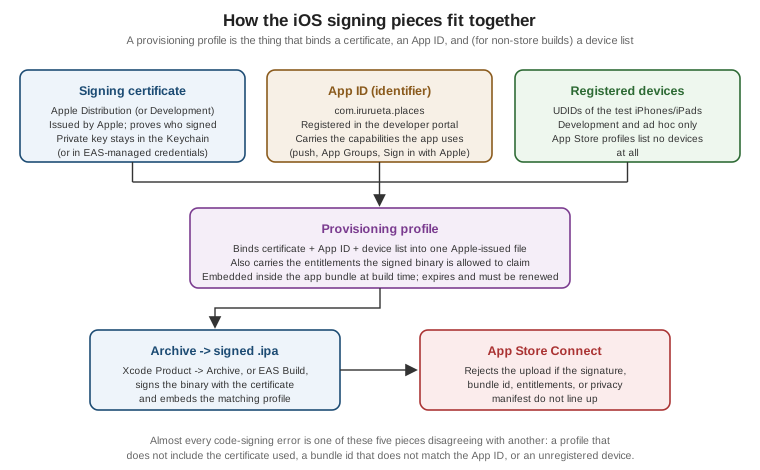
Certificates, Identifiers, and Provisioning Profiles
iOS release builds turn on three records in the Apple Developer portal, and nearly every "code signing error" is two of them disagreeing. The full native version of this picture, with capabilities and devices included, is the signing figure on Membership, Signing, Capabilities and Info.plist:
-
A signing certificate — Apple Development for debug builds, Apple Distribution for anything shipped — whose private key lives in the macOS Keychain (or in EAS’s managed credential store). The certificate identifies who signed the binary.
-
An identifier, or App ID: the record for
com.irurueta.places, which also lists the capabilities the app is entitled to use — push notifications, App Groups, Sign in with Apple, associated domains for the universal links Security describes. -
A provisioning profile, which binds a certificate to an App ID, carries the resulting entitlements, and — for development and ad hoc distribution — lists the UDIDs of the devices allowed to run the build. An App Store distribution profile lists no devices, because the store handles installation. The profile is embedded in the app bundle at build time and it expires, so a profile that worked last year is a routine build failure this year.
Xcode’s Automatically manage signing creates and refreshes these for a team that has portal access, which is
the right default for a small project. eas credentials does the same thing from the command line and stores
the results server-side so that CI builds do not need a Mac with a populated Keychain; Fastlane’s match
solves it a third way, by keeping the certificates and profiles in an encrypted git repository that every
machine syncs from.
Archiving and Uploading
A local release build is an archive: in Xcode, select Any iOS Device as the destination and run
Product > Archive, which builds in the Release configuration, runs Metro’s release bundling, compiles the
JavaScript to Hermes bytecode, and produces an .xcarchive in the Organizer. From there, Distribute App
signs an .ipa with the distribution certificate and uploads it to App Store Connect. The same thing runs
headlessly with xcodebuild archive followed by xcodebuild -exportArchive, which is what Fastlane’s gym
wraps; eas build --platform ios --profile production produces the same artifact on a hosted macOS worker.
Since React Native 0.84 the iOS dependency graph ships as precompiled binaries rather than as source, which removes the long C++ compile that used to dominate a clean release build; a release archive on 0.87 is meaningfully faster than it was on 0.76, though it is still the slowest step in the pipeline.
Uploads land in App Store Connect, which runs automated checks — signature validity, bundle id match, entitlements consistent with the profile, required icon sizes present, privacy manifest well-formed — and rejects the build before a human ever sees it if any of those fail.
TestFlight
Once a build finishes processing, TestFlight distributes it to testers:
-
Internal testers are members of the App Store Connect team, up to 100 of them, and they get the build as soon as processing finishes, with no review.
-
External testers — up to 10,000, invited by email or by a public link — require a beta app review first. That review is lighter than a full App Store review, but it is a real queue with a real turnaround.
Builds expire after 90 days, and each one carries release notes that testers see in the TestFlight app. It is the direct counterpart to Play’s internal and closed tracks, and the same discipline applies: no build goes to review that has not first been installed and launched from TestFlight.
Review Guidelines and Privacy Manifests
App Store review is a human process against the published App Review Guidelines, and the rejections that recur in React Native projects are rarely technical:
-
Minimum functionality — an app that is a thin wrapper around a website, or that duplicates what a mobile web page already does, is rejected under guideline 4.2.
-
Login services — an app that uses a third-party or social login service for the user’s primary account must also offer an equivalent privacy-focused login option (guideline 4.8); Sign in with Apple is one such option.
-
Account deletion must be available in-app for any app that supports account creation.
-
Permission strings — every
NSCameraUsageDescription-style key must explain why the app needs that data in terms a user understands; a generic string is a rejection. In an Expo project these are set through the relevant config plugin rather than by editingInfo.plist. -
Demo credentials for anything behind a login must be supplied in the review notes, or the reviewer sees a sign-in wall and stops.
-
Purchases of digital content must go through In-App Purchase.
Separately, Apple requires a privacy manifest: a PrivacyInfo.xcprivacy file declaring the data the app
collects and, critically, the required reason APIs it uses — a short list of platform APIs (file timestamps,
disk space, user defaults, system boot time) that can be used for fingerprinting and must be justified with an
approved reason code. Third-party SDKs on Apple’s list must ship their own manifest and a signature, and the
build aggregates all of them into the privacy report submitted with the app. React Native 0.87 and Expo SDK 57
ship manifests covering their own required-reason API usage, so the work left to a project is declaring its
own data collection and checking that every third-party SDK it adds carries a manifest too. App Store Connect
rejects an upload whose aggregated manifest is missing entries it can detect.
Store Assets and Metadata
The binary is only half of a release. Both stores need a listing, and assembling it is usually the step that delays a first launch:
| Asset | Google Play | App Store |
|---|---|---|
Name |
Up to 30 characters |
Up to 30 characters |
Short description / subtitle |
80 characters, shown in search results |
30-character subtitle under the name |
Full description |
4,000 characters |
Up to 4,000 characters, plus a separate promotional text field that can be changed without a new build |
Icon |
512x512 PNG |
1024x1024 PNG, no alpha channel |
Screenshots |
At least 2 per form factor; phone, 7-inch and 10-inch tablet |
Required for the largest iPhone and iPad display sizes; smaller sizes are scaled from them |
Feature graphic / preview |
1024x500 feature graphic |
Optional app preview video, up to 30 seconds |
Privacy |
Data safety form, declared per data type |
App privacy "nutrition label", must match the privacy manifest |
Other |
Content rating questionnaire, target audience, ads declaration, privacy policy URL |
Age rating questionnaire, export compliance, support and marketing URLs, review notes and demo account |
Both privacy declarations are answered about the whole app including its SDKs, and both stores treat an inaccurate declaration as a policy violation rather than a mistake — an analytics or crash-reporting SDK added casually changes what the app collects, and the listing has to be updated to match.
Localised listings are per-locale copies of the text and screenshots; the store shows the default locale where a translation is missing, so adding a language is an incremental change rather than an all-or-nothing one.
From Commit to Store Listing
app.config.ts + eas.json describe the release"] Bump["Version and build number
version 1.4.0; autoIncrement bumps versionCode / buildNumber"] Build["Release build
eas build --profile production, or Gradle / Xcode locally"] Commit --> Bump --> Build Build --> AAB["Android: signed .aab
gradlew bundleRelease, upload key"] Build --> IPA["iOS: signed .ipa
Xcode archive or EAS, distribution certificate + profile"] AAB --> PlayUpload["Upload to Play Console
eas submit or manual"] PlayUpload --> PlaySign["Play App Signing re-signs
and generates per-device split APKs"] PlaySign --> Internal["Internal testing"] Internal --> Closed["Closed testing"] Closed --> Open["Open testing"] Open --> PlayProd["Production, staged rollout"] PlayProd --> PlayListing["Google Play listing"] IPA --> ASC["Upload to App Store Connect
eas submit, Xcode Organizer, or Transporter"] ASC --> Checks["Processing and automated checks
signature, entitlements, icons, privacy manifest"] Checks --> TF["TestFlight: internal, then external beta review"] TF --> Review["App Review against the guidelines"] Review --> Release["Release: manual or phased"] Release --> AppStore["App Store listing"]
The two halves are deliberately symmetric: build once per platform, upload, stage through progressively wider audiences, then release. What differs is where the gate sits — Play reviews at the closed-testing stage and lets internal testing through in minutes, while Apple reviews before anything reaches the public listing and again, more lightly, before an external TestFlight group.
Everything downstream of the first box is what automation is for, and CI/CD and Over-the-Air Updates wires exactly this flow into a pipeline — along with the separate question of how to ship a JavaScript-only fix between two store releases.