Accessible and Inclusive Design in Figma
|
This content was generated with the assistance of AI and should be verified against the official Figma documentation before being relied on in production. This sub-section’s Figma bibliography lists the reference material consulted while preparing these pages. |
This page was written on 2026-10-30 against the UI3 interface of Figma Design and the WCAG 2.2 recommendation. The colour picker contrast checker is described by Figma as available on all plans and needs edit access to the file. Accessibility annotations are different: the help article says adding them needs a Professional, Education, Organization, Government or Enterprise plan, a Full seat and edit access, while viewing them needs a Full or Dev seat with at least view access. Accessible prototypes (playing a prototype with a screen reader) are described without any plan or seat requirement. None of these features is labelled beta in the articles consulted.
This page covers only how to design for accessibility and check it inside Figma. The standards, legislation, conformance levels and validation tools for finished websites are on Web Accessibility, so they are not repeated here. Checking a built page in a browser is covered in Forms, Accessibility and Validation and Accessibility Checks in E2E Tests.
The running example is Bookshelf: the catalogue card with an "Add to shelf" button and the "Leave a review" form. You will audit them for contrast, target size, focus order and annotations, in the order of the storyboard below.
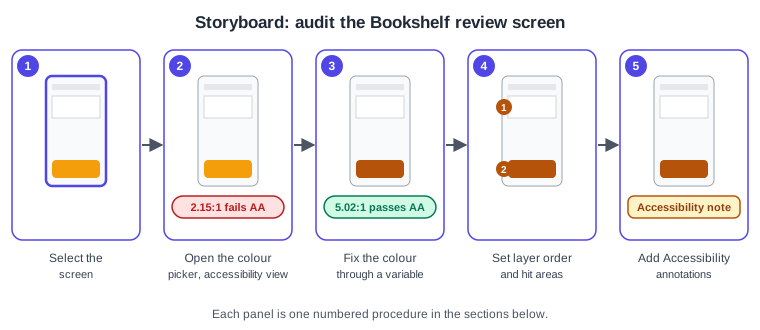
Contrast: WCAG and APCA
Contrast is the difference in luminance between a foreground and its background, expressed by WCAG as a ratio from 1:1 (no difference) to 21:1 (black on white). The WCAG 2.2 success criteria that matter for visual design are:
-
1.4.3 Contrast (Minimum), level AA: text and images of text need at least 4.5:1. Large text needs at least 3:1, where large means at least 18 pt, or 14 pt bold (roughly 24 px and 18.7 px at the usual 96 dpi conversion). Inactive components, pure decoration and logotypes are exempt.
-
1.4.6 Contrast (Enhanced), level AAA: 7:1 for text and 4.5:1 for large text.
-
1.4.11 Non-text Contrast, level AA: the visual information needed to identify a user-interface component or its state (for example an input border or a focus ring), and graphics needed to understand content, need at least 3:1 against adjacent colours.
APCA (the Accessible Perceptual Contrast Algorithm) is a different method that gives a signed lightness-contrast value depending on font size and weight. It is not part of WCAG 2.2, and I did not find it described as a conformance requirement in any current standard; it is discussed as a candidate for a future WCAG 3 model, which is still a draft. Figma’s own colour picker article, as consulted on 2026-10-30, describes WCAG AA and AAA checks and does not mention APCA. APCA values in Figma therefore come from third-party plugins, which are ecosystem tools rather than Figma features and must be checked for maintenance before you rely on them. For a design that must be conformant today, use the WCAG ratios and treat APCA as an extra opinion.
-
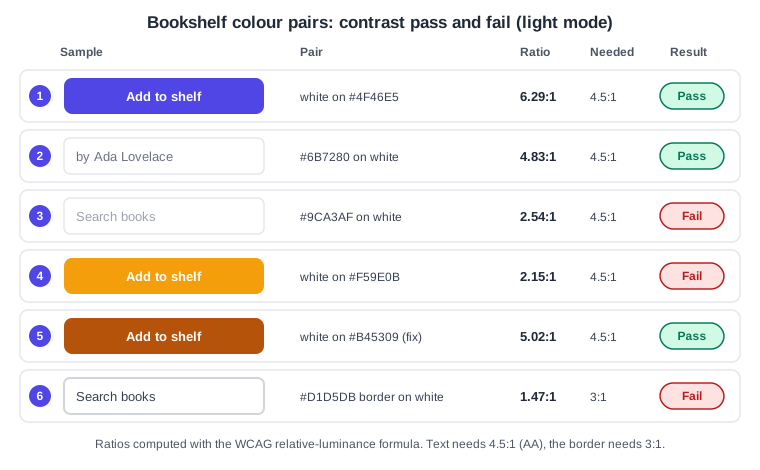
Primary button: white on indigo #4F46E5 is 6.29:1, which passes AA but not the 7:1 AAA level.
-
Author name: #6B7280 on white is 4.83:1, a narrow pass; any lighter grey would fail.
-
Placeholder: #9CA3AF on white is 2.54:1, a fail. Placeholder text is still text, so it needs 4.5:1 when it carries meaning.
-
Amber button: white on #F59E0B is 2.15:1, a fail, and a common trap because amber looks friendly.
-
The fix: white on the darker #B45309 is 5.02:1, a pass.
-
Input border: #D1D5DB on white is 1.47:1. The border identifies the field, so it is held to the 3:1 non-text rule and fails.
The ratios in the figure were calculated with the WCAG relative-luminance formula. Recompute any pair you care about rather than trusting a figure.
Checking contrast in Figma
The checker lives in the colour picker. Select a layer, open its fill in the right sidebar (the Fill section), click the colour swatch to open the picker, and click the accessibility view icon in the picker. The article describes the selected layer’s colour as the foreground, shows the ratio from 1:1 to 21:1 and marks WCAG AA and AAA with a warning where the current values fail. You can choose the category (Auto based on the layer, Large text, Normal text or Graphics) and the level (AA, or AAA for text only). Clicking a warning marker adjusts the colour to the nearest value that passes. The article lists the minimums as 4.5:1 for normal text and 3:1 for large text and graphics at AA, and 7:1 for normal text at AAA.
The checker compares colours you give it. It does not know about opacity layers, gradients, image backgrounds or blend modes behind the text, so for text on a photo or gradient test the worst region by hand. Fills are explained on Color, Fills and Images.
Procedure 1: find the failing button
-
Open the Bookshelf catalogue file and select the "Add to shelf" button in the book card.
-
In the right sidebar, find the Fill section of the button background and click its swatch.
-
In the colour picker, click the accessibility view icon and set the category to Normal text and the level to AA.
-
Read the ratio for the white label on the amber fill: about 2.15:1, with a warning at AA.
-
Do not accept the automatic nearest colour blindly; note the failure and continue to the next procedure.
Procedure 2: fix it once, through a variable
Fixing the hex value on one button leaves every other use broken. Fix the colour where it is defined.
-
Open the variables table of the Bookshelf Design System file (local variables) and find the colour variable bound to the button fill (for example the primary action colour in the semantic collection).
-
Change its light-mode value to #B45309, or alias it to a darker primitive.
-
Check the dark mode column too. In dark mode the page background is #111827: #6B7280 text on it is only 3.67:1 and fails, while #9CA3AF is 6.99:1 and passes. Each mode needs its own pass.
-
Look at the button, the author text and the placeholder in both modes using the mode switch on the frame.
Variables, modes and aliasing are covered on Variables, Collections and Modes, and the system around them on Design Systems. Never rely on colour alone to carry meaning (for example a red border as the only error signal): pair it with text or an icon.
Type size and readability
WCAG sets no minimum font size. It requires that text can be resized up to 200 percent without loss of content or functionality (SC 1.4.4, level AA), so design layouts that reflow rather than clip. The large-text thresholds above change the contrast you need, not whether the text is legible. As practical guidance rather than a rule, keep body text at the platform defaults (Apple and Material publish their type scales; see Apple Human Interface Guidelines and Compose, Material 3 and Theming), use the type styles of your design system, avoid text in images, and give lines enough height. In Figma, build text containers with auto layout, hug height and a minimum rather than fixed heights so longer or larger text pushes content down instead of overflowing. Text styles and properties are on Text and Typography and the layout side on Auto Layout.
Touch targets
Two WCAG 2.2 criteria cover the size of pointer targets:
-
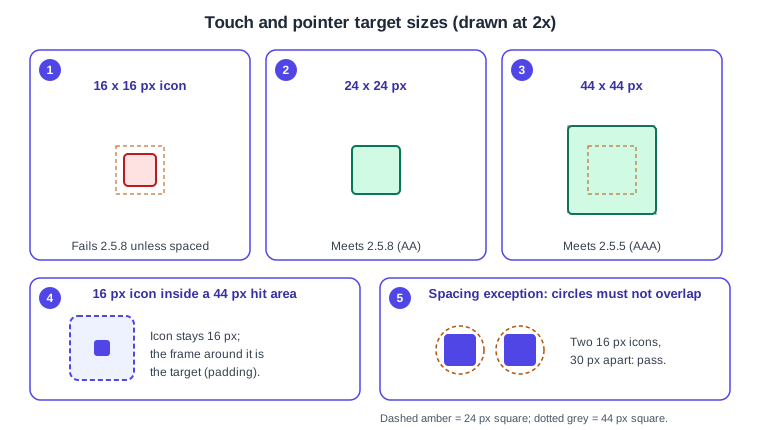
2.5.8 Target Size (Minimum), level AA: targets should be at least 24 by 24 CSS pixels. A smaller target still passes if a 24 px circle centred on it does not intersect another target or another undersized target’s circle. Exceptions exist for inline links in text, user-agent-controlled elements and essential presentation.
-
2.5.5 Target Size (Enhanced), level AAA: at least 44 by 44 CSS pixels, with four exceptions (equivalent, inline, user agent control and essential presentation).
Platform design guidelines ask for comparable or larger touch areas (Apple and Material publish their own numbers; check the current versions before quoting a figure), so aim for 44 px on mobile and treat 24 px as the floor. The key Figma technique is that the visible icon and the target are different things: keep the icon at 16 px and make the frame around it the target by giving it padding with auto layout, so the clickable layer is 44 by 44.
-
16 by 16 px icon: smaller than 24 px, so it fails unless it is spaced from neighbours.
-
24 by 24 px: the AA minimum.
-
44 by 44 px: the AAA size and a sensible mobile default.
-
16 px icon in a 44 px frame: padding, not a bigger icon, creates the target.
-
Spacing exception: two 16 px icons whose 24 px circles do not overlap pass AA, but only if no other target comes closer.
Procedure 3: enlarge the favourite and share icons
-
Select the 16 px heart icon in the book card and wrap it in a frame with auto layout (select the icon and press Shift A, or search the Actions menu with Cmd or Ctrl K).
-
In the right sidebar set padding to 14 on every side so the frame becomes 44 by 44, and centre the icon.
-
Read the width and height in the Design tab to confirm 44 by 44, and repeat for the share icon.
-
Add a 4 px gap between the two frames so their hit areas do not overlap.
-
Save the padded frame as the icon-button component so the rule travels with the design system (see Components and Instances).
Focus order and states
Keyboard and switch users move through a screen in a sequence, so the designer decides that sequence. WCAG 2.4.3 Focus Order (level A) requires focusable components to receive focus in an order that preserves meaning and operation. 2.4.7 Focus Visible (level AA) requires a visible keyboard focus indicator, and 2.4.11 Focus Not Obscured (Minimum, level AA, new in 2.2) requires that a focused component is not entirely hidden by author-created content such as a sticky bar. The focus ring itself is a graphical object, so give it at least 3:1 contrast against what surrounds it.
Design these states, not just the default one: default, hover, focus, pressed, disabled and error, usually as variants of the component (see Variants and Component Properties). A focus state that is only a slightly different fill is easy to miss; use a visible outline or offset ring.
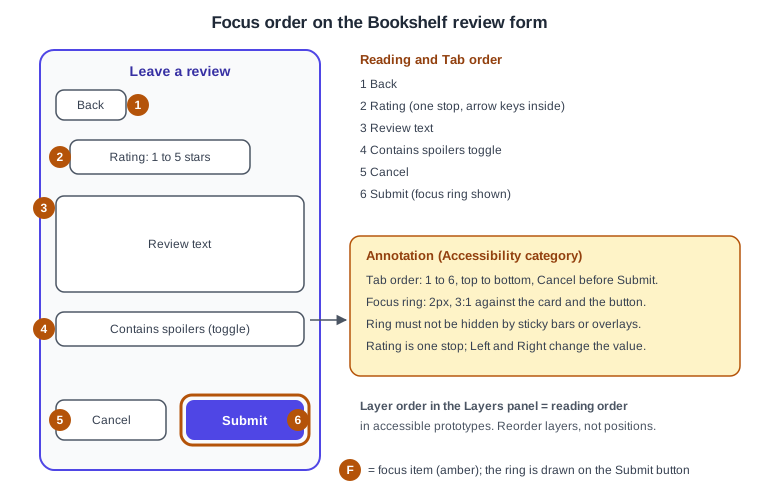
Figma helps in two places. In accessible prototypes the Tab order follows the prototype layer order, and in auto-layout frames it follows the layout direction, so you control it by reordering layers in the Layers panel. And you record the intended order for developers with an annotation.
-
Back: first, because it is first in the reading flow.
-
Rating: one stop for the whole star group; the arrow keys change the value inside it.
-
Review text: the text field.
-
Contains spoilers: a toggle that exposes its on or off state.
-
Cancel: placed before Submit so the destructive-looking or secondary action is not skipped past.
-
Submit: the primary action, shown with its focus ring.
Procedure 4: set and test the focus order
-
Open the "Leave a review" frame and expand it in the Layers panel.
-
Drag layers so the list reads in the order of the figure; remember that in the Layers panel the layer order and the visual stacking are related, so check the canvas after each move.
-
Click Present, turn on a screen reader (VoiceOver on macOS, JAWS or NVDA on Windows) and press Tab through the prototype.
-
Confirm each stop is announced in the intended order and that the focus state variant is visible.
Annotating accessibility for developers
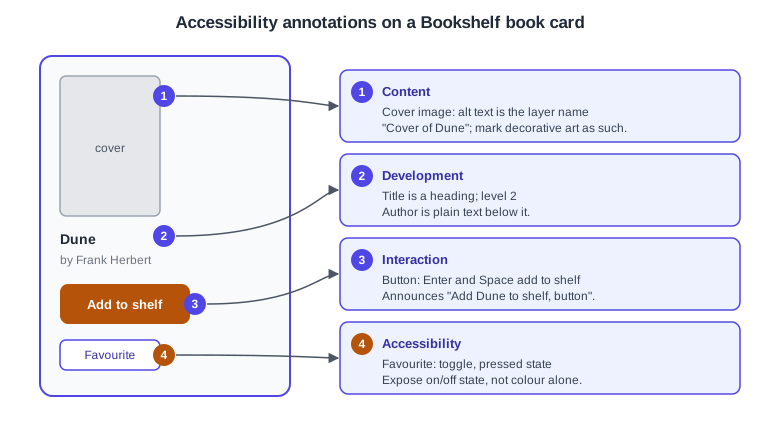
Annotations attach notes and properties to a layer so that developers see them in Dev Mode. In Figma Design, click Annotation in the toolbar or press Shift T, select a layer, and type a note, optionally inserting a layer property with "+ Property" (the article gives alignment direction and sizing as examples, and says property values stay current when the design changes). Four category presets exist: Development, Interaction, Accessibility and Content. You can edit categories through the category menu, and category edits apply only to the current file. Annotations are visible in Dev Mode, and the plan and seat requirements are those given at the top of this page.
-
Content: the cover image needs alternative text; decorative art is marked as decorative.
-
Development: the title is a heading, so developers do not build it as a styled paragraph.
-
Interaction: the button answers to Enter and Space and is announced with a meaningful name.
-
Accessibility: the favourite toggle exposes its pressed state, not just a colour change.
Procedure 5: annotate the review form
-
Select the Submit button, press Shift T, and add a note such as the focus ring size and the 3:1 requirement; set its category to Accessibility.
-
Select the star-rating group and add a note that it is one focus stop and the arrow keys change the value.
-
Select the "Leave a review" frame and add a note with the intended Tab order from the figure.
-
Mark the frame Ready for dev when the annotations are complete. Developers then read them in Dev Mode, which is documented in the Figma Dev Mode guides; this sub-section’s own handoff pages cover the workflow.
Annotation is a communication aid, not a guarantee: the code still has to implement the roles, names and states. See the ARIA and keyboard material in Web Accessibility.
Alt text
Figma has no dedicated alt-text field on a layer. In accessible prototypes, the article says shapes with image fills are announced as images and the alt text is the layer name; top-level frames, components and instances become labelled sections using their layer names, and elements with an On click interaction are announced as buttons or links. So name layers for the people who will hear them: "Cover of Dune" rather than "Rectangle 12". Write alt text for the real product in an annotation in the Content category, because production alt text lives in the code or CMS.
Good alt text states the purpose, not the pixels. A book cover that is the only way to identify the book needs a name; a purely decorative flourish should be marked as decorative so a screen reader skips it. Avoid putting text in images, because it cannot be resized or announced.
Motion sensitivity
Animation can cause discomfort or harm for people with vestibular disorders and seizure conditions. WCAG covers several aspects: 2.3.1 Three Flashes or Below Threshold (level A) forbids more than three flashes in any one-second period, 2.2.2 Pause, Stop, Hide (level A) requires a way to stop automatically moving content lasting more than five seconds, and 2.3.3 Animation from Interactions (level AAA) says motion triggered by interaction can be disabled unless essential.
In Figma, design a reduced-motion alternative as a separate path: for example the "rate this book" star animation as a Smart Animate bounce, plus a variant that only changes colour or opacity with a short dissolve. I did not find a documented Figma setting that makes a prototype automatically switch to reduced motion, so describe the alternative in an annotation and let the implementation honour the user’s operating-system preference. Prototype motion is on Smart Animate and Transitions, Easing and Springs, and microinteractions on Interactive Components and Microinteractions.
Inclusive content
Inclusive design is broader than conformance. A short checklist for Bookshelf copy and visuals:
-
Use plain language and short sentences; write button labels that say what happens ("Add Dune to shelf", not "Click here").
-
Give every form field a visible label, and write error messages that say what to fix.
-
Do not rely on colour, shape or position alone for meaning, and do not rely on sound alone.
-
Use realistic names, avatars and book covers in sample content that reflect the people who will use the product, and avoid stereotypes in personas.
-
Design for different contexts: one hand, bright sunlight, slow networks, large text and high zoom.
-
Test with people, including people who use assistive technology; the process is on Usability Testing and Iteration.
Using Figma accessibly
Figma’s "Accessibility at Figma" article says Figma is working towards WCAG 2.2 AA for the web, desktop and mobile apps, and describes these features as consulted on 2026-10-30:
-
Screen readers: turn on "Adapt content to screen readers" under Options, Accessibility settings. The iOS app works with VoiceOver and the Android app with TalkBack. The prototype article lists VoiceOver on macOS and JAWS and NVDA on Windows for accessible prototypes, which work in a desktop browser or the desktop app but not for mobile or mobile web prototypes.
-
Keyboard: F6 (Control F6 on Windows) moves between top-level areas of the interface; Tab and Shift Tab move within sections and through layers; Enter and Shift Enter move into and out of layers; Cmd or Ctrl K opens the Actions menu; keyboard box select is Option Space on macOS and Control Space on Windows; C enters comment mode.
-
Display: an enhanced-contrast toggle for the Figma interface in Accessibility settings, light, dark or system theme from the Actions menu, and keyboard shortcuts to change the UI scale.
-
Shortcuts: an option to ignore Figma shortcuts while typing special characters in text fields, which helps people who use dictation or alternative layouts.
The article says nothing about a reduce-motion setting and names no plan or seat requirement for these features, so check your own account. For FigJam with a screen reader, the official blog announcement lists gaps that may have changed since; check the current help article.
Where older guides are outdated
-
The older books that touch accessibility describe the pre-UI3 interface (the 2022 and 2024 titles in particular); the colour picker, Annotation tool and Options menu names above are the UI3 ones (UI3 has been the only interface since 2025-04-30).
-
Seat and plan wording in older books ("editor", "viewer", "paid Team plan") predates the Full, Dev, Collab and View seats (since 2025-03-11); adding annotations now needs a Full seat and a qualifying plan, as stated above.
-
Third-party contrast and accessibility plugins named in older books (for example Stark or Adee) must be re-checked for current maintenance; present them as ecosystem tools, not as Figma features.
-
Dev Mode was "newly released" in a 2024 book; it has been a paid Dev or Full seat feature since 2024-01-31, and annotations, statuses and focus view are part of it.
Not verified
The exact picker icon position for the accessibility view, whether an APCA readout has been added natively since the article was last updated, the supported browser list for accessible prototypes, and any behaviour of the Annotation tool on Starter plans were not confirmed against the live interface. The exact padding controls used in Procedure 3 are not described in the article cited there, so check them in your version. Platform-specific touch-target figures from Apple and Google were deliberately not quoted.