Figma Buzz and Figma Weave
|
This content was generated with the assistance of AI and should be verified against the official Figma documentation before being relied on in production. This sub-section’s Figma bibliography lists the reference material consulted while preparing these pages. |
This page was written on 2026-10-30 against the UI3 interface and covers two separate products that sit next to Figma Design. Figma Buzz is a product for creating on-brand static assets (social posts, ads, flyers, event materials) from templates; the help centre marks it as beta, and during the beta it is documented as available on all seat types (except Figma for Government) and on the Starter, Professional, Education, Organization and Enterprise plans. Individual features have their own plan limits: publishing templates needs a paid plan, brand controls are listed for Professional, Education, Organization and Enterprise, and approvals for Education (K-12), Organization and Enterprise. Figma Weave is the new name for Weavy, an AI media generation and editing platform that Figma announced it was acquiring in October 2025. It is not labelled beta in the help centre (it is tagged "New"); today it is a standalone product at weave.figma.com with its own credits and billing, and Figma says it will be integrated into the Figma platform over time without giving a date. A smaller part, Weave tools, runs inside Figma Design on the Professional, Organization and Enterprise plans and uses Figma AI credits. The seat and plan model is on Plans, Seats and AI Credits. Because both products are evolving quickly, check the linked articles before relying on a detail.
The running example is the Bookshelf marketing team: a designer builds one "new arrival" social card template, locks the logo, and the team produces a card for every new title from a spreadsheet. Weave is then used to prepare a background image for the cards.
Buzz at a glance
Open Buzz from a team or organization space in the file browser: click Create, then Buzz (you can also create the file from a team folder, or use the figma.com/buzz/new address). The editor is built on Figma Design. The left sidebar switches between three views: asset view for refining one asset, grid view for seeing all assets at once, and a bulk edit view for spreadsheet-style editing. The left navigation bar offers templates, text and fonts, images (uploaded or made with Figma AI), shapes, team library inserts and Bulk create. The right panel holds collaboration tools: publishing templates, spotlight, export and sharing. The bottom toolbar provides canvas navigation, comments and access to Figma Design tools. Panning and zooming use the usual Space-drag and Command (macOS) or Control (Windows) with scroll; the overview article lists no Buzz-specific shortcuts.
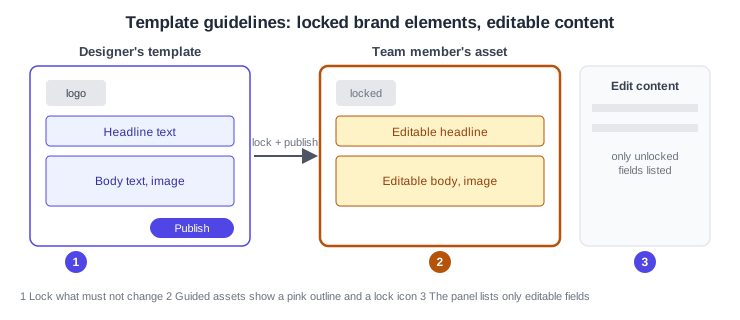
Editing runs in two modes. With guidelines, an asset has a pink outline and a lock icon, and you can change only the unlocked fields, listed in an edit content panel. Without guidelines, an asset has a blue outline and full access to the Buzz tools; Full seats on paid plans can also use Figma Design tools in Buzz.
Source: Figma Learn: Guide to Figma Buzz
Source: Figma Learn: Explore Figma Buzz
Templates, locking and brand controls
A template is a Buzz file whose assets are meant to be reused. To start one, create a Buzz file and click New template in the template picker; then build the asset with the Buzz tools or paste frames and components from Figma Design. To make it flexible, use component sets and component properties for layout options, show or hide controls and replaceable visuals; templates can also use variable modes (see Variables, Collections and Modes and Variants and Component Properties). A separate article describes building configurable templates with a design system.
Brand controls are the template guidelines: restrictions that let users change only what the designer allows. Layer position is locked by default. To protect an element such as a logo, select it and lock it (the articles describe this as Lock position, or Lock under More in the toolbar). Rename text layers in the Layers panel, which needs the design-tools toggle, a Full seat and edit access, so users know what content belongs in each field. Users can then update unlocked text and images, edit through the edit content panel, swap component variants, or remove the guidelines to edit locked objects. Unlocked images can be replaced with free Unsplash photos, which Enterprise admins can disable.
To publish, move the file out of your drafts into a team folder (drafts cannot be published), click Share, then Publish template, enter a name, thumbnail and description, and click Publish. The template then appears under From your team in the template picker. To change a published template, edit the original file, click Share, then Update template, review the changes and publish; users can review and accept design updates in their own files. Unpublish from the file name menu under Manage template. Publishing needs a paid plan, and Professional teams can have up to five team templates. An organization admin can turn off Template publishing under Admin, Settings, Other; existing custom templates are then hidden until it is turned on again.
Bulk create from CSV or XLSX
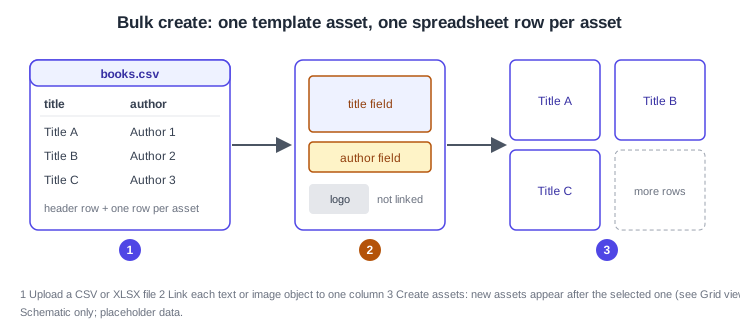
Bulk create produces many assets of one kind from a spreadsheet: each row becomes one asset and each column fills one text or image field. Anyone with can-edit permission in the file can use it. Format the sheet with a header row and one row per asset, and give each object its own column. For images you can paste a public image URL or a shareable Google Drive link into a cell (CSV or XLSX), or embed the image in the cell (XLSX only). Each object links to only one field, text fields accept only text and image fields only images. If you start from a template, locked objects cannot be selected, so remove the editing restrictions first. The articles do not state a maximum number of rows. Bulk create is also the documented route for localized versions of an asset from translated spreadsheets, where column headers should match the content being replaced.
Procedure: make a card for every new Bookshelf title
-
Create a Buzz file and select the single "new arrival" card asset (remove editing restrictions if you started from a locked template).
-
Prepare a CSV or XLSX file with the header row "title,author,cover" and one row per book, using placeholder values.
-
Click Bulk create in the left navigation bar, then Upload spreadsheet, and choose the file.
-
Select the title text on the card and pick the matching data field in the left sidebar; repeat for the author text and the cover image.
-
To link the same object across several asset sizes, use Select matching objects in the toolbar.
-
Click Create assets, then open grid view to find the new assets, which are placed after the selected one.
Approvals
Approvals let a team request feedback and confirm assets are ready to export. They are off by default and are set up by organization admins under Admin, Settings, Resources, Asset approvals, where the choice is Approvals required (export blocked until approved) or Approvals optional; on Enterprise, workspaces can have different rules. To request a review, open the Buzz file, click Reviews (top right), then New Review, select the assets, add a title, reviewers and context, and click Send for review. Reviewers need file access; each one chooses Approve or Request changes (or comments) per asset and then marks the review complete. Statuses are In review, Approved (the asset is final and locked), Changes needed, Cancelled and Complete. Choosing Edit asset on an approved asset removes its approval. The help article lists approvals for Education (K-12), Organization and Enterprise plans.
Figma Weave: nodes and workflows
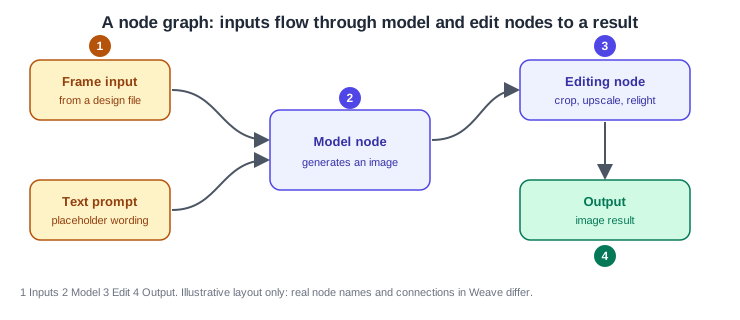
Figma Weave describes itself as a node-based platform that puts AI models and editing tools in one environment. A node is one step (for example a model that generates an image, or an editing step such as crop or upscale), and a workflow is a graph of nodes that turns inputs into a result. Official examples include ready-made workflow templates and the option to convert a workflow into a simplified tool that teammates can run without building the graph. The Figma node brings a Figma Design frame into a workflow; per the FAQ, the original Figma file is not changed and the node can push updates back. It needs both a Weave account and a Figma account, linked under Settings, Profile, Linked accounts. The product page does not document how nodes connect in detail, so the figure below is an illustrative sketch, not Weave’s real interface.
Source: Figma Learn: Figma Weave FAQ
Source: Figma Weave
Weave tools in Figma Design
Weave tools are packaged Weave workflows you run from inside a Figma Design file. They need a Professional, Organization or Enterprise plan and can-edit access to the file. Tools come from Figma, the Figma Community and, on Organization and Enterprise plans, from your own organization. They use Figma AI credits, not Weave credits. Examples listed by Figma include Generate mockup, Transfer style, Replace background, Change lighting, Text to vector illustration and Apply color palette. Organization admins can turn off Publishing and using Weave tools under Admin, Settings, AI; Figma-built tools then remain available. Publishing is done from Share tool in Weave: Starter and Professional users publish to the Community, Organization and Enterprise users only internally. The Weave tools article does not state a beta status.
Procedure: replace the background of a Bookshelf cover image
-
Open a Figma Design file with edit access and select the cover image.
-
Select Tools in the navigation bar.
-
Click the Filter icon and choose the Weave resource type.
-
Pick a tool such as Replace background and set its inputs (a reference image, a text prompt or dropdown options) in the modal.
-
Choose the number of runs and click Generate; each run consumes Figma AI credits.
-
To adjust the models, prompts or settings behind a tool, hover over it in the Tools list, open the three-dot menu and choose Open in Weave.
Accounts, credits and billing for Weave
Figma and Figma Weave are described as separate products. The Weave tools article says you need a Weave account but can sign in at weave.figma.com with your Figma credentials. Actions in Weave use Weave credits, while actions in Figma, including Weave tools, use Figma AI credits; billing is separate for now. The FAQ says plan and seat availability for Weave is not yet defined, so this page gives no Weave plan details; see Figma AI Tools for the Figma side.
Source: Figma Learn: Figma Weave FAQ
Where older guides are outdated
-
Books that show the old interface (UI2) cannot describe Buzz or Weave at all, and their screens no longer exist; UI3 has been mandatory since 2025-04-30, and the left navigation bar changed again on 2026-01-07.
-
Seat wording in older books ("editor", "viewer", paid seats) predates the Full, Dev, Collab and View seats of 2025-03-11; Buzz is documented as available on all seat types during its beta.
-
Books that predate the AI credits model do not cover them; Weave tools use Figma AI credits and Weave itself has separate credits.