Embeds
|
This content was generated with the assistance of AI and should be verified against the official Figma documentation before being relied on in production. This sub-section’s Figma bibliography lists the reference material consulted while preparing these pages. |
This page was written on 2026-10-30 against the UI3 interface of Figma Design, FigJam, Slides and Make. Getting an embed code from the Share dialog is available on all plans, and the official pages used for this page state no seat requirement for it or for the Embed Kit 2.0 developer features, so check the current documentation for your plan. Embed Kit 2.0 and the Embed API are generally available (Embed Kit 2.0 was released in 2024). Embedding a Make prototype inside Figma is documented for the Starter, Professional, Education (not K-12), Organization, Government and Enterprise plans; Make itself is described on Figma Make.
An embed shows a live Figma file or prototype inside another page, so the Bookshelf team can put the current design of its catalog screen in a wiki, a blog post or the Bookshelf documentation site, and it is always up to date. This page covers the three routes: the copy-and-paste embed code in Figma, the developer route with Embed Kit 2.0 and the Embed API, and the opposite direction, embedding a Make prototype inside a Figma file. For sharing a prototype with a link see Presenting and Testing Prototypes, and for the REST side of the developer platform see REST API and Webhooks.
Source: Figma Developer Docs: Embeds
How an embed works
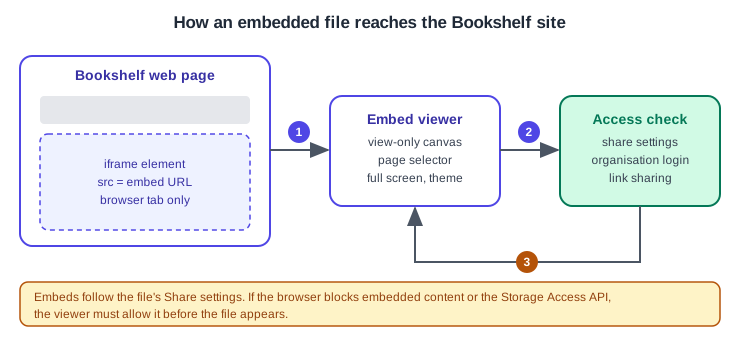
An embed is an iframe whose src points at a Figma embed URL. The viewer is view-only: it lets people pan and zoom, change pages, open full screen and follow a link back to the file, but not select layers or edit. Prototype embeds behave like presentation view, and the arrow keys move between screens.
-
The host page contains an
iframewhosesrcis the embed URL. -
Figma checks access before the file is shown; the embed follows the same share settings as opening the file directly.
-
The result is rendered in the embed viewer, or the viewer asks the person to log in or to allow embedded content.
Embeds work only in browser-based applications; the help article states that they cannot be added inside native or desktop applications. Embeds also need the browser to allow embedded content and the Storage Access API, which is used so that the viewer can still honour the person’s Figma login when third-party cookies are blocked. When they are blocked, the viewer must change the browser’s site settings (Chrome and Firefox are documented). The documentation describes these problems as rare.
Embed a file or prototype from Figma
This is the route for people who do not write code.
A file or FigJam board
-
Open the file and, optionally, select the top-level frame you want to show.
-
In UI3, click Share in the top-right area of the editor (the help article says the right sidebar).
-
Set the audience and the permission level.
-
Click "Get embed code", then Copy.
-
Paste the code into the other application.
A prototype
-
Open the file and the page that holds the prototype, click Present and pick a flow in the left sidebar.
-
Click "Share prototype" in the toolbar and set the audience and permission level.
-
Click the "Get embed code" link, then Copy, and paste the code.
You can embed an entire page, which exposes all of its flows, or a single flow.
Some tools (the article lists Coda, Notion, Jira, Dropbox, Confluence, P2, StoriesOnBoard, Storybook and Zeroheight) can show a file when you paste only its URL, but only in their browser versions. The conversion of a pasted link into a card is a feature of each host tool; the official embed pages consulted for this page do not document oEmbed, so this page makes no claim about it.
Source: Figma Learn: Storybook and Figma
Access rules
| Situation | What the viewer sees |
|---|---|
Link sharing on (public file) |
Anyone can view the embed |
Link sharing off (private file) |
The viewer needs "can view" or "can edit" access |
File shared only within an organization |
The viewer must log in |
No access |
An Organization file reports that the viewer does not have access; a Professional file reports file not found |
Password protected |
Documentation disagrees, see below |
The two Figma sources disagree about password-protected files: the help article says they cannot be accessed through an embed, while the developer documentation and the "Interact with embeds" article say the viewer is prompted for the password. Test your own file before promising it to readers.
Embed Kit 2.0
Embed Kit 2.0 is the developer route. It adds security features and more control over the viewer: the host embed.figma.com, a choice of page for the viewer, a hidden interface, a view locked to a page, frame or slide, opening in Dev Mode or Figma Design (see Dev Mode), a light, dark or system theme, and, for prototypes, events in both directions.
Embed Kit 1.0 used figma.com/embed. To tell which version an embed uses, look at the host in its URL. Files embedded with version 1.0 keep working, so you only upgrade for the new features or to use the Embed API with a prototype; Embed API support for 1.0 has ended.
-
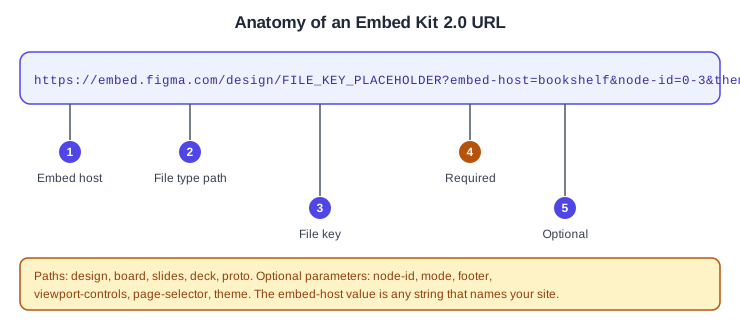
The embed host:
embed.figma.com. -
The file type path:
design,board,slides,deckorproto. -
The file key copied from the normal Figma URL; the hyphenated file name after it is optional.
-
The required
embed-hostparameter, any unique string that identifies your site or product. -
Optional parameters, the first after
?and the others after&.
Build the URL for a file
-
Copy the file’s normal URL from the browser.
-
Replace
wwwwithembedin the host. -
Add
embed-hostand any optional parameters. -
Put the URL in the
srcof aniframe, withheight,widthandallowfullscreen.
<iframe
  style="border: 1px solid rgba(0, 0, 0, 0.1);"
  width="800"
  height="450"
  src="https://embed.figma.com/design/FILE_KEY_PLACEHOLDER?embed-host=bookshelf-docs&node-id=0-3"
  allowfullscreen>
</iframe>| Parameter | Values | Purpose |
|---|---|---|
|
Any unique string (required) |
Identifies the site or product embedding the file |
|
|
Opens the file in Dev Mode |
|
A node ID such as |
Shows a specific page or frame |
|
|
Shows or hides the Figma footer |
|
|
Lets viewers pan and zoom; in Slides, move between slides |
|
|
Shows the page selector so viewers can change pages |
|
|
Theme of the embed interface |
Build the URL for a prototype
A prototype URL uses https://embed.figma.com/proto/ followed by the file key, embed-host, and the parameters below. Use the recommended 450px height and 100% width, and add allowfullscreen for full-screen support.
| Parameter | Default or values | Purpose |
|---|---|---|
|
Required |
Identifies your site or product |
|
None |
OAuth app client ID, needed only for the Embed API |
|
Default flow |
Node shown when the embed loads |
|
Default flow |
Node where the flow starts and restarts |
|
Latest version |
A specific prototype version |
|
|
Footer and pan and zoom controls |
|
|
Left sidebar that lists the flows |
|
|
Highlights clickable areas after a click |
|
|
Shows or hides the device frame |
|
|
Also |
|
|
Or |
|
|
Turns default keyboard navigation off when |
When node-id and starting-point-node-id differ, the embed opens at node-id and a restart begins at starting-point-node-id.
Embed API
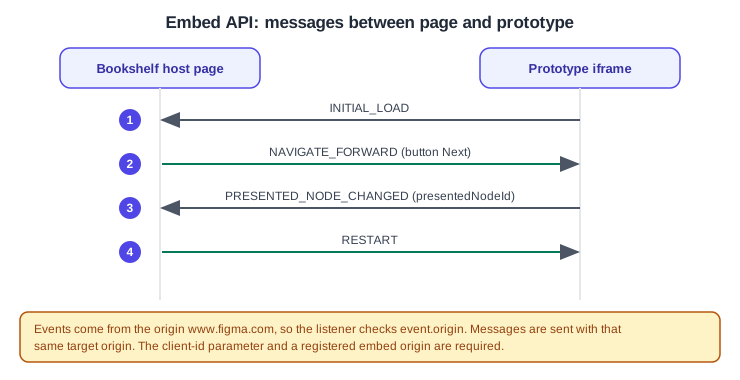
The Embed API controls an embedded prototype and receives events caused by the viewer. It uses window.postMessage and works with Embed Kit 2.0 prototypes only.
Set up
-
Create an OAuth app on the Figma developer apps page with a name, website and logo, and copy its client ID. Keep the client ID in your configuration; it is public in the iframe URL, but never publish the client secret.
-
In the app’s modal, open Embed API and add your site’s origin as an embed origin.
-
Add
client-id=CLIENT_ID_PLACEHOLDERto the prototype’s iframe URL.
Source: Figma Developer Docs: Embed API
-
The prototype reports
INITIAL_LOADwhen it has loaded for the first time. -
The page sends
NAVIGATE_FORWARDwhen the person presses Next. -
The prototype reports
PRESENTED_NODE_CHANGEDwith the newpresentedNodeId. -
The page sends
RESTARTto go back to the start.
Source: Figma Developer Docs: Embed API
Messages and events
| Message sent to the embed | Effect |
|---|---|
|
Closes open overlays, then goes to the node |
|
Next or previous frame in sequence |
|
Switches an instance to another variant |
|
Restarts from the starting node |
| Event received | Trigger |
|---|---|
|
The prototype finished loading the first time |
|
Navigation between frames or overlays |
|
A click or click-like input |
|
A component instance changed variant |
|
The person pressed the spacebar in an inline preview |
|
A private or password-protected embed asks for credentials |
Source: Figma Developer Docs: Embed API
A minimal controller
The listener checks that events come from https://www.figma.com, and every message names the same target origin. Node IDs and the file key below are placeholders.
<iframe id="embed-frame"
  src="https://embed.figma.com/proto/FILE_KEY_PLACEHOLDER?embed-host=bookshelf-docs&client-id=CLIENT_ID_PLACEHOLDER"
  width="100%" height="450px" allowfullscreen></iframe>
<button id="next" disabled>Next</button>
<script>
  const figmaOrigin = "https://www.figma.com";
  const iframe = document.querySelector("#embed-frame");
  const next = document.querySelector("#next");

  window.addEventListener("message", (event) => {
    if (event.origin !== figmaOrigin) return;
    if (event.data.type === "INITIAL_LOAD") next.disabled = false;
    if (event.data.type === "PRESENTED_NODE_CHANGED") {
      console.log("Now showing", event.data.data.presentedNodeId);
    }
  });

  next.addEventListener("click", () => {
    iframe.contentWindow.postMessage({ type: "NAVIGATE_FORWARD" }, figmaOrigin);
  });
</script>
Source: Figma Developer Docs: Embed API
Embed a Make prototype in Figma
The reverse direction puts a working Make prototype on a Figma canvas, which is useful in a design review.
-
Open the Make file and click Share in the top-right corner.
-
Click Copy link, then choose "Copy link as Make file".
-
Paste the URL into a Figma Design file, a FigJam board or a Slides deck.
-
Click play on the embed to interact, stop to reset it, and "Go to Make file" to open the source. Resize it by dragging its edges.
You need edit access to the file where you paste and view access to the Make file. While a Make embed plays it sits above other layers, other people in the file keep seeing the thumbnail, and playing many embeds at once can slow a large file.
What older guides get wrong
Older books describe the top toolbar and Share menu of the previous interface; UI3 has been the only interface since 2025-04-30, so use the Share button and the Present and "Share prototype" controls described above. Their wording about "editor" and "viewer" access and the "Paid Team plan" predates the seat model of Full, Dev, Collab and View in force since 2025-03-11 (see Plans, Seats and AI Credits). Mirroring a prototype to a phone with the mobile app changed with the current mobile app, so follow the presentation steps on Presenting and Testing Prototypes. Sharing and link permissions are described on Files, Folders, Teams and Sharing; since 2026-08-03 what older guides call projects are folders.
Pitfalls
-
Using the
wwwhost or the oldfigma.com/embedpath and expecting the Embed API to work: it needs Embed Kit 2.0. -
Forgetting
embed-hoston a version 2.0 URL, which is required. -
Not registering the page origin on the OAuth app, so the prototype ignores messages.
-
Sending messages with a target origin other than
https://www.figma.com. -
Embedding a private file and expecting anonymous readers to see it; they follow the file’s sharing settings.
-
Pasting an embed into a desktop application, which is not supported.