Plans, Seats and AI Credits
|
This content was generated with the assistance of AI and should be verified against the official Figma documentation before being relied on in production. This sub-section’s Figma bibliography lists the reference material consulted while preparing these pages. |
This page describes how Figma sells access, as checked against the official help centre on 2026-10-30, in the current interface (UI3). It concerns every Figma product, so it has no single GA or beta status: the plan and seat rules below are generally available, while some products they mention (Sites, Buzz, Specs) are still in beta and are not listed in the seat comparison. Plans are named by tier only and this page quotes no prices; for those, see the official pricing page. A "Content seat" announced at a conference in 2025 does not appear on any current official page, so it is not documented here.
The running example is the Bookshelf app: a small team designing a reading-list product, where a designer, a developer, a product manager and a few stakeholders each need a different level of access.
Plans, seats and permissions are three different things
Three separate settings decide what a person can do, and mixing them up is the commonest source of confusion.
-
The plan belongs to a team or organization and decides which features exist (for example libraries or branching).
-
The seat belongs to a person and decides which products they can use (for example Dev Mode).
-
A file or folder permission decides which files that person can open and change. See Files, Folders, Teams and Sharing.
Source: Figma Learn: Compare seats
Plans
As of 2026-10-30 the comparison table lists four plans: Starter, Professional, Organization and Enterprise. Education (free access for eligible students and educators) and Government (for agencies with enhanced security and compliance controls) are offered separately and are not columns of that table. All plans include auto layout, components, prototyping, design inspection and the community of plugins, widgets and files.
| Plan | Structure | Notable features from that tier |
|---|---|---|
Starter |
One team, one folder, three files; 30 days of version history |
The core editor; no shared libraries |
Professional |
One team, unlimited folders |
Libraries, up to 10 variable modes per collection, Dev Mode and Code Connect, video and variables in prototypes, audio conversations, prototype password protection |
Organization |
Multiple teams |
Branching and merging, shared fonts, organization-wide design systems, private plugins and widgets, design system analytics, SSO, activity logs, domain capture |
Enterprise |
Multiple teams and workspaces |
Unlimited variable modes (extended collections), the REST API for variables, SCIM seat assignment, guest and link-expiry controls, workspace administration |
Higher tiers add to the lower ones. Governance+ is an Enterprise add-on with further admin and security features. The names and limits change; check the table before relying on a limit.
Source: Figma Learn: Compare plans
Seats
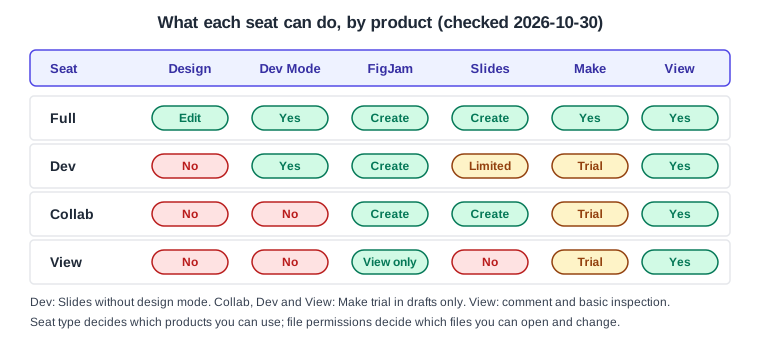
Figma has four seat types: Full, Dev, Collab and View. As of 2026-10-30 they give access as follows.
Source: Figma Learn: Compare seats
-
Full can use every listed product: edit Figma Design files, use Dev Mode, and create in Make, Slides and FigJam.
-
Dev is for developers: Dev Mode and FigJam creation, Slides without design mode, but no editing of design files.
-
Collab can create in FigJam and Slides but has no Dev Mode.
-
View is free and limited to viewing, commenting and basic inspection; FigJam is view-only.
-
On Dev, Collab and View seats, Figma Make is available as a trial in drafts only.
For the Bookshelf team: the designer holds a Full seat, the developer a Dev seat, the product manager a Collab seat who sketches flows in FigJam, and the stakeholders View seats so they can comment on prototypes without cost.
How seats got here
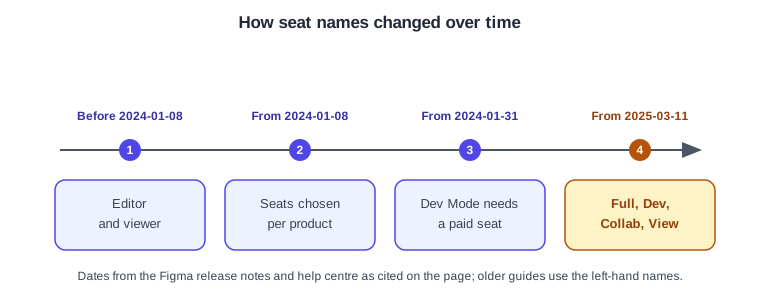
Older guides describe a different model. Per the release notes and help-centre pages cited in the version baseline of this sub-section, files were shared with editor and viewer roles until 2024-01-08; seats were then chosen per product; Dev Mode became a paid-seat feature on 2024-01-31; and the four-seat model has applied since 2025-03-11. The dates are carried from that baseline and the exact steps in between should be confirmed in the release notes.
Source: Figma release notes
In practice, a book or video that says "give them an editor seat", "viewer seat" or "paid Team plan", or that tells you branching works on any paid plan, is describing the old model. Translate it: pick the seat in the table above and check the plan table for the feature. The Inspect panel those guides use is also replaced by Dev Mode, which now needs a Dev or Full seat. See What’s Changed Since Older Guides.
AI credits
AI credits meter the use of Figma’s AI features. As of 2026-10-30 the official page says:
-
Every seat on every plan includes credits. Full seats receive 500 a month on Starter, 3,000 on Professional, 3,500 on Organization and 4,250 on Enterprise; Dev, Collab and View seats receive 500 a month where they are offered.
-
Credits reset monthly, do not roll over and cannot be shared or transferred. Starter and View seats also have a daily limit of 150.
-
Some actions are free: AI search, renaming layers, and summarizing or clustering FigJam stickies. Image tools and adding interactions cost a fixed amount; Figma Make, the Figma agent, Specs and code layers cost a variable amount that depends on the model and the task. Undoing an AI action does not refund credits.
-
Admins can add credits with a subscription or pay-as-you-go billing, and anyone on the plan can use them unless an admin sets a custom limit. If you run out, you can ask your admin for more.
Credit amounts are policy, not product behaviour, and change; treat the figures as a dated snapshot. See Figma AI Tools for what each feature does.
Source: Figma Learn: AI credits
Check your AI balance
-
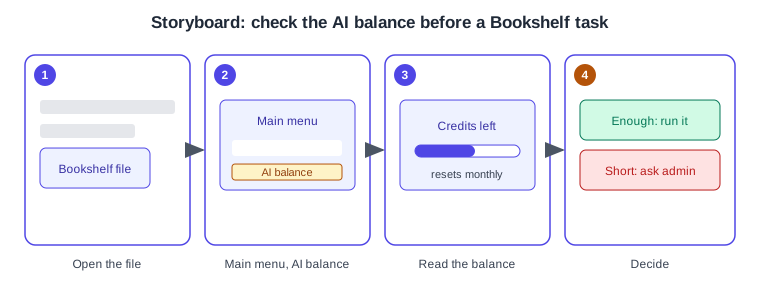
Open a Bookshelf file in the editor.
-
Open the main menu from the Figma icon in the navigation bar and choose AI balance.
-
Read how many credits remain this month.
-
For a single prompt, hover the AI credits icon below the finished result to see what it cost.
-
If the balance is short, ask a team admin; admins track usage in the admin dashboard, and Enterprise organizations also have an AI Usage API.
Source: Figma Learn: AI credits
UI3 locations and shortcuts
-
The main menu and AI balance are reached from the Figma icon at the top of the left navigation bar.
-
The Actions menu, a command search, opens with
Cmd+Kon macOS orCtrl+Kon Windows. -
Seat and plan administration happen in the settings and admin dashboard of the team or organization, not in the editor.
Common mistakes
-
Assuming a Dev seat can edit the design: it cannot; the designer needs a Full seat.
-
Expecting a plan feature to follow the person: plan features follow the team or organization, seats follow the person.
-
Planning around a fixed credit allowance without re-checking the page, since allowances and billing options change.