Video, GIFs and Lottie
|
This content was generated with the assistance of AI and should be verified against the official Figma documentation before being relied on in production. This sub-section’s Figma bibliography lists the reference material consulted while preparing these pages. |
This page was checked on 2026-10-30 against the UI3 interface of Figma Design. It covers three kinds of moving media: video in prototypes, animated GIFs and Lottie animations. Video and GIF fills are a Figma Design feature; editing them needs edit access to the file, which means a Full seat, and adding video or GIFs needs a paid plan (Professional, Education, Organization, Government or Enterprise). Lottie export belongs to Figma Motion, which Figma documents as being in open beta, so its behaviour may change. Check the list of Figma features in beta for the current status.
The running example is the Bookshelf book detail screen with a short trailer for a book. Prototype triggers and actions in general are covered in the prototyping pages, and the animation tool itself on Figma Motion.
Video fills
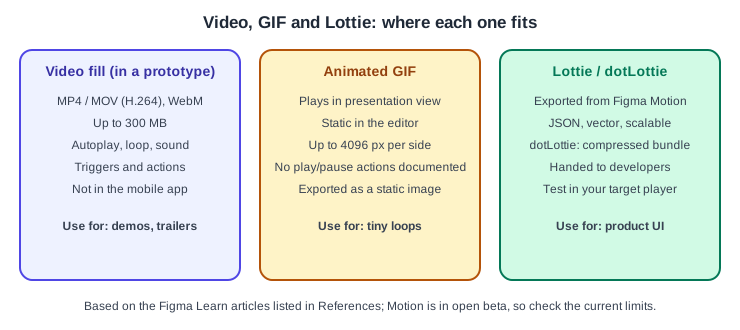
Figma has no dedicated video layer. A video is a fill, so you can apply it to any shape or vector, and the Layers panel marks layers that have a video fill. Figma Learn lists these requirements:
-
Formats: MP4 or MOV with H.264 encoding, and WebM with VP8 encoding.
-
Maximum file size: 300 MB.
-
Videos are not supported in the Figma mobile app.
You can add a video by dragging a file onto the canvas, by using the video importer in the fill picker, with the Place image/video tool for several files, or by copying and pasting from another layer or file. A video added to the canvas takes the file’s own dimensions, while a video added as a fill takes the size and name of the object. In the Fill section of the right sidebar you can preview the video, jump to a timestamp and scrub. You can also scale, rotate, crop, change the fill mode and blend mode, and mask a video to show only part of it.
Video properties, triggers and actions
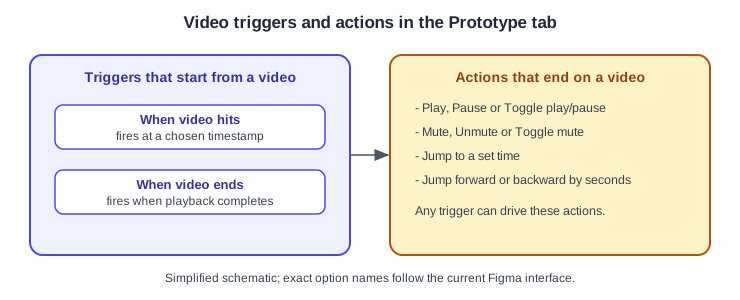
On the Prototype tab, a video layer has three properties: Autoplay (starts playback when the frame is entered), Loop and Sound (the default audio state). Two triggers start from a video: When video hits (a chosen timestamp) and When video ends. Any connection that ends on a video can use video actions: play, pause or toggle playback, mute, unmute or toggle audio, jump to a set time, and jump forward or backward by a number of seconds.
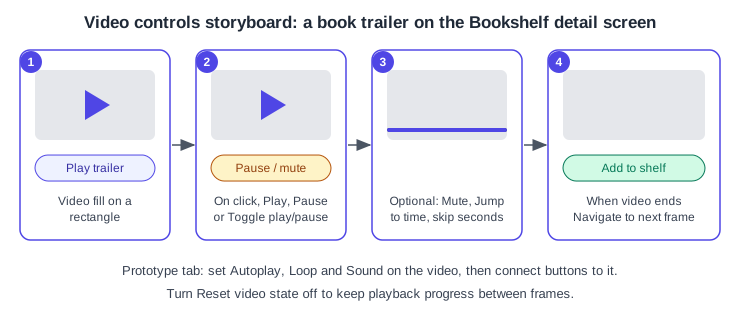
When two frames share the same video, the Reset video state toggle in the interaction details decides whether the video restarts from the beginning when you navigate between them. Turning it off keeps playback progress, which works well with Smart Animate when the video layers have matching names in both frames. The same toggle supports a hover preview: build a component with a default variant (Autoplay off) and a hover variant (Autoplay on), and connect them with Reset video state off.
Procedure: a book trailer with controls
-
On the book detail frame, draw a rectangle at the size of the trailer area and name it "Trailer".
-
In the Fill section of the right sidebar, choose the video option in the fill picker and select an MP4 file under 300 MB, or drag the file onto the rectangle.
-
Switch to the Prototype tab and select the rectangle. Turn Autoplay off, Loop off and choose the Sound default.
-
Draw a Play trailer button. Add a connection from the button to the Trailer rectangle, set the trigger to On click and the action to Toggle play/pause.
-
Add a second connection from a Mute button to the trailer with a mute or toggle audio action.
-
Add a connection from the trailer to the next frame with the When video ends trigger and the Navigate to action, for example to a "Add to shelf" confirmation.
-
Run the prototype in presentation view and check each control.
Animated GIFs
You can add a GIF the same way as an image: drag it onto the canvas, use Place image, or upload it as a fill, including on text and vector shapes. If copying from a browser pastes only a still frame, save the GIF to your computer and drag the file into Figma. Figma Learn documents these limits:
-
GIFs animate only in presentation view. In the editor they look static, and GIFs are labelled in the Fill section, the Layers panel and next to the dimensions on the canvas.
-
Width and height must not exceed 4096 pixels; larger files are scaled down.
-
Image adjustments cannot be applied; use fills and blend modes instead.
-
Figma exports an animated GIF only as a static image.
-
Figma keeps the frame delay and loop count of the GIF, and you can choose which frame shows on the canvas.
-
GIFs can be viewed in the Figma mobile app.
Figma Learn documents no play or pause action for GIFs; the video actions above apply to videos. If you need playback control, convert the GIF to MP4 and use a video fill. That conversion is a practical suggestion, not something the help article states.
Lottie and dotLottie
Lottie is an open JSON-based animation format used on web and mobile. Figma Motion can export it natively. Select a top-level frame that has the Motion icon, open the Animated tab in the Export section, and choose a format. Figma documents these options:
-
MP4, WebM, GIF and SVG. Size, frame rate and quality (MP4 and WebM only) can be set, and GIF can loop continuously or play once.
-
Lottie, a raw uncompressed JSON file holding one animation.
-
dotLottie, a compressed archive that bundles images and fonts and can hold several animations.
Lottie limits listed by Figma: shaders and angular gradients export as a flat image without animation, video is not supported (use MP4, WebM or GIF), and glass, noise and drop-shadow effects have limited support. Exporting is available on any plan, but animations larger than 1920 x 1080 or above 30 FPS need a paid plan. Developers can change colours, playback speed and trigger segments in their Lottie player, so test in your target player before production.
Where older guides are outdated
The books consulted for this section predate Figma Motion. They describe Lottie as something produced with third-party plugins (for example LottieFiles) and treat animated media as a handoff problem. Since Figma Motion exports Lottie, dotLottie, MP4, WebM and GIF natively (the release history gathered for this section dates this to 2026-09-30), plugins are no longer required for that workflow, though they remain part of the ecosystem. Older guides also call a mouse trigger "Mouse move inside/outside"; it is now Mouse enter and Mouse leave, and video triggers exist. Their click paths follow the interface retired on 2025-04-30. Source: Figma release notes