Figma Draw
|
This content was generated with the assistance of AI and should be verified against the official Figma documentation before being relied on in production. This sub-section’s Figma bibliography lists the reference material consulted while preparing these pages. |
This page was written on 2026-10-30 against the UI3 interface of Figma Design, where Draw is a mode of the bottom toolbar. Figma announced Figma Draw on 2025-05-07 and rolled it out to all users. According to the Figma Learn article on illustration tools, the Pencil and Brush tools are available on any plan to anyone with can-edit access to the file, which in practice means a Full seat (or a Collab seat where the file allows editing). Draw itself is generally available. Vectorize is different: it is an AI feature announced on 2026-02-04 for Full-seat users on the Professional, Organization and Enterprise plans with AI enabled, and its actions use AI credits (see Plans, Seats and AI Credits).
The running example is the cover of a Bookshelf book. The page explains the Draw tools one by one and finishes with a storyboard that illustrates the cover. Basic vector drawing with the Pen is on Shapes, Vectors and the Pen Tool, fills on Color, Fills and Images, and strokes and effects on Strokes, Effects and Blend Modes.
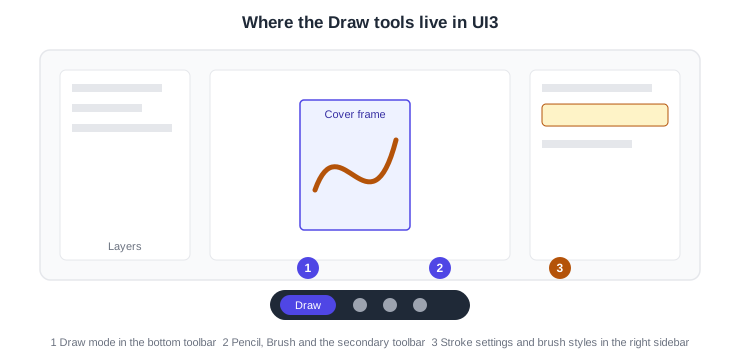
Where Draw lives in UI3
In a Figma Design file, click Draw in the bottom toolbar to switch to Figma Draw, then pick the Pencil or the Brush. A secondary toolbar appears with the fill, weight and style of the next stroke. Brush styles can be chosen from the Brush styles menu in that toolbar and, for strokes that already exist, from Advanced stroke settings in the right sidebar.
-
Draw mode in the bottom toolbar.
-
The Pencil and Brush tools and their secondary toolbar.
-
Stroke settings and brush styles in the right sidebar.
Pencil and Brush
The Pencil is meant for quick sketches, notes and line work; the Brush adds texture and colour for a more hand-painted look. Holding Shift while dragging draws a straight line. Holding Cmd (macOS) or Ctrl (Windows) and clicking an existing stroke samples its fill, weight and style, so the next stroke matches it. Every stroke is a vector network: Figma places the points automatically according to the length and complexity of the path, and they can be adjusted afterwards in vector edit mode. An iPad can be used as a second display for Apple Pencil input through Apple Sidecar when working in the browser.
Custom brushes: stretch and scatter
A custom brush is made from a single vector layer: a shape, a custom path or a flattened text layer. Only closed paths work as a source; for an open stroke made with the Pencil or Brush, run Outline stroke first. Right-click the layer, hover over Create brush and choose one of two behaviours. A stretch brush stretches the source along the length of the stroke. A scatter brush repeats the source along the stroke. Custom brushes belong to the file by default; to reuse one elsewhere, copy and paste a layer that uses it into the other file, and the brush is added to that file’s Brush styles menu and survives deleting the original layer.
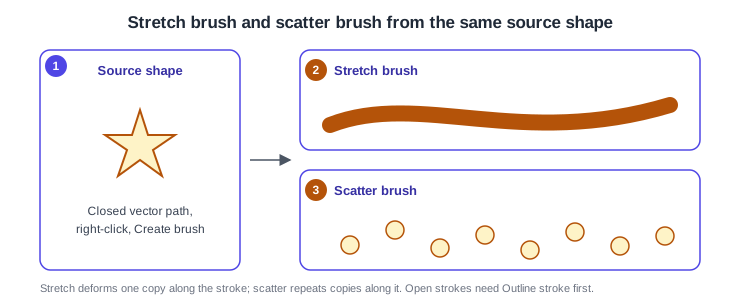
Procedure: make a scatter brush for the cover.
-
Draw a small star with the shape tools, or convert a pencil sketch with Outline stroke so the path is closed.
-
Right-click the star layer, hover over Create brush and choose Scatter brush.
-
Select the Brush tool and open the Brush styles menu in the secondary toolbar.
-
Choose the new brush and drag across the cover to scatter stars.
Variable-width strokes
The Variable width tool changes the thickness of a stroke at any point along its path: click to add width points, drag them to reposition, and Shift-click to select several; holding Control temporarily disables snapping. It cannot be used on layers with a dynamic or dashed stroke, nor on branching vector networks, which must be split first with Split vector. Width profiles in the stroke settings are a preset alternative. When Draw was announced on 2025-05-07 the feature was listed as coming soon, so tutorials from before it shipped describe a plugin workaround that is no longer necessary; check the current Learn article for the exact date it reached general availability.
Source: Figma Learn: Edit vector layers
Patterns, textures and noise
A pattern fill behaves like a solid or image fill and can be applied to any part of an illustration, for example the pages edge of a book. The texture effect adds a grittier, more tactile look to layers, shadows and gradients, and the noise effect adds grain for a more analog feel. These were introduced with Figma Draw. This page confirms them only from the announcement; the exact controls and option names are described in the fills and effects articles, so confirm them in the right sidebar of the installed version.
Text on a path
Text can be bent along a vector path, which turns a title into artwork, such as a title that follows the curve of a bookmark ribbon. The announcement describes the capability; the step-by-step controls were not in the articles fetched for this page, so they are not detailed here.
Cut, Eraser and Paint
Three tools edit existing vector artwork, all documented in the vector editing article.
| Tool | What it does | Shortcut |
|---|---|---|
Cut (scissors) |
Click a point or path to break it, or click and drag across paths to divide them; the divided part moves to its own layer |
Enter for vector edit mode, then X |
Eraser |
Drag over an area to remove it; new editable points are added along the erased edge; weight and shape are set in the right sidebar; erasing does not split the object, so use Split vector for that |
Shift E |
Paint |
Adds, changes or removes fills in closed regions of a vector network; choose a solid colour or gradient, then click a region or drag across several; hovering shows blue for adding or changing a fill and red for removing a matching one |
Shift B |
The Paint tool is the closest documented match to the drag-to-fill behaviour of the outline: drag across several enclosed regions to fill them in one gesture. The documentation does not use the name "paint bucket".
Source: Figma Learn: Edit vector layers
Vectorize
Vectorize turns a raster image into editable vectors. Drag an image into Figma Design or Figma Draw and choose Vectorize, or select a raster image already on the canvas and run it. Then adjust size, shape and composition, use the Recolor slider to reduce the artwork to fewer colours and shapes, apply colour variables to match a brand palette, and refine with bounding boxes, point selection and background removal. It needs a Full seat on the Professional, Organization or Enterprise plan with AI enabled, and each action uses AI credits.
Storyboard: illustrate a book cover
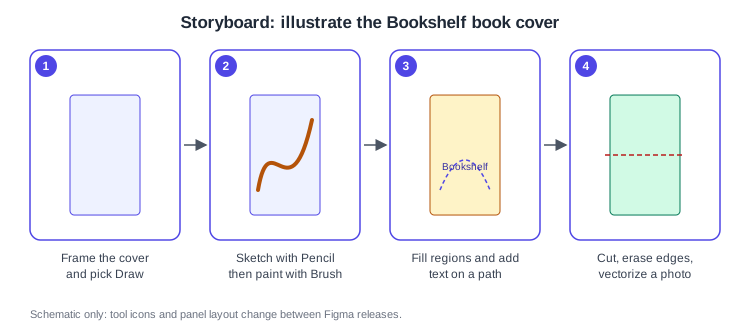
Procedure: illustrate the cover.
-
Create a cover frame in the Bookshelf file and click Draw in the bottom toolbar.
-
Sketch the outline with the Pencil, then paint with the Brush, sampling colours with Cmd-click (macOS) or Ctrl-click (Windows).
-
Fill the enclosed regions with the Paint tool (Shift B) and add the title on a path.
-
Trim the edges with the Cut tool and the Eraser (Shift E), and vectorize a photo of an author if the plan allows it.
Pitfalls and changes since older tutorials
-
Tutorials written before 2025-05-07 do not mention Draw mode at all; the Pencil and Brush there were the only freehand tools.
-
Custom brushes need closed paths; open strokes must be outlined first.
-
The Variable width tool refuses dashed or dynamic strokes and branching networks.
-
Vectorize is an AI feature with credit consumption, unlike the rest of Draw.