AKS Clusters
|
This content was generated with the assistance of AI and should be verified against the official documentation before being relied on in production. See the section bibliography for the reference material consulted while preparing these pages. |
Examples on this page target Azure CLI 2.90.0 with the aks-preview extension at 22.0.0b8 (needed only for the
preview features called out explicitly below — everything else is core az aks functionality). AKS currently
supports Kubernetes 1.35 and 1.36 as generally available versions, with 1.37 in preview; the managed add-ons this
page covers (KEDA among them) track whichever minor version a cluster runs, so treat any specific add-on version
quoted below as indicative rather than pinned (checked 2026-09-26 — re-verify all of it against
learn.microsoft.com/azure/aks and az aks get-versions --location
$LOCATION --output table before relying on it).
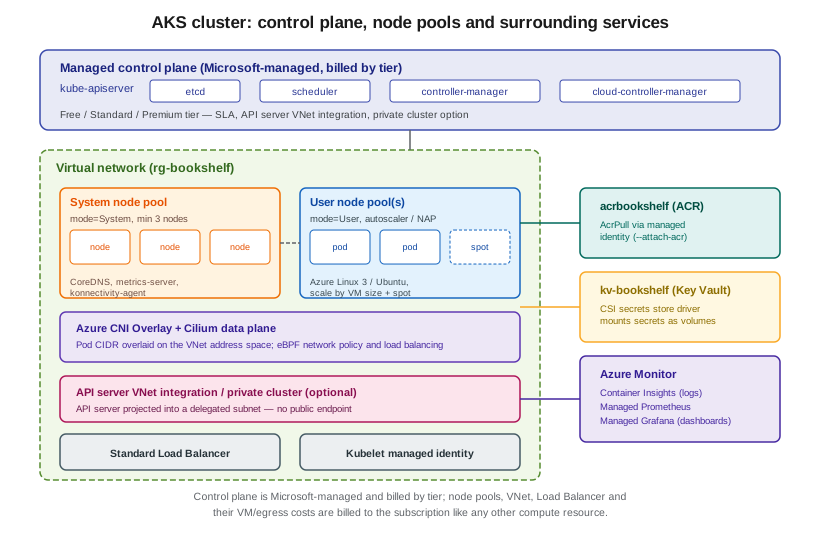
This page covers AKS as cluster infrastructure: creating and sizing a cluster, its node pools, its networking and identity boundary, how it scales and upgrades, and how it is monitored, governed, backed up and priced. Deploying workloads onto an existing cluster — Helm charts, ingress controllers, Dapr — is covered in Deploying Microservices on AKS. Whether AKS is the right compute choice at all, next to Container Apps or App Service, is covered in Choosing a Compute Service. Generic Kubernetes concepts are covered in the Kubernetes section.
export RG=rg-bookshelf
export LOCATION=eastus2
export ACR=acrbookshelf
AKS Automatic vs. AKS Standard
AKS ships two cluster deployment models, selected once at creation time via the --sku flag on az aks create:
- AKS Automatic
-
A production-ready default that preconfigures the cluster for a reader who does not want to choose node pool shapes, a networking model, an autoscaler or a monitoring stack individually. It provisions system and (later) user node pools automatically, enables node auto-provisioning, Azure CNI Overlay powered by Cilium, deployment safeguards, Managed Prometheus/Grafana and Container Insights, and image cleaner, and always runs at the Standard pricing tier. Fewer flags are accepted on
az aks createfor an Automatic cluster because most of what they would configure is fixed by design. - AKS Standard
-
The original, fully configurable model: every node pool, VM size, networking mode, autoscaler choice and add-on is opted into explicitly. It is the model this page’s CLI examples default to, since it is the one where each concept (node pools, networking, autoscaling, upgrades) is a distinct, inspectable setting rather than a bundled default — but AKS Automatic is worth choosing directly for a new cluster that does not need to diverge from its defaults.
In the Azure portal
-
From the portal’s search bar, type Kubernetes services and select Create → Create a Kubernetes cluster.
-
On the Basics tab, the Cluster preset configuration selector is the portal’s equivalent of
--sku: choose Automatic for the managed default, or Standard (previously labelled "Dev/Test" or "Standard" per preset) to configure node pools, networking and add-ons individually on the tabs that follow. -
An Automatic cluster’s Basics tab collapses most of the later tabs (Node pools, Networking, Integrations) into read-only summaries of the preconfigured choices; a Standard cluster exposes each tab for full control.
With the Azure CLI
# AKS Automatic -- fully managed defaults, Standard tier
az aks create \
  --resource-group $RG \
  --name aks-bookshelf \
  --location $LOCATION \
  --sku automatic \
  --generate-ssh-keys

# AKS Standard -- explicit shape (expanded further in later sections)
az aks create \
  --resource-group $RG \
  --name aks-bookshelf \
  --location $LOCATION \
  --tier standard \
  --node-count 3 \
  --node-vm-size Standard_D4s_v5 \
  --network-plugin azure \
  --network-plugin-mode overlay \
  --network-dataplane cilium \
--generate-ssh-keysPricing tiers: Free, Standard, Premium and LTS
Every AKS cluster (Automatic or Standard) is billed on a pricing tier, set with --tier on az aks create
or az aks update, which determines the control plane’s SLA and feature set — separate from what the cluster’s
node VMs, load balancer and egress cost (see Pricing below):
| Tier | What it adds over the one below |
|---|---|
Free |
No control-plane charge, but no financially backed SLA and lower recommended limits (best for dev/test and learning clusters, not for anything a customer depends on). |
Standard |
A financially backed 99.95% uptime SLA for the API server when combined with Availability Zones and a per-cluster hourly control-plane charge; recommended for production and the tier AKS Automatic always uses. |
Premium |
Everything in Standard, plus eligibility for Microsoft Long Term Support (LTS) — an extra support window past a Kubernetes minor version’s normal community end-of-life, for clusters that need to stay on a version longer than the standard support window allows. |
LTS itself is a separate opt-in (--k8s-support-plan) layered on top of the Premium tier, not a fourth tier; a
Premium-tier cluster can still run the standard support plan if long-term support is not needed.
In the Azure portal
-
On an existing cluster’s blade, select Cluster configuration (left navigation).
-
Under Tier, choose Free, Standard or Premium; under Kubernetes support plan (visible once Premium is selected), choose the standard or long-term support plan.
-
Select Save.
With the Azure CLI
# Move an existing cluster to the Standard tier
az aks update --resource-group $RG --name aks-bookshelf --tier standard

# Premium tier with the long-term support plan
az aks update \
  --resource-group $RG \
  --name aks-bookshelf \
  --tier premium \
--k8s-support-plan AKSLongTermSupportCreating a cluster and connecting to it
In the Azure portal
-
From Kubernetes services, select Create → Create a Kubernetes cluster.
-
On Basics: resource group
rg-bookshelf, cluster nameaks-bookshelf, regioneastus2(placeholder), preset (Automatic/Standard), and the Kubernetes version. -
On Node pools (Standard preset): review or add pools — see Node pools below.
-
On Networking: choose the network configuration (Azure CNI Overlay is the default for a new Standard cluster) and whether the API server is public or private — see Networking models below.
-
On Integrations: attach an existing ACR, and enable Container Insights / Managed Prometheus & Grafana.
-
Select Review + create, then Create. Once deployed, select Connect on the cluster’s Overview blade for the exact
az aks get-credentialscommand to run locally.
With the Azure CLI
# Create the cluster (Standard preset, explicit shape)
az aks create \
  --resource-group $RG \
  --name aks-bookshelf \
  --location $LOCATION \
  --tier standard \
  --node-count 3 \
  --node-vm-size Standard_D4s_v5 \
  --network-plugin azure \
  --network-plugin-mode overlay \
  --network-dataplane cilium \
  --attach-acr $ACR \
  --generate-ssh-keys

# Merge the cluster's kubeconfig into ~/.kube/config
az aks get-credentials --resource-group $RG --name aks-bookshelf

# Install kubectl (and kubelogin, needed for Entra-authenticated clusters) if not already present
az aks install-cli

# Confirm connectivity and basic cluster state
kubectl cluster-info
kubectl get nodes
kubectl get pods --all-namespaces
kubectl basics used throughout the rest of this page: kubectl get <kind> lists resources, kubectl describe
<kind> <name> shows events and status for one, kubectl logs <pod> streams a pod’s container log, and kubectl
apply -f <file>.yaml creates or updates resources from a manifest — the manifests themselves (Deployments,
Services, Ingress) are covered in Deploying Microservices on AKS, as is the broader orchestration
picture in Orchestration: Swarm Mode and Kubernetes.
Node pools
A node pool is a group of identically sized VMs, all running the same node image, added to the cluster as a single scaling unit. Every cluster has at least one system node pool and typically one or more user node pools:
-
System node pools run the cluster’s own critical system pods (CoreDNS,
metrics-server, thekonnectivity-agenttunnel) and must havemode=System; AKS requires at least one system pool available at all times and recommends keeping application workloads off it by tainting it and scheduling everything else on user pools instead. -
User node pools (
mode=User) run application workloads; a cluster can have many, each sized and scaled independently — for example, a general-purpose pool alongside a memory-optimized pool for a specific service.
Two VM options that change how a pool is billed or provisioned, set at pool-creation time and not changeable afterwards:
-
Spot node pools (
--priority Spot) bid on Azure’s unused capacity at a steep discount versus the same pay-as-you-go VM size, but can be evicted with short notice whenever Azure needs the capacity back — suited to interruption-tolerant batch or best-effort workloads, never to the system pool. -
VM size (
--node-vm-size) is fixed per pool; different workloads with different CPU/memory/GPU needs each get their own pool sized for them rather than sharing one generic size.
The node OS image is chosen per pool with --os-sku: Azure Linux 3 (AzureLinux, Microsoft’s
CBL-Mariner-based, minimal, hardened distribution — the successor to the now-retired Azure Linux 2.0, see
Retirements to plan around) or Ubuntu (Ubuntu), both fully supported; Azure Linux is the lighter-weight option and the
one AKS Automatic and several security-hardened baselines default to, while Ubuntu remains the more broadly
familiar choice for images and tooling built against it.
In the Azure portal
-
On the cluster blade, select Node pools (left navigation) → Add node pool.
-
Set the pool name, mode (System or User), VM size, and node count or autoscaler min/max.
-
Under Node pool details, choose the OS SKU (Azure Linux or Ubuntu) and, for a user pool, whether to use Spot priority and its eviction policy.
-
Select Add. To resize or scale an existing pool, open it from the same list and edit its node count or autoscaler bounds directly.
With the Azure CLI
# A second, memory-optimized user pool with autoscaling enabled
az aks nodepool add \
  --resource-group $RG \
  --cluster-name aks-bookshelf \
  --name userpool2 \
  --mode User \
  --node-vm-size Standard_E4s_v5 \
  --os-sku AzureLinux \
  --enable-cluster-autoscaler \
  --min-count 1 \
  --max-count 5

# A Spot user pool for interruption-tolerant batch jobs
az aks nodepool add \
  --resource-group $RG \
  --cluster-name aks-bookshelf \
  --name spotpool \
  --mode User \
  --node-vm-size Standard_D4s_v5 \
  --priority Spot \
  --eviction-policy Delete \
  --spot-max-price -1 \
  --enable-cluster-autoscaler \
  --min-count 0 \
  --max-count 10 \
  --node-taints "kubernetes.azure.com/scalesetpriority=spot:NoSchedule"

# List every node pool and its VM size / node count
az aks nodepool list --resource-group $RG --cluster-name aks-bookshelf --output tableNetworking models
AKS supports several combinations of network plugin and data plane, chosen at cluster creation and not changeable afterwards:
-
Azure CNI Overlay (
--network-plugin azure --network-plugin-mode overlay) assigns pod IPs from a private CIDR overlaid on top of the VNet’s address space, so pods do not consume routable VNet IP addresses — the default, and the model that scales furthest without exhausting subnet address space. -
Azure CNI Powered by Cilium (adding
--network-dataplane ciliumto the overlay flags above) replaces `kube-proxy’s iptables-based rules with Cilium’s eBPF data plane for service routing and network policy enforcement, and is what AKS Automatic always uses; it is the combination the CLI examples on this page default to for a new Standard cluster as well. -
Traditional Azure CNI (node subnet) (
--network-plugin azurewithout overlay mode) assigns each pod a routable IP from the VNet subnet directly — kept mainly for compatibility with existing subnet designs that already plan for pod-per-VNet-IP addressing. -
Kubenet (
--network-plugin kubenet) is a legacy, more limited plugin that routes pod traffic through NAT and user-defined routes instead of native VNet routing; new clusters should reach for Azure CNI Overlay instead unless an existing constraint specifically requires kubenet.
A private cluster (--enable-private-cluster) gives the API server only a private IP, reachable from inside
the VNet (or a peered/VPN-connected network) and never from the public internet. API server VNet integration
(--enable-apiserver-vnet-integration) goes further: it projects the API server directly into a delegated subnet
of the VNet, so nodes reach it over ordinary VNet routing instead of a private-link tunnel — and, combined with
--enable-private-cluster, is the recommended way to fully lock down the control-plane endpoint.
In the Azure portal
-
On the Networking tab of cluster creation (or Networking in an existing cluster’s left navigation for inspection — the network plugin/data plane cannot be changed after creation), choose Azure CNI Overlay (the default) or another plugin from the Network configuration dropdown, and Cilium under Network data plane if offered for the chosen plugin.
-
Under Cluster configuration → API server availability, choose Public or Private; when Private is selected, choose whether to also enable API Server VNet Integration.
With the Azure CLI
# Private cluster with API server VNet integration (bring-your-own VNet)
az aks create \
  --resource-group $RG \
  --name aks-bookshelf \
  --location $LOCATION \
  --network-plugin azure \
  --network-plugin-mode overlay \
  --network-dataplane cilium \
  --enable-private-cluster \
  --enable-apiserver-vnet-integration \
  --vnet-subnet-id "<node-subnet-resource-id>" \
  --apiserver-subnet-id "<apiserver-subnet-resource-id>" \
--generate-ssh-keysAttaching ACR
--attach-acr (usable on both az aks create and az aks update) grants the cluster’s kubelet managed identity
the AcrPull role on the named registry, so every node can pull images without an imagePullSecret anywhere in a
manifest:
az aks update --resource-group $RG --name aks-bookshelf --attach-acr $ACRBuilding and pushing the images this pulls, and the registry’s own retention and vulnerability-scanning settings, are covered in Azure Container Registry; the same repository-and-tag conventions apply whether images are consumed from AKS, Container Apps or an App Service container deployment, and the underlying registry push/pull mechanics are the same ones described for general-purpose registries.
Cluster autoscaler vs. node auto-provisioning
Two mechanisms grow and shrink node pools automatically, and a cluster uses one or the other, never both at once:
- Cluster autoscaler (
--enable-cluster-autoscaler, per pool) -
Watches for unschedulable pods and scales an existing, hand-defined node pool’s node count up to
--max-count, or down to--min-countwhen nodes sit idle; every pool still has a fixed VM size and OS chosen up front, so this only adds or removes more of the same kind of node. - Node auto-provisioning (NAP) (
--node-provisioning-mode Auto) -
A Karpenter-based mechanism that, instead of scaling a fixed pool, looks at pending pods' actual resource requests and picks the most efficient VM size and node image for them on the fly, creating and deleting node pools/VM configurations as needed. It generally bin-packs more tightly and reduces idle capacity compared with the cluster autoscaler, at the cost of less direct control over exactly which VM size runs a given pod. AKS Automatic always runs with NAP enabled; on an AKS Standard cluster it is opted into instead of the cluster autoscaler, not alongside it.
# Cluster autoscaler on a specific existing pool
az aks nodepool update \
  --resource-group $RG \
  --cluster-name aks-bookshelf \
  --name userpool2 \
  --enable-cluster-autoscaler \
  --min-count 1 \
  --max-count 10

# Node auto-provisioning, set at cluster creation (Standard preset) or update
az aks update \
  --resource-group $RG \
  --name aks-bookshelf \
  --node-provisioning-mode Auto \
  --network-plugin azure \
  --network-plugin-mode overlay \
  --network-dataplane cilium
Node auto-provisioning requires Azure CNI Overlay with the Cilium data plane, and a cluster cannot have the cluster autoscaler enabled on any pool while switching a pool to NAP; migrate deliberately rather than mixing the two. References: Cluster autoscaler on AKS, Node auto-provisioning (NAP) in AKS, Migrate from cluster autoscaler to node auto-provisioning.
Upgrades
An AKS cluster has two independently upgraded layers: the Kubernetes control-plane and node kubelet version, and the node OS image underneath it (security patches, kernel updates) — each with its own current version, its own upgrade command, and its own auto-upgrade channel.
Kubernetes version upgrades
# List versions this cluster can upgrade to today
az aks get-upgrades --resource-group $RG --name aks-bookshelf --output table

# Upgrade the control plane and every node pool to a specific minor/patch version
az aks upgrade --resource-group $RG --name aks-bookshelf --kubernetes-version 1.36.3

# Upgrade only the control plane, leaving node pools on their current version
# (temporary skew, useful while validating before rolling node pools)
az aks upgrade --resource-group $RG --name aks-bookshelf --kubernetes-version 1.36.3 --control-plane-only
AKS supports three GA minor versions of Kubernetes at a time (N-2): the newest GA minor and the two before it,
plus whatever version is currently in preview. Minor-version upgrades must be taken in sequence (from
version 1.35 to 1.36, never from 1.34 straight to 1.36), and a version that has fallen out of support is upgraded
automatically on a schedule if left unattended, so tracking az aks get-upgrades periodically avoids being forced
onto whatever target Azure picks. Auto-upgrade channels (--auto-upgrade-channel, one of patch, stable,
rapid, node-image or none) automate this instead of running az aks upgrade by hand; stable and rapid
keep the cluster within Azure’s supported window with different aggressiveness, patch takes patch releases only,
and node-image upgrades node images without changing the Kubernetes minor version.
Before any minor-version upgrade, AKS checks the API server’s own audit logs for the preceding 12 hours for
Kubernetes APIs deprecated as of the target version, and blocks the upgrade if it finds any still in use — catching the same class of breakage that a separate scan with a tool such as kubent (kube-no-trouble) against
the current kubeconfig context would surface ahead of time, resource by resource.
Node OS image upgrades and planned maintenance
Node OS upgrades are configured with --node-os-upgrade-channel (values include NodeImage, for the newest
validated node image as soon as it is available, and SecurityPatch, for OS-level security patches applied
in-place without changing the base image) — independent from the Kubernetes auto-upgrade channel above, and the
one channel AKS Automatic clusters preconfigure to NodeImage and do not allow changing.
Because any of these upgrade paths eventually drains and replaces nodes, a planned maintenance window constrains when AKS is allowed to perform them, so a rolling node replacement never lands during a change freeze or a peak traffic window:
az aks update \
  --resource-group $RG \
  --name aks-bookshelf \
  --auto-upgrade-channel stable \
  --node-os-upgrade-channel NodeImage

az aks maintenanceconfiguration add \
  --resource-group $RG \
  --cluster-name aks-bookshelf \
  --name default \
  --weekday Saturday \
  --start-hour 2
In the Azure portal
-
On the cluster blade, select Cluster configuration → edit Kubernetes version to trigger an immediate upgrade, or set Automatic upgrade / Automatic upgrade (node OS image) channels for hands-off upgrades.
-
Select Maintenance (left navigation) to add or edit a planned maintenance window.
-
Before a minor-version upgrade, the portal highlights any deprecated APIs detected between the current and candidate target versions directly on the upgrade dialog.
References: Upgrade options for AKS clusters,
Automatically upgrade an AKS cluster,
Auto-upgrade node OS images in AKS,
Use planned maintenance to schedule maintenance windows
for AKS clusters, Stop AKS
cluster upgrades automatically on API breaking changes, Supported
Kubernetes versions in AKS, az aks get-upgrades,
az aks upgrade.
Monitoring
Two complementary layers, each turned on by its own switch — enabling one does not enable the other:
- Container Insights
-
Log- and metric-based monitoring collected into a Log Analytics workspace — container stdout/stderr, node and pod resource metrics, and Kubernetes events, queried with Kusto (KQL) from the workspace or viewed through the portal’s pre-built cluster health views Enabled with the
monitoringadd-on (az aks enable-addons --addons monitoring), pointed at the sharedlaw-bookshelfworkspace. - Managed Prometheus + Managed Grafana
-
--enable-azure-monitor-metricsscrapes Prometheus-format metrics into an Azure Monitor workspace without self-hosting a Prometheus server, and (optionally, via--grafana-resource-id) wires that workspace up as a data source in an Azure Managed Grafana instance for dashboards — the same Prometheus data model, PromQL and dashboarding concepts covered in general in Installing & running Prometheus, applied here to AKS’s own scraped metrics instead of a self-managed target.
# Container Insights: container logs, Kubernetes events and inventory into Log Analytics
az aks enable-addons \
  --resource-group $RG \
  --name aks-bookshelf \
  --addons monitoring \
  --workspace-resource-id "$(az monitor log-analytics workspace show --resource-group $RG --workspace-name law-bookshelf --query id -o tsv)"

# Managed Prometheus into an Azure Monitor workspace, linked to a Managed Grafana instance
az monitor account create --resource-group $RG --name amw-bookshelf --location $LOCATION
az grafana create --resource-group $RG --name grafana-bookshelf --location $LOCATION --sku Standard

az aks update \
  --resource-group $RG \
  --name aks-bookshelf \
  --enable-azure-monitor-metrics \
  --azure-monitor-workspace-resource-id "$(az monitor account show --resource-group $RG --name amw-bookshelf --query id -o tsv)" \
  --grafana-resource-id "$(az grafana show --resource-group $RG --name grafana-bookshelf --query id -o tsv)"
In the Azure portal
-
On the cluster blade, select Insights (left navigation) for Container Insights' pre-built health, node and workload views.
-
Select Monitoring → Alerts, or Cluster configuration, to enable Container logs and Managed Prometheus if not already enabled at creation time; pick or create the target Log Analytics workspace, Azure Monitor workspace, and Managed Grafana instance from the same pane.
Azure Policy and deployment safeguards
The Azure Policy Add-on for AKS enforces Kubernetes-native constraints cluster-wide — for example, blocking privileged pods, requiring resource limits, or restricting allowed image registries — by applying Gatekeeper constraint templates translated from Azure Policy definitions assigned at the subscription or resource-group scope, the same policy assignment mechanism used for every other resource type in the subscription.
Deployment safeguards (--safeguards-level, one of Off, Warning or Enforcement) is a narrower, built-in
set of AKS-curated best-practice checks — run without needing a separate Azure Policy assignment — that either
only warns or actively blocks a manifest that violates them (for example, a container with no resource requests).
AKS Automatic always runs deployment safeguards in Enforcement.
az aks enable-addons --resource-group $RG --name aks-bookshelf --addons azure-policy

az aks update --resource-group $RG --name aks-bookshelf --safeguards-level WarningBackup
Azure Backup for AKS is a separate backup extension/vault pairing (an AKS backup extension installed on the cluster, paired with a Backup vault and a backup policy) that snapshots both Kubernetes object manifests and, for pods backed by Azure Disk persistent volumes, the underlying disk data — restorable to the same cluster or a different one, at either namespace or whole-cluster granularity.
az k8s-extension create \
  --resource-group $RG \
  --cluster-name aks-bookshelf \
  --cluster-type managedClusters \
  --name azure-aks-backup \
  --extension-type Microsoft.DataProtection.Kubernetes

az dataprotection backup-instance create \
  --resource-group $RG \
  --vault-name bvault-bookshelf \
  --backup-instance-file backup-instance.json
References: Azure Backup support for AKS.
Fleet Manager, briefly
Azure Kubernetes Fleet Manager joins several AKS clusters (across regions and subscriptions, plus
Arc-enabled clusters) as member clusters of one fleet, and orchestrates Kubernetes-version and node-image
upgrades across all of them as staged update runs — a run is broken into stages, each stage into update
groups, and clusters within a group upgrade sequentially while different groups can run in parallel, with
optional manual approval gates between stages. It also offers multi-cluster namespace management and
DNS-based load balancing across member clusters' service endpoints. aks-bookshelf alone has no use for a fleet,
but the moment more than one AKS cluster shares an upgrade cadence — separate regions or environments, for
instance — Fleet Manager replaces re-running az aks upgrade by hand against each one.
Portal: cluster creation, Workloads, and Services and ingresses
The main cluster-creation flow was walked step by step above; two additional blades, once a cluster exists, cover
what is running on it without needing kubectl for a first look:
-
Workloads (left navigation) lists Deployments, Pods, ReplicaSets, StatefulSets and Jobs across namespaces, with status, restart counts, and a live log/exec view per pod — a portal-native alternative to
kubectl get/kubectl logsfor a quick look, though not a replacement for it in a scripted or CI context. -
Services and ingresses lists Services (ClusterIP/LoadBalancer/NodePort), their external IPs where applicable, and any Ingress resources with their host rules and backing controller. Creating and configuring the workloads and ingress controllers that show up here — Deployments, Helm releases, ingress-controller choice, Dapr — is the subject of Deploying Microservices on AKS, not this page.
Retirements to plan around
Three AKS-adjacent components are mid-retirement and worth checking against before building anything new on them:
Azure Linux 2.0 node pools were retired on AKS effective 30 November 2025, alongside the end of community
support for the Kubernetes minor version it shipped with; any node pool still pinned to AzureLinux 2.x should
move to Azure Linux 3 (--os-sku AzureLinux, current default major version) rather than staying on an
unsupported image.
The Open Service Mesh (OSM) add-on is retiring, with the managed add-on’s end-of-support date set for 30 September 2027; the retirement applies only to AKS’s managed OSM add-on; a self-managed OSM or another service mesh installed independently of the add-on is unaffected. Microsoft’s guidance is to migrate to the Istio-based service mesh add-on for AKS before that date.
The ingress-nginx project itself (the upstream CNCF project the AKS application routing add-on's managed
NGINX ingress is built on) is winding down its own maintenance, and Microsoft has said it will support the
application routing add-on’s ingress-nginx resources only through critical security patches for a bounded window
beyond that — a cluster relying on the add-on’s managed NGINX ingress should track Microsoft’s published
migration guidance for the application routing add-on rather than assuming indefinite continued support.
Pricing
An AKS cluster’s bill has no single line item — it is the sum of several independently metered pieces:
-
Control-plane tier — no charge for Free, a per-cluster hourly charge for Standard, and a higher per-cluster hourly charge for Premium (which also enables the optional LTS support plan); this is the only part of the bill that is specific to AKS itself.
-
Node VMs — every node in every pool (system or user, on-demand or Spot) is billed as an ordinary Azure VM at its size’s normal (or steeply discounted Spot) rate, exactly as if it had been created outside AKS; scaling a pool up or down changes this line directly.
-
Load Balancer — a Standard Load Balancer (the SKU AKS uses by default) is billed per hour plus per processed data volume, on top of whatever it fronts.
-
Public IP addresses — each Standard SKU public IP attached to the load balancer or to a service exposed directly is billed per hour whether or not it is actively serving traffic.
-
Egress (outbound data transfer) — billed per Azure’s standard outbound data transfer rates once traffic leaves the region, same as any other Azure compute resource; intra-region and inbound traffic are not charged this way.
Attached services billed separately from the above — ACR, Key Vault, the Log Analytics/Azure Monitor workspaces behind Container Insights and Managed Prometheus, Managed Grafana — each have their own pricing model covered on their respective pages.
Troubleshooting
A cluster stuck mid-upgrade with pods failing to reschedule is usually a PodDisruptionBudget too strict for the
number of nodes being drained at once, not an AKS-side failure — kubectl get pdb --all-namespaces alongside
kubectl describe node <node> on a node stuck in NotReady shows which budget is blocking the drain. A cluster
that will not upgrade at all with a deprecated-API error names the exact API version and resource kind in the
error text; the fix is to update that resource’s manifest to the new API version before retrying, not to skip the
check. Nodes that never join the cluster after az aks nodepool add are most often a subnet with no free IP
addresses left (checked with az network vnet subnet show --query addressPrefixes) rather than a compute-quota
problem, particularly on a traditional Azure CNI (node subnet) cluster where every pod, not just every node,
consumes a routable address. A private cluster that az aks get-credentials reaches but kubectl then times out
against usually means the client is not actually inside the VNet (or a peered/VPN-connected network) that the
private API server endpoint is reachable from — Cloud Shell in particular runs outside the VNet by default and
needs VNet integration set up separately to reach a private cluster’s API server. --attach-acr pulls failing
with an authorization error despite the role assignment existing are almost always a propagation delay of a
minute or two for the role assignment, or the kubelet identity being looked up under the wrong node resource group
after a manual identity change; az aks show --query identityProfile confirms which identity the cluster is
actually using to pull.
Clean up
# Narrower teardown: remove just the cluster, keep the rest of the resource group
az aks delete --resource-group $RG --name aks-bookshelf --yes --no-wait

# Full teardown of everything created for this scenario
az group delete --name "$RG" --yes --no-wait