Membership, Signing, Capabilities and Info.plist
|
This content was generated with the assistance of AI and should be verified against the official documentation before being relied on in production; see the section bibliography for the reference material consulted while preparing these pages. |
Every app that runs on an iPhone, iPad, Apple Watch or Apple Vision Pro is code-signed, and Apple decides whose code
may run where. This page explains the pieces behind that decision for the 2026 baseline of this section: iOS,
iPadOS, macOS, watchOS and visionOS 27, built with Xcode 27 and Swift 6.4, with a deployment minimum of 26. It starts
with the Apple Developer Program, walks through certificates, App IDs, devices and provisioning profiles, compares
automatic and manual signing, and then covers what the signed bundle declares about itself: its entitlements, its
Info.plist and its icon.
FieldNotes is the running example. Everything here uses its placeholder team ID ABCDE12345, its bundle ID
com.example.fieldnotes with one suffix per extra target, and its FieldNotes.entitlements file. The page adds three
small helpers: BuildIdentity, EntitlementCheck and UsageDescriptionAudit. Uploading the signed build is covered on
App Store Connect, TestFlight and App Review, and Mac
builds signed for distribution outside the store on
Distributing Mac Apps with Developer ID and Notarization.
A React Native project goes through the same pipeline; its shorter, framework-specific view is in
Building and Publishing, section iOS Release Builds.
Code Signing in One Page
A code signature seals an app’s executable, resources and entitlements with a private key, so the system can check that nothing changed since signing and who signed it. Signing needs a code-signing identity: a certificate that Apple issued to your team, plus the private key that matches the public key in it. A certificate on its own is public data and cannot sign anything.
The signature says who signed the code. Apple platforms other than macOS also need to know that Apple authorized this code to run, and that is what a provisioning profile does. Apple’s technote TN3125 describes a profile as the answer to five questions:
-
Who may sign the code: the certificates listed in the profile.
-
What they may sign: one App ID (the team prefix plus a bundle ID).
-
Where the code may run: a list of registered devices, or all devices for some distribution types.
-
When it may run: the profile’s expiration date.
-
How the code may be entitled: an allowlist of entitlements.
Apple signs the profile, Xcode embeds it in the bundle, and the device checks both the profile and the app’s signature before it launches the app. When a build goes through the App Store, Apple checks it and then re-signs it with its own credentials, so the installed copy carries no profile and never expires. Your certificate and profile only need to be valid when you upload.
Figure: The Signing Pieces
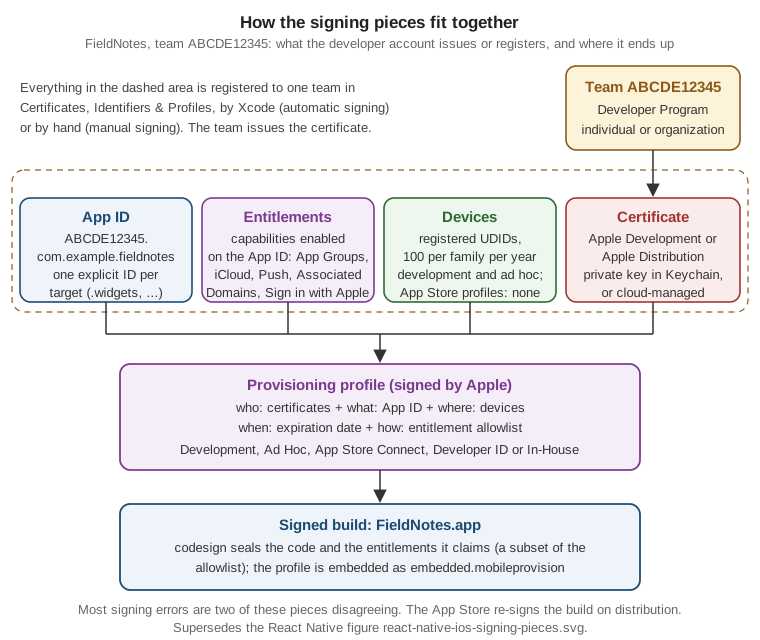
Read the figure from the top. The team is the membership. It issues certificates and owns every App ID, device registration and profile in the dashed area. The entitlements box is the list of capabilities enabled on the App ID, which becomes the profile’s allowlist. The profile combines the four inputs, and the signed build claims a subset of that allowlist in its signature. Most signing errors come from two boxes disagreeing: a profile that doesn’t include the certificate on this Mac, a bundle ID that doesn’t match the App ID, an entitlement the App ID doesn’t allow, or a device that isn’t registered.
The React Native page has a similar figure, react-native-ios-signing-pieces.svg, drawn from that framework’s
point of view (EAS credentials, an .ipa upload). This figure supersedes it for native projects and is the one the
rest of this section refers to.
Platform availability
| API or feature | iOS | iPadOS | macOS | watchOS | visionOS |
|---|---|---|---|---|---|
Code signature required to run |
Yes |
Yes |
Yes (ad hoc signature at minimum; Apple silicon) |
Yes |
Yes |
Provisioning profile required to run |
Yes |
Yes |
Only for restricted entitlements, and always for TestFlight |
Yes |
Yes |
Registered devices for development and ad hoc builds |
Yes |
Yes |
Yes (Mac) |
Yes |
Yes |
Developer Mode |
Yes |
Yes |
Not available (not needed) |
Yes |
Yes |
App Sandbox |
Yes (always on) |
Yes (always on) |
Entitlement (required for the Mac App Store) |
Yes (always on) |
Yes (always on) |
Icon Composer app icon |
New in 26 |
New in 26 |
New in 26 |
New in 26 |
Not available (asset catalog image stack) |
Refraction in Icon Composer 2.0 |
New in 27 |
New in 27 |
New in 27 |
New in 27 |
Not available |
|
Yes |
Yes |
Not available |
Not available |
Not available |
Privacy manifest ( |
Yes |
Yes |
Collected data only |
Yes |
Yes |
The Apple Developer Program
You can build and run on your own devices with a free Apple Account, as Getting Started with Apple Platforms explains with a side-by-side table. To distribute an app (TestFlight, the App Store, ad hoc builds, or notarized Mac apps), and for most capabilities FieldNotes uses, a team needs a paid membership. There are three kinds:
| Apple Developer Program, individual | Apple Developer Program, organization | Apple Developer Enterprise Program | |
|---|---|---|---|
Who |
A person or sole proprietor |
A company, nonprofit, school or government body that is a legal entity |
Organizations with 100 or more employees, for internal apps only |
Seller name on the App Store |
Your personal legal name |
The legal entity’s name |
None: no App Store distribution |
Requirements |
Apple Account with two-factor authentication |
Also a D-U-N-S Number (not for government bodies), binding authority, a work email and a public website |
D-U-N-S Number, verification interview and continuous evaluation |
Team |
One person, who is the Account Holder |
Many members with roles |
Many members with roles |
Distribution |
App Store, TestFlight, ad hoc, Developer ID |
Same, plus custom apps for businesses |
In-house distribution to employees (MDM or internal site) |
Fee (as listed on 2026-09-24) |
99 USD per membership year |
99 USD per membership year |
299 USD per membership year |
See Apple Developer Documentation — Enrollment and Apple Developer — Apple Developer Enterprise Program.
The fees come from the Apple Developer Program page as it read on 2026-09-24; they vary by country and change over time, so check the page before enrolling. The Enterprise Program is not an alternative App Store account. Apple only accepts it for proprietary apps that the App Store, custom apps, ad hoc distribution or TestFlight can’t serve, and an in-house certificate that is revoked stops every installed copy from launching. FieldNotes is an organization membership, because a company publishes it and several developers work on it.
Inside a team, roles decide who can do what. The Account Holder accepts agreements and is the only one who can do certain legal tasks. Admins can create distribution certificates and manage members; App Managers manage apps in App Store Connect; Developers can build and run but, by default, cannot create distribution certificates. An Account Holder, Admin or App Manager can also turn on Automatic Signing Controls, which stop the Developer role from registering new App IDs or devices through Xcode’s automatic signing, which is useful when the device slots are a shared resource.
Every signing asset is tied to the team’s ten-character Team ID. Apple puts it in the Organizational Unit field of each code-signing certificate, so the quickest way to find it on a Mac is to list your identities:
# List valid code-signing identities in the keychain (certificate + private key).
security find-identity -v -p codesigning
#   1) 3F8B...7A2B "Apple Development: Ana Garcia (Q1W2E3R4T5)"
#   2) 8CEF...8C97 "Apple Distribution: Example Field Apps, S.L. (ABCDE12345)"
#      2 valid identities found

# The team the FieldNotes target builds with.
xcodebuild -project FieldNotes.xcodeproj -target FieldNotes -showBuildSettings \
  | grep DEVELOPMENT_TEAM
#     DEVELOPMENT_TEAM = ABCDE12345
See Apple Developer Documentation — TN3161: Inside Code Signing: Certificates and Apple Developer Documentation — Apple Developer Program Roles.
The value in parentheses after Apple Development is the developer’s personal identifier, not the team; the one
after Apple Distribution is the Team ID. security find-identity only searches keychain files, so an identity that
lives in cloud-managed signing doesn’t appear there.
Certificates
A certificate type states what the identity may sign. The ones an app team meets are:
| Certificate type | Signs |
|---|---|
Apple Development |
Development builds for any Apple platform, run from Xcode on registered devices. Belongs to one developer; the portal appends the computer name, for example Ana Garcia (Work Mac). |
Apple Distribution |
Builds for ad hoc testing and for upload to App Store Connect (TestFlight and the App Store), on every platform. Belongs to the team; only an Account Holder or Admin can create one. |
Developer ID Application / Developer ID Installer |
Mac apps and installer packages distributed outside the Mac App Store, then notarized. Only the Account Holder can create them. Apple’s Supported capabilities (macOS) table (checked 2026-09-24) lists Sign in with Apple, In-App Purchase, Game Center and WeatherKit for Apple Developer Program (App Store) profiles but not for Developer ID, so FieldNotes' Developer ID build hides its Sign in with Apple button and the FieldNotes Pro upgrade (macOS: Windows, Menus, Commands, Settings and Menu Bar Extras). See Distributing Mac Apps with Developer ID and Notarization. |
Mac Installer Distribution |
The installer package that wraps a Mac App Store build. |
In-house distribution (Enterprise only) |
Apps distributed to an organization’s own employees. |
Older names (iOS Development, iOS Distribution, Mac Development, Mac App Distribution) are the pre-Xcode 11 types; new projects never need them. The APNs keys and certificates in the same list are server credentials, covered on Notifications, APNs and Live Activities.
Apple issues certificates in three ways, and the difference is where the private key lives:
-
Manual certificate signing request (CSR). Keychain Access creates a key pair in your login keychain and a
.certSigningRequestfile; you upload that file and download the certificate. The key never leaves your Mac. -
Xcode’s certificate management (Settings > Apple Accounts > Manage Certificates). Xcode does the same CSR round trip for you. Convenient, with the same trap: the key sits in your login keychain, and a new Mac without a copy of it can’t sign as you. Export the identity as a password-protected
.p12file to move or back it up. -
Cloud-managed certificates. Since Xcode 13, the Organizer’s distribution workflow can sign with a distribution certificate whose key stays in Apple’s signing service. Xcode Cloud always works this way. Admins control who may use them in App Store Connect’s user permissions.
Development and distribution certificates are typically valid for a year. When one expires, apps already on the App Store are unaffected (they were re-signed by Apple), but you can’t upload new builds with it; a revoked distribution certificate can also invalidate builds that were uploaded but not yet submitted. Before debugging a signing error, check which identity actually signed the build and the chain of trust behind it:
# The chain of trust of a development build of FieldNotes.
codesign --display -vv build/Debug-iphoneos/FieldNotes.app
# Authority=Apple Development: Ana Garcia (Q1W2E3R4T5)
# Authority=Apple Worldwide Developer Relations Certification Authority
# Authority=Apple Root CA
# TeamIdentifier=ABCDE12345

# Is the bundle internally consistent (no missing, extra or modified files)?
codesign --verify --deep --strict -vvv build/Debug-iphoneos/FieldNotes.app
See Apple Developer Documentation — TN3161: Inside Code Signing: Certificates and Apple Developer Documentation — Cloud-managed certificates.
To share a team’s distribution identity with another developer’s Mac without cloud signing, Xcode can export and
import signing assets; Apple describes it in
Synchronizing code signing identities with your developer account.
Treat the exported .p12 like a password: never commit it, and in CI store it as an encrypted secret (see
CI/CD with Xcode Cloud and the Command Line).
App IDs and Bundle IDs
The bundle ID is the reverse-DNS string in CFBundleIdentifier that identifies the app on the device and in App
Store Connect. The App ID is the record in the developer account that registers it: the team prefix, a dot and
the bundle ID, ABCDE12345.com.example.fieldnotes. An explicit App ID matches exactly one bundle ID; a
wildcard App ID (ABCDE12345.com.example.*) matches many, which is fine for quick experiments but can’t carry
most capabilities (iCloud, push, App Groups, Sign in with Apple), so FieldNotes uses explicit IDs throughout.
Every target is its own bundle and needs its own App ID. An embedded bundle’s ID must start with the bundle ID of
the bundle it is embedded in, followed by a dot: the watch app and the iPhone-side extensions start with
com.example.fieldnotes., and the watch widget extension, which is embedded in the watch app, starts with
com.example.fieldnotes.watchkitapp.:
| Target | Bundle ID | Platforms | Capabilities on the App ID |
|---|---|---|---|
|
|
iOS, iPadOS, macOS, visionOS |
App Groups, iCloud (CloudKit, Documents, key-value), Push Notifications, Associated Domains, Sign in with Apple, HealthKit, NFC, App Attest |
|
|
watchOS |
App Groups, iCloud (CloudKit), Push Notifications, HealthKit |
|
|
iOS, iPadOS, macOS, visionOS |
App Groups |
|
|
watchOS |
App Groups |
|
|
iOS, iPadOS, macOS |
App Groups |
|
|
iOS, iPadOS, macOS, visionOS |
App Groups |
The watch widget row is the one that follows the rule one level down: its bundle ID extends the watch app’s, not the
iPhone app’s. For the same reason, a watch-side extension of any other kind would need an ID under
com.example.fieldnotes.watchkitapp., never directly under com.example.fieldnotes..
With automatic signing, Xcode registers each App ID the first time you build the target. The IDs come from the
PRODUCT_BUNDLE_IDENTIFIER build setting, which FieldNotes derives from one base value so a fork only has to
change it once:
// Config/Base.xcconfig (excerpt, updated; mapped to the project): one base value
FIELDNOTES_BUNDLE_ID_BASE = com.example.fieldnotes
PRODUCT_BUNDLE_IDENTIFIER = $(FIELDNOTES_BUNDLE_ID_BASE)

// Config/FieldNotesWidgets.xcconfig (mapped to the FieldNotesWidgets target)
PRODUCT_BUNDLE_IDENTIFIER = $(FIELDNOTES_BUNDLE_ID_BASE).widgets

// Config/FieldNotesShareExtension.xcconfig (mapped to the FieldNotesShareExtension target)
PRODUCT_BUNDLE_IDENTIFIER = $(FIELDNOTES_BUNDLE_ID_BASE).share

// Config/FieldNotesWatchWidgets.xcconfig (mapped to the FieldNotesWatchWidgets target):
// embedded in the watch app, so it extends the watch app's ID
PRODUCT_BUNDLE_IDENTIFIER = $(FIELDNOTES_BUNDLE_ID_BASE).watchkitapp.widgetsA target-level file only overrides what differs: the project-level Base.xcconfig already defines
FIELDNOTES_BUNDLE_ID_BASE, and target settings sit above project settings in Xcode’s precedence order.
The bundle ID is permanent once an app is on the App Store: App Store Connect ties the app record, its reviews and its purchases to it. The App ID prefix is the Team ID for every app created today; some very old apps have a different, legacy prefix that must be kept.
At runtime the app can read its own identity, which FieldNotes shows in the About section of Settings and attaches to support emails:
// FieldNotes/Support/BuildIdentity.swift
import Foundation

/// What the signed bundle says about itself: bundle ID, marketing version and build number.
struct BuildIdentity: Sendable, CustomStringConvertible {
    let bundleID: String
    let version: String
    let build: String

    init(bundle: Bundle = .main) {
        bundleID = bundle.bundleIdentifier ?? "unknown"
        version = bundle.object(forInfoDictionaryKey: "CFBundleShortVersionString") as? String ?? "0"
        build = bundle.object(forInfoDictionaryKey: "CFBundleVersion") as? String ?? "0"
    }

    var description: String { "\(bundleID) \(version) (\(build))" }   // "com.example.fieldnotes 2.2.0 (42)"
}
See Apple Developer Documentation — bundleIdentifier and Apple Developer Documentation — CFBundleVersion.
BuildIdentity complements the Bundle.main.appVersion shortcut used by SettingsView on
Controls, Forms, Text, Images and SF Symbols; it adds the bundle ID
and build number, which matter when the same version exists as several TestFlight builds.
Devices and Developer Mode
A development or ad hoc build only installs on devices whose identifiers are listed in its profile. A team can register up to 100 devices per product family (iPhone, iPad, Apple Watch, Apple Vision Pro, Mac, Apple TV) per membership year. Disabling a device doesn’t free its slot; at the start of each membership year, the Account Holder, an Admin or an App Manager can remove devices and get the full count back. With automatic signing, Xcode registers a device when you first run on it. For testers' devices you don’t have at hand, collect the identifiers and upload them in bulk as a tab-separated file, whose first row is ignored:
# Xcode 27: the list shows each device's UDID (or ECID) as its identifier.
xcrun devicectl list devices

# devices.txt, uploaded under Certificates, Identifiers & Profiles > Devices > Register multiple devices.
printf 'Device ID\tDevice Name\tDevice Platform\n'                        >  devices.txt
printf '<UDID-OF-ANA-IPHONE>\tAna iPhone 17\tios\n'                       >> devices.txt
printf '<UDID-OF-FIELD-IPAD>\tField iPad Pro\tios\n'                      >> devices.txt
See Apple Developer Documentation — Devices overview and Apple Developer Documentation — Register multiple devices.
Registered devices matter only for development and ad hoc distribution. TestFlight and the App Store install on any device, so beta testers never need a slot, which is one more reason to prefer TestFlight over ad hoc builds.
Developer Mode is the device-side half of the same protection. An iPhone, iPad, Apple Watch or Apple Vision Pro
refuses to launch development-signed apps (from Xcode, or an .ipa installed with Apple Configurator) until someone
turns on Settings > Privacy & Security > Developer Mode, restarts, and confirms with the passcode. The switch
appears only after the device has been paired with a Mac. It doesn’t affect App Store or TestFlight installs, the
Mac has no equivalent, and on Apple TV pairing alone is enough. The steps and the new Xcode 27 network pairing are in
Getting Started with Apple Platforms; from the command line, a device without
Developer Mode fails at the install or launch step:
# Install and launch a development build of FieldNotes on a paired device.
xcrun devicectl device install app --device <UDID-OF-ANA-IPHONE> \
  build/Debug-iphoneos/FieldNotes.app
xcrun devicectl device process launch --device <UDID-OF-ANA-IPHONE> com.example.fieldnotesNeeds a physical device paired with the Mac, and a development profile that lists its identifier.
Provisioning Profiles
A provisioning profile is a property list wrapped in a signature from Apple. Each distribution method has its own profile type:
| Profile type | Signed with | Devices | Used for |
|---|---|---|---|
Development |
Apple Development |
Registered devices listed in the profile |
Running from Xcode; debugging (it allows |
Ad Hoc |
Apple Distribution |
Registered devices listed in the profile |
Installing a release build on a few known devices |
App Store Connect |
Apple Distribution |
None (the store installs) |
Uploading to TestFlight and the App Store |
Developer ID (macOS) |
Developer ID Application |
All Macs |
Mac apps outside the store that use restricted entitlements |
In-House (Enterprise) |
In-house distribution |
All devices ( |
Enterprise apps |
Xcode embeds the profile at FieldNotes.app/embedded.mobileprovision (on the Mac,
FieldNotes.app/Contents/embedded.provisionprofile). Profiles expire, usually within a year (Developer ID
profiles last much longer), and any change to the inputs, such as a new device, a new capability or a renewed
certificate, makes Apple issue a new one. The Mac is the exception to "no profile, no launch": a Mac app that claims
only unrestricted entitlements (App Sandbox, hardened runtime, App Groups) needs no profile, even on the Mac App
Store. A restricted entitlement such as iCloud, push or Sign in with Apple needs one, and TestFlight always does.
When a build won’t install, compare what the profile allows with what the signature claims. The profile is a CMS
envelope; the security tool unwraps it:
APP=build/Release-iphoneos/FieldNotes.app

# Unwrap the embedded profile into a readable property list.
security cms -D -i "$APP/embedded.mobileprovision" -o profile.plist

plutil -extract Entitlements.application-identifier raw -o - profile.plist
# ABCDE12345.com.example.fieldnotes                      <- the "what"
plutil -extract ExpirationDate raw -o - profile.plist
# 2027-09-20T08:14:03Z                                   <- the "when"
plutil -extract ProvisionedDevices xml1 -o - profile.plist
# (absent in an App Store Connect profile)               <- the "where"

# The entitlements the signature actually claims: each must be in the profile's allowlist.
codesign --display --entitlements - --xml "$APP" | plutil -convert xml1 -o - -Apple notes that the property list view is for understanding and debugging only. Modern systems read the
DER-Encoded-Profile property inside it, and the format may change, so never build tooling that parses profiles.
Automatic and Manual Signing
With automatic signing (Automatically manage signing in the Signing & Capabilities tab, CODE_SIGN_STYLE =
Automatic), Xcode creates your development certificate, registers the App IDs, capabilities and devices, and
generates Xcode Managed profiles as needed. When you distribute from the Organizer it picks the distribution
identity, using a cloud-managed certificate if none is in the keychain. FieldNotes uses automatic signing for
Debug on every developer’s Mac, with the team in the untracked Signing.xcconfig shown on
Getting Started with Apple Platforms.
With manual signing (CODE_SIGN_STYLE = Manual), you create the profiles in the developer account and name, per
target and configuration, which identity and which profile to use. Choose it when a build machine must not talk to
the developer account, when a security team controls distribution identities, or when you need a specific profile,
such as an ad hoc one. It is also more work: every new device or capability means regenerating and re-installing
profiles.
| Automatic | Manual | |
|---|---|---|
Who creates certificates and profiles |
Xcode, on demand |
You, in Certificates, Identifiers & Profiles (or with the App Store Connect API) |
Good for |
Development, small teams, Xcode Cloud |
Locked-down release pipelines, ad hoc builds, enterprise |
Typical failure |
An account without permission to register a device or App ID |
An expired or outdated profile, or a profile that doesn’t list the signing certificate |
A common split is automatic for Debug and manual for Release. The project-level Release.xcconfig applies to every
target, so the signing choice goes into a file mapped only to the app target’s Release configuration:
// Config/FieldNotes-Release.xcconfig (mapped to the FieldNotes target, Release configuration)
CODE_SIGN_STYLE = Manual
DEVELOPMENT_TEAM = ABCDE12345
CODE_SIGN_IDENTITY = Apple Distribution
PROVISIONING_PROFILE_SPECIFIER = FieldNotes App Store
CODE_SIGN_ENTITLEMENTS = FieldNotes/FieldNotes.entitlements
CODE_SIGN_ENTITLEMENTS[sdk=macosx*] = FieldNotes/FieldNotes-macOS.entitlements
PROVISIONING_PROFILE_SPECIFIER[sdk=macosx*] = FieldNotes Mac App StoreEach extension target sets its own PROVISIONING_PROFILE_SPECIFIER in its own .xcconfig, because a profile covers
exactly one App ID, and the Mac build needs a Mac profile of its own, hence the [sdk=macosx*] line.
Build configuration files, their precedence and SDK-conditional settings are explained on
Xcode Projects, Targets, Schemes and Previews and
One Codebase for iOS, iPadOS, macOS, watchOS and visionOS.
Automatic signing also works headless. xcodebuild can create or update profiles during the build when you pass
-allowProvisioningUpdates and authenticate with an App Store Connect API key instead of an Apple Account. The key
file is a secret stored outside the repository; the placeholders below stand for your own values:
xcodebuild -project FieldNotes.xcodeproj -scheme FieldNotes \
  -configuration Release -destination 'generic/platform=iOS' \
  -archivePath build/FieldNotes.xcarchive archive \
  -allowProvisioningUpdates \
  -authenticationKeyPath "$RUNNER_TEMP/AuthKey_<KEY_ID>.p8" \
  -authenticationKeyID "<KEY_ID>" \
  -authenticationKeyIssuerID "<ISSUER_ID>"
See Apple Developer Documentation — Distributing your app for beta testing and releases and Apple Developer Documentation — Creating API Keys for App Store Connect API.
Needs a paid membership and an App Store Connect API key with a role that may manage signing. Exporting and uploading that archive is covered on App Store Connect, TestFlight and App Review, and the full CI setup on CI/CD with Xcode Cloud and the Command Line.
Capabilities and FieldNotes.entitlements
A capability is a feature that needs Apple’s permission, switched on in the Signing & Capabilities tab with
+ Capability. Adding one does three things: it writes entitlements into the target’s .entitlements file,
enables the capability on the App ID so new profiles allow it, and sometimes adds Info.plist keys or
frameworks. The entitlements file is only a request; the profile is the allowlist; a key in the file that the
profile doesn’t allow makes the build fail to sign or install.
These are the five canonical capabilities of the FieldNotes app target, all in one file:
<?xml version="1.0" encoding="UTF-8"?>
<!-- FieldNotes/FieldNotes.entitlements (iOS, iPadOS, visionOS; the Mac build uses FieldNotes-macOS.entitlements) -->
<!DOCTYPE plist PUBLIC "-//Apple//DTD PLIST 1.0//EN" "http://www.apple.com/DTDs/PropertyList-1.0.dtd">
<plist version="1.0">
<dict>
    <!-- App Groups: shared container with the widgets, share and notification extensions -->
    <key>com.apple.security.application-groups</key>
    <array>
        <string>group.com.example.fieldnotes</string>
    </array>

    <!-- iCloud: CloudKit sync, iCloud Documents, key-value storage -->
    <key>com.apple.developer.icloud-container-identifiers</key>
    <array>
        <string>iCloud.com.example.fieldnotes</string>
    </array>
    <key>com.apple.developer.icloud-services</key>
    <array>
        <string>CloudKit</string>
        <string>CloudDocuments</string>
    </array>
    <key>com.apple.developer.ubiquity-container-identifiers</key>
    <array>
        <string>iCloud.com.example.fieldnotes</string>
    </array>
    <key>com.apple.developer.ubiquity-kvstore-identifier</key>
    <string>$(TeamIdentifierPrefix)$(CFBundleIdentifier)</string>

    <!-- Push Notifications: Xcode writes "development"; export for distribution sets "production" -->
    <key>aps-environment</key>
    <string>development</string>

    <!-- Associated Domains: universal links and shared web credentials -->
    <key>com.apple.developer.associated-domains</key>
    <array>
        <string>applinks:fieldnotes.example.com</string>
        <string>webcredentials:fieldnotes.example.com</string>
    </array>

    <!-- Sign in with Apple -->
    <key>com.apple.developer.applesignin</key>
    <array>
        <string>Default</string>
    </array>
</dict>
</plist>
See Apple Developer Documentation — Adding capabilities to your app and Apple Developer Documentation — Entitlements.
Needs a paid Apple Developer Program membership: iCloud containers, App Groups, push and Sign in with Apple are registered to a team, and a Personal Team can’t use them.
Other pages add their own keys to the same file: HealthKit and NFC on Health, Motion and Accessories, App Attest on Security and Privacy, and the Private Cloud Compute entitlement on Apple Intelligence and Machine Learning. What each key does is explained on those pages and on Core Data, CloudKit and iCloud; this section is about how they get into a signed build. A few rules differ by platform and target:
-
Per platform. The Mac build is sandboxed, so it has its own
FieldNotes-macOS.entitlementswithcom.apple.security.app-sandboxand resource entitlements; on macOS the push key iscom.apple.developer.aps-environment.CODE_SIGN_ENTITLEMENTS[sdk=macosx*]selects the file. -
Per target. Each extension has a much smaller file, usually just the App Group. An extension never inherits its host app’s entitlements; a widget that reads the shared store needs the group in its own file.
-
Per distribution.
aps-environmentis written asdevelopmentin the file and becomesproductionwhen Xcode re-signs the archive for App Store Connect or ad hoc distribution. -
Managed capabilities. Some capabilities (CarPlay, multicast networking, Private Cloud Compute, and others) need Apple’s approval first. Once approved for the App ID, they appear in Xcode like any other capability, and new profiles include them; some are granted only for development or ad hoc builds at first.
-
Enhanced Security. The Enhanced Security capability turns on a group of hardening build settings and entitlements (pointer authentication, bounds and memory checks) and is worth evaluating for an app that handles sensitive notes. Xcode 27’s release notes list a known issue: an app with the Hardware-Checked Pointer Arithmetic slice can’t be uploaded with automatic signing on macOS Tahoe 26.6; distribute from macOS 27 with Xcode 27, or sign manually.
See Apple Developer Documentation — Provisioning with managed capabilities and Apple Developer Documentation — Enabling enhanced security for your app.
A missing entitlement often fails silently at runtime rather than at build time: an App Group container URL comes
back nil, and CloudKit reports a missing container. FieldNotes catches that in Debug builds at launch:
// FieldNotes/Support/EntitlementCheck.swift (Debug builds only)
import Foundation
import os

#if DEBUG
enum EntitlementCheck {
    private static let log = Logger(subsystem: "com.example.fieldnotes", category: "persistence")

    /// Fails loudly when the build was signed without the App Group that SharedNoteAccess needs.
    static func verifyAppGroup(_ identifier: String = "group.com.example.fieldnotes") {
        guard FileManager.default.containerURL(
            forSecurityApplicationGroupIdentifier: identifier) != nil else {
            log.fault("App Group \(identifier, privacy: .public) missing from the signed entitlements")
            assertionFailure("Add the App Groups capability with \(identifier) to this target")
            return
        }
    }
}
#endif
See Apple Developer Documentation -- containerURL(forSecurityApplicationGroupIdentifier:) and Apple Developer Documentation — Configuring app groups.
The app and each extension call EntitlementCheck.verifyAppGroup() once at startup in Debug builds, before
SharedNoteAccess opens the store (see
Widgets, Complications and Controls (WidgetKit)). On macOS a group
identifier with the group. prefix must also be registered for the team, as the App Groups section of
App Intents, Siri, Shortcuts, Spotlight, Deep Links and Extensions
explains.
Info.plist: Identity, Usage Descriptions and Launch Screen
The information property list is what the system and the App Store read about the bundle.
Xcode Projects, Targets, Schemes and Previews shows how
generated keys (INFOPLIST_KEY_...) and a hand-written plist combine; this section lists the keys that matter for
signing and review.
Identity keys
| Key | Set from | Notes |
|---|---|---|
|
|
Must match the App ID and the App Store Connect record. |
|
|
The user-visible version, |
|
|
The build number, |
|
|
The name under the icon; Field Notes. |
|
|
The Mac App Store category; FieldNotes uses |
|
|
Answers the export-compliance question at upload; |
|
Watch target’s Info |
Links |
// Config/Base.xcconfig (excerpt, updated): identity and review-related keys
INFOPLIST_KEY_CFBundleDisplayName = Field Notes
INFOPLIST_KEY_LSApplicationCategoryType = public.app-category.productivity
INFOPLIST_KEY_ITSAppUsesNonExemptEncryption = NO
See Apple Developer Documentation — Information Property List and Apple Developer Documentation — ITSAppUsesNonExemptEncryption.
FieldNotes only uses HTTPS and CryptoKit primitives provided by the system, which is why it can declare NO; an
app that ships its own encryption must answer the export-compliance questions in App Store Connect instead.
Usage descriptions
Every protected resource needs a purpose string: an NS…UsageDescription key whose text the system shows in
the permission alert. Calling the API without the key terminates the app, and a vague string ("This app needs your
location") is a common App Review rejection. The keys are declared on the pages that use each API; FieldNotes
collects them in one place so a review can see them together:
// Config/Base.xcconfig (excerpt, updated): purpose strings, each explaining the user benefit
INFOPLIST_KEY_NSLocationWhenInUseUsageDescription = FieldNotes records where each note was taken.
INFOPLIST_KEY_NSCameraUsageDescription = FieldNotes attaches photos you take to your notes.
INFOPLIST_KEY_NSPhotoLibraryAddUsageDescription = FieldNotes saves note photos to your library when you ask it to.
INFOPLIST_KEY_NSMicrophoneUsageDescription = FieldNotes records sound with videos and transcribes speech into notes.
INFOPLIST_KEY_NSHealthShareUsageDescription = FieldNotes reads your distance and heart rate to summarize field trips.
INFOPLIST_KEY_NSHealthUpdateUsageDescription = FieldNotes saves the hikes you record as workouts in Health.
See Apple Developer Documentation — NSCameraUsageDescription and Apple Developer Documentation — NSLocationWhenInUseUsageDescription.
A missing key surfaces as a crash on first use, often in a flow nobody tested. A Debug-only audit at launch turns it into an immediate, named failure:
// FieldNotes/Support/UsageDescriptionAudit.swift (Debug builds only)
import Foundation

#if DEBUG
enum UsageDescriptionAudit {
    /// The purpose strings FieldNotes needs on every platform where it calls the matching API.
    static let requiredKeys: [String] = {
        var keys = ["NSLocationWhenInUseUsageDescription"]
        #if !os(watchOS)
        keys += ["NSCameraUsageDescription", "NSPhotoLibraryAddUsageDescription",
                 "NSMicrophoneUsageDescription"]
        #endif
        #if os(iOS) || os(watchOS)
        keys += ["NSHealthShareUsageDescription", "NSHealthUpdateUsageDescription"]
        #endif
        return keys
    }()

    static func run(bundle: Bundle = .main) {
        let missing = requiredKeys.filter {
            (bundle.object(forInfoDictionaryKey: $0) as? String)?.isEmpty ?? true
        }
        precondition(missing.isEmpty, "Info.plist is missing purpose strings: \(missing)")
    }
}
#endifThe same list is worth checking against the privacy manifest and the App Privacy answers before each release: a new purpose string usually means a new data type to declare.
Launch screen
On iPhone and iPad the system shows a launch screen while the app starts. The modern way is the UILaunchScreen
dictionary, not a storyboard: a background color and an optional image from the asset catalog, which the system
scales and caches. New targets generate an empty one (INFOPLIST_KEY_UILaunchScreen_Generation = YES); FieldNotes
sets its brand color and mark in its hand-written plist:
<!-- FieldNotes/FieldNotes-Info.plist (excerpt) -->
<key>UILaunchScreen</key>
<dict>
    <key>UIColorName</key>
    <string>LaunchBackground</string>   <!-- a color set in Assets.xcassets, with a dark variant -->
    <key>UIImageName</key>
    <string>LaunchMark</string>
    <key>UIImageRespectsSafeAreaInsets</key>
    <true/>
</dict>
See Apple Developer Documentation — UILaunchScreen and Apple Developer Documentation — Specifying your app’s launch screen.
A launch screen is not a splash screen: it should look like the first frame of the app with no text, because it is not localized and appears only for a moment. macOS, watchOS and visionOS have no launch screen key.
The privacy manifest
PrivacyInfo.xcprivacy sits next to Info.plist as a bundle resource. It declares tracking, collected data types
and the reasons for calling required-reason APIs, and uploads that call a required-reason API without an approved
reason are rejected. That requirement applies since May 1, 2024, per
Apple’s upcoming requirements page. The FieldNotes
manifest and its reason codes are on Security and Privacy; this page only
checks that each target that needs one has it, since the widget, share and notification extensions read
UserDefaults.fieldNotesShared too:
# Which bundles in the archive carry a privacy manifest?
find build/FieldNotes.xcarchive/Products/Applications/FieldNotes.app \
  -name PrivacyInfo.xcprivacy -print
# .../FieldNotes.app/PrivacyInfo.xcprivacy
# .../FieldNotes.app/PlugIns/FieldNotesWidgets.appex/PrivacyInfo.xcprivacy
# .../FieldNotes.app/PlugIns/FieldNotesShareExtension.appex/PrivacyInfo.xcprivacy
# .../FieldNotes.app/PlugIns/FieldNotesNotificationService.appex/PrivacyInfo.xcprivacyIn the Organizer, Generate Privacy Report on an archive merges the manifests of the app, its extensions and its SDKs into one PDF, which is the input for the App Privacy answers described on App Store Connect, TestFlight and App Review.
App Icons with Icon Composer
Since the 26 releases, the app icon is one layered Icon Composer file instead of an AppIcon set of flat
images. The same file serves iOS, iPadOS, macOS, watchOS and the App Store, and the system renders its default,
dark, clear and tinted appearances with Liquid Glass. Icon Composer 2.0 in Xcode 27 adds refraction and outside
specular highlights for the 27 releases while keeping the 26 rendering. How to design and layer the artwork is on
Liquid Glass, Materials and Icons; for the build, three
settings matter:
// Config/Base.xcconfig (excerpt, updated): the icon file FieldNotesIcon.icon at the target's root
ASSETCATALOG_COMPILER_APPICON_NAME = FieldNotesIcon

// visionOS still uses an asset catalog image stack, named separately.
ASSETCATALOG_COMPILER_APPICON_NAME[sdk=xros*] = AppIconVision
See Apple Developer Documentation — Creating your app icon using Icon Composer and WWDC25 — Create icons with Icon Composer.
The App Icon field in the target’s General tab is that build setting, and it must equal the Icon Composer file’s name without the extension; you can keep several icon files in a project, but only the matching one ships. Because FieldNotes supports the 26 releases, Xcode also renders flat icon images from the same file at build time for older design generations, so there is no second icon to maintain. App Store Connect takes the store icon from the uploaded build.
Troubleshooting Signing
Most signing failures are one of a handful of mismatches. Checking them in this order usually finds the cause:
| Symptom | Likely cause and fix |
|---|---|
No signing certificate "Apple Development" found |
The private key is not on this Mac. Import the |
Provisioning profile doesn’t include signing certificate |
The profile predates the certificate. With automatic signing, build again; with manual signing, regenerate the profile including the new certificate. |
Provisioning profile doesn’t support the X capability / doesn’t include the Y entitlement |
The entitlement is in the |
Unable to install: device not registered (development or ad hoc) |
Register the device, then regenerate the profile so it lists the new identifier. |
App launches from Xcode but not from the Home Screen |
Developer Mode is off, or the development profile expired. |
Upload rejected: invalid bundle ID or missing icon |
|
The commands above (security find-identity, codesign --display, security cms -D) answer each question from the
build itself rather than from Xcode’s summary, which is what TN3125 and TN3161 recommend when Xcode’s messages are
not enough.
References
-
Apple Developer Documentation — Apple Developer Program Roles
-
Apple Developer Documentation — Provisioning with managed capabilities
-
Apple Developer Documentation — TN3125: Inside Code Signing: Provisioning Profiles
-
Apple Developer Documentation — TN3161: Inside Code Signing: Certificates
-
Apple Developer Documentation — Synchronizing code signing identities with your developer account
-
Apple Developer Documentation — Distributing your app for beta testing and releases
-
Apple Developer Documentation — Creating API Keys for App Store Connect API
-
Apple Developer Documentation — Enabling Developer Mode on a device
-
Apple Developer Documentation — Adding capabilities to your app
-
Apple Developer Documentation — Enabling enhanced security for your app
-
Apple Developer Documentation -- containerURL(forSecurityApplicationGroupIdentifier:)
-
Apple Developer Documentation — ITSAppUsesNonExemptEncryption
-
Apple Developer Documentation — NSLocationWhenInUseUsageDescription
-
Apple Developer Documentation — Specifying your app’s launch screen
-
Apple Developer Documentation — object(forInfoDictionaryKey:)
-
Apple Developer Documentation — Creating your app icon using Icon Composer