Localization with String Catalogs
|
This content was generated with the assistance of AI and should be verified against the official documentation before being relied on in production; see the section bibliography for the reference material consulted while preparing these pages. |
Internationalization is writing code so that it can be shown in any language and region: every user-facing string goes through a localizable API, dates and numbers go through formatters, and layouts use leading and trailing instead of left and right. Localization is then adding the translations and regional adaptations themselves. This page does both for FieldNotes, against the 27 releases (iOS, iPadOS, macOS, watchOS and visionOS 27), Xcode 27 and Swift 6.4, with the app’s deployment minimum of 26. Nothing in the runtime APIs used here is new in 27, so the examples need no availability checks; what is new is tooling: in Xcode 27 an agent in the coding assistant can add languages and translate a whole app (the last section of this page).
FieldNotes ships in English (the development language), Spanish, German, Japanese and Arabic. Arabic is there on purpose: it is a right-to-left language with six plural categories, so it exercises every part of the system that English cannot.
The Localization Pipeline
Apple’s localization model centres on the String Catalog, a JSON file with the .xcstrings extension
that holds every localizable string of a target, in every language, with its variations, comments and
translation state. Xcode fills it for you: each build extracts localizable strings from Swift code, SwiftUI
views, storyboards and Info.plist, adds new keys, and marks keys that are no longer used as stale. Nobody
edits the catalog’s keys by hand except for the manually managed keys behind generated symbols.
From there, translations come from three places, which can be mixed: typed directly into the catalog editor,
exchanged with translators through XLIFF inside an .xcloc bundle, or (new in Xcode 27) produced by an
agent. At build time, Xcode compiles each catalog into the .strings and .stringsdict files that the
runtime has always used, so String Catalogs need no newer OS than the ones FieldNotes supports.
Figure: from source code to a localized screen
Text, String(localized:),
LocalizedStringResource"] --> BLD["Build
(compiler extracts strings)"] BLD --> CAT["Localizable.xcstrings
keys, comments,
variations, states"] CAT --> EXP["Export
xcodebuild -exportLocalizations"] EXP --> XLF["es.xcloc / ar.xcloc
(XLIFF + context)"] XLF --> TR["Translators
or TMS"] TR --> IMP["Import
xcodebuild -importLocalizations"] IMP --> CAT AG["Xcode 27 agent
(new in 27)"] -. "translates in place" .-> CAT CAT --> CMP["Compiled .strings /
.stringsdict in the bundle"] CMP --> RT["Runtime lookup
in the user's
preferred language"]
Adding the String Catalog
Create the catalog with File > New > File from Template > String Catalog and keep the default name
Localizable; the localizable APIs read the Localizable table unless they are given another table name.
Then choose Product > Build: Xcode discovers the strings and adds them. Languages are added with the +
button at the bottom of the catalog editor’s sidebar, or in the project’s Info pane under Localizations.
For extraction to find strings outside SwiftUI views, the Use Compiler to Extract Swift Strings build setting must be on. New projects enable it; older projects migrating to String Catalogs should check:
# FieldNotes.xcconfig (shared by all targets)
SWIFT_EMIT_LOC_STRINGS = YES
LOCALIZATION_PREFERS_STRING_CATALOGS = YES
See Apple Developer Documentation — Localizing and varying text with a string catalog and Apple Developer Documentation — Build settings reference.
What the catalog looks like on disk
The file is plain JSON, which makes it reviewable in pull requests. This excerpt of FieldNotes's
Localizable.xcstrings shows a translated string with a translator comment, a plural variation and a
string marked Don’t Translate:
{
  "sourceLanguage" : "en",
  "strings" : {
    "Pinned" : {
      "comment" : "Accessibility value spoken for a pinned note in the note list.",
      "localizations" : {
        "es" : { "stringUnit" : { "state" : "translated", "value" : "Fijada" } },
        "ar" : { "stringUnit" : { "state" : "translated", "value" : "مثبتة" } }
      }
    },
    "%lld notes" : {
      "comment" : "Subtitle under a notebook name. The argument is the number of notes.",
      "localizations" : {
        "en" : {
          "variations" : {
            "plural" : {
              "one" :   { "stringUnit" : { "state" : "translated", "value" : "%lld note" } },
              "other" : { "stringUnit" : { "state" : "translated", "value" : "%lld notes" } }
            }
          }
        }
      }
    },
    "FieldNotes" : {
      "shouldTranslate" : false
    }
  },
  "version" : "1.0"
}Each string unit has a state: New (no translation yet), Needs Review (the source changed after it was translated), Translated, Stale (the key is no longer found in code) and, from Xcode 27, Machine Translated for agent translations. The percentage next to each language in the sidebar is computed from these states, which makes the catalog a simple translation-progress dashboard.
Three Types for Localizable Text
A plain String is never translated. Text becomes localizable only when it passes through one of three
types, and choosing the right one depends on when the lookup should happen.
| Type | When the lookup happens | Use it for |
|---|---|---|
|
When SwiftUI renders the view, in the view’s |
String literals passed to SwiftUI views: |
|
Later, by whoever resolves it, possibly in another process or locale. |
Model and service code that hands text to the UI, App Intents, widgets, notifications and generated symbols. |
|
Immediately, in the current process’s language. |
Text that must be a |
LocalizedStringKey: SwiftUI’s default
SwiftUI views that take a string literal treat it as a LocalizedStringKey, look it up at render time, and
support interpolation ("\(count) notes" becomes the key "%lld notes"). A String variable uses the
StringProtocol overload instead and is shown as is, which is exactly right for user content such as a note
title.
struct NotebookList: View {
    @Environment(NoteStore.self) private var store

    var body: some View {
        List(store.notebooks) { notebook in
            Label(notebook.name, systemImage: notebook.symbolName)   // user data: not translated
        }
        .navigationTitle("Notebooks")                                  // LocalizedStringKey
        .toolbar {
            Button("New Notebook", systemImage: "plus") { }             // LocalizedStringKey
        }
    }
}LocalizedStringResource: deferred lookup
LocalizedStringResource stores the key, table, bundle and default value, and resolves only when turned into
text. It is the type to use in the model and service layers, because those layers do not know the locale the
text will finally be shown in: an App Intent’s dialog may be shown by Siri in a different language, and a widget
renders in another process. SwiftUI’s Text accepts it directly.
// FieldNotesModel: the one NoteSortOrder the whole app uses
public enum NoteSortOrder: String, CaseIterable, Identifiable, Sendable {
    case newestFirst, oldestFirst, title
    public var id: Self { self }

    public var title: LocalizedStringResource {
        switch self {
        case .newestFirst: "Newest First"
        case .oldestFirst: "Oldest First"
        case .title: LocalizedStringResource("Title", comment: "Sort notes alphabetically by title.")
        }
    }
}

// FieldNotesUI, in the sort menu and in Settings, which share
// @AppStorage("noteSortOrder") private var sortOrder = NoteSortOrder.newestFirst
Picker("Sort By", selection: $sortOrder) {
    ForEach(NoteSortOrder.allCases) { Text($0.title) }
}String(localized:comment:): immediate lookup
When the result must be a String now, String(localized:comment:) looks it up in the current language.
FieldNotes uses it for the error text that NoteStore surfaces from a failed sync, and for the one UIKit
view it wraps. The sync errors are the cases of SyncError, the LocalizedError enum in FieldNotesServices
declared on Navigation and Presentation. This excerpt of
that declaration shows its errorDescription with the translator comments the catalog receives;
recoverySuggestion is localized the same way:
// FieldNotesServices -- excerpt of SyncError (full declaration on Navigation and Presentation)
enum SyncError: LocalizedError {
    case offline
    case conflict(noteTitle: String)

    var errorDescription: String? {
        switch self {
        case .offline:
            String(localized: "You're offline",
                   comment: "Alert title shown when sync fails because there is no network connection.")
        case .conflict(let title):
            String(localized: "\"\(title)\" was changed on another device",
                   comment: "Alert title shown when a note was edited on two devices. The argument is the note's title.")
        }
    }
}Translator Comments and Strings Not to Translate
A translator sees a key and nothing else. "Title" could be a noun (a note’s title) or a sort order; "Pin"
could be a verb or a noun. Comments remove that ambiguity. Every localizable API takes a comment:
argument, and Xcode copies it into the catalog and into exported XLIFF.
Text("Pin", comment: "Verb. Button that pins the selected note to the top of the list.")

Button {
    store.togglePin(note)
} label: {
    Text("Unpin", comment: "Verb. Removes the pin from the selected note.")
}Xcode can also write comments for you. With Xcode > Settings > Editing > Automatically generate string catalog comments turned on, it uses an on-device model to describe where each string appears; exported files mark those comments as auto-generated so translators can tell them apart from human-written ones.
Some strings must not be translated: the app name, a file extension, a unit symbol used as a code. There are
two tools. In code, Text(verbatim:) bypasses localization entirely, so the string never reaches the catalog.
For a string that is in the catalog, mark it Don’t Translate in the editor’s context menu (stored as
"shouldTranslate" : false, as in the JSON excerpt above); it then stays out of exports and out of the
completion percentage.
Text(verbatim: "FieldNotes")        // brand name: never extracted, never translated
Text(verbatim: ".fieldnote") // document extensionPlural and Device Variations
Plurals
Languages have between one and six plural forms, chosen by rules that depend on the number (Arabic
distinguishes zero, one, two, few, many and other). Never build a plural with count == 1 ? "note" : "notes".
Instead interpolate the number into one localizable string, build, then Vary by Plural on that key in the
catalog editor. Xcode adds the categories each language needs.
struct NotebookRow: View {
    let notebook: Notebook
    let noteCount: Int

    var body: some View {
        VStack(alignment: .leading) {
            Text(notebook.name)
            Text("\(noteCount) notes")            // key "%lld notes", varied by plural
                .font(.caption)
                .foregroundStyle(.secondary)
        }
    }
}Device variations
The empty state of NoteList tells people how to add a note, and the verb differs by device: tap on iPhone
and iPad, click on the Mac, pinch on Apple Vision Pro. Vary by Device keeps one key with a different value
per device family, with Other as the fallback:
"Tap + to add your first note." : {
  "localizations" : {
    "en" : {
      "variations" : {
        "device" : {
          "mac" :         { "stringUnit" : { "state" : "translated", "value" : "Click + to add your first note." } },
          "applevision" : { "stringUnit" : { "state" : "translated", "value" : "Pinch + to add your first note." } },
          "other" :       { "stringUnit" : { "state" : "translated", "value" : "Tap + to add your first note." } }
        }
      }
    }
  }
}
ContentUnavailableView {
Label("No Notes", systemImage: "note.text")
} description: {
Text("Tap + to add your first note.")
}Plural and device variations can be nested: a key can vary by device first and then by plural inside each device.
Generated Localizable Symbols
Since Xcode 26, a string catalog can also be the source of strings rather than a target of extraction. You
add a key directly in the catalog (it is then manually managed), and Xcode generates a Swift symbol for it: a
static property for a plain string, or a function whose parameters are named after the format specifiers. The
symbols are LocalizedStringResource values, so they work anywhere that type does, and a typo in a key becomes
a compile error instead of an untranslated string.
FieldNotes keeps its onboarding copy in a separate Onboarding.xcstrings catalog with the keys
WELCOME_TITLE and NOTEBOOK_SUMMARY (source value %1$(count)lld notes in %2$(notebook)@):
struct OnboardingView: View {
    let notebook: Notebook
    let noteCount: Int

    var body: some View {
        VStack(spacing: 16) {
            Text(.Onboarding.welcomeTitle)
                .font(.largeTitle)
            Text(.Onboarding.notebookSummary(count: noteCount, notebook: notebook.name))
        }
    }
}

// Outside SwiftUI, resolve the same symbol into a String:
let summary = String(localized: .Onboarding.notebookSummary(count: 3, notebook: "Ridge Survey"))Keys in the default Localizable table are reached without a table prefix (.welcomeTitle); keys in any
other table are prefixed with the table name, as above. Projects created before Xcode 26 turn the feature on
with the Generate String Catalog Symbols build setting (STRING_CATALOG_GENERATE_SYMBOLS = YES). The
catalog editor’s Refactor > Convert Strings to Symbols converts existing extracted strings into
symbols and rewrites the call sites.
Automatic Grammar Agreement
Plural variations fix the number; they do not fix the words around it. In Spanish, "1 nota fijada" and "2
notas fijadas" change both the noun and the adjective, and in German or French the article and adjective also
agree in gender. Foundation’s automatic grammar agreement handles that at runtime: wrap the part of the
string that must agree in the ^[…](inflect: true) Markdown extension, and Foundation inflects the words for
the languages it supports.
struct PinnedSummary: View {
    let pinnedCount: Int

    var body: some View {
        // es: "1 nota fijada" / "3 notas fijadas"; en: "1 pinned note" / "3 pinned notes"
        Text("^[\(pinnedCount) pinned note](inflect: true)")
    }
}

// Outside SwiftUI:
let summary = AttributedString(localized: "^[\(pinnedCount) pinned note](inflect: true)")Translators keep the markup in their translation ("^[\(pinnedCount) nota fijada](inflect: true)"), and
InflectionRule.canInflect(language:) reports whether a language is supported. For languages without
inflection support, FieldNotes keeps a plural variation as well, so the catalog is correct either way.
Agreement with the reader’s gender (for greetings such as "Welcome back") uses TermOfAddress, which
FieldNotes does not need.
Dates, Numbers, Lists and Measurements with FormatStyle
A translated sentence with a hand-formatted date is still wrong: the order of day and month, the separators,
the calendar, the digits (Arabic may use Arabic-Indic digits) and the unit system all vary by region. Foundation’s
FormatStyle APIs produce locale-correct text from typed values, and SwiftUI’s Text(_:format:) re-renders
when the locale changes.
struct NoteMetadata: View {
    let note: Note
    let elevation: Measurement<UnitLength>      // from the location attached to the note
    let wordCount: Int

    var body: some View {
        VStack(alignment: .leading, spacing: 2) {
            // "24 Sep 2026, 14:05" (en-GB), "24 sept 2026, 14:05" (es), "2026/09/24 14:05" (ja)
            Text(note.createdAt, format: .dateTime.day().month(.abbreviated).year().hour().minute())

            // "2 hours ago" / "hace 2 horas"
            Text(note.createdAt, format: .relative(presentation: .named))

            // "field, geology and ridge" / "field, geology y ridge"
            Text(note.tags, format: .list(type: .and))

            // Shown in the unit it was recorded in: "1,250 m" (en) / "1250 m" (es)
            Text(elevation, format: .measurement(width: .abbreviated, usage: .asProvided))

            // "1,204 words" / "1.204 palabras"
            Text("\(wordCount) words")
        }
        .font(.caption)
    }
}
See Apple Developer Documentation — FormatStyle, Apple Developer Documentation — Date.FormatStyle and Apple Developer Documentation — Measurement.FormatStyle.
Interpolating an Int into a LocalizedStringKey (the last line) already formats it with grouping
separators for the current locale, so numbers inside sentences need no extra work. For dates, use a
dateTime style with the fields you want rather than a fixed pattern: the fields are fixed, but their order
and punctuation follow the locale.
Right-to-Left Languages
In Arabic and Hebrew the whole interface is mirrored: navigation starts at the right, the back button points right, list rows put the leading icon on the right and the trailing date on the left, and swipe directions reverse. SwiftUI does almost all of this automatically, provided the code never says left or right.
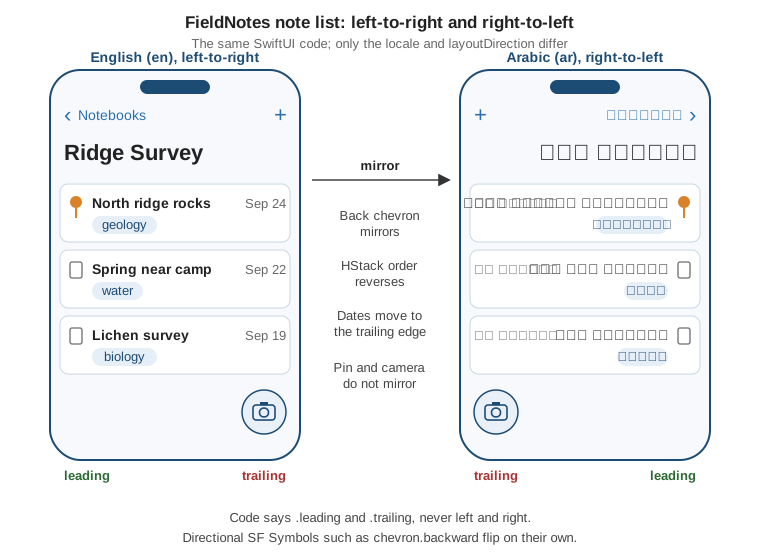
Leading and trailing, never left and right
struct NoteRowContent: View {
    let note: Note

    var body: some View {
        HStack {
            Image(systemName: "pin.fill")                   // leading edge: left in LTR, right in RTL
            Text(note.title)
                .frame(maxWidth: .infinity, alignment: .leading)
            Text(note.createdAt, format: .dateTime.day().month())
        }
        .padding(.leading, 12)                             // never .padding(.left, …): there is no .left
    }
}HStack, .leading/.trailing alignments and edge insets all follow the layout direction. Multiline text
aligned with .multilineTextAlignment(.leading) aligns to the right in Arabic, and text in a mixed-direction
sentence (an English note title inside an Arabic label) is laid out by the Unicode bidirectional algorithm
without any work.
Mirrored symbols and images
SF Symbols with a direction, such as chevron.forward, arrow.forward or text.alignleft, mirror
automatically in right-to-left layouts; prefer the forward/backward names over right/left. Symbols
that show real-world objects (a pin, a camera, a clock) do not mirror. For a custom image, set Direction in
the asset catalog’s attributes inspector, or mirror a drawn view explicitly:
Image("trail-arrow")                                     // custom asset showing a direction
    .flipsForRightToLeftLayoutDirection(true)

Image(systemName: "chevron.forward")                     // mirrors on its own
See Apple Developer Documentation -- flipsForRightToLeftLayoutDirection(_:) and Human Interface Guidelines — Right to left.
Not everything should mirror. Media playback controls, a progress bar showing time, charts with a numeric x-axis and phone-number fields keep their left-to-right orientation; the HIG page linked above lists the exceptions.
Pseudolanguages
Before any real translation exists, Xcode’s pseudolanguages find layout problems. In the scheme’s Run > Options > App Language menu:
-
Double-Length Pseudolanguage repeats every string, simulating German or Finnish lengths;
-
Accented Pseudolanguage adds diacritics, catching clipped ascenders and descenders;
-
Bounded String Pseudolanguage wraps strings in markers, making truncation visible;
-
Right-to-Left Pseudolanguage mirrors the layout while keeping English text, so any view that does not flip stands out.
The same choices can be passed as launch arguments, which is how FieldNotes's CI runs one UI-test pass in a right-to-left layout:
xcrun simctl launch booted com.example.fieldnotes \
  -AppleLanguages "(ar)" -AppleLocale ar_SA \
-NSForceRightToLeftWritingDirection YESExchanging Translations with XLIFF and .xcloc
Professional translators and translation-management systems work with XLIFF, an XML interchange format.
Xcode wraps one XLIFF file per language in an Xcode Localization Catalog (.xcloc), a folder that also
carries contents.json, the source files for context in Source Contents, and screenshots or notes for
translators in Notes. Product > Export Localizations and Product > Import Localizations do the round trip
in Xcode; CI uses xcodebuild:
# Export Spanish and Arabic, with localization screenshots from the UI tests
xcodebuild -exportLocalizations \
  -project FieldNotes.xcodeproj \
  -localizationPath Localizations \
  -exportLanguage es -exportLanguage ar \
  -includeScreenshots

# ...translators return Localizations/es.xcloc and Localizations/ar.xcloc...

xcodebuild -importLocalizations \
  -project FieldNotes.xcodeproj \
  -localizationPath Localizations/es.xcloc
See Apple Developer Documentation — Exporting localizations and Apple Developer Documentation — Importing localizations.
Each string in the XLIFF carries its comment as a <note>, and plural variations become one <trans-unit>
per plural category, so the translator fills exactly the forms their language needs:
<trans-unit id="%lld notes|==|plural.one" xml:space="preserve">
  <source>%lld note</source>
  <target state="translated">%lld nota</target>
  <note>Subtitle under a notebook name. The argument is the number of notes.</note>
</trans-unit>Importing merges the translations into Localizable.xcstrings and reports untranslated or invalid strings
(for example, a translation that drops a format specifier) before anything is written.
Localized Resources in Swift Packages
The FieldNotesUI and FieldNotesKit packages (see Swift
Packages and Modularizing an App) have their own user-facing strings. A package that contains localized
resources declares a defaultLocalization and processes its resources; its String Catalog lives inside the
target’s resources directory and is extracted and exported with the app.
// swift-tools-version: 6.4
// Packages/FieldNotesUI/Package.swift
import PackageDescription

let package = Package(
    name: "FieldNotesUI",
    defaultLocalization: "en",
    platforms: [.iOS(.v26), .macOS(.v26), .watchOS(.v26), .visionOS(.v26)],
    products: [.library(name: "FieldNotesUI", targets: ["FieldNotesUI"])],
    targets: [
        .target(
            name: "FieldNotesUI",
            resources: [.process("Resources")]      // Resources/Localizable.xcstrings
        )
    ]
)The one thing that changes in package code is the bundle. A Text("Pinned") inside FieldNotesUI would look
in the app’s main bundle and miss the package’s catalog, so package code names its bundle. The #bundle
macro expands to the right bundle wherever the code lives (the app, a framework or a package target) and
back-deploys, so it is the portable choice:
// FieldNotesUI/TagChipRow.swift
public struct TagChipRow: View {
    let tags: [String]

    public init(tags: [String]) { self.tags = tags }

    public var body: some View {
        if tags.isEmpty {
            Text("No Tags", bundle: #bundle, comment: "Shown in a note row when the note has no tags.")
        } else {
            ForEach(tags, id: \.self) { TagChip($0) }
        }
    }
}

// FieldNotesServices
let message = String(localized: "Sync finished", bundle: #bundle,
                     comment: "Status line after a successful sync.")
See Apple Developer Documentation — bundle() and Apple Developer Documentation — Bundling resources with a Swift package.
Bundle.module, the accessor SwiftPM generates for a target with resources, works too, but only inside a
package; #bundle lets the same source file move between the app and a package without edits.
Localizing Info.plist and Permission Prompts
System prompts shown on the app’s behalf, such as the camera usage description CaptureButton triggers, come
from Info.plist. Add an InfoPlist.xcstrings catalog to the app target and build: Xcode extracts
CFBundleDisplayName and every usage-description key into it, and they are translated like any other string.
"NSCameraUsageDescription" : {
  "comment" : "Privacy - Camera Usage Description",
  "extractionState" : "extracted_with_value",
  "localizations" : {
    "es" : { "stringUnit" : { "state" : "translated", "value" : "FieldNotes usa la cámara para adjuntar fotos a tus notas." } }
  }
}Testing Localizations
Previews
Previews are the fastest check. A preview sets locale and layoutDirection in the environment; FieldNotes
keeps one preview per shipped script direction plus the longest language:
#Preview("NoteList – German") {
    NoteList()
        .environment(NoteStore.preview)
        .environment(\.locale, Locale(identifier: "de"))
}

#Preview("NoteList – Arabic, RTL") {
    NoteList()
        .environment(NoteStore.preview)
        .environment(\.locale, Locale(identifier: "ar"))
        .environment(\.layoutDirection, .rightToLeft)
}Combine this with the canvas’s Variants mode (Dynamic Type Variants in particular): a German string at an accessibility text size is the layout most likely to clip, and the variants grid shows it next to the default size. See also Xcode Projects, Targets, Schemes and Previews and Accessibility.
Schemes and test plans
To run the whole app in another language, set App Language and App Region in Product > Scheme > Edit
Scheme > Run > Options; the device’s own language is not touched. For automated tests, a test plan gets one
configuration per language, each setting Application Language and Application Region under
Localization, and optionally Localization Screenshots under UI Testing; those screenshots are what
-includeScreenshots adds to the .xcloc export for translators. From the command line, the same overrides
apply to a single run:
xcodebuild test \
  -project FieldNotes.xcodeproj -scheme FieldNotes \
  -destination 'platform=iOS Simulator,name=iPhone 17' \
-testLanguage ar -testRegion SATest plans themselves are covered on UI Tests, Test Plans, Performance Tests and Coverage. Unit tests that check formatted output should pass an explicit locale to the format
style rather than rely on the machine’s settings, so they do not fail on a developer’s Mac set to another
region.
Localizing with Agents in Xcode 27
New in Xcode 27, the coding assistant can do the mechanical parts of localization. With an agent enabled in
Settings > Intelligence, a prompt such as "Translate FieldNotes into Italian" makes Xcode add the language,
build every target to refresh the string catalogs (including InfoPlist.xcstrings), and translate each string
with context: where it appears in the code, which plural and device variations it needs, and how similar strings
were already translated. The prompt can also ask for a style, such as a formal tone.
Translate FieldNotes into Italian and French. Use an informal tone,
keep "FieldNotes" and tag names untranslated, and follow Localization/TRANSLATION.md.Agent translations get the Machine Translated state in the catalog, and exported XLIFF marks them with
state-qualifier="leveraged-mt", so a human reviewer or translation vendor can find them. The catalog editor’s
Generate Translations button does the same for a whole language or for selected strings without a
conversation. Glossaries and "don’t translate" lists are best kept in a file the agent always reads: FieldNotes
references a TRANSLATION.md from its AGENTS.md:
<!-- AGENTS.md (excerpt) -->
## Localization
Before translating, read Localization/TRANSLATION.md. It contains the glossary
(notebook, pin, tag), the tone for each language, and the terms that are never translated.
Machine translation is a first draft, not a release. FieldNotes sends every machine-translated language to native speakers through TestFlight before shipping it (see App Store Connect, TestFlight and App Review), and the App Store metadata is localized separately in App Store Connect.
References
-
Apple Developer Documentation — Localizing and varying text with a string catalog
-
Apple Developer Documentation — Using generated localizable symbols in your code
-
Apple Developer Documentation — Localizing your app using agents
-
Apple Developer Documentation — init(localized:table:bundle:locale:comment:)
-
Apple Developer Documentation — Preparing views for localization
-
Apple Developer Documentation — Preparing dates, currencies, and numbers for translation
-
Apple Developer Documentation -- flipsForRightToLeftLayoutDirection(_:)
-
Apple Developer Documentation — Testing localizations when running your app
-
Apple Developer Documentation — Editing XLIFF and string catalog files
-
Apple Developer Documentation — Localizing package resources
-
Apple Developer Documentation — Bundling resources with a Swift package
-
Apple Developer Documentation — Creating screenshots of your app for localizers