Masks, Constraints and Layout Guides
|
This content was generated with the assistance of AI and should be verified against the official Figma documentation before being relied on in production. This sub-section’s Figma bibliography lists the reference material consulted while preparing these pages. |
This page was written on 2026-10-30 against the UI3 interface of Figma Design. Masks, constraints, layout guides, rulers and measuring are available on every plan, and everything here is generally available; none of it is in beta. Changing the design needs edit access to the file, which means a Full seat: View and Collab seats can look at the guides and measure, but cannot add masks, constraints or guides.
The running example is the Bookshelf mobile app. A book cover must be cropped to a rounded shape, the "Add to shelf" button must stay at the bottom of the screen when the screen gets taller, and the catalogue must follow a column structure that works on phone, tablet and desktop. Containers are described on Frames, Groups and Sections, and the editor regions mentioned below on Interface Tour.
Masks
A mask hides the parts of other layers that fall outside its shape. Any layer can be used as a mask: vector shapes, text, images with transparency and groups. The mask and the layers it masks form a mask object. Masking is non-destructive: the masked layers are not modified, and removing the mask brings the hidden portions back.
A mask applies to the sibling layers above it in the Layers list, until it meets another mask, the parent frame or group, or a frame or component with Clip content turned on. For that reason the mask sits behind the layers it crops in the stacking order. A mask has no parenting behaviour like a frame, so the mask and the masked layers move and resize independently.
There are three mask types, chosen from the Mask section of the right sidebar after selecting the mask layer. Hovering over an option previews it on the canvas.
| Type | Behaviour |
|---|---|
Alpha (default) |
Reveals content according to the mask’s opacity; blurs, shadows and semi-transparent fills or strokes affect the result. |
Vector |
Uses only the outline; the opacity of fill and stroke is ignored and the whole shape counts as opaque. |
Luminance |
Uses brightness: brighter areas reveal more and a black fill reveals nothing. |
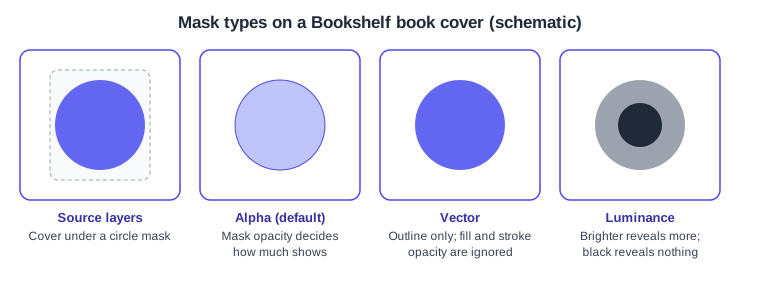
Source: Figma Learn: Masks
Procedure: crop a book cover to a rounded shape.
-
Draw a rounded rectangle the size of the visible cover and move it behind the cover image in the Layers list.
-
Select both layers.
-
Choose More options, then Use as mask, in the right sidebar, or press Control Command M on macOS or Ctrl Alt M on Windows.
-
If the result is not what you expect, pick another type in the Mask section of the right sidebar.
-
To add another layer to the mask object later, drag it into the mask object in the Layers list.
-
To remove the mask, select it and click the mask toggle in the right sidebar, choose Remove mask from the context menu, or press the same shortcut again.
Source: Figma Learn: Masks
The View menu has a Mask outlines option that draws masks with green outlines, which helps to find a mask that is hiding more than intended; the outlines do not show when every masked layer is hidden or at 0% opacity.
Constraints
Constraints tell Figma how a layer inside a frame reacts when that frame is resized. They are set separately for the horizontal and the vertical axis, in the Position section of the right sidebar, by choosing from the dropdowns or by clicking the lines of the small diagram. A blue dotted line on the canvas shows the current constraints of the selection, and new layers start as Top and Left.
-
Horizontal options: Left, Right, Left and right, Center and Scale.
-
Vertical options: Top, Bottom, Top and bottom, Center and Scale.
-
Left and right (or Top and bottom) keeps both edge distances fixed, so the layer stretches; Center keeps it centred; Scale keeps its size and position as a percentage of the frame.
-
Hold Shift to apply more than one constraint at a time.
-
Hold Cmd (macOS) or Ctrl (Windows) while resizing to ignore constraints temporarily.
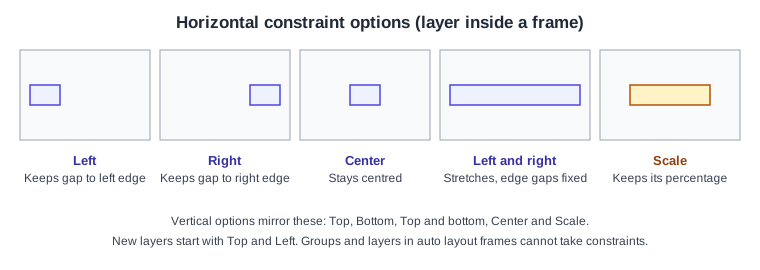
Limits to remember: constraints work only for layers inside a frame; layers inside an auto layout frame cannot take them (use the resizing options Hug contents, Fill container and Fixed there instead); and a group cannot hold constraints, because it takes its bounds from its contents, so applying them to a group sets them on the individual layers. Frames nested inside other frames can have constraints.
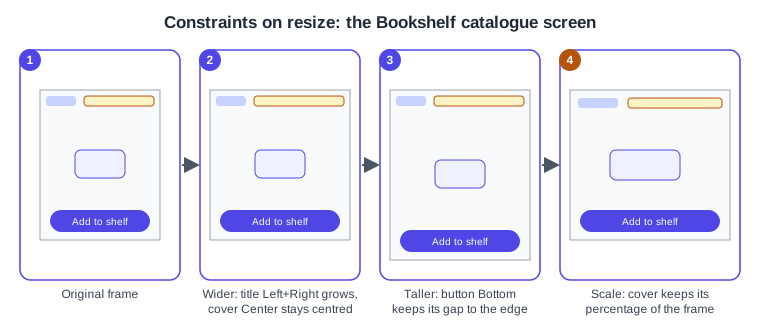
Procedure: make the Bookshelf catalogue screen respond to resizing.
-
Select the title text, and in the Position section set the horizontal constraint to Left and right, so it grows with the frame.
-
Select the cover image and set the horizontal constraint to Center.
-
Select the "Add to shelf" button and set the vertical constraint to Bottom and the horizontal one to Left and right.
-
Select the parent frame and drag its edge, or change its width and height, to test the behaviour; hold Cmd or Ctrl to see the unconstrained result.
Layout guides
Layout guides are visual aids that help to align objects inside a frame; they are not part of the design output and are separate from the grid flow of auto layout. Figma renamed the feature from layout grid to layout guide in May 2025, so older tutorials use the previous name. There are three kinds: a uniform grid (the default when one is added), columns and rows.
Select a frame and click Add layout guide in the Layout guide section of the right sidebar. Count sets the number of columns or rows. The Type is Stretch, or a fixed type: Left, Center or Right for columns and Top, Center or Bottom for rows. With Stretch, the columns or rows resize with the frame, the width or height field shows Auto, and Margin (space between the edges and the first and last track) and Gutter (space between tracks) are available. With a fixed type you set the width or height in pixels and Offset gives the pixel position where the tracks begin. The default colour is red at 10% opacity and both can be changed. Shift G shows or hides all layout guides (the zoom and view options article gives Control G on macOS and Ctrl Shift 4 on Windows for the same toggle), and the same toggle is in the Zoom and view options dropdown at the top of the right sidebar. A layout guide can be saved as a style through Apply styles in the Layout guide section.
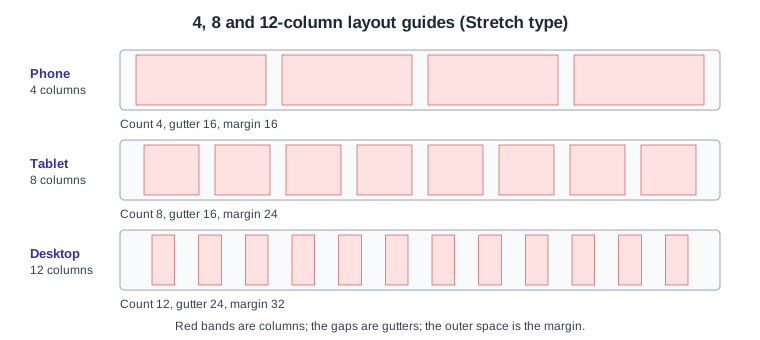
The counts in the figure are a common convention for phone, tablet and desktop, not a Figma default; choose values that fit the product.
Layout guides and constraints interact. With a Stretch guide, objects are constrained relative to the nearest column or row of the guide, so a centred icon stays centred in its guide column on a larger screen. With a fixed guide, constraints are measured against the frame instead. Nesting frames gives finer control, much like nested HTML elements.
Procedure: add a 4-column guide to the phone catalogue frame.
-
Select the phone frame.
-
Click Add layout guide in the right sidebar and change the kind from the default grid to Columns.
-
Set Count to 4, Type to Stretch, and choose a Margin and Gutter.
-
Align the book cards to the columns, press Shift G to hide the guide and check the result.
Rulers and ruler guides
Ruler guides are straight lines placed on the canvas or inside frames. Turn on the rulers from the main menu, View, Rulers; then click and drag from the horizontal or vertical ruler onto the canvas. Hold Option (macOS) or Alt (Windows) and drag from an existing guide to duplicate it. With a top-level frame selected, holding Option or Alt while dragging a guide shows its pixel distance from the frame. Without a mouse, open the Actions menu (Cmd K or Ctrl K) and search for "Adjust ruler guides", then use the plus and minus icons in the page ruler guides section to add or remove guides by value.
Measuring
To measure the space between two layers, select the first one, hold Option (macOS) or Alt (Windows) and hover over the second: a red line shows the horizontal and vertical distances. For nested layers hold Cmd Option (macOS) or Ctrl Alt (Windows). Two guides cannot be measured directly; select one and hover over the other to see both positions. Figma measures between bounding boxes, which can differ from the visible edge for strokes, text and some polygons. If a layer blocks the measurement, hide it with Cmd Shift H or Ctrl Shift H.
Common mistakes
-
Putting the mask above the layers it should crop instead of behind them.
-
Expecting constraints to work in an auto layout frame or on a group.
-
Searching for "layout grid" in current help articles, or confusing layout guides with the grid flow of auto layout.
-
Reading the distance between layer edges from the canvas by eye instead of measuring, which ignores that strokes are not part of the bounding box.
Where older guides are outdated
Guides written before May 2025 call layout guides "layout grids", and guides written before April 2025 show the old interface; their click paths do not match UI3. The ideas of masks, constraints and column grids themselves are unchanged. The seat names used by older material (editor and viewer) were replaced by Full, Dev, Collab and View seats on 2025-03-11. Source: Figma release notes