Code Layers
|
This content was generated with the assistance of AI and should be verified against the official Figma documentation before being relied on in production. This sub-section’s Figma bibliography lists the reference material consulted while preparing these pages. |
This page was written on 2026-10-30 against the UI3 interface of Figma Design. A code layer is a layer on the canvas whose content is a small running web app instead of drawn shapes, so a prototype can behave like the real thing next to the static frames it came from. The feature is in open beta: Figma announced it on 2026-10-15 and describes a gradual rollout, so the Code tool may not yet appear in your account. According to the help centre it is available on the Starter, Professional, Education (not K-12), Organization and Enterprise plans and needs edit access to the file; creating a layer by importing a project through the MCP server requires a Full seat. Seat rules for other routes are not stated in the pages consulted, so check the current article before relying on them. Code layers use AI credits (see AI credits and the promotional period).
Because the product is in beta, treat every detail below as a snapshot. Figma Sites has its own code layers; this page covers only the Figma Design version. For the website builder see Figma Sites, and for prompt-to-app generation in its own editor see Figma Make. Code layers are driven by the Figma agent, described on The Figma Agent and Skills.
What a code layer is
A code layer sits on the canvas beside frames and shapes, but you change it in different ways: by prompting the Figma agent, by opening a code editor, or by pointing at elements in a live preview. The help centre lists these benefits: design and code stay in one file, variations can be compared side by side, empty, loading and error states can be previewed, work can start from your team’s codebase, and updates can be pushed back to the codebase.
-
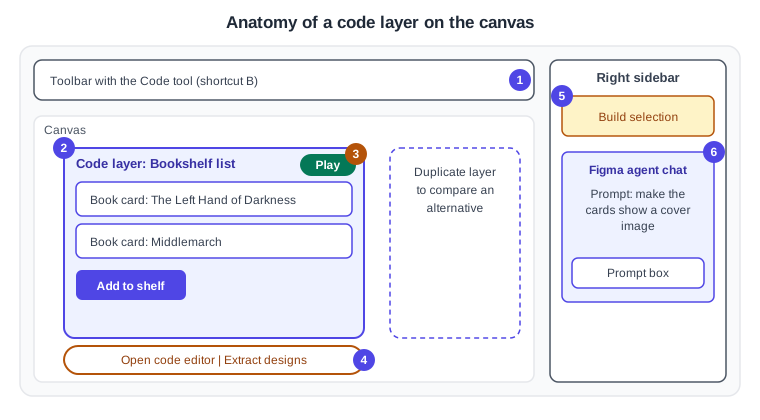
The toolbar holds the Code tool; press
Bto select it. -
The layer itself shows the running Bookshelf list.
-
The Play button in the layer’s top-right corner starts it; several layers can play at once.
-
A secondary toolbar at the bottom of the layer offers Open code editor and Extract designs.
-
With a frame selected and the Code tool active, the right sidebar shows Build selection.
-
Prompts to the agent are written in the right sidebar chat.
Ways to create a code layer
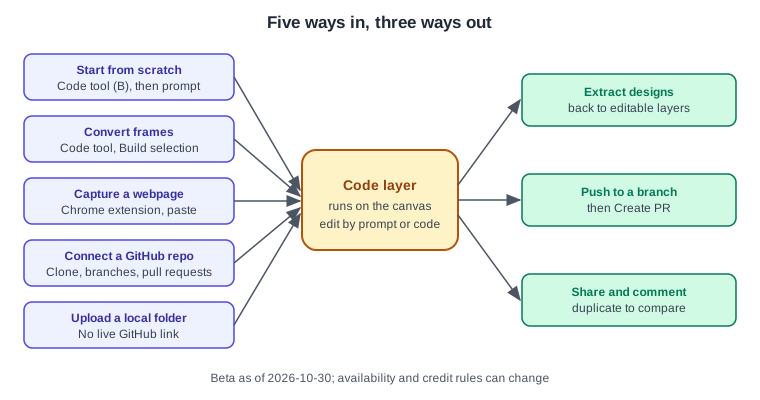
The help centre describes five starting points, shown below together with the ways a layer can leave the canvas.
| Route | How it works |
|---|---|
Start from scratch |
Select the Code tool ( |
Convert frames |
Select a frame, choose Code and click "Build selection" in the right sidebar. You can also select several frames and prompt the agent to turn them into code layers. |
Capture a webpage |
Use the Figma Chrome extension: click its toolbar icon, choose "Capture code", then paste in a Figma Design file ( |
Connect a GitHub repository |
After GitHub is connected, clone a repository. Figma keeps the clone, supports several branches for experiments and can create pull requests back to the original repository. Not every repository works. |
Upload a local folder |
Import code files from your computer. The folder has no live GitHub connection. |
Converting a design may change how you reach its contents afterwards; the pages consulted do not say, so check in your own file whether child layers remain selectable.
Convert a Bookshelf frame
-
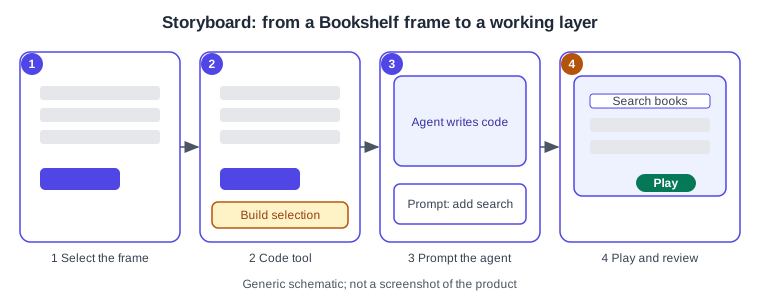
Open the Bookshelf prototype file in Figma Design and select the frame that shows the reading list.
-
Press
Bto choose the Code tool. -
Click "Build selection" in the right sidebar.
-
In the agent chat, ask for a change such as adding a search field above the list.
-
Press Play in the layer’s top-right corner and try the interaction.
-
If the preview does not reflect an edit, click "Reload code layer".
Capture a webpage with the Chrome extension
-
Install the Figma extension from the Chrome Web Store.
-
Open the Bookshelf web page you want to explore.
-
Click the extension’s toolbar icon and choose "Capture code".
-
Switch to a Figma Design file and paste.
-
Edit the resulting code layer by prompting the agent, leaving the original page untouched.
Connect a GitHub repository
Setup involves two roles, which one person can hold. A Figma organization admin (or the team admin on Professional) connects Figma to a GitHub organization through the Figma GitHub app and enables repositories for cloning; a GitHub organization admin approves the app. Each user then authorizes their own GitHub account from the Clone repository dialog. A Professional team can connect one GitHub organization, while Organization and Enterprise plans can connect more than one.
A repository must be a frontend web app, install and run on your computer, have an entry point such as a start script or index.html, have a build script (usually build in package.json) and be under 3 GB. Repositories behind a VPN, firewall or IP allowlist, private npm packages that need a registry login, and native iOS, Android or desktop apps are not supported. Uploaded local folders are limited to 100 MB and cannot push, pull or open pull requests. A public repository can be cloned by URL without connecting GitHub, but nothing can be pushed from that clone.
Work starts on the branch you cloned, and pushing from it updates the original repository directly, so create a separate branch first (in the code editor under the prompt box, or by asking the agent). The Create PR button appears only on a branch different from the one you cloned, and the pull request opens as a draft in GitHub.
Edit, extract and ship
-
Prompt the agent: describe the change in the sidebar chat.
-
Open code editor: select the layer and click "Open code editor" (top-right of the layer or the bottom secondary toolbar) to view code, add comments and edit designs; "back" returns to the file.
-
Point and edit: in the code editor open the Browser tab, click "Edit", click elements in the preview (Shift-click or drag selects several), adjust properties and click "Apply" in the agent chat.
-
Extract designs: the bottom secondary toolbar option turns a code layer back into editable design layers, for the current state, a selected element, or a recorded flow of several frames. Changes can then be pushed back to the layer.
-
Import through the MCP server: a coding agent can move a project into a file as a code layer. The article says imports can take ten minutes or more, some projects may need changes to run, a Full seat is required and the import itself uses no AI credits. See The Figma MCP Server.
The pages consulted do not state which framework a Figma Design code layer uses, so check the code editor rather than assuming one.
AI credits and the promotional period
Code layers consume AI credits whose use varies with task complexity. The help centre states that on paid plans creating and editing within code layers is free through 2026-11-04, after which those tasks use credits like other agentic features, and that other agent work tied to the same request still uses credits. Plans and seats are summarised on Plans, Seats and AI Credits; this page quotes no prices or credit amounts. Only Enterprise plans can opt out, by disabling AI features in team or organization settings, which also turns off the other Figma AI features.
Pitfalls
-
Rollout is gradual, so the Code icon may be missing even on an eligible plan.
-
Pushing from the cloned branch changes the original repository; branch first.
-
Repositories that need a private registry login or sit behind a firewall will not run.
-
Reload the layer after edits if the preview looks stale.
-
Promotional credit rules end on 2026-11-04.
What older guides get wrong
The four guides this section was checked against predate code layers entirely, because the feature launched in October 2026. They also use the retired editor/viewer wording and the "Paid Team plan" name for what is now a Full, Dev, Collab and View seat model with Starter, Professional, Organization and Enterprise plans (since 2025-03-11), and they describe Figma Make as "in beta" although it has been generally available since 2025-07-24. AI credits, the Figma agent and generative plugins also post-date them.
Source: Figma Learn: Compare seats