visionOS: Windows, Volumes, Immersive Spaces and RealityKit
|
This content was generated with the assistance of AI and should be verified against the official documentation before being relied on in production; see the section bibliography for the reference material consulted while preparing these pages. |
Apple Vision Pro has no screen edges. Apps appear as windows floating in the room, as bounded 3D volumes, or as
content all around the person. FieldNotes has run there since
Getting Started with Apple Platforms, and
Augmented Reality with ARKit and RealityKit built its immersive map,
NotesMapSpace, with ARKit and RealityKit. This page covers the app model around that map: which kind of scene to
use when, how the app moves between them, how people point at things without the app ever learning where they
look, and how 2D SwiftUI and 3D RealityKit content are combined. It targets the section’s baseline of iOS,
iPadOS, macOS, watchOS and visionOS 27, built with Xcode 27 and Swift 6.4, and keeps a deployment
minimum of 26, so anything that exists only in the 27 releases is labelled "new in visionOS 27" and guarded with
#available.
The page adds three things to FieldNotes, all in the visionOS build of the app target:
-
NoteOrnament, a row of capture and navigation buttons attached below the main window; -
FieldSiteVolume, a volume that shows page 35’sFieldSiteTerrainfromRealityKitContentwith a pin for every located note, opened withopenWindow(id: "field-site"); -
an
immersionStylefor the existingImmersiveSpace(id: "map"), so people can choose between seeing their room and a focus mode that dims it.
Spaces: Shared and Full
Every visionOS app runs in one of two spaces.
| Space | What it means | FieldNotes |
|---|---|---|
Shared Space |
The default. Windows and volumes of several apps sit side by side in the room; people arrange them. An app sees no camera image, no room mesh and no hand data. |
The main window with |
Full Space |
An app opens an |
|
Only one immersive space can be open at a time across all apps, so opening one can fail, and the app must handle that. An app moves between the two spaces with the SwiftUI environment actions shown below; people leave a Full Space with the Digital Crown at any time.
See Apple Developer Documentation — Presenting windows and spaces and Apple Developer Documentation — Immersive spaces.
Figure: the immersion spectrum
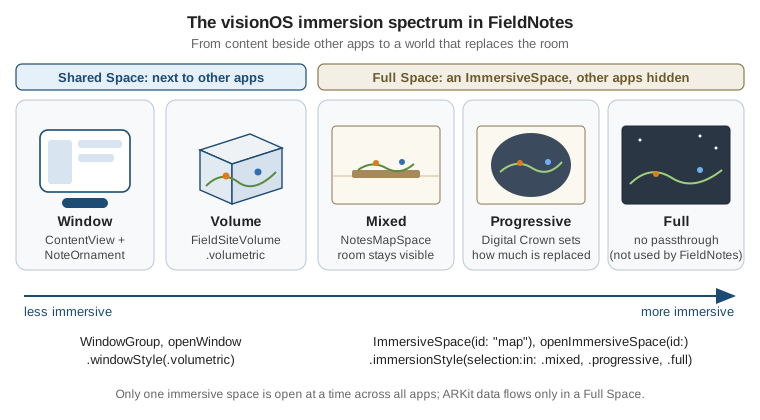
The spectrum is a design choice as much as an API: start with the least immersive scene that does the job, and let people step up. FieldNotes reads and writes notes in a window, looks at the field site as a model in a volume, and opens the map around the person only when asked.
The FieldNotes Scene Graph
The visionOS scenes live in the same FieldNotesApp as every other platform’s (see
App Structure and Life Cycle (SwiftUI, UIKit, AppKit)). The
note window group from iPadOS: Windows, Multitasking, Pointer and Apple Pencil is not
platform-guarded, so visionOS gets it too. This excerpt shows the scenes and modifiers visionOS adds:
// FieldNotes/FieldNotesApp.swift (updated excerpt: the visionOS scenes)
import SwiftUI
import FieldNotesModel
import FieldNotesServices

@main
struct FieldNotesApp: App {
    @State private var store = AppServices.shared.store   // the single owner, see Background Execution
    @AppStorage("mapFocusMode", store: .fieldNotesShared)   // the App inherits no scene's default store
    private var mapFocusMode = false

    var body: some Scene {
        WindowGroup {
            ContentView()
                #if os(visionOS)
                .ornament(attachmentAnchor: .scene(.bottom)) {
                    NoteOrnament()
                }
                #endif
                .environment(store)            // after .ornament, so the ornament gets the store too
        }
        .defaultAppStorage(.fieldNotesShared)  // as on Preferences, Files and Document-Based Apps

        WindowGroup(id: "note", for: Note.ID.self) { $noteID in   // from the iPadOS page
            NoteWindow(noteID: noteID)
                .environment(store)
        }
        .defaultAppStorage(.fieldNotesShared)

        #if os(visionOS)
        WindowGroup(id: "field-site") {
            FieldSiteVolume()
                .environment(store)
        }
        .defaultAppStorage(.fieldNotesShared)
        .windowStyle(.volumetric)
        .defaultSize(width: 0.6, height: 0.35, depth: 0.6, in: .meters)
        .defaultWindowPlacement { _, context in
            if let main = context.windows.first {
                return WindowPlacement(.trailing(main))   // next to the main window
            }
            return WindowPlacement()
        }

        ImmersiveSpace(id: "map") {
            NotesMapSpace()
                .environment(store)
        }
        .defaultAppStorage(.fieldNotesShared)
        .immersionStyle(selection: mapImmersion, in: .mixed, .progressive(0.2...1.0, initialAmount: 0.5))
        #endif
    }

    #if os(visionOS)
    /// Mixed shows the room; progressive ("focus mode") replaces part of it, the amount set by the Digital Crown.
    private var mapImmersion: Binding<any ImmersionStyle> {
        Binding(
            get: { mapFocusMode ? .progressive(0.2...1.0, initialAmount: 0.5) : .mixed },
            set: { mapFocusMode = $0 is ProgressiveImmersionStyle }
        )
    }
    #endif
}
See Apple Developer Documentation — WindowGroup, Apple Developer Documentation — ImmersiveSpace, Apple Developer Documentation -- defaultAppStorage(_:) and Apple Developer Documentation -- immersionStyle(selection:in:).
Every scene that shows notes gets .environment(store), because each scene has its own environment, and every scene
keeps .defaultAppStorage(.fieldNotesShared) for the same reason. The App sits above the scenes and inherits
neither, so its mapFocusMode names the App Group suite with store: .fieldNotesShared; the Focus Mode toggle in
OpenMapSpaceButton writes that same key in that same suite, and the immersion style follows it. The visionOS
26 SDK renames the closure label of ImmersiveSpace(id:content:) to init(id:makeContent:); trailing-closure
syntax, as above, is unaffected. Opening several scenes at once requires UIApplicationSupportsMultipleScenes set to
true in the scene manifest, which the app already has for iPad.
Figure: FieldNotes' visionOS scene graph
@State store = AppServices.shared.store"] subgraph Shared["Shared Space"] Main["WindowGroup
ContentView + NoteOrnament"] NoteWin["WindowGroup(id: note, for: Note.ID)
NoteWindow"] Volume["WindowGroup(id: field-site)
.windowStyle(.volumetric)
FieldSiteVolume"] end subgraph Full["Full Space"] Space["ImmersiveSpace(id: map)
NotesMapSpace
.mixed or .progressive"] end App --> Main App --> NoteWin App --> Volume App --> Space Main -->|"NoteOrnament: openWindow(id: field-site)"| Volume Main -->|"NoteOrnament: openImmersiveSpace(id: map)"| Space Main -->|"openWindow(id: note, value: note.id)"| NoteWin Volume -->|"tap a pin, then Open Note"| NoteWin Space -.->|"dismissImmersiveSpace()
or the Digital Crown"| Main Content[("RealityKitContent
FieldSiteTerrain")] -.-> Volume Content -.-> Space
Windows and Ornaments
A visionOS window is a pane of glass. SwiftUI draws the glass background, the window bar below it for moving, and
the resize handles at its corners; the app draws only its content. ContentView's NavigationSplitView works
unchanged, with a sidebar, list and detail. Windows can be resized by people between limits that the content sets,
and the app can suggest an initial size with defaultSize(width:height:), but it can’t move or resize a window after
it appears.
An ornament is a floating control bar attached to a window, outside its bounds, typically along the bottom edge.
It follows the window when people move it. FieldNotes uses one for the actions that start something new: capture a
note, open the field site and show the map around the person. NoteOrnament is attached in the scene above with
ornament(attachmentAnchor:contentAlignment:ornament:):
// FieldNotes/Vision/NoteOrnament.swift
#if os(visionOS)
import SwiftUI

struct NoteOrnament: View {
    @Environment(\.openWindow) private var openWindow
    @State private var isComposing = false

    var body: some View {
        HStack(spacing: 16) {
            CaptureButton(action: { isComposing = true })
            Button("Field Site", systemImage: "mountain.2") {
                openWindow(id: "field-site")
            }
            OpenMapSpaceButton()
        }
        .labelStyle(.iconOnly)
        .padding(12)
        .glassBackgroundEffect()
        .sheet(isPresented: $isComposing) {
            NoteComposer(notebookID: nil)        // reads NoteStore from the environment
        }
    }
}
#endif
See Apple Developer Documentation -- ornament(visibility:attachmentAnchor:contentAlignment:ornament:) and Apple Developer Documentation -- glassBackgroundEffect(displayMode:).
CaptureButton(action:) is part 1’s button; on visionOS it already uses glassBackgroundEffect(in:) instead of
glassEffect(_:in:), which doesn’t exist there. The ornament’s own glass pill comes from glassBackgroundEffect().
.scene(.bottom) anchors the ornament to the bottom centre of the window. Keep an ornament to a few frequently used
actions; everything else belongs in the window’s toolbar or content.
Volumes: FieldSiteVolume
A volume is a window with depth: a bounded box that people can walk around, with content that can be seen from
any side. It still lives in the Shared Space, next to other apps. A WindowGroup becomes a volume with
.windowStyle(.volumetric), and its default size gets a third dimension with
defaultSize(width:height:depth:in:), in real-world units, as declared above: 60 cm wide and deep, 35 cm tall.
defaultWindowPlacement asks visionOS to place it trailing the main window instead of in front of the person.
FieldSiteVolume loads the terrain that page 35 authored in Reality Composer Pro, adds page 35’s pins through
NotePinFactory and NotesMapLayout, keeps those pins in step with the store as notes are added, moved or deleted,
and shows the selected note in a SwiftUI card attached above its pin:
// FieldNotes/Vision/FieldSiteVolume.swift
#if os(visionOS)
import SwiftUI
import RealityKit
import RealityKitContent
import OSLog
import FieldNotesModel
import FieldNotesServices

struct FieldSiteVolume: View {
    @Environment(NoteStore.self) private var store
    @Environment(\.openWindow) private var openWindow
    @State private var selectedNoteID: Note.ID?

    private static let log = Logger(subsystem: "com.example.fieldnotes", category: "ui")

    var body: some View {
        RealityView { content, attachments in
            let site = Entity()
            site.name = "FieldSite"
            do {
                site.addChild(try await Entity(named: "FieldSiteTerrain", in: realityKitContentBundle))
            } catch {
                Self.log.error("FieldSiteTerrain failed to load: \(error.localizedDescription)")  // pins still show
            }
            Self.reconcilePins(in: site, with: store.notes)
            site.position.y = -0.15                              // rest on the volume's floor
            content.add(site)
        } update: { content, attachments in
            guard let site = content.entities.first(where: { $0.name == "FieldSite" }) else { return }
            Self.reconcilePins(in: site, with: store.notes)     // reading store.notes reruns update on every change
            guard let card = attachments.entity(for: "note-card") else { return }
            if let noteID = selectedNoteID, let pin = site.findEntity(named: noteID.uuidString) {
                site.addChild(card)
                card.position = pin.position + [0, 0.09, 0]
                card.isEnabled = true
            } else {
                card.isEnabled = false
            }
        } attachments: {
            Attachment(id: "note-card") {
                if let noteID = selectedNoteID, let note = store.notes.first(where: { $0.id == noteID }) {
                    FieldSiteNoteCard(note: note) {
                        openWindow(id: "note", value: note.id)
                    }
                }
            }
        }
        .gesture(
            SpatialTapGesture()
                .targetedToAnyEntity()
                .onEnded { value in
                    guard let pin = value.entity.components[NotePinComponent.self],
                          store.notes.contains(where: { $0.id == pin.noteID }) else { return }  // deleted meanwhile
                    selectedNoteID = selectedNoteID == pin.noteID ? nil : pin.noteID
                }
        )
        .onChange(of: store.notes.map(\.id)) {
            // The selected note was deleted, here or in another window: drop the card.
            if let id = selectedNoteID, !store.notes.contains(where: { $0.id == id }) {
                selectedNoteID = nil
            }
        }
        .volumeBaseplateVisibility(.visible)
    }

    /// Makes the site's pins match the located notes, keyed by note ID: removes the pins of deleted (or no longer
    /// located) notes, rebuilds a pin whose pinned state or title changed, adds pins for new notes and moves the rest, since
    /// the layout's origin is the first located note. Only x and z are set: NotePinSystem owns y, for the bobbing.
    private static func reconcilePins(in site: Entity, with notes: [Note]) {
        let layout = NotesMapLayout.positions(for: notes, tableSize: 0.5)
        let wanted = Dictionary(uniqueKeysWithValues: layout.map { ($0.note.id, $0) })
        var kept: [Note.ID: Entity] = [:]
        for child in Array(site.children) {                  // a copy, because the loop removes children
            guard let pin = child.components[NotePinComponent.self] else { continue }   // the terrain
            if let entry = wanted[pin.noteID], entry.note.isPinned == pin.isPinned,
               labelText(of: child) == entry.note.title {
                kept[pin.noteID] = child
            } else {
                child.removeFromParent()
            }
        }
        for (id, entry) in wanted {
            if let pin = kept[id] {
                pin.position.x = entry.position.x
                pin.position.z = entry.position.z
            } else {
                let pin = NotePinFactory.makePin(for: entry.note, at: entry.position)
                pin.components.set(HoverEffectComponent())  // highlights the pin the person looks at
                site.addChild(pin)
            }
        }
    }

    /// The title a pin shows, read back from its label's TextComponent (see NotePinFactory).
    private static func labelText(of pin: Entity) -> String? {
        guard let text = pin.children.lazy.compactMap({ $0.components[TextComponent.self]?.text }).first else {
            return nil
        }
        return String(text.characters)
    }
}

/// The SwiftUI card shown above the selected pin.
struct FieldSiteNoteCard: View {
    let note: Note
    let open: () -> Void

    var body: some View {
        VStack(alignment: .leading, spacing: 6) {
            Text(note.title).font(.headline)
            Text(note.body).font(.caption).lineLimit(3)
            Button("Open Note", systemImage: "arrow.up.forward.app", action: open)
        }
        .padding()
        .frame(width: 260)
        .glassBackgroundEffect()
        .hoverEffect(.highlight)
    }
}
#endif
See Apple Developer Documentation — volumetric, Apple Developer Documentation -- defaultSize(width:height:depth:in:), Apple Developer Documentation -- defaultWindowPlacement(_:), Apple Developer Documentation -- init(make:update:attachments:) and Apple Developer Documentation -- onChange(of:initial:_:).
A few details matter here:
-
makeruns once;updateruns when state it reads changes. The tap handler only setsselectedNoteID; theupdateclosure reads it, so RealityKit moves the card. Entities are never stored in SwiftUI state, as the augmented-reality page recommends. -
Pins follow the store. Creating pins only in
makewould freeze them at the notes that existed when the volume opened. Both closures callreconcilePins(in:with:)instead. The view readsstore.notesinupdateand inonChange(of:), so SwiftUI rerunsupdatewhen the notes change: a note added in the main window gets a pin, and a note deleted anywhere loses its pin, and a renamed or re-pinned note gets a fresh pin. Pins are matched byNotePinComponent.noteID, never by position in an array. The tap handler ignores a pin whose note is already gone, andonChange(of:)clears the card when the selected note is deleted. -
The attachment is a real entity.
attachments.entity(for:)returns aViewAttachmentEntitythat can be parented, positioned and hidden like any other entity. Parenting it to the site keeps it on the terrain when the person moves the volume. -
The baseplate is the subtle glow at the bottom of a volume that shows its footprint;
volumeBaseplateVisibilitymakes it visible even when the terrain covers the floor, so people see the volume’s bounds. -
Loading errors are logged, not fatal. A missing asset is a packaging error that shows up in development; the pins still appear.
NotePinFactory and NotesMapLayout are the helpers from Augmented Reality
with ARKit and RealityKit, and so are NotePinComponent and NotePinSystem, which make the pins bob; the system is
registered once at launch, so it runs in the volume too.
Immersive Spaces
Opening and dismissing
openImmersiveSpace and dismissImmersiveSpace are environment actions. Both are async: opening returns an
OpenImmersiveSpaceAction.Result because the system can refuse (another app already has a space open) or the person
can cancel. OpenMapSpaceButton from the life-cycle page grows into a toggle that handles all three results and
offers the focus mode:
// FieldNotes/Vision/OpenMapSpaceButton.swift (updated)
#if os(visionOS)
import SwiftUI
import FieldNotesServices   // UserDefaults.fieldNotesShared

struct OpenMapSpaceButton: View {
    @Environment(\.openImmersiveSpace) private var openImmersiveSpace
    @Environment(\.dismissImmersiveSpace) private var dismissImmersiveSpace
    @AppStorage("mapFocusMode", store: .fieldNotesShared)   // the suite FieldNotesApp reads
    private var mapFocusMode = false
    @State private var isOpen = false
    @State private var failure: String?

    var body: some View {
        Button(isOpen ? "Hide Notes Around Me" : "Show Notes Around Me",
               systemImage: isOpen ? "map.fill" : "map") {
            Task { await toggle() }
        }
        .contextMenu {
            Toggle("Focus Mode", systemImage: "circle.lefthalf.filled", isOn: $mapFocusMode)
        }
        .alert("Map Unavailable", isPresented: Binding(get: { failure != nil }, set: { if !$0 { failure = nil } })) {
            Button("OK") {}
        } message: {
            Text(failure ?? "")
        }
    }

    private func toggle() async {
        if isOpen {
            await dismissImmersiveSpace()
            isOpen = false
            return
        }
        switch await openImmersiveSpace(id: "map") {
        case .opened:
            isOpen = true
        case .userCancelled:
            break
        case .error:
            isOpen = false
            failure = "Close the immersive experience of the other app, then try again."
        @unknown default:
            break
        }
    }
}
#endif
See Apple Developer Documentation — OpenImmersiveSpaceAction and Apple Developer Documentation — DismissImmersiveSpaceAction.
When people leave the space with the Digital Crown instead of the button, isOpen stays true until the next tap,
which then just dismisses nothing and flips it back. An app that must track the space exactly records it from the
space’s own view, with onAppear and onDisappear on NotesMapSpace.
Immersion styles
An immersive space has one of three immersion styles:
| Style | What people see | Typical use |
|---|---|---|
|
The room, through passthrough, with the app’s content placed in it |
Objects anchored to real surfaces: |
|
A portion of the view replaced by the app’s content; the Digital Crown widens or narrows it within the range the app allows |
A focus mode that fades the room around the map |
|
Only the app’s content; passthrough is off |
A fully virtual place, such as an environment around the person |
immersionStyle(selection:in:) lists the styles a space supports and binds the current one, as FieldNotesApp
does above. .progressive(0.2…1.0, initialAmount: 0.5) lets the Digital Crown vary the replaced portion between 20
and 100 per cent, starting at half. FieldNotes doesn’t offer .full: the map is placed on a real table found by
plane detection, and hiding the room entirely would hide the table the map rests on.
See Apple Developer Documentation — ImmersionStyle and Apple Developer Documentation -- progressive(_:initialAmount:).
The design guidance is to let people choose immersion, start small, and never surprise them with a sudden full
environment. Augmented Reality with ARKit and RealityKit shows the ARKit
session that runs inside NotesMapSpace, and why it needs the Full Space.
Input: Look and Tap
People use Apple Vision Pro with their eyes and hands. They look at an element to target it and tap their finger and thumb together to activate it (indirect input), or reach out and touch content that is within arm’s length (direct input). SwiftUI controls handle both with no code.
The important rule is gaze privacy: visionOS doesn’t tell an app where people are looking before they tap. The highlight a control shows while it is looked at is drawn by the system, outside the app’s process; the app only learns about the tap, and where it landed. Design follows from that: an app can’t show a tooltip on gaze or prefetch what people look at, and it must space targets so they are easy to look at: the Human Interface Guidelines ask for centres at least 60 points apart, or a margin of at least 16 points around each item.
Hover effects
Custom views get the same system-drawn highlight with hoverEffect(_:isEnabled:), as FieldSiteNoteCard does with
.highlight; .lift raises a view slightly instead. For RealityKit content, HoverEffectComponent on an entity
that also has an InputTargetComponent and a CollisionComponent does the same, which is why FieldSiteVolume
adds it to each pin:
// A note row in ContentView's list on visionOS: the whole row highlights when looked at.
NoteRow(note: note)
    .contentShape(.hoverEffect, .rect(cornerRadius: 12))
    .hoverEffect(.highlight)
See Apple Developer Documentation -- hoverEffect(_:isEnabled:) and Apple Developer Documentation — HoverEffectComponent.
NoteRow stands for whatever row view the list uses. The content shape limits the highlight to the row’s rounded
rectangle.
Gestures on entities
SwiftUI gestures attached to a RealityView hit its entities when they are made entity-targeted with
targetedToAnyEntity() (or targetedToEntity(_:) for one entity). The gesture’s value then carries the entity that
was hit. FieldSiteVolume uses a SpatialTapGesture to select a pin, the same pattern NotesMapSpace uses on page
35. Drag, magnify and rotate gestures work the same way, and are how people move content in a volume.
3D Content: RealityView and Model3D
visionOS offers two ways to show 3D content in SwiftUI:
| View | What it gives | Use when |
|---|---|---|
|
One model file (USDZ or a Reality Composer Pro scene), loaded asynchronously and laid out like an image |
A model is decoration or a preview, with no interaction per part |
|
A full RealityKit scene: entities, components, systems, gestures, attachments |
Content is built in code, animated, or interactive, like |
Model3D is the 3D counterpart of AsyncImage. The note detail on visionOS shows a small preview of the field site
next to a note that has a location, with a placeholder while the model loads:
// FieldNotes/Vision/FieldSitePreview.swift
#if os(visionOS)
import SwiftUI
import RealityKit
import RealityKitContent

struct FieldSitePreview: View {
    var body: some View {
        Model3D(named: "FieldSiteTerrain", bundle: realityKitContentBundle) { model in
            model
                .resizable()
                .scaledToFit()
        } placeholder: {
            ProgressView()
        }
        .frame(width: 220, height: 160)
        .frame(depth: 60)
    }
}
#endif
See Apple Developer Documentation — Model3D and Apple Developer Documentation -- frame(depth:alignment:).
RealityView with attachments, as in FieldSiteVolume, is the way to put SwiftUI inside a 3D scene. Since visionOS
26 there is a second way that doesn’t need the attachments: closure: ViewAttachmentComponent(rootView:) attaches
a SwiftUI view to any entity directly, which suits content created in a loop:
// Inside FieldSiteVolume's make closure: a small title tag above every pinned note, visionOS 26 and later
for (note, position) in NotesMapLayout.positions(for: store.notes.filter(\.isPinned), tableSize: 0.5) {
    let tag = Entity()
    tag.components.set(ViewAttachmentComponent(rootView: Text(note.title).font(.caption).padding(6)
        .glassBackgroundEffect()))
    tag.position = position + [0, 0.12, 0]
    site.addChild(tag)
}
See Apple Developer Documentation -- init(make:update:attachments:) and Apple Developer Documentation — ViewAttachmentComponent.
The entity-component-system model behind all of this (NotePinComponent, NotePinSystem), ARKit on visionOS,
Reality Composer Pro and RealityKit’s 27 additions are on Augmented Reality
with ARKit and RealityKit; this page doesn’t repeat them.
Bringing iPad and iPhone Apps to visionOS
There are two routes for an existing iPad or iPhone app:
-
Compatible ("Designed for iPad") app. The unmodified iOS build runs in a window on Apple Vision Pro. The App Store offers compatible apps on visionOS automatically, and the developer can opt out in App Store Connect. Features that need missing hardware are unavailable: Core Motion, the barometer and magnetometer, location services other than the standard service, HealthKit data, and photo or video capture from device cameras.
-
Native visionOS app. Add Apple Vision under the target’s Supported Destinations and recompile against the visionOS SDK. The app gets the visionOS look (glass, ornaments, hover effects) and can add volumes and immersive spaces. Code for frameworks that don’t exist in the visionOS SDK moves behind
#if os(visionOS)or into files that aren’t in the visionOS build.
FieldNotes is native: it was a multiplatform target from the start (see One Codebase for iOS, iPadOS, macOS, watchOS and visionOS). Its platform guards follow the pattern Apple recommends. For example, the editor’s photo button offers the camera on iPhone and iPad, and only the photo library on Apple Vision Pro, where apps have no camera access:
// FieldNotes/Views/NoteEditor.swift (excerpt: the toolbar's attach menu)
Menu("Attach", systemImage: "paperclip") {
    Button("Photo Library", systemImage: "photo.on.rectangle") { showPhotoPicker = true }
    #if os(iOS)
    Button("Take Photo", systemImage: "camera") { showCamera = true }   // CameraCaptureModel, iPhone and iPad only
    #endif
}
See Apple Developer Documentation — Bringing your existing apps to visionOS and Apple Developer Documentation — Making your existing app compatible with visionOS.
The other guards already in FieldNotes are the same kind: glassEffect versus glassBackgroundEffect in
CaptureButton, ActivityKit, HealthKit and Core NFC behind #if os(iOS), and ARKit world tracking, which on
visionOS is replaced by ARKitSession and its providers. Once the app builds, the visionOS simulator runs windows,
volumes and immersive spaces; ARKit data providers and real hand input need a physical Apple Vision Pro.
New in visionOS 27
The WWDC26 session Build next-generation experiences with visionOS 27 sums up the release. The parts that matter most for an app like FieldNotes:
-
Accessory widgets on visionOS.
accessoryCircularandaccessoryRectangularare now listed for visionOS 27, so small glanceable widgets can join the system-family widgets people already pin to walls. -
RealityKit and Reality Composer Pro 3. Physical space lighting, cloth simulation, Gaussian splats, level of detail and more, covered on Augmented Reality with ARKit and RealityKit.
-
Spatial Preview, a new framework on macOS 27 and visionOS 27 that extends 3D content, spatial photos and immersive video from a Mac app to Apple Vision Pro, and Foveated Streaming (visionOS 26.4 and later), which streams OpenXR content from a PC.
-
Object tracking with high-frame-rate updates, an ARKit API that brings the same tracking to iOS, and support for custom spatial accessories.
-
System updates people will notice: wider, curved Safari windows, a reworked Control Center, and High Quality Capture of apps in 4K from the device.
The accessory families are the one that changes FieldNotes' code. Page 27’s PinnedNotesWidget would list them
for visionOS only when the device runs 27, since the deployment minimum is 26:
// FieldNotesWidgets/PinnedNotes/PinnedNotesWidget.swift (sketch: the visionOS families)
#if os(visionOS)
static var visionFamilies: [WidgetFamily] {
    var families: [WidgetFamily] = [.systemSmall, .systemMedium, .systemLarge, .systemExtraLargePortrait]
    if #available(visionOS 27, *) {
        families += [.accessoryCircular, .accessoryRectangular]
    }
    return families
}
#endif
See Apple Developer Documentation — accessoryCircular and WWDC26 — Build next-generation experiences with visionOS 27.
The visionOS 27 release notes list the resolved issues and SwiftUI changes shared with the other platforms, such as
the new @State macro implementation.
Availability and Requirements
Platform availability
| API or feature | iOS | iPadOS | macOS | watchOS | visionOS |
|---|---|---|---|---|---|
|
Yes (one window on iPhone) |
Yes |
Yes |
Yes (one window) |
Yes |
|
Not available |
Not available |
Not available |
Not available |
Yes |
|
Not available |
Not available |
Not available |
Not available |
Yes |
|
Not available |
Not available |
Yes (15) |
Not available |
Yes (2) |
|
Not available |
Not available |
Not available |
Not available |
Yes |
|
Not available |
Not available |
Yes (26, |
Not available |
Yes |
|
Yes (17) |
Yes (17) |
Not available |
Not available |
Yes |
|
Yes |
Yes |
Yes |
Not available |
Yes |
|
Not available |
Not available |
Not available |
Not available |
Yes |
|
Not available |
Not available |
Not available |
Not available |
New in 26 |
|
Not available |
Not available |
Not available |
Not available |
Yes |
Accessory widget families |
Yes |
Yes |
Not available |
Yes |
New in 27 (circular, rectangular) |
Spatial Preview |
Not available |
Not available |
New in 27 |
Not available |
New in 27 |
The iOS and macOS columns for RealityView, HoverEffectComponent and targetedToAnyEntity() refer to iOS 18,
iPadOS 18 and macOS 15 and later, as documented; FieldNotes uses them on those platforms only on the AR page.
Requirements
-
The visionOS simulator runs every scene on this page; ARKit data providers in
NotesMapSpaceneed a physical Apple Vision Pro, as do comfort and legibility checks at real scale. -
NotesMapSpaceneeds theNSWorldSensingUsageDescriptionandNSHandsTrackingUsageDescriptionkeys (see the AR page). -
Several simultaneous scenes need
UIApplicationSupportsMultipleScenesset totrue. -
Installing on a device needs a paid developer account or a free account’s short-lived provisioning, as for any device (see Membership, Signing, Capabilities and Info.plist).
Learning More
Apple’s Hello World sample walks through a window, a volume and a full immersive space in one small app, and is the best companion to this page. The Human Interface Guidelines' visionOS overview explains how people expect spatial apps to behave.
See Apple Developer Documentation — Hello World, Apple Developer Documentation — Creating your first visionOS app and Human Interface Guidelines — Designing for visionOS.
The watch, at the other end of the size range, is on watchOS: App Structure, Connectivity, Workouts and the Smart Stack; profiling RealityKit scenes is on Performance and Instruments.
References
-
Apple Developer Documentation — Creating your first visionOS app
-
Apple Developer Documentation — Presenting windows and spaces
-
Apple Developer Documentation — Positioning and sizing windows
-
Apple Developer Documentation — Adding 3D content to your app
-
Apple Developer Documentation — Bringing your existing apps to visionOS
-
Apple Developer Documentation — Making your existing app compatible with visionOS
-
Apple Developer Documentation -- immersionStyle(selection:in:)
-
Apple Developer Documentation -- progressive(_:initialAmount:)
-
Apple Developer Documentation -- ornament(visibility:attachmentAnchor:contentAlignment:ornament:)
-
Apple Developer Documentation -- glassBackgroundEffect(displayMode:)
-
Apple Developer Documentation -- defaultSize(width:height:depth:in:)
-
Apple Developer Documentation -- init(make:update:attachments:)