Themes: Block and Classic
|
This content was generated with the assistance of AI and should be verified against the official documentation of each platform before being relied on in production. This section’s bibliography lists the reference material consulted while preparing these pages. |
A WooCommerce store has two layers of presentation. The plugin produces the data and a set of default templates and blocks;
the active WordPress theme decides how the pages around them look and, increasingly, which templates exist at all. This page
explains both generations of theme on the version baseline WordPress 7.1.3 and WooCommerce 11.2.1 (the 11.2 series was released
on 2026-10-07 and 11.2.1 on 2026-10-09), checked on 2026-10-27: the block theme (HTML templates, theme.json, the Site Editor),
the classic theme (PHP templates, hooks, the woocommerce/ override folder), the two default themes WooCommerce points
people to (Purple, a block theme, and Storefront, a classic theme), and the practice around them: child themes, why template
overrides break, conditional tags, and the theme design and SEO decisions that books on WooCommerce theming still teach
well. Everything here applies to self-hosted WooCommerce on WordPress; a theme is a WordPress concept, so it applies to any plan
of a hosting provider that lets you install themes.
The running example is the Pocket Coffee shop. Two throw-away themes were written and exercised on a local store: a block
child theme of Twenty Twenty-Five, pocket-coffee-themes-roast, that styles the WooCommerce blocks with theme.json, shows
the roast date of a product with Block Bindings and provides single product and catalogue templates; and a classic child theme of
Storefront, pocket-coffee-themes-storefront-child, that prints the same roast date through a hook and carries one deliberately
outdated template override. Neither was activated: the store keeps its own active theme, and the examples were rendered through
the theme preview mechanism described in the next section. The roast date itself, the order data model and the extension
plugin structure are covered in Extension Development and
CRUD Objects and Data Stores; the emails that also read theme
template files are on Emails; the blocks used inside the templates are on
Product Collection and Blocks and
Cart and Checkout Blocks.
How the examples were exercised
A theme can be tried without becoming the active theme. WordPress honours a wp_theme_preview query argument for any
administrator: the argument replaces the stylesheet and template options for that single request, so the page is built with the
previewed theme while every other visitor keeps seeing the active one. It is the mechanism of the "Live Preview" in the Site
Editor. The examples below fetch pages with an administrator cookie and the argument, and look for a marker paragraph that
each throw-away template prints (template: single-product (Pocket Coffee Roast)), so the answer to "which file rendered this page" is read
from the HTML and not guessed.
# Log in once and keep the cookie jar. The password comes from the environment, never from the command line history.
curl -s -c cookies.txt -b cookies.txt -o /dev/null http://localhost:8081/wp-login.php
curl -s -c cookies.txt -b cookies.txt -o /dev/null -H 'Cookie: wordpress_test_cookie=WP%20Cookie%20check' \
  -d "log=admin&pwd=${WP_ADMIN_PASSWORD}&wp-submit=Log+In&testcookie=1" http://localhost:8081/wp-login.php

# Render the single product page with a theme that is installed but not active.
curl -s -b cookies.txt \
  'http://localhost:8081/product/themes-test-kit/?wp_theme_preview=pocket-coffee-themes-roast' \
  | grep -o 'template: [^<]*'
Output seen:
template: single-product (Pocket Coffee Roast)
For code that is not a page (the System Status check, the template listing), the same trick is applied inside one WP-CLI process: two
add_filter calls on stylesheet and template make wp_get_theme() and the template functions answer for the throw-away
theme, and nothing is written to the database. One detail matters when you do this yourself: WordPress 7.1 caches the theme
paths in globals used by locate_template(), so call wp_set_template_globals() after adding the filters.
The test store had Twenty Twenty-Five 1.5, Twenty Twenty-Four 1.6, Twenty Twenty-Three 1.7, Storefront 4.6.2 and Purple 1.0.3
installed, with the shared child theme ec-block-child active. The two throw-away themes and Purple were added as inactive themes.
wp theme list --fields=name,status,versionOutput seen (the shared child theme ec-block-child is the only active one):
name	status	version
ec-block-child	active	0.1.0
pocket-coffee-themes-roast	inactive	0.1.0
pocket-coffee-themes-storefront-child	inactive	0.1.0
purple	inactive	1.0.3
storefront	inactive	4.6.2
twentytwentyfive	parent	1.5
twentytwentyfour	inactive	1.6
twentytwentythree	inactive	1.7
Source: WP-CLI: wp theme list
Two kinds of theme and how WooCommerce chooses
WordPress themes come in two generations, and WooCommerce supports both. A classic theme builds pages from PHP template files
(header.php, single.php, page.php) and is configured in the Customizer; a block theme builds pages from HTML files that
contain block markup (templates/single.html, parts/header.html), and everything visual is edited in the Site Editor
(Appearance > Editor) and stored in theme.json. A theme is a block theme when it has templates/index.html; wp_is_block_theme() tells you.
Both generations are explained without WooCommerce in Themes Overview and
Templates and Template Parts.
WooCommerce decides what to do in one function, wc_current_theme_supports_woocommerce_or_fse() (added in 6.0.0): the theme is
supported when it declared add_theme_support( 'woocommerce' ) or when it is a block theme. Block themes need no declaration,
because WooCommerce ships its own block templates for them. A classic theme that declares nothing is an unsupported theme:
WooCommerce does not load its templates; it hooks the_content and the_title to print the shop and product pages inside the
theme’s generic page template, which works but looks plain. Newer stores should not be in that last state.
The practical consequences are the headings of the rest of this page. In a block theme you change a page by editing block markup and
theme.json; in a classic theme you change it with hooks and, as a last resort, by copying a PHP template. Cart and Checkout
are the exception to the rule that a theme owns the page: they are blocks stored in the content of the Cart and Checkout pages, so
they look the same in either kind of theme (see Cart and Checkout Blocks).
Version history
| Version | Change that matters to themes |
|---|---|
6.0.0 |
|
7.8 |
|
8.3 |
Cart and Checkout blocks are the default for new installs; upgraded stores keep the checkout they had. |
10.4 |
The Interactivity API Mini-Cart block is the default. |
11.1.0 (2026-09-03) |
WordPress 7.0 becomes the minimum; Purple (block theme) requires WooCommerce 11.1 or newer. |
11.2.0 (2026-10-07) |
|
11.3.0-beta.1 (2026-10-26) |
Beta only: on block themes the Shop page is associated with the Product Catalog template. Not part of the stable baseline. |
Block themes
The files of a block theme
A block theme is a directory in wp-content/themes/. This is the whole file list of the Pocket Coffee child theme that was tested:
pocket-coffee-themes-roast/
  style.css                          theme header only (no layout CSS needed)
  theme.json                         settings and styles, schema version 3
  functions.php                      registers the roast_date meta
  templates/
    single-product.html              Woo template: product page
    archive-product.html             Woo template: shop and category archives
    single-product-themes-test-kit.html      (added later: one specific product)
    taxonomy-product_cat.html                (added later: all categories)
    taxonomy-product_cat-themes-test-beans.html   (added later: one category)
style.css is not where a block theme keeps its design; it only has to carry the header WordPress reads (name, parent, minimum
versions). Everything visual goes into theme.json and the templates. The folders have fixed meanings: templates/ (one
file per template), parts/ (reusable pieces such as the header and footer), patterns/ (block patterns, PHP files with a
header comment, or HTML) and styles/ (style variations: alternative theme.json files the user picks in the Site Editor).
style.css and child themes
A child theme names its parent in the Template header. WordPress then loads the child’s files first and falls back to the parent
for anything the child does not provide, and it merges the child’s theme.json over the parent’s. For a block parent such as
Twenty Twenty-Five the child can be just these files, which is why the update path stays clean: parent updates keep flowing in
and only the customisations live in the child.
/*
Theme Name: Pocket Coffee Roast
Description: Block child theme of Twenty Twenty-Five for the Pocket Coffee shop.
Template: twentytwentyfive
Version: 0.1.0
Requires at least: 7.0
Requires PHP: 7.4
Text Domain: pocket-coffee-roast
License: GPL-2.0-or-later
*/
Template is the directory name of the parent, not its display name. Requires at least and Requires PHP stop WordPress from
installing the theme on an older site. A classic child theme has the same header; the difference is that it must also enqueue
the parent stylesheet (shown in the classic section below), while a block child theme normally needs no stylesheet at all, because the design lives in theme.json, which WordPress merges with the parent’s.
theme.json
theme.json is the single source of truth for a block theme’s design system. It has three top-level parts that matter here:
settings (which options the editor offers and which presets exist: colours, spacing sizes, font families, layout widths),
styles (the actual CSS values, applied to the whole site, to elements such as links, and to individual blocks by name), and
customTemplates/templateParts (names for templates a user can pick). version is the schema version (the test theme and Twenty
Twenty-Five use 3) and $schema lets an editor validate the file. WordPress turns every preset into a CSS custom
property (--wp--preset--color--roast) and every block style into a scoped rule, printing only what the page uses.
{
	"$schema": "https://schemas.wp.org/trunk/theme.json",
	"version": 3,
	"settings": {
		"color": {
			"palette": [
				{ "slug": "roast", "name": "Roast", "color": "#4b2e1e" },
				{ "slug": "crema", "name": "Crema", "color": "#f3e3cf" },
				{ "slug": "green", "name": "Green bean", "color": "#6b7f4f" }
			]
		},
		"spacing": {
			"spacingSizes": [
				{ "slug": "30", "name": "Small", "size": "0.75rem" },
				{ "slug": "50", "name": "Medium", "size": "1.5rem" }
			]
		},
		"layout": { "contentSize": "720px", "wideSize": "1160px" }
	},
	"styles": {
		"blocks": {
			"woocommerce/product-price": {
				"color": { "text": "var(--wp--preset--color--roast)" },
				"typography": { "fontWeight": "700" }
			},
			"woocommerce/product-button": {
				"color": {
					"background": "var(--wp--preset--color--roast)",
					"text": "var(--wp--preset--color--crema)"
				}
			}
		},
		"css": ".pc-which { font-size: 0.75rem; opacity: 0.6; }"
	}
}The file is plain JSON, so a syntax error disables the whole file silently; validate it before deploying
(python3 -c "import json; json.load(open('theme.json'))" is enough for syntax). The effect was read back from the page rendered
with the theme preview:
curl -s -b cookies.txt 'http://localhost:8081/product/themes-test-kit/?wp_theme_preview=pocket-coffee-themes-roast' > single.html
grep -o -- '--wp--preset--color--roast:[^;]*' single.html | head -2
grep -o '.wp-block-woocommerce-product-price[^}]*}' single.html | head -3
Output seen:
--wp--preset--color--roast: #4b2e1e
.wp-block-woocommerce-product-price .wc-block-components-product-price){color: var(--wp--preset--color--roast);font-weight: 700;}
The reference for Woo blocks is the block name: every WooCommerce block can be styled under styles.blocks with its registered name
(woocommerce/product-price, woocommerce/product-button, and so on; the list is in the block reference). Prefer this to
plain CSS for the reasons the WooCommerce documentation gives: only the CSS the page uses is printed, users can edit the
values in Appearance > Editor > Styles, conflicts between themes and plugins resolve gracefully, and the styles survive markup
changes in the blocks. The css key (and the Additional CSS panel of the Site Editor) remains the escape hatch for what the schema
cannot express.
The values a user saves in the Site Editor’s Styles panel are stored in the database (a wp_global_styles post) and sit on top of
the theme’s theme.json; a theme update therefore never overwrites what the shop owner changed, and "Reset styles" in the editor
goes back to the file.
Style variations are further theme.json files in styles/: Purple ships styles/colors with 9 palettes and styles/typography with 10
font pairings, plus styles/block with 5 block styles, so one theme can look like several.
functions.php and Block Bindings
Block themes may still have a functions.php. The Pocket Coffee theme uses it for one thing: registering the product meta key
roast_date with show_in_rest, which makes the key available to the editor and to Block Bindings, the WordPress mechanism
that binds an attribute of a core block to a data source. A paragraph bound to the core/post-meta source prints the value of
a custom field without PHP in the template.
<?php
/**
 * Pocket Coffee Roast: theme setup.
 *
 * @package PocketCoffeeRoast
 */

defined( 'ABSPATH' ) || exit;

add_action(
	'init',
	static function () {
		// Expose the roast date to the block editor and to Block Bindings.
		register_post_meta(
			'product',
			'roast_date',
			array(
				'type'         => 'string',
				'single'       => true,
				'show_in_rest' => true,
			)
		);
	}
);
The single product template (the next section explains where it lives and why it wins) uses the binding on a core paragraph:
<!-- wp:template-part {"slug":"header"} /-->

<!-- wp:group {"tagName":"main","layout":{"type":"constrained"}} -->
<main class="wp-block-group">
	<!-- wp:paragraph {"className":"pc-which"} -->
	<p class="pc-which">template: single-product (Pocket Coffee Roast)</p>
	<!-- /wp:paragraph -->

	<!-- wp:woocommerce/store-notices /-->
	<!-- wp:post-title {"level":1} /-->
	<!-- wp:paragraph {"metadata":{"bindings":{"content":{"source":"core/post-meta","args":{"key":"roast_date"}}}}} -->
	<p></p>
	<!-- /wp:paragraph -->
	<!-- wp:woocommerce/product-price {"isDescendentOfSingleProductTemplate":true} /-->
	<!-- wp:woocommerce/add-to-cart-form /-->
</main>
<!-- /wp:group -->

<!-- wp:template-part {"slug":"footer"} /-->
With the meta roast_date set to 2026-10-20 on the test product (wp post meta update <id> roast_date 2026-10-20), the page contained:
<p class="wp-block-paragraph">2026-10-20</p>
Block markup is HTML comments with a JSON attribute object; the editor writes it for you, and for a template this small it is
normal to write it by hand. The pc-which paragraph is a development aid that prints the name of the template that rendered the page,
and is removed before release. The roast_date meta is a product (post) meta key, so reading it from PHP in a plugin or a
classic theme must go through the CRUD object ($product->get_meta( 'roast_date' )), as shown in the classic section.
Patterns
A pattern is a reusable chunk of block markup. In a theme it is a PHP file in patterns/ whose header comment names it (Title,
Slug, Categories); templates insert it with <!-- wp:pattern {"slug":"theme/pattern-name"} /-->. Purple uses this heavily: its
templates/single-product.html is eight lines and delegates the whole product layout to the pattern purple/hidden-single-product,
so a shop owner can change the layout from the pattern, and a developer changes one file for several templates. Purple ships 63
patterns (hero sections, product grids, about pages, footers, a cart page title, and more). WooCommerce itself ships patterns
(for example woocommerce-blocks/related-products, used by its own single product template).
WooCommerce block templates and parts
WooCommerce registers its templates with WordPress, so they appear in the Site Editor (Appearance > Editor > Templates) next to the
theme’s own, with names such as "Product Catalog". On 11.2.1 the following templates and template parts exist (names and slugs are
the registered ones; a theme overrides one by providing a file with the same slug in templates/ or parts/).
| Slug | Title in the editor | What it renders |
|---|---|---|
|
Single Product |
The product page. |
|
Product Catalog |
The shop page and product archives; the fallback of the three taxonomy templates below. |
|
Products by Category |
A category archive. Falls back to |
|
Products by Tag |
A tag archive; falls back to |
|
Products by Attribute |
An attribute term archive; falls back to |
|
Products by Brand |
A brand archive (when product brands are used); falls back to |
|
Product Search Results |
The result page of a product search. |
|
Page: Cart, Page: Checkout |
The frame around the Cart and Checkout pages; the blocks themselves stay in the page content. |
|
Order Confirmation |
The order received page. |
|
Page: Coming soon |
The coming soon page. The documentation calls it |
| Template part slug | Used by |
|---|---|
|
The drawer of the Mini-Cart block. |
|
The header of the Checkout template. |
|
The social links of the coming soon page. |
|
The add to cart form with options, one part per product type, used inside the add to cart form with options block. |
The registered list was read from WordPress with the throw-away theme standing in as the active one:
// Treat the throw-away block theme as active for this process only.
add_filter( 'stylesheet', fn() => 'pocket-coffee-themes-roast' );
add_filter( 'template', fn() => 'twentytwentyfive' );

foreach ( array( 'wp_template', 'wp_template_part' ) as $type ) {
	$templates = get_block_templates( array(), $type );
	usort( $templates, fn( $a, $b ) => strcmp( $a->slug, $b->slug ) );
	foreach ( $templates as $template ) {
		if ( 'plugin' === $template->source || 'theme' === $template->source && false !== strpos( $template->slug, 'product' ) ) {
			printf( "%-17s %-48s %-10s %s\n", $type, $template->slug, $template->source, $template->title );
		}
	}
}
Run with wp eval, it printed:
wp_template       archive-product                                  theme      Product Catalog
wp_template       coming-soon                                      plugin     Page: Coming soon
wp_template       order-confirmation                               plugin     Order Confirmation
wp_template       page-cart                                        plugin     Page: Cart
wp_template       page-checkout                                    plugin     Page: Checkout
wp_template       product-search-results                           plugin     Product Search Results
wp_template       single-product                                   theme      Single Product
wp_template       taxonomy-product_attribute                       plugin     Products by Attribute
wp_template_part  checkout-header                                  plugin     Checkout Header
wp_template_part  coming-soon-social-links                         plugin     Coming Soon Social Links
wp_template_part  external-product-add-to-cart-with-options        plugin     External Product Add to Cart + Options
wp_template_part  grouped-product-add-to-cart-with-options         plugin     Grouped Product Add to Cart + Options
wp_template_part  mini-cart                                        plugin     Mini-Cart
wp_template_part  simple-product-add-to-cart-with-options          plugin     Simple Product Add to Cart + Options
wp_template_part  variable-product-add-to-cart-with-options        plugin     Variable Product Add to Cart + Options
The source column is the point: theme means a file of the active theme (the two files of the Pocket Coffee theme), plugin
means WooCommerce’s default, and a third value, custom, means the template was edited in the Site Editor and lives in the
database. The category and tag templates are not in the list: WooCommerce serves those pages from archive-product unless
a theme provides a template of its own.
Which template renders a page
WordPress looks for the most specific template and falls back. For WooCommerce pages the specific names are built from the product
slug and the term slug, exactly as in the documentation: single-product-<product-slug>.html for one product,
taxonomy-product_cat-<category-slug>.html for one category, then the general taxonomy-product_cat.html, then
archive-product.html. The lookup of each slug goes through four places in a fixed order: a template edited in the Site Editor
(database), the child theme, the parent theme, and WooCommerce.
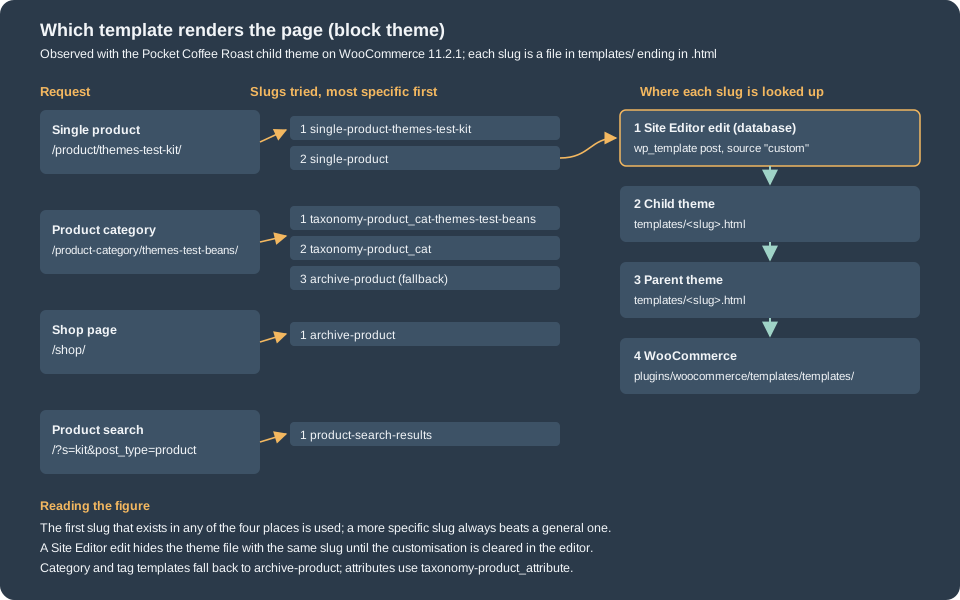
The order was measured by adding and removing files in the throw-away theme and rendering the same pages with the preview argument:
P='wp_theme_preview=pocket-coffee-themes-roast'
g() { echo "$1 -> $(curl -s -b cookies.txt "http://localhost:8081/$1?$P" | grep -o 'template: [^<]*')"; }
g product/themes-test-kit/
g product-category/themes-test-beans/
g shop/
With all five template files present in the theme (single-product, single-product-themes-test-kit, archive-product,
taxonomy-product_cat, taxonomy-product_cat-themes-test-beans):
product/themes-test-kit/ -> template: single-product-themes-test-kit (Pocket Coffee Roast)
product-category/themes-test-beans/ -> template: taxonomy-product_cat-themes-test-beans (Pocket Coffee Roast)
shop/ -> template: archive-product (Pocket Coffee Roast)
Then deleting taxonomy-product_cat-themes-test-beans.html, taxonomy-product_cat.html and single-product-themes-test-kit.html
one after the other and rendering again gave, in this order:
product-category/themes-test-beans/ -> template: taxonomy-product_cat (Pocket Coffee Roast)
product-category/themes-test-beans/ -> template: archive-product (Pocket Coffee Roast)
product/themes-test-kit/ -> template: single-product (Pocket Coffee Roast)
A product search (?s=kit&post_type=product) did not print the marker because the theme has no product-search-results.html:
WooCommerce’s own template rendered, which is the fourth place in the figure and the reason a theme only needs the templates it wants to change.
Site Editor edits win over theme files
Saving a template in the Site Editor creates a wp_template post tagged with the theme’s slug in the wp_theme taxonomy. When WordPress
resolves a slug it looks at these posts first. The following reproduces what the editor does and shows the effect (the post was
created for the throw-away theme only and deleted afterwards):
$id = wp_insert_post(
	array(
		'post_type'    => 'wp_template',
		'post_name'    => 'single-product',
		'post_title'   => 'Single Product',
		'post_status'  => 'publish',
		'post_content' => '<!-- wp:paragraph {"className":"pc-which"} --><p class="pc-which">template: single-product (database, Site Editor)</p><!-- /wp:paragraph -->',
	)
);
wp_set_object_terms( $id, 'pocket-coffee-themes-roast', 'wp_theme' );
The theme term is assigned with wp_set_object_terms() on purpose: the tax_input argument of wp_insert_post() checks the capabilities of the current user, and
under WP-CLI without --user it silently assigns nothing, which leaves a template that belongs to no theme and is never used.
Rendering the product page again printed template: single-product (database, Site Editor) instead of the theme file, and reading the template back
gave custom as its source:
custom | origin='plugin' | theme=pocket-coffee-themes-roast
The check that read it back:
add_filter( 'stylesheet', fn() => 'pocket-coffee-themes-roast' );
add_filter( 'template', fn() => 'twentytwentyfive' );
$t = get_block_template( 'pocket-coffee-themes-roast//single-product', 'wp_template' );
echo $t->source, ' | origin=', var_export( $t->origin, true ), ' | theme=', $t->theme, "\n";
The origin stays plugin because the customised template started as the WooCommerce one. In practice this is the most common
reason a shop owner’s change "does nothing after a theme update": the database copy keeps being used and the new file in the
theme is never consulted. The cure is in the editor (the template’s "Clear customizations" or "Reset" action), or deleting the
wp_template post. The same applies to template parts and to Global Styles. Keep this in mind before debugging markup: ask first
whether the page is rendering a theme file at all.
Cart and Checkout page templates
page-cart.html and page-checkout.html render the content of the pages that WooCommerce assigns as the Cart and Checkout pages,
so the theme only decides the frame (header, footer, title). The default template wraps the content in the
woocommerce/page-content-wrapper block; when you override it, keep the post content block and do not place the Cart or Checkout
block directly in the template, otherwise the page editor and what shoppers see drift apart and features that inspect the page
content (for example the checks that decide whether the page uses the blocks) cannot find the block.
<!-- wp:template-part {"slug":"header","tagName":"header"} /-->
<!-- wp:woocommerce/page-content-wrapper {"page":"cart"} -->
<!-- wp:group {"tagName":"main","layout":{"type":"constrained"}} -->
<main class="wp-block-group">
	<!-- wp:woocommerce/store-notices /-->
	<!-- wp:post-title {"align":"wide", "level":1} /-->
	<!-- wp:post-content {"align":"wide"} /-->
</main>
<!-- /wp:group -->
<!-- /wp:woocommerce/page-content-wrapper -->
<!-- wp:template-part {"slug":"footer","tagName":"footer"} /-->
This is the markup of the default page-cart.html of 11.2.1 (the checkout one is identical except "page":"checkout" and no
title block). Use it as the starting point of an override.
The catalogue template
The catalogue template is the Product Collection block with the query set to inherit, wrapped in a heading, a results count and
a sort control. The Pocket Coffee theme starts from WooCommerce’s own file, and the only edit is the marker paragraph.
<!-- wp:template-part {"slug":"header"} /-->

<!-- wp:group {"tagName":"main","layout":{"inherit":true,"type":"constrained"}} -->
<main class="wp-block-group">
	<!-- wp:paragraph {"className":"pc-which"} -->
	<p class="pc-which">template: archive-product (Pocket Coffee Roast)</p>
	<!-- /wp:paragraph -->

	<!-- wp:woocommerce/breadcrumbs /-->

	<!-- wp:query-title {"type":"archive","showPrefix":false,"align":"wide"} /-->

	<!-- wp:term-description {"align":"wide"} /-->

	<!-- wp:woocommerce/store-notices /-->

	<!-- wp:group {"layout":{"type":"flex","flexWrap":"nowrap","justifyContent":"space-between"}} -->
	<div class="wp-block-group alignwide">
		<!-- wp:woocommerce/product-results-count /-->
		<!-- wp:woocommerce/catalog-sorting /-->
	</div>
	<!-- /wp:group -->
	<!-- wp:woocommerce/product-collection {"queryId":0,"query":{"woocommerceAttributes":[],"woocommerceStockStatus":["instock","outofstock","onbackorder"],"taxQuery":{},"isProductCollectionBlock":true,"perPage":10,"pages":0,"offset":0,"postType":"product","order":"asc","orderBy":"title","author":"","search":"","exclude":[],"sticky":"","inherit":true},"tagName":"div","dimensions":{"widthType":"fill","fixedWidth":""},"displayLayout":{"type":"flex","columns":3,"shrinkColumns":true},"convertedFromProducts":false,"queryContextIncludes":["collection"],"align":"wide"} -->
	<div class="wp-block-woocommerce-product-collection alignwide">
		<!-- wp:woocommerce/product-template -->
		<!-- wp:woocommerce/product-image {"showSaleBadge":false,"imageSizing":"thumbnail","isDescendentOfQueryLoop":true} -->
			<!-- wp:woocommerce/product-sale-badge {"isDescendentOfQueryLoop":true,"align":"right"} /-->
		<!-- /wp:woocommerce/product-image -->
		<!-- wp:post-title {"textAlign":"center","level":2,"isLink":true,"fontSize":"medium","__woocommerceNamespace":"woocommerce/product-collection/product-title","style":{"typography":{"lineHeight":"1.4"}}} /-->
		<!-- wp:woocommerce/product-price {"textAlign":"center","isDescendentOfQueryLoop":true,"fontSize":"small","style":{"spacing":{"margin":{"bottom":"1rem"}}}} /-->
		<!-- wp:woocommerce/product-button {"textAlign":"center","isDescendentOfQueryLoop":true,"fontSize":"small","style":{"spacing":{"margin":{"bottom":"1rem"}}}} /-->
		<!-- /wp:woocommerce/product-template -->

		<!-- wp:query-pagination {"layout":{"type":"flex","justifyContent":"center"}} -->
		<!-- wp:query-pagination-previous /-->
		<!-- wp:query-pagination-numbers /-->
		<!-- wp:query-pagination-next /-->
		<!-- /wp:query-pagination -->

		<!-- wp:woocommerce/product-collection-no-results -->
		<!-- wp:group {"layout":{"type":"flex","orientation":"vertical","justifyContent":"center","flexWrap":"wrap"}} -->
		<div class="wp-block-group">
			<!-- wp:pattern {"slug":"woocommerce/no-products-found-clear-filters"} /-->
		</div>
		<!-- /wp:group -->
		<!-- /wp:woocommerce/product-collection-no-results -->
	</div>
	<!-- /wp:woocommerce/product-collection -->
</main>
<!-- /wp:group -->

<!-- wp:template-part {"slug":"footer"} /-->
Two lessons from reading WooCommerce’s own template: the attribute inherit: true makes the block use the main query of the
page, which is what lets one file serve the shop, a category and a tag; and the many isDescendentOf... attributes are written by the
editor to tell inner blocks which context they are in, so when you hand-write a template, copy a working one instead of
starting from nothing. Since 11.3 (beta) the Shop page is mapped to this template for block themes; on 11.2.1 the shop page already renders this
template through the same archive-product lookup, as the shop/ line above shows.
Classic themes
A classic theme that wants WooCommerce’s templates declares support in functions.php, and may describe the image sizes and grid it
designed for. The support array keys read by the code of 11.2.1 are thumbnail_image_width, single_image_width and product_grid
with default_rows, min_rows, max_rows, default_columns, min_columns and max_columns; the three gallery features
are separate add_theme_support calls.
<?php
add_action(
	'after_setup_theme',
	static function () {
		add_theme_support(
			'woocommerce',
			array(
				'thumbnail_image_width' => 324,
				'single_image_width'    => 416,
				'product_grid'          => array(
					'default_columns' => 3,
					'default_rows'    => 4,
					'min_columns'     => 1,
					'max_columns'     => 6,
					'min_rows'        => 1,
				),
			)
		);
		add_theme_support( 'wc-product-gallery-zoom' );
		add_theme_support( 'wc-product-gallery-lightbox' );
		add_theme_support( 'wc-product-gallery-slider' );
	}
);
These are the values Storefront 4.6.2 passes (through its own storefront_woocommerce_args filter). The image widths feed
WooCommerce’s image sizes (woocommerce_thumbnail, woocommerce_single); the product_grid values are the defaults and limits
of the catalogue columns and rows the customer sets in the Customizer. A theme with woocommerce.php in its root can wrap all
shop pages in one file; note that when it exists it wins over every more specific WooCommerce template and the documentation
warns that a woocommerce/archive-product.php override is then ignored.
How a classic theme loads a page
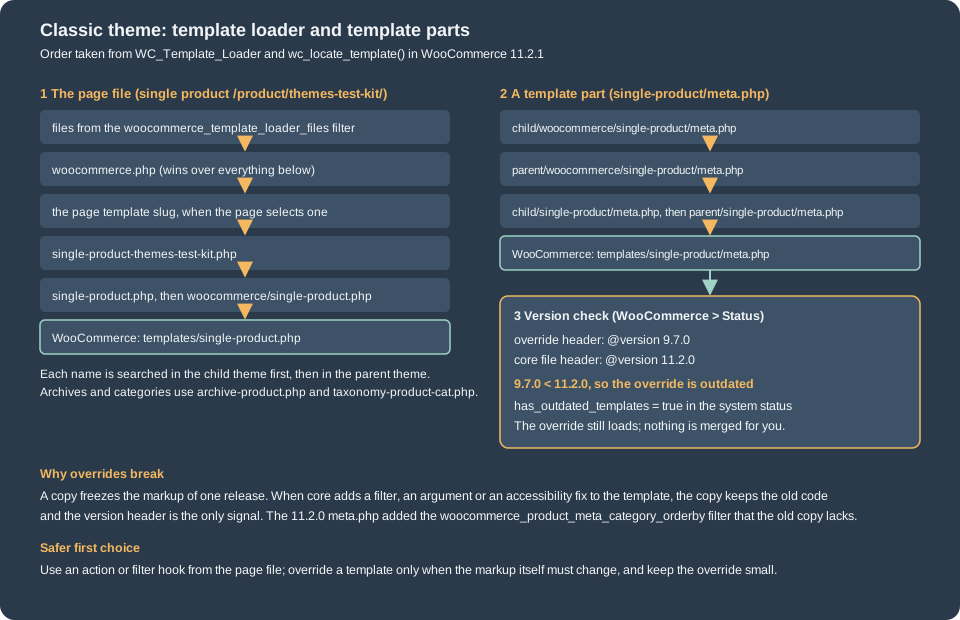
WC_Template_Loader hooks template_include for supported themes. For a product page it first builds a list of file names and
asks WordPress to locate the first one that exists in the child or parent theme: files added by the filter
woocommerce_template_loader_files, then woocommerce.php, then the page template chosen for the page, then
single-product-<slug>.php, then the default single-product.php; only when none exists does it fall back to the file inside the
plugin (templates/single-product.php). Taxonomy archives follow the same pattern with
taxonomy-product_cat-<slug>.php, taxonomy-product_cat.php (also searched in the woocommerce/ folder and in the form with
dashes, taxonomy-product-cat.php) and the default archive-product.php. Inside those page files, the pieces of a page are
template parts (single-product/meta.php, loop/price.php) located by wc_locate_template(): first the woocommerce/
folder of the child theme, then the parent theme’s woocommerce/ folder, then the same path at the theme root, then the plugin.
Hooks first, overrides last
Every WooCommerce template is made of do_action() calls, and the cheapest, most upgrade-safe customisation is to attach to
one. The Pocket Coffee roast date is an action on woocommerce_single_product_summary, priority 15 (after the price at 10 and
before the excerpt at 20). It reads the date through the product object, as HPOS-era code must, and the output is escaped.
<?php
/**
 * Pocket Coffee Storefront child theme.
 *
 * @package PocketCoffeeStorefrontChild
 */

defined( 'ABSPATH' ) || exit;

/**
 * Load the parent stylesheet first, then the child one.
 */
function pocket_coffee_sf_styles() {
	wp_enqueue_style( 'storefront-style', get_template_directory_uri() . '/style.css', array(), wp_get_theme( 'storefront' )->get( 'Version' ) );
	wp_enqueue_style( 'pocket-coffee-sf', get_stylesheet_uri(), array( 'storefront-style' ), wp_get_theme()->get( 'Version' ) );
}
add_action( 'wp_enqueue_scripts', 'pocket_coffee_sf_styles' );

/**
 * Show the roast date on the single product page, below the price.
 */
function pocket_coffee_sf_roast_date() {
	global $product;

	if ( ! $product instanceof WC_Product ) {
		return;
	}

	$roast_date = $product->get_meta( 'roast_date' );
	if ( '' === $roast_date ) {
		return;
	}

	printf(
		'<p class="pocket-coffee-roast-date">%s</p>',
		esc_html( sprintf( /* translators: %s: roast date */ __( 'Roasted on %s', 'pocket-coffee-storefront-child' ), $roast_date ) )
	);
}
add_action( 'woocommerce_single_product_summary', 'pocket_coffee_sf_roast_date', 15 );
The child theme’s style.css header names Template: storefront. With the theme preview argument the page contained:
pocket-coffee-roast-date">Roasted on 2026-10-20
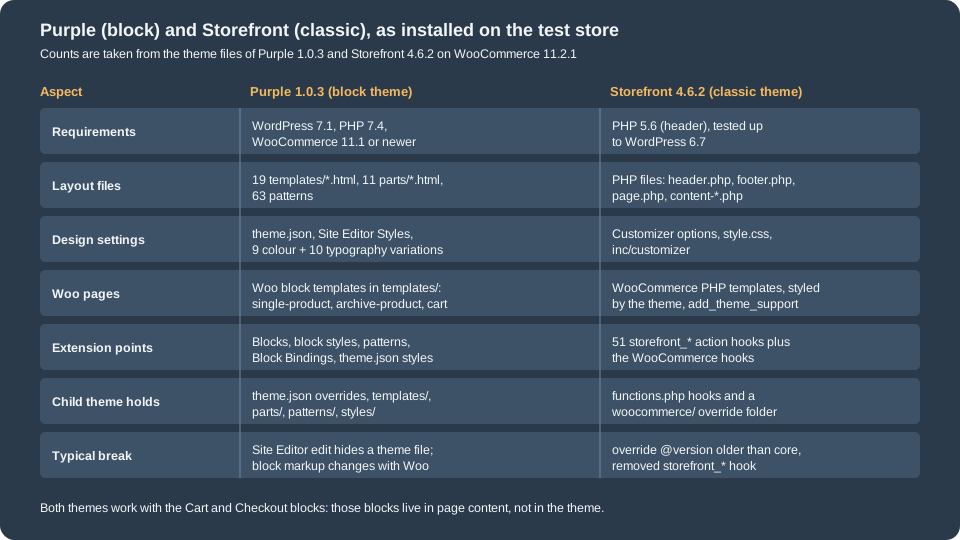
Storefront adds its own layer of hooks on top of WooCommerce’s: 51 distinct storefront_* actions (storefront_header,
storefront_before_content, storefront_footer, the homepage section hooks, and so on) and the matching
storefront_* functions in its inc/ folder. They are the "Storefront child theme" recipes of the 2015 to 2018 books: they still run in
Storefront 4.6.2, but they exist only in Storefront, so a recipe written for them does not survive a change of theme.
Overriding a template
When the markup itself must change, copy the template from wp-content/plugins/woocommerce/templates/ into
wp-content/themes/<child>/woocommerce/ keeping the sub-path (without the templates/ segment) and edit the copy.
The Pocket Coffee child theme hides the tag list in the product meta by overriding single-product/meta.php; the copy below is
trimmed to what the shop wanted and deliberately taken from an older WooCommerce release (header @version 9.7.0) to show what
happens later.
<?php
/**
 * Single Product Meta
 *
 * This template can be overridden by copying it to yourtheme/woocommerce/single-product/meta.php.
 *
 * @see         https://woocommerce.com/document/template-structure/
 * @package     WooCommerce\Templates
 * @version     9.7.0
 */

use Automattic\WooCommerce\Enums\ProductType;

defined( 'ABSPATH' ) || exit;

global $product;
?>
<div class="product_meta">

	<?php
	/**
	 * Start of the product meta.
	 *
	 * @since 9.7.0
	 */
	do_action( 'woocommerce_product_meta_start' );
	?>

	<?php if ( wc_product_sku_enabled() && ( $product->get_sku() || $product->is_type( ProductType::VARIABLE ) ) ) : ?>
		<span class="sku_wrapper"><?php esc_html_e( 'SKU:', 'woocommerce' ); ?> <span class="sku"><?php echo esc_html( $product->get_sku() ? $product->get_sku() : __( 'N/A', 'woocommerce' ) ); ?></span></span>
	<?php endif; ?>

	<?php echo wc_get_product_category_list( $product->get_id(), ', ', '<span class="posted_in">' . _n( 'Category:', 'Categories:', count( $product->get_category_ids() ), 'woocommerce' ) . ' ', '</span>' ); // phpcs:ignore WordPress.Security.EscapeOutput.OutputNotEscaped ?>

	<?php /* Pocket Coffee: the tag list is intentionally not shown. */ ?>

	<?php
	/**
	 * End of the product meta.
	 *
	 * @since 9.7.0
	 */
	do_action( 'woocommerce_product_meta_end' );
	?>

</div>
Rendered with the preview argument, the page contained the SKU PC-THEMES-KIT and the category line, and no tagged_as element (the class WooCommerce gives the tag
list): the override was used.
Purple and Storefront
WooCommerce points new stores at two themes from the same company, one per generation.
Purple is the block theme. Its WordPress.org slug is purple; version 1.0.3 was published on 2026-10-09. The style header reads
Requires at least: 7.1, Requires PHP: 7.4, WC requires at least: 11.1 and WC tested up to: 11.2, so it needs WordPress 7.1 or newer,
newer than the plugin’s own minimum of 7.0. It ships 19 templates (covering every WooCommerce template in the table above except the
brand and tag fallbacks, plus pages such as front-page, home, search and blank and cover page templates), 11 template
parts, 63 patterns, 9 colour variations and 10 typography variations. Its single product, cart and checkout templates are thin and
delegate to patterns. It also loads a small stylesheet per WooCommerce release (assets/css/woocommerce-11.1.css and
woocommerce-11.2.css) and enqueues only those that apply to the running WooCommerce version, which is a neat answer to the
"core changed its markup" problem of classic overrides. In October 2026 its development moved into the WooCommerce monorepo.
Storefront is the classic theme. Version 4.6.2 (2025-12-09) is the latest release on WordPress.org; its header says
Requires PHP: 5.6.0 and Tested up to: 6.7, so it has not been re-tested against the 7.x series by its own header,
though it kept working on 7.1.3 in the tests of this page. It is customised in the Customizer, extended through its
storefront_* hooks and child themes, and has no theme.json. The WooCommerce developer documentation calls it
"Woo’s flagship classic theme", but no official page says whether it is still actively developed: the last release is
still the 2025-12-09 one, the header above still says Tested up to: 6.7, and the GitHub repository is not archived.
Treat its maintenance status as unknown and check the release history before relying on it.
How to choose, for a new store: take a block theme. It gets the Site Editor, Global Styles, patterns, and WooCommerce’s block templates without copies that go out of date. Purple is the WooCommerce-maintained starting point; Twenty Twenty-Five or any block theme that looks the way you want is a legitimate base too, since WooCommerce supplies the missing store templates. Stay on a classic theme when the store depends on extensions or custom code written for it (a page builder, a PHP template library, Storefront-specific extensions) and plan the migration; a classic theme is supported, not deprecated.
Template overrides and why they break
An override is a frozen copy of the markup of one release. WooCommerce edits its templates on major and minor releases (the template
documentation lists the changes in each release), and when it does it bumps the @version number in the file’s header. Your copy
keeps the old code, so it silently misses new filters, new arguments, accessibility fixes and security fixes. The template
used as the example in this test shows it: single-product/meta.php became @version 11.2.0 in this release and
gained the woocommerce_product_meta_category_orderby filter; the copy at 9.7.0 does not have it, so a store that depends on that filter
sees no effect and no error. The same happens with a security or accessibility fix: the copy keeps the vulnerable or inaccessible markup until someone notices.
Finding outdated overrides
WooCommerce > Status > System status lists, at the bottom, every template overridden by the active theme and warns when the
override is older than the core template. The same data is in the REST system status response (theme.overrides, theme.has_outdated_templates),
built by get_theme_info() of the controller. This script reproduces the report for the throw-away classic theme without activating
it; it clears the one-hour cache of the report first (see the pitfall below) and does not store the result.
// Pretend, for this one process only, that the Pocket Coffee child theme is the active theme.
add_filter( 'stylesheet', fn() => 'pocket-coffee-themes-storefront-child' );
add_filter( 'template', fn() => 'storefront' );
wp_set_template_globals();

// The report caches its answer for an hour: clear the cache, and do not store this answer.
delete_transient( 'wc_system_status_theme_info' );
add_filter( 'pre_set_transient_wc_system_status_theme_info', fn( $value ) => $value );

$controller = new WC_REST_System_Status_V2_Controller();
$info       = $controller->get_theme_info();
echo wp_json_encode(
	array_intersect_key( $info, array_flip( array( 'name', 'is_child_theme', 'is_block_theme', 'has_outdated_templates', 'overrides' ) ) ),
	JSON_PRETTY_PRINT | JSON_UNESCAPED_SLASHES
), "\n";
Output seen:
{
    "name": "Pocket Coffee Storefront Child",
    "is_child_theme": true,
    "is_block_theme": false,
    "has_outdated_templates": true,
    "overrides": [
        {
            "file": "wp-content/themes/pocket-coffee-themes-storefront-child/woocommerce/single-product/meta.php",
            "version": "9.7.0",
            "core_version": "11.2.0"
        }
    ]
}
Replacing the copy with the current core file (and then reapplying the edit) changed the answer to "has_outdated_templates": false, with
"version": "11.2.0" equal to "core_version": "11.2.0". Two behaviours are worth knowing. The report only scans the templates of the
WooCommerce core templates/ folder, so an override of a template that belongs to an extension (including the Pocket Coffee email template of
the Emails page, which the same child theme overrides) is never flagged. And the report is cached in the
transient wc_system_status_theme_info for an hour: after fixing a template the screen may still show the old warning until the
transient expires or a template/theme change clears it.
Fixing them
The documentation’s procedure is the one to follow, in this order: open the status screen and note the outdated templates; save a backup of each; copy the
current template from wp-content/plugins/woocommerce/templates/<path> into the child theme (the latest release, which you can also download
from WordPress.org or GitHub); and replay your edits on top of the new file by diffing the backup against the old core version.
The point is that the process is manual by design: no tool can merge markup for thousands of themes. Reduce the future cost of it:
-
Prefer a hook or a filter to an override; if the change is a single line, there probably is one.
-
Keep each override as small as possible, and put a comment at the top that says what you changed and why, so the diff against the new core file is quick.
-
Do not copy templates "just in case". A template you did not change should not be in the theme.
-
Track the template changes of each WooCommerce release (the developer blog lists them) before updating a production store.
-
Use
WC_TEMPLATE_DEBUG_MODEonly while debugging: while it is true,wc_locate_template()ignores theme overrides and loads core files, which is a quick way to prove that an override causes a bug. -
On a block theme the equivalent of the override is a template or part file with the same slug (with the Site Editor caveat from above), and the equivalent of the version check is reading the WooCommerce release notes for template changes; the blocks inside the templates can change between releases too, which is what Purple’s per-version stylesheets compensate for.
The folder name woocommerce/ that the theme is searched in comes from WC()->template_path() and can be changed with the woocommerce_template_path filter; the path of
a located template can be altered with woocommerce_locate_template. Both are for plugins that ship their own templates. The email screens of the Emails page use a third filter,
woocommerce_template_directory, only for the "copy file to theme" action.
Conditional tags
Code that runs on every page (a script, a banner, a body class) needs to know which kind of page it is on. WordPress has its own
conditional tags (is_single(), is_page()); WooCommerce adds a family, defined in wc-conditional-functions.php and wc-template-functions.php.
| Function | True when |
|---|---|
|
On any page that WooCommerce itself renders: shop, category, tag, attribute, single product. It is not true on the Cart, Checkout and My Account pages, which are ordinary pages with blocks or shortcodes. |
|
The shop page or the product archive. |
|
Any product taxonomy archive, a category archive, a tag archive. |
|
A single product page. |
|
The Cart page, the Checkout page. |
|
The pay-for-order endpoint, the thank-you endpoint, the add payment method endpoint. |
|
My Account and its endpoints. |
|
Any WooCommerce endpoint, or the one you name ( |
|
The catalogue is filtered by layered navigation, a price filter or a rating filter. |
|
WooCommerce is processing an AJAX request. |
|
The store notice is enabled. |
|
A taxonomy name belongs to a product attribute. |
A one-function dump helps while learning. It prints the tags that are true for the current request as an HTML comment and only for an administrator
who adds ?pc_conditionals=1:
/**
 * Print the WooCommerce conditional tags that are true on the current request.
 *
 * Debug aid for shop managers: append ?pc_conditionals=1 to any front-end URL.
 */
function pocket_coffee_sf_conditionals() {
	// Read-only debug output, restricted to administrators.
	if ( ! isset( $_GET['pc_conditionals'] ) || ! current_user_can( 'manage_options' ) ) { // phpcs:ignore WordPress.Security.NonceVerification.Recommended
		return;
	}

	$tags = array(
		'is_woocommerce',
		'is_shop',
		'is_product_taxonomy',
		'is_product_category',
		'is_product_tag',
		'is_product',
		'is_cart',
		'is_checkout',
		'is_checkout_pay_page',
		'is_order_received_page',
		'is_account_page',
		'is_wc_endpoint_url',
		'is_filtered',
	);

	$active = array_filter( $tags, 'call_user_func' );
	printf( "<!-- pc-conditionals: %s -->\n", esc_html( implode( ', ', $active ) ) );
}
add_action( 'wp_footer', 'pocket_coffee_sf_conditionals' );
Results seen on the test store with the Storefront child theme (the Checkout pages needed an item in the cart; an empty cart redirects to the cart):
| URL | Tags that were true |
|---|---|
|
none |
|
|
|
|
|
|
|
|
|
|
|
|
|
|
|
|
|
|
|
|
Three rules follow. Call the tags no earlier than the wp action (template_redirect is the usual hook), because before the main query exists they
answer false for everything. Do not use is_woocommerce() to mean "this is a shop page": it excludes cart, checkout and account, so enqueue a
store script with is_woocommerce() || is_cart() || is_checkout() || is_account_page() or, better, load it only where it is used. And in a block
theme, where there is no PHP page file to put a condition in, prefer to decide with the template choice (a specific template for a specific product or category),
with the block’s own visibility settings, or with the render_block filter in a small plugin.
Theme design practice
The books on WooCommerce theming (Ravensbergen’s second edition, Rauland’s cookbook and Sims’s guide) are mostly about classic themes and the Storefront Customizer, so their code is legacy, but their design advice on what a shop’s pages have to do survives the change of technology. Rewritten for a block theme and the current templates:
-
Home. One job: lead to the catalogue. A hero with one message, three or four category entry points, the best sellers and a short statement of what makes the shop trustworthy (shipping, returns, roasting date). Pocket Coffee’s home is a pattern with a hero, a Beans and Equipment category grid (the Product Collection block) and the Coffee Club promise.
-
Category and shop pages. Help the shopper narrow down: breadcrumbs, a result count, sorting and the filter blocks. Keep the product card to image, name, price and one button; the information that decides a purchase (origin, roast date) belongs on the product page.
-
Product page. The order that sells: image, name, price, availability, the choice of variation, add to cart, then the details. For variable products like Pocket Coffee’s beans, make the variation choice obvious before the button, and put the delivery promise next to the button.
-
Cart and checkout. Remove distractions. The shop’s header can be replaced by the
checkout-headerpart (a logo and a back link), which is exactly what that template part is for. -
Everywhere. A responsive layout (block themes and the Product Collection block are responsive out of the box), readable contrast, visible focus, real headings in order, alt text on product images, and font and image weights that keep the largest content on the page fast.
The first classic habits to drop when you move to blocks: styling with the Customizer and widgets (use Global Styles), hand-placing shortcodes for the shop and cart in pages (use the blocks), and hooks of a theme framework that the next theme will not have.
SEO practice
The theme and WooCommerce together decide what search engines see. What WooCommerce 11.2.1 emitted on the test store, observed rather than assumed:
-
Canonical URL and title. The single product page printed
<link rel="canonical" href="http://localhost:8081/product/themes-test-kit/" />and a title of the formProduct name – Site name. Titles and meta descriptions per product come from an SEO plugin or the theme’stitle-tagsupport; block themes print the title from the template. -
Structured data. WooCommerce prints JSON-LD for products and breadcrumbs, whatever the theme. The page contained one script of type
application/ld+jsonwith aBreadcrumbList(Home, category, product) and aProductwithname,description,sku,urland anOffercarryingprice,priceCurrency,availabilityandpriceValidUntil. It was present on the block theme, on Storefront and on Purple. Check it with a structured data validator after changing templates; hiding the title or price block does not remove it, so keep the visible page and the data consistent. -
Sitemaps. WordPress’s own sitemap (
/wp-sitemap.xml) listed the sitemap of products (wp-sitemap-posts-product-1.xml) and of product categories (wp-sitemap-taxonomies-product_cat-1.xml). An SEO plugin may replace it. -
robots.txt. The virtual file disallowed
/wp-content/uploads/wc-logs/,/wp-content/uploads/woocommerce_uploads/,/*?add-to-cart=and/*?*add-to-cart=, so add-to-cart URLs do not become crawl traps. -
Pages that must not be indexed. Cart and My Account returned
<meta name='robots' content='max-image-preview:large, noindex, follow' />(Checkout redirected away on an empty cart); the shop page did not. WooCommerce adds the directive for the three assigned pages through thewp_robotsfilter. -
URLs. The test store used the post-name permalink structure; a shop’s product base (
/product/) and category base (/product-category/) are set under Settings > Permalinks. Pick them once: changing them later needs redirects. Keep filter and sorting parameters out of the index (?orderby=,?min_price=) with the canonical tag of your SEO plugin. -
Content. Unique product titles and descriptions, one descriptive heading per page, meaningful image alt text, and the facts a buyer needs in text (origin, roast date, weight) rather than only in images.
For the general HTML side of search optimisation see SEO and the accessibility checklist in Accessibility; the comparison of how the four platforms treat SEO is on Comparison.
Moving from a classic theme to a block theme
A store on Storefront or another classic theme moves in steps, and can be tried with the theme preview before anything goes live:
-
Update WooCommerce and WordPress first and read the status screen: write down outdated overrides and every plugin that adds to the theme’s hooks.
-
Install the block theme (Purple or a child of a default block theme) and open its preview (
?wp_theme_preview=<slug>or the Site Editor’s browse themes). -
Check the pages that matter most: home, shop, a category, a variable product, cart, checkout, My Account, the order confirmation, a search, and a 404. Cart and Checkout keep working because their blocks live in the page content.
-
Rebuild what the old theme provided: the menu and header as a template part, widgets as blocks or patterns, hook-based additions as Block Bindings, blocks or small plugins.
-
Activate the theme at a quiet hour, clear page and object caches, and re-run the status screen. Keep the old theme installed for a while: rolling back is one click.
-
After activation, expect Site Editor edits to take over from the files: from then on, changes made in the editor are the source of truth for those templates.
Things that do not carry over: Customizer settings of the old theme, widgets in its sidebars, shortcodes it relied on, and any code that hooked
storefront_* actions. Things that do: products, orders, settings, the Cart and Checkout blocks, plugins that use WooCommerce hooks and the
Store API, and the SEO data.
Pitfalls
-
Checking the file when the database is used. A Site Editor edit hides the theme file; see "Site Editor edits win over theme files".
-
Editing the parent theme. Updates delete the edit. Use a child theme, or the Site Editor.
-
Copying many templates. Every copy is a future outdated warning.
-
Assuming
is_woocommerce()covers cart, checkout and account. It does not. -
The cached status report.
wc_system_status_theme_infois cached for an hour. -
A block markup typo. The editor shows a block with "Attempt recovery"; the front end prints the markup as plain HTML. Always open a hand-written template in the editor once.
-
Using classic filters for a block layout. Code in the style of
woocommerce_checkout_fields, or the Storefront hooks of old books, has no effect on block pages. -
Wrong parent slug.
Template:must be the directory name of an installed theme, otherwise the child theme is reported broken. -
Unsupported classic theme. Without
add_theme_support( 'woocommerce' )a classic theme gets the generic fallback layout. -
woocommerce.phpin the theme. It wins over every more specific WooCommerce page file. -
Two spellings. The PHP files inside the plugin use dashes (
taxonomy-product-cat.php) while block template slugs use underscores (taxonomy-product_cat); and the documentation lists apage-coming-soontemplate while 11.2.1 registerscoming-soon. Check the slug your version registers, as in the listing above.
What was run and what was not
Run on WordPress 7.1.3 and WooCommerce 11.2.1 (PHP 8.3.36, MariaDB 11.8.9, HPOS enabled) with the themes installed but never activated: the block child theme of Twenty Twenty-Five and the Storefront child theme of this page (static checks with the WooCommerce and WordPress coding standards, PHPCompatibilityWP: no findings), Storefront 4.6.2 and Purple 1.0.3 (installed from WordPress.org, inspected for counts and requirements, and rendered once through the theme preview argument). Rendered and read back: the template resolution of five templates, the database template override, the theme.json CSS output, the Block Bindings paragraph, the hook and the template override in the classic theme, the system status report with and without an outdated override, the conditional tag table, and the SEO output of single product, cart, My Account, sitemap and robots.txt. Not run: the Site Editor in a browser (so the editing screens, the "Clear customizations" action and the visual result of the styles were not looked at), a screenshot comparison of Purple and Storefront, switching the active theme, Customizer behaviour, and anything that needs an account on WordPress.org or WooCommerce.com. The 11.3 beta behaviour of the Shop page is quoted from the release notes of the beta and was not installed.
References
-
WooCommerce: Template structure and overriding templates via a theme
-
WooCommerce developer blog: Purple development moves to the WooCommerce monorepo
-
WooCommerce developer documentation: Scaffolding and sample store data
-
Patrick Rauland, WooCommerce Cookbook, Packt, 2015 (WooThemes era snippets; legacy)