Files, Folders, Teams and Sharing
|
This content was generated with the assistance of AI and should be verified against the official Figma documentation before being relied on in production. This sub-section’s Figma bibliography lists the reference material consulted while preparing these pages. |
This page explains where Figma files live and who can open or change them. Every fact was checked against the official Figma Help Center on 2026-10-30, with the UI3 interface (the only interface since 2025-04-30). The concepts apply to every Figma product that stores files (Figma Design, FigJam, Slides, Make, Sites and Buzz). Folders, drafts, sharing and permissions are available on all plans (Starter, Professional, Organization, Enterprise, plus Education and Government), but several options depend on the plan: where this page says so, it names the plan tier and never a price. Password protection needs a paid plan, and guests need an Organization-type plan. Editing a file needs a seat that covers the file product as well as edit permission; seats are explained in Plans, Seats and AI Credits. All of the features here are generally available (GA), not beta, as far as the official pages state.
The running example is Bookshelf, a fictitious book-tracking product: a team named "Bookshelf Product" keeps a folder "Mobile app" with the files for the onboarding and library screens.
The hierarchy: plan, team, folder, file
Figma organises content in levels. From the widest to the most specific:
-
Plan: the billing and administration unit. On Organization and Enterprise plans it is an organization, which can be split into workspaces (Enterprise).
-
Team: a group of people with shared access to a set of folders. Starter and Professional plans consist of a single team managed by admins, so plan and team are the same thing there. Organization and Enterprise plans can have many teams.
-
Folder: a container for files and other folders. Folders were called projects until 2026-08-03 (see Where older guides are outdated).
-
File: one design, board, deck or other document. The file is the most granular thing that can be shared.
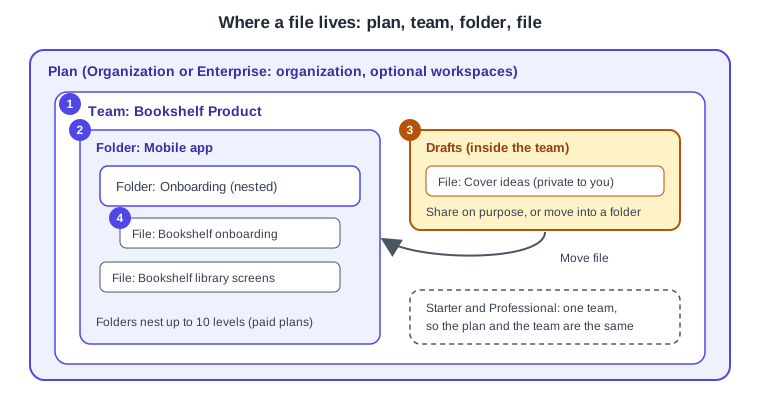
The numbers in the figure mark: (1) the team, (2) a top-level folder, (3) the team Drafts space, and (4) a file inside a nested folder.
The file browser
The file browser is the home screen you reach by signing in at figma.com, or from inside a file through the main menu and Back to files. In UI3 the left navigation bar lists the places you can browse. On Starter and Professional plans the sidebar shows All folders. On Organization and Enterprise plans it shows All teams, or All workspaces if workspaces are enabled, and selecting one shows its folders. Each team also lists its own Drafts space. The exact tabs of the left navigation bar changed on 2026-01-07 (see Interface Tour for the editor itself), so treat any older screenshot as a rough guide only.
Folders
A folder groups related files, for example all the screens of one app. What you can do depends on the plan:
| Plan | Folders and files |
|---|---|
Starter |
One folder. Within a folder, up to three Figma Design and Sites files in total, and three files for each other product. Drafts are unlimited. |
Professional, Organization, Enterprise |
Unlimited folders, nested up to 10 levels, and unlimited files and drafts. |
Folders can be given a custom colour. Old links to a project open the corresponding folder, and files did not move when the name changed.
Drafts
A draft is a file that is not in a folder yet. Each team has its own Drafts space inside it, and drafts are private to you until you share them. Working in drafts is free. On a Starter plan a draft cannot be edited together with other editors, although it can be shared with unlimited viewers; to collaborate with editors, move it into a folder.
To move a draft into a folder:
-
In the file browser, right-click the file thumbnail.
-
Choose Move file.
-
In the All tab, pick the team, then its Drafts space or a folder.
-
Click Move. Moving into a team you belong to needs edit permission in the destination and a seat that gives full access to that file type.
Sharing and permissions
Sharing is controlled with the Share button, which appears in the toolbar of a file, on a folder and on a team. Two settings combine to decide what someone can do.
-
Permission: Can view lets a person inspect, follow and comment (on a file also copy and export assets unless the owner restricted that). Can edit lets them change files, and on a folder create files and folders. The person who created the file or folder is its owner.
-
Seat: on paid plans, editing a file needs both Can edit and a seat that includes the product the file belongs to. For example a Collab seat cannot edit a Figma Design file.
Audience access (the "who has access" choice in the Share dialog) is set separately on each file and folder: only people invited, everyone in the plan or workspace, or anyone with the link. It does not pass down to the contents of a folder, so a file can be more or less open than its folder.
Inheritance of roles
Roles given to individual people follow a fixed rule. Files always inherit the individual roles of their folder, and this cannot be switched off per file, so anyone with a folder role can open every file in it. Direct access to a single file can only widen access beyond what the folder gives, never reduce it. Top-level folders follow the team roles (Organization and Enterprise) or the audience access and direct invitations (Starter and Professional). Nested folders inherit from their parent.
Since 2026-08-03 a folder shows one of two states instead of the old Team Access options:
| State | Meaning |
|---|---|
Inherited |
The folder shows that anyone in its parent can access it. This is the default for nested folders. |
Limited |
Only people added to the folder can access it. Organization and Enterprise plans can limit any folder. On Professional plans only top-level folders can be limited, and nested folders always inherit. |
The old View only team setting was removed. Former view-only members became individual viewers, so nobody lost or gained access. Changing inherited permissions is therefore an Organization and Enterprise capability; Professional plans cannot change them, and Starter has no inherited permissions.
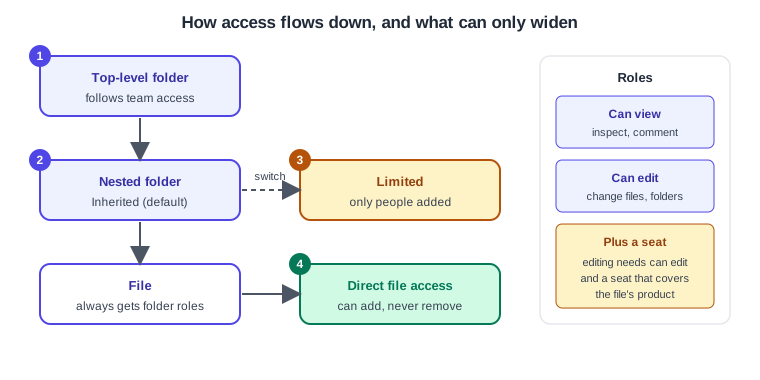
In the figure: (1) top-level folders follow team access, (2) nested folders inherit by default, (3) a folder can be switched to Limited, and (4) direct file access only adds.
Owners and people with edit permission can change permissions. Admins on paid plans can change permissions on resources they already have access to, even without edit access.
Teams, organizations and workspaces
On Starter and Professional plans, inviting someone to the plan makes them a member of the single team, and an admin can choose the new member’s seat type (Full, Collab, Dev or View) when inviting by email. Joining does not by itself grant access to a folder or file; people invited to specific content are marked as having limited access. On Organization and Enterprise plans, inviting someone to a team gives access to all files and folders in that team, and the plan can add members and guests to the organization or to individual resources. Enterprise adds workspaces as an extra level between the organization and its teams; the sharing guide shows them only in its hierarchy graphic and navigation menu, so this page does not go further.
Procedure: share a Bookshelf file with a password
Password protection hides a file behind a password so that only people who know it can open the link. It needs edit access to the file and a paid plan: Professional, Education, Organization, Government or Enterprise. It covers Figma Design files (a file password also covers its prototypes) and FigJam boards. Files published to the Community cannot have a password, and previews are hidden in embeds, link unfurls and thumbnails.
-
Open the "Bookshelf onboarding" file and click Share in the right sidebar (for a prototype, Share prototype).
-
Click the Can view or Can edit control and set access to Anyone.
-
Under Additional security, tick Password required.
-
Type a password or let Figma generate one (four random words). Your organization may allow generated passwords only.
-
Click Save and copy the password, because an existing password cannot be viewed later.
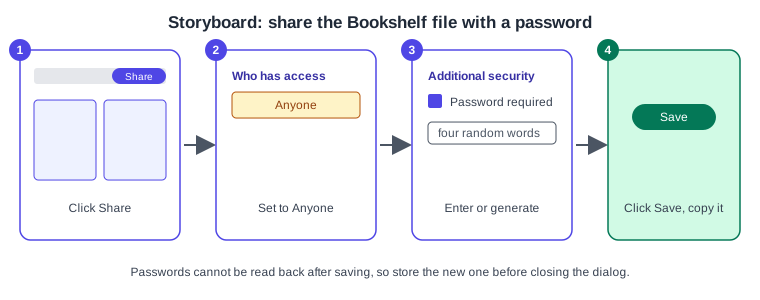
To reset the password, open Share, click the control next to Anyone with password, press Reset, enter a new one and save; everyone with the file open must enter it. To remove it, untick Password required, and the file reloads immediately. People with Can view or Can edit on the containing folder, and people invited to the file by email, do not need the password.
Guests
A guest is a person outside your organization domains, such as a contractor, agency or client. Guests are available on Education (K-12), Organization, Government and Enterprise plans. They cannot browse the organization teams or use shared fonts, plugins or library analytics; they only reach the teams, folders and files they were invited to, and they can hold any seat type (Full, Dev, Collab or View). You can only invite someone at or below your own permission level, and you need explicit permission on a resource to invite anyone to it.
-
Open the team, folder or file and click Share.
-
Enter the email address; Figma labels external addresses as guests.
-
Choose Can view or Can edit, then click Send invite.
Enterprise admins can require approval for guests or turn guest access off. Note that a link set to Anyone can still be opened by guests who have the link.
Local .fig copies
A local copy is a file you save to your computer and can import into another account or team, for example to hand a design to a client who has no access to your plan.
-
Open the file and choose File then Save local copy from the main menu. The file downloads to your downloads folder.
-
In the destination account, drag the downloaded file into the file browser.
The extension depends on the product: .fig for Figma Design, .jam for FigJam, .deck for Slides, plus .buzz,
.site and .make. The option is hidden if the owner restricted copying. A local copy carries no version history and no
comments, and an imported file is a new file unconnected to the original; library updates stop for imported files that used
team library styles or components. No keyboard shortcut for this was found in the official page, and the Actions menu
(Cmd+K on macOS, Ctrl+K on Windows) can be used to search for the command.
Pitfalls
-
Expecting a folder to hide a file: files always inherit the roles of their folder, so limit the folder, not only the file.
-
Giving a Collab or Dev seat holder Can edit on a Design file and expecting them to edit it: the seat must cover the product too.
-
Forgetting the password: it cannot be read back, only reset.
-
Using a draft for team work on a Starter plan: move it to a folder to collaborate with editors.
-
Treating a local copy as a backup of history: version history and comments are not included.
Where older guides are outdated
-
Projects are folders since 2026-08-03, with nesting, Inherited and Limited states and no View only setting. The REST API may still use the word "projects".
-
Drafts no longer live outside teams. From 2024-10-15 drafts moved into teams, and since 2025-10-09 the temporary "Drafts to move" space is gone. Guides that describe a separate personal Drafts tab for Starter and Professional users describe the situation before 2024-10-15.
-
"Editor" and "viewer" roles, "Paid Team plan" wording and "paid seats" have been replaced by the Full, Dev, Collab and View seat model (since 2025-03-11), with Starter, Professional, Organization and Enterprise plans.
-
The left side of the file browser follows UI3 and changed on 2026-01-07; the old UI2 layout was retired on 2025-04-30.