Jetpack Compose Fundamentals
|
This content was generated with the assistance of AI and should be verified against the official documentation of Android before being relied on in production. See the section bibliography for the reference material consulted while preparing these pages. |
This page introduces Jetpack Compose, Android’s modern, Kotlin-first toolkit for building UI, and Google’s
recommended approach for all new screens. It targets the section’s baseline — Kotlin 2.4.20, Compose BOM
2026.09.00 (Compose UI/foundation/runtime/animation 1.12.1, Material 3 1.4.0), AGP 9.4.1 — and assumes the
project setup covered in
Project Structure, Gradle and Build Variants. It builds the
first pieces of TrailMate’s Compose UI: a TrailCard composable and a TrailListScreen skeleton, which later
pages flesh out into the full app. Kotlin language features (lambdas, trailing-lambda syntax, extension
functions, Unit-returning functions) are not retaught here; see
Kotlin for Android for how idiomatic Kotlin maps onto
Android development.
Compose is a large topic, split across several pages in this section. This page covers only what is needed to write and understand a first composable screen; later pages go deeper into layouts, modifiers and lazy lists, state, recomposition and side effects, Material 3 and theming, navigation and animation and gestures. Readers coming from the classic View system should also read Views, Fragments and Activities vs. Compose: Architecture Comparison once both toolkits have been introduced.
Declarative vs. Imperative UI
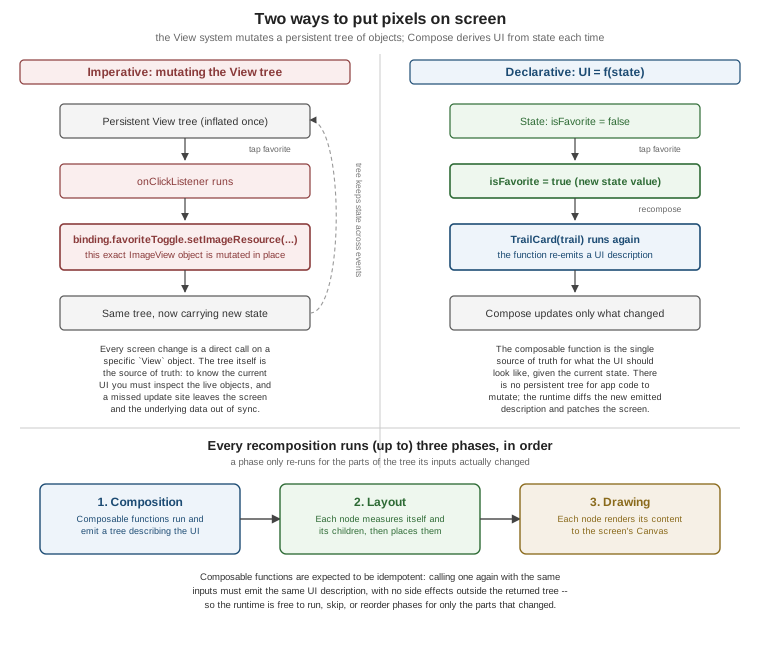
The View system introduced in
Views, XML Layouts, View Binding and Material Components is
imperative: a layout is inflated once into a persistent tree of View objects, and every subsequent UI
change is a direct, targeted mutation of that tree — binding.favoriteToggle.setImageResource(…),
binding.trailName.text = trail.name. The tree itself becomes the source of truth for what is currently on
screen; understanding the current UI means tracing every place in the code that could have mutated one of its
views, and a code path that updates the underlying data but forgets to also update the matching view leaves the
two out of sync.
Compose is declarative: instead of writing code that mutates a UI, a composable function describes what
the UI should look like for the current state, and is called again — automatically — whenever the state it
read changes. There is no persistent tree for application code to mutate directly; Compose’s runtime keeps
whatever internal tree it needs to render efficiently, but no call site ever reaches into it and changes a
property by hand. This is often summarized as UI = f(state): the UI at any point in time is a pure function
of the current state, the same way trail.name.uppercase() always returns the same result for the same
trail.name.
This is the same conceptual shift that other declarative UI frameworks made around the same time — SwiftUI on Apple platforms (see Recommended App Architecture for the SwiftUI equivalent) and React on the web (React Native) — and the underlying idea, a UI tree re-derived from state and reconciled against the previous tree, is the same one React calls a "virtual DOM diff". Compose’s own mechanism, covered in detail below and on State, Recomposition and Side Effects in Compose, is called recomposition.
Setting Up Compose
A module opts into Compose with three pieces, all already present in the TrailMate :app module’s
build.gradle.kts from
Project Structure, Gradle and Build Variants:
// app/build.gradle.kts
plugins {
    id("com.android.application") // AGP 9.4.1: Kotlin is built in, no org.jetbrains.kotlin.android plugin
    id("org.jetbrains.kotlin.plugin.compose") version "2.4.20" // (1)
}

android {
    buildFeatures {
        compose = true // (2)
    }
}

dependencies {
    val composeBom = platform("androidx.compose:compose-bom:2026.09.00") // (3)
    implementation(composeBom)
    androidTestImplementation(composeBom)

    implementation("androidx.compose.ui:ui")
    implementation("androidx.compose.ui:ui-graphics")
    implementation("androidx.compose.ui:ui-tooling-preview")
    debugImplementation("androidx.compose.ui:ui-tooling")
    implementation("androidx.compose.foundation:foundation")
    implementation("androidx.compose.material3:material3")
    implementation("androidx.activity:activity-compose:1.13.0")
    implementation("androidx.lifecycle:lifecycle-viewmodel-compose:2.11.0")
    implementation("androidx.lifecycle:lifecycle-runtime-compose:2.11.0")
}-
(1) The Compose compiler plugin,
org.jetbrains.kotlin.plugin.compose, is a Kotlin compiler plugin that rewrites@Composablefunctions at compile time — inserting the bookkeeping (a hiddenComposerparameter, group markers used to track what changed) that makes recomposition possible. Before Kotlin 2.0 this plugin shipped bundled with each Compose UI release and had to be version-matched against the exact Kotlin version in use; since Kotlin 2.0 it is a standalone Kotlin compiler plugin versioned identically to the Kotlin release itself, which removes an entire class of "Compose compiler / Kotlin version mismatch" build errors older tutorials and books still warn about. The module does not applyorg.jetbrains.kotlin.android: since AGP 9.0 Kotlin compilation is built into the Android Gradle plugin, and applying the old plugin on top of it fails the build (see Android Developers — Migrate to built-in Kotlin). -
(2)
buildFeatures.compose = trueturns on Compose support for the module — without it the Compose compiler plugin has nothing to instrument and theandroidx.compose.*artifacts, while still resolvable as plain dependencies, cannot be used from@Composablefunctions in that module. -
(3) The Compose BOM (Bill of Materials) is a special dependency that pins a single, tested-together set of versions for every
androidx.compose.artifact; declaring individual Compose artifacts *without a version (implementation("androidx.compose.ui:ui"), no:1.12.1suffix) lets the BOM’s platform constraint choose the version, the same pattern used for other BOMs on Project Structure, Gradle and Build Variants. Bumping the whole Compose stack is then a one-line change to the BOM coordinate instead of updating a dozen individual version numbers by hand, and rules out accidentally combining Compose artifacts from incompatible releases.
See Android Developers — Compose BOM and Android Developers — Jetpack Compose Tutorial for the full setup walkthrough, including the Android Studio "Empty Activity" template that generates the equivalent of the snippet above automatically.
@Composable Functions and setContent
A composable function is any Kotlin function annotated @Composable. The annotation is what the compiler
plugin looks for to rewrite the function’s body and to enforce Compose’s calling rules — a @Composable
function may only be called from another @Composable function (or from a Compose entry point such as
setContent), never from ordinary code, because the compiler-inserted bookkeeping needs the whole call chain
back to the root to be instrumented:
// app/src/main/kotlin/com/example/trailmate/TrailCard.kt
@Composable
fun TrailCard(trail: Trail) {
    Text(text = trail.name)
}Unlike an ordinary function, a composable does not return UI — calling Text(text = trail.name) above has no
useful return value; instead, calling it emits nodes into whatever tree Compose is currently building, as a
side effect of the call itself managed entirely by the compiler-inserted bookkeeping, not by application code.
This is why a composable function’s return type is conventionally Unit (and usually omitted): the work happens
through emission, not through a value handed back to the caller.
An Activity (or Fragment) hosts a Compose UI by calling setContent { … } on a ComponentActivity,
from androidx.activity:activity-compose, once, instead of setContentView(R.layout….):
// app/src/main/kotlin/com/example/trailmate/MainActivity.kt
class MainActivity : ComponentActivity() {
    override fun onCreate(savedInstanceState: Bundle?) {
        super.onCreate(savedInstanceState)
        setContent {
            TrailMateTheme {
                TrailMateApp()
            }
        }
    }
}setContent {} is the root of the composition: everything inside its trailing lambda is @Composable code, and
TrailMateTheme (introduced in full on
Material 3 and Theming in Compose) is itself just a
composable function that wraps its content: @Composable () → Unit parameter in the app’s color scheme and
typography before letting it emit. TrailMateApp() is the app-level composable that will host navigation between
TrailListScreen, TrailDetailScreen and SettingsScreen once
Navigation in Compose introduces it; for the rest of this page it is
TrailListScreen directly. See
Android Developers — ComponentActivity and
Android Developers — Thinking in Compose.
Composition and Recomposition
Composition is the tree of composable calls Compose’s runtime builds and keeps in memory the first time
setContent {} runs: every @Composable function invocation in the tree, together with the data it emitted.
Recomposition is Compose re-running the subset of composable functions whose inputs (parameters, or state
they read) actually changed, to bring the composition back in sync with the current state, and then reconciling
the result against what was there before — similar in spirit to a diff, but applied to composable calls rather
than to a persistent object tree.
Two properties make this practical rather than prohibitively expensive:
-
Recomposition is scoped, not global. Calling
setFavorite(true)on oneTrail’s state does not re-run every composable in the app — only the composable functions that actually read that particular piece of state (in the example above, whichever part of `TrailCardreadstrail.isFavorite) are scheduled to run again. A siblingTrailCardfor a different trail, which never read the changed state, is skipped entirely. -
Recomposition can happen in any order, or be skipped, because of idempotence (below) — Compose is free to batch multiple pending recompositions, run them out of the original call order, or skip a composable whose inputs have not actually changed, none of which is safe for imperative code that expects its statements to run in a fixed, predictable sequence exactly once.
State, Recomposition and Side Effects in Compose covers
remember/mutableStateOf, the state APIs that make Compose aware a given value’s changes should trigger
recomposition, in depth; this page only needs the mental model above to explain why composables are written the
way they are. See Android Developers — Lifecycle of
composables in Compose.
The Three Phases
Every frame Compose renders — the very first one, and every recomposition afterwards — runs up to three distinct phases, always in the same order, shown in the figure above:
| Phase | What happens |
|---|---|
Composition |
Composable functions run and emit a tree describing what the UI should be: which composables exist, with which parameters, in which order. No pixel is measured or drawn yet. |
Layout |
Every emitted node measures itself and its children (bottom-up), then each node places its children at final coordinates (top-down) — conceptually the same measure/layout split as the View system’s own passes covered in Views, XML Layouts, View Binding and Material Components, but driven entirely by the tree Composition just emitted. |
Drawing |
Each node renders its final content — text, shapes, images — onto the screen’s |
A given recomposition does not always run all three phases for a given node: if only a Color changed and the
node’s size and position stayed the same, Compose can skip straight to Drawing for that node; if a piece of text
changed but the layout that contains it uses a fixed size, Layout may be skipped too. This selective re-running
is exactly what makes Compose’s approach fast enough for UI that updates every frame (an animation, a scroll
position), and it is also why a composable must be free of the kind of ordering assumptions imperative code
relies on — covered next. See
Android Developers — Phases of jetpack compose.
Idempotence
A composable function is expected to be idempotent: calling it again with the same inputs must always emit the same UI description, and it must not perform side effects (writing to a database, mutating a shared variable, launching a coroutine) directly in its body as a consequence of simply being called. This single rule is what allows every property described in the two previous sections — skipping unaffected composables, recomposing in any order, running the same composable more than once for the same inputs (which Compose is free to do internally) — to be safe. A composable that instead behaves like this breaks that contract:
// DON'T -- side effect and mutable state directly in the composable body
@Composable
fun TrailCard(trail: Trail) {
    trailViewedCounter++ // mutates state outside Compose's knowledge, on every (re)composition
    analytics.logTrailViewed(trail.id) // fires again every time this composable happens to recompose
    Text(text = trail.name)
}Because Compose may call TrailCard more times than there are visible trail cards on screen (to compute layout,
during scrolling, or while skipping unrelated recompositions elsewhere), trailViewedCounter++ and
analytics.logTrailViewed(…) above would run an unpredictable number of times, not once per actual "the user
viewed this trail" event. The fix is either to compute the result as an ordinary expression with no side effect
(val displayName = trail.name.ifBlank { stringResource(R.string.trail_untitled) } is fine, because it has no
effect outside its own return value), or to run the side effect through one of the effect APIs — LaunchedEffect, SideEffect — introduced on
State, Recomposition and Side Effects in Compose, which
Compose itself controls the timing of. See
Android Developers — Thinking in
Compose for the same rule from the official source.
@Preview
@Preview renders a composable directly in Android Studio’s design pane, without building and installing
the app on a device or emulator — a fast feedback loop that is one of Compose’s most immediately useful
features over the View system’s Layout Editor:
// app/src/main/kotlin/com/example/trailmate/TrailCard.kt
@Preview(showBackground = true)
@Composable
private fun TrailCardPreview() {
    TrailMateTheme {
        TrailCard(
            trail = Trail(
                id = "1",
                name = "Ridge Loop",
                region = "Sierra Nevada",
                lengthKm = 8.4,
                difficulty = Difficulty.MODERATE,
                photoUrl = "",
                isFavorite = true
            )
        )
    }
}A preview function must itself be @Composable and take no parameters unless it is annotated with
@PreviewParameter, which supplies successive values from a PreviewParameterProvider — useful for previewing
the same composable across several representative inputs (each difficulty level, a favorited and an
unfavorited trail, an empty state) without hand-writing one preview function per case:
// app/src/main/kotlin/com/example/trailmate/TrailCardPreviewData.kt
class TrailDifficultyPreviewProvider : PreviewParameterProvider<Difficulty> {
    override val values = sequenceOf(Difficulty.EASY, Difficulty.MODERATE, Difficulty.HARD)
}

@Preview(showBackground = true)
@Composable
private fun TrailCardByDifficultyPreview(
    @PreviewParameter(TrailDifficultyPreviewProvider::class) difficulty: Difficulty
) {
    TrailMateTheme {
        TrailCard(trail = sampleTrail.copy(difficulty = difficulty))
    }
}Multipreview lets one custom annotation stand in for several @Preview annotations at once — for example, a
@TrailMateThemePreviews annotation combining light and dark uiMode values, so every composable annotated with
it previews in both without repeating both @Preview blocks everywhere:
// app/src/main/kotlin/com/example/trailmate/PreviewAnnotations.kt
@Preview(name = "Light", uiMode = Configuration.UI_MODE_NIGHT_NO)
@Preview(name = "Dark", uiMode = Configuration.UI_MODE_NIGHT_YES)
annotation class TrailMateThemePreviewsFinally, interactive mode (a button in the preview pane’s toolbar) runs a single preview live inside Android
Studio — clicks, text input and recomposition all work — without deploying to a device, which is enough to
verify a click handler or a text field’s behavior for a composable that does not depend on real
navigation or system services. See
Android Developers — Preview your UI for
@PreviewScreenSizes/@PreviewFontScale and the other built-in multipreview annotations Android Studio ships.
Basic Composables: Text, Image, Icon, Button and TextField
A handful of composables from androidx.compose.material3 and androidx.compose.foundation cover most of a
first screen, each roughly analogous to a familiar View widget:
| Composable | Rough View equivalent | Notes |
|---|---|---|
|
|
|
|
|
|
|
|
|
|
|
|
|
|
|
Every parameter above is passed positionally or by name to an ordinary Kotlin function call — there is no
inflation step, no id lookup, and (unlike View Binding, covered in
Views, XML Layouts, View Binding and Material Components) no generated
binding class standing between the code and the UI. contentDescription still carries exactly the same
accessibility meaning it does on an ImageView; passing null explicitly marks an image as decorative, the
same rule used for android:contentDescription="@null" in the View system, and is covered in more depth on
Accessibility (Views and Compose). See
Android Developers — Text in Compose,
Android Developers — Images in Compose,
Android Developers — Material components,
Android Developers — Scaffold and
Android Developers — Selecting and handling
text.
Resources in Compose
Compose reads the same res/ resources introduced in
Resources, Configuration, Localization and Themes through a
small set of @Composable accessor functions, rather than through Context.getString()/getDrawable() calls:
// app/src/main/kotlin/com/example/trailmate/TrailCard.kt
Text(text = stringResource(R.string.trail_detail_length_label))
Text(text = pluralStringResource(R.plurals.trail_photo_count, photoCount, photoCount))
Icon(painter = painterResource(R.drawable.ic_difficulty_moderate), contentDescription = null)-
stringResource(id, …)reads a<string>resource, resolving locale/night/other qualifiers the same wayContext.getString()does, and acceptsformatArgsforString.format-style placeholders. -
pluralStringResource(id, count, …)reads a<plurals>resource, choosing the correct grammatical form forcountthe same wayResources.getQuantityString()does for Views. -
painterResource(id)loads a drawable (a vector, a raster bitmap, or a shape drawable) as aPainterfor use withImage/Icon, in place ofContextCompat.getDrawable().
Each of these is itself @Composable because resolving a resource depends on the current Configuration (the
active locale, night mode, screen density), and calling it as a composable lets Compose re-resolve the resource
automatically — through ordinary recomposition, with no extra code — if that configuration changes while the
app is running, such as toggling per-app language from
Resources, Configuration, Localization and Themes. See
Android Developers — Resources in Compose.
A First TrailCard and TrailListScreen Skeleton
Putting the pieces above together, TrailCard shows one trail’s essentials, and TrailListScreen arranges a
fixed, unscrolling list of them — deliberately simplified: it is a skeleton, not the real screen. Real lists use
LazyColumn instead of a plain Column, TrailListViewModel supplies real data instead of a hardcoded list,
and Modifier usage here is minimal — all three are covered in depth on
Compose Layouts, Modifiers and Lazy Lists and
State, Recomposition and Side Effects in Compose:
// app/src/main/kotlin/com/example/trailmate/TrailCard.kt
@Composable
fun TrailCard(trail: Trail, onFavoriteClick: (String) -> Unit) {
    Card {
        Column(modifier = Modifier.padding(16.dp)) {
            Text(text = trail.name, style = MaterialTheme.typography.titleMedium)
            Text(
                text = stringResource(R.string.trail_card_region_and_length, trail.region, trail.lengthKm),
                style = MaterialTheme.typography.bodyMedium
            )
            Row(verticalAlignment = Alignment.CenterVertically) {
                Text(text = trail.difficulty.name, style = MaterialTheme.typography.labelLarge)
                IconButton(onClick = { onFavoriteClick(trail.id) }) {
                    Icon(
                        imageVector = if (trail.isFavorite) Icons.Filled.Favorite else Icons.Outlined.FavoriteBorder,
                        contentDescription = stringResource(R.string.cd_favorite_toggle)
                    )
                }
            }
        }
    }
}// app/src/main/kotlin/com/example/trailmate/TrailListScreen.kt
@Composable
fun TrailListScreen(trails: List<Trail>, onFavoriteClick: (String) -> Unit) {
Column(modifier = Modifier.fillMaxSize().padding(16.dp)) {
Text(text = stringResource(R.string.trail_list_title), style = MaterialTheme.typography.headlineSmall)
for (trail in trails) {
TrailCard(trail = trail, onFavoriteClick = onFavoriteClick)
}
}
}TrailCard never reaches into TrailListScreen’s data, and `TrailListScreen never reaches into TrailCard’s
internals — each parameter (`trail, onFavoriteClick) fully describes what a call needs, and each composable’s
UI is entirely a function of the parameters it was given, exactly the "UI = f(state)" idea from the top of this
page applied at the scale of a whole screen. Card, Column, Row and Modifier are all introduced properly
on Compose Layouts, Modifiers and Lazy Lists; this
skeleton only uses them to show a first complete, if simplified, screen.
The Compose Layers
Compose is built as a small stack of libraries, each depending only on the one(s) below it, which is why an app
can (in principle) skip Material 3 entirely and build its own design system directly on foundation, or even
build custom layout primitives directly on runtime without any of `ui’s built-in components:
| Layer | Provides |
|---|---|
|
The composition/recomposition engine itself: |
|
The Android-specific UI toolkit built on |
|
Cross-cutting, unopinionated-about-design building blocks on top of |
|
Material Design 3’s own opinionated components and theming built on |
Every composable used earlier on this page comes from one of the top two layers (Text/Button/Card/
TextField from material3; Row/Column/Modifier.padding from foundation/ui). See
Android Developers — Compose architecture layers
for the full dependency diagram, including where Compose Compiler and the Kotlin frontend fit relative to these
runtime layers.
See also Compose Multiplatform Fundamentals in the Kotlin Multiplatform section to run this Compose code on iOS, desktop and the web.
An Introduction to Stability
Recomposition’s scoping (a composable skipped when its inputs did not change, covered above) depends on Compose
being able to tell, cheaply, whether a given parameter’s value is the same as it was last time. A type the
compiler can prove is stable — its public properties never change after construction (or changing them
always notifies Compose through State), and equal instances always compare == — lets the compiler-generated
code skip a composable whose stable parameters are unchanged without even calling equals() at runtime for
some cases; an unstable type (a var-only class the compiler cannot make guarantees about, or — the most
common real-world case — a plain List/Map/Set, whose mutability the standard collection interfaces cannot
rule out even when the actual instance passed happens to be immutable) forces Compose to treat every
recomposition as potentially needed, which shows up as more recomposition than the code visually appears to need.
Trail, Difficulty, TrailPhoto and TrailListUiState (introduced in full on
Recommended App Architecture) are all Kotlin data class/enum class
declarations whose properties are val, which the Compose compiler plugin can and does infer as stable
automatically. List<Trail>, by contrast, is treated as unstable by default for the reason above, even though
TrailMate never actually mutates a list once it reaches the UI layer — kotlinx.collections.immutable’s
`ImmutableList, or Compose’s "strong skipping mode" (on by default since Kotlin 2.0.20, which lets a composable
skip when an unstable parameter is the same instance as before and automatically remembers lambdas such as
onFavoriteClick) are the two
standard ways to close that specific gap. @Stable and @Immutable, the annotations used to assert stability
for a type the compiler cannot infer it for on its own, and the stability configuration file used to mark
third-party types as stable project-wide, are covered where they matter in practice, alongside recomposition
counts and other performance diagnostics, on
State, Recomposition and Side Effects in Compose. See
Android Developers — Stability in
Compose and
Android Developers — Strong skipping mode.
The Layout Inspector
Android Studio’s Layout Inspector, already useful for the View system’s own tree, understands Compose’s
composition as well: attached to a running app (device or emulator), it shows the live tree of composables
currently on screen, each node’s parameters and their current values, and — toggled from the inspector’s own
settings — recomposition counts and skips per composable, which is the fastest way to confirm whether a
change actually reduced unnecessary recomposition or merely appeared to. Unlike @Preview, which renders a
composable in isolation with sample data, the Layout Inspector shows the real running app, including
composables whose state came from an actual TrailListViewModel and actual navigation, which is what makes it
the tool to reach for once a screen behaves correctly in preview but recomposes more than expected once
integrated with real data. See
Android Developers — Inspect the layout of your
running app and
Android Developers — Jetpack Compose tooling for the
rest of the Compose-aware Android Studio tooling (the @Preview pane itself, Compose-aware breakpoints, the
Compose compiler metrics report used for stability audits at scale).