Introduction and the Figma Product Family
|
This content was generated with the assistance of AI and should be verified against the official Figma documentation before being relied on in production. This sub-section’s Figma bibliography lists the reference material consulted while preparing these pages. |
This page describes Figma as it was on 2026-10-30, the date on which its facts were checked against the official documentation, in the current interface (UI3). Figma is a continuously deployed software-as-a-service product with no version numbers, so everything here is dated rather than versioned. The product list itself was re-read on that date from the official "Figma products" help page. Statements about plans and seats come from the issue baseline for this section and are explained in detail on Plans, Seats and AI Credits. Plans and seats are named by tier only on these pages, never by price.
What Figma is
Figma is a collaborative design platform that runs in a web browser. There is nothing to install to open a file, and the same file is edited by several people at once, each with a coloured cursor and avatar. That multiplayer model is the main difference from older, file-on-disk design tools: there is one live copy of a file, with version history, instead of attachments sent back and forth. A desktop app and a mobile app exist as well, and they are covered on Desktop, Mobile and VS Code.
Three ideas explain most of the product:
-
One file is one canvas of pages. A file holds pages, a page holds frames, and frames hold the layers that make up screens. See Interface Tour.
-
Files live in a workspace hierarchy. Files sit in folders (called projects until 2026-08-03), folders in teams, and teams in an organisation or workspace, as explained in Files, Folders, Teams and Sharing.
-
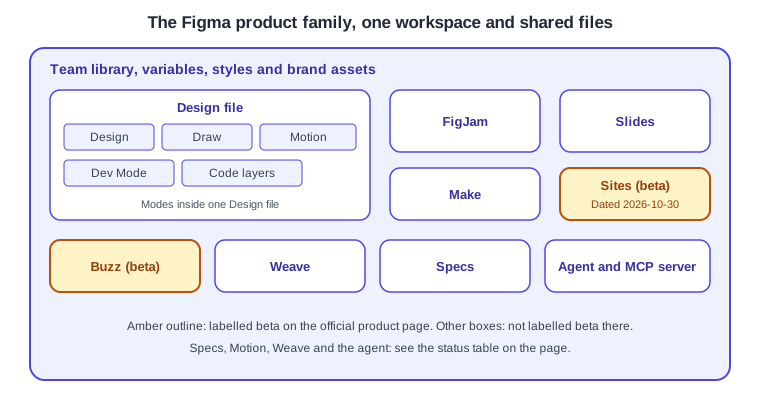
The product family shares assets. Libraries, variables and styles made for one product are used by the others, so a colour defined once appears in a design, a presentation and a generated prototype.
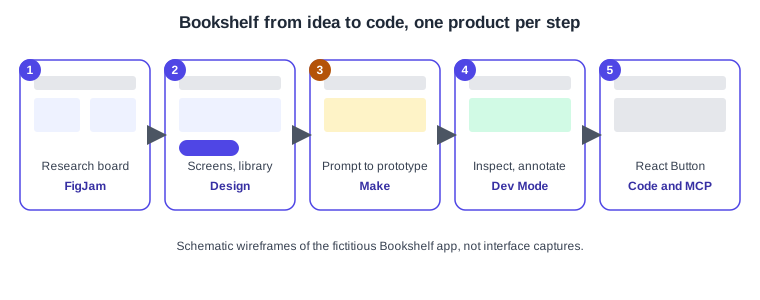
The running example on every page is Bookshelf, a fictitious app for finding books and leaving reviews. It is used here to show which product does which job.
The product family
The official product list names the following products. Only Sites and Buzz carry a Beta label on that page. Motion and Weave are marked "New", which is not a release status, so this page does not call them generally available or beta. Other products are simply not labelled beta there. Where a status is not stated by the official page, treat it as something to confirm before relying on it.
| Product | What it is for | Status on the official page, 2026-10-30 |
|---|---|---|
Figma Design |
The main editor for interface design, components, auto layout and prototypes. It also contains the Draw and Motion modes, Dev Mode and code layers. |
Not labelled beta |
Dev Mode |
Inspect designs, annotate, mark sections ready for development, and connect to code through Code Connect and the MCP server. Dev Mode is a view inside Figma Design. |
Not labelled beta |
FigJam |
An online whiteboard for workshops, research boards, affinity clustering and user flows. |
Not labelled beta |
Figma Slides |
Presentations that reuse the team’s design assets. |
Not labelled beta |
Figma Make |
An AI tool that turns prompts and designs into working prototypes and apps. |
Not labelled beta |
Figma Draw |
Illustration and vector tools inside Figma Design. |
Not labelled beta |
Figma Motion |
Animation with a keyframe timeline. |
Marked "New" |
Figma Weave |
AI workflows for imagery, video and audio. Billed separately from the other products. |
Marked "New" |
Figma Sites |
Designing and publishing websites. |
Beta |
Figma Buzz |
Producing on-brand static assets, such as social cards, in bulk. |
Beta |
Source: Figma Learn: Figma products
Three more items complete the family but are not on that list, so their status comes from the issue baseline and should be re-checked before use. Figma Specs is documented as an open beta. Code layers, which add code-backed layers to a design, are described in Code Layers. The Figma agent, covered in The Figma Agent and Skills, is recorded as generally available since 2026-10-06, and the Figma MCP server, covered in The Figma MCP Server, is the way coding agents read design context.
Source: Figma Learn: Figma products
File types
Each product creates its own kind of file. A Design file holds the Design, Draw and Motion work, with Dev Mode as a view
of the same file. FigJam, Slides, Make, Sites and Buzz each open as their own file type, and the file browser shows which
is which. Because they share a workspace, a FigJam board and a Design file for the same project sit in the same folder
and the same permissions apply. The file browser, sharing and the local .fig copy are described on
Files, Folders, Teams and Sharing.
Where products appear in UI3
UI3 is the only interface: it was announced on 2024-06-26 and the old interface was retired on 2025-04-30. The left
navigation bar was redesigned on 2026-01-07 with tabs such as Files, Agents, Assets, Tools and Variables. Inside an
editor, a floating toolbar sits at the bottom of the canvas, and the Actions menu opens with Cmd+K on macOS and
Ctrl+K on Windows. It searches commands, so it is a quick way to find a tool whose button you cannot see. The full tour
is on Interface Tour.
Which product for which job
For Bookshelf the team moves through the family in this order. The first diagram is the decision tree, and the second shows the journey.
Source: Figma Learn: Figma products
Source: Figma Learn: Figma products
In the diagram, step 1 is the research board, step 2 the screens and library, step 3 an optional prompt-driven prototype, step 4 inspection and annotation, and step 5 the code.
Procedure: choose the product for a task
-
Write the output you need in one sentence, for example "a catalogue screen for Bookshelf".
-
Match it to a row of the table above. A screen or component goes to Figma Design, a workshop board to FigJam.
-
Check whether the matching product is labelled beta. If it is, plan for change and keep a fallback.
-
Open the left navigation bar and use the create action for that file type, or press
Cmd+KorCtrl+Kand search for the product name. -
Save the file into the Bookshelf folder so that teammates share its permissions and libraries.
Source: Figma Learn: Figma products
Plans and seats in one paragraph
Plans are Starter, Professional, Organization and Enterprise, plus Education and Government. Seats are Full, Dev, Collab and View, a model in place since 2025-03-11. A Full seat can create across products, a Dev seat is aimed at developers using Dev Mode, a Collab seat is for contributors who comment and work on boards, and a View seat is for reading. Exact rights per product vary, so confirm them on Plans, Seats and AI Credits. This page does not document a "Content seat": it is absent from the current official pages.
Source: Figma Learn: Compare seats
What older guides say that is now different
Guides written before 2025 describe a Figma that has changed. The points below are summarised as corrections with dates, and the full list is on What Changed Since Older Guides.
-
Interface. Older guides show the previous interface with a top toolbar. UI3 has been the only interface since 2025-04-30.
-
Products. A guide that treats Figma as a design editor and FigJam as a separate extra predates Slides, Make, Sites, Buzz, Draw, Motion and Weave. FigJam is no longer a new launch, and Make was described as beta in a 2025 guide but has been generally available since 2025-07-24.
-
Seats. "Editor" and "viewer" seats were replaced, first by per-product seats and, since 2025-03-11, by Full, Dev, Collab and View.
-
Folders. What older guides call projects have been folders since 2026-08-03. The REST API still says "projects".
-
Platforms. A claim that Figma does not run on tablets is outdated, as a mobile app and a desktop app now exist.
-
Migration. Adobe XD is in maintenance mode and Figma has no official importer for it.
Source: Figma release notes
Pitfalls
-
Treating a beta product as stable. Sites and Buzz are labelled Beta, so behaviour and limits can change between releases.
-
Assuming all products share one seat. Check the seat for each product before inviting people.
-
Copying instructions from a pre-UI3 article. Menu locations differ from the current interface.
-
Using Figma’s name or marks in your own artwork. The brand rules ask that Figma be used as an adjective and that its marks are not modified or imitated; this site’s figures use generic schematic drawings instead.
Source: Figma: Using the Figma brand