Figma AI Tools
|
This content was generated with the assistance of AI and should be verified against the official Figma documentation before being relied on in production. This sub-section’s Figma bibliography lists the reference material consulted while preparing these pages. |
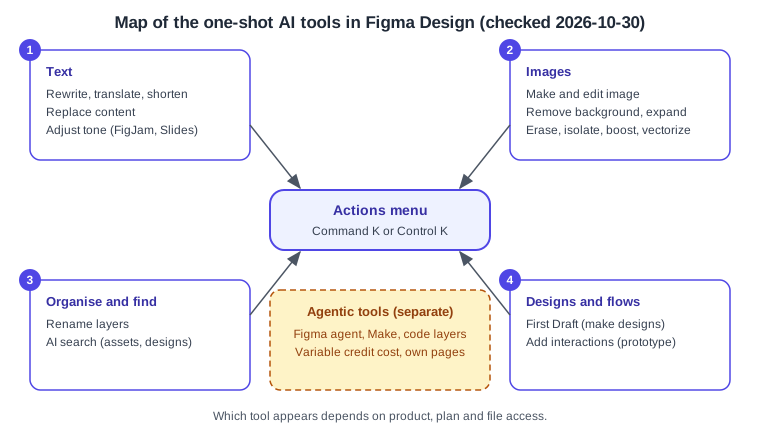
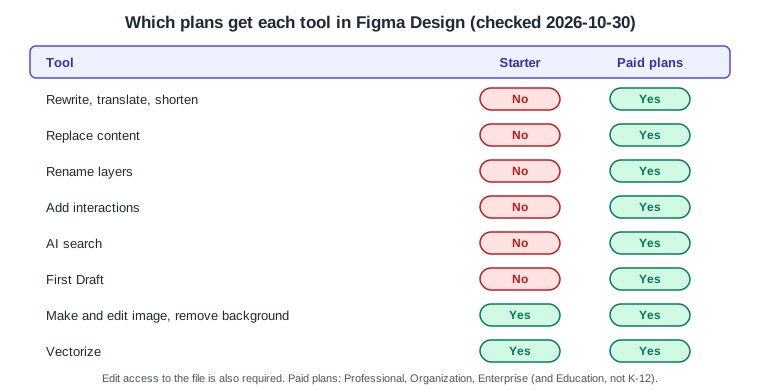
This page was written on 2026-10-30 against the UI3 interface. It covers the single-action AI tools in Figma Design, the ones you run on a selection and review, with notes on where the same tools appear in FigJam, Slides, Sites and Buzz. These tools are part of Figma Design itself and are not a separate product. Plan and access differ per tool: text tools, rename layers, replace content, add interactions and AI search are documented as paid-plan features (Professional, Organization, Enterprise and Education, not K-12), the image tools are also offered on Starter in Figma Design, and every tool needs edit access to the file. The help centre says some features are beta-only or rolling out gradually, and individual tool articles often do not state a beta or GA status, so check the article when status matters. The conversational Figma agent, Figma Make and code layers are covered separately on The Figma Agent and Skills, Figma Make and Code Layers. Seats and credit allowances are on Plans, Seats and AI Credits. For using AI to prototype outside Figma see Prototyping with AI.
The running example is the Bookshelf app: a screen of book cards (cover, title, "Add to shelf" button) that needs tidy layer names, realistic copy, a placeholder cover and a first prototype flow.
Where the tools live in UI3
Most tools start from the Actions menu in the bottom toolbar. Open it with its toolbar icon, or with Command K on macOS or Control K on Windows. The menu has four areas: Figma AI tools, common productivity actions found by keyword, asset search (including finding designs similar to a selected object) and plugins and widgets. Image tools that act on a selected image also appear in the secondary toolbar that shows above the selection, often under More. The Figma agent opens from the Agents entry in the left navigation bar, or with Command Enter or Control Enter on a selected layer.
First Draft: make designs from a prompt
First Draft turns an idea into editable designs. Open Actions, choose First Draft, optionally pick a website or mobile app library (if you skip this, Figma AI chooses one), enter a prompt or pick a suggestion, generate, and preview the themes shown under the prompt. The article lists it for Professional, Organization, Enterprise and Education plans with edit access. Its entry point is changing: the help article says that from 2026-05-20 the Figma agent is the new entry point for this functionality, and that agent was then rolling out gradually. Treat First Draft as a feature whose menu location may differ in your account, and look for it in the agent if it is missing from Actions. Whether it can draw on your own design system is not stated in the material checked for this page, so test it with your library before promising that to a team.
Rename layers
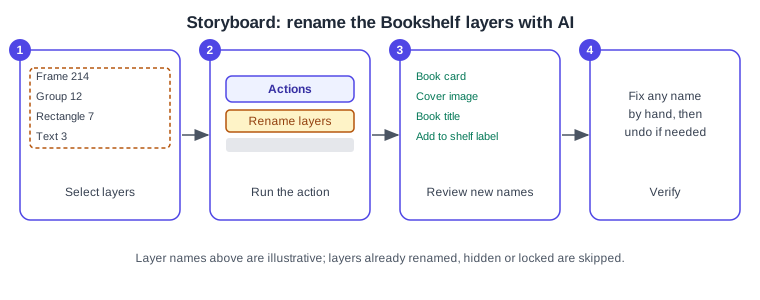
Rename layers gives layers meaningful names based on their contents, location and relationship to the other selected layers. Select layers, then right-click and choose Rename layers, or choose it from Actions, or type it into the quick actions menu. It renames frames, groups, text layers, image-filled rectangles and instances that still carry their main component’s default name. It skips layers you already renamed, hidden or locked layers, layers nested inside an instance, individual vector shapes and rectangles without an image fill. If nothing needs renaming, a message appears with a Rename anyway option. Matching unnamed layers in several top-level frames are renamed together so that prototype settings keep working. It is free in AI credits and, per the help article, needs a paid plan and edit access.
Procedure: name the Bookshelf card layers.
-
Select the Bookshelf screen frame and its children in the layers panel.
-
Right-click and choose Rename layers (or use Actions).
-
Read the new names in the layers panel and fix any that are wrong; undo if the result is not useful.
-
Layers you named by hand earlier are left alone.
Text tools: rewrite, translate, shorten, tone
Select a text layer, open Actions, and choose Rewrite this (enter a prompt, then click Rewrite), Shorten, or Translate to (pick a language). The article lists Figma Design, FigJam, Slides, Sites and Buzz, paid plans and edit access; in Buzz these live in the inline toolbar’s AI tools menu. Adjust tone, available in FigJam and Slides, is reached through Rewrite this and then Adjust tone: move the dial or pick a preset (Executive, Technical, Basic or Educational). The older AI text suggestions feature is retired. The articles do not state character limits or a list of languages.
Replace content swaps placeholder or duplicated text for realistic copy. Select one or more text-containing objects, open Actions, choose Replace content and add a prompt for context. It works in Figma Design and Sites, suits repeating elements such as lists, cards and tables, and cannot generate or replace placeholder images; use Make an image for those.
Procedure: fill the Bookshelf cards with realistic copy.
-
Duplicate the book card five times so the list has six cards with the same placeholder text.
-
Select the six cards, open Actions and choose Replace content.
-
Enter a prompt such as "Fictional science fiction titles with author names" and click Replace content.
-
Select the "Add to shelf" label, open Actions, choose Shorten if it wraps, and check the result.
Image tools
The image tools are documented in one article for Design, FigJam, Draw, Slides, Sites and Buzz, with small differences in where each button lives. The article says they are available on paid plans and on the Starter plan in Figma Design.
-
Make an image: select a layer to fill it, or deselect everything to create a new image layer, then open Actions and choose Make an image. Enter a prompt, pick a model from the dropdown, optionally add a reference image, and send.
-
Edit with prompt: in Design, Slides and Sites use the secondary toolbar.
-
Remove background: select one or more images and use the secondary toolbar (Design, Slides, Sites).
-
Erase or isolate: select the image, open Select area, draw over the area with the lasso, then click Erase or Isolate (Isolate makes a new image layer). Not listed for Sites.
-
Expand: open More, then Expand, and drag the handles or pick an aspect ratio. Not listed for Sites.
-
Boost resolution: select images and use More in the secondary toolbar.
-
Vectorize converts a raster image to editable vector layers with a Recolor setting (full color with a number of colors, grayscale with a number of grays, or black and white with a threshold). It is documented for Design, Draw, Slides and Buzz, and is not available in Slides on Starter. Complex or low-resolution images may vectorize poorly; running Remove background or Boost resolution first can help.
Procedure: make a placeholder cover for a Bookshelf card.
-
Select the cover rectangle on the first card.
-
Open Actions and choose Make an image.
-
Enter a prompt describing a generic abstract book cover, choose a model and send.
-
If the background is busy, select the image and use Remove background from the secondary toolbar.
Add interactions and AI search
Add interactions connects frames in a selection. Select the frames, open the Prototype tab in the right sidebar, and click Add interactions in the Interactions section. A banner offers Preview; click Keep it to accept. The AI can create simple flows between top-level frames, wire back and next buttons, and link a navigation menu to frames. Consistent layer names improve the result, which is a good reason to run Rename layers first. Remove connections individually, or right-click the canvas and choose Remove all connections. The article lists Figma Design and a paid plan. The prototype features themselves are on Prototyping Basics.
AI search finds components and designs by description or by image. Use Actions with keywords, choose Find more like on a selected layer, or search in the Assets tab. It covers files you can access, Community files and component names and descriptions, in Figma Design and Slides, on paid plans. It is free in credits.
AI credits
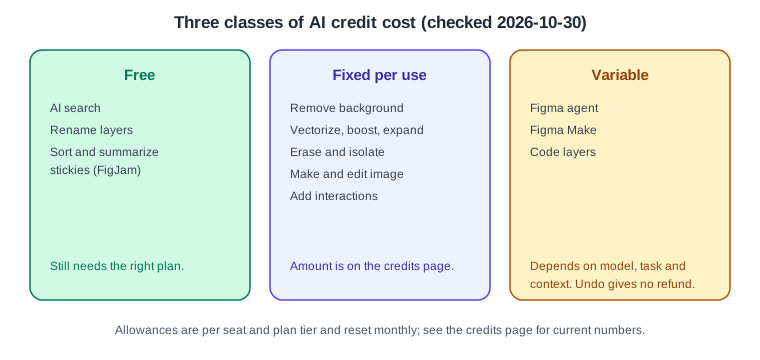
AI credits meter AI use and are tied to seat and plan tier: every seat on every plan includes some, Full seats on the higher plans get larger monthly allowances than Starter, credits reset monthly and do not roll over, and Starter and View seats also have a daily limit. The exact numbers change, so read them on the credits page rather than here. The costs fall into three classes, summarised below: free actions (AI search, rename layers, sorting and summarizing FigJam stickies), fixed-cost actions (image tools, add interactions) and variable-cost agentic features (the agent, Make, code layers). Undoing an action does not refund credits. Track your balance under Main menu, then AI balance; hover the AI credits icon under a finished result to see its cost.
Admin controls
-
Enterprise: only organization admins can turn AI features on or off for the whole organization (Admin, then Settings, then AI), with optional per-workspace overrides. When AI is off for a space, members can still use AI in drafts and in other enabled spaces.
-
Professional and Organization plans: the AI features toggle appears only if AI was disabled during the beta; once re-enabled it stays on. Starter admins see a similar enable option under Manage AI settings.
-
Credits: admins can add credits by subscription or pay-as-you-go billing, set a custom monthly limit for a person, or restrict a person to seat-included credits. Organization or billing-group defaults need Enterprise. Enterprise organizations can also read usage through the AI Usage API.
-
Content training is a separate setting from AI access. It is on by default for Starter and Professional teams (admins can turn it off) and off by default for Organization and Enterprise. Turning it off does not remove access to AI features.
Limitations and ethics
-
Results can be inaccurate or incomplete; verify them, and check generated copy and images for licensing, bias and fit with your brand before shipping.
-
Tell collaborators and users when AI-generated output is presented as part of the work. Figma labels some outputs, such as summarized stickies.
-
Figma AI uses a mix of first-party and third-party models. Figma states that third-party providers cannot train on customer data and must delete inputs and outputs after processing, and that customer content is used for training only when an admin enables content training.
-
Education users in K-12 are not eligible, and Figma for Government has only Figma Make.
-
Errors have documented fixes: retry, reload, reduce the selection, shorten prompts, name prototype layers, or wait for rate limits. If you can reach a feature but cannot generate, check your credits.
Source: Figma: Building Figma AI
Where older guides are outdated
-
Older books that call FigJam AI or Figma Make "in beta" are out of date: the Figma agent and Weave tools moved from open beta to general availability on 2026-10-06 per the help centre, and Figma Make has been generally available since 2025-07-24. Many individual tool articles do not state a status, so do not assume beta.
-
The retired "AI text suggestions" feature is no longer available; the text tools above replace it.
-
Guides that do not mention AI credits predate the credit system; see the credits section above.
-
The agent, generative plugins and custom skills post-date all of the books; see The Figma Agent and Skills.
-
Old-interface (UI2) instructions do not match UI3, which has been mandatory since 2025-04-30. The full list is on What Changed Since Older Guides.