Smart Animate
|
This content was generated with the assistance of AI and should be verified against the official Figma documentation before being relied on in production. This sub-section’s Figma bibliography lists the reference material consulted while preparing these pages. |
This page was written on 2026-10-30 against the UI3 interface of Figma Design. Smart animate is a prototype transition available on all plans, and building prototypes needs edit access to the file, which in practice means a Full seat. It is generally available, not a beta. Playing a prototype only needs access to the link. The Prototype tab, connections and the other transitions are covered on Prototyping Basics and Transitions, Easing and Springs; this page is about the one transition that does not play a canned effect but works out the animation from the difference between two frames. Keyframe animation on a timeline is a different tool, described on Figma Motion.
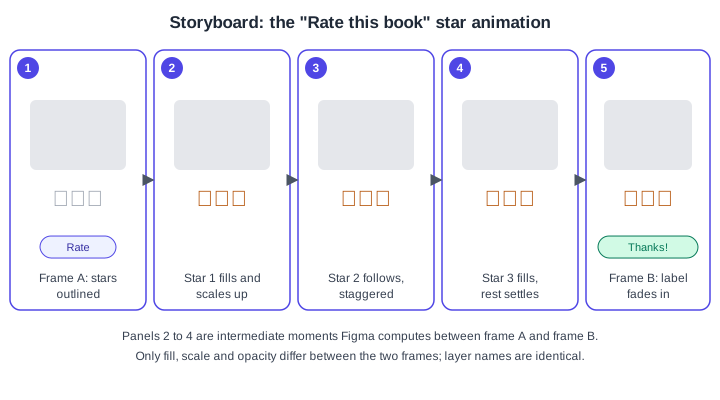
The running example is the Bookshelf app. A reader taps a row of outlined stars on a book’s detail screen, the stars fill in one by one, and a "Thanks!" label fades in. It is built from two frames and a single Smart animate connection.
The idea: compare two frames
Smart animate looks at the start frame and the destination frame of a connection, pairs the layers that exist in both, and animates whatever differs between each pair. You never draw the in-between motion; you only design the first and the last state. Pairing is based on the layer name and the position of the layer in the hierarchy. Anything without a partner is handled by fallback rules, and a pair whose properties are identical is simply not animated.
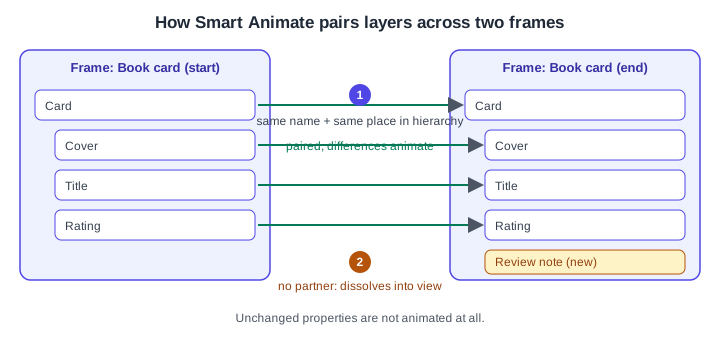
Where it lives in UI3
Select the start frame (or a layer inside it) in the Prototype tab of the right sidebar, drag a connection to the destination frame, and set the transition in the Interaction details to Smart animate. There you also set the easing and the duration. Easing curves and springs are explained on Transitions, Easing and Springs. The Actions menu (Cmd K on macOS, Ctrl K on Windows) can find the commands; duplicating a frame is Cmd D or Ctrl D. Confirm shortcuts in your app, because they can change.
What Smart animate can animate
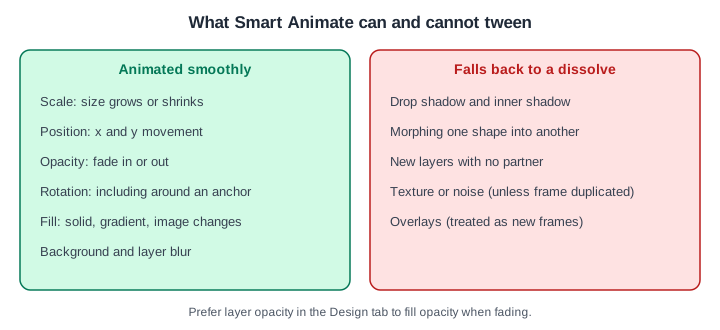
The official article lists these properties as supported:
-
Scale: an object whose size changes grows or shrinks.
-
Position: objects move between x and y coordinates.
-
Opacity: objects fade in or out. Adjusting the layer opacity in the Design tab is recommended over the opacity of a fill, although both work.
-
Rotation: changes of rotation and orientation, including rotating a group around an anchor point.
-
Fill: changes between solid colours, gradients and image fills.
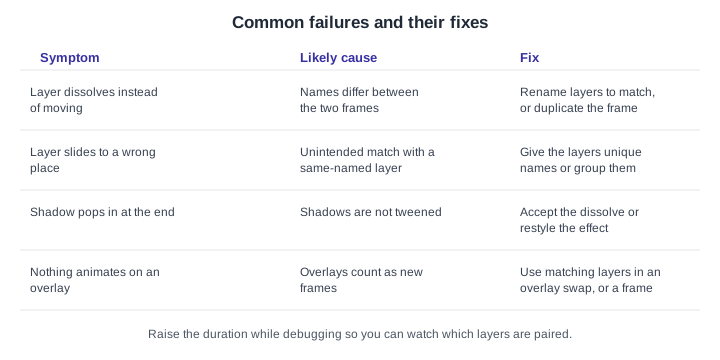
Layer blur and background blur are supported too. Texture and noise are generated randomly, so duplicate the frame to keep them identical; otherwise Figma falls back to a dissolve. Drop shadows and inner shadows are not supported, and neither is morphing one shape into another: both produce a dissolve. New layers that exist only in the destination frame dissolve into view, and layers whose properties do not change are not animated.
Overlays and fixed layers
Overlays are not supported by Smart animate, because Figma treats an overlay as a new frame. Swapping between overlays that contain matching layers does work. Layers with Fix position when scrolling enabled are treated as fixed layers, which changes how they combine with other transitions. Overlays and fixed elements are described on Overlays, Scrolling and Fixed Elements.
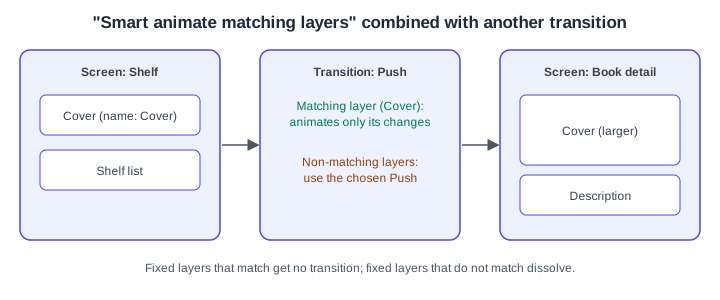
Smart animate matching layers
Smart animate can also be used for only the matching layers while the rest of the connection uses another transition such as Push. In the Interaction details, choose the other transition and enable Smart animate matching layers. Then non-matching layers use the transition you picked, matching layers animate only their differences, fixed layers that match get no transition, and fixed layers that do not match dissolve.
Procedure: the "Rate this book" star animation
-
Open the Bookshelf file and the Book detail screen. Select the frame that holds the row of outlined stars and name it
Detail / rating idle. -
Inside it, name the five star layers
Star 1toStar 5, and name the label layerThanks. Set theThankslayer opacity to 0 in the Design tab. -
Duplicate the frame (
Cmd DorCtrl D) and rename the copyDetail / rating done. Duplicating keeps every layer name identical, which is what makes the pairing work. -
In the copy, change the fill of the first three stars to the amber accent, scale
Star 3slightly larger, and set theThankslayer opacity to 100. -
Switch to the Prototype tab. Select the star row in the first frame (the layer, not the whole frame, so the interaction starts from the tapped element) and drag a connection to the copy.
-
Set the trigger to On click, the action to Navigate to, and the transition to Smart animate. Choose an ease-out curve and a duration of 400 ms while testing; raise it to 1000 ms if you need to see what moves.
-
Hover the connection to see which layers are highlighted as matching, then present the prototype and click the stars.
Layer matching tips
-
Layer names: duplicate frames to keep names consistent, and rename layers in the Layers panel (or in bulk) when they differ.
-
View matching layers: the Prototype tab highlights matching layers when you hover a connection.
-
Layer order and hierarchy: matching layers placed above others can appear above the destination frame during Move in or Slide in. Reorder them if so.
-
Group layers: grouping layers under unique names stops unwanted matches between layers that happen to share a name.
-
Smart animate with Slide in or Move in: the frame fill is not part of the animation, so add a solid-filled rectangle behind the layers.
Smart animate with components and variants
Smart animate applies to components in general. The article above does not describe variants explicitly, so check the current behaviour in your own file. In practice a variant swap is a change of properties on a layer, and the interactive components feature uses the variant change as the destination state; this is explained on Interactive Components and Microinteractions and the variants themselves on Variants and Component Properties. Keep the layer names identical across the variants of a component so overrides and animations line up, as described on Components and Instances. Treat this paragraph as guidance to verify, not a documented guarantee.
Older guides
Older books and tutorials show the previous interface and describe prototyping with the old toolbar and panel names. UI3 has been the only interface since 2025-04-30, and the left navigation changed on 2026-01-07. They also describe the trigger "Mouse move inside/outside", which is now named "Mouse enter/leave". Before 2026 Figma had no timeline for keyframe animation; Smart animate is still the tool for state-to-state transitions, while Figma Motion covers timelines. Source: Figma release notes