Lists, Tables and Collections
|
This content was generated with the assistance of AI and should be verified against the official documentation before being relied on in production; see the section bibliography for the reference material consulted while preparing these pages. |
Almost every screen in FieldNotes is a collection: notebooks in the sidebar, notes in the content column, tags
on a note, a grid of notebook covers. SwiftUI gives you one container for each job: List for rows with
platform behaviour built in (selection, swipe actions, edit mode, separators, sidebars), Table for multi-column
data on the Mac and iPad, and ScrollView with lazy stacks and grids when the design is yours. These declarative
containers replace UIKit’s UITableView and UICollectionView, where the same job took a delegate and data
source imperatively creating and configuring each cell. This page builds FieldNotes' NoteList step by step
and then covers the other containers. It targets iOS, iPadOS, macOS,
watchOS and visionOS 27, built with Xcode 27 and Swift 6.4, with a deployment minimum of 26. Two
features are new in 27 and are guarded in the code: swipe actions outside List, and drag-to-reorder with
reorderable() and reorderContainer.
Where the data comes from (NoteStore, read with @Environment(NoteStore.self)) and how a selection binding
reaches this view are covered on State and Data Flow with
Observation. Row views themselves (NoteRow, TagChip) are built on
SwiftUI Views and Modifiers, and the lazy containers' layout
behaviour on SwiftUI Layout.
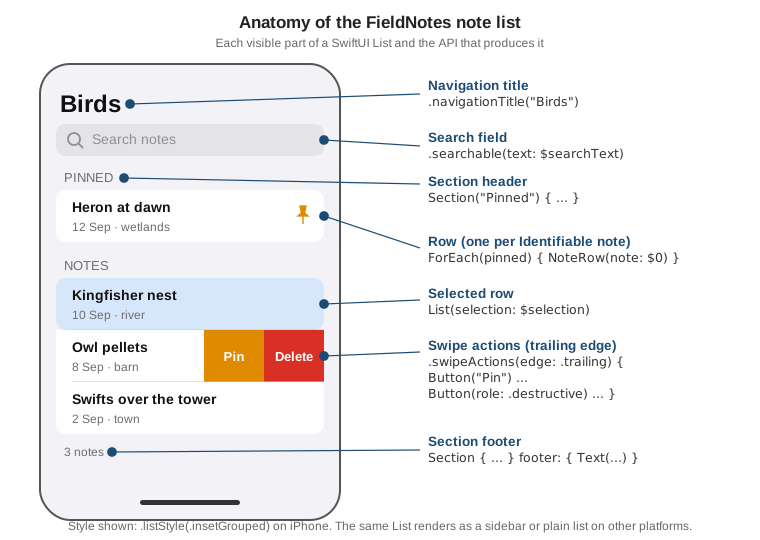
List, ForEach and Identifiable
List shows rows in a scrolling, platform-styled container. Its simplest form takes a collection and a closure
that builds one row per element. SwiftUI must be able to tell elements apart across updates, so it needs an
identity for each one: either the element conforms to Identifiable, as Note and Notebook do, or you name a
key path with id:.
// FieldNotes/Views/NotebookList.swift
import SwiftUI
import FieldNotesModel
import FieldNotesServices

struct NotebookList: View {
    @Environment(NoteStore.self) private var store
    @Binding var selection: Notebook.ID?

    var body: some View {
        List(store.notebooks, selection: $selection) { notebook in
            Label(notebook.name, systemImage: notebook.symbolName)
                .badge(store.notes.count { $0.notebookID == notebook.id })
        }
        .navigationTitle("Notebooks")
    }
}Identity is what lets SwiftUI animate an insertion instead of redrawing everything, keep a row’s @State attached
to the right note, and keep the selection on the right row after a sort. It must be stable (the same note gets
the same ID on every update) and unique within the collection. Note.id is a UUID stored in the note, so it
satisfies both. Two identities to avoid:
-
Array indices (
ForEach(notes.indices, id: \.self)). An index names a position, not a note. After a deletion every following row gets a different note under the same identity, and animations, row state and swipe actions attach to the wrong rows. -
id: \.selfon values that can repeat or change. It is fine for a set of unique tag strings; it is wrong for notes, because editing a title would change the note’s identity.
ForEach is the same idea without the container. It generates views from a collection inside another
container, and it is what lets one list mix static rows with dynamic ones, or group rows into sections. Tags are
plain String values, unique on a note, so they use id: \.self:
// FieldNotes/Views/NoteTagsSection.swift
Section("Tags") {
    ForEach(note.tags, id: \.self) { tag in
        TagChip(tag)
    }
}Sections: Pinned and Other Notes
Section groups rows under an optional header and footer. NoteList splits the notes of the current notebook
into pinned and unpinned ones. The split is a pair of computed properties, not stored state, so it can never
disagree with the store:
// FieldNotes/Views/NoteList.swift (first version)
import SwiftUI
import FieldNotesModel
import FieldNotesServices
import FieldNotesUI

struct NoteList: View {
    @Environment(NoteStore.self) private var store
    let notebookID: Notebook.ID?
    @Binding var selection: Note.ID?

    private var notesInNotebook: [Note] {
        store.notes.filter { $0.notebookID == notebookID }
    }
    private var pinned: [Note] { notesInNotebook.filter(\.isPinned) }
    private var others: [Note] { notesInNotebook.filter { !$0.isPinned } }

    var body: some View {
        List(selection: $selection) {
            if !pinned.isEmpty {
                Section("Pinned") {
                    ForEach(pinned) { note in
                        NoteRow(note: note)
                    }
                }
            }
            Section {
                ForEach(others) { note in
                    NoteRow(note: note)
                }
            } header: {
                Text("Notes")
            } footer: {
                Text("^[\(others.count) note](inflect: true)")
            }
        }
        .navigationTitle("Notes")
    }
}
See Apple Developer Documentation — Section and Apple Developer Documentation — Displaying data in lists.
Because both sections use ForEach over Note, and Note.ID is the selection type, a row in either section can be
selected. Moving a note between sections (pinning it) is an identity-preserving move: SwiftUI animates the row
from one section to the other instead of deleting and inserting it.
In a sidebar, sections can collapse. Section(isExpanded:content:header:) takes a binding, which FieldNotes
stores in @SceneStorage so every window remembers its own state. On iOS the chevron appears with the .sidebar
list style.
@SceneStorage("NotebookList.isNotebooksExpanded") private var isNotebooksExpanded = true

Section(isExpanded: $isNotebooksExpanded) {
    ForEach(store.notebooks) { notebook in
        Label(notebook.name, systemImage: notebook.symbolName)
    }
} header: {
    Text("Notebooks")
}List Styles by Platform
.listStyle(_:) chooses the appearance. .automatic picks the platform’s default for the context, which is usually
right; set a style explicitly only when the design needs it.
| Style | Where it fits |
|---|---|
|
The platform default: inset grouped in an iPhone navigation stack, sidebar in the first column of a
|
|
iOS and iPadOS content lists with rounded section cards, as in the figure above. |
|
Navigation sidebars on iPadOS, macOS and visionOS; enables collapsible sections. |
|
Edge-to-edge rows with no section backgrounds, for dense content lists. |
|
macOS and iOS lists with inset rows but no grouped section backgrounds. |
|
watchOS; FieldNotesWatch uses |
Row-level modifiers (listRowBackground, listRowSeparator, listRowInsets) and list-level ones
(listSectionSpacing, scrollContentBackground) fine-tune the result without leaving List.
Selection
A list becomes selectable when you give it a binding to a selection value. The type of the binding decides the
behaviour: an optional ID (Binding<Note.ID?>) gives single selection, a Set<ID> gives multiple selection.
The rows are tagged automatically with their ForEach identity, so no .tag(_:) is needed when the selection
type matches the element’s ID.
NoteList's selection is single, and it is exactly what drives ContentView's NavigationSplitView: selecting a
row sets selectedNote, and the detail column shows it. On iPhone, where the split view collapses into a stack,
the same selection pushes the detail. Navigation itself is on
Navigation and Presentation.
For bulk operations FieldNotes switches to a Set, and attaches actions to the selection rather than to
one row with contextMenu(forSelectionType:menu:primaryAction:). The menu receives every selected ID, or just
the right-clicked (long-pressed) row’s ID when that row isn’t selected:
// FieldNotes/Views/NoteList.swift (multi-selection variant)
@State private var selectedNotes: Set<Note.ID> = []

List(selection: $selectedNotes) {
    ForEach(notesInNotebook) { note in
        NoteRow(note: note)
    }
}
.contextMenu(forSelectionType: Note.ID.self) { ids in
    Button("Pin", systemImage: "pin") {
        for note in store.notes where ids.contains(note.id) { store.togglePin(note) }
    }
    Button("Delete", systemImage: "trash", role: .destructive) {
        for note in store.notes where ids.contains(note.id) { store.delete(note) }
    }
} primaryAction: { ids in
    // Double-click on macOS, or Return on a selection: open the note.
    if let first = ids.first { selection = first }
}How people make a multiple selection differs by platform. On macOS they Command-click and Shift-click, as in any Mac list. On iPhone and on iPad without a keyboard or pointer, multiple selection needs edit mode (next section). On iPad with a hardware keyboard or trackpad, Mac-style modifiers work too.
Edit Mode
On iOS, iPadOS and visionOS, a list has an edit mode in which it shows selection circles, delete buttons and
reorder handles. The mode lives in the environment as \.editMode, a Binding<EditMode>?, and EditButton
toggles it. onDelete(perform:) and onMove(perform:) on a ForEach tell the list which edits are allowed; with
them present, swipe-to-delete also works outside edit mode.
// FieldNotes/Views/NoteList.swift (edit mode)
List(selection: $selectedNotes) {
    ForEach(others) { note in
        NoteRow(note: note)
    }
    .onDelete { offsets in
        // Resolve the notes first: `others` is recomputed from the store after every delete,
        // so indexing into it inside the loop would hit the wrong notes.
        let doomed = offsets.map { others[$0] }
        doomed.forEach(store.delete)
    }
}
#if os(iOS) || os(visionOS)
.toolbar {
    EditButton()
}
#endif
See Apple Developer Documentation — EditButton and Apple Developer Documentation — onDelete(perform:).
The offsets passed to onDelete are positions in the collection the ForEach iterated, here others, not in
store.notes; mapping them back through the same array is essential. A view that needs to change its own
appearance in edit mode reads the environment value. NoteRow hides its date while editing, through a small
helper that exists only where edit mode does:
// FieldNotes/Views/EditAwareDate.swift
#if os(iOS) || os(visionOS)
import SwiftUI

struct EditAwareDate: View {
    @Environment(\.editMode) private var editMode
    let date: Date

    var body: some View {
        if editMode?.wrappedValue.isEditing != true {
            Text(date, format: .dateTime.day().month())
                .foregroundStyle(.secondary)
        }
    }
}
#endifEditMode does not exist on macOS or watchOS, which is why the toolbar is inside #if os(…) (see
Attributes and Compiler Control). Mac lists
are always "editable": selection uses the keyboard and pointer, and deletion uses the Delete key through
onDeleteCommand(perform:) or a context menu.
onMove(perform:) is the classic way to reorder rows: it adds reorder handles in edit mode and passes the moved
IndexSet and a destination offset, which Array.move(fromOffsets:toOffset:) applies directly. It still works;
from 27 it has a more capable successor, described below.
Swipe Actions
.swipeActions(edge:allowsFullSwipe:content:) attaches buttons that appear when the user swipes a row. FieldNotes
puts Pin on the leading edge and Delete on the trailing edge. Actions appear in the order listed, starting at
the edge the swipe comes from, and the first action on each edge runs on a full swipe unless allowsFullSwipe is
false. SwiftUI applies the .fill symbol variant to icons automatically.
// FieldNotes/Views/NoteList.swift (row with swipe actions)
NoteRow(note: note)
    .swipeActions(edge: .leading) {
        Button {
            store.togglePin(note)
        } label: {
            Label(note.isPinned ? "Unpin" : "Pin",
                  systemImage: note.isPinned ? "pin.slash" : "pin")
        }
        .tint(.orange)
    }
    .swipeActions(edge: .trailing, allowsFullSwipe: false) {
        Button(role: .destructive) {
            store.delete(note)
        } label: {
            Label("Delete", systemImage: "trash")
        }
}Full swipe is disabled for Delete so a fast gesture can’t destroy a note by accident; pinning is harmless and
keeps full swipe. A .destructive button is red and animates the row out. Adding custom swipeActions replaces
the automatic delete action that onDelete provides, so the delete button is listed explicitly. On macOS, swipe
actions respond to a two-finger trackpad swipe; every swipe action should also exist in a context menu or on the
keyboard, because not everyone can or will swipe.
Swipe Actions on Any Container (New in 27)
Before 27, swipe actions worked only on rows of a List. From iOS, iPadOS, macOS, watchOS and visionOS 27 they
work on rows of any container: a ScrollView with a LazyVStack, a grid, or a custom layout. Two additions make
that practical:
-
swipeActionsContainer()on the container coordinates its rows the wayListalways did: only one row’s actions are open at a time, scrolling closes them, and tapping outside the active row closes them. On aListit is a no-op. -
swipeActions(edge:allowsFullSwipe:content:onPresentationChanged:)reports when a row’s actions are revealed or dismissed, so the row can react (dim itself, hide a badge).
FieldNotes' "Recent" feed is a card layout in a ScrollView, not a List, and gets the same actions on 27:
// FieldNotes/Views/RecentNotesFeed.swift
import SwiftUI
import FieldNotesModel
import FieldNotesServices

struct RecentNotesFeed: View {
    @Environment(NoteStore.self) private var store
    @State private var revealedNoteID: Note.ID?

    var body: some View {
        if #available(iOS 27, macOS 27, watchOS 27, visionOS 27, *) {
            ScrollView {
                LazyVStack(spacing: 12) {
                    ForEach(store.notes.sorted { $0.createdAt > $1.createdAt }) { note in
                        NoteCard(note: note)
                            .opacity(revealedNoteID == note.id ? 0.6 : 1)
                            .swipeActions(edge: .trailing) {
                                Button(role: .destructive) {
                                    store.delete(note)
                                } label: {
                                    Label("Delete", systemImage: "trash")
                                }
                            } onPresentationChanged: { isRevealed in
                                revealedNoteID = isRevealed ? note.id : nil
                            }
                    }
                }
                .padding()
            }
            .swipeActionsContainer()
        } else {
            List(store.notes) { note in
                NoteRow(note: note)
                    .swipeActions {
                        Button("Delete", systemImage: "trash", role: .destructive) {
                            store.delete(note)
                        }
                    }
            }
        }
    }
}
See Apple Developer Documentation — swipeActionsContainer() and Apple Developer Documentation — swipeActions(edge:allowsFullSwipe:content:onPresentationChanged:).
On iOS 26 the feed falls back to a plain List, so users on the deployment minimum still get swipe-to-delete.
Drag to Reorder with reorderable() and reorderContainer (New in 27)
onMove(perform:) reorders rows of a List in edit mode, by index. The 27 releases add a more general model that
works in lists, stacks, grids and custom layouts, outside edit mode, with the system drag gesture, and that
reports changes by identifier instead of index:
-
reorderable()on aForEachmarks its views as movable. -
reorderContainer(for:isEnabled:move:)on the enclosing container defines where they can move, and callsmovewith aReorderDifferencewhen the user drops. -
A
ReorderDifferencehassources(the IDs being moved, in the order the user picked them up) and adestinationwhosepositionis.before(id)or.end.
Because the difference names items by ID, it can be applied correctly even when the array changed in the
meantime, for example because a sync inserted a note while the user was dragging. Identifiers must be
Sendable, which Note.ID (a UUID) is.
Pinned notes in FieldNotes are ordered by hand. The move is applied in the app target, because
ReorderDifference is a SwiftUI type and FieldNotesServices doesn’t import SwiftUI:
// FieldNotes/Views/NoteStore+Reorder.swift
import SwiftUI
import FieldNotesModel
import FieldNotesServices

@available(iOS 27, macOS 27, watchOS 27, visionOS 27, *)
extension NoteStore {
    func apply<C>(_ difference: ReorderDifference<Note.ID, C>) {
        let moving = difference.sources.compactMap { id in notes.first { $0.id == id } }
        notes.removeAll { difference.sources.contains($0.id) }

        switch difference.destination.position {
        case .before(let targetID):
            let index = notes.firstIndex { $0.id == targetID } ?? notes.endIndex
            notes.insert(contentsOf: moving, at: index)
        case .end:
            notes.append(contentsOf: moving)
        }
    }
}The pinned section then opts in. Everything that uses the new modifiers lives in one view marked
@available, and NoteList chooses it only on 27:
// FieldNotes/Views/PinnedNotesList.swift
import SwiftUI
import FieldNotesModel
import FieldNotesServices

@available(iOS 27, macOS 27, watchOS 27, visionOS 27, *)
struct PinnedNotesList: View {
    @Environment(NoteStore.self) private var store
    let pinned: [Note]
    let isReorderingEnabled: Bool
    @Binding var selection: Note.ID?

    var body: some View {
        List(selection: $selection) {
            Section("Pinned") {
                ForEach(pinned) { note in
                    NoteRow(note: note)
                }
                .reorderable()
            }
        }
        .reorderContainer(for: Note.self, isEnabled: isReorderingEnabled) { difference in
            withAnimation { store.apply(difference) }
        }
    }
}

// In NoteList.body:
if #available(iOS 27, macOS 27, watchOS 27, visionOS 27, *) {
    PinnedNotesList(pinned: pinned, isReorderingEnabled: searchText.isEmpty, selection: $selection)
} else {
    List(pinned, selection: $selection) { NoteRow(note: $0) }
}
See Apple Developer Documentation — reorderContainer(for:isEnabled:move:) and Apple Developer Documentation — reorderable().
The isEnabled parameter switches reordering off while a search filter is active: dragging among a filtered
subset would move notes relative to neighbours the user can’t see. Apple’s article uses the same parameter to
disable reordering while a model is saving. On iOS 26 the pinned section is the same list without drag-to-reorder;
with a deployment minimum of 27 the else branch and the @available attributes could go.
Moving Between Sections
When a container holds several collections, each ForEach gets reorderable(collectionID:) and the container
uses reorderContainer(for:in:isEnabled:move:) with the collection-ID type. The difference’s
destination.collectionID then says which collection the items landed in. In FieldNotes, dragging a note from
Notes into Pinned pins it:
// FieldNotes/Views/NoteList.swift (27 and later)
// `nonisolated` keeps its `Hashable` conformance usable from the nonisolated `reorderable(collectionID:)` and
// `reorderContainer(for:in:isEnabled:move:)` APIs under the app target's MainActor default isolation.
nonisolated enum NoteGroup: Hashable, Sendable { case pinned, others }

List(selection: $selection) {
    Section("Pinned") {
        ForEach(pinned) { NoteRow(note: $0) }
            .reorderable(collectionID: NoteGroup.pinned)
    }
    Section("Notes") {
        ForEach(others) { NoteRow(note: $0) }
            .reorderable(collectionID: NoteGroup.others)
    }
}
.reorderContainer(for: Note.self, in: NoteGroup.self) { difference in
    withAnimation {
        let pin = difference.destination.collectionID == .pinned
        for id in difference.sources {
            if let note = store.notes.first(where: { $0.id == id }), note.isPinned != pin {
                store.togglePin(note)
            }
        }
        store.apply(difference)
    }
}
See Apple Developer Documentation — reorderContainer(for:in:isEnabled:move:) and Apple Developer Documentation — Reordering items in lists, stacks, grids, and custom layouts.
Reordering covers moves inside the container. Dragging a note out to another window or app, or dropping content
in from outside, uses dragContainer and dropDestination alongside it, as the reordering article shows; drag and
drop in general (draggable(_:) and dropDestination(for:action:isTargeted:) with a Transferable payload) is on
Drawing, Animation and Gestures.
Table on macOS and iPadOS
Table shows rows in multiple columns with headers, sorting and selection. It is the Mac’s natural way to show
data, and it works on iPadOS and visionOS too. FieldNotes offers a table of all notes on the Mac and on a
regular-width iPad:
// FieldNotes/Views/NotesTable.swift
import SwiftUI
import FieldNotesModel
import FieldNotesServices

struct NotesTable: View {
    @Environment(NoteStore.self) private var store
    @State private var selection: Set<Note.ID> = []
    @State private var sortOrder = [KeyPathComparator(\Note.createdAt, order: .reverse)]

    private var rows: [Note] {
        store.notes.sorted(using: sortOrder)
    }

    var body: some View {
        Table(rows, selection: $selection, sortOrder: $sortOrder) {
            TableColumn("Title", value: \.title) { note in
                Label(note.title, systemImage: note.isPinned ? "pin.fill" : "note.text")
            }
            TableColumn("Notebook") { note in
                Text(notebookName(for: note))
            }
            .width(min: 100, ideal: 140)
            TableColumn("Created", value: \.createdAt) { note in
                Text(note.createdAt, format: .dateTime.day().month().year())
            }
            .width(ideal: 110)
            TableColumn("Tags") { note in
                Text(note.tags.joined(separator: ", "))
                    .foregroundStyle(.secondary)
            }
        }
        .contextMenu(forSelectionType: Note.ID.self) { ids in
            Button("Delete", systemImage: "trash", role: .destructive) {
                for note in store.notes where ids.contains(note.id) { store.delete(note) }
            }
        }
    }

    private func notebookName(for note: Note) -> String {
        store.notebooks.first { $0.id == note.notebookID }?.name ?? "None"
    }
}The details worth knowing:
-
Columns with a
value:key path are sortable. Clicking the header updatessortOrder; the table itself never sorts.rowssorts withsorted(using:), so the binding and the data stay in step without anonChange. "Notebook" and "Tags" have no key path, so their headers aren’t clickable. -
Selection works like
List. ASet<Note.ID>gives multiple selection; an optionalNote.IDgives single. -
Compact width shows one column. In a compact horizontal size class (iPhone, or an iPad in Slide Over) a table shows only its first column. Put the most important column first, and on compact widths switch to a
List:
// FieldNotes/Views/AllNotesView.swift
struct AllNotesView: View {
    @Environment(\.horizontalSizeClass) private var sizeClass
    @State private var selection: Note.ID?

    var body: some View {
        if sizeClass == .compact {
            NoteList(notebookID: nil, selection: $selection)
        } else {
            NotesTable()
        }
    }
}Tables also support static rows (Table(of:columns:rows:)), hierarchical rows with disclosure (OutlineGroup-
style children), and user-customizable columns (TableColumnCustomization, stored in @SceneStorage); these
are listed in the Tables collection linked above.
ScrollView with Lazy Stacks and Grids
When a design isn’t a list of rows, use a ScrollView and lay out the content yourself. A plain VStack inside a
scroll view creates every child up front, which is fine for a screen’s worth of content. For long or unbounded
collections use the lazy containers, which create views only as they scroll into view: LazyVStack,
LazyHStack, LazyVGrid and LazyHGrid.
FieldNotes shows notebooks as a grid of covers on iPad, Mac and Vision Pro. GridItem(.adaptive(minimum:))
fits as many columns as the width allows, so one declaration works from a narrow iPad split to a wide Mac window:
// FieldNotes/Views/NotebookGrid.swift
import SwiftUI
import FieldNotesModel
import FieldNotesServices

struct NotebookGrid: View {
    @Environment(NoteStore.self) private var store
    @Binding var selection: Notebook.ID?

    private let columns = [GridItem(.adaptive(minimum: 150), spacing: 16)]

    var body: some View {
        ScrollView {
            LazyVGrid(columns: columns, spacing: 16) {
                ForEach(store.notebooks) { notebook in
                    Button {
                        selection = notebook.id
                    } label: {
                        NotebookCover(notebook: notebook,
                                      count: store.notes.count { $0.notebookID == notebook.id })
                    }
                    .buttonStyle(.plain)
                }
            }
            .padding()
        }
    }
}Lazy stacks can also pin section headers to the top while their section scrolls, which gives a timeline-like feed of notes grouped by day:
ScrollView {
    LazyVStack(alignment: .leading, pinnedViews: [.sectionHeaders]) {
        ForEach(notesByDay, id: \.day) { group in
            Section {
                ForEach(group.notes) { NoteCard(note: $0) }
            } header: {
                Text(group.day, format: .dateTime.weekday(.wide).day().month())
                    .font(.headline)
                    .padding(.vertical, 4)
                    .frame(maxWidth: .infinity, alignment: .leading)
                    .background(.bar)
            }
        }
    }
    .padding(.horizontal)
}
See Apple Developer Documentation — LazyVStack init(alignment:spacing:pinnedViews:content:) and Apple Developer Documentation — Scroll views.
Choosing between them:
| Container | You get for free | You give up |
|---|---|---|
|
Recycling of rows, selection, edit mode, swipe actions, separators, sidebar and inset styles, keyboard navigation and VoiceOver support |
Full control of appearance and layout |
|
Any layout and appearance; creation on demand |
Built-in selection and edit mode; views are created lazily but not recycled, so very long collections use
more memory than a |
|
Exact sizing (a |
Laziness; every child is created immediately |
Scroll position, paging, scrollTargetBehavior and geometry-change callbacks apply to all of these and are covered
on SwiftUI Layout.
Search with .searchable
.searchable(text:placement:prompt:) adds a system search field and binds its text to your state. Where the
field appears is up to the platform and the container: in the navigation bar on iPhone, in the toolbar on the Mac
and iPad, and as a search tab when attached to a TabView with a search-role tab. Filtering stays a computed
property:
// FieldNotes/Views/NoteList.swift (search)
@State private var searchText = ""

private var notesInNotebook: [Note] {
    store.notes.filter { note in
        note.notebookID == notebookID
            && (searchText.isEmpty
                || note.title.localizedStandardContains(searchText)
                || note.body.localizedStandardContains(searchText))
    }
}

var body: some View {
    List(selection: $selection) {
        // Pinned and Notes sections as above
    }
    .searchable(text: $searchText, prompt: "Search notes")
    .overlay {
        if notesInNotebook.isEmpty && !searchText.isEmpty {
            ContentUnavailableView.search(text: searchText)
        }
    }
}
See Apple Developer Documentation — searchable(text:placement:prompt:) and Apple Developer Documentation — ContentUnavailableView.search(text:).
localizedStandardContains(_:) is the Finder-style match: case- and diacritic-insensitive and locale-aware, which
is what users expect from a search field. Attach .searchable to the view whose column should own the field; in
FieldNotes it sits on NoteList, so the field searches the notes of the selected notebook.
Search can also offer tokens, visual chips that stand for a structured filter. FieldNotes turns tags into tokens, suggested from the tags that exist:
struct TagToken: Identifiable, Hashable {
    let name: String
    var id: String { name }
}

@State private var tokens: [TagToken] = []
@State private var suggestedTokens: [TagToken] = []

List(selection: $selection) { /* ... */ }
    .searchable(text: $searchText, tokens: $tokens, suggestedTokens: $suggestedTokens,
                prompt: "Search notes or tags") { token in
        Label(token.name, systemImage: "tag")
    }
    .onAppear {
        suggestedTokens = Set(store.notes.flatMap(\.tags)).sorted().map(TagToken.init)
    }
See Apple Developer Documentation — searchable(text:tokens:suggestedTokens:placement:prompt:token:).
The filter then also requires every token’s tag to be present in note.tags. For free-text suggestions instead of
tokens, searchSuggestions(_:) with searchCompletion(_:) offers completions under the field.
Pull to Refresh with .refreshable
.refreshable(action:) gives a scrollable view an asynchronous refresh action. On iOS and iPadOS, List and
ScrollView show the pull-to-refresh control and keep the spinner visible until the async action returns.
FieldNotes calls the store’s refresh(), which runs the injected NoteSyncing service:
// FieldNotes/Views/NoteList.swift (refresh)
List(selection: $selection) {
    // sections
}
.refreshable {
    do {
        try await store.refresh()
    } catch {
        syncError = error
    }
}The action runs in a task that SwiftUI cancels if the view disappears, so refresh() should respect cancellation
(see Async/Await and Tasks). The modifier doesn’t
only drive the gesture: it puts a RefreshAction in the environment as \.refresh, so any descendant can offer
another way to trigger it, which matters on the Mac, where there is no pull gesture:
struct RefreshToolbarButton: View {
    @Environment(\.refresh) private var refresh

    var body: some View {
        if let refresh {
            Button("Refresh", systemImage: "arrow.clockwise") {
                Task { await refresh() }
            }
            .keyboardShortcut("r")
        }
    }
}How the sync itself works, and running it in the background, are on Networking and Background Execution.
Custom Container Views
List, Picker and TabView accept any content: static views, ForEach, sections, and if branches, mixed
freely. Custom containers can do the same. ForEach(subviews:content:) iterates the resolved subviews of
whatever content the caller passed, so a ForEach of three notes plus one static view gives four subviews, and
Group(subviews:transform:) hands you the whole collection at once, for decisions such as "show the first five
and a count of the rest".
FieldNotes' TagCloud lays out tag chips and collapses the overflow:
// Packages/FieldNotesUI/Sources/FieldNotesUI/TagCloud.swift
import SwiftUI

public struct TagCloud<Content: View>: View {
    private let limit: Int
    private let content: Content

    public init(limit: Int = 5, @ContentBuilder content: () -> Content) {
        self.limit = limit
        self.content = content()
    }

    public var body: some View {
        Group(subviews: content) { subviews in
            HStack(spacing: 6) {
                ForEach(subviews.prefix(limit)) { subview in
                    subview
                        .padding(.horizontal, 8)
                        .padding(.vertical, 4)
                        .background(.tint.opacity(subview.containerValues.isHighlighted ? 0.35 : 0.12),
                                    in: .capsule)
                }
                if subviews.count > limit {
                    Text("+\(subviews.count - limit)")
                        .foregroundStyle(.secondary)
                }
            }
        }
    }
}

extension ContainerValues {
    @Entry public var isHighlighted: Bool = false
}

public extension View {
    func tagHighlighted(_ highlighted: Bool = true) -> some View {
        containerValue(\.isHighlighted, highlighted)
    }
}
See Apple Developer Documentation — Group init(subviews:transform:) and Apple Developer Documentation — Creating custom container views.
Callers use it like any built-in container, mixing dynamic and static content, and mark individual items with a container value:
TagCloud {
    ForEach(note.tags, id: \.self) { tag in
        Text(tag)
            .tagHighlighted(tag == activeTag)
    }
    Text("field")   // a static extra chip
}
See Apple Developer Documentation -- containerValue(_:_:) and Apple Developer Documentation — ContainerValues.
Container values are like environment values that flow up one level: set on a direct subview, readable by its
immediate container through subview.containerValues, and never escaping further. @Entry declares them in one
line, as it does for environment values. A container that should respect the caller’s Sections uses
ForEach(sections:content:), which yields one SectionConfiguration per section with its header, footer and
content:
// A card-style list that keeps the caller's sections.
public struct CardList<Content: View>: View {
    private let content: Content

    public init(@ContentBuilder content: () -> Content) {
        self.content = content()
    }

    public var body: some View {
        ScrollView {
            LazyVStack(alignment: .leading, spacing: 20) {
                ForEach(sections: content) { section in
                    section.header.font(.headline)
                    ForEach(section.content) { subview in
                        subview
                            .padding()
                            .frame(maxWidth: .infinity, alignment: .leading)
                            .background(.background.secondary, in: .rect(cornerRadius: 12))
                    }
                }
            }
            .padding()
        }
    }
}
See Apple Developer Documentation — ForEach init(sections:content:) and Apple Developer Documentation — ForEach init(subviews:content:).
The builder attribute is spelled @ContentBuilder, the unified builder of Xcode 27; how builders turn a closure
into content is in Result Builders, and the SwiftUI side on
SwiftUI Views and Modifiers. The subview APIs are available from
the 18 releases, so they need no availability check in FieldNotes.
Performance Checklist for Long Collections
A list of a few thousand notes stays smooth if a few rules hold:
-
Stable, cheap identity. Use the model’s own ID; never compute an ID in the row.
-
Cheap rows. A row’s
bodyruns whenever something it reads changes. Format dates withText(_:format:)instead of creating formatters, and load images asynchronously. -
Filter and sort once per change. A computed property used by several sections is re-evaluated each time it is read; for large data, compute the filtered array once in
body(let visible = notesInNotebook) and pass it down. -
A constant number of views per
ForEachelement.Listcan count rows without building them only when each element produces a fixed number of views; anifthat sometimes yields no view forces SwiftUI to build rows to find out. Filter the data instead of hiding rows. -
Measure. The SwiftUI instrument shows which views update and why; see Performance and Instruments.
References
-
Apple Developer Documentation — Section init(isExpanded:content:header:)
-
https://developer.apple.com/documentation/swiftui/view/contextmenu(forselectiontype:
-
Apple Developer Documentation — swipeActions(edge:allowsFullSwipe:content:)
-
Apple Developer Documentation — swipeActions(edge:allowsFullSwipe:content:onPresentationChanged:)
-
Apple Developer Documentation — Reordering items in lists, stacks, grids, and custom layouts
-
Apple Developer Documentation — reorderContainer(for:isEnabled:move:)
-
Apple Developer Documentation — reorderContainer(for:in:isEnabled:move:)
-
Apple Developer Documentation — LazyVStack init(alignment:spacing:pinnedViews:content:)
-
Apple Developer Documentation — searchable(text:placement:prompt:)
-
Apple Developer Documentation — searchable(text:tokens:suggestedTokens:placement:prompt:token:)
-
Apple Developer Documentation — ContentUnavailableView.search(text:)
-
Apple Developer Documentation — Creating custom container views
-
Apple Developer Documentation — Group init(subviews:transform:)
-
Apple Developer Documentation — ForEach init(subviews:content:)
-
Apple Developer Documentation — ForEach init(sections:content:)
-
Apple Developer Documentation — Building lists and navigation