Variants and Component Properties
|
This content was generated with the assistance of AI and should be verified against the official Figma documentation before being relied on in production. This sub-section’s Figma bibliography lists the reference material consulted while preparing these pages. |
This page was written on 2026-10-30 against the UI3 interface of Figma Design. Creating and editing variants and component properties is available on every plan and needs edit access to the file, which in practice means a Full seat. Publishing a component set to a library for other files needs a paid plan, and using a library needs at least view access to it. Variants and the boolean, text, instance swap and variant property types are generally available. Slots, a fifth property type, are covered on Slots because their status changes quickly.
The running example is the Bookshelf design system. Its button must exist as primary, secondary, ghost and danger types, each in default, hover, pressed and disabled states, with an optional icon and an editable label. Drawing sixteen separate components would be unmanageable. A component set with two variant properties and three extra component properties describes all of them in one place. The main and instance model is introduced on Components and Instances, and this page builds on it.
The model
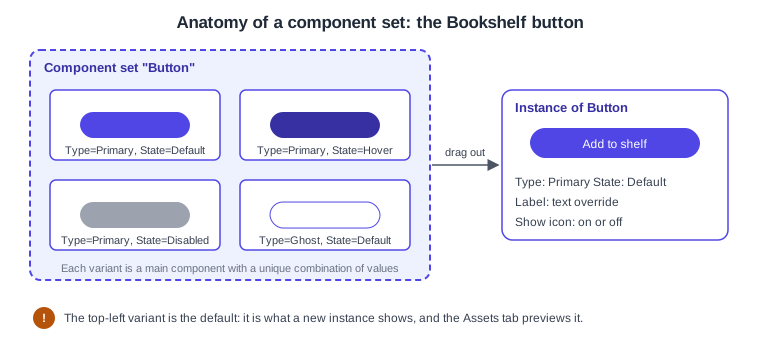
A component set is a container that holds several related main components, called variants. All variants in a set share the same properties, and each variant has a unique combination of values for them. A set can contain only components: text, annotations, nested frames or groups are not allowed inside it. A set does not need every possible combination.
Properties come in two families:
-
Variant properties choose which variant is shown, for example Type (Primary, Secondary, Ghost, Danger) and State (Default, Hover, Pressed, Disabled). They exist only on component sets.
-
Component properties change a layer inside the component without detaching the instance: a boolean property shows or hides a layer, a text property makes a string editable, and an instance swap property replaces a nested instance.
A variant property is technically a kind of component property, and component properties can also be added to a plain main component that is not part of a set.
Where it lives in UI3 and the shortcuts
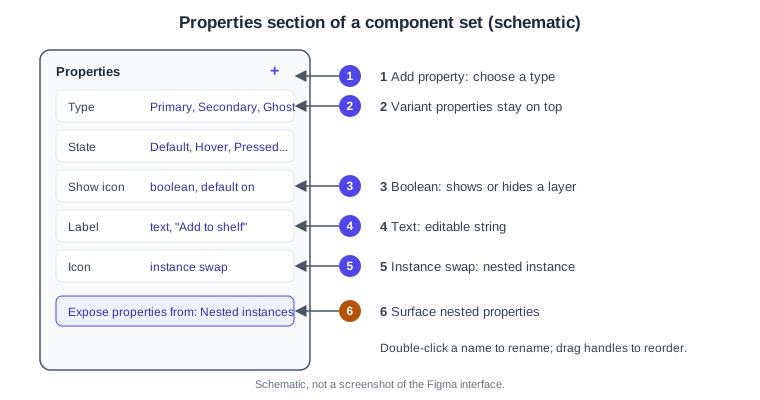
Select a main component or a component set, then use the Properties section of the right sidebar: the plus button adds a property, and each property has its own row for editing. On an instance, the same section shows dropdowns, toggles and text fields instead. Published sets appear in the Assets tab, where the top-left variant is the preview.
| Action | macOS | Windows |
|---|---|---|
Create component |
Option Command K |
Ctrl Alt K |
Duplicate a variant |
Command D |
Ctrl D |
Open the Assets tab |
Option 2 |
Alt 2 |
Delete the selected property |
Delete |
Delete |
Variant properties
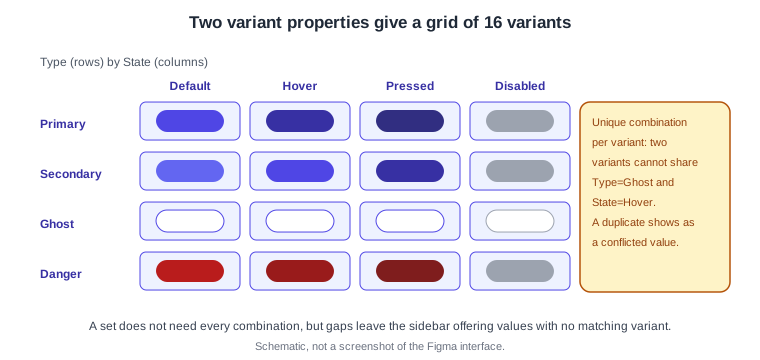
Each variant property has a name and a list of values. The variant in the top-left position of the set supplies the default value of every variant property, so move the variant you want as default to that corner before you publish. Variants can be arranged freely on the canvas and the set can be resized, but the layout carries no meaning other than that default.
Figma generates generic names such as Variant or Property 2 when you combine components. Rename them in the Properties section, because those names are what designers see in the dropdowns of every instance. Reordering properties or values in the sidebar updates the variant names for you. Variant properties always stay above other property types in the list.
The 4 by 4 matrix
Two properties with four values each give up to sixteen variants. Each combination must be unique: two variants with the same values are flagged as a conflicted value even if they look different, and a variant whose name no longer follows the naming syntax is flagged as corrupted. Fix both in the sidebar rather than by editing layer names.
Component properties
| Type | What it controls | Limits |
|---|---|---|
Boolean |
Visibility of one layer, such as the icon of a button. Applied from the Appearance section. |
Only layer visibility is supported. |
Text |
The content of a text layer, editable from the right sidebar or on the canvas. Applied from the Text section. |
Rich text such as list styles or superscript is not supported. Editing a list-styled string from the sidebar removes the list style, so edit it on the canvas. |
Instance swap |
Which component sits in a nested instance slot, with an optional default and a curated list of preferred instances. Applied from the top of the sidebar. |
Works on nested instances, not on arbitrary layers. |
Variant |
Which variant of the set is shown. |
Only on component sets, cannot be applied to a main component or detached from a nested layer. |
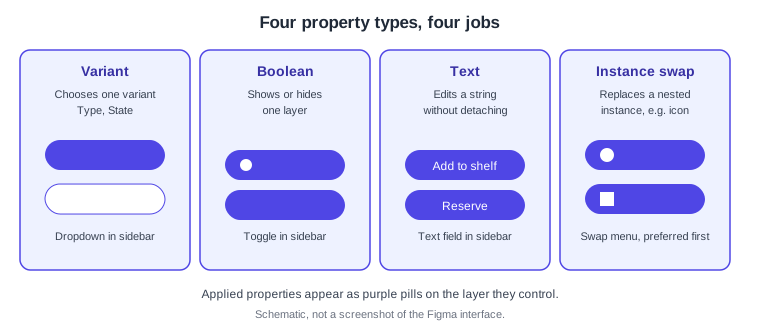
When a property is applied to a layer it shows as a purple pill. You can detach a property from a layer without deleting the property, or switch the pill to another property of the same type. To rename a property double-click its name, to reorder drag the handles that appear on hover, and to delete it right-click and choose Delete property. Deleting the only variant property deletes the whole component set.
Preferred instances
An instance swap property can list preferred instances. In the property’s edit dialog, check the components to include. They appear first when someone opens the swap menu, but searching still finds any other component. Use this to offer the ten icons that suit a button instead of the whole icon library.
Nested properties
When a component contains other instances, you can surface their properties on the parent. Select the main component or component set, choose Nested instances under "Expose properties from" in the Properties section and check the instances to reveal. Their properties then appear next to the top-level ones on every instance, and hovering a property highlights the matching layer on the canvas. The option only appears when the component has nested instances with properties. This keeps the book card simple: it exposes the button label and the rating without the designer opening nested layers.
Naming conventions
Layer names drive variant names when you convert components by name. Name components with slashes, for example Button/Primary/Large/Default/False: the first segment becomes the set name and each following segment becomes a property value, as long as all components have the same number of slashes. Slashes also create hierarchy in the Assets tab and in the instance menu. After conversion, rename the generic property names in the sidebar.
Practical rules for the Bookshelf library: use the same property names across components (Type, State, Size), keep value names short and in one casing, write boolean properties as questions or nouns such as Show icon, and avoid punctuation that makes a name hard to map to code. Names that match your code props help the design-to-code step described on Code Connect.
Procedure: build the Bookshelf button set
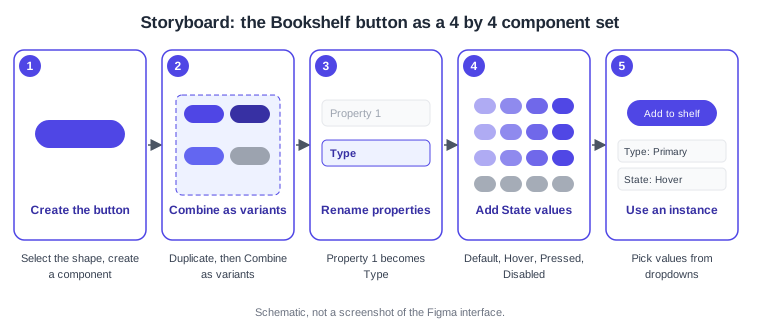
The storyboard summarises the steps.
-
Draw the primary default button as an auto layout frame with an icon and a text layer "Add to shelf" (see Auto Layout).
-
Select it and create a component with Option Command K (macOS) or Ctrl Alt K (Windows).
-
In the Properties section, click the plus button next to Add property and choose Variant. Figma wraps the component in a component set with a generic property.
-
Rename the property to Type and the first value to Primary. Add the values Secondary, Ghost and Danger.
-
Add a second variant property named State with the values Default, Hover, Pressed and Disabled. Figma creates a variant for each new value. Alternatively, duplicate a variant with Command D or Ctrl D and edit it.
-
Style each variant: change fill, stroke and text colour for each type and state. Use multi-edit to change matching layers across variants at once.
-
Move the primary default variant to the top-left corner of the set, since it supplies the default values.
-
Check there are no conflicted or corrupted variant warnings in the sidebar.
Procedure: add the icon and label properties
-
Select the component set and, in the Properties section, click the plus button and choose Boolean. Name it Show icon, keep the default on and create it.
-
With the property row selected, choose the icon layer in a variant and apply the boolean from the Appearance section. The layer now has a purple pill. Repeat for the other variants, or use multi-edit.
-
Add a Text property named Label with the default "Add to shelf" and apply it from the Text section of the label layer in each variant.
-
Add an Instance swap property named Icon pointing at the nested icon instance, and check the preferred icons in its edit dialog.
-
Drag the set onto the canvas and verify that an instance shows dropdowns for Type and State, a toggle for Show icon, a field for Label and a swap control for Icon.
Procedure: expose nested properties on the book card
-
Build a book card that contains a Button instance.
-
Select the book card main component. In Properties, open "Expose properties from" and choose Nested instances.
-
Check the button instance. Its Label and Show icon properties now appear on every book card instance.
-
Rename or reorder nothing here: exposed properties keep the names defined on the button.
Variants in prototypes
Variants are also the basis of interactive components: a hover or pressed state can be a prototype connection between two variants of the same set. This is covered on Interactive Components and Microinteractions.
Common mistakes
-
Putting text, annotations or frames inside a component set: only components are allowed.
-
Leaving property names as Property 1, Property 2, which hides their purpose from every consumer.
-
Two variants with the same combination of values, causing a conflicted value.
-
Importing an instance of a very large set into another file: importing an instance imports every variant of its set, which can slow big files.
-
Consolidating components into booleans and forgetting that prototyping connections between them are removed.
-
Editing rich text from the sidebar and losing list styling.
-
Relying on the layout of the set for meaning. Only the top-left default matters.
Where older guides are outdated
Books and tutorials written before 2026 describe the old interface (UI2); the click paths do not match UI3, which has been the only interface since 2025-04-30. They use the seat names editor and viewer, which were replaced by Full, Dev, Collab and View seats on 2025-03-11, and none of them covers slots, animated components or Check designs. Separately, according to the component properties article, simplified instances are being deprecated from 2026-03-23, so instances show all properties and layers by default. Source: Figma release notes