Theme App Extensions and Web Pixels
|
This content was generated with the assistance of AI and should be verified against the official documentation of each platform before being relied on in production. This section’s bibliography lists the reference material consulted while preparing these pages. |
This page was written against Shopify CLI 5.0.0, the GraphQL Admin API version 2026-10 (the latest stable version,
released on 2026-10-01), @shopify/web-pixels-extension 2.18.0 and the Customer Privacy API feature
consent-tracking-api version 0.2, and checked on 2026-10-27. The Web Pixels API, the Customer Privacy API and Liquid
are not versioned with the Admin API: Shopify lists all three among the surfaces that can change at any time, so the
dates in the changelog entries quoted below matter more than a version number. None of the pages that describe theme app
extensions or web pixels lists a Shopify plan requirement, so both are available to every app on every plan. Theme app
extensions render only in Online Store themes; a headless storefront does not render theme blocks and has its own consent
path, described at the end of the consent section.
An app that wants something to happen on the storefront has two jobs. It may need to show something, such as a rating next to the price or a floating chat bubble, and it may need to observe something, such as which variants customers add to the cart. For about a decade apps did both by editing the merchant’s theme through the Asset API or by registering a remote JavaScript file as a script tag. Those techniques left "ghost code" behind when the app was uninstalled, broke when the theme changed, and gave the merchant no way to see or switch off what the app was doing. Two extension types replace them. A theme app extension ships Liquid blocks, CSS and JavaScript that merchants add or activate in the theme editor. A web pixel extension ships a small JavaScript module that runs in a sandbox and subscribes to the customer events that Shopify publishes. This page explains both in full: the file layout, the block schema, every block target, how merchants activate the blocks and how an app detects that, the deprecation of script tags with the dates that now apply, the pixel sandbox and its APIs, how pixels are activated for a shop, and how consent decides whether any of this code runs.
The page sits after the pages on sections and theme blocks (which
explain the @app block type from the theme side) and on apps
and scaffolding (which explain shopify.app.toml and the CLI), and it uses the access scopes described in
authentication and access scopes. The running example is
the Pocket Coffee companion app. It ships an app block that shows the roast date of the beans on the product page (the
"Roast date badge"), an app embed block with a small Coffee Club widget that used to be a script tag, and a web pixel
that reports add-to-cart and purchase events to a first-party collector. All three respect the visitor’s consent choices.
This page was prepared without a Shopify account, so no extension was ever deployed, previewed in a theme editor or
activated in a store. What did run locally is listed in What was run and what was not: the shopify app build
command on a complete app with one theme app extension and one web pixel extension, Theme Check on the extension and on a
theme that accepts app blocks, deliberately broken variants of both, the bundled pixel executed in a Node harness with
fake events, the consent-gated storefront script executed with a stubbed Customer Privacy API, and every GraphQL document
validated against the downloaded 2026-10 Admin schema. Everything that needs a store, such as shopify app dev,
shopify app deploy, the theme editor and real consent banners, is documented from the official pages and was not
executed.
Script tags, theme edits and the two replacements
Before the extension types existed, an app had three ways to reach the storefront, and the page needs the vocabulary of all three because most real apps still contain at least one.
| Technique | What it did | Status on 2026-10-27 |
|---|---|---|
Asset API edits |
The app wrote a snippet into the merchant’s published theme and edited layout, template or section files to render it. |
The legacy path that the migration guide asks apps to leave. Uninstalling the app leaves the edited code (ghost code) behind, and the edits take the merchant’s theme off its automatic upgrade path. |
Script tags |
The app registered a remote JavaScript file with the |
Deprecated. |
Theme app extensions |
The app ships blocks (Liquid), assets and snippets in an extension. Shopify renders them and merchants control them in the theme editor. |
Current, and required for any App Store app that integrates with a theme. |
Web pixel extensions |
The app ships a sandboxed JavaScript module that subscribes to customer events. |
Current, and the replacement for script tags that only collect data. |
The migration guide states the App Store rule plainly: an app that integrates with a Shopify theme and is submitted to the Shopify App Store must use theme app extensions. Built for Shopify (BFS), Shopify’s badge for apps that meet its quality criteria, adds that such an app must uninstall cleanly using theme app extensions; on 2025-09-25 Shopify extended the grace period for apps that stop meeting that criterion to 60 days before the badge is removed.
Script tag timeline
Script tags are being removed in two separate steps, one for each place they ran. The dates below come from the script tag deprecation pages and the developer changelog entry of 2026-08-24.
| Date | What happens |
|---|---|
2025-02-01 |
Apps can no longer create script tags whose |
2025-08-28 |
Script tags stop running on the Order status page for Plus stores. |
2026-08-26 |
Script tags stop running on the Order status page for all other stores. |
2026-10-01 |
|
2027-03-01 |
Shopify stops injecting script tags into storefront pages. Leftover records have no effect after that date, so deleting them is optional. |
Two details of the schema are worth knowing. The ScriptTagDisplayScope enum has three values in the 2026-10 schema:
ONLINE_STORE, and the deprecated ALL and ORDER_STATUS (the latter "unavailable as a mutation input"). And the
scriptTagCreate mutation is still present in the schema and not marked deprecated there, so a document that creates a
script tag still validates against the schema; it is the runtime that refuses it. The deprecation page also records
that an earlier plan to show a warning banner to merchants who install an app that uses script tags was dropped, so
nothing in the admin will tell the merchant that an app is about to stop working.
Choosing the right extension
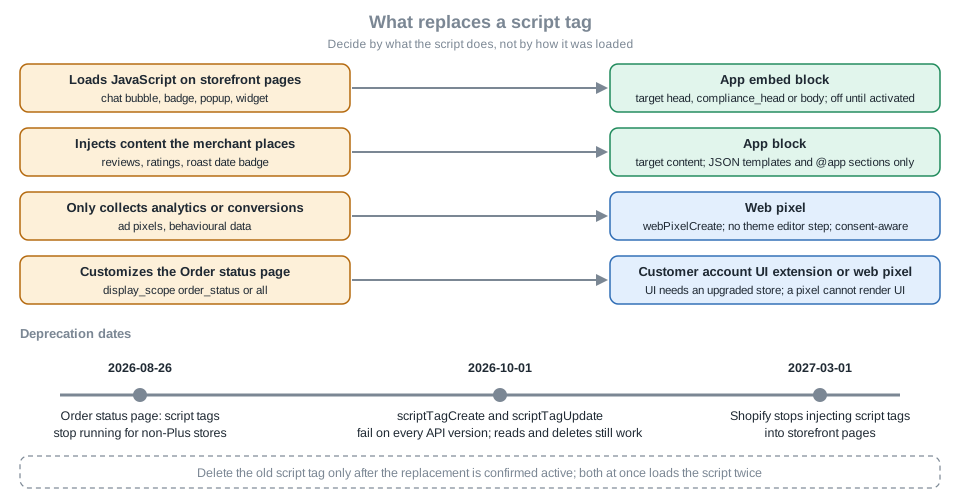
The deprecation page gives a two-row rule that is easy to remember: a script that loads JavaScript on storefront pages becomes an app embed block, and a script that tracks analytics, conversions or customer behaviour becomes a web pixel. The longer comparison below adds the app block and the other surfaces.
| App block | App embed block | Web pixel | |
|---|---|---|---|
Purpose |
Inline content that a merchant positions: reviews, ratings, badges, forms. |
Code with no slot of its own: floating widgets, chat bubbles, meta tags, scripts. |
Observing customer events and sending them to a service. |
Where it runs |
Inside a theme section or theme block that accepts |
Injected before the closing |
In a sandbox on storefront, checkout, thank you, customer account and Order status pages. |
Theme requirement |
A JSON template and a section that supports and renders |
None: vintage themes work too. |
None. |
Merchant control |
Adds, removes and moves it from the Apps section of the theme editor. |
Switches it on under Theme settings then App embeds; off after install. |
Listed under Settings then Customer events; connected by the app with |
Liquid access |
Parent section |
Global Liquid scope of the page only. |
None: there is no Liquid, only the event payloads. |
Consent |
Your JavaScript must check the Customer Privacy API. |
Your JavaScript must check the Customer Privacy API. |
Declared in |
A rule of thumb for the Pocket Coffee app: the roast date badge is an app block, because the merchant wants it next to the product price and the block must follow the product being displayed; the Coffee Club widget is an app embed block, because it floats over every page and has no place in the section layout; the add-to-cart reporting is a web pixel, because it only collects data.
Theme app extensions
A theme app extension is a bundle of app blocks, app embed blocks, assets and snippets that lives in the extensions
folder of the app and is deployed with the rest of the app version. Its advantages over editing themes are the ones the
documentation lists: the app is exposed in the theme editor automatically, every store gets the new version at the same
time through app versions, assets are served from Shopify’s CDN, one set of integration logic works for all themes, and
merchants never touch theme code. Extensions are generated with the CLI:
shopify app generate extension --template theme_app_extension --name pocket-coffee-themeSource: Build theme app extensions
The command needs a logged-in Shopify identity and an app linked to the CLI, so it was not run for this page; in a
non-interactive shell without credentials it stops with "To run this command, log in to Shopify". The template it uses is
public (theme_app_extension in the Shopify/extensions-templates repository). It generates shopify.extension.toml
with name and type, a blocks/star_rating.liquid app block that reads a demo.avg_rating product metafield, a
snippets/stars.liquid snippet, a locale file and a thumbs-up image. The tutorial asks you to create that metafield
definition (area Products, namespace demo, key avg_rating, type Integer) and give at least one product a value, so
that the example block has something to show.
File structure
The generated extension and a populated one look like this. The folder names are fixed; Shopify reads nothing else.
extensions/
  pocket-coffee-theme/
    assets/
      club-widget.js
      club-widget.css
      roast-badge.css
    blocks/
      club_widget.liquid
      consent_defaults.liquid
      roast_date_badge.liquid
    snippets/
    locales/
      en.default.json
      en.default.schema.json
      es.json
shopify.extension.toml| Item | What it holds |
|---|---|
|
CSS, JavaScript, images and other static files. Everything in the folder is served from Shopify’s CDN. A block loads
assets either with the |
|
One Liquid file per block. The file name (without |
|
Reusable Liquid, included from blocks with |
|
JSON translation files. Storefront locale files ( |
|
The extension’s name and type (see below). |
shopify.extension.toml
The configuration file of a theme app extension is deliberately minimal, because the extension’s behaviour comes from the schemas of its blocks.
name = "Pocket Coffee storefront"
type = "theme"| Property | Required | Description |
|---|---|---|
|
Yes |
The name of the extension. It is only seen by the developer; merchants see the name of each block. |
|
Yes |
Always |
|
No |
A unique reference name for the extension inside the app, used in configuration, APIs and the Dev Dashboard. If you do not set one the CLI can generate it. It names the whole extension and is unrelated to the handle of an individual block, which comes from the block’s file name. |
|
No |
Written by the CLI into the files of the newer extension templates; managed by Shopify and not edited by hand. |
When the build ran offline, the CLI derived the handle pocket-coffee-storefront from the name and used it as the log
prefix (the log line reads pocket-coffee-storefront | Running theme check on your Theme app extension...).
App blocks
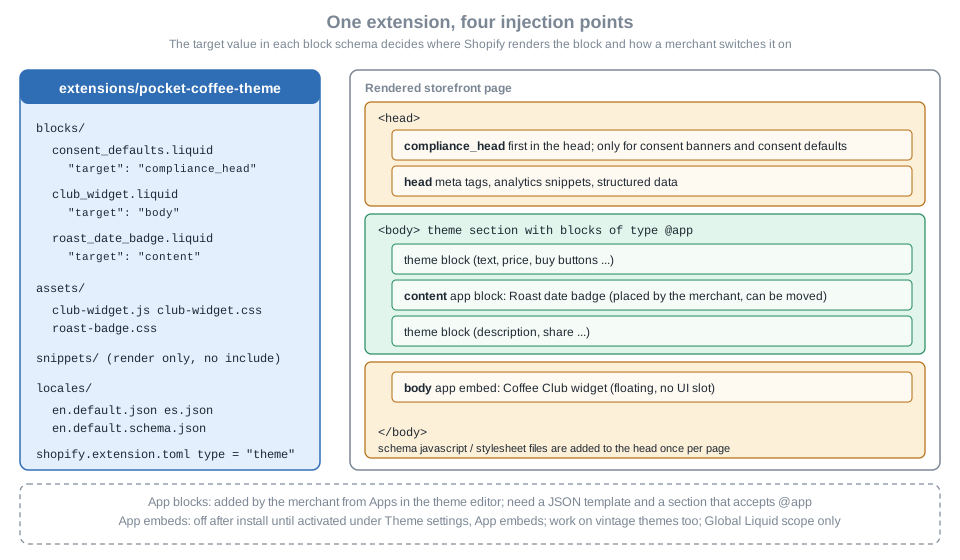
An app block shows inline content that the merchant can place. You create one by setting "target": "content" in the
schema. The older value section still works and behaves identically, but new blocks should use content. By default a
theme has no app blocks after an app is installed: the merchant adds them from the Apps section of the theme editor,
either inside a section that accepts app blocks or as a wrapped block of its own at section level.
Use app blocks for apps whose content should follow dynamic sources (reviews and star ratings), for content that merchants may want to reposition, and for content that should span the full page width. They are the right choice for the Pocket Coffee roast date badge:
{%- liquid
  assign product = block.settings.product
  assign roast_date = product.metafields['$app:roast'].roast_date.value
-%}

{%- if product != blank and roast_date != blank -%}
  <p class="pc-roast-badge" style="--pc-badge-color: {{ block.settings.badge_color }};" {{ block.shopify_attributes }}>
    {{- 'roast_badge.label' | t }}: {{ roast_date | date: '%d/%m/%Y' -}}
  </p>
{%- elsif request.design_mode -%}
  <p class="pc-roast-badge pc-roast-badge--empty" {{ block.shopify_attributes }}>
    {{- 'roast_badge.empty' | t -}}
  </p>
{%- endif -%}

{% schema %}
{
  "name": "Roast date badge",
  "target": "content",
  "stylesheet": "roast-badge.css",
  "enabled_on": {
    "templates": ["product"]
  },
  "settings": [
    {
      "type": "product",
      "id": "product",
      "label": "Product",
      "autofill": true
    },
    {
      "type": "color",
      "id": "badge_color",
      "label": "Badge colour",
      "default": "#6f4e37"
    }
  ]
}
{% endschema %}The block does five things that are typical of app blocks. It reads the product through an autofill resource setting, so
that on a product page it points at the product being shown without the merchant choosing it. It reads an app-owned
metafield through the reserved prefix $app:roast (see App-owned data: metafields and metaobjects). It prints
block.shopify_attributes so that the theme editor can select the block when it is clicked in the preview. It shows an
explanatory placeholder only when request.design_mode is true, that is, inside the theme editor, so the merchant can
see and position the block even before any product has a roast date. And it declares one stylesheet that Shopify loads
once per page however many badges the page contains.
What a theme needs to host app blocks
App blocks only work in themes that contain JSON templates and sections that both support and render blocks of type
@app. The theme side is described in the page on
sections and theme blocks; the essentials for an app developer
are these.
-
A section opts in by listing a generic block of type
@appin its schema, and renders the blocks with thecontent_for 'blocks'tag (or withrender blockinside aforloop oversection.blocksfor section-defined blocks). A block of type@appdoes not accept thelimitsetting; Theme Check reportsProperty limit is not allowedif you add one. -
A section that supports app blocks may contain at most one resource setting of each type as a section setting (one
product, onecollection), to keepautofillunambiguous. -
App blocks are not supported in statically rendered sections.
-
When a merchant adds an app block as a top-level block of its own, Shopify wraps it in a wrapper section. The theme can supply
sections/apps.liquid, or the more generalsections/_blocks.liquid(which accepts both@themeand@appblocks), and both need an@appblock type and a preset; without them the theme editor returns an error and merchants cannot use the section (forapps.liquidthe messages are "Apps not supported" and "Apps section is invalid"). If neither exists, Shopify falls back to a platform-generatedapps.liquid. Theapps.liquidschema cannot use thetemplatesattribute, because the wrapper must be available on all templates.
The following section and wrapper were added to the Skeleton reference theme and checked with Theme Check; they are the smallest theme that accepts the roast date badge on its product page.
{%- comment -%} sections/product.liquid (excerpt) {%- endcomment -%}
<div class="product-info">
  <h1>{{ product.title }}</h1>
  <p>{{ product.price | money }}</p>
  <p>{{ product.description }}</p>
  {% content_for 'blocks' %}
</div>

{% schema %}
{
  "name": "t:general.product",
  "settings": [],
  "blocks": [
    {
      "type": "@app"
    }
  ],
  "disabled_on": {
    "groups": ["header", "footer"]
  }
}
{% endschema %}
{%- comment -%} sections/apps.liquid {%- endcomment -%}
<div class="apps-wrapper">
{% for block in section.blocks %}
{% render block %}
{% endfor %}
</div>
{% schema %}
{
"name": "Apps",
"settings": [],
"blocks": [
{
"type": "@app"
}
],
"presets": [
{
"name": "Apps"
}
]
}
{% endschema %}Source: App blocks for themes
When a merchant adds the badge to the Coffee Club product template, the theme editor saves a reference to the block in
the template’s JSON. The reference has the form shopify://apps/<app handle>/blocks/<block handle>/<unique id>:
{
  "sections": {
    "main": {
      "type": "product",
      "blocks": {
        "roast-badge": {
          "type": "shopify://apps/pocket-coffee/blocks/roast_date_badge/00000000-0000-0000-0000-000000000000",
          "settings": {
            "badge_color": "#6f4e37"
          }
        }
      },
      "block_order": ["roast-badge"]
    }
  },
  "order": ["main"]
}The unique identifier shown here is a placeholder. The product setting is absent from the saved settings because an
autofill setting resolves to a dynamic source and does not need a stored value.
Whether a store’s published theme supports app blocks decides which integration to ship, and the "Verify theme support"
page shows how to find out. With the read_themes scope the app reads the main theme (themes(first: 1, roles: [MAIN])),
fetches the JSON templates it wants to integrate with (templates/product.json, templates/collection.json,
templates/index.json), finds the section whose id is main or whose type starts with main-, reads that section’s
file, and looks for a block of type @app in its schema. If every template passes, use an app block and do not create a
script tag; if not, use an app embed block, which works on vintage themes and in which your JavaScript places content
wherever it needs to, as a script tag did. The onboarding differs accordingly: instructions for adding the block in the
first case, and instructions for a manual step such as pasting a snippet or adding a custom Liquid block in the second.
Only the main section of the default product template is required to support app blocks, although Shopify recommends that
every section with blocks does.
Source: Verify theme support
App embed blocks
An app embed block holds code that has no UI slot of its own, or that floats or overlays the page: chat bubbles, product
image badges, cookie banners, SEO meta tags, analytics and tracking snippets. Shopify renders it and injects it before the
closing </head> or </body> tag, depending on the target:
target |
Where it is injected and what it is for |
|---|---|
|
Inside the document head. For meta tags, structured data and scripts that must be early. |
|
Inside the document head, first, ahead of the other head blocks. Reserved for cases where order matters for compliance, for example cookie consent banners and consent defaults that other scripts read. |
|
Before the closing body tag. For floating components and scripts that can wait. |
App embed blocks are off after installation. A merchant activates them in the theme editor under Theme settings and
then App embeds, and an app cannot activate them on the merchant’s behalf; what the app can do is send the merchant to
the theme editor with the embed already switched on (see Deep links). They work in vintage themes and in Online
Store 2.0 themes alike, because they do not depend on sections or JSON templates, which is why one embed can replace a
script tag for every merchant without maintaining a second installation path. The price of that independence is scope:
an app embed block can only see the Global Liquid scope of the page it is rendered on, so it cannot use autofill or
read a section’s settings. An embed can also limit itself to chosen templates with enabled_on, which a script tag could
never do; loading a script only on the pages that need it is one of the performance arguments for the migration.
The Coffee Club widget is the Pocket Coffee example. It replaces a script tag that used to inject a floating "free shipping above 40 EUR for club members" message on every page.
<div
  id="pc-club-widget"
  class="pc-club-widget pc-club-widget--{{ block.settings.position }}"
  data-locale="{{ request.locale.iso_code }}"
  data-currency="{{ cart.currency.iso_code }}"
  data-threshold="{{ block.settings.free_shipping_threshold }}"
  data-consent-purpose="{{ block.settings.consent_purpose }}"
  data-greeting="{{ 'club_widget.greeting' | t | escape }}"
  hidden
></div>

{% schema %}
{
  "name": "Coffee Club widget",
  "target": "body",
  "javascript": "club-widget.js",
  "stylesheet": "club-widget.css",
  "settings": [
    {
      "type": "select",
      "id": "position",
      "label": "Position",
      "default": "bottom-right",
      "options": [
        { "value": "bottom-right", "label": "Bottom right" },
        { "value": "bottom-left", "label": "Bottom left" }
      ]
    },
    {
      "type": "number",
      "id": "free_shipping_threshold",
      "label": "Free shipping threshold (EUR)",
      "default": 40
    },
    {
      "type": "select",
      "id": "consent_purpose",
      "label": "Consent needed before the widget calls our server",
      "default": "analytics",
      "options": [
        { "value": "none", "label": "None (strictly necessary)" },
        { "value": "analytics", "label": "Analytics" },
        { "value": "marketing", "label": "Marketing" }
      ]
    }
  ]
}
{% endschema %}The markup is only a placeholder div that carries data attributes. The behaviour is in club-widget.js, which the
schema loads, and the consent logic of that script is explained in Gating an app embed on consent. The data
attributes use only objects that exist in the Global Liquid scope: request.locale, cart.currency and the block’s own
settings. The same block could not read product on a product page unless the theme’s Global Liquid scope provides it
there, and that is not guaranteed, which is the practical reason to prefer an app block whenever content must follow a
resource.
A second embed uses the compliance_head target to set safe defaults before any other script runs:
<script>
  window.pocketCoffee = window.pocketCoffee || {};
  window.pocketCoffee.consent = { analytics: false, marketing: false, ready: false };
</script>

{% schema %}
{
  "name": "Consent defaults",
  "target": "compliance_head",
  "settings": []
}
{% endschema %}The script that a block loads through the javascript attribute is added to the page head as <script async>, so its
position relative to other scripts is not guaranteed; an inline script in a compliance_head block is the way to run
something before them. If several blocks on the page reference the same JavaScript or stylesheet file, the file is
included once.
Block schema reference
The schema of an app block or app embed block resembles a theme section schema, with a few attributes of its own.
| Attribute | Description | Required |
|---|---|---|
|
The title shown in the theme editor. Keep it under 25 characters so it fits the sidebar, and do not repeat the app name: the app’s title is shown below the block name in block pickers, the app embeds panel and the app details panel. |
Yes |
|
Where the block goes: |
Yes |
|
A file from |
No |
|
A file from |
No |
|
Limits an app block to specific templates and section groups, or an app embed block to specific templates. Same shape as in a section schema. Blocks can never be rendered on checkout step pages. |
No |
|
The opposite of |
No |
|
Extra CSS classes for the wrapping element. Theme app extensions always add the class |
No |
|
If set, wraps the block’s output in that element; otherwise the wrapper is a |
No |
|
Settings the merchant can edit in the theme editor, read in Liquid through |
No |
|
A default configuration for the block, as in a section schema. |
No |
|
A reference to a boolean app-data metafield that decides whether the block renders and appears in the editor at all. |
No |
Three notes on the table. First, the documentation asks for schemas to avoid cluttering the theme editor: all app embed
blocks of all apps live in one panel, so limit settings to visual ones. Second, app blocks have no presets; they appear
in the picker because their target is content. Third, theme app extensions do not support comments or trailing commas in
JSON, unlike theme files. A trailing comma in a schema is a parse error here.
Conditional blocks with available_if
A block can be shown only to some stores, for example only to a plan tier or a region. The condition is a boolean app-data
metafield that the app writes, read through the Liquid app object:
{% schema %}
{
  "name": "Club members only",
  "target": "content",
  "stylesheet": "app.css",
  "javascript": "app.js",
  "available_if": "{{ app.metafields.conditional.block1 }}",
  "settings": []
}
{% endschema %}The example uses an app-data metafield of namespace conditional and key block1, which must be of type boolean. If
the metafield value is true the block renders and is available in the theme editor; otherwise it is not. The app Liquid object has a single property,
metafields, which exposes the metafields owned by the app. The snippet above was not included in the Pocket Coffee
extension because the extension has no such metafield; the attribute is documented, not executed.
Autofill
autofill is a setting on resource settings (product, collection, article and similar) of app blocks. When the
merchant adds the block to a section, Shopify fills the setting with a dynamic source: the parent section’s resource
setting of the same type, or the template’s global resource. A featured product section has a product setting that
selects the featured product, and an app block with an autofill product setting automatically uses it; on a product
template it uses the product being displayed. That is why a reviews or ratings block never needs an extra step to find
the product. The setting does not exist for app embed blocks, because they only have the Global Liquid scope.
Liquid scope and restrictions
App blocks and embeds are rendered in a restricted Liquid environment. The restrictions are not obvious from the theme side and cause most "it works in my theme but not in the extension" problems.
-
They cannot be rendered on checkout pages: contact information, shipping method, payment method and Order status. Checkout customisation uses checkout UI extensions and thank-you page extensions instead.
-
The
content_for_header,content_for_indexandcontent_for_layoutobjects are not available. -
Of the parent
sectionobject only theidproperty is available. Use it with the Section Rendering API to re-render the section. -
JSON files cannot contain comments or trailing commas.
-
Since 2026-01-13 Shopify enforces stricter Liquid parsing for all themes and requires new theme store and App Store submissions, including theme app extensions, to be strict-parsable. The changelog describes an automatic rewrite, with an explanatory comment, for non-conforming theme files; for an extension, write strict-parsable Liquid yourself and let Theme Check confirm it.
App-owned data: metafields and metaobjects
An extension often needs data that the app manages, such as the roast date. App-owned metafields and metaobjects use the
reserved prefix $app, and the extension can reference them without hardcoding an app ID:
{{ block.settings.product.metafields['$app:roast'].roast_date.value }}
{{ shop.metaobjects['$app:custom']['my_handle'].my_key.value }}Using the prefix means the same Liquid works in a development app and in the production app, which have different IDs. For the badge, the app creates the definition once and then sets a value per product. Both mutations were validated against the downloaded 2026-10 schema:
mutation PocketCoffeeRoastDefinition {
  metafieldDefinitionCreate(
    definition: {
      name: "Roast date"
      namespace: "$app:roast"
      key: "roast_date"
      type: "date"
      ownerType: PRODUCT
      access: { storefront: PUBLIC_READ }
    }
  ) {
    createdDefinition {
      id
      namespace
      key
    }
    userErrors {
      code
      field
      message
    }
  }
}

mutation PocketCoffeeSetRoastDate($ownerId: ID!) {
  metafieldsSet(
    metafields: [
      {
        ownerId: $ownerId
        namespace: "$app:roast"
        key: "roast_date"
        type: "date"
        value: "2026-10-20"
      }
    ]
  ) {
    metafields {
      id
    }
    userErrors {
      field
      message
    }
  }
}
Source: metafieldDefinitionCreate and metafieldsSet
Metafield definitions and ownership rules are the subject of the page on metafields and metaobjects; whether a storefront
can read the value (the access.storefront field above) is part of the definition. The Liquid reads the value the
merchant-facing way, so the badge never needs an API call at render time.
Assets, performance and size limits
Everything under assets/ is served from the Shopify CDN, so the extension never needs its own static hosting. The
extension is validated when it is deployed; if it exceeds an enforced limit, validation fails and the extension does not
update.
| App content | Limit | Enforced or suggested |
|---|---|---|
All files in a theme app extension |
10 MB |
Enforced |
Number of blocks |
30 |
Enforced |
Number of locale files in the extension |
100 |
Enforced |
Size of each locale file |
15 KB |
Enforced |
Size of Liquid across all files |
100 KB |
Enforced |
Size of CSS (compressed) referenced directly by the schema |
100 KB |
Suggested |
Size of JS (compressed) referenced directly by the schema |
10 KB |
Suggested |
The block limit was 25 until 2026-02-03, when Shopify raised it to 30 app blocks per extension. Because app embed blocks can restrict themselves to the templates that need them, the documentation recommends that they load scripts only on specific pages, which keeps the performance cost of the app proportionate to its use; a script tag always loaded on every page.
Building the Pocket Coffee extension offline
The Pocket Coffee extension (three blocks, three assets, two locale files and a schema locale file) was assembled in a
scratch app with a placeholder client ID of 32 zeros and example.invalid URLs, and built with the CLI. The command
needs neither a login nor a store:
export SHOPIFY_CLI_NO_ANALYTICS=1
shopify app build --no-input
Source: shopify app build
The output (trimmed) shows that the build runs Theme Check on the extension and then bundles it:
 pocket-coffee-storefront | Running theme check on your Theme app extension...
 pocket-coffee-storefront | Bundling theme extension pocket-coffee-storefront...

╭─ success ────────────────────────────────────────────────────────────────────╮
│  pocket-coffee-app built!                                                    │
╰──────────────────────────────────────────────────────────────────────────────╯
Theme Check can also be run directly in the extension folder, which is what a CI job should do (the next section explains
why). With the three blocks above it printed 6 files inspected with no offenses found.
A build that passes with errors
A deliberately broken block was added to a copy of the extension (an unused assign, an img without dimensions, a
reference to a missing asset, an include of a missing snippet and a parser-blocking script tag with a remote source).
The result is worth remembering:
-
shopify app buildprinted every Theme Check finding with its location, and still ended withbuilt!and exit code 0. -
shopify theme checkin the extension folder reported the same findings as5 errorsand3 warningsand exited with code 1.
| Check | Severity | Finding in the broken block |
|---|---|---|
|
error |
Missing width and height attributes on img tag |
|
error |
Theme app extension blocks cannot contain |
|
error |
Avoid parser blocking scripts by adding |
|
error |
|
|
error |
|
|
warning |
Use the |
|
warning |
The asset should be served by the Shopify CDN |
|
warning |
The variable is assigned but not used |
So a pipeline that only runs shopify app build will not stop on Theme Check errors in this version of the CLI. Run
shopify theme check inside each theme app extension folder as a separate step, or read its JSON output (-o json,
which has valid, issues and errorCount). The same run showed the limits of the offline check: a block with
"target": "footer", a duplicated setting id and a name of 38 characters was not reported by Theme Check. The schema
is validated when the extension is deployed, so keep the schema table of this page next to you while writing blocks.
Source: Theme Check configuration
Previewing, testing and deploying
The sequence that needs a store is the one in the official tutorial: shopify app dev starts a local development server
with hot reloading and uploads a host theme to the development store (Shopify’s example theme Dawn unless you choose one
with --theme <ID or name>), and the CLI output tells you to open the host theme in the theme editor, add your app block,
save and open the printed preview URL. The preview is available only in Google Chrome, and the local server port can be
set with --theme-app-extension-port. The tutorial lists Ruby and Bundler among the project dependencies. Test with both
an app block and an app embed, and check the things the tutorial names: floating components do not cover page content,
merchants can switch embeds on and off and edit their settings, and blocks can be added, removed and moved.
Releasing works like any other extension. shopify app deploy creates an app version (a snapshot of the app
configuration and all extensions) and releases it, replacing the active version served to installed stores; it can take
several minutes for stores to be upgraded. --no-release creates the version without releasing it, and --version and
--message name it. The page on billing, App Store requirements and deployment covers CI for shopify app deploy.
shopify app dev --theme "Horizon"
shopify app deploy --message "Roast date badge and Coffee Club embed" --no-releaseNeither command was executed for this page; both need an authenticated CLI and an app registered in the Dev Dashboard.
Activation, deep links and detection
Because blocks are inactive until a merchant acts, the app must lead the merchant to the right place and must know whether the merchant got there. Both are part of the migration from script tags: deleting the script tag before the replacement is active leaves a gap in which neither works.
Deep links
After installation the app can send the merchant to the theme editor with a block already added or an embed already activated. The merchant sees a preview and still has to save. The query parameters come from the app and the block.
| Parameter | Meaning |
|---|---|
|
The JSON template to open ( |
|
The app’s API key, equal to |
|
The file name of the block’s Liquid file without extension, for example |
|
Section group to add the block to (app blocks only). |
|
Id of a section that supports app blocks, written with the prefix |
|
For embeds: always |
The URL shapes are these. target=newAppsSection adds the block as a top-level block in a new Apps section,
target=mainSection adds it to the section whose id is main, target=sectionGroup:header (or footer, aside) adds it to
a group, and target=sectionId:<id> adds it to a specific section. An embed is activated with activateAppId.
https://<your-shop>.myshopify.com/admin/themes/current/editor?template=product&addAppBlockId=<api_key>/roast_date_badge&target=mainSection

https://<your-shop>.myshopify.com/admin/themes/current/editor?template=index&addAppBlockId=<api_key>/announcement_bar&target=sectionGroup:header

https://<your-shop>.myshopify.com/admin/themes/current/editor?context=apps&template=index&activateAppId=<api_key>/club_widgetRetrieve the shop domain from the Shop object of the GraphQL Admin API, and keep the placeholders above out of any
public repository: <your-shop> and <api_key> are placeholders. A deep link can add only one app block at a time, only
to sections that support app blocks, and the merchant is shown a coach mark after the block is added. If the deep link
cannot be satisfied the merchant gets one of these messages:
| Scenario | How to prevent it |
|---|---|
Section limit reached in the template or group |
Cannot be prevented; the merchant is invited to remove a section and try again. |
Template not found, section group not found, template is Liquid, section does not support blocks or app blocks |
Check the theme with the |
Template type is not supported by the block’s schema |
Link only to templates allowed by the block’s |
Typo in the URL |
Test every deep link. |
Template has no resource to render (no product, collection or article) |
Cannot be prevented; the merchant is invited to create one. |
Block limit reached in a section |
Cannot be prevented; the merchant is invited to remove a block. |
Detecting whether a block is active
There are two ways to learn whether the merchant added a block or enabled an embed, and the documentation recommends them in this order.
From inside the Shopify admin, call shopify.app.extensions() of the App Bridge App API. It needs no extra access scope
and returns, for each extension of the app, the activation status of every block on the published theme. A status of
active means the block is on the published theme; available means the app ships it but the merchant has not enabled
it. Since 2026-01-23 the method covers theme app extensions as well as admin, checkout and customer account extensions.
const APP_EMBED_HANDLE = 'club_widget';

const extensions = await shopify.app.extensions();

const themeExtensions = extensions.filter(
  (extension) => extension.type === 'theme_app_extension',
);

const isActive = themeExtensions.some((extension) =>
  extension.activations.some(
    (block) => block.handle === APP_EMBED_HANDLE && block.status === 'active',
  ),
);Because the method runs in the browser, the answer only exists when a merchant opens the app, so record it if you need it
later. A block’s handle is its file name, which is why the deep link and the check use the same string.
From the app’s backend, read the published theme’s config/settings_data.json and look for your block type. This needs
the read_themes scope and works without waiting for the merchant. An embed appears in settings_data.json only after
it has been enabled once; if it is disabled afterwards it stays in the file with "disabled": true. App blocks appear in
the JSON template that hosts them, with the shopify://apps/... type shown earlier. The GraphQL query below reads the file
of the main theme; it validates against the 2026-10 schema:
query PocketCoffeeEmbedState {
  themes(first: 1, roles: [MAIN]) {
    nodes {
      id
      name
      files(filenames: ["config/settings_data.json"]) {
        nodes {
          filename
          body {
            ... on OnlineStoreThemeFileBodyText {
              content
            }
          }
        }
        userErrors {
          filename
          code
        }
      }
    }
  }
}The content is a JSON string; parse it and look under current.blocks for an entry whose type starts with
shopify://apps/pocket-coffee/blocks/club_widget/ and whose disabled is not true. Remember that an embed is active
only on the theme on which it was enabled: if the merchant publishes a different theme, check again.
Merchant experience and UX guidelines
Shopify’s UX guidance for theme app extensions is short, and following it is a condition for a good review.
-
App blocks should be responsive to the width of the section they are added to and inherit the theme’s typography and colours rather than hardcode their own.
-
App blocks in the header should have an icon and a text version so they fit inline, keep the interface the same on desktop, tablet and mobile, show icons no larger than 24 by 24 px, and give them a 44 by 44 px hit box.
-
Limit settings to visual ones, particularly for embeds, which all share one panel.
-
Merchants must be able to add, remove and reposition app blocks and edit their settings from the Apps section, and activate, deactivate and edit app embeds from the App embeds section, previewing before they save.
-
The App Store listing must say whether the app needs an Online Store 2.0 theme.
-
Give clear post-install instructions on the app’s onboarding page: ask which theme the merchant uses, because the instructions differ between Online Store 2.0 and vintage themes; explain how to add, remove and reorder app blocks, which templates they support and how to configure them; and for embeds provide a deep link and the list of templates on which the embed will appear.
-
When a merchant uninstalls the app, Shopify removes its blocks from online store themes automatically and entirely.
Source: UX for theme app extensions
Migrating from script tags
The migration is mechanical once you know what the script does. The Pocket Coffee app had one script tag, registered
years ago with scriptTagCreate, that loaded club-widget.js from the app’s own server and injected the floating Coffee
Club message. The steps follow the deprecation page and the migration guide.
-
Audit. List the script tags the app registered for each store with the
scriptTagsquery. Custom apps maintained per client must be checked store by store, with a token the app already holds. Reads and deletes continue to work after 2026-10-01. -
Build the replacement. A theme app extension with an app embed block for a script that loads JavaScript, an app block if the content should be placed by the merchant (this works only on Online Store 2.0 themes), or a web pixel if the script only collects data. For themes that do not support app blocks, the migration guide says to keep a legacy onboarding flow.
-
Stop writing. When a store’s published theme supports app blocks, the app must skip all
POSTrequests to theAssetandScriptTagresources. -
Release before 2026-10-01. After that date a store that installs the app has no script tag and no extension, so it gets nothing unless the replacement is already live.
-
Send the merchant to the theme editor with the embed activated, using a deep link.
-
Confirm that the embed is active on the published theme, with
shopify.app.extensions()or the backend check. -
Delete the script tag with
scriptTagDelete. Running both at once loads the script twice and can double-count analytics events or render the app’s interface twice.
query PocketCoffeeScriptTags {
  scriptTags(first: 50) {
    nodes {
      id
      src
      displayScope
      cache
      createdAt
    }
    pageInfo {
      hasNextPage
      endCursor
    }
  }
}

mutation PocketCoffeeRemoveScriptTag($id: ID!) {
  scriptTagDelete(id: $id) {
    deletedScriptTagId
    userErrors {
      field
      message
    }
  }
}
Source: scriptTags and scriptTagDelete
Both documents validated against the 2026-10 schema. The ScriptTag object has the fields id, src, displayScope,
cache, createdAt, updatedAt and legacyResourceId.
Two groups need special treatment. Script tags with display_scope of order_status or all also fall under the Order
status page schedule, whose replacements are customer account UI extensions (for visual customisation, on upgraded
stores only) or web pixels (any store, but they cannot render UI). And apps created directly in the Shopify admin
(admin-created custom apps) cannot use app extensions at all, so they have no extension-based replacement. If you maintain
such an app, move the script into the theme with a custom Liquid block where possible, or the code editor if you must,
remembering that a script in theme code stays after the app is gone and that editing theme code takes the theme off its
automatic upgrade path. If an agency maintains it, they must do that; if a third-party service asked the store to create
the app and paste a token into the service’s dashboard, the service must release a real app.
Web pixels
A web pixel is a JavaScript module that runs on the store’s pages, subscribes to the customer events that Shopify publishes, and forwards them wherever the app needs: an analytics service, an advertising platform or the app’s own collector. Shopify’s design goal is to remove the need for merchants to paste tracking code, to give the developer only the data the pixel is entitled to, and to avoid the performance and privacy problems of arbitrary scripts that scrape or rewrite the page. The benefits listed in the documentation are the following: eliminating or minimising manual tracking code, secure access to all surfaces (storefront, checkout and post-purchase pages), control over what data the developer can access, no performance or privacy alerts, and smaller pixel libraries because the DOM-manipulation code is gone.
How a pixel receives events
Once the pixel has been created for a shop, it is loaded on that shop’s online store. As a customer browses, they trigger
customer events, which Shopify publishes to a data layer, or event bus. A pixel subscribes to the events it cares about,
transforms the payloads into the format of its endpoint, and sends them. The surfaces are not limited to the storefront:
since 2025-07-21 web pixels also load automatically on customer account pages and on the Order status page, where the
page_viewed event and the Advanced DOM API are supported and custom events can be published from a UI extension. Shops
must use a custom domain for customer accounts (for example accounts.your-store.com) for the customer account pages to
log events.
Three kinds of pixels
| App pixel (web pixel extension) | Custom pixel | Server pixel | |
|---|---|---|---|
Who creates it |
An app developer, deployed with the app and connected per shop by the app. |
The merchant, in the admin under Settings then Customer events. |
An app, through the Admin API. |
Sandbox |
|
|
None in the browser: events are delivered to a cloud endpoint. |
Meant for |
Apps that serve many merchants. |
Merchants who paste legacy third-party tracking code. |
Delivery to a cloud endpoint; the Admin API has |
Settings |
|
No |
Configured through the mutations. |
Privacy |
Declared in |
Set in the pixel’s settings in the admin. |
Not covered by this page. |
Source: About web pixels and Web Pixels API
Shopify says it strongly recommends that developers build apps and encourage merchants to install them instead of
creating custom pixels, for greater integration. A custom pixel in the lax sandbox cannot reach the top frame, so some
properties return different values: for example window.href returns the sandbox URL rather than the top frame’s URL.
The rest of this section is about app pixels. The existence and signatures of the four server pixel mutations were
confirmed in the downloaded 2026-10 schema; their behaviour was not exercised.
Creating a web pixel extension
A web pixel extension is generated with the CLI template web_pixel and offers JavaScript and TypeScript flavours:
shopify app generate extension --template web_pixel --name my-web-pixelThe command needs a login and was not run. The template it copies is public: a shopify.extension.toml, a
package.json that depends on @shopify/web-pixels-extension (the template pins ^2.10.0; npm resolved 2.18.0 on
2026-10-27) and src/index.js that registers a callback and subscribes to page_viewed. The Pocket Coffee extension keeps
that shape:
name = "Pocket Coffee pixel"
type = "web_pixel_extension"
runtime_context = "strict"

[customer_privacy]
analytics = true
marketing = false
preferences = false
sale_of_data = "disabled"

[settings]
type = "object"

[settings.fields.endpoint]
name = "Collector endpoint"
description = "HTTPS endpoint that receives Pocket Coffee events"
type = "single_line_text_field"
validations = [
  { name = "min", value = "8" }
]| Property | Required | Description |
|---|---|---|
|
Yes |
Always |
|
Yes |
The name of the pixel extension. |
|
Yes |
Created and managed by Shopify, generated when the CLI scaffolds the extension; not edited by hand. (The example above omits it because the extension was written by hand; the CLI adds it when it links the extension to the app.) |
|
Yes |
The context the pixel runs in. Must be |
|
No |
The privacy purposes the pixel needs. If the table is missing it defaults to |
|
Yes, if the table is present |
|
|
Yes, if the table is present |
|
|
Yes, if the table is present |
|
|
Yes, if the table is present |
|
|
Yes |
The definition of the settings object. |
|
Yes |
One table per field. Each has a |
To run a pixel without consent (strictly necessary), set analytics, marketing and preferences to false. Whether a
pixel is genuinely essential is a legal question for the merchant, not a configuration choice.
What the offline build checks
The extension was built together with the theme extension. The CLI bundled the pixel in about 20 to 60 ms and printed
pocket-coffee-pixel successfully built in 56ms (0.7 KB original, ~0.4 KB compressed); the bundle is a single IIFE of
759 bytes in which register(...) has been replaced by a call to shopify.extend("WebPixel::Render", ...). Then the toml
was changed in a scratch copy, one defect at a time:
| Change | Offline shopify app build result |
|---|---|
|
Error: |
the |
Error: |
the |
Error: |
|
Accepted by the offline build |
a settings field with |
Accepted by the offline build |
The last two rows show where the offline checks stop. The Admin API has an error code INVALID_RUNTIME_CONTEXT ("the
provided runtime context is invalid") and the docs state that strict is the only valid value, so treat the value as
checked later, when the extension is deployed or the pixel is created, and do not rely on the build to catch it.
The sandbox
App pixels run in a strict sandbox: a web worker. It offers many of the globals of a browser worker, but only the
following are guaranteed:
-
self, a reference to the global object. -
console, the same console as the browser. Shopify asks that production pixels do not log anything. -
setTimeout,clearTimeout,setIntervalandclearInterval. -
fetch,Headers,RequestandResponse. Requests to arbitrary endpoints are allowed, but each endpoint must explicitly support CORS, exactly as forfetch()in a normal worker. Usekeepalive: truefor requests that must survive page unload.
Other globals may be set to undefined or removed at any time, so a pixel must not rely on them. There is no document or
window: anything that scrapes the DOM or writes to it is impossible, which is the point. The sandbox replaces the
useful parts of those APIs with explicit, asynchronous ones:
| Browser feature | Pixel replacement |
|---|---|
|
|
|
|
|
Deprecated in the pixel API; use |
|
A read-only snapshot in |
Reading the cart or customer from the page |
|
Source: About web pixels: sandbox environments, browser and init
The Standard API
The callback passed to register receives one object, the Standard API, which can be destructured. Its properties for app
pixels are:
| Property | What it provides |
|---|---|
|
|
|
Asynchronous cookie, |
|
A snapshot of the page when it rendered: |
|
The settings object saved with |
|
The consent API of the sandbox: |
Source: Standard API
Customer events
Every event delivered to a pixel has the same envelope: id (event id), name, type (standard, custom, dom or advanced-dom),
seq (sequence number), timestamp (ISO 8601), clientId (Shopify’s client-side id of the visitor), context (the
browser snapshot) and data (the payload, specific to the event). The standard events are these:
| Event | When it fires |
|---|---|
|
A customer visited a page. Available on the online store, checkout, Order status and customer account pages; customer account pages log it only if a vanity domain is set up. |
|
A customer visited a product page. |
|
A customer visited a collection page. |
|
A customer performed a search on the storefront. |
|
A customer visited the cart page. |
|
A customer added a product to the cart. |
|
A customer removed a product from the cart. |
|
A customer started the checkout process. |
|
A customer submitted the contact step of checkout. |
|
A customer submitted their mailing address. |
|
A customer chose a shipping rate. |
|
A customer submitted payment information. |
|
A visitor completed a purchase. It fires once per checkout, normally on the Thank you page; for upsells and post
purchases it fires on the first upsell offer page instead and not again on the Thank you page; if that page fails to load,
it does not fire at all. |
|
A customer saw an alert message, inline validation message or warning banner. |
|
An extension failed to render because of an uncaught exception. |
Source: Standard Events
Besides standard events, the DOM Events API provides a subset of interaction events (clicked, form_submitted,
input_blurred, input_changed, input_focused) across storefront, checkout and thank you pages (not on customer
account pages or the Order status page), and an Advanced DOM Events API exists for finer interaction tracking.
Custom events and the visitor API
Storefront code, theme app extensions, checkout UI extensions and customer account UI extensions can publish their own
events, which every app pixel and custom pixel can subscribe to. Partners and merchants cannot publish standard events.
The online store exposes the method on the Shopify global:
Shopify.analytics.publish('pocket_coffee:club_widget_shown', { locale: 'en' });Source: Emitting data
Prefix custom event names with the app name or another unique identifier (my_app:event_name) so they cannot collide with
standard events. In a pixel the payload arrives in event.customData. Custom events can be published by users, other
developers and even visitors from the browser console, so treat them as untrusted input. The Shopify.analytics.visitor
method lets a storefront script pass an email address or phone number the visitor volunteered (for example to receive a
discount code) so that Shopify and apps can use it; pass appId so that data quality does not degrade, and make sure the
necessary notices and consent have been given. The Coffee Club widget publishes pocket_coffee:club_widget_shown after
it has been displayed with consent (see the consent section), which is the link between the two extension types.
The Pocket Coffee pixel
The pixel reports two events to the app’s own collector: every add-to-cart, and the completed purchase. The endpoint is a
setting, so each shop can point to a different collector, and the Spanish and English storefronts are told apart by the
/en path prefix.
import {register} from '@shopify/web-pixels-extension';

register(({analytics, init, settings}) => {
  const endpoint = settings.endpoint;
  const locale = init.context.document.location.pathname.startsWith('/en') ? 'en' : 'es';

  const send = (name, payload) =>
    fetch(endpoint, {
      method: 'POST',
      headers: {'Content-Type': 'application/json'},
      body: JSON.stringify({name, locale, payload}),
      keepalive: true,
    });

  analytics.subscribe('product_added_to_cart', (event) => {
    const line = event.data.cartLine;
    if (!line) return;
    send('add_to_cart', {
      sku: line.merchandise.sku,
      quantity: line.quantity,
      amount: line.cost.totalAmount.amount,
      currency: line.cost.totalAmount.currencyCode,
    });
  });

  analytics.subscribe('checkout_completed', (event) => {
    const checkout = event.data.checkout;
    send('purchase', {
      orderId: checkout.order ? checkout.order.id : null,
      total: checkout.totalPrice.amount,
      currency: checkout.currencyCode,
      lines: checkout.lineItems.map((item) => ({
        sku: item.variant.sku,
        quantity: item.quantity,
      })),
    });
  });
});
Source: analytics and product_added_to_cart
The tutorial’s own sample sends a variable called payload that it never defines; the version above builds the payload
from the event. The collector at https://collector.example.test/events is a reserved test domain, so no request would
ever leave a developer’s machine with this example; the endpoint must also answer CORS preflight requests, because the
sandbox is a worker.
To check the logic without a store, the bundle produced by shopify app build was executed in a Node vm context with a
fake shopify.extend, a fake analytics.subscribe that records the callbacks, and a fake fetch. The harness registers
the pixel, then fires one add-to-cart for two 250 g Ethiopia bags (SKU PC-ETH-WHL-250), one add-to-cart with cartLine
set to null, and one purchase of a 1 kg Colombia filter bag plus the starter kit. It printed:
registered for WebPixel::Render
subscribed to product_added_to_cart, checkout_completed
[
  { "url": "https://collector.example.test/events",
    "body": { "name": "add_to_cart", "locale": "en",
              "payload": { "sku": "PC-ETH-WHL-250", "quantity": 2, "amount": 19.8, "currency": "EUR" } },
    "keepalive": true },
  { "url": "https://collector.example.test/events",
    "body": { "name": "purchase", "locale": "en",
              "payload": { "orderId": "gid://shopify/Order/1001", "total": 53.9, "currency": "EUR",
                           "lines": [ { "sku": "PC-COL-FIL-1KG", "quantity": 1 },
                                      { "sku": "PC-KIT", "quantity": 1 } ] } },
    "keepalive": true }
]
Source: Web Pixels API
The null cart line produced no request, as intended. The harness does not reproduce the real sandbox: it proves that the
logic reads the documented event fields correctly, not that Shopify delivers those events or that the endpoint accepts
them.
Activating a pixel for a shop
Deploying the extension does not start the pixel. The app also needs two access scopes, write_pixels (to write the pixel’s
merchant settings) and read_customer_events (to get access to customer events), and it must create a web pixel record on
every shop where it is installed. In shopify.app.toml:
[access_scopes]
scopes = "read_products,write_pixels,read_customer_events"When shopify app dev connects the extension to a development store, the app’s name appears under Settings then
Customer events in the App pixels list with the status Disconnected. Creating the record flips it to Connected.
The mutation validates the settings against the definition in shopify.extension.toml; if they do not match, it fails.
mutation PocketCoffeeCreatePixel($settings: JSON!) {
  webPixelCreate(webPixel: { settings: $settings }) {
    webPixel {
      id
      settings
    }
    userErrors {
      code
      field
      message
    }
  }
}

mutation PocketCoffeeUpdatePixel($id: ID!, $settings: JSON!) {
  webPixelUpdate(id: $id, webPixel: { settings: $settings }) {
    webPixel {
      id
      settings
    }
    userErrors {
      code
      field
      message
    }
  }
}

mutation PocketCoffeeDeletePixel($id: ID!) {
  webPixelDelete(id: $id) {
    deletedWebPixelId
    userErrors {
      code
      field
      message
    }
  }
}

query PocketCoffeeCurrentPixel {
  webPixel {
    id
    settings
  }
}
Source: webPixelCreate, webPixelUpdate and webPixelDelete
All four documents validated against the 2026-10 schema. The input type WebPixelInput has a single field, settings
(JSON), so the variables for the Pocket Coffee shop are:
{
  "settings": "{\"endpoint\":\"https://collector.example.test/events\"}"
}Note that settings is a JSON value that carries an encoded JSON string, as in the official tutorial. A deliberately wrong
document, with a field runtimeContext on WebPixelInput and a misspelt settngs on WebPixel, was rejected by
validation (Field "runtimeContext" is not defined by type "WebPixelInput" and Did you mean "settings"?). The
userErrors of the pixel mutations use code values from the ErrorsWebPixelUserErrorCode enum:
| Code | Meaning in the 2026-10 schema |
|---|---|
|
The input value is blank. |
|
The input value is already taken. |
|
The record with the id could not be found. |
|
The settings do not match the settings definition of the app. |
|
The settings are not valid JSON. |
|
The settings definition of the pixel extension is in an invalid state on the app. |
|
The runtime context is invalid. |
|
No extension was found for the app. |
|
An error occurred and the pixel could not be deleted. |
|
An unexpected error occurred. |
A reasonable pattern is to query webPixel first and call webPixelUpdate when a record exists and webPixelCreate
otherwise, and to run the same step from the app’s installation hook and from the "Enable tracking" button in the app.
Protected customer data in pixel events
Since 2025-12-10 Shopify enforces its protected customer data policy for all web pixel extensions on every surface
(storefront, checkout and customer accounts). Personally identifiable fields (name, email, phone and address) are present
in the payload only if the app has been approved for the corresponding protected scope; otherwise the field is null and
the structure of the event does not change. The scopes are read_customer_name, read_customer_email,
read_customer_phone, read_customer_address and read_customer_personal_data. Custom pixels are out of scope of this
change. For the Pocket Coffee pixel, which sends SKUs, quantities and amounts, no PII is read, so no approval is needed;
an app that forwards checkout.email must handle null without breaking its pipeline, and should request only the scopes
it uses.
Testing and debugging a pixel
With a development store the loop is the one in the tutorial: run shopify app dev, create the web pixel record, open the
store, open the browser’s developer tools and read the console, where the tutorial logs the accountID setting. Use the
store’s Customer events page to confirm the status of the pixel. Remove console.log calls before release, because
Shopify asks that production pixels do not log. Without a store, keep the logic of the pixel in plain functions and test
them as the harness above does; the bundle is a plain script, so a fake shopify.extend is enough to drive it.
Consent and privacy
Every script that touches a visitor’s browser or sends data about them has a legal basis, and Shopify’s tools for it are
the same for both extension types: the Customer Privacy API on the storefront and the [customer_privacy] declaration of
a pixel. The material below describes what the tools do; what a particular merchant’s obligations are depends on their
markets and is a question for counsel, as the Customer Privacy API documentation itself warns.
How Shopify models consent
Shopify distinguishes four processing purposes:
| Purpose | Meaning | Check in the storefront API |
|---|---|---|
Preferences |
Remembering choices such as language, currency or size to personalise the visit. |
|
Analytics |
Understanding how customers use the site and the interactions they make. |
|
Marketing |
Marketing, attribution and targeted advertising from the merchant. |
|
Sale of data |
Sharing data with third parties, usually for behavioural advertising. |
|
Whether a purpose is allowed for a given visitor combines three things: the merchant’s current privacy settings (is
consent required in this region?), the visitor’s location, and what the visitor has consented to. For regions that are
configured to require consent, non-essential purposes are not allowed until the visitor consents. For other regions the
default is to allow everything. The merchant configures regions and the cookie banner in the admin’s privacy settings;
data sale opt-out regions, usually US states, are configured separately, and in them the Global Privacy Control signal is
honoured automatically and sets sale_of_data to false.
Pixels and consent
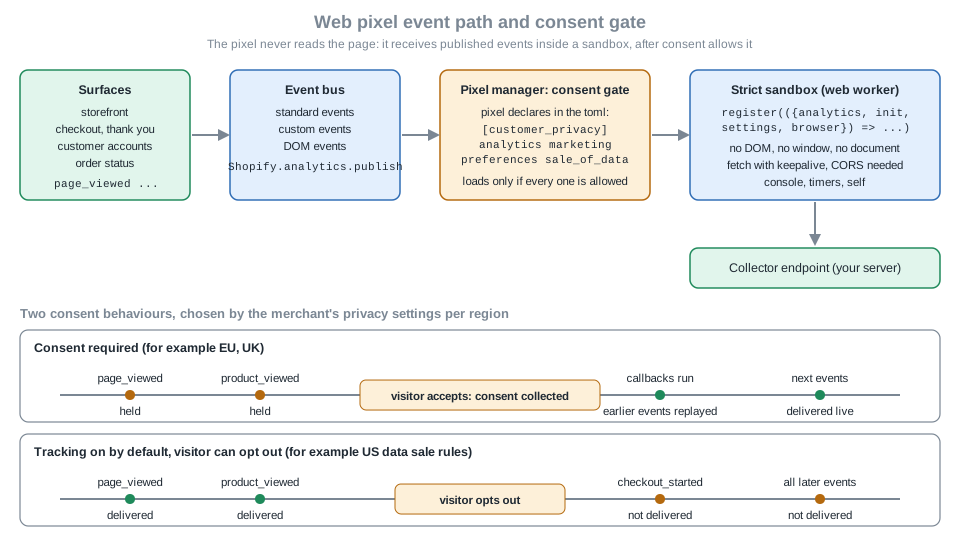
For app pixels consent is enforced for you. The pixel declares its purposes in [customer_privacy], and Shopify’s pixel
manager loads the pixel only if the visitor’s permission covers all the purposes the pixel declares as required. The
behaviour at the callback level depends on the region:
-
Consent required. Callbacks run only after consent is given. Then all previously registered events are replayed, so the pixel catches up with what happened on the page before the visitor accepted.
-
Tracking on by default, visitor may opt out. Callbacks run as events are registered until the visitor opts out, and not afterwards.
A pixel cannot call the Customer Privacy API itself. If it needs to adapt to consent changes (for example to include the
consent state in payloads), it reads init.customerPrivacy for the state at page load and subscribes to
customerPrivacy.subscribe('visitorConsentCollected', ...) for later changes. The event payload carries the four flags
analyticsProcessingAllowed, marketingAllowed, preferencesProcessingAllowed and saleOfDataAllowed.
import {register} from '@shopify/web-pixels-extension';

register(({analytics, init, customerPrivacy}) => {
  let consent = init.customerPrivacy;

  customerPrivacy.subscribe('visitorConsentCollected', (event) => {
    consent = event.customerPrivacy;
  });

  analytics.subscribe('product_added_to_cart', (event) => {
    const payload = {
      eventName: event.name,
      customerPrivacyStatus: consent,
    };
    fetch('https://collector.example.test/events', {
      method: 'POST',
      body: JSON.stringify(payload),
      keepalive: true,
    });
  });
});Custom pixels have the same API through api.customerPrivacy and init.customerPrivacy, and set their privacy
requirements in the pixel’s settings in the admin instead of a toml file. The visitorConsentCollected event of the pixel
sandbox and the document event of the storefront share a name but not an identical payload: the storefront documentation
shows analyticsAllowed and preferencesAllowed in the detail, while the pixel API shows the ...ProcessingAllowed
names. Read the exact keys from the documentation of the surface you are on, and log one event in a development store
before relying on a key.
The Customer Privacy API in the storefront
Theme app extension code that reads or changes consent loads the API first. The feature name and version are exact:
window.Shopify.loadFeatures(
  [
    {
      name: 'consent-tracking-api',
      version: '0.2',
    },
  ],
  (error) => {
    if (error) {
      // the API did not load
      return;
    }
    // window.Shopify.customerPrivacy is now available
  },
);After the callback runs without an error, the API is on window.Shopify.customerPrivacy. The methods are:
| Method | Purpose |
|---|---|
|
Return |
|
Returns the visitor’s decisions: |
|
Records the visitor’s decision. |
|
|
|
|
|
The detected region as an ISO 3166-2 style string, such as |
|
The visitor’s consent ID, useful to look up their consent history in the merchant’s audit log. |
|
Reads a custom value stored with |
Source: Customer Privacy API
The document event visitorConsentCollected is published when consent changes, with the new state in event.detail;
updates are published only when consent changes, not when the listener is added. An app that renders its own banner calls
setTrackingConsent with the visitor’s choice:
window.Shopify.customerPrivacy.setTrackingConsent(
  { analytics: true, marketing: false, preferences: true },
  () => console.log('Consent captured'),
);

document.addEventListener('visitorConsentCollected', (event) => {
  console.log(event.detail);
});Four rules apply. Never read or modify Shopify cookies directly; the API is the only supported interface, and cookie names
and formats change. Shopify stopped setting the _tracking_consent, _landing_page and _orig_referrer cookies on
storefronts on 2025-09-15; the replacement for _tracking_consent is this API, and for the other two the browser’s
window.location.href and document.referrer, or the Web Pixels API, or the customerJourneySummary of an order. Record a
data sale opt-out only through a flow the visitor starts (a link or preference page), because the flag is true to allow
and false to block and must not be applied on page load. And when the Shopify cookie banner is enabled it shows in the
configured regions and passes consent to the API automatically; if the merchant uses an app for the banner, ask that app’s
developer where the banner is rendered. The cookie banner has a small runtime API of its own: privacyBanner.showPreferences()
opens the preferences modal.
Gating an app embed on consent
An app embed that loads for everyone must itself decide what it may do before consent. The Coffee Club widget does the
following, and club-widget.js is the file the schema loads:
(function () {
  'use strict';

  var root = document.getElementById('pc-club-widget');
  if (!root) { return; }

  var purpose = root.dataset.consentPurpose || 'analytics';
  var allowedKey = { analytics: 'analyticsProcessingAllowed', marketing: 'marketingAllowed' }[purpose];

  function allowed() {
    if (purpose === 'none') { return true; }
    var api = window.Shopify && window.Shopify.customerPrivacy;
    return Boolean(api && typeof api[allowedKey] === 'function' && api[allowedKey]());
  }

  function render() {
    root.textContent = root.dataset.greeting;
    root.hidden = false;
  }

  var started = false;

  function maybeStart() {
    if (started || !allowed()) { return; }
    started = true;
    render();
    if (typeof window.Shopify.analytics !== 'undefined' && window.Shopify.analytics.publish) {
      window.Shopify.analytics.publish('pocket_coffee:club_widget_shown', { locale: root.dataset.locale });
    }
  }

  function boot() {
    maybeStart();
    document.addEventListener('visitorConsentCollected', maybeStart);
  }

  if (purpose === 'none') { boot(); return; }
  if (!window.Shopify || typeof window.Shopify.loadFeatures !== 'function') { return; }
  window.Shopify.loadFeatures([{ name: 'consent-tracking-api', version: '0.2' }], function (error) {
    if (error) { return; }
    boot();
  });
})();The script follows the documented pattern: load the feature, test the purpose with the ...Allowed method that combines
merchant settings, location and consent, subscribe to visitorConsentCollected for a later decision, and do nothing that
needs consent until it is true. The merchant chooses the required purpose in the block settings; none is for a widget
that is strictly necessary, and the default is analytics. The started flag matters: without it the script would
render again and publish the custom event again every time a consent event arrived, including in the none mode.
The script was executed in a Node vm context with a stubbed window.Shopify (a loadFeatures that calls back at once, a
customerPrivacy whose analyticsProcessingAllowed is switched by the test, an analytics.publish that records its
calls) and a stubbed document. It printed:
  loadFeatures [{"name":"consent-tracking-api","version":"0.2"}]
purpose=analytics: after load hidden=true
  after consent: hidden=false text="Coffee Club members get free shipping above 40 EUR" published=[["pocket_coffee:club_widget_shown",{"locale":"en"}]]
purpose=none: after load hidden=false
  after consent: hidden=false text="Coffee Club members get free shipping above 40 EUR" published=[["pocket_coffee:club_widget_shown",{"locale":"en"}]]
Source: Customer Privacy API
The widget stays hidden while analytics are not allowed and appears once consent arrives; in none mode it appears at
once and publishes once. This is a logic test with stubs: it does not exercise Shopify’s real banner, region detection or
the real Shopify global. If the widget is shown to every visitor regardless of consent, as many sites do for strictly
necessary messages, the none setting makes that explicit and visible to the merchant.
Data sale opt-out, server-side consent and headless storefronts
Three further pieces complete the picture.
-
Server-side opt-out. The Admin API mutation
dataSaleOptOut(email:)opts a customer out of data sale on the server side. It validated against the 2026-10 schema and returns thecustomerIdanduserErrors. -
Headless storefronts. A storefront built outside the Online Store does not have the Shopify banner. For custom storefronts the Customer Privacy API documentation points to Hydrogen’s analytics and consent handling, which manages the session on the server so consent persists across page loads and is honoured by checkout, and is also the only way to integrate a cookie banner fully with Shopify Analytics. Direct callers pass
headlessStorefront,checkoutRootDomain,storefrontRootDomainandstorefrontAccessTokentosetTrackingConsent. For the Storefront API itself, the@inContextdirective accepts avisitorConsentargument (since 2025-09-02) with analytics, preferences, marketing and sale of data; the consent is encoded into thecheckoutUrlthat cart operations return as the_csparameter, so Checkout Kit and other integrations carry the visitor’s choice into checkout. -
Cookie-banner apps. If the merchant uses a consent app, the app is responsible for calling
setTrackingConsentwith the visitor’s choices; the pixel and embed code described above then see consent through the same API.
mutation PocketCoffeeOptOut($email: String!) {
  dataSaleOptOut(email: $email) {
    customerId
    userErrors {
      code
      field
      message
    }
  }
}
Source: dataSaleOptOut
Pocket Coffee: putting it together
The companion app now covers the three jobs. Each one is a separate extension piece with its own activation step, which is the practical lesson of this page: the theme editor activates blocks, the Admin API activates pixels, and the app’s onboarding page must tell the merchant which is which.
| Job | Extension piece | Activation | Consent |
|---|---|---|---|
Show the roast date on product pages |
App block |
The merchant adds it from Apps in the theme editor, or follows a |
None: it shows data the merchant already publishes. |
Floating Coffee Club message (formerly a script tag) |
App embed block |
The merchant switches it on under App embeds, or follows an |
The block setting selects the purpose; the script waits for |
Report add-to-cart and purchases |
Web pixel |
|
Declared in |
The Spanish and English storefronts are served by the same blocks: the badge and widget strings come from
locales/es.json and locales/en.default.json, and the pixel reports the locale from the path prefix. The second
currency does not change the extension code, because the pixel reads the currency from each event’s own money fields.
Troubleshooting
| Symptom | Likely cause and fix |
|---|---|
The app embed does not appear on the storefront. |
App embeds are off after install and are active only on the theme where they were enabled. Send the merchant to the theme
editor with an |
The app block is missing from the block picker. |
The theme has no JSON template for that page, or the section does not list |
A top-level app block shows "Apps not supported" or "Apps section is invalid" in the theme editor. |
The theme’s |
|
An |
The extension deploys but its schema is rejected. |
Offline checks do not cover every schema rule. Review the schema table: valid |
|
It does not fail on Theme Check errors in this version. Run |
The script runs twice. |
A script tag and its replacement are both active. Delete the script tag after the embed is confirmed active. |
Nothing works for new installs after 2026-10-01. |
The app still creates script tags, which now fail. Ship the replacement before the date and remove the creation code. |
The pixel does not fire. |
The record was never created ( |
Pixel events have |
The app is not approved for the matching protected customer data scope. Handle |
|
The endpoint does not support CORS; the sandbox is a worker. Add the CORS response headers, including for preflight. |
|
Pixels have no DOM. Use |
The consent API is undefined in an embed. |
|
Versions, dates and limits
| Item | Value | Date or source |
|---|---|---|
Shopify CLI used for the offline builds |
5.0.0 |
npm latest, 2026-10-27 |
GraphQL Admin API used to validate the documents |
2026-10 |
released 2026-10-01 |
|
2.18.0 (template pins |
npm, checked 2026-10-27 |
Web Pixels API, Customer Privacy API, Liquid |
Unversioned, may change at any time |
API versioning page |
Customer Privacy API feature |
|
Customer Privacy API page |
App blocks per extension |
30 (25 before) |
2026-02-03 |
Extension size limits |
10 MB total, 100 KB Liquid, 100 locale files of 15 KB each |
Configure theme app extensions |
Script tag create and update blocked |
2026-10-01 |
Storefront script tags page |
Script tags no longer injected into storefronts |
2027-03-01 |
Storefront script tags page |
Order status page script tags stop |
2025-08-28 (Plus), 2026-08-26 (others) |
Order status script tags page |
Web pixels on customer accounts and Order status |
2025-07-21 |
Developer changelog |
Protected customer data enforced in pixels |
2025-12-10 |
Developer changelog |
Stricter Liquid parsing for themes and extensions |
2026-01-13 |
Developer changelog |
|
2026-01-23 |
Developer changelog |
|
2025-09-15 |
Developer changelog |
|
2025-09-02 |
Developer changelog |
What was run and what was not
Everything below ran on 2026-10-27 on macOS with Node 24, Shopify CLI 5.0.0 and no store, account, login or credential.
The scratch app used the placeholder client ID 00000000000000000000000000000000 and https://example.invalid URLs.
| What | Result |
|---|---|
|
Built; Theme Check ran on the extension; the pixel bundled to 759 bytes. |
|
|
The same with a broken block |
|
Skeleton reference theme with |
|
Web pixel toml variants |
Missing key, bad |
The bundled pixel in a Node |
Two requests as expected; the |
The consent-gated embed script with a stubbed Customer Privacy API |
Hidden until consent in |
GraphQL documents against the downloaded Admin 2026-10 schema (script tag audit and delete, web pixel create/update/delete/query, theme file read, metafield definition and set, data sale opt-out) |
All valid; a deliberately wrong pixel document was rejected. |
|
Not run: they need a Shopify identity, a store or both. They are documented from the official pages. |
No secret-like material was used or found; the only identifiers are the placeholder client ID, example.invalid and
example.test hosts and a placeholder block id of zeros.
References
-
Script tags are deprecated and will stop running on March 1, 2027
-
shopify.app.extensions() supports Admin and Theme app extensions
-
Built for Shopify grace period for uninstall and app embed requirements
-
Protected customer data scopes required for web pixel PII access
-
Web Pixels now run on Customer Accounts and Order Status Page
-
_tracking_consent, _landing_page, _orig_referrer cookies will no longer be set
-
Shopify/extensions-templates (the
theme-extensionandweb-pixel-extensiontemplates) -
Shopify/theme-extension-getting-started (sample app block and app embed)