Responsive Design
|
This content was generated with the assistance of AI and should be verified against the official Figma documentation before being relied on in production. This sub-section’s Figma bibliography lists the reference material consulted while preparing these pages. |
This page was written on 2026-10-30 against the UI3 interface of Figma Design. Frames, constraints and auto layout are generally available on every plan, and editing them needs a Full seat; View and Collab seats can only inspect and resize a frame while previewing. Figma Sites, covered in the last section, was in beta at the time of writing, and its availability depends on the plan and seat, so check the current Sites documentation before relying on it.
The running example is the Bookshelf catalogue. A book card must work on a 375 px phone, on a tablet and on a desktop browser, and the same design should not be redrawn three times from scratch. Figma does not run a layout engine for a finished product: a responsive design in Figma is a set of frames that show how the layout should behave, together with resizing rules that let you test it. The real behaviour is implemented in code, for example with the techniques described in the web sections of this documentation.
Responsive frames
A responsive design starts with a top-level frame per target width, built from nested frames that carry resizing rules. Containers are described on Frames, Groups and Sections. To create a frame at a typical device size, choose the Frame tool (key F) and pick a preset such as phone, tablet or desktop in the right sidebar, or type your own width and height.
Every layer inside such a frame then has one of two ways of reacting when the frame is resized: constraints, which pin it to the frame edges, or auto layout, which lets it flow. They are explained next, because choosing between them is the main design decision.
Breakpoints
A breakpoint is a width at which the layout changes shape, for example from one column of cards to two. Figma Design has no breakpoint setting for ordinary frames; breakpoints are a design convention expressed as separate frames (or as variants of a component) at the widths where the layout changes. Figma Sites does have a real breakpoint feature, described below.
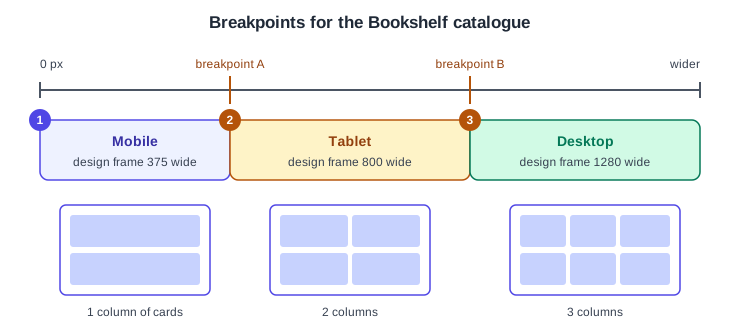
The widths in the figure (375, 800 and 1280) are the defaults offered by Figma Sites for Mobile, Tablet and Desktop; they are a convenient convention, not a rule. Choose breakpoints where your content starts to look wrong, not from a list of devices.
Constraints versus auto layout
Constraints pin a layer to one or more edges of its parent frame, or scale it with the frame, separately for each axis. They suit free-form layouts such as an overlay button fixed to the bottom corner. Auto layout works the other way round: the frame arranges its children in a row, column or grid, with a gap and padding, and children can hug their contents, fill the container or keep a fixed size. The two cannot be combined on the same layer in the usual way: layers directly inside an auto layout frame use resizing options instead of constraints, though an auto layout frame itself can have constraints in its own parent.
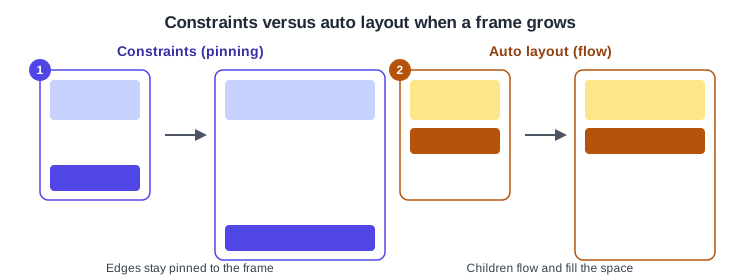
As a rule of thumb for Bookshelf: use auto layout for anything that is a list, a card or a form, and constraints for the outer screen frame, where a bottom bar must stay at the bottom. Constraints are covered on Masks, Constraints and Layout Guides, and auto layout on Auto Layout.
Responsive spacing
Spacing is responsive when it is part of the layout rule and not a fixed number you retype for each frame.
-
In auto layout, the gap between children and the padding of the frame are set once, and children resize around them.
-
Resizing a child to Fill container makes it take the space left over, and Hug contents makes a frame as small as its children and gaps allow. If a child fills its parent, the parent stops hugging on that axis and becomes fixed.
-
Any auto layout frame or child can have a minimum or maximum width and height, added from the width dropdown (Add min width, Add max width). A maximum width stops a text column from stretching across a wide screen.
-
Wrap, available for horizontal and vertical flows, moves children to a new row or column when they no longer fit, which is how a row of cards reflows from three columns to one without extra frames.
-
For a true grid of cards, use the grid flow of auto layout, described on Grid Flow.
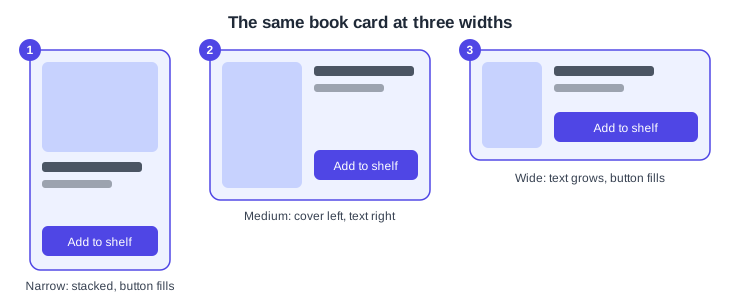
Procedure: one book card at three widths
-
Build the card from a cover image, a title, an author line and the "Add to shelf" button, and select them.
-
Press Shift A to add auto layout, then set the direction to vertical with a gap and padding.
-
Select the title and the button and set their width to Fill container, so they follow the card.
-
Select the card, open the width dropdown, choose Add max width and enter a value, so it stops growing past a comfortable size.
-
Make the cover and text a horizontal auto layout frame nested in the card, and turn on Wrap, so that on a wide card they sit side by side and on a narrow card they stack.
-
Duplicate the screen frame twice and set the widths to 375, 800 and 1280, then check the card in each.
Testing resizing
-
Select the top-level frame and drag a side handle, or type a new width in the right sidebar, and watch how children react.
-
Hold Cmd (macOS) or Ctrl (Windows) while resizing to ignore constraints temporarily, which shows the difference between a pinned and a flowing layout.
-
Check the narrowest and widest cases, with long titles and a large amount of text, since empty placeholders hide overflow.
-
Prototype previews and device presets show the result at real sizes; see Presenting and Testing Prototypes.
Sites breakpoints
Figma Sites (beta at the time of writing) builds real, published webpages, so its breakpoints are functional. According to the help articles, a new site starts with Desktop and Mobile breakpoints; more can be added from a dropdown that offers Desktop (1280), Tablet (800), Mobile (375) and Custom. The primary breakpoint is the base: changes made there flow down to the others, while changes made in a secondary breakpoint affect only that one. Dragging a breakpoint’s width changes the ranges covered by its neighbours, and text styles can be customised per breakpoint. Figma recommends vertical auto layout on the primary breakpoint and a Fill container width on sections so that each spans the breakpoint. Treat the exact behaviour as subject to change while the product is in beta.
Common mistakes
-
Adding constraints to a layer inside an auto layout frame and expecting them to apply.
-
Designing only at one width and assuming the rest will follow.
-
Setting a parent to Hug contents while its child is Fill container.
-
Choosing breakpoints from a device list instead of from where the layout breaks.
Where older guides are outdated
Older books describe responsive work as a matter of constraints alone, because auto layout then had no wrap, no min and max sizes and no grid flow. Those limits were removed in later releases, so the constraint-only workflows they teach are now a fallback, not the default. Guides written before April 2025 also show the previous interface, and their click paths do not match UI3. Source: Figma release notes