Store Setup and Admin Basics
|
This content was generated with the assistance of AI and should be verified against the official documentation of each platform before being relied on in production. This section’s bibliography lists the reference material consulted while preparing these pages. |
The Shopify admin is where a merchant builds the catalogue, receives orders, serves customers and runs promotions, and every screen has a counterpart in the Admin GraphQL API that an app, a script or an import job can call. This page walks through the day-to-day admin: products and variants, collections, inventory and locations, orders and draft orders, customers and segments, discounts and gift cards. It then closes with a launch checklist. Each section explains the concept and the limits that matter, shows the admin path, and gives the equivalent API operation for developers.
The page was written against the Shopify Help Center and the Admin GraphQL API version 2026-10 (supported versions on the check date are 2026-01, 2026-04, 2026-07 and 2026-10, with 2027-01 as a release candidate), and checked on 2026-10-27 with Shopify CLI 5.0.0 and Theme Check 3.31.0. It applies to every plan unless a section says otherwise. The plan-bound numbers (locations, staff accounts, fees) are summarised in Plans and Shopify Plus; shipping, taxes and payments are covered in Shipping, Taxes, Payments and Checkout Settings; currencies, languages and markets in Markets and Internationalization.
The running example is Pocket Coffee, a small specialty-coffee shop. It sells the product "Single-origin beans" with three options (origin, grind and size, 18 variants), a "Starter kit" at 24.00 EUR, two collections (Beans and Equipment), a "Coffee Club" customer group with 10% off beans and free shipping above 40 EUR, and two stock locations in Spain and Germany. Every example below builds one piece of that shop, using the reserved test domains example.test and example.com and placeholder identifiers only.
Shopify account-bound steps could not be executed for this page: no store, account or credential was used, so the admin screens are described from the Help Center and the API calls are documented but were not sent to a store. What did run locally is stated next to each example: the product CSV was generated and checked with scripts, every GraphQL document and its variables were validated against the public Admin 2026-10 schema, and the Liquid snippets were checked with Theme Check and rendered with two Liquid engines.
The admin at a glance
Shopify models a store as a handful of connected records. A product owns its variants, every variant has exactly one inventory item (the back-office side of the variant: SKU, cost, whether stock is tracked), and an inventory item has one inventory level for each location where it is stocked. Collections group products, segments group customers, discounts target collections, products or segments, and an order (or a draft order that becomes one) references variants and a customer.
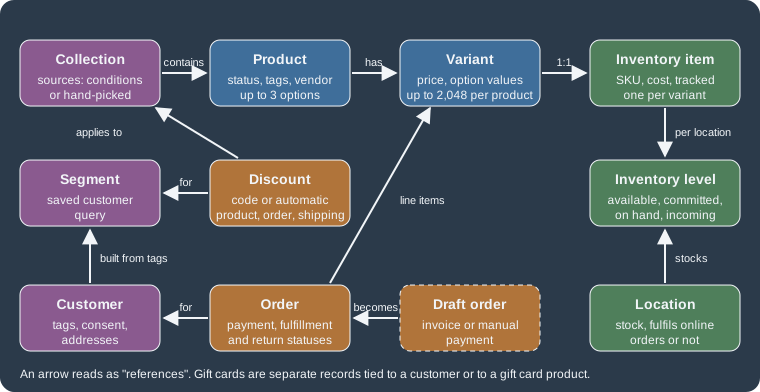
The table maps each admin area to the API objects and the access scopes an app needs. A scope is declared in the app configuration and granted by the merchant at install time.
| Admin area | Where | Admin GraphQL objects | Access scopes |
|---|---|---|---|
Products and variants |
Products |
|
|
Collections |
Products > Collections |
|
|
Inventory |
Products > Inventory |
|
|
Gift cards |
Products > Gift cards |
|
|
Orders |
Orders |
|
|
Draft orders |
Orders (draft orders) |
|
|
Customers and segments |
Customers |
|
|
Discounts |
Discounts |
|
|
Locations |
Settings > Locations |
|
|
Publishing to sales channels |
Publishing section of a product or collection |
|
|
Source: Shopify docs: Access scopes
Two facts about the API shape recur throughout the page. First, the Admin API is GraphQL: the REST Admin API is legacy
since 2024-10-01 and new public apps have had to use GraphQL only since 2025-04-01, so every API example below is
GraphQL, and the version is pinned in the URL (for example /admin/api/2026-10/graphql.json). Second, the access
tokens that authorise those calls are never written into queries or files: the examples use the placeholder
${SHOPIFY_ACCESS_TOKEN} or the CLI’s stored authentication, never a real token.
Plan the catalogue before creating it
Most admin clean-up work later is caused by decisions made in the first hour: inconsistent titles, SKUs that follow no pattern, tags used as free text, products created as many near-duplicates instead of one product with variants. The decisions below are cheap to make up front and expensive to change once orders reference them.
| Decision | Rule of thumb | Pocket Coffee choice |
|---|---|---|
Product or variant |
One product per thing a customer thinks of as one item; use options and variants for the choices (size, colour, grind). Duplicate a product only when the products really are different. |
One product "Single-origin beans" with three options, not 18 products |
Handle |
The part of the product URL, generated from the title. It can contain letters, dashes and numbers and no spaces. Change it rarely, because links and search engines learn the old one. |
|
SKU |
An optional code that identifies the item within the business. Each SKU should be unique for tracking and reporting; choose a format you can read at a glance. |
|
Product category |
One label from Shopify’s Standard Product Taxonomy. It unlocks category attributes, helps sales channels, and determines the tax rate when Shopify Tax is used. |
Food, Beverages and Tobacco > Beverages > Coffee > Coffee Beans and Ground Coffee |
Product type |
A free-text custom label for your own organisation; a product has only one. |
|
Vendor |
The manufacturer or supplier; filterable in the product list and usable in collection conditions. |
|
Tags |
Searchable keywords, up to 250 per product and 255 characters each (Shopify Plus has no tag limit). They drive automated collections, so write them as a controlled vocabulary. |
|
Weight |
Needed by weight-based shipping rates and carriers; enter it per variant. |
0.25 kg and 1 kg for beans, 0.9 kg for the kit |
The Standard Product Taxonomy is published as an open data set, which makes the category checkable offline: the breadcrumb used for the beans (identifier fb-1-3-1) appears in the taxonomy repository.
Prices in the running example follow one rule: 250 g bags cost 8.90 EUR and 1 kg bags 29.90 EUR; Ethiopia Yirgacheffe adds 1.00 EUR per 250 g, so its bags cost 9.90 EUR and 33.90 EUR. The same price rule is used by the generator script in the CSV section and by the API examples.
Products
The product details page
A product is created from Products > Add product (or from the Shopify app on a phone) with only a title; everything else is optional. The details page is organised in sections, and knowing what each one controls avoids hunting later.
| Section | What it controls |
|---|---|
Title and Description |
The name and rich-text description shown on the storefront. A reseller should not paste the manufacturer’s identical description, because duplicated text weakens the page in search results. |
Media |
Images, 3D models and video. A product can have up to 250 media items, and each variant can use one of them. |
Category |
The taxonomy category (one per product, shared by all variants). Choosing it unlocks category metafields such as colour or size, with default entries you can rename once and see updated everywhere they are connected. |
Pricing |
Price, compare-at price (shown as the original price when you lower the price), cost per item (an optional private value; Shopify then shows projected profit and margin, calculated as price minus cost, divided by price, times 100), unit pricing for goods sold by measure, and the tax settings. Cost per item does not apply to gift card products. |
Inventory |
SKU, barcodes and whether to track the quantity. Up to 20 barcodes per product or variant, each with an optional type: GTIN (8, 12, 13 or 14 digits), UPC (8 or 12), EAN (8 or 13), ISBN (10 or 13 characters), ASIN (10), NS-PID, or Custom (any value up to 255 characters, the default). A barcode that is registered with GS1 is recognised as GTIN automatically. |
Quantity |
Per location: available, committed, unavailable, on hand and incoming (see the inventory section). |
Shipping |
Whether the product is physical, the package, packed size, weight and the Harmonized System code for customs. |
Variants and Purchase options |
The options and their values; subscriptions, try-before-you-buy and preorders attach here. |
Metafields |
Custom fields defined in Settings > Custom data and shown in the theme editor when the theme is compatible. |
Search engine listing |
Page title, meta description and the URL handle. Text beyond about 70 characters in the title or 320 in the description can be cut off in search results. |
Status and Publishing |
Whether the product is sellable, and the sales channels, markets and B2B catalogues it appears in. |
Product organisation |
Product type, vendor, collections, tags and the theme template used to render the product page. |
Product status
A product has one status at a time. A new product starts as Active, a duplicate or an unarchived product starts as Draft, and the status can be changed from the product details page or in bulk.
| Status | Meaning | Visible to customers |
|---|---|---|
Active |
The details are complete and the product is ready to sell. |
Yes, in every channel it is published to |
Draft |
The details need to be completed before the product can be sold. |
No |
Unlisted |
Sellable, but not discoverable. The page exists at its direct URL only. |
Only through the direct link |
Archived |
Complete but no longer for sale. Moved to the Archived tab of the product list. |
No, but archived products stay in the collections they were in |
Suspended and Pending suspension |
Set by Shopify, for example after an intellectual property notice. A suspended product cannot be edited. |
No |
Unlisted deserves a closer look because it is easy to misuse. An unlisted product is hidden from internet search, Shopify Catalog, the store’s XML sitemap, collection pages, search results including predictive search, and product recommendations; the page gets the noindex and nofollow meta tags. It can still be added to a cart from its direct URL, so it is suited to warranty add-ons, bundle-only items and early-access links, not to secrets. It cannot be published to third-party sales channels, and apps that do not support the status may show it as Active.
Archiving is the safe alternative to deleting: an archived product keeps its history and can be unarchived (it returns as Draft). Deleting a product removes it permanently from the admin. Duplicating a product copies every detail except 3D models and videos, lets you set a new title and status, and, when the duplicate is set to Active, publishes it to the same sales channels as the original. The duplicate joins the catalogues of the original only when those catalogues have Automatically include new products turned on.
Variants
A variant is one purchasable combination of option values. Variants have their own price, SKU, barcode, weight, stock and optionally one image, so as soon as a product has variants the Price, Inventory and Shipping sections move from the product page to each variant page.
-
A product can have up to three options, and up to 2,048 variants. Options differ from product to product.
-
Option names and values are shown to customers, so write them for people (
Whole bean, notWHL). -
Adding a value to an existing option creates every new combination at once (a fourth origin creates the grind and size combinations for that origin), whereas Add variant and Duplicate create a single variant, and a new variant must differ from every existing one in at least one option value.
-
Duplicating several variants in bulk copies the details of a set of variants onto a new value of one option, skipping combinations that already exist.
-
Variant options can be connected to category metafields, so the values are reusable entries (colour swatches in compatible themes) that can be renamed in one place.
-
For more than three options or more than 2,048 variants Shopify points to apps or to line item properties; on Shopify Plus the Combined Listings app can group separate products into one listing.
Above 100 variants some things need attention: some third-party themes, theme app extensions, public apps and sales
channels may not support more than 100 variants, the Stocky app and the legacy Order Printer app do not, and any custom
app that still uses the REST Admin API must move to GraphQL. When one product has many variants, query them with
first: 2048 on the variants connection of that product; across several products use cursor pagination (250 items per
page).
Two throttles apply to large catalogues. The Admin API usage limits state that, once a store has 500,000 product
variants, no more than 10,000 new variants can be created per day on any API, and the Help Center adds that Shopify Plus
stores are exempt. The reference page of productCreate additionally describes a throttle that starts at 50,000
variants and allows 1,000 new variants per day; plan imports for the stricter of the two numbers.
Creating the Pocket Coffee catalogue in the admin
The beans product, step by step:
-
Go to Products and click Add product. Enter the title
Single-origin beans, a description, the vendorPocket Coffee, the category, the product typeBeansand the tagbeans. -
In the Variants section click Add options like size or color and create the options Origin (Ethiopia Yirgacheffe, Colombia Huila, Brazil Cerrado), Grind (Whole bean, Espresso, Filter) and Size (250 g, 1 kg). Shopify generates the 18 combinations.
-
Open the variant list and set the price of each variant, its SKU and its weight. Use bulk selection to fill several variants at once.
-
In each variant’s inventory section turn on Track quantity, keep Continue selling when out of stock off, and enter the stock at each location.
-
Set the status to Active when the product is ready, review the Publishing section, and save.
Doing this by hand for 18 variants is slow, which is why larger catalogues use a CSV import or the API, both shown next.
Importing products from a CSV file
The product CSV is the quickest way to load or update many products without writing code. Download the sample from the Help Center or export your products, edit the file, and import it from the Products page. The behaviours that matter:
-
The first line must be the column headers, and columns are separated by commas (spreadsheet programs sometimes export semicolons).
-
When creating products the only required column is
Title; when adding variants to a product theURL handlecolumn is also required; when updating,URL handleandTitleare required. -
Variant data depends on the option columns. If a file includes variant columns such as
SKUorWeight value (grams), it must also includeOption1 nameandOption1 value. Without them a new default variant is created and the existing variants are deleted. -
Changing an option value in the file deletes the old variant ID and creates a new one, which can break integrations that stored variant IDs.
-
A product with a single option uses the value
Default Title, as the documentation puts it. -
Barcodesaccepts up to 20 values separated by semicolons and an optionaltype:prefix (for examplegtin:00012345678905; upc:012345678905; INTERNAL-123); a file that has bothBarcodeandBarcodesfails to import. -
Inventory quantityapplies only to stores with a single location; with several locations use the separate inventory CSV file. -
A gift card cannot be created through a product CSV. The
Gift cardcolumn only edits existing gift card products. -
Product metafields are supported with header names such as
Fabric (product.metafields.shopify.fabric); variant metafields are not supported in the product CSV.
The most useful columns, in the form they take in the file:
| Column | Meaning and rules | Default when empty |
|---|---|---|
|
The product’s identifier in the URL. Letters, dashes and numbers, no spaces. Repeat it on every variant row. |
Generated from the title |
|
Product text. Only the first row of a product carries them. |
Required title |
|
Taxonomy breadcrumb or category ID; free-text type; comma-separated tags (up to 250 per product). |
Empty |
|
|
|
|
Variant identifiers. |
Empty |
|
Up to three options per product. |
Required for variant data |
|
Numbers only, no currency symbol. Market-specific prices use |
|
|
|
|
|
|
Blank |
|
Available stock, single-location stores only. |
|
|
|
|
|
Whole grams, no unit; display unit |
|
|
|
|
|
Images are downloaded from the URL during import. The alt text can be up to 512 characters, best at 125 or fewer. |
Empty |
|
Up to 70 and 320 characters. |
Title and description |
The script below generates the Pocket Coffee product file from the option lists, so the SKU pattern, the price rule and
the weights are computed rather than typed. It writes pocket-coffee-products.csv (a header and 19 rows: 18 bean
variants and the starter kit) and variants.json, which the API example reuses.
// Generates the 18 Pocket Coffee bean variants and writes the product CSV.
import { writeFileSync } from 'node:fs';

const origins = [
  { name: 'Ethiopia Yirgacheffe', code: 'ETH', surchargePer250g: 1.0 },
  { name: 'Colombia Huila', code: 'COL', surchargePer250g: 0 },
  { name: 'Brazil Cerrado', code: 'BRA', surchargePer250g: 0 },
];
const grinds = [
  { name: 'Whole bean', code: 'WHL' },
  { name: 'Espresso', code: 'ESP' },
  { name: 'Filter', code: 'FIL' },
];
const sizes = [
  { name: '250 g', code: '250', grams: 250, base: 8.9, units: 1 },
  { name: '1 kg', code: '1KG', grams: 1000, base: 29.9, units: 4 },
];

const variants = [];
for (const o of origins)
  for (const g of grinds)
    for (const s of sizes)
      variants.push({
        origin: o.name,
        grind: g.name,
        size: s.name,
        sku: `PC-${o.code}-${g.code}-${s.code}`,
        grams: s.grams,
        price: (s.base + o.surchargePer250g * s.units).toFixed(2),
      });

const header = [
  'URL handle', 'Title', 'Description', 'Vendor', 'Product category', 'Type', 'Tags',
  'Published on online store', 'Status', 'SKU', 'Option1 name', 'Option1 value',
  'Option2 name', 'Option2 value', 'Option3 name', 'Option3 value', 'Price',
  'Charge tax', 'Inventory tracker', 'Inventory quantity',
  'Continue selling when out of stock', 'Weight value (grams)', 'Weight unit for display',
  'Requires shipping', 'Fulfillment service', 'SEO title', 'SEO description',
];
const q = (v) => (/[",\n]/.test(String(v)) ? `"${String(v).replace(/"/g, '""')}"` : String(v));
const row = (o) => header.map((h) => q(o[h] ?? '')).join(',');

const rows = [];
variants.forEach((v, i) => {
  const first = i === 0;
  rows.push({
    'URL handle': 'single-origin-beans',
    ...(first && {
      Title: 'Single-origin beans',
      Description: '<p>Specialty coffee beans roasted in small batches.</p>',
      Vendor: 'Pocket Coffee',
      'Product category': 'Food, Beverages & Tobacco > Beverages > Coffee > Coffee Beans & Ground Coffee',
      Type: 'Beans',
      Tags: 'beans, single-origin, origin-filter',
      'Published on online store': 'true',
      Status: 'active',
      'SEO title': 'Single-origin coffee beans | Pocket Coffee',
      'SEO description': 'Ethiopia, Colombia and Brazil beans in three grinds and two sizes.',
    }),
    SKU: v.sku,
    'Option1 name': 'Origin', 'Option1 value': v.origin,
    'Option2 name': 'Grind', 'Option2 value': v.grind,
    'Option3 name': 'Size', 'Option3 value': v.size,
    Price: v.price,
    'Charge tax': 'true',
    'Inventory tracker': 'shopify',
    'Inventory quantity': 40,
    'Continue selling when out of stock': 'deny',
    'Weight value (grams)': v.grams,
    'Weight unit for display': 'kg',
    'Requires shipping': 'true',
    'Fulfillment service': 'manual',
  });
});
rows.push({
  'URL handle': 'starter-kit', Title: 'Starter kit',
  Description: '<p>Hand grinder and 250 g of beans.</p>', Vendor: 'Pocket Coffee',
  Type: 'Equipment', Tags: 'equipment, kit', 'Published on online store': 'true', Status: 'active',
  SKU: 'PC-KIT-001', 'Option1 name': 'Title', 'Option1 value': 'Default Title', Price: '24.00',
  'Charge tax': 'true', 'Inventory tracker': 'shopify', 'Inventory quantity': 15,
  'Continue selling when out of stock': 'deny', 'Weight value (grams)': 900,
  'Weight unit for display': 'kg', 'Requires shipping': 'true', 'Fulfillment service': 'manual',
});

const csv = [header.join(','), ...rows.map(row)].join('\n') + '\n';
writeFileSync('pocket-coffee-products.csv', csv);
writeFileSync('variants.json', JSON.stringify(variants, null, 2));
console.log(`${variants.length} variants, ${rows.length} product rows, ${csv.split('\n').length - 1} CSV lines`);A second script checks the file against the documented column names and limits before it is uploaded: every header must
be a documented column, Title and URL handle must exist, SKUs must be unique and match the pattern, option
combinations must not repeat, prices must have two decimals, and the beans must have exactly 18 variants.
// Checks the generated product CSV against the column names and limits in the product CSV documentation.
import { readFileSync } from 'node:fs';

const documented = new Set([
  'Title', 'URL handle', 'Description', 'Vendor', 'Product category', 'Type', 'Tags',
  'Published on online store', 'Status', 'SKU', 'Barcodes', 'Option1 name', 'Option1 value',
  'Option1 LinkedTo', 'Option2 name', 'Option2 value', 'Option2 LinkedTo', 'Option3 name',
  'Option3 value', 'Option3 LinkedTo', 'Price', 'Compare-at price', 'Cost per item',
  'Charge tax', 'Inventory tracker', 'Inventory quantity', 'Continue selling when out of stock',
  'Weight value (grams)', 'Weight unit for display', 'Requires shipping', 'Fulfillment service',
  'SEO title', 'SEO description',
]);

function parse(text) {
  const rows = [];
  let row = [];
  let cell = '';
  let inQ = false;
  for (let i = 0; i < text.length; i++) {
    const c = text[i];
    if (inQ) {
      if (c === '"') {
        if (text[i + 1] === '"') { cell += '"'; i++; } else inQ = false;
      } else cell += c;
    } else if (c === '"') inQ = true;
    else if (c === ',') { row.push(cell); cell = ''; }
    else if (c === '\n') { row.push(cell); rows.push(row); row = []; cell = ''; }
    else cell += c;
  }
  return rows;
}

const file = process.argv[2] ?? 'pocket-coffee-products.csv';
const [header, ...body] = parse(readFileSync(file, 'utf8'));
const errors = [];
for (const h of header) if (!documented.has(h)) errors.push(`undocumented column: ${h}`);
const col = Object.fromEntries(header.map((h, i) => [h, i]));
for (const need of ['Title', 'URL handle']) if (!(need in col)) errors.push(`missing required column ${need}`);
const skus = new Set();
const combos = new Set();
let beans = 0;
for (const r of body) {
  if (r.length !== header.length) errors.push(`row has ${r.length} cells instead of ${header.length}`);
  const handle = r[col['URL handle']];
  if (!/^[a-z0-9-]+$/.test(handle)) errors.push(`bad handle ${handle}`);
  const sku = r[col['SKU']];
  if (skus.has(sku)) errors.push(`duplicate SKU ${sku}`);
  skus.add(sku);
  if (handle === 'single-origin-beans') {
    beans++;
    if (!/^PC-(ETH|COL|BRA)-(WHL|ESP|FIL)-(250|1KG)$/.test(sku)) errors.push(`SKU pattern ${sku}`);
    const key = [1, 2, 3].map((n) => r[col[`Option${n} value`]]).join('/');
    if (combos.has(key)) errors.push(`duplicate option combination ${key}`);
    combos.add(key);
  }
  if (!/^\d+\.\d{2}$/.test(r[col['Price']])) errors.push(`price format ${sku}`);
  const tags = (r[col['Tags']] ?? '').split(',').map((t) => t.trim()).filter(Boolean);
  if (tags.length > 250 || tags.some((t) => t.length > 255)) errors.push(`tag limits ${sku}`);
}
if (beans !== 18) errors.push(`expected 18 bean variants, got ${beans}`);
console.log(`columns=${header.length} rows=${body.length} skus=${skus.size} bean variants=${beans}`);
console.log(errors.length ? errors.join('\n') : 'CSV OK');
process.exit(errors.length ? 1 : 0);Both scripts were run with Node.js 24. The generator reported its counts and the checker accepted the file; a copy with
a misspelled header (Option1 nme) was rejected.
$ node pocket-coffee-variants.mjs
18 variants, 19 product rows, 20 CSV lines
$ node check-csv.mjs
columns=27 rows=19 skus=19 bean variants=18
CSV OK
$ node check-csv.mjs bad.csv
undocumented column: Option1 nmeThe first lines of the generated file (the full file has 20 lines; the Ethiopia 1 kg row shows the price rule) are:
URL handle,Title,Description,Vendor,Product category,Type,Tags,Published on online store,Status,SKU,Option1 name,Option1 value,Option2 name,Option2 value,Option3 name,Option3 value,Price,Charge tax,Inventory tracker,Inventory quantity,Continue selling when out of stock,Weight value (grams),Weight unit for display,Requires shipping,Fulfillment service,SEO title,SEO description
single-origin-beans,Single-origin beans,<p>Specialty coffee beans roasted in small batches.</p>,Pocket Coffee,"Food, Beverages & Tobacco > Beverages > Coffee > Coffee Beans & Ground Coffee",Beans,"beans, single-origin, origin-filter",true,active,PC-ETH-WHL-250,Origin,Ethiopia Yirgacheffe,Grind,Whole bean,Size,250 g,9.90,true,shopify,40,deny,250,kg,true,manual,Single-origin coffee beans | Pocket Coffee,"Ethiopia, Colombia and Brazil beans in three grinds and two sizes."
single-origin-beans,,,,,,,,,PC-ETH-WHL-1KG,Origin,Ethiopia Yirgacheffe,Grind,Whole bean,Size,1 kg,33.90,true,shopify,40,deny,1000,kg,true,manual,,Importing the file itself needs a store, so it was not executed. After an import, spot-check three products, the variant count (18 for the beans), the inventory of one variant and the published state, before trusting the rest.
Creating products with the Admin GraphQL API
Apps and scripts create products with a small set of mutations. They fall into two families: incremental mutations that
change one thing (productCreate, productUpdate, productOptionsCreate, productVariantsBulkCreate,
productVariantsBulkUpdate) and productSet, the synchronisation mutation that describes the complete desired state of
a product (options and variants included) in a single call and replaces list fields such as variants with what you
send. All of them need write_products.
productCreate always creates the product with one initial variant, so it cannot set a price; prices come from
productVariantsBulkUpdate or productVariantsBulkCreate. When variants are added in bulk, REMOVE_STANDALONE_VARIANT
removes the auto-created default variant, and without it you can add up to 2,047 variants next to it. For a product with
real options such as the beans, productSet is simpler: one call carries the options, the 18 variants, SKUs, weights,
tracked inventory and starting stock.
The mutation document:
mutation SetBeans($input: ProductSetInput!) {
  productSet(input: $input, synchronous: true) {
    product {
      id
      handle
      status
      variantsCount {
        count
      }
      options {
        name
        optionValues {
          name
        }
      }
    }
    userErrors {
      field
      message
      code
    }
  }
}The variables are produced from the same variants.json as the CSV, which keeps the two paths consistent. The script
that builds them:
// Builds the productSet input for "Single-origin beans" from the generated variant list.
import { readFileSync, writeFileSync } from 'node:fs';

const variants = JSON.parse(readFileSync('variants.json', 'utf8'));
const uniq = (key) => [...new Set(variants.map((v) => v[key]))];
const roastery = 'gid://shopify/Location/1000000001';

const input = {
  title: 'Single-origin beans',
  handle: 'single-origin-beans',
  descriptionHtml: '<p>Specialty coffee beans roasted in small batches.</p>',
  vendor: 'Pocket Coffee',
  productType: 'Beans',
  tags: ['beans', 'single-origin'],
  status: 'DRAFT',
  seo: {
    title: 'Single-origin coffee beans | Pocket Coffee',
    description: 'Ethiopia, Colombia and Brazil beans in three grinds and two sizes.',
  },
  productOptions: [
    { name: 'Origin', position: 1, values: uniq('origin').map((name) => ({ name })) },
    { name: 'Grind', position: 2, values: uniq('grind').map((name) => ({ name })) },
    { name: 'Size', position: 3, values: uniq('size').map((name) => ({ name })) },
  ],
  variants: variants.map((v) => ({
    optionValues: [
      { optionName: 'Origin', name: v.origin },
      { optionName: 'Grind', name: v.grind },
      { optionName: 'Size', name: v.size },
    ],
    price: v.price,
    inventoryPolicy: 'DENY',
    inventoryItem: {
      sku: v.sku,
      tracked: true,
      requiresShipping: true,
      measurement: { weight: { value: v.grams / 1000, unit: 'KILOGRAMS' } },
    },
    inventoryQuantities: [{ locationId: roastery, name: 'available', quantity: 40 }],
  })),
};
writeFileSync('01-product-set.SetBeans.vars.json', JSON.stringify({ input }, null, 2));
console.log(`${input.variants.length} variants in ${input.productOptions.length} options`);The generated file holds 18 entries in variants; the first two are shown here, and the placeholder location ID stands
for the Madrid roastery:
{
  "input": {
    "title": "Single-origin beans",
    "handle": "single-origin-beans",
    "descriptionHtml": "<p>Specialty coffee beans roasted in small batches.</p>",
    "vendor": "Pocket Coffee",
    "productType": "Beans",
    "tags": [
      "beans",
      "single-origin"
    ],
    "status": "DRAFT",
    "seo": {
      "title": "Single-origin coffee beans | Pocket Coffee",
      "description": "Ethiopia, Colombia and Brazil beans in three grinds and two sizes."
    },
    "productOptions": [
      {
        "name": "Origin",
        "position": 1,
        "values": [
          {
            "name": "Ethiopia Yirgacheffe"
          },
          {
            "name": "Colombia Huila"
          },
          {
            "name": "Brazil Cerrado"
          }
        ]
      },
      {
        "name": "Grind",
        "position": 2,
        "values": [
          {
            "name": "Whole bean"
          },
          {
            "name": "Espresso"
          },
          {
            "name": "Filter"
          }
        ]
      },
      {
        "name": "Size",
        "position": 3,
        "values": [
          {
            "name": "250 g"
          },
          {
            "name": "1 kg"
          }
        ]
      }
    ],
    "variants": [
      {
        "optionValues": [
          {
            "optionName": "Origin",
            "name": "Ethiopia Yirgacheffe"
          },
          {
            "optionName": "Grind",
            "name": "Whole bean"
          },
          {
            "optionName": "Size",
            "name": "250 g"
          }
        ],
        "price": "9.90",
        "inventoryPolicy": "DENY",
        "inventoryItem": {
          "sku": "PC-ETH-WHL-250",
          "tracked": true,
          "requiresShipping": true,
          "measurement": {
            "weight": {
              "value": 0.25,
              "unit": "KILOGRAMS"
            }
          }
        },
        "inventoryQuantities": [
          {
            "locationId": "gid://shopify/Location/1000000001",
            "name": "available",
            "quantity": 40
          }
        ]
      },
      {
        "optionValues": [
          {
            "optionName": "Origin",
            "name": "Ethiopia Yirgacheffe"
          },
          {
            "optionName": "Grind",
            "name": "Whole bean"
          },
          {
            "optionName": "Size",
            "name": "1 kg"
          }
        ],
        "price": "33.90",
        "inventoryPolicy": "DENY",
        "inventoryItem": {
          "sku": "PC-ETH-WHL-1KG",
          "tracked": true,
          "requiresShipping": true,
          "measurement": {
            "weight": {
              "value": 1,
              "unit": "KILOGRAMS"
            }
          }
        },
        "inventoryQuantities": [
          {
            "locationId": "gid://shopify/Location/1000000001",
            "name": "available",
            "quantity": 40
          }
        ]
      }
    ]
  }
}Points worth knowing about this call:
-
synchronous: truereturns the product in the response; without itproductSetruns asynchronously and returns aProductSetOperationthat is polled with theproductOperationquery. -
The product is created as
DRAFTso that nothing becomes visible before it is reviewed and published. -
In
ProductVariantSetInputthe SKU, cost, tracking flag and weight live underinventoryItem, while the starting stock per location goes ininventoryQuantitieswith the statename(available) and thequantity. -
Because
variantsis a list field,productSetupdates the variants you send and deletes existing variants that are missing from the list, which is why it is called a sync mutation: always send the complete list. -
Money values (
price) are strings with two decimals; weights are numbers with a unit enum such asKILOGRAMS. -
Any
userErrorsare returned in the payload with HTTP status 200, so always read them.
The starter kit is a product without options, created with productCreate and priced with productVariantsBulkUpdate
using the ID of the automatically created variant:
mutation CreateStarterKit($product: ProductCreateInput!) {
  productCreate(product: $product) {
    product {
      id
      handle
      variants(first: 1) {
        nodes {
          id
          title
          inventoryItem {
            id
          }
        }
      }
    }
    userErrors {
      field
      message
    }
  }
}

mutation PriceStarterKit($productId: ID!, $variants: [ProductVariantsBulkInput!]!) {
  productVariantsBulkUpdate(productId: $productId, variants: $variants) {
    productVariants {
      id
      price
      sku
    }
    userErrors {
      field
      message
      code
    }
  }
}
{
"product": {
"title": "Starter kit",
"handle": "starter-kit",
"descriptionHtml": "<p>Hand grinder and 250 g of beans.</p>",
"vendor": "Pocket Coffee",
"productType": "Equipment",
"tags": ["equipment", "kit"],
"status": "DRAFT"
}
}{
"productId": "gid://shopify/Product/2000000002",
"variants": [
{
"id": "gid://shopify/ProductVariant/3000000001",
"price": "24.00",
"inventoryItem": {
"sku": "PC-KIT-001",
"tracked": true,
"requiresShipping": true,
"measurement": { "weight": { "value": 0.9, "unit": "KILOGRAMS" } }
}
}
]
}All the documents above and their variables were validated against the public Admin 2026-10 schema (see the validator at the end of the API section). They were not sent to a store.
Collections
A collection is a named group of products that shoppers browse (Beans, Equipment, Sale) and that the admin uses as an input elsewhere: a discount can target a collection, a tax override can use one, and a theme menu links to one. A collection that exists only as an admin input can stay unpublished from every sales channel.
Shopify is replacing the older split between manual collections and smart (automated) collections with one collections
model. Where the new model is available in an admin, existing collections have been converted automatically; the
Admin GraphQL API 2026-10 already expresses membership with sources, and the older ruleSet input is deprecated.
Sources and conditions
A collection takes its products from one or more sources, and a product that arrives from several sources is shown once.
| Source | What it adds |
|---|---|
Products |
Products from the main product list, either automatically (conditions) or manually (hand-picked). A Products source includes the product with all its variants. |
Variants |
Only the variants that match conditions or that you pick, so a collection page can show, for example, only the red variants. Storefront filters then show the price range, swatches and options of those variants only. |
Collection |
Every product of another existing collection. |
App |
Products supplied by an app that offers a collection source. |
In a source with several conditions you choose whether a product must match all of them or any one of them. The conditions available in the admin, and the matching rules to remember, are:
| Condition | Behaviour |
|---|---|
Product title, variant title, product type, vendor |
|
Product category |
|
Tag |
|
Product status |
|
Price, compare-at price, weight, inventory stock, metafields |
Numeric and metafield comparisons on variants and products. The API names the supported condition inputs:
|
Exclusions work as a filter applied afterwards: a source can exclude individual products, automatically by condition or manually, or exclude another collection, but not both in the same source, and exclusions always override inclusions. Archiving a product does not remove it from a collection; archived products stay listed in the admin but customers cannot see them, and a product status condition keeps them out.
The limits are per store: 5,000 collections that contain conditions, 50 collections that contain another collection, 5 collections that exclude another collection and 100 collections that contain variants.
Day-to-day operations: duplicating a collection adds the text (Copy) to the title and does not publish it anywhere; deleting is permanent and removes links to the collection from online store menus (hiding it from sales channels is the reversible option); a product can be added to or removed from a collection from its own page only when that collection holds manually added products.
Collections through the API
collectionCreate takes a collection argument with the title, handle, description, sort order and the sources array.
The sort order is one of ALPHA_ASC, ALPHA_DESC, BEST_SELLING, CREATED, CREATED_DESC, MANUAL, PRICE_ASC,
PRICE_DESC or MOST_RELEVANT. A collection created through the API is unpublished until publishablePublish adds it
to a publication (a sales channel), and publications come from the publications query. collectionAddProductsV2 is
deprecated in favour of collectionUpdate with source changes.
mutation CreateCollection($collection: CollectionCreateInput!) {
  collectionCreate(collection: $collection) {
    collection {
      id
      handle
      sortOrder
    }
    userErrors {
      field
      message
    }
  }
}

query Publications {
  publications(first: 10) {
    nodes {
      id
      name
    }
  }
}

mutation PublishCollection($id: ID!, $input: [PublicationInput!]!) {
  publishablePublish(id: $id, input: $input) {
    userErrors {
      field
      message
    }
  }
}
The Beans collection collects every product tagged beans, newest sales first:
{
  "collection": {
    "title": "Beans",
    "handle": "beans",
    "descriptionHtml": "<p>Single-origin coffee beans.</p>",
    "sortOrder": "BEST_SELLING",
    "sources": [
      {
        "source": {
          "title": "Tagged beans",
          "targetType": "PRODUCTS",
          "inclusion": {
            "matchType": "ALL",
            "conditions": [
              { "productTag": { "relation": "TAGGED_WITH", "values": ["beans"], "matchType": "ANY" } }
            ]
          }
        }
      }
    ]
  }
}The Equipment collection is hand-picked (the sort order MANUAL lets staff reorder it):
{
  "collection": {
    "title": "Equipment",
    "handle": "equipment",
    "sortOrder": "MANUAL",
    "sources": [
      {
        "source": {
          "title": "Hand-picked equipment",
          "targetType": "PRODUCTS",
          "inclusion": {
            "selections": [{ "productId": "gid://shopify/Product/2000000002" }]
          }
        }
      }
    ]
  }
}
Publishing the collection to the Online Store publication:
{
  "id": "gid://shopify/Collection/4000000001",
  "input": [{ "publicationId": "gid://shopify/Publication/5000000001" }]
}The documents and variables validated against the Admin 2026-10 schema; they were not executed against a store.
Inventory and locations
Tracking inventory
Shopify only counts stock for items where Track quantity is turned on (the API calls this the tracked flag of the inventory
item). Turn tracking on for physical products that are stocked, limited, reordered from suppliers or sold in person with
Shopify POS. Leave it off for digital products, services, made-to-order goods and gift cards. When tracking is on you
choose what happens at zero: by default the product shows as out of stock; Continue selling when out of stock lets
customers buy it anyway (preorders, stock on its way) and the quantity goes negative. That option cannot be used unless
tracking is on, and it does not apply to Shopify POS, where staff can always sell and are warned first.
Inventory states
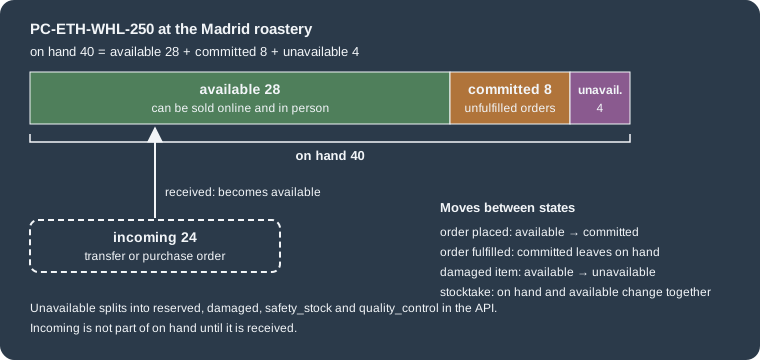
At a location every tracked variant has quantities in several states. The five states shown in the admin are:
| State | Meaning |
|---|---|
Available |
Units that can be sold. Editing available changes on hand by the same amount. |
Committed |
Units set aside for unfulfilled orders, draft orders that reserve stock and transfers marked ready to ship. They cannot be sold and cannot be changed through the API: Shopify manages them when orders are created and fulfilled. |
Unavailable |
Units held for other reasons: damaged, quality control, safety stock, or reserved by an app. In the API this state splits
into |
On hand |
Everything physically at the location: committed plus unavailable plus available. Editing on hand changes available by the same amount. |
Incoming |
Units on their way from a transfer, a purchase order or an app. They are not on hand and not for sale until received, when they become available. |
For example, a roastery holding 40 bags of PC-ETH-WHL-250 with 8 bags in unfulfilled orders and 4 bags set aside as damaged or safety stock has 28 available; a transfer of 24 more bags that is still travelling shows as incoming 24 and changes nothing else until it is received.
Locations
A location is any place where inventory is stocked or orders are fulfilled: a warehouse, shop, pop-up or dropshipping supplier. Every store has a default location from the start. The number of active locations depends on the plan: Starter 2, Basic 10, Grow 10, Advanced 10, Shopify Plus 200. Deactivated locations do not count against the limit, and apps that physically stock inventory (dropshipping apps, third-party logistics, custom fulfilment services) show up as locations but are not counted.
-
Add a location in Settings > Locations > Add location with a name and an address. The address is verified automatically; an unverified address can prevent local delivery and label purchase. New locations start with a quantity of 0 for every product, and are added at the bottom of the order routing list.
-
The option "Inventory at this location is available to fulfill online orders" is on by default. Turn it off for locations that only hold stock for in-person sales or storage. This removes their stock from the online quantity shown in the admin and to customers.
-
Deactivating a location keeps its quantities and still allows viewing, transferring, adjusting and accepting returns; it cannot fulfil orders or be the default location, you always need at least one active location, and a location with pending orders or transfers asks you to move them. The default location and app locations cannot be deactivated. A location must be deactivated before it can be deleted.
-
The default location is the origin of shipping rates when you have not configured shipping profiles. Changing it to a location in a country that the carrier does not serve hides that carrier’s rates at checkout.
With more than one active location you must say how online orders are assigned. A single fulfilling location (make it the default and switch the others off for online orders), a ranked list in order routing, and shipping profiles that tie products to locations are the three tools. Orders split automatically when no single location has enough stock, and the order routing rules (for example Ship from closest location or Minimize split fulfillments) change that behaviour.
Overselling is location-specific. Suppose Pocket Coffee has Madrid first in the routing list with 1 bag and Berlin second with 2 bags, and Continue selling is on. An order for 2 bags is fulfilled from Berlin, which can cover all of it; an order for 3 bags is taken at Madrid, which ends at minus 2. With Continue selling off, customers see the product as out of stock based on the total online quantity across all locations that fulfil online orders.
Changing stock
Stock is changed on the Inventory page one product at a time, in bulk with the bulk editor or an inventory CSV file, or by inventory transfers (between your locations) and purchase orders (from suppliers). Every adjustment is recorded with who changed it, when and why, and the adjustment history is the place to trace a discrepancy. A stocktake is entered by setting the counted quantity.
Inventory through the API
The objects relate as follows: a ProductVariant has one InventoryItem, an InventoryItem has one InventoryLevel per
location where it is stocked, and a Location has many levels. Quantities are read with the quantities field and its names argument on a
level, using the state names available, committed, on_hand, incoming, reserved, damaged, safety_stock and
quality_control. The mutations need write_inventory:
| Mutation | Use |
|---|---|
|
Set an absolute |
|
Add or remove a delta in |
|
Move units between available and the unavailable states. |
|
Stock an item at a location, optionally with a starting quantity. |
Three rules changed in API version 2026-04 and apply to 2026-10. The quantity mutations require an idempotency key,
passed with the @idempotent directive, so that a retried request is applied only once. inventorySetQuantities requires
changeFromQuantity on every quantity, a compare-and-swap check that rejects the change with
CHANGE_FROM_QUANTITY_STALE when the stored quantity is not what you expected (pass null explicitly to opt out, at the
risk of inaccurate stock under concurrency). And a quantity mutation on an item that is not stocked at the location now
creates an inactive level instead of returning ITEM_NOT_STOCKED_AT_LOCATION, so call inventoryActivate before the item
can be sold from that location. Before 2026-04, compareQuantity and ignoreCompareQuantity did the equivalent.
The reason of a change is one of: correction, cycle_count_available, damaged, movement_created,
movement_updated, movement_received, movement_canceled, other, promotion, quality_control, received,
reservation_created, reservation_deleted, reservation_updated, restock, safety_stock or shrinkage. The
optional referenceDocumentUri is a free-form URI that links the change to its cause, such as a stocktake or a shipment.
The webhook topics for inventory are inventory_items/create, inventory_items/update, inventory_items/delete,
inventory_levels/connect, inventory_levels/disconnect and inventory_levels/update; changes to the committed, reserved,
damaged, safety stock and quality control states do not trigger webhooks.
query Locations {
  locations(first: 10) {
    nodes {
      id
      name
      isActive
      fulfillsOnlineOrders
    }
  }
}

mutation AddLocation($input: LocationAddInput!) {
  locationAdd(input: $input) {
    location {
      id
      name
    }
    userErrors {
      field
      message
    }
  }
}

query StockOfSku($query: String!, $locationId: ID!) {
  inventoryItems(first: 1, query: $query) {
    nodes {
      id
      sku
      tracked
      inventoryLevel(locationId: $locationId) {
        quantities(names: ["available", "committed", "on_hand"]) {
          name
          quantity
        }
      }
    }
  }
}

mutation CountBeans($input: InventorySetQuantitiesInput!, $idempotencyKey: String!) {
  inventorySetQuantities(input: $input) @idempotent(key: $idempotencyKey) {
    inventoryAdjustmentGroup {
      reason
      changes {
        name
        delta
        quantityAfterChange
        item {
          sku
        }
      }
    }
    userErrors {
      field
      message
      code
    }
  }
}

mutation StockAtBerlin(
  $inventoryItemId: ID!
  $locationId: ID!
  $available: Int
  $idempotencyKey: String!
) {
  inventoryActivate(
    inventoryItemId: $inventoryItemId
    locationId: $locationId
    available: $available
  ) @idempotent(key: $idempotencyKey) {
    inventoryLevel {
      id
      quantities(names: ["available"]) {
        name
        quantity
      }
    }
    userErrors {
      field
      message
    }
  }
}

mutation ReceiveBeans($input: InventoryAdjustQuantitiesInput!, $idempotencyKey: String!) {
  inventoryAdjustQuantities(input: $input) @idempotent(key: $idempotencyKey) {
    inventoryAdjustmentGroup {
      reason
      changes {
        name
        delta
        quantityAfterChange
      }
    }
    userErrors {
      field
      message
    }
  }
}The Berlin partner warehouse is added with locationAdd (it needs write_locations) and set to fulfil online orders:
{
  "input": {
    "name": "Berlin partner warehouse",
    "fulfillsOnlineOrders": true,
    "address": {
      "address1": "Beispielstrasse 1",
      "city": "Berlin",
      "zip": "10115",
      "countryCode": "DE"
    }
  }
}Reading the stock of one SKU at the Madrid roastery; the search sku:PC-ETH-WHL-250 goes to the inventory items query:
{
  "query": "sku:PC-ETH-WHL-250",
  "locationId": "gid://shopify/Location/1000000001"
}A stocktake finds 36 bags where the system says 40, so the count is set with the expected current value as the compare-and-swap guard:
{
  "input": {
    "name": "available",
    "reason": "cycle_count_available",
    "referenceDocumentUri": "logistics://pocket-coffee/stocktake/2026-10-27",
    "quantities": [
      {
        "inventoryItemId": "gid://shopify/InventoryItem/6000000001",
        "locationId": "gid://shopify/Location/1000000001",
        "quantity": 36,
        "changeFromQuantity": 40
      }
    ]
  },
  "idempotencyKey": "4a6f1b2e-8d3c-4f57-9a10-2c7e5b9d0f31"
}Receiving a shipment of 24 bags at Berlin starts with activating the item at that location, then adding the delta:
{
  "inventoryItemId": "gid://shopify/InventoryItem/6000000001",
  "locationId": "gid://shopify/Location/1000000002",
  "available": 0,
  "idempotencyKey": "c93e5a17-2b64-4f08-a1d9-6e0b7f4c8d25"
}
{
"input": {
"name": "available",
"reason": "received",
"referenceDocumentUri": "logistics://pocket-coffee/shipment/SHIP-0001",
"changes": [
{
"inventoryItemId": "gid://shopify/InventoryItem/6000000001",
"locationId": "gid://shopify/Location/1000000002",
"delta": 24,
"changeFromQuantity": 0
}
]
},
"idempotencyKey": "b21f7c04-5e9a-4d36-8c11-7a3d2e6f9b48"
}The idempotency keys are random UUIDs generated per logical change and reused only when retrying that same change. The document and all six variable files validated against the Admin 2026-10 schema; nothing was sent to a store.
Showing stock on the storefront
Themes can expose a low-stock message from the variant object. In Liquid, variant.inventory_quantity returns the number of
items sold when inventory is not tracked, so check variant.inventory_management first (it is nil when stock is not
tracked), and use variant.inventory_policy (deny or continue) to tell a sold-out product from one that can still be
bought. The snippet below renders nothing when inventory is not tracked, a sold-out label when nothing is left and
overselling is denied, a backorder label when overselling is allowed, and a low-stock label at or below a threshold.
{% doc %}
  Renders a short availability message for one variant.

  - Inventory not tracked: no message.
  - Tracked, none available and overselling denied: "Sold out".
  - Tracked, none available and overselling allowed: "Roasting soon".
  - Tracked and at or below the threshold: "Only N left".

  @param {variant} variant - The variant to describe
  @param {number} [threshold] - Show the low-stock message at or below this quantity (default 5)

  @example
  {% render 'stock-badge', variant: product.selected_or_first_available_variant %}
{% enddoc %}

{%- liquid
  assign low_stock_at = threshold | default: 5
  assign quantity = variant.inventory_quantity
-%}

{%- if variant.inventory_management == blank -%}
  {%- # Inventory is not tracked: the quantity property would count items sold. -%}
{%- elsif quantity <= 0 and variant.inventory_policy == 'continue' -%}
  <span class="stock-badge stock-badge--backorder">Roasting soon</span>
{%- elsif quantity <= 0 -%}
  <span class="stock-badge stock-badge--sold-out">Sold out</span>
{%- elsif quantity <= low_stock_at -%}
  <span class="stock-badge stock-badge--low">Only {{ quantity }} left</span>
{%- endif -%}
It is rendered from the product section next to the variant selector:
{% assign current_variant = product.selected_or_first_available_variant %}

{% render 'stock-badge', variant: current_variant %}The snippet was added to a theme created with shopify theme init (the Skeleton theme) and checked with Theme Check, and its
logic was rendered with LiquidJS 10.30.0 and the Ruby Liquid gem 5.3.0 for five sample variants. Both engines produced the
same output; Shopify-specific tags and filters do not render outside Shopify, which is why the snippet uses only plain
Liquid for its logic.
$ shopify theme check
41 files inspected with no offenses found.
$ node render-badge.mjs
not tracked        -> (nothing)
sold out           -> <span class="stock-badge stock-badge--sold-out">Sold out</span>
oversell allowed   -> <span class="stock-badge stock-badge--backorder">Roasting soon</span>
low stock (4)      -> <span class="stock-badge stock-badge--low">Only 4 left</span>
plenty (40)        -> (nothing)
Source: Shopify docs: Theme Check
A deliberate error (pluralise, a filter that does not exist) in the same snippet was reported by Theme Check as an
UnknownFilter error and fixed again.
Orders
The order and its statuses
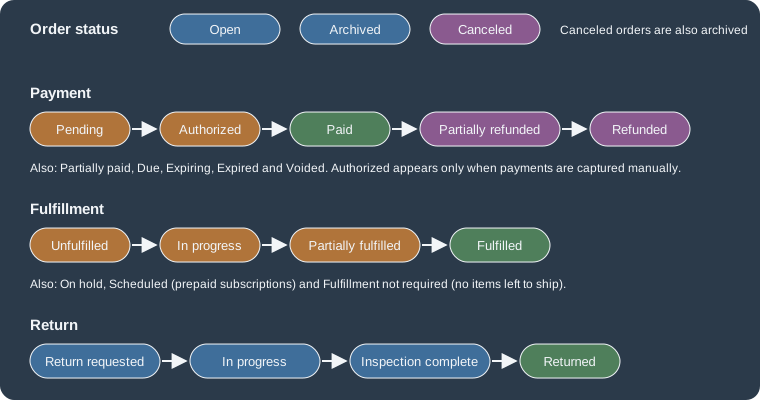
An order records what a customer bought, how it was paid and what happened to it afterwards. It is created when checkout completes, when staff turn a draft order into an order, or through the API. An order has four independent status tracks, so "paid but not shipped" and "shipped, then partially refunded" are ordinary combinations rather than special states.
| Track | Values |
|---|---|
Order status |
Open (work remains: payment, fulfilment or returns) and Archived (set by hand or automatically). A canceled order is shown as Canceled and Archived. |
Payment status |
Pending (a different payment method is still being processed, or payment is due later or manual), Authorized (the card is validated and you capture manually), Due, Expiring (a badge two days before an authorisation ends), Expired, Paid, Partially paid, Partially refunded, Refunded and Voided. |
Fulfillment status |
Unfulfilled, In progress, On hold, Scheduled (prepaid subscription orders), Partially fulfilled, Fulfilled, and Fulfillment not required (shown as Not required in the list; nothing left to ship). |
Return status |
Return requested, Return in progress, Inspection complete and Returned. An order can have several returns. |
In the API the same information is on the order as displayFinancialStatus and displayFulfillmentStatus, and the orders
query accepts search filters such as financial_status:paid, fulfillment_status:unfulfilled, status:open and
created_at ranges. The default access window matters to every integration: read_orders and write_orders cover only
orders created in the last 60 days, and read_all_orders, declared alongside one of them, extends access to older
orders (Dev Dashboard apps used inside the organisation that owns the store do not need Shopify’s approval for it).
Source: Shopify docs: Access scopes
From checkout to shipped
-
Payment. Card payments are captured automatically by default. With manual capture the order is Authorized and you must capture within the provider’s authorisation period (7 days for Shopify Payments cards), partially or fully, and you can never capture more than was authorised. Filter the Orders list by payment status Authorized and save the view.
-
Fulfilment. Fulfil an order individually or in batches, mark it in progress or on hold, buy and print shipping labels at discounted carrier rates, or hand the order to a fulfilment service or app. An order that cannot be filled from one location is split by the order routing rules.
-
Editing. Staff can add or remove items, change quantities, update shipping and apply or remove manual discounts. If more money is due, send an updated invoice; if the total drops, issue a refund.
-
Cancelling. Cancelling halts processing (customer request, suspected fraud, item unavailable). For a paid order with nothing fulfilled you choose to refund to the original payment method, refund to store credit, or refund later (useful for partial refunds, for splitting a refund, or when you want to investigate). Do not bulk-cancel an order that is already refunded; cancel it individually and choose refund later, to avoid duplicate refund processing.
-
Refunding. A refund can go to the original payment method, to store credit with an optional expiry date, or both, and the items can be restocked. A refund cannot be cancelled or reversed once started, you cannot create a return for items that were already refunded, and return reasons are recorded only when the refund goes through a return. The store owner or staff with the matching Orders permission can refund, and refunding to store credit and over-refunding need their own permissions.
-
Archiving and deleting. Finished orders are archived automatically unless that setting was turned off. Only test orders, orders paid with a manual payment method, orders that started as drafts and were marked paid, orders imported through the API and draft orders can be deleted, and the order must be archived or canceled first. An order paid with a gift card can be archived but not deleted.
-
Test orders. Orders paid with the Test payment gateway or Shopify Payments test mode are test orders. Do not fulfil them, because label purchases are charged.
Draft orders
A draft order is an order that is not placed yet. Use it for phone, email and in-person sales, for invoices with a secure checkout link, for custom prices, surcharges or negotiated rates, and for B2B quotes. It becomes a regular order on the Orders page when it is paid, and a customer can pay an invoice online, staff can take a card manually, or staff can mark it as paid when the money already arrived. Draft orders created on or after 2025-04-01 are deleted automatically after one year of inactivity (any edit resets the timer). With international sales set up, the market of the order determines the currency and prices.
A draft order can reserve inventory until a date with reserveInventoryUntil, which is why drafts show up in the committed
quantity. The mutations are draftOrderCreate, draftOrderInvoiceSend and draftOrderComplete, all under
write_draft_orders.
mutation PhoneOrder($input: DraftOrderInput!) {
  draftOrderCreate(input: $input) {
    draftOrder {
      id
      name
      status
      invoiceUrl
      subtotalPriceSet {
        shopMoney {
          amount
          currencyCode
        }
      }
      totalPriceSet {
        shopMoney {
          amount
          currencyCode
        }
      }
    }
    userErrors {
      field
      message
    }
  }
}

mutation CompleteDraft($id: ID!) {
  draftOrderComplete(id: $id) {
    draftOrder {
      id
      order {
        id
        name
        displayFinancialStatus
        displayFulfillmentStatus
      }
    }
    userErrors {
      field
      message
    }
  }
}

query OpenOrders($query: String!) {
  orders(first: 25, sortKey: CREATED_AT, reverse: true, query: $query) {
    nodes {
      id
      name
      createdAt
      displayFinancialStatus
      displayFulfillmentStatus
      customer {
        displayName
      }
      totalPriceSet {
        shopMoney {
          amount
          currencyCode
        }
      }
    }
    pageInfo {
      hasNextPage
      endCursor
    }
  }
}

mutation CancelOrder(
  $orderId: ID!
  $reason: OrderCancelReason!
  $refundMethod: OrderCancelRefundMethodInput
) {
  orderCancel(
    orderId: $orderId
    reason: $reason
    refundMethod: $refundMethod
    restock: true
    notifyCustomer: false
    staffNote: "Duplicate order"
  ) {
    job {
      id
      done
    }
    orderCancelUserErrors {
      field
      message
      code
    }
  }
}
Pocket Coffee takes a phone order from Ada, a Coffee Club member: two 250 g bags and a starter kit, sent to Madrid with the Spain flat rate:
{
  "input": {
    "email": "ada@example.test",
    "tags": ["phone-order", "Coffee Club"],
    "note": "Phone order, pay by invoice",
    "lineItems": [
      { "variantId": "gid://shopify/ProductVariant/3000000011", "quantity": 2 },
      { "variantId": "gid://shopify/ProductVariant/3000000001", "quantity": 1 }
    ],
    "shippingAddress": {
      "firstName": "Ada",
      "lastName": "Example",
      "address1": "Calle Ejemplo 1",
      "city": "Madrid",
      "zip": "28001",
      "countryCode": "ES"
    },
    "shippingLine": {
      "title": "Spain flat rate",
      "priceWithCurrency": { "amount": "4.90", "currencyCode": "EUR" }
    }
  }
}Completing the draft turns it into an order; then staff list the orders that are paid and still need shipping:
{ "id": "gid://shopify/DraftOrder/8000000001" }{ "query": "fulfillment_status:unfulfilled financial_status:paid" }Cancelling a duplicate order refunds the original payment method and restocks the items. The cancellation runs as a
background job, so the mutation returns a job and any orderCancelUserErrors:
{
  "orderId": "gid://shopify/Order/9000000001",
  "reason": "OTHER",
  "refundMethod": { "originalPaymentMethodsRefund": true }
}All variable files validated against the document; no store was contacted.
Customers
Customer profiles
A customer profile is created when someone signs up for the mailing list or an account, places an order, or abandons a
checkout, and staff can add profiles by hand. A profile has one email address (changeable), optional phone, addresses with a
default, a language, tags, a private note (never visible to the customer), marketing consent for email, SMS and WhatsApp,
and tax settings such as exemptions or a VAT number. Tags are not case sensitive and are the simplest way to build
segments: Pocket Coffee tags members Coffee Club.
Profiles can be edited in bulk (tags and consent fields are available as columns), merged, anonymised or deleted.
-
Merging combines two profiles into one and cannot be undone; the combined tags must not exceed 250; the customer is not notified; profiles cannot be merged when either one has had a subscription contract, has a vaulted card, a store credit account or a multipass login, was deleted or redacted, or has a merge or data request in progress. Orders stay with the profile that placed them, which is also why merging is the way to attach orders to a different profile.
-
Erasing personal data, for a privacy request, redacts name, email, phone and address and forwards the request to installed apps and sales channels, but the profile and its order history remain. Deleting a profile removes it, cannot be undone, and is not allowed while a redaction is pending.
-
The email address is the unique identifier of orders, so changing the contact email on an order does not move it to another profile.
Customer accounts
Customer accounts let shoppers see orders and manage details. The current accounts are passwordless: a customer enters an email address and receives a six-digit one-time code, sessions last up to 365 days, and stored details are filled in at checkout. Customers can also sign in with Shop or with Google and Facebook, and Shopify Plus stores can connect their own identity provider. A customer who already has a profile already has an account; signing in with an unknown email creates a profile. The older legacy customer accounts are deprecated, and the Help Center describes the upgrade path.
Segments
A segment is a saved filter over customers that updates itself, used for email and SMS campaigns and as the audience of a
discount. It is written in the segment query language, a subset of ShopifyQL that has only the WHERE-style clause
attribute operator condition, combined with AND, OR and parentheses. Useful attributes include customer_tags,
amount_spent, number_of_orders, email_subscription_status, customer_countries, customer_language,
last_order_date and predicted_spend_tier. Tags are a list, so they use CONTAINS; the existence of a tag is not
validated, so a typo silently creates an empty segment. API queries can read up to 250 segments at a time.
Pocket Coffee’s audience is the tag-based segment customer_tags CONTAINS 'Coffee Club'. Ada is created with the tag and her
email consent, and the segment is created from the query; both need write_customers.
mutation CreateCustomer($input: CustomerInput!) {
  customerCreate(input: $input) {
    customer {
      id
      displayName
      tags
      emailMarketingConsent {
        marketingState
      }
    }
    userErrors {
      field
      message
    }
  }
}

mutation CreateSegment($name: String!, $query: String!) {
  segmentCreate(name: $name, query: $query) {
    segment {
      id
      name
      query
    }
    userErrors {
      field
      message
    }
  }
}
{
"input": {
"firstName": "Ada",
"lastName": "Example",
"email": "ada@example.test",
"locale": "es",
"tags": ["Coffee Club"],
"note": "Founding Coffee Club member",
"emailMarketingConsent": {
"marketingState": "SUBSCRIBED",
"marketingOptInLevel": "SINGLE_OPT_IN"
}
}
}{
"name": "Coffee Club",
"query": "customer_tags CONTAINS 'Coffee Club'"
}The second customer of the running example, Grace at grace@example.test, shops as a guest and needs no setup. Customer data is personal data: apps can declare the scopes, but the API returns protected fields such as names, emails and addresses of non-development stores only when the app is approved for protected customer data.
Importing and exporting customers
The customer CSV has the columns First Name, Last Name, Email, Accepts Email Marketing, the default address fields
(Default Address Company, Default Address Address1, Default Address Address2, Default Address City, Default Address
Province Code, Default Address Country Code as an ISO alpha-2 code, Default Address Zip, Default Address Phone),
Phone, Accepts SMS Marketing, Accepts WhatsApp Marketing, Total Spent, Total Orders, Note, Tax Exempt and Tags.
The consent and tax exempt columns accept only yes or no. The Email column must exist, although its value can be
blank. Total Spent and Total Orders are not imported. Headers are not case sensitive, the file must be UTF-8 and at most
15 MB (split larger lists), passwords cannot be migrated (customers are invited to create new ones), and orders cannot be
imported with a customer CSV. Importing the unchanged template adds two sample profiles (Jane Doe and John Doe), so remove
them first. Customer metafields of the types boolean, date, date and time, integer, decimal and single line text can be added as
columns, for metafields that already exist. When moving a mailing list, set each consent column from that channel’s own
history and record how recently each contact engaged in the Tags column, so that segments such as
customer_tags CONTAINS 'very engaged' can be used to rebuild sender reputation gradually.
Discounts
Types and methods
Every discount has a type (what it gives) and a method (how it is claimed).
| Type | What it does |
|---|---|
Amount off products |
A percentage or fixed amount off specific products or collections. |
Amount off order |
A percentage or fixed amount off the order subtotal. |
Buy X get Y |
Customers add the qualifying items and the free or discounted items to the cart themselves; the get item is never added automatically. |
Free shipping |
Free shipping on all or selected countries, with an option to exclude shipping rates above an amount, and optional minimum purchase or quantity. |
App discounts |
Tiered discounts, custom logic and a single discount that applies several savings, built with discount apps or Shopify Functions. |
| Method | What it means |
|---|---|
Discount code |
The customer enters the code at checkout. Good for campaigns and partnerships; forgotten codes cost conversions. |
Automatic discount |
Applied in the cart and at checkout when the customer is eligible. Good for site-wide or collection promotions. Up to 25 active automatic discounts per store, apps included. |
Limits worth knowing: a discount code can target up to 100 specific customers, products and variants (the error is "Item entitlements exceeded max number"); a store holds at most 20,000,000 unique discount codes; start and end times use the store’s time zone; discount code names should avoid special characters because the code is part of the checkout URL; and a maximum of one use per customer applies only to that discount, so recreating the discount resets who may use it. Minimum purchase amounts count product prices only, not shipping or tax, and use prices after earlier discounts that can combine; purchased gift cards do not count unless the discount targets the gift card product.
Combining discounts
Discounts belong to a class: product, order or shipping. Each discount says which classes it may combine with. Order
discounts can combine with free shipping, and product discounts with free shipping and with other product discounts on
different items; combining product with order discounts, or order with order discounts, is available to eligible merchants
(stores without checkout.liquid customizations), and several product discounts on the same line item need Shopify Plus.
Combination works only on the Online Store, the Storefront API and Shopify POS. A customer can use up to 5 product or order
discount codes and 1 shipping discount code on one order.
The order of calculation is fixed: product discounts apply first to individual items, order discounts apply to the revised subtotal, and shipping discounts apply last. Two percentage order discounts of 10% and 20% on a 100.00 subtotal are both computed on the original subtotal, for 70.00 in total. When discounts cannot combine, the best one for the customer is applied; customers see "Discount couldn’t be used with your existing discounts" when they enter a second, non-combinable code. Custom discounts that staff apply manually to an order, and discounts from the legacy Scripts API, bypass the combination settings.
Pocket Coffee’s Coffee Club discounts
The Coffee Club rule is "10% off beans for members, applied automatically, and free shipping above 40 EUR". It is two
discounts: an automatic amount-off-products discount whose audience is the Coffee Club segment and whose target is the Beans
collection, and a free shipping discount for the same audience with a minimum subtotal of 40.00. The first may combine with
shipping discounts; the second may combine with product and order discounts. An equivalent code,
COFFEECLUB10, is shown too, for campaigns that should be claimed rather than automatic. The discount mutations need
write_discounts, and the audience uses the context input with a segment ID (customer IDs and markets can be used there
too).
mutation CoffeeClubAutomatic($input: DiscountAutomaticBasicInput!) {
  discountAutomaticBasicCreate(automaticBasicDiscount: $input) {
    automaticDiscountNode {
      id
      automaticDiscount {
        ... on DiscountAutomaticBasic {
          title
          status
        }
      }
    }
    userErrors {
      field
      message
      code
    }
  }
}

mutation CoffeeClubBeans($input: DiscountCodeBasicInput!) {
  discountCodeBasicCreate(basicCodeDiscount: $input) {
    codeDiscountNode {
      id
      codeDiscount {
        ... on DiscountCodeBasic {
          title
          status
          codes(first: 1) {
            nodes {
              code
            }
          }
        }
      }
    }
    userErrors {
      field
      message
      code
    }
  }
}

mutation CoffeeClubShipping($input: DiscountAutomaticFreeShippingInput!) {
  discountAutomaticFreeShippingCreate(freeShippingAutomaticDiscount: $input) {
    automaticDiscountNode {
      id
    }
    userErrors {
      field
      message
      code
    }
  }
}
The automatic beans discount (the percentage is a fraction between 0 and 1, so 0.1 is 10%):
{
  "input": {
    "title": "Coffee Club 10% off beans",
    "startsAt": "2026-11-01T00:00:00Z",
    "context": {
      "customerSegments": { "add": ["gid://shopify/Segment/7000000001"] }
    },
    "customerGets": {
      "value": { "percentage": 0.1 },
      "items": {
        "collections": { "add": ["gid://shopify/Collection/4000000001"] }
      }
    },
    "combinesWith": {
      "productDiscounts": false,
      "orderDiscounts": false,
      "shippingDiscounts": true
    }
  }
}The same audience and target as a code:
{
  "input": {
    "title": "Coffee Club 10% off beans",
    "code": "COFFEECLUB10",
    "startsAt": "2026-11-01T00:00:00Z",
    "appliesOncePerCustomer": false,
    "context": {
      "customerSegments": { "add": ["gid://shopify/Segment/7000000001"] }
    },
    "customerGets": {
      "value": { "percentage": 0.1 },
      "items": {
        "collections": { "add": ["gid://shopify/Collection/4000000001"] }
      }
    },
    "combinesWith": {
      "productDiscounts": false,
      "orderDiscounts": false,
      "shippingDiscounts": true
    }
  }
}
And the free shipping discount:
{
  "input": {
    "title": "Coffee Club free shipping over 40 EUR",
    "startsAt": "2026-11-01T00:00:00Z",
    "context": {
      "customerSegments": { "add": ["gid://shopify/Segment/7000000001"] }
    },
    "minimumRequirement": {
      "subtotal": { "greaterThanOrEqualToSubtotal": "40.00" }
    },
    "destination": { "all": true },
    "combinesWith": {
      "productDiscounts": true,
      "orderDiscounts": true,
      "shippingDiscounts": false
    }
  }
}The documents and variables validated against the schema. Because an automatic discount needs an identified customer, test the rule with a Coffee Club account on a development store before relying on it. Logic that goes beyond these built-in discounts (tiers, multi-step rules) belongs in Shopify Functions, covered in Shopify Functions.
Gift cards
Shopify has two ways to create a gift card, and the difference is about value limits and who pays.
-
Gift card products are sold like any product. They are created in Products > Gift cards with a title, description, currency and a list of fixed denominations (at least one; a customer cannot type a custom amount). The largest denomination is 10,000 USD or the equivalent, a limit that cannot be raised. Fulfilling an order that contains a gift card product creates the gift card and emails its code to the buyer or the recipient. Do not use the compare-at price to discount a gift card; use a discount code or an automatic discount (the discount reduces what the customer pays while the card keeps its full value).
-
Gift cards issued from the admin (Products > Gift cards > Issue gift card) are created without payment, for promotions, goodwill or refunds, up to 2,000 USD or the equivalent, a ceiling that Shopify Support can raise or lower. To issue gift cards automatically, such as above an order threshold, use Shopify Flow with an order trigger.
Gift cards are available on all plans. They are treated as currency: only the customer or recipient sees the full code, staff see the last four characters. A gift card can be redeemed only at the store that issued it, cannot be moved to another store, can pay for several orders until the balance is used, pays the whole order including tax and shipping, can be combined with discount codes and with other gift cards, can be applied to the first payment of a subscription but not to recurring payments, and cannot buy another gift card. For stores created on or after 2025-05-12, orders paid with a gift card carry third-party transaction fees on the amount paid with the card. Laws about gift cards (tax, validity period) differ by region and are your responsibility.
Currency matters. A gift card in the store currency can be redeemed in any currency through automatic conversion. A local currency gift card can be redeemed only at a checkout in the same currency unless cross-currency redemption is on, and that setting cannot be changed after the gift card product is created. With cross-currency redemption the value you receive can drift with the exchange rate between sale and redemption. Local currency gift cards require markets and a catalogue price list in that currency, and they are not published to any catalogue by default.
Gift cards through the API
giftCardCreate (scope write_gift_cards) takes an initialAmount money value, an optional code of 8 to 20 letters and
digits (a random 16-character code is generated otherwise), an optional customerId (which also needs write_customers),
expiresOn, an internal note, a crossCurrencyRedemptionStrategy (MARKET_FX by default for the shop currency, NONE
for other currencies), recipientAttributes for a scheduled notification, and a templateSuffix that selects a template
such as gift_card.birthday.liquid. The older initialValue field is deprecated. The payload returns the full code once, as
giftCardCode, so store or send it immediately; later reads expose only the masked code and the last characters. A gift card
product is an ordinary product created with giftCard: true.
mutation IssueGiftCard($input: GiftCardCreateInput!) {
  giftCardCreate(input: $input) {
    giftCard {
      id
      maskedCode
      lastCharacters
      balance {
        amount
        currencyCode
      }
      expiresOn
    }
    giftCardCode
    userErrors {
      field
      message
      code
    }
  }
}

mutation GiftCardProduct($product: ProductCreateInput!) {
  productCreate(product: $product) {
    product {
      id
      isGiftCard
    }
    userErrors {
      field
      message
    }
  }
}
Pocket Coffee sends Ada a 25.00 EUR goodwill gift card, valid until the end of 2027, and also creates the gift card product as a draft:
{
  "input": {
    "initialAmount": { "amount": "25.00", "currencyCode": "EUR" },
    "customerId": "gid://shopify/Customer/10000000001",
    "expiresOn": "2027-12-31",
    "note": "Goodwill gift for a delayed parcel"
  }
}{
"product": {
"title": "Pocket Coffee gift card",
"giftCard": true,
"status": "DRAFT"
}
}The gift card page in the theme
The page a recipient opens from the email is templates/gift_card.liquid. It uses {% layout none %} and the gift_card
object, whose properties include balance, initial_value, code, last_four_characters, enabled, expired,
expires_on, send_on, recipient, message, pass_url, qr_identifier and url. A small snippet keeps the summary logic
out of the template; it was rendered from the Skeleton theme’s gift card template and checked with Theme Check.
{% doc %}
  Summarises the gift card shown on the gift card page.

  @param {gift_card} gift_card - The gift_card object of templates/gift_card.liquid

  @example
  {% render 'gift-card-summary', gift_card: gift_card %}
{% enddoc %}

{%- if gift_card.enabled == false or gift_card.expired -%}
  <p>This gift card can no longer be used.</p>
{%- else -%}
  <p>Balance {{ gift_card.balance | money }} of {{ gift_card.initial_value | money }}</p>
  <p>Code ending in {{ gift_card.last_four_characters }}</p>
  {%- if gift_card.expires_on -%}
    <p>Valid until {{ gift_card.expires_on | date: '%d %B %Y' }}</p>
  {%- endif -%}
{%- endif -%}
{% render 'gift-card-summary', gift_card: gift_card %}Theme Check reported no offenses for the theme with both snippets (41 files inspected). The gift card page itself could not be rendered offline, because it needs a store that has a gift card.
Running and checking the API examples
Sending a document to a store
Every GraphQL example above is a document plus a JSON variables file. Two ways to send one are available once a store and authorisation exist.
Shopify CLI 5.0.0 has a store topic. shopify store auth authorises an app against a store for the scopes you request and
stores an online access token for later reuse, and shopify store execute runs one query or mutation. Mutations are
refused unless --allow-mutations is given, --version selects the API version (the default is the latest stable one), and
--json prints the result as typed JSON that you read from its data property. A document that holds several operations
must be split into one file per operation for store execute, which has no operation-name option.
export SHOPIFY_FLAG_STORE=pocket-coffee-dev.myshopify.com

shopify store auth --store "$SHOPIFY_FLAG_STORE" \
  --scopes read_products,write_products,read_inventory,write_inventory,read_locations,write_locations

shopify store execute --store "$SHOPIFY_FLAG_STORE" --version 2026-10 \
  --query-file 01-product-set.graphql \
  --variable-file 01-product-set.SetBeans.vars.json \
  --allow-mutations --json
Source: Shopify CLI: store execute
The second way is a plain HTTPS request, which also supports operationName for documents with several operations. The
access token comes from the environment and is sent in the X-Shopify-Access-Token header; it is never written into a file.
jq -n --rawfile query 04-inventory.graphql \
      --slurpfile variables 04-set-quantities.CountBeans.vars.json \
      '{query: $query, operationName: "CountBeans", variables: $variables[0]}' > request.json

curl -sS -X POST "https://${SHOPIFY_STORE_DOMAIN}/admin/api/2026-10/graphql.json" \
  -H "Content-Type: application/json" \
  -H "X-Shopify-Access-Token: ${SHOPIFY_ACCESS_TOKEN}" \
--data @request.jsonThe development store used for experiments is created from the Dev Dashboard or with shopify store create dev; it is
password-protected and cannot be transferred, and orders are tested there with Shopify’s Test payment gateway or a provider’s
test mode. These commands need a Shopify identity, so they were documented but not run for this page.
Validating documents without a store
Documents and variables can be checked offline against the public schema, which catches misspelled fields, wrong enum values,
wrong variable types and a forgotten required argument. Install graphql 16 (the version these checks were run with) and save
the script below as validate-admin.mjs. On its first run it downloads the schema by introspection from the endpoint that
backs the Shopify reference pages and caches it as schema-2026-10.json; that endpoint is a documentation proxy rather than a
supported API, so keep the cached file. Each argument is a document, optionally followed by #OperationName=variables.json.
// Usage: node validate-admin.mjs 2026-10 gql/01-product-set.graphql#SetBeans=vars/01.json ...
// Validates documents against the public Admin GraphQL schema and, when a variables file is
// given, checks the JSON variables against the declared variable types of that operation.
import fs from 'node:fs';
import { buildClientSchema, getIntrospectionQuery, getVariableValues, Kind, parse, validate } from 'graphql';

const [version, ...checks] = process.argv.slice(2);
const cache = `schema-${version}.json`;
if (!fs.existsSync(cache)) {
  const res = await fetch(`https://shopify.dev/admin-graphql-direct-proxy/${version}`, {
    method: 'POST',
    headers: { 'content-type': 'application/json' },
    body: JSON.stringify({ query: getIntrospectionQuery() }),
  });
  fs.writeFileSync(cache, await res.text());
}
const schema = buildClientSchema(JSON.parse(fs.readFileSync(cache, 'utf8')).data);

let failures = 0;
for (const check of checks) {
  const [file, rest] = check.split('#');
  const doc = parse(fs.readFileSync(file, 'utf8'));
  const errors = validate(schema, doc).map((e) => e.message);
  if (rest) {
    const [operation, varsFile] = rest.split('=');
    const op = doc.definitions.find((d) => d.kind === Kind.OPERATION_DEFINITION && d.name?.value === operation);
    if (!op) errors.push(`operation ${operation} not found`);
    else {
      const vars = getVariableValues(schema, op.variableDefinitions ?? [], JSON.parse(fs.readFileSync(varsFile, 'utf8')));
      if (vars.errors) errors.push(...vars.errors.map((e) => e.message));
    }
  }
  console.log(`${errors.length ? 'INVALID' : 'VALID  '} ${check}`);
  errors.forEach((m) => console.log(`        ${m}`));
  failures += errors.length;
}
process.exit(failures ? 1 : 0);$ npm install graphql@16.14.2
$ node validate-admin.mjs 2026-10 \
01-product-set.graphql#SetBeans=01-product-set.SetBeans.vars.json \
04-inventory.graphql#CountBeans=04-set-quantities.CountBeans.vars.json
VALID 01-product-set.graphql#SetBeans=01-product-set.SetBeans.vars.json
VALID 04-inventory.graphql#CountBeans=04-set-quantities.CountBeans.vars.jsonRun over the eight documents and their 22 variable files of this page, every check printed VALID. A variable file with
"quantity": "many" instead of 36 was rejected with the message that Int cannot represent a non-integer value, and a status
of DRAFTT was rejected as a value that does not exist in the ProductStatus enum. The validator does not know the access
scopes, the query cost or the business rules that a store enforces (for example that a SKU must be unique), so a valid
document can still return userErrors from a real store.
Source: Shopify docs: API versioning
Launch checklist
A store starts in private mode: the storefront is hidden behind a customisable password page, and the free trial runs in this mode. Launching changes the access from private to public. Three things are required before the launch button works: a subscription plan is selected (nothing is charged until a trial ends), a store address is entered under Business details in Settings > General, and a payment method is set up with test mode turned off. The remaining items are the work that makes the launch safe.
| Area | Check before launch | Where |
|---|---|---|
Plan and account |
A plan is selected, the store address is complete, the staff accounts are the people who should have access, and every login uses two-step authentication (Shopify Payments requires it). |
Settings > General, and the staff settings in Settings |
Catalogue |
Every product has a title, a category, a price, images with alt text, a weight and a status of Active; variants are priced; tags and collections follow the naming and tagging rules decided at the start; draft and archived products are what you expect. |
Products |
Inventory |
Tracking is on for stocked items, quantities are entered per location, the default location and the order routing list are set, and Continue selling when out of stock is on only where you want overselling. |
Products > Inventory, Settings > Locations |
Shipping and taxes |
Packages, delivery zones and rates, tax settings and tax overrides exist for every country you will sell to; product weights are accurate. These are covered on the shipping and payments page. |
Settings > Shipping and delivery, Settings > Taxes and duties |
Payments |
A provider is active and its payout bank account is verified; manual or automatic capture is a deliberate choice; test mode is off at launch. |
Settings > Payments |
Policies |
Return and refund, privacy, terms of service, shipping and contact policies are published, reviewed by the person responsible, and linked from the menus. Automated policies fill from store settings but are informational, not legal advice. |
Settings > Policies, Content > Menus |
Pages and menus |
About, Contact and other fixed pages exist; the main menu links the collections; the footer links the policies and search. The default main menu holds only Home and Catalog. |
Online Store > Pages, Content > Menus |
Theme |
The theme defaults are edited (colours, fonts, logo, sections), the product, collection and cart pages are previewed on a phone, and the store preview is reviewed. |
Online Store (Themes, Preview store) |
Domain |
The primary domain is the custom domain, email forwarding or hosting for the domain works, and the |
Settings (Domains) |
Customers |
Customer accounts and sign-in methods are configured, marketing consent defaults are deliberate, and the Coffee Club segment returns the expected people. |
Settings (Customer accounts), Customers |
Discounts and gift cards |
Each discount was tested with an eligible and an ineligible customer, the combination rules are as intended, and the gift card product is published to the right markets. |
Discounts, Products > Gift cards |
Notifications |
The order confirmation and shipping emails are reviewed in the Notifications settings and a test order produces them. |
Settings (Notifications) |
Test orders |
At least one complete test order per payment path, with Shopify Payments test mode or the Test payment gateway, repeated whenever payment settings change. Do not fulfil test orders; delete them once archived. |
Orders |
Launch |
Remove the password through the launch button, from the access menu on the Online Store page, or by turning off Private mode in Online Store > Preferences. |
Online Store > Preferences |
Testing Shopify Payments needs a paid plan, and the test purchase amount must be greater than the equivalent of 1 USD in any currency. In test mode, a successful card payment uses a published test number such as the Visa number 4242 4242 4242 4242 with any future expiry date and any three-digit security code, and a failure can be simulated with a published decline number such as 4000 0000 0000 0002; real wallets such as Apple Pay or Google Pay can still complete with a real card, so look for the test mode banner on the order, and turn test mode off before launch. Shopify publishes the complete list of test numbers on the testing page.
After launch, watch the first orders end to end (payment status, fulfilment, the email the customer received), capture any authorised payments inside the authorisation window, and check the Shop app status: launching is one of the requirements for appearing in the Shop app, and it can take up to 48 hours for the eligibility status to update.
Common problems
| Symptom | Likely cause | What to do |
|---|---|---|
A CSV import removed the old variants and created a default one |
The file had variant columns but no |
Include the option columns whenever variant data is present; test with one product first |
Variant IDs changed after an import |
An option value text was edited in the file |
Rename option values in the admin or through the API; update integrations that stored variant IDs |
A product is missing from the storefront |
Status is Draft or Archived, or the product is not published to the channel, market or catalogue |
Check Status and the Publishing section; for an Unlisted product only the direct link works |
An unlisted product is still bought |
Unlisted hides a product, it does not block purchase |
Use Draft, a catalogue rule or a customisation if purchase must be blocked |
A collection created by an app is empty |
It is unpublished by default, or the tag or condition does not match (tags differing only by special characters match the same condition) |
Publish it with |
|
Stock changed between your read and your write |
Read the quantity again and retry with the new expected value; use |
A quantity mutation is rejected for a missing idempotency key |
API 2026-04 and later require |
Generate a UUID per logical change and reuse it only for retries |
Stock saved at a new location but not sellable |
Since 2026-04 the level is created inactive |
Call |
Orders from last year are missing from an integration |
|
Declare |
Two discounts do not combine |
Different classes are not both allowed to combine, the store has |
Check the combination settings on both discounts and the eligibility requirements |
A refund was issued by mistake |
Refunds cannot be cancelled or reversed |
Create a draft order and collect the payment again |
Label charges appeared after test orders |
Test orders were fulfilled |
Never fulfil test orders; deactivate auto-fulfilment apps before testing |
A gift card was not created by an order |
The purchased item is a regular product that is only named like a gift card |
Sell a real gift card product, or issue a card from the admin |
Customer names and emails come back empty through the API |
The app is not approved for protected customer data |
Complete the protected customer data requirements; use a development store meanwhile |
What changed since older guides
Printed guides and blog posts from before 2024 describe an admin that has moved on in several ways that matter when you follow them.
-
The variant limit per product was 100 in older guides; it is now 2,048, with three options as before. Some themes and apps still assume 100.
-
Manual and smart collections are replaced by a single collections model with sources; the API’s
ruleSetandcollectionAddProductsV2are deprecated. -
Inventory used to be one number per variant. It is now a set of states per location, with transfers, purchase orders and an adjustment history, and since API 2026-04 stock mutations need idempotency keys and compare-and-swap values.
-
The REST Admin API is legacy and new public apps are GraphQL only; examples in older articles that call REST endpoints need to be translated.
-
Legacy customer accounts are deprecated in favour of the passwordless customer accounts.
-
Gift card creation through the API takes
initialAmountas a money object;initialValueis deprecated. -
Plan names, prices and transaction fees change several times a year and differ by region, so any figure in a book is a snapshot; read the live pricing page.