Preferences, Files and Document-Based Apps
|
This content was generated with the assistance of AI and should be verified against the official documentation before being relied on in production; see the section bibliography for the reference material consulted while preparing these pages. |
Almost every app stores two kinds of small, local data besides its main database: preferences (the sort order,
whether iCloud sync is on) and files (an export, a cached thumbnail, a document the person opened from the Files
app). This page covers both, and the document-based app model built on files. It targets the section’s baseline:
iOS, iPadOS, macOS, watchOS and visionOS 27, built with Xcode 27 and Swift 6.4, with a deployment
minimum of 26 for every FieldNotes target. The document protocols ReadableDocument and WritableDocument
are new in the 27 releases, so the page shows them behind #available checks with the 26 fallback next to them.
The running example is the same FieldNotes app used across the section. Its notes and notebooks are persisted with
SwiftData, as shown on Persisting Models with SwiftData, and synced with CloudKit,
as shown on Core Data, CloudKit and iCloud. This page adds what
sits around that store: the shared preferences suite UserDefaults.fieldNotesShared, the file layout, and the
.fieldnotes notebook file that people can export, share and open again with NotebookExportDocument.
The Swift language pieces used here, Codable, URL, Data and FileManager, are explained in the Swift
reference and are not repeated. See Codable and
Serialization and Foundation Essentials (section
URL, Data, FileManager). The React Native section covers the same problems from a cross-platform angle on
Storage and Offline.
Choosing Where Data Goes
Each storage mechanism on Apple platforms has one job. Picking the wrong one is the most common storage bug: a
token in UserDefaults, a photo in a preferences plist, or a list of notes in @SceneStorage that disappears when
the window closes.
| Mechanism | Use it for | FieldNotes example |
|---|---|---|
|
Small preferences: flags, numbers, short strings, enum raw values. Loaded eagerly at launch. |
|
|
UI state for one window or scene, restored when that scene comes back. |
the selected note, whether the inspector is open |
Keychain |
Secrets: tokens, passwords, keys. Encrypted, and can be shared through an access group. |
the API token, in |
Files in the sandbox |
Data the app owns that isn’t a record in a database: exports, downloads, caches. |
|
SwiftData or Core Data |
Structured records that are queried, related and synced. |
notes, notebooks, photos |
iCloud key-value store / iCloud Drive |
Small settings synced across a person’s devices; documents they manage in Files. |
The rest of this page covers the first, second and fourth rows.
Preferences with UserDefaults
UserDefaults is a persistent key-value store for property-list values: Bool, Int, Double, String, Data,
Date, URL, and arrays and dictionaries of them. The system keeps it in a plist under Library/Preferences inside
the app’s container, caches it in memory, and writes changes back on its own schedule. You never call
synchronize(); Apple’s documentation describes that method as unnecessary.
Registering defaults
A key that was never written returns the type’s zero value (false, 0, nil). To get a different starting value
without writing it to disk, register it at launch. Registered values live only in memory, so changing a default in
a later version of the app changes it for everyone who never touched the setting:
// FieldNotes/FieldNotesApp.swift (excerpt)
import SwiftUI
import FieldNotesServices

extension FieldNotesApp {
    static func registerDefaultPreferences() {
        UserDefaults.fieldNotesShared.register(defaults: [
            "syncWithICloud": true,
            "pinnedFirst": true,
            "noteSortOrder": "newestFirst",
            "locationRadius": 50.0,
            "summarySentences": 3,
        ])
    }
}The FieldNotesApp initializer calls Self.registerDefaultPreferences() before any view reads a preference.
The App Group suite: UserDefaults.fieldNotesShared
UserDefaults.standard is private to one process. FieldNotes's widgets and its share extension run in their own
processes, so a preference they need to read, such as the sort order the pinned-notes widget uses, must live in a
suite that all of them can open. A suite named after an App Group is stored in that group’s shared container
(shown in the figure below), and every target in the group sees the same values:
// Packages/FieldNotesKit/Sources/FieldNotesServices/Preferences/UserDefaults+FieldNotes.swift
import Foundation

extension UserDefaults {
    /// Preferences shared by the app, its widgets and its extensions, through the App Group
    /// `group.com.example.fieldnotes`. UserDefaults is thread-safe, but the SDK doesn't declare it
    /// `Sendable`, so the global is marked `nonisolated(unsafe)` for the Swift 6 language mode.
    nonisolated(unsafe) public static let fieldNotesShared =
        UserDefaults(suiteName: "group.com.example.fieldnotes")!
}The initializer returns nil only for invalid names, such as the app’s own bundle identifier or
NSGlobalDomain, so the force unwrap documents a programmer error, not a runtime condition. If the App Group
capability is missing, the call still succeeds but the data stays private to each process, which is a silent bug.
Check the entitlement first when a widget "doesn’t see" a setting. The suite needs the App Groups capability, with
group.com.example.fieldnotes enabled on the app and on every extension target; registering the group needs a paid
developer account.
App Groups share data between processes on one device. The watch app runs on another device, so it has its own containers and its own defaults. Settings the watch needs are sent from the phone with WatchConnectivity, covered on watchOS: App Structure, Connectivity, Workouts and the Smart Stack.
@AppStorage
@AppStorage is the SwiftUI property wrapper over UserDefaults. It reads a key, writes it when the binding
changes, and invalidates every view that reads the same key when any of them writes it. SettingsView, shown on
Controls, Forms, Text and Images, declares its settings
this way, including @AppStorage("noteSortOrder"), which it shares with the sort menu of the note list.
Those declarations don’t name a store, so by default they would use UserDefaults.standard. Rather than add a
store: argument to each one, FieldNotes sets the default store once for the whole scene. Every @AppStorage
inside it then uses the App Group suite, and the code written on earlier pages keeps working unchanged:
// FieldNotes/FieldNotesApp.swift (excerpt: persistence wiring unchanged from Persisting Models with SwiftData)
import SwiftUI
import SwiftData
import FieldNotesServices
import FieldNotesUI

@main
struct FieldNotesApp: App {
    private let container: ModelContainer
    @State private var store: NoteStore

    init() {
        do {
            container = try ModelContainer.fieldNotes()
        } catch {
            fatalError("FieldNotes could not open its store: \(error)")
        }
        _store = State(initialValue: NoteStore(
            syncer: CloudNoteSyncer(),
            persistence: SwiftDataNotePersistence(modelContainer: container)))
        Self.registerDefaultPreferences()
    }

    var body: some Scene {
        WindowGroup {
            ContentView()
                .environment(store)
                .task { await store.load() }
        }
        .modelContainer(container)
        .defaultAppStorage(.fieldNotesShared)   // every @AppStorage in this scene uses the App Group suite

        #if os(macOS)
        Settings {
            SettingsView()
                .environment(store)
        }
        .defaultAppStorage(.fieldNotesShared)
        #endif
    }
}The container, SwiftDataNotePersistence and store.load() wiring is unchanged from
Persisting Models with SwiftData; only
registerDefaultPreferences() and .defaultAppStorage(_:) are new here.
A single view can still choose a store explicitly, which is what widget code does because a widget has no
App scene to inherit from. The same key and the same enum type, NoteSortOrder from
Localization, give the widget the value the person picked in the app:
// FieldNotesWidgets/PinnedNotesWidgetView.swift (excerpt)
import SwiftUI
import FieldNotesModel
import FieldNotesServices

struct PinnedNotesSortLabel: View {
    @AppStorage("noteSortOrder", store: .fieldNotesShared)
    private var sortOrder = NoteSortOrder.newestFirst

    var body: some View {
        Text(sortOrder.title)
            .font(.caption2)
    }
}@AppStorage supports Bool, Int, Double, String, URL, Data, Date and any RawRepresentable type whose
raw value is an Int or a String. That’s why NoteSortOrder is a String-backed enum. The widget side of this
(timelines and reloads) is on Widgets, Complications and Controls.
@SceneStorage
@SceneStorage looks like @AppStorage but has the opposite scope. Its value belongs to one scene: two
FieldNotes windows on iPad or Mac each remember their own selection. The system saves it with the scene’s
restoration data and discards it when the person closes the scene for good. Use it for UI state only.
App Structure and Life Cycle shows how ContentView restores its
selected notebook and note; the same pattern keeps the inspector open or closed per window:
// FieldNotes/Views/ContentView.swift (excerpt; the selection restoration is on the life-cycle page)
import SwiftUI
import FieldNotesModel
import FieldNotesServices
import FieldNotesUI

struct ContentView: View {
    @Environment(NoteStore.self) private var store
    @SceneStorage("ContentView.isInspectorPresented") private var isInspectorPresented = false
    @State private var notebookID: Notebook.ID?
    @State private var noteID: Note.ID?

    var body: some View {
        NavigationSplitView {
            NotebookList(selection: $notebookID)
        } content: {
            NoteList(notebookID: notebookID, selection: $noteID)
        } detail: {
            if let note = store.notes.first(where: { $0.id == noteID }) {
                NoteDetail(note: note)
            } else {
                ContentUnavailableView("Select a Note", systemImage: "note.text")
            }
        }
        .inspector(isPresented: $isInspectorPresented) {
            Text("Tags, location and attachments of the selected note")
        }
    }
}

#Preview {
    ContentView()
        .environment(NoteStore(notes: [Note(title: "Heron at the lake")]))
}The inspector’s real content is built on Navigation and Presentation; here it’s a placeholder.
What never belongs in defaults
UserDefaults is loaded into memory at launch and stored as a plain, unencrypted plist that is included in
backups. That rules out three kinds of data:
-
Secrets. Tokens, passwords and keys go in the Keychain. Anything in a defaults plist is readable from an unencrypted backup. FieldNotes keeps its API token in
KeychainStore, described on Security and Privacy, and the OAuth side is on Native and Mobile Apps. -
Large data. Images, note bodies and lists of records slow down every launch, because the whole plist is read up front. Apple’s guidance is to keep defaults small; store files instead and, at most, keep a file’s name in defaults.
-
User content. A note is the person’s data, not a preference. It goes in the SwiftData store so that it’s queried, synced and backed up as a record.
The Sandbox Container
Every app on iOS, iPadOS, watchOS and visionOS, and every sandboxed Mac app (all Mac App Store apps), runs inside a sandbox. At install time the system creates a data container for it, and the app can read and write only inside that container plus any locations the person grants it, such as a file picked in a file importer. The app bundle itself is signed and read-only.
Figure: FieldNotes’s containers
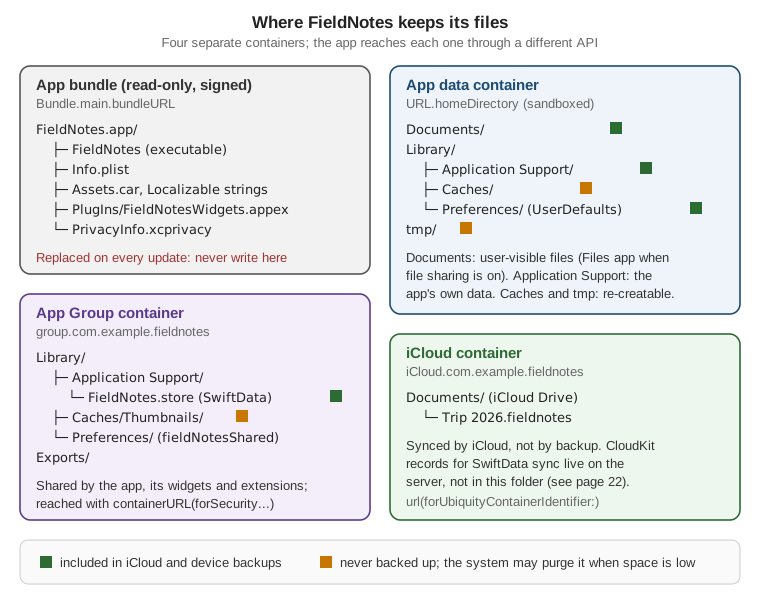
The directories have fixed meanings, and the system treats them differently:
| Directory | Purpose | Backed up | Purged by the system |
|---|---|---|---|
|
Files the person created or would expect to see. With |
Yes |
No |
|
The app’s own data files that aren’t user documents: databases, indexes, downloaded content the app needs. |
Yes |
No |
|
Data the app can recreate: thumbnails, response caches. |
No |
Yes, when storage is low |
|
Short-lived scratch files. Delete them when done. |
No |
Yes, when the app isn’t running |
|
|
Yes |
No |
On macOS a sandboxed app’s container is ~/Library/Containers/<bundle identifier>/Data, with the same layout
inside. A non-sandboxed Mac app (see Distributing Mac Apps with Developer ID and Notarization) gets the real home-folder locations instead, so the same code works unchanged.
Standard directory URLs
Foundation exposes each directory as a static URL property. FieldNotes collects the few locations it uses in one
small helper, so no view builds a path by hand:
// Packages/FieldNotesKit/Sources/FieldNotesServices/Files/FieldNotesPaths.swift
import Foundation

public enum FieldNotesPaths {
    /// Notebooks the person exported to "On My iPhone" (visible in the Files app).
    public static var exports: URL { .documentsDirectory.appending(path: "Exports", directoryHint: .isDirectory) }

    /// Original attachments downloaded by AttachmentDownloader; re-downloadable, so excluded from backup below.
    public static var attachments: URL {
        .applicationSupportDirectory.appending(path: "Attachments", directoryHint: .isDirectory)
    }

    /// Thumbnails, recreated on demand.
    public static var thumbnails: URL { .cachesDirectory.appending(path: "Thumbnails", directoryHint: .isDirectory) }

    /// A fresh scratch file for an export in progress.
    public static func scratchFile(named name: String) -> URL {
        .temporaryDirectory.appending(path: "\(UUID().uuidString)-\(name)")
    }

    public static func createIfNeeded(_ directory: URL) throws {
        try FileManager.default.createDirectory(at: directory, withIntermediateDirectories: true)
    }
}
See Apple Developer Documentation — documentsDirectory and Apple Developer Documentation — applicationSupportDirectory.
Application Support isn’t created for you on iOS; createDirectory(at:withIntermediateDirectories:) with true
does nothing when the folder already exists, so calling it before the first write is cheap and safe.
App Group containers
An App Group gives every member target a second, shared container. FileManager returns its URL, and the layout
inside it is up to the app, although using a Library/ subtree keeps the system’s backup and purge rules
consistent with the private container. FieldNotes puts its SwiftData store there, so the widgets can read notes
without asking the app. ModelContainer.fieldNotes(inMemory:) on
Persisting Models with SwiftData doesn’t build the path itself: it passes
groupContainer: .identifier("group.com.example.fieldnotes") to its ModelConfiguration, and SwiftData places the
store under Library/Application Support in this container. The helper below gives the same locations to code that
works with plain files, such as the export and diagnostics features:
// Packages/FieldNotesKit/Sources/FieldNotesServices/Files/FieldNotesPaths.swift (continued)
import Foundation

extension FieldNotesPaths {
    public static let appGroupIdentifier = "group.com.example.fieldnotes"

    /// The shared container, or nil when the App Groups entitlement is missing.
    public static var sharedContainer: URL? {
        FileManager.default.containerURL(forSecurityApplicationGroupIdentifier: appGroupIdentifier)
    }

    /// Library/Application Support inside the shared container, where SwiftData keeps its store.
    public static var sharedStoreDirectory: URL? {
        sharedContainer?.appending(path: "Library/Application Support", directoryHint: .isDirectory)
    }
}The method returns nil when the calling target isn’t a member of the group, which is why sharedContainer is
optional instead of force-unwrapped. It needs the App Groups capability on every target that calls it, and a paid
developer account to register the group for iOS, iPadOS, watchOS and visionOS. On macOS, groups whose identifier
starts with group. also need a provisioning profile; the older form prefixed with the team identifier is still
accepted for Mac-only apps.
Two processes writing the same file at once can corrupt it. SQLite, and so SwiftData, handles concurrent access to its own store. For any other file in the shared container, use file coordination, covered below.
Excluding files from backup
iCloud Backup and computer backups include Documents and Library, except Caches, by default. Purgeable data
belongs in Caches or tmp, which backups skip automatically. Some data isn’t purgeable, because the app needs it
offline, but still shouldn’t be backed up, because it can be downloaded again. FieldNotes's original-resolution
attachments are that case: they live in Application Support/Attachments, and the folder is marked excluded:
// Packages/FieldNotesKit/Sources/FieldNotesServices/Files/FieldNotesPaths.swift (continued)
import Foundation

extension FieldNotesPaths {
    /// Creates the attachments folder and asks backups to skip it; the files are on the server.
    public static func prepareAttachmentsDirectory() throws {
        var directory = attachments
        try createIfNeeded(directory)
        var values = URLResourceValues()
        values.isExcludedFromBackup = true
        try directory.setResourceValues(values)
    }
}
See Apple Developer Documentation — Optimizing Your App’s Data for iCloud Backup and Apple Developer Documentation — isExcludedFromBackup.
Setting the flag on the directory covers everything inside it. The flag is a hint, not a guarantee: Apple states that it tells the system what it may exclude. Never exclude data the person can’t get back, such as a note’s only copy or an imported file.
File Coordination
When more than one process, or more than one thread, can touch the same file, reads and writes must be
coordinated. NSFileCoordinator makes each access wait for the others and notifies interested parties, called
file presenters, before and after a change. The system uses coordination for iCloud Drive and for files other apps
open in place, and SwiftUI’s document infrastructure does it for you. You need it yourself when you write a file
that someone else may be reading: here, the latest export in the shared container, which the share extension reads.
coordinate(writingItemAt:options:error:byAccessor:) is synchronous and can block while another process finishes,
so FieldNotes calls it from a @concurrent function, off the main actor:
// Packages/FieldNotesKit/Sources/FieldNotesServices/Files/CoordinatedFileWriter.swift
import Foundation

public enum CoordinatedFileWriter {
    /// Replaces the file at `url` with `data`, coordinating with any other process that
    /// has the file open (the share extension, the Files app, iCloud Drive).
    @concurrent
    public static func write(_ data: Data, to url: URL) async throws {
        var coordinationError: NSError?
        var writeError: (any Error)?
        let coordinator = NSFileCoordinator(filePresenter: nil)

        coordinator.coordinate(writingItemAt: url, options: .forReplacing, error: &coordinationError) { actualURL in
            do {
                try data.write(to: actualURL, options: .atomic)
            } catch {
                writeError = error
            }
        }
        if let error = coordinationError ?? writeError { throw error }
    }
}Always use the URL passed to the accessor block (actualURL), not the one you asked for: if the file moved while you
waited, the coordinator hands you its new location. Classes that keep a file open and want to hear about other
processes' changes adopt NSFilePresenter and register with NSFileCoordinator.addFilePresenter(_:). The share
extension doesn’t need that, because it reads the file once, through its own coordinated read.
Codable Files: the .fieldnotes Format
A .fieldnotes file is a JSON encoding of one notebook and its notes. The file format is defined once, in
NoteFileFormat, so the document type, the importer, the exporter and the background loader on
Swift Concurrency in Apps all read and write the same bytes. Note isn’t
Codable itself; the file uses its own Entry type so that the on-disk format can stay stable while the in-memory
model changes. How Codable, JSONEncoder and custom keys work is on
Codable and Serialization; this is only the
FieldNotes use of it:
// Packages/FieldNotesKit/Sources/FieldNotesServices/Files/NoteFileFormat.swift
import Foundation
import FieldNotesModel

public enum NoteFileFormat {
    public static let currentVersion = 1

    /// The whole file: a version number, the notebook's name, and its notes.
    public struct Envelope: Codable, Sendable, Equatable {
        public var version: Int = NoteFileFormat.currentVersion
        public var notebookName: String
        public var notes: [Entry]

        public init(notebookName: String, notes: [Note]) {
            self.notebookName = notebookName
            self.notes = notes.map(Entry.init)
        }
    }

    /// One note as it's written to disk. Photos aren't embedded; the file lists their names only.
    public struct Entry: Codable, Sendable, Equatable {
        public var id: UUID
        public var title: String
        public var body: String
        public var createdAt: Date
        public var tags: [String]
        public var isPinned: Bool
        public var location: NoteLocation?

        public init(_ note: Note) {
            id = note.id; title = note.title; body = note.body; createdAt = note.createdAt
            tags = note.tags; isPinned = note.isPinned; location = note.location
        }

        public func note(in notebookID: Notebook.ID?) -> Note {
            Note(id: id, title: title, body: body, createdAt: createdAt, notebookID: notebookID,
                 tags: tags, isPinned: isPinned, location: location)
        }
    }

    public static func encode(_ envelope: Envelope) throws -> Data {
        let encoder = JSONEncoder()
        encoder.dateEncodingStrategy = .iso8601
        encoder.outputFormatting = [.prettyPrinted, .sortedKeys]
        return try encoder.encode(envelope)
    }

    public static func decodeEnvelope(_ data: Data) throws -> Envelope {
        let decoder = JSONDecoder()
        decoder.dateDecodingStrategy = .iso8601
        let envelope = try decoder.decode(Envelope.self, from: data)
        guard envelope.version <= currentVersion else {
            throw CocoaError(.featureUnsupported)   // written by a newer FieldNotes
        }
        return envelope
    }

    /// The notes in a file, not yet assigned to a notebook.
    public static func decode(_ data: Data) throws -> [Note] {
        try decodeEnvelope(data).notes.map { $0.note(in: nil) }
    }
}NoteLocation is Codable already (it’s defined in FieldNotesModel, as listed on
Persisting Models with SwiftData), so it’s encoded as a nested object. The version
check means an older FieldNotes refuses a file written by a newer one instead of silently dropping fields.
Property lists are the other built-in format. They suit small, structured configuration that a person might open in Xcode’s plist editor, such as the settings export on the Mac:
// FieldNotes/macOS/SettingsExport.swift
import Foundation
import FieldNotesServices

struct SettingsSnapshot: Codable {
    var noteSortOrder: String
    var pinnedFirst: Bool
    var locationRadius: Double
}

func settingsPlist(from defaults: UserDefaults = .fieldNotesShared) throws -> Data {
    let snapshot = SettingsSnapshot(
        noteSortOrder: defaults.string(forKey: "noteSortOrder") ?? "newestFirst",
        pinnedFirst: defaults.bool(forKey: "pinnedFirst"),
        locationRadius: defaults.double(forKey: "locationRadius"))
    let encoder = PropertyListEncoder()
    encoder.outputFormat = .xml
    return try encoder.encode(snapshot)
}Declaring the Notebook File Type
The system identifies file formats by uniform type identifier (UTI), not by extension. A custom format needs a UTI
that the app exports (declares as its own), plus a document-type entry saying the app can open it. In code, the
type is a UTType constant:
// Packages/FieldNotesKit/Sources/FieldNotesServices/Files/UTType+FieldNotes.swift
import UniformTypeIdentifiers

extension UTType {
    /// A FieldNotes notebook file (.fieldnotes): JSON written by NoteFileFormat.
    public static let fieldNotesNotebook = UTType(exportedAs: "com.example.fieldnotes.notebook",
                                                  conformingTo: .json)
}UTType(exportedAs:) only refers to the type; the declaration itself lives in the app target’s Info.plist. Xcode
edits it on the target’s Info tab under Exported Type Identifiers and Document Types; the resulting plist
entries are:
<!-- FieldNotes/Info.plist (excerpt) -->
<key>UTExportedTypeDeclarations</key>
<array>
    <dict>
        <key>UTTypeIdentifier</key>
        <string>com.example.fieldnotes.notebook</string>
        <key>UTTypeDescription</key>
        <string>FieldNotes Notebook</string>
        <key>UTTypeConformsTo</key>
        <array>
            <string>public.json</string>
        </array>
        <key>UTTypeTagSpecification</key>
        <dict>
            <key>public.filename-extension</key>
            <array>
                <string>fieldnotes</string>
            </array>
        </dict>
    </dict>
</array>
<key>CFBundleDocumentTypes</key>
<array>
    <dict>
        <key>CFBundleTypeName</key>
        <string>FieldNotes Notebook</string>
        <key>CFBundleTypeRole</key>
        <string>Editor</string>
        <key>LSHandlerRank</key>
        <string>Owner</string>
        <key>LSItemContentTypes</key>
        <array>
            <string>com.example.fieldnotes.notebook</string>
        </array>
    </dict>
</array>
<key>LSSupportsOpeningDocumentsInPlace</key>
<true/>
<key>UISupportsDocumentBrowser</key>
<true/>Conforming to public.json lets other apps that accept JSON open a notebook file too. CFBundleTypeRole is
Editor because FieldNotes writes the format; a read-only viewer sets Viewer. UISupportsDocumentBrowser turns
on the iOS document browser that DocumentGroup presents at launch. Only the target that owns a format exports it;
an app that merely opens someone else’s format imports the declaration instead, with UTImportedTypeDeclarations
and UTType(importedAs:).
Document-Based Apps
A document-based app edits files that the person manages: they create, name, move and share them in Files or
Finder, and the app opens one per window. FieldNotes is a library-style app instead, with one store holding every
note. It still opens .fieldnotes files as documents, so that a notebook shared by a colleague can be read, edited and
saved without importing it into the library first. That second scene is where NotebookExportDocument comes in.
NotebookExportDocument with ReadableDocument and WritableDocument (new in 27)
The 27 SDKs add a new, class-based document model. ReadableDocument describes a type that opens files,
WritableDocument one that saves them, and Document is shorthand for both. The protocols are constrained to
AnyObject, so SwiftUI keeps a stable identity for the document, and Apple recommends @Observable so views update
per property. Loading and saving are split into three steps that run in the right isolation: a reader or writer
does the file work in the background, snapshot(contentType:) captures the state to save on the main actor, and
apply(snapshot:previous:) installs what was read, also on the main actor. SwiftUI coordinates every read and write.
// FieldNotes/Documents/NotebookExportDocument.swift
import SwiftUI
import UniformTypeIdentifiers
import FieldNotesModel
import FieldNotesServices

@available(iOS 27, macOS 27, visionOS 27, *)
@Observable
final class NotebookExportDocument: Document {
    static let readableContentTypes: [UTType] = [.fieldNotesNotebook]

    var notebookName: String
    var notes: [Note]

    init(notebookName: String = String(localized: "Untitled Notebook"), notes: [Note] = []) {
        self.notebookName = notebookName
        self.notes = notes
    }

    // Reading: runs in the background, then apply(snapshot:previous:) runs on the main actor.
    func reader(configuration: sending ReadConfiguration)
        -> sending FileWrapperDocumentReader<NoteFileFormat.Envelope> {
        FileWrapperDocumentReader(configuration) { fileWrapper in
            guard let data = fileWrapper.regularFileContents else {
                throw CocoaError(.fileReadCorruptFile)
            }
            return try NoteFileFormat.decodeEnvelope(data)
        }
    }

    @MainActor
    func apply(snapshot: sending NoteFileFormat.Envelope,
               previous: sending NoteFileFormat.Envelope?) async throws {
        notebookName = snapshot.notebookName
        notes = snapshot.notes.map { $0.note(in: nil) }
    }

    // Writing: snapshot on the main actor, then the writer serializes it in the background.
    @MainActor
    func snapshot(contentType: UTType) async throws -> sending NoteFileFormat.Envelope {
        NoteFileFormat.Envelope(notebookName: notebookName, notes: notes)
    }

    func writer(configuration: sending WriteConfiguration)
        -> sending FileWrapperDocumentWriter<NoteFileFormat.Envelope> {
        FileWrapperDocumentWriter(configuration) { snapshot, _ in
            FileWrapper(regularFileWithContents: try NoteFileFormat.encode(snapshot))
        }
    }
}
See Apple Developer Documentation — ReadableDocument and Apple Developer Documentation — WritableDocument.
writableContentTypes isn’t declared: by default a readable document writes the same types it reads. The snapshot
type is NoteFileFormat.Envelope, a Sendable value, so the background writer never touches the observable class.
FileWrapperDocumentReader and FileWrapperDocumentWriter are SwiftUI’s convenience implementations for formats
that fit in memory; a custom DocumentReader or DocumentWriter streams from the URL instead, for large or package
formats. The sketch of NotesArchive on App Structure and Life
Cycle follows exactly this shape.
The document scene
DocumentGroup with the makeDocument initializer opts a scene into the document infrastructure: the document
browser on iOS, open and save panels and the File menu on macOS, autosave, versions and conflict resolution. In
FieldNotes it’s a second scene next to the library WindowGroup, added only on 27. SceneBuilder supports
if #available (through buildLimitedAvailability(_:)) but has no else branch, so on 26 there is simply no
document scene, and notebook files are imported with fileImporter instead (shown below):
// FieldNotes/FieldNotesApp.swift (excerpt: init() with the persistence wiring and default preferences unchanged)
import SwiftUI
import SwiftData
import FieldNotesServices

@main
struct FieldNotesApp: App {
    private let container: ModelContainer
    @State private var store: NoteStore

    // init() as above: opens ModelContainer.fieldNotes() and creates
    // NoteStore(syncer:persistence:) with a SwiftDataNotePersistence.

    var body: some Scene {
        WindowGroup {
            ContentView()
                .environment(store)
                .task { await store.load() }
        }
        .modelContainer(container)
        .defaultAppStorage(.fieldNotesShared)

        #if !os(watchOS)
        if #available(iOS 27, macOS 27, visionOS 27, *) {
            DocumentGroup { (document: NotebookExportDocument) in
                NotebookDocumentView(document: document)
                    .environment(store)   // lets the document view copy notes into the library
            } makeDocument: { _, _ in
                NotebookExportDocument()
            }
        }
        #endif
    }
}The makeDocument closure is async and runs on the main actor, and it receives a URLDocumentConfiguration and a
DocumentCreationContext. FieldNotes ignores both because a new notebook always starts empty. An app with
templates reads the context’s creation source to decide what the new document contains, and one that needs the
file’s URL later keeps the configuration. For a read-only format, DocumentGroup(viewer:makeReadableDocument:) takes
a ReadableDocument type; CFBundleTypeRole is then Viewer.
Editing and undo
With the old value-type protocols, SwiftUI detected changes through the document binding. With the class-based model, the undo manager is how SwiftUI learns a document has unsaved changes. Every edit registers an undo action, and that marks the document dirty and schedules autosave:
// FieldNotes/Documents/NotebookDocumentView.swift
import SwiftUI
import FieldNotesModel
import FieldNotesServices
import FieldNotesUI

@available(iOS 27, macOS 27, visionOS 27, *)
struct NotebookDocumentView: View {
    @Bindable var document: NotebookExportDocument
    @Environment(NoteStore.self) private var store
    @Environment(\.undoManager) private var undoManager

    var body: some View {
        List {
            TextField("Notebook Name", text: $document.notebookName)
            ForEach(document.notes) { note in   // identity: Note.id
                NoteRow(note: note)
            }
            .onDelete(perform: deleteNotes)
        }
        .toolbar {
            Button("Add to Library", systemImage: "tray.and.arrow.down") {
                for note in document.notes where !store.notes.contains(where: { $0.id == note.id }) {
                    store.add(note)
                }
            }
        }
        .onChange(of: document.notebookName) { oldValue, _ in
            undoManager?.registerUndo(withTarget: document) { $0.notebookName = oldValue }
        }
    }

    private func deleteNotes(at offsets: IndexSet) {
        let removed = document.notes
        document.notes.remove(atOffsets: offsets)
        undoManager?.registerUndo(withTarget: document) { $0.notes = removed }
    }
}ForEach uses each note’s id as its identity, not the note value that’s being edited, so a rename doesn’t
recreate the row. The scene above injects the store with .environment(store), which this view needs for
Add to Library.
The 26 fallback: FileDocument
Before the 27 SDKs, document types conformed to FileDocument (a value type) or ReferenceFileDocument (a class).
Both still compile, but the documentation lists them as deprecated (from the 27.2 SDKs) and says they’re no longer
supported for new document types. A target that must offer a document scene on 26 has no alternative, so this is
the shape such a scene used; FieldNotes keeps it only to show the migration, because its 26 path imports files
instead:
// FieldNotes/Documents/LegacyNotebookFile.swift (for deployment targets below 27)
import SwiftUI
import UniformTypeIdentifiers
import FieldNotesServices

struct LegacyNotebookFile: FileDocument {
    static let readableContentTypes: [UTType] = [.fieldNotesNotebook]

    var envelope: NoteFileFormat.Envelope

    init(envelope: NoteFileFormat.Envelope = .init(notebookName: "Untitled Notebook", notes: [])) {
        self.envelope = envelope
    }

    init(configuration: ReadConfiguration) throws {
        guard let data = configuration.file.regularFileContents else {
            throw CocoaError(.fileReadCorruptFile)
        }
        envelope = try NoteFileFormat.decodeEnvelope(data)
    }

    func fileWrapper(configuration: WriteConfiguration) throws -> FileWrapper {
        FileWrapper(regularFileWithContents: try NoteFileFormat.encode(envelope))
    }
}

// The pre-27 scene: DocumentGroup(newDocument:editor:) with a binding to the value.
// DocumentGroup(newDocument: LegacyNotebookFile()) { file in
//     LegacyNotebookEditor(envelope: file.$document.envelope)
// }Migrating means turning the value into an @Observable class, moving init(configuration:) into a reader and
fileWrapper(configuration:) into a writer, and registering undo yourself. Both types share NoteFileFormat, so
files written by either open in the other. Apple’s migration article maps each piece one to one.
UIKit: UIDocument
UIKit apps, such as the legacy FieldNotes 1.x on
Core Data, CloudKit and iCloud, subclass UIDocument, which has
done coordinated, autosaving file access since iOS 5. The subclass converts between the model and Data (or a
FileWrapper), and UIKit does the rest, including iCloud conflict versions. On macOS the counterpart is
NSDocument:
// FieldNotes 1.x/NotebookUIDocument.swift
#if canImport(UIKit)
import UIKit
import FieldNotesServices

final class NotebookUIDocument: UIDocument {
    var envelope = NoteFileFormat.Envelope(notebookName: "Untitled Notebook", notes: [])

    override func contents(forType typeName: String) throws -> Any {
        try NoteFileFormat.encode(envelope)
    }

    override func load(fromContents contents: Any, ofType typeName: String?) throws {
        guard let data = contents as? Data else { throw CocoaError(.fileReadCorruptFile) }
        envelope = try NoteFileFormat.decodeEnvelope(data)
    }
}

// Opening: NotebookUIDocument(fileURL: url).open { success in ... }
// Editing: change `envelope`, then call updateChangeCount(.done) so autosave picks it up.
#endifImporting and Exporting Files
Not every file interaction needs a document scene. fileImporter presents the system file picker (the Files browser
on iOS, an open panel on macOS) and hands back URLs; fileExporter presents the save side. FieldNotes uses the
importer on every version to pull a notebook file into the library, which is also its whole document story on 26.
A URL from the importer points outside the sandbox, so it’s security-scoped: access must be started before reading and stopped afterwards, or the read fails with a permission error:
// FieldNotes/Views/NotebookImportButton.swift
import SwiftUI
import FieldNotesModel
import FieldNotesServices

struct NotebookImportButton: View {
    @Environment(NoteStore.self) private var store
    @State private var isImporting = false
    @State private var importError: (any Error)?

    var body: some View {
        Button("Import Notebook…", systemImage: "square.and.arrow.down") {
            isImporting = true
        }
        .fileImporter(isPresented: $isImporting, allowedContentTypes: [.fieldNotesNotebook]) { result in
            do {
                let url = try result.get()
                guard url.startAccessingSecurityScopedResource() else {
                    throw CocoaError(.fileReadNoPermission)
                }
                defer { url.stopAccessingSecurityScopedResource() }
                let envelope = try NoteFileFormat.decodeEnvelope(Data(contentsOf: url))
                let notebook = Notebook(name: envelope.notebookName)
                store.notebooks.append(notebook)
                envelope.notes.map { $0.note(in: notebook.id) }.forEach(store.add)
            } catch {
                importError = error
            }
        }
    }
}Every view that reads NoteStore from the environment, this one included, sits under ContentView, which the
WindowGroup injects with .environment(store).
For export, the FileDocument-based fileExporter(isPresented:document:contentType:defaultFilename:onCompletion:) is
deprecated along with FileDocument. The Transferable variant works on 26 and 27 alike, and the same
Transferable conformance also powers ShareLink and drag and drop. NoteFileFormat.Envelope is Codable, so a
CodableRepresentation with the notebook type is all it needs:
// Packages/FieldNotesKit/Sources/FieldNotesServices/Files/NoteFileFormat+Transferable.swift
import CoreTransferable
import UniformTypeIdentifiers

extension NoteFileFormat.Envelope: Transferable {
    public static var transferRepresentation: some TransferRepresentation {
        CodableRepresentation(for: NoteFileFormat.Envelope.self, contentType: .fieldNotesNotebook)
    }
}

// FieldNotes/Views/NotebookExportButton.swift
import SwiftUI
import FieldNotesModel
import FieldNotesServices

struct NotebookExportButton: View {
    @Environment(NoteStore.self) private var store
    let notebook: Notebook
    @State private var isExporting = false

    private var envelope: NoteFileFormat.Envelope {
        .init(notebookName: notebook.name, notes: store.notes.filter { $0.notebookID == notebook.id })
    }

    var body: some View {
        Button("Export Notebook…", systemImage: "square.and.arrow.up") { isExporting = true }
            .fileExporter(isPresented: $isExporting, item: envelope,
                          contentTypes: [.fieldNotesNotebook],
                          defaultFilename: "\(notebook.name).fieldnotes") { result in
                if case .failure(let error) = result {
                    print("Export failed: \(error.localizedDescription)")
                }
            }
    }
}CodableRepresentation encodes with a JSON encoder by default. The .fieldnotes format uses ISO 8601 dates, so
production code passes the encoder and decoder that NoteFileFormat configures, through the
init(for:contentType:encoder:decoder:) initializer, to keep one format. A notebook exported this way opens in the
27 document scene, and a file saved there imports on 26.
The same file can go into iCloud Drive rather than on-device storage: the export panel offers iCloud Drive locations, and a Documents folder in the app’s iCloud container shows up in Files under the app’s name. Setting up that container is on Core Data, CloudKit and iCloud.
Availability and Requirements
Platform availability
| API or feature | iOS | iPadOS | macOS | watchOS | visionOS |
|---|---|---|---|---|---|
|
Yes |
Yes |
Yes |
Yes |
Yes |
|
Yes |
Yes |
Yes |
Yes |
Yes |
App Group containers ( |
Yes |
Yes |
Yes |
Yes (watch app and its extensions only) |
Yes |
|
Yes |
Yes |
Yes |
Yes |
Yes |
|
Yes |
Yes |
Yes |
Yes |
Yes |
|
Yes |
Yes |
Yes |
Not available |
Yes |
|
New in 27 |
New in 27 |
New in 27 |
Not available |
New in 27 |
|
Deprecated (27.2) |
Deprecated (27.2) |
Deprecated (27.2) |
Not available |
Deprecated (27.2) |
|
Yes |
Yes |
Not available (use |
Not available |
Yes |
|
Yes |
Yes |
Yes |
Not available |
Yes |
Capabilities and accounts
-
The App Group suite, the shared container and the shared SwiftData store need the App Groups capability with
group.com.example.fieldnoteson the app and on every widget and extension target. Registering the group needs a paid Apple Developer Program membership. -
The iCloud Drive container needs the iCloud capability with iCloud Documents and the container
iCloud.com.example.fieldnotes, also a paid-account feature. -
Document browsing, import and export work in the Simulator; sharing data with a widget through the App Group does too. Nothing on this page needs a physical device.
References
-
Apple Developer Documentation — containerURL(forSecurityApplicationGroupIdentifier:)
-
Apple Developer Documentation — Optimizing Your App’s Data for iCloud Backup
-
Apple Developer Documentation — Encoding and Decoding Custom Types
-
Apple Developer Documentation — init(exportedAs:conformingTo:)
-
Apple Developer Documentation — Defining file and data types for your app
-
Apple Developer Documentation — Building a document-based app with SwiftUI
-
Apple Developer Documentation — Updating your document-based app
-
Apple Developer Documentation — fileImporter(isPresented:allowedContentTypes:onCompletion:)