Presenting and Testing Prototypes
|
This content was generated with the assistance of AI and should be verified against the official Figma documentation before being relied on in production. This sub-section’s Figma bibliography lists the reference material consulted while preparing these pages. |
This page was written on 2026-10-30 against the UI3 interface of Figma Design. Prototypes exist only in Figma Design files. Playing a prototype in presentation view is available on all plans, and the help article on playing prototypes lists no separate seat requirement for it. Some sharing controls depend on the plan (prototype-only links, password protection, organization and workspace audiences, link expiry), so check the current sharing article for your plan before promising a setting to a client. Building the prototype itself is covered on Prototyping Basics; this page starts when the flows already exist and you need other people to play them.
The running example is the Bookshelf catalogue-to-review flow. You will show it to a stakeholder, send it to a phone, embed it in a wiki and prepare a copy for a usability test, which is the first step of Usability Testing and Iteration.
Presentation view
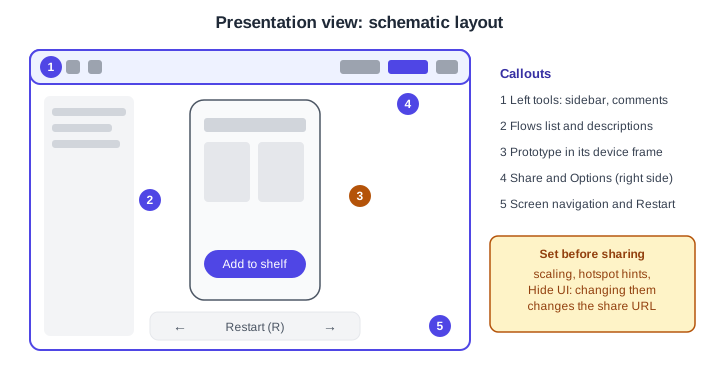
Presentation view is the full-tab player for a prototype. Open it with Present in the toolbar, or with Command Option Return on macOS and Control Alt Enter on Windows. It opens in a new browser tab and starts from the flow’s starting point. Preview (Shift Space) is different: it plays inline in the editor, which is handy while building but not for showing others.
-
Left tools: a toggle for the sidebar (flows and their descriptions) and comment mode.
-
Flows list: lets the audience switch between flows in the file, so name flows clearly (for example "Find a book" and "Leave a review").
-
The prototype: shown inside a device frame if one is set in the prototype settings, with a device switcher.
-
Share and Options on the right: Share opens the sharing dialog; Options holds view settings.
-
Navigation: arrows between screens and Restart ® to return to the flow’s start.
Useful Options settings, as documented at the time of writing:
-
Show hints on click: clicking outside a hotspot highlights the clickable areas with a blue box. Keep it on for a stakeholder walkthrough, and turn it off for a usability test so it does not reveal the answer.
-
Scaling: without a device frame the choices are Actual size, Responsive, Fit width, Fit width and height and Fill screen; with a device frame they are Responsive or Fixed size, with device scaling options. Press Z to cycle through them.
-
Hide UI: hides the toolbar, footer and sidebar and updates the share URL.
-
Enable Figma shortcuts: turns on keys such as C for comments and F for fullscreen.
Changing some Options settings changes the share URL, so finish the settings first and copy the link last.
Sharing a prototype
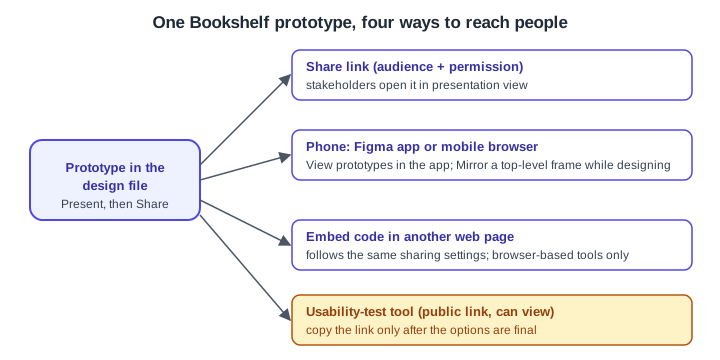
Open the design file, click Present, then Share prototype. You choose an audience and a permission, then copy the link. The documented audience choices are Anyone (including people outside your organization), Organization, Workspace (selected workspace, Enterprise) and Only invited people; the permission is view or edit. A prototype-only link lets people play the prototype without access to the full file. Basic sharing works on all plans, whereas prototype-only links, password protection and the advanced controls are described as paid-plan features. Which audience values appear depends on your plan, so treat the list as indicative.
For a client review of Bookshelf, set the audience to the people you invited and the permission to view. Prefer view: edit access would let the reviewer change your file. The wider permission model (folders, teams, roles) is on Files, Folders, Teams and Sharing.
Viewing on a phone
There are two different things on a phone, and they are easy to confuse:
-
View prototypes: in the Figma mobile app, open the file, use the menu and choose View prototypes. The prototype starts at its flow starting point. Anyone with view access can do this. Without the app, a prototype link opens in the mobile browser, where interaction works through hotspots only, and the browser back action is not supported.
-
Mirror: while you design, sign in to the same account on desktop and in the mobile app, select a top-level frame on the desktop and open the Mirror tab in the app. The frame appears scaled to the phone width. Mirroring needs edit access to the file, and in the browser it is available at figma.com/mirror. Both devices need not share a network.
Only frames with prototype connections are interactive. The mobile app supports a limited set of devices, so use the browser if yours is not supported. The older books describe the Mirror flow of 2021-22 apps; use the current help article instead of their step lists. The app itself is described on Desktop, Mobile and VS Code.
Embedding a prototype
Click Share prototype, set the audience and permission, then use the Get embed code link. The embed follows your sharing settings; a password-protected file cannot be opened from an embed. Embeds work only in browser-based tools, not in native desktop applications. The embed options, the Embed Kit and the Embed API are covered on Embeds.
Collecting feedback
In presentation view, comment mode (C with Figma shortcuts enabled) lets reviewers leave comments, and presenters can use spotlight so collaborators follow along. Comments are handled on Comments and Real-Time Collaboration. For a stakeholder review, send one link per flow, say in the message what is clickable, and ask for comments on named screens rather than general opinions.
Preparing a usability-test prototype
A test prototype should be a trimmed copy, not your working file. A checklist derived from the help article on testing with UserTesting:
-
Duplicate the file and remove everything not needed for the tasks (for example only the "find a book and leave a review" flow of Bookshelf).
-
Compress large images and limit Smart Animate, because heavy prototypes load slowly and participants may give up.
-
Click Present, then Share prototype; set the audience to Anyone and the permission to can view if the test tool needs a public link.
-
In Options choose Fit width for desktop or fit to screen for mobile, and turn off hotspot hints, the sidebar and the Figma UI.
-
Copy the link last, and open it in a private window to confirm it works without signing in.
-
Tell participants in the task scenario that some links may not work, because not every element is connected.
That article describes the UserTesting integration, which needs a UserTesting account and lists no Figma plan or seat requirement. The same link can be given to any other testing tool, or to participants in a moderated session. Planning tasks, recruiting and analysing results are on Usability Testing and Iteration.
Where older guides are outdated
-
The 2021-22 and 2024 books describe the pre-UI3 interface and the older mobile Mirror flow; the toolbar, share dialog and Options names above are the current ones (UI3 is the only interface since 2025-04-30).
-
Seat and plan wording in older books ("editor", "viewer", "paid Team plan") predates the Full, Dev, Collab and View seats (since 2025-03-11). See Plans, Seats and AI Credits.
-
Hover-style triggers were renamed (Mouse enter and Mouse leave) and video triggers exist, so test the prototype in presentation view rather than relying on older trigger names.