Special G/L Transactions
|
This content was generated with the assistance of AI and should be verified against the official documentation before being relied on in production. |
Most postings to a customer or supplier account land on one general ledger account, the reconciliation account, which adds
up everything the company is owed or owes. Some business transactions must not be mixed into that total. A down payment,
money paid to a supplier before the goods arrive, is not yet a receivable or a payable, and the balance sheet must show it on its own line. SAP calls these transactions special G/L transactions. This
page explains how they work, which kinds exist, how down payment requests, down payments and guarantees are posted, and
how a supplier down payment is paid and then cleared against the final invoice, with numbers for the fictitious company
code EX01. It is written against SAP S/4HANA 2025 FPS02 (on premise and Private Edition) and SAP S/4HANA Cloud Public
Edition 2608. The ideas are the same in both; the transactions and apps differ, and the page says where.
Before you read
-
Accounts Payable: the supplier account, the supplier invoice and the outgoing payment that this page builds on.
-
Accounts Receivable, Dunning and Credit: the customer side, and what dunning (the reminder program) is.
-
Open Item Management and Clearing: what an open item is and how clearing matches items that add up to zero.
-
Account Determination and Automatic Postings: how the system finds accounts without you typing them.
-
Journal Entries, Document Types and Posting Keys: what a posting key is.
Key terms
-
Special G/L transaction: a posting to a customer or supplier account that is shown separately in the general ledger and the subledger.
-
Special G/L indicator: the one-letter code that marks a line item as a special G/L transaction and says which kind.
-
Reconciliation account: the general ledger account that sums up a customer or supplier subledger.
-
Down payment: money paid or received before the goods or services are delivered.
-
Down payment request: a reminder document that asks for, or triggers the automatic payment of, a down payment, and does not change any balance.
-
Noted item: an entry that is kept as a reminder and does not update account balances.
-
Statistical posting: a posting whose offsetting entry always goes to the same preset account, such as a guarantee.
-
Guarantee: a promise to stand in for a debt, made to a customer or received from a supplier.
What special G/L transactions are
SAP describes special G/L transactions as special transactions in accounts receivable and accounts payable that are displayed separately in the general ledger and in the subledger. The mechanism is simple: instead of posting to the reconciliation account of the customer or supplier, the system posts to an alternative reconciliation account. A separate special G/L account exists for each kind of transaction, so each one appears in the balance sheet without transfer postings, and the account that is limited to one procedure gives an overview of just that procedure.
SAP lists these special G/L transactions in the standard system:
-
down payments and down payment requests,
-
bills of exchange receivable, bills of exchange payable, and checks or bills of exchange,
-
bank bills,
-
payment requests,
-
guarantees,
-
reserves for bad debt, and
-
security deposits.
They are shown apart from other receivables and payables for legal reasons, such as down payments, or for control reasons, such as guarantees received. Special G/L transactions are already delivered in the standard system. You can change their specifications or define your own. This page covers down payment requests, down payments and guarantees. Bills of exchange and the other kinds are outside it.
An account is still a normal customer or supplier account. What changes is where the amount goes in the general ledger.
A down payment of EUR 11,900 posted to supplier S1 raises the open items of S1, and it raises a special G/L account
for down payments made, not the reconciliation account for payables.
Three technical kinds of posting
SAP sorts special G/L transactions in two ways. By business meaning there are bills of exchange, down payments and miscellaneous transactions such as guarantees. By technical behavior there are three kinds:
| Technical kind | What happens to the offsetting entry | Example in this page |
|---|---|---|
Posting with a freely definable offsetting entry |
You choose the other account, as in an ordinary posting. |
A down payment, whose other side is a bank account. |
Statistical posting |
The offsetting entry is preset: the system always posts it to the same account. |
A guarantee, which goes to a clearing account. |
Noted item |
There is no offsetting entry. The entry only reminds you of a payment due or to be made, and it does not update account balances. |
A down payment request. |
SAP adds that when you clear open items in an open item account, the system also clears the matching open items in the offsetting account of a statistical posting. Noted items are special in one more way: they are not displayed in the account balances, and you can look at them only in the line item display of the open item account and of the reconciliation account. Because of that, SAP says you should always mark line item display for the accounts that hold them.
Posting keys and special G/L indicators
A normal posting needs a posting key, which decides debit or credit and the account type. A special G/L transaction needs a special posting key plus a special G/L indicator. The key says which side of which account type, and the indicator says which kind of special G/L transaction it is. The system uses the key and the indicator together to find the alternative reconciliation account: for a down payment received it takes the reconciliation account for receivables from goods and services plus the indicator, and from them the special G/L account.
These are the posting keys that SAP lists for special G/L transactions in the standard system:
| Posting key | Description | Usage (example) |
|---|---|---|
|
Outgoing debit posting |
Payment of bill receivable |
|
Outgoing credit posting |
Down payment received |
|
Incoming debit posting |
Down payment made |
|
Incoming credit posting |
Payment of bill payable |
SAP’s example: a down payment made is posted with key 29, which says the posting is on the debit side of a supplier
account, and the special G/L indicator says what type of down payment it is. For down payments the standard system uses
these indicators:
| Indicator | Down payment type |
|---|---|
|
General down payment (made or received) |
|
Down payment made on tangible fixed assets |
|
Down payment made on intangible fixed assets |
|
Down payment made on inventory stocks |
A separate special G/L account must exist for each type, and further ones if you separate consolidation and non-consolidation companies. Those accounts also control which entry fields appear (for example, a down payment to current assets can hide the fixed asset fields), how tax is shown, and whether a cash discount can be posted.
Where a special function exists, such as the down payment request, you do not enter the posting key or often the special G/L indicator yourself: the system derives them from the function you use. That simplifies entry and prevents errors. You change these specifications only if you defined your own posting keys or indicators or changed the standard keys.
The Public Edition help gives one more indicator in its direct posting of supplier down payments: A for down payments
recorded as current assets or B for down payments recorded as financial assets, as common options. The two lists
differ, and the Public Edition list is introduced with "for example", so check the indicators your system offers.
Sources: Posting Keys and Special G/L Indicators (SAP Help Portal, on premise), Special G/L Accounts for Down Payments (SAP Help Portal, on premise), Specifications for Posting Key and Special G/L Indicator (SAP Help Portal, on premise), Direct Posting of Supplier Down Payments (SAP Help Portal, Public Edition)
Properties of a special G/L transaction
SAP says you define properties for each special G/L indicator, separately for incoming and outgoing procedures. The properties it names:
-
Noted items. The transaction does not update account balances. Down payment requests are of this kind in the standard system.
-
Credit limit check. A transaction can be included in the customer credit limit check. Noted items are not generally taken into account.
-
Warning message for liabilities. When you post to a supplier or customer account, the system can show a message about the special G/L transaction. In the standard system this is active for down payments made, which is how you learn that a down payment already exists when you post an invoice.
-
Target special G/L indicator. For noted items, the indicators that are permitted when the document is entered. The standard system uses it for down payment requests.
-
Type. Each transaction is also marked as a bill of exchange, a down payment or another transaction, and this goes into the line item.
Down payment requests
A down payment request is a special document. SAP describes it as a reference for posting a down payment or as a document for the dunning program, and it does not update the account balance. You need one if the payment program or the dunning program is to handle a down payment: the payment program pays a supplier down payment from the request, and the dunning program reminds a customer about one. It is a noted item. It is kept as a line item in the open item account and in the special G/L account, which is why those accounts should have line item display.
The request carries what those programs need. SAP lists these entries:
-
the target special G/L indicator, which the system later uses to find the special G/L account that the down payment goes to, and which also decides which fields the entry screen shows;
-
the tax amount and tax code: an input tax code for supplier requests, an output tax code for customer requests;
-
the due date, which tells the payment program when to pay and the dunning program when the item is overdue;
-
a payment block, which stops the payment program from paying until you remove it;
-
optional references such as a customer order or an additional account assignment, depending on configuration.
The programs process down payment requests only if you say so explicitly. For the payment program you name the special G/L transactions in the company code specifications of the payment program, and for the dunning program you name them per dunning procedure. For a down payment in several installments you post one request line item for each installment.
Where you work with requests:
| Edition | Supplier side | Customer side |
|---|---|---|
On premise |
Manage Supplier Down Payment Requests app (app ID |
Manage Customer Down Payment Requests app, or the same path in the accounts receivable menu |
Public Edition |
Manage Supplier Down Payment Requests app. SAP says the system usually creates supplier requests itself from the supplier’s purchase order, and you create one by hand when a supplier asks for a down payment that the purchase order does not contain. After the payment run pays the down payment, it clears the request automatically. |
Post Customer Down Payment Requests app; the Public Edition help describes it for the customer request and refers to the supplier app for suppliers |
When a customer pays only part of a request, the Public Edition help describes two ways: enter the received amount as a partial payment, so the request and the partial payment stay open until the rest arrives, or post a residual item, after which the system clears the original request. Overpayments cannot be posted as partial payments; the system moves the overpaid amount to the residual item.
Requires an SAP system; not run here.
Sources: Down Payment Requests (SAP Help Portal, on premise), Entering and Posting a Down Payment Request (SAP Help Portal, on premise), Manage Supplier Down Payment Requests (SAP Help Portal, on premise), Post Customer Down Payment Requests (SAP Help Portal, Public Edition), Handling of Partial Down Payments (SAP Help Portal, on premise)
Down payments
Down payments are used for short or medium-term financing. SAP gives the typical case: a manufacturer cannot finance a long production period alone, so the customer pays part of the price before production starts or after partial completion. A down payment must not be balanced with other receivables or payables, because a receivable or payable only arises when the goods are delivered or the service is performed. On the balance sheet, down payments made go on the assets side and down payments received on the liabilities side. Down payments made are further divided into those on tangible fixed assets, on intangible fixed assets, on inventory stocks, and general down payments.
Posting a down payment
You normally post a down payment once the amount is on your bank statement, either by entering it yourself or by selecting a down payment request from which the system creates the down payment. In exceptional cases, where a customer gave you a collection authorization, the payment program posts customer down payments from the requests. In the Public Edition, a supplier down payment is posted in the Post Outgoing Payments app, either against an earlier request or directly, on the Post on Account tab with a special G/L indicator for the down payment. In the direct case, SAP says you cannot clear normal open items and post a supplier down payment on account in the same step.
The posting goes to the customer or supplier account, to the special G/L account that the indicator determines, and to the bank account; tax and cash discount are added automatically where they apply.
Down payments and tax
Whether tax is posted on a down payment depends on the law of your country. SAP’s help explains two ways to show it in the open item account and the special G/L account:
-
Net display. The down payment goes to the account without tax. You enter the tax in a separate line item, and the system posts it to the input tax account (supplier) or output tax account (customer).
-
Gross display. The down payment goes to the account with tax, the tax goes to the input or output tax account, and to clear the tax the system also posts the tax amount to a tax clearing account. The advantage is that the open item account shows the full amount of the payable or receivable.
The special G/L account decides which display applies: its tax category field holds one of these indicators:
| Display | Code |
|---|---|
Down payments received, gross |
|
Down payments received, net |
|
Down payments made, gross |
|
Down payments made, net |
|
For the balance sheet, a net display shows the down payment net. With gross display, the down payment accounts are transferred to a balance sheet item through the tax clearing accounts, which nets the tax out, so you need a separate tax clearing account for each down payment account. If you never post tax on down payments, you can hide the tax fields through the special G/L account by leaving its tax category blank.
Sources: Down Payments (SAP Help Portal, on premise), Entering and Posting Down Payments (SAP Help Portal, on premise), Direct Posting of Supplier Down Payments (SAP Help Portal, Public Edition), Down Payments and Tax (SAP Help Portal, on premise), Net or Gross Display of Down Payments (SAP Help Portal, on premise)
Clearing a down payment
When the goods or services have arrived and the final invoice is posted, the down payment may no longer be shown as a down payment. It has to be treated as a payment, so the payable or receivable goes down by that amount. When you post an invoice, the system shows a message if the account still holds an uncleared down payment, so you can decide immediately whether to clear it. SAP names three ways to clear:
| Way | How it works |
|---|---|
Manually, with the payment |
Enter the payment in the usual way and select the down payment as well as the invoice. To select the down payment you enter its special G/L indicator in the selection screen before you switch to the open items. For a partial clearing you switch to the partial payment screen and enter the amount in the payment amount column. |
With the payment program |
You name the special G/L indicators in the company code specifications of the payment program. When the down payment is entered, a payment block is set automatically, and removing it with the change-document function releases the down payment for clearing. The program pays the invoice minus the down payment and clears the down payment. With gross display it also posts the offsetting entry for the tax. |
After a transfer posting |
Right after the final invoice, you transfer post the clearable down payment, in whole or in part. The amount then shows as a payment made or received in the payables or receivables account instead of as a down payment, and the later payment, manual or automatic, takes it into account. |
The transfer posting also corrects tax. When a down payment is made or received, the system posts a tax amount, and when you transfer post the down payment the system resets that posting. SAP’s example for the supplier view: you make a down payment of 11,400, the final invoice arrives shortly before the balance sheet is created, and the next payment run is too late, so you clear the down payment by hand and the system corrects input tax and input tax clearing for you.
The payment program example in SAP’s help uses a customer order of EUR 34,200 with a down payment of one third, EUR 11,400, that is received first. The final invoice of EUR 34,200 is posted, and the payment program debits EUR 22,800 and clears the receivable and the down payment. Check the arithmetic:
In the Public Edition, the help names the process steps for a supplier: optionally create a down payment request in the Manage Supplier Down Payment Requests app, post the down payment (Post Outgoing Payments or Manage Automatic Payments, or directly), enter the invoice, post the outgoing payment, and clear open items manually with the Clear Outgoing Payments app where needed.
Requires an SAP system; not run here.
Sources: Processing Down Payments (SAP Help Portal, on premise), Clearing Down Payment Open Items Manually (SAP Help Portal, on premise), Clearing of Down Payments (SAP Help Portal, on premise), Clearing of Down Payments by the Payment Program (SAP Help Portal, on premise), Clearing a Down Payment After Making a Transfer Posting (SAP Help Portal, on premise), Transfer Post Down Payments and Post VAT (SAP Help Portal, on premise), Down Payments (SAP Help Portal, Public Edition)
Guarantees
A guarantee is a promise to stand in for a debt. SAP draws the accounting line like this: guarantees made are shown in the notes to the balance sheet, and guarantees received are not displayed on the balance sheet at all. It is still useful to keep an overview of the guarantees received, so the system manages both as special G/L transactions, separately from other business transactions.
Guarantees are statistical postings. In the guarantee function you enter only the account assignment for the customer or supplier account, and the system always makes the offsetting entry to the same clearing account. SAP’s example for a guarantee received: the supplier guarantees EUR 11,400, you post it to the supplier’s account, and the system makes the offsetting entry to a clearing account. By accessing the special G/L account you see all guarantees together, and by accessing a business partner’s account you see that partner’s guarantees. To post guarantees you need separate special G/L accounts for guarantees made and guarantees received, and clearing accounts for the offsetting entry; the posting keys for the offsetting entry are already defined.
In the Public Edition the same function has two apps, Manage Guarantees Made (app ID F7934) and Manage Guarantees
Received (app ID F7933). Each displays, creates, simulates, posts and reverses guarantees. The prerequisites are set in
the configuration activity Automatic Account Determination (ID 100297): under the process Define Alternative
Reconciliation Accounts for Special G/L Transactions you maintain the special G/L accounts (account type D for customers
and special G/L 1 for a guarantee made, account type K for vendors and special G/L 1 for a guarantee received), and under
Define Accounts for Automatic Offsetting Entry you maintain the clearing accounts per chart of accounts. After the
guarantee date has passed you reverse the guarantee in the app, which posts the amount the other way to the same accounts.
Requires an SAP system; not run here.
Sources: Guarantees (SAP Help Portal, on premise), Processing Guarantees in the SAP System (SAP Help Portal, on premise), Payment Guarantees Made and Received (SAP Help Portal, on premise), Posting a Received Guarantee (SAP Help Portal, on premise), Manage Guarantees Made (SAP Help Portal, Public Edition), Manage Guarantees Received (SAP Help Portal, Public Edition), Example: Posting and Reversing a Guarantee Made (SAP Help Portal, Public Edition)
Worked example: a supplier down payment for Example Trading Co.
Company code EX01 keeps its books in euro (EUR), uses British pounds (GBP) as group currency and writes the ledgers
0L (leading) and 2L (local principle). Every line below is written to both ledgers, and the group currency amount
follows the exchange rate of the posting date, which this example does not need. All amounts are made up, the tax rate
of 19 percent is illustrative, and the document numbers are left out.
EX01 orders a trading good from supplier S1 with a net value of EUR 30,000.00. The supplier asks for one third of the
gross price in advance. The company shows down payments with gross display, so the tax is part of the down payment.
One third of the gross amount is the down payment, and the rest is paid after the final invoice:
The tax inside the down payment follows from the gross amount:
Step 1, down payment request. A supplier down payment request for EUR 11,900.00 with the target special G/L indicator
A is a noted item. It changes no balance. It lets the payment program pay the advance on the due date unless a payment
block is set.
Step 2, down payment. The advance is paid. Under the gross procedure of SAP’s help, the system posts the amount
with tax to the special G/L account for down payments made (indicator A), credits the bank account, posts the tax to
the input tax account, and posts the same tax amount to an input tax clearing account:
| Account | Debit | Credit |
|---|---|---|
Down payments made, supplier |
11,900.00 |
|
Bank |
11,900.00 |
|
Input tax |
1,900.00 |
|
Input tax clearing |
1,900.00 |
|
Total |
13,800.00 |
13,800.00 |
Step 3, final invoice. The goods arrive and the invoice for the gross amount is posted to the supplier’s normal account. The debit side goes to an expense account here, to keep the example short; for material it would be a stock or GR/IR account, as the accounts payable page shows:
| Account | Debit | Credit |
|---|---|---|
Expense |
30,000.00 |
|
Input tax |
5,700.00 |
|
Supplier |
35,700.00 |
|
Total |
35,700.00 |
35,700.00 |
Step 4, transfer posting of the down payment. Right after the invoice, the down payment is transferred from the special G/L account to the normal payables account, so that it counts as a payment made. SAP states that the transferred amount no longer shows as a down payment made but as a payment in the payables account, and that input tax and input tax clearing are corrected automatically. The lines below follow that description. The help pages used here do not list each line of the transfer, so the sides of the tax correction are the reversal of step 2:
| Account | Debit | Credit |
|---|---|---|
Supplier |
11,900.00 |
|
Down payments made, supplier |
11,900.00 |
|
Input tax clearing |
1,900.00 |
|
Input tax |
1,900.00 |
|
Total |
13,800.00 |
13,800.00 |
Step 5, payment of the balance. The outgoing payment of the remaining EUR 23,800.00 clears the invoice together with the transferred down payment:
| Account | Debit | Credit |
|---|---|---|
Supplier |
23,800.00 |
|
Bank |
23,800.00 |
|
Total |
23,800.00 |
23,800.00 |
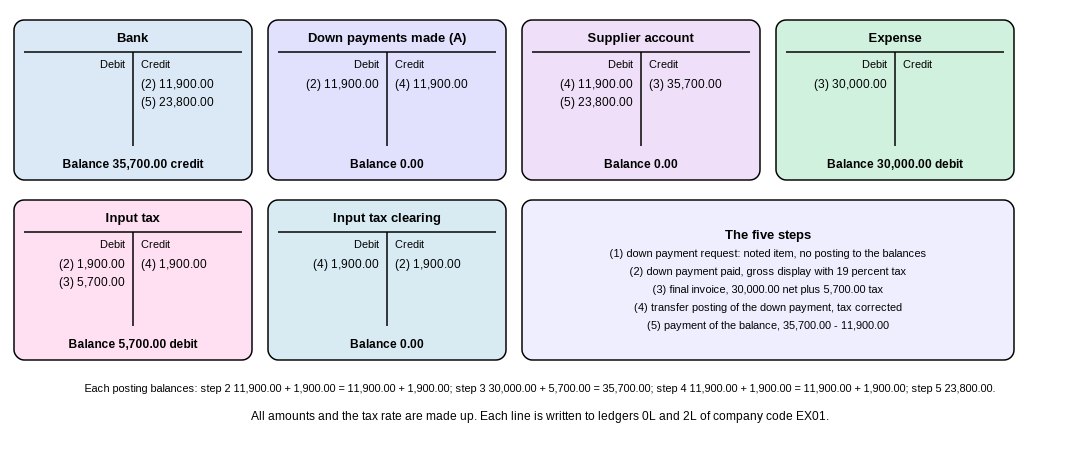
After step 5 the supplier account holds the invoice as a credit and the transferred down payment and the payment as debits:
The three items add up to zero, so clearing marks them as cleared (see the open items page). The special G/L account for down payments made is also back to zero:
The input tax account ends with the tax of the invoice only, and input tax clearing is zero, because the temporary tax of the down payment was reset:
The bank account is credited with the whole gross price in two parts, and the expense account holds the net price:
Between steps 2 and 4 the balance sheet showed EUR 11,900.00 as a down payment made, and the payables account of
supplier S1 showed nothing owed. After step 4 the advance counts as a payment, which is the point of the transfer
posting.
Configuration pointers
SAP states that special G/L transactions already work in the standard system, and that you change the specifications only when you need different account numbers for the reconciliation or special G/L accounts, other posting keys or special G/L indicators, or other specifications for the automatic postings (the accounts, posting keys and account assignment rules). The same help names the properties of a special G/L transaction per indicator (see above), the posting keys marked for special G/L use, and the special G/L accounts with their tax category and field status. On premise, the Financial Accounting Implementation Guide describes these under the activity Business Transactions in accounts receivable and accounts payable. In the Public Edition, the guarantee apps show the route through the configuration activity Automatic Account Determination (ID 100297). The pages used here do not give the full on-premise Customizing menu path of each setting, so none is shown. Requires an SAP system; not run here.
Common errors and pitfalls
-
Expecting a down payment request to change the balance. It is a noted item. It appears only in the line item display, so a supplier balance that looks too low may simply hide requests.
-
Forgetting line item display on the special G/L accounts for requests. Without it you cannot see the down payments outstanding or to be made, since the account carries no balance.
-
Forgetting to name the special G/L indicators in the payment program. The payment program and the dunning program process down payment requests only if you specify them.
-
Leaving the down payment uncleared after the final invoice. The advance then stays on the balance sheet as a down payment although the goods have arrived. The system’s message when you post the invoice is meant to prevent this.
-
Selecting only the invoice when paying. To clear the down payment manually you must also enter its special G/L indicator in the selection screen so that it appears among the open items.
-
Mixing gross and net display. The tax category of the special G/L account decides, so a different account behaves differently. Gross display needs a tax clearing account per down payment account.
-
Posting a supplier down payment on account and clearing invoices in the same step in the Public Edition. SAP says this is not possible; clear an existing posted down payment against the invoices instead.
-
Looking for guarantees received on the balance sheet. SAP states they are not shown there. Use the special G/L account for an overview.
Summary
-
A special G/L transaction posts to an alternative reconciliation account, so the customer or supplier subledger and the general ledger show it apart from normal receivables and payables, for legal reasons such as down payments or for control reasons such as guarantees received.
-
Technically there are three kinds: postings with a free offsetting entry (down payments), statistical postings with a preset offsetting account (guarantees) and noted items with no offsetting entry (down payment requests).
-
A special posting key (
09,19,29,39) and a special G/L indicator (for down paymentsA,M,IandV) say which side, which account type and which kind. -
A down payment request is a noted item for the payment and dunning programs. A down payment is posted when the money moves, with net or gross tax display decided by the special G/L account.
-
A down payment is cleared by the payment together with the invoice, by the payment program or after a transfer posting that also corrects the tax. In the example, 35,700.00 - 11,900.00 = 23,800.00 is paid at the end and the special G/L account returns to zero.
-
In the Public Edition the apps are Manage Supplier Down Payment Requests, Post Outgoing Payments (direct posting) and Manage Guarantees Made and Received.
References
-
Special G/L Transactions: Overview (SAP Help Portal, on premise)
-
The Basic Principles of Special G/L Transactions (SAP Help Portal, on premise)
-
What are the Different Types of Special G/L Transactions? (SAP Help Portal, on premise)
-
Posting Keys and Special G/L Indicators (SAP Help Portal, on premise)
-
Net or Gross Display of Down Payments (SAP Help Portal, on premise)
-
Transfer Post Down Payments and Post VAT (SAP Help Portal, on premise)
-
Processing Guarantees in the SAP System (SAP Help Portal, on premise)
-
Direct Posting of Supplier Down Payments (SAP Help Portal, Public Edition)
-
Manage Guarantees Received (SAP Help Portal, Public Edition)