Accounts Payable
|
This content was generated with the assistance of AI and should be verified against the official documentation before being relied on in production. |
Accounts payable is the part of accounting that keeps track of what the company owes its suppliers: an invoice arrives,
it has to be checked and recorded, and later it has to be paid on time and, if the supplier offers a discount for quick
payment, at the right amount. In SAP the supplier’s account is a subledger, a detailed list of every open invoice and
payment of that supplier, that adds up to one account in the general ledger. This page follows one purchase of the
fictitious Example Trading Co. (company code EX01) from the goods receipt to the bank statement. It explains the two
ways to enter a supplier invoice, what the goods receipt and invoice receipt (GR/IR) clearing account does between them,
how terms of payment and cash discount decide the amount and the date, and how an outgoing payment clears the invoice.
After reading it you can say which entry route fits an invoice, read the postings it produces and find the apps that show
what is open. It is written against SAP S/4HANA 2025 FPS02 (on premise and Private Edition) and SAP S/4HANA Cloud
Public Edition 2608. The ideas are the same in both; the names of the apps and transactions differ, and the page says
where.
Before you read
-
Accounting Basics: debit, credit and T-accounts.
-
Journal Entries, Document Types and Posting Keys: what an accounting document, its lines and a posting key are.
-
Open Item Management and Clearing: open items, clearing and the clearing document, which payments rely on.
-
Account Determination and Automatic Postings: how the stock, GR/IR clearing and cash discount accounts are found.
-
Master Data and the Business Partner: the supplier record that holds the reconciliation account and the terms of payment.
Key terms
-
Accounts payable: the accounting of amounts the company owes its suppliers.
-
Supplier invoice: the bill from a supplier, entered in the system so that it becomes a payable.
-
Reconciliation account: the general ledger account that summarizes a supplier subledger.
-
Goods receipt: the posting that records that ordered goods have arrived.
-
GR/IR clearing account: the account that sits between a goods receipt and the invoice for it.
-
Terms of payment: the agreement on when and with which discount an invoice is paid.
-
Baseline date: the date from which the days of the terms of payment are counted.
-
Cash discount: a percentage taken off the invoice if it is paid within an agreed period.
-
Payment block: a mark on an invoice or a supplier account that keeps the payment program from paying it.
-
Outgoing payment: the posting that pays a supplier and clears the open invoices it settles.
The big picture: from purchase to payment
A purchase moves through four events, and each of them is an accounting document.
| Step | Business event | What it does to the books |
|---|---|---|
1 |
The ordered goods arrive. |
The goods receipt raises the stock account and credits the GR/IR clearing account. |
2 |
The supplier’s invoice is entered. |
The invoice clears the GR/IR account and the supplier account is credited, so the amount becomes a payable. |
3 |
The company pays. |
The payment debits the supplier account, which clears the invoice, and credits a bank account or a bank clearing account. |
4 |
The bank statement arrives. |
The bank statement posting moves the amount from the clearing account to the real bank account. |
When goods are not involved, because the invoice is for a service or an expense that nobody ordered through purchasing, steps 1 and 2 shrink to one posting: the invoice is entered straight in Finance and debits an expense account. The next sections explain the two routes, then payment, then the numbers.
Entering a supplier invoice
SAP’s help describes two families of invoice entry and the apps that belong to each.
Route 1: through purchasing (logistics invoice verification)
If the invoice refers to a purchase order, the invoice is entered in the procurement part of the system, in the area that SAP’s menu names Logistics Invoice Verification. The apps of this route are:
-
Manage Supplier Invoices, app ID
F0859. The Create Supplier Invoice tile creates an invoice, a credit memo, a subsequent credit or a subsequent debit, with or without purchase order references, and the Supplier Invoices List app opens existing invoices. -
Create Supplier Invoice - Advanced, app ID
MIRO. SAP describes it as the app to create and verify supplier invoices for content, prices and arithmetic; it updates the invoice documents in Materials Management and Financial Accounting, and it completes the material procurement process from the purchase requisition via purchasing to the goods receipt.
What the system does on posting is the reason this route exists. If you choose Simulate or Post, it compares the quantity and amount of each invoice item with the purchase order item. If goods-receipt-based invoice verification has been defined for the item, it compares the invoice with the goods receipt as well. When the deviation is outside the tolerances that are defined, the invoice is still posted, but it is automatically blocked for payment, and an approval process starts if the system finds a responsible person. So the invoice, the order and the receipt are checked against each other before money can leave.
The same route lets you:
-
post straight to a G/L account, a material account or an asset account when there is no purchase order reference,
-
park an invoice, so that one clerk starts it and another completes and posts it,
-
enter tax, cash discount (gross or net) and foreign currency,
-
reduce an invoice that has a deviation in amount or quantity: the app then posts an invoice and a credit memo at the same time and creates a letter of complaint,
-
enter planned and unplanned delivery costs, and
-
trace the account movements that a posting will cause, before posting it.
A detail that surprises beginners: when a supplier invoice is posted in Manage Supplier Invoices, journal entries are posted in Finance as a result, and the supplier invoice and its journal entries have different document numbers. You can display the journal entries in the Manage Supplier Line Items app.
Route 2: directly in Finance
For a supplier invoice or credit memo that has no purchase order, SAP’s help names the transaction FB60, titled Create
Incoming Invoices. It is the Finance-side entry: you give the company code, the supplier and the amounts, and you post.
The classic invoice entry of the Finance menu (Accounts payable, Document entry, Invoice) works the same way. SAP’s page for it describes these screens:
-
The header screen, where you enter the document date, the document type, the company code, the posting date and the currency.
-
The first line item, for which you enter the posting key and the supplier account number. The posting key and the reconciliation account of the supplier decide which fields appear next.
-
The remaining line items. You need at least one supplier line item and one G/L account line item, and the document can be posted when debits equal credits.
In the standard system, a credit memo uses posting key 21 for the supplier line item, according to SAP’s credit memo page. SAP’s installment example shows posting key 31 on the supplier line of an invoice and 40 on the G/L account line; the page on posting keys explains what the numbers mean. On posting, the system generates the document and updates the supplier account balance and the G/L account balance. When you enter an invoice, an interface lets you check whether it was entered before, without changing the standard system.
The Public Edition lists FB60 Create Incoming Invoices among the settings and apps related to supplier invoices
together with Edit Supplier Invoice Settings, and its Manage Supplier Invoices app also creates invoices without a
purchase order reference, so a user of the Public Edition can enter such an invoice in Manage Supplier Invoices.
Sources: Create Incoming Invoices (SAP Help Portal, on premise), Posting Business Transactions in Accounts Payable (SAP Help Portal, on premise), Posting Documents in Accounts Payable (SAP Help Portal, on premise), Posting Credit Memos (Accounts Payable) (SAP Help Portal, on premise), Terms of Payment for Installment Payments (Accounts Payable) (SAP Help Portal, on premise), Basic Features for Supplier Invoices (SAP Help Portal, Public Edition)
Which route to use
purchase order or
a goods receipt?"} B -- "Yes" --> C["Enter it through purchasing:
Manage Supplier Invoices (F0859)
or Create Supplier Invoice - Advanced (MIRO)"] B -- "No" --> D["Enter it in Finance:
FB60 Create Incoming Invoices
or Manage Supplier Invoices without reference"] C --> E["System compares invoice with order and receipt;
a deviation outside tolerance blocks payment"] D --> F["System checks only the posting itself:
balanced, complete, valid accounts"] E --> G["Supplier account is credited"] F --> G
| Question | Through purchasing | Directly in Finance |
|---|---|---|
When does it fit? |
Goods or services ordered with a purchase order and, for goods, received. |
Invoices without a purchase order, such as a utility bill or a subscription. |
Which accounts are debited? |
The ones the purchase order and the account determination give: stock through the GR/IR account, or the cost or asset account of the order. |
The G/L accounts you enter on the invoice. |
What is checked against what? |
Invoice items against the order and, if defined, the goods receipt, with tolerance limits. |
Only that the document balances and the entries are valid; there is no order to compare with. |
Which apps or transactions? |
|
|
The GR/IR clearing account
The goods usually arrive before the invoice, and the two events are done by different people, often in different departments. The GR/IR clearing account lets the books stay balanced in between. SAP’s help gives the mechanism in one sentence: goods receipts and invoice receipts are offset to a clearing account. When goods are delivered, the system posts the value to the stock account (or to the account of the purchase order) and the offsetting entry to the GR/IR clearing account. When the invoice is posted, the GR/IR account is cleared and the amount is credited to the supplier account.
SAP says that postings to the same purchase order and purchase order item are updated on the account but not cleared
automatically. Open items are cleared with automatic clearing (F.13 or F.13E), which analyzes the items by purchase
order number and item and clears those with a zero balance. Items that do not produce a zero balance, or cannot be
assigned to each other, stay open. You may post manually to a GR/IR clearing account, but you cannot clear it manually:
for correction, SAP offers the Clear GR/IR Clearing Account app (app ID MR11).
Reading the balance is simple:
-
a credit balance means that goods have been received but not yet invoiced, and
-
a debit balance means that goods have been invoiced but not yet received.
If the quantity invoiced is larger than the quantity received, the system expects further goods receipts for the purchase order; if the quantity received is larger, it expects further invoices. SAP says that before you create a balance sheet you analyze the GR/IR clearing account with a program that displays everything posted and not cleared, and that it posts adjustment entries that are reversed after the closing. SAP also says that the GR/IR clearing account is usually cleared at the end of a period or fiscal year for those order items for which no further goods receipts or invoices are expected.
How the clearing posting is balanced depends on the material, according to the app’s help:
| Case | Offsetting entry of the GR/IR clearing posting |
|---|---|
Material with moving average price |
The stock account, unless there is no stock coverage. If the stock is smaller than the quantity to clear, only the actual stock quantity is debited or credited proportionally and the rest goes to a price difference account. |
Material with standard price |
A price difference account. |
Purchase order assigned to an account |
The cost or fixed asset account shown in the account assignment of the purchase order. |
The account determination page of this section shows how the accounts of the goods receipt and of the price difference are found.
Sources: GR/IR Clearing Account (SAP Help Portal, on premise), Postings at Goods Receipt and Invoice Receipt (SAP Help Portal, on premise), Clear GR/IR Clearing Account (SAP Help Portal, on premise), Clear GR/IR Clearing Account (SAP Help Portal, Public Edition), Maintaining the GR/IR Clearing Account (SAP Help Portal, on premise)
Terms of payment and cash discount
The terms of payment tell the company when an invoice is due and what it may deduct if it pays early. SAP’s help puts it this way: terms can be agreed on three levels, for example within 5 days 3 percent cash discount, within 10 days 2 percent, within 20 days net. A terms-of-payment key, defined once in Customizing, carries these conditions and also the baseline date as of which the days are counted, so that a clerk only enters the key. The buyer usually defines the terms in the purchase order header and they are suggested when the invoice is entered, where they can be overwritten. If the supplier master record holds a key, the system proposes it whenever you enter an item for this supplier.
On the invoice screens, a rate such as "2/10 Net 30" is entered as 10 days and 2 percent, and the due date for net payment is 30 days. You may enter up to three decimal places in the percentage, for example 2.125. The amount on which the discount is calculated is the discount base. If you leave it empty, the system calculates it, depending on whether the configuration says the discount is calculated on the net or the gross amount, and it leaves out G/L account line items that are marked as without cash discount (the shipping line of an invoice for goods and shipping, for example). You can also type the discount amount, which overrides the system’s calculation. SAP warns that, once the terms have been adopted, they are no longer changed automatically: if you change the terms or the supplier while creating an invoice, check the terms and reset them manually.
Example: due dates and discount for EX01
An invoice of EUR 1,428.00 (the gross amount of the worked example below) has the terms 2/10 Net 30. The baseline date in this made-up example is the invoice date, 2026-03-01.
| Period | Last day | What the company pays |
|---|---|---|
Within 10 days |
2026-03-11 |
Gross amount less 2 percent discount |
Within 30 days |
2026-03-31 |
The full gross amount |
Taking the gross amount as the discount base, which the configuration may or may not do:
The tax effect of the discount is ignored here to keep the lines visible, as on the account determination page. Whether the effect on tax is posted depends on the configuration of the company code.
Posting an invoice net
Some countries require that the cash discount is withheld from the cost, typically for property, fixed assets and equipment. SAP’s help then speaks of posting the invoice net: the net amount, gross less discount, is shown in the expense or balance sheet account, you use a net document type, and the system creates an additional document line item for the discount. If the invoice is paid through the payment program, the system compares the discount taken at posting with the percentage valid at payment time, and the difference goes to a separate expense account whose accounts, rules and posting key are set up in Customizing.
Installment payments
A terms-of-payment key can also split an invoice into installments, each with its own payment term. SAP’s example posts an invoice of 1,000.00 with posting key 31 for the supplier and 40 for the expense, and the simulation then shows three supplier lines of 300.00, 400.00 and 300.00:
The original supplier line shows 0.00 until the posting is simulated. After posting, the total amount is replaced by the individual installments. A later page on payment terms in this section goes deeper into discount rates and installments.
Parking, blocking and releasing
Three mechanisms stop an invoice before it is final.
-
Parking. SAP’s document parking lets you save a document without posting it, for supplier, customer, G/L account and asset data. When you park, the system only checks that the data exists; you can ask for a completeness check as well, and authorizations can separate users who may park from users who may also post. In the purchasing route the same idea is called holding or parking an invoice: one clerk parks it and another completes it.
-
Payment blocks. An invoice or a whole supplier account can be blocked for payment. In the Public Edition the Manage Payment Blocks app (app ID
F0593A) sets and removes blocks on invoices or supplier accounts, with a block reason and notes; the Manage Supplier Line Items app can also set or remove a payment block. -
Invoices blocked by the check. An invoice that is blocked because of variances or marked by hand is released with the Release Blocked Invoices app (app ID
MRBR). SAP lists the filters Blocked Due to Variances, Manual Payment Block and Stochastically Blocked; the system checks each blocking reason and deletes a reason that is no longer valid. A blocked invoice must be released for payment, possibly after consultation with purchasing or the supplier.
Paying the supplier
The payment is the event that clears the invoice. SAP’s help distinguishes the usual way from the manual one.
Automatic payment. The automatic payment program selects open items, creates payment documents and supplies the data to the payment medium programs, which print a payment list or payment forms such as checks, or create files for the bank. The program processes domestic and foreign payments for suppliers and customers. In the Public Edition the apps for the run are Manage Automatic Payments, Revise Payment Proposals and Manage Payment Media. Another page of this section explains the program in detail.
Single payment. If an invoice has to be paid at once, the Post Outgoing Payments app (app ID F1612 in the Public
Edition help) posts and clears a single outgoing payment in one step. It lists the open items that can be cleared,
lets you add or change the discount for each invoice, creates residual items for a residual amount with a reason code,
posts a payment on account or to a G/L account, simulates the resulting journal entry, and clears the payment against the
selected items. The classic clearing functions of accounts payable, according to SAP’s table, are the outgoing payment,
the outgoing payment with printed form for an immediate payment by check, the internal transfer posting (for an invoice
cleared because of a product defect, for example) and the incoming payment, which SAP uses for a refund from the
supplier such as an annual quantity discount.
Bank statement. SAP states that the system also supports the automatic entry of the bank postings for outgoing payments by importing bank statement data with the Electronic Bank Statement function.
Whichever way the payment is made, the supplier line of the invoice and the supplier line of the payment have equal and opposite amounts, so the open item management of the supplier account clears them and enters the clearing document number in both. The open items page of this section covers what a clearing is.
Worked example: procure-to-pay for Example Trading Co.
Company code EX01 keeps its books in euro (EUR), uses British pounds (GBP) as group currency and writes the ledgers
0L (leading) and 2L (local principle). Every line below is written to both ledgers, and the group currency amount
follows the exchange rate of the posting date, which this example does not need. All amounts are made up, the tax rate of
19 percent and the discount of 2 percent are illustrative, and the document numbers are left out. The material is valued
at a price that equals the order price, so there is no price difference.
Step 1, goods receipt. EX01 orders 100 pieces of a trading good at EUR 12.00 and receives all 100:
| Line | Debit EUR | Credit EUR |
|---|---|---|
Stock account of the material |
1,200.00 |
|
GR/IR clearing account |
1,200.00 |
|
Total |
1,200.00 |
1,200.00 |
Step 2, supplier invoice. The supplier invoices the same price, with tax:
| Line | Debit EUR | Credit EUR |
|---|---|---|
GR/IR clearing account |
1,200.00 |
|
Input tax account |
228.00 |
|
Supplier (reconciliation account of the supplier) |
1,428.00 |
|
Total |
1,428.00 |
1,428.00 |
The GR/IR account was credited 1,200.00 in step 1 and is debited 1,200.00 now, so its balance is zero and nothing is left to clear for these 100 pieces.
Step 3, payment within the discount period. The terms 2/10 Net 30 apply and EX01 pays on 2026-03-10, inside the 10 days of the
earlier section. The payment clears the supplier item, the discount is an automatic posting, and the cash leaves through
a bank clearing account (a bank subaccount, SAP’s term on the charts of accounts page, for payments in transit), which
open item management keeps open until the bank reports:
| Line | Debit EUR | Credit EUR |
|---|---|---|
Supplier account (clears the invoice item) |
1,428.00 |
|
Bank clearing account |
1,399.44 |
|
Cash discount gain account (automatic) |
28.56 |
|
Total |
1,428.00 |
1,428.00 |
Step 4, bank statement. The bank statement reports the debit of EUR 1,399.44. Importing it posts the bank side and clears the bank clearing account, which is the transfer pattern of the open items page:
| Line | Debit EUR | Credit EUR |
|---|---|---|
Bank clearing account |
1,399.44 |
|
Bank account |
1,399.44 |
|
Total |
1,399.44 |
1,399.44 |
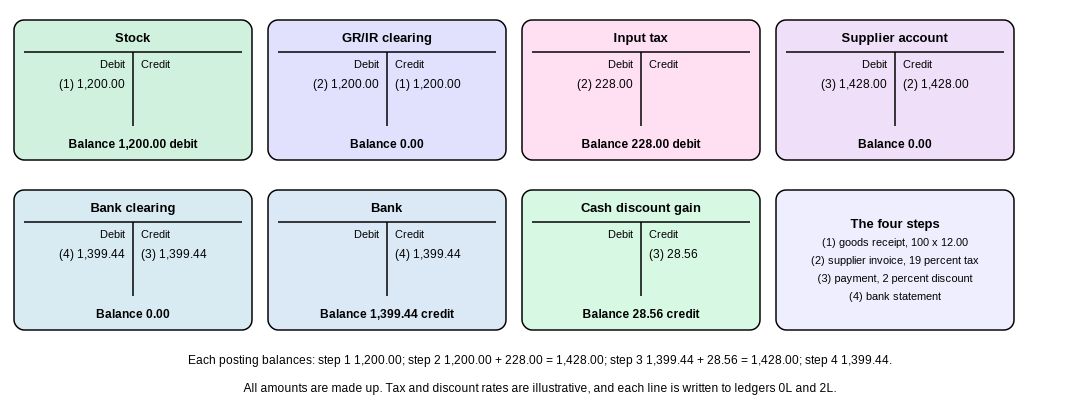
After the four postings the stock account holds 1,200.00 and the input tax account 228.00 on the debit side, the bank account is credited 1,399.44 and the discount gain account 28.56:
Debits and credits are equal, as in every posting. The lines of steps 3 and 4 show the pattern SAP’s help describes for payment and clearing and the bank subaccount purpose from the charts of accounts page; the pages used here do not list the exact lines of the bank statement posting, so the accounts and the use of a clearing account depend on the Customizing of the company code. This example requires an SAP system to reproduce; not run here.
A partial invoice leaves a GR/IR balance
If EX01 receives all 100 pieces (EUR 1,200.00) but the supplier invoices only 60 pieces, the invoice clears 60 pieces at
the order price:
The GR/IR clearing account keeps a credit balance of EUR 480.00, which means goods received and not yet invoiced. The system still expects an invoice for the other 40 pieces. If the supplier will never invoice them, this balance is what the GR/IR account maintenance clears at period end.
Example: an invoice without a purchase order
EX01 receives a bill of EUR 500.00 for a software subscription, with the same illustrative tax of 19 percent, and no
purchase order exists:
| Line | Debit EUR | Credit EUR |
|---|---|---|
Expense account entered on the invoice |
500.00 |
|
Input tax account |
95.00 |
|
Supplier (reconciliation account of the supplier) |
595.00 |
|
Total |
595.00 |
595.00 |
This is the minimum SAP’s help names for direct entry: at least one supplier line and one G/L account line, with balanced debits and credits. No goods receipt and no GR/IR account are involved, so nothing compares the bill with an order.
Looking at the supplier account
The classic way to see the open and cleared items of a supplier is the supplier line item report FBL1N, named on the
open items page. The Fiori counterpart is the Manage Supplier Line Items app (app ID F0712 in the Public Edition
help). SAP describes it for ad hoc requests or recurring reports: you can see all line items of a supplier account, or all
open supplier invoices of a company code that are overdue at a key date. Besides displaying, you can set or remove
payment blocks, change line item attributes such as payment data, assignment or line item text, create a manual payment,
save queries as variants, export to a spreadsheet and send emails. The app shows line items from the point of view of
financial operations, which is why you cannot use it to display information related to General Ledger accounting.
SAP’s overview of the apps for accounts payable also lists reports for managers: Aging Analysis, Overdue Payables, Future Payables, Cash Discount Forecast, Cash Discount Utilization, Days Payable Outstanding, Invoice Processing Analysis and the Supplier Payment Analysis variants.
Correcting a posted invoice
A wrong supplier invoice is reversed, not deleted. SAP’s rules for document reversal say a document can be reversed only if it contains no cleared items, contains only customer, supplier and G/L account items, was posted using Financial Accounting, and all entered values such as business area, cost center and tax code are still valid. A cleared line item must first have its clearing reset. Documents from Materials Management must be reversed with the function of that component, because the reversal function of Finance does not reverse all the values needed. For an invoice posted in the Manage Supplier Invoices app this means the reversal is done on the invoice with status Posted, which you open from the Supplier Invoices List. You usually post the reversal in the same period as the original; if that period is closed, enter a date in an open period.
Configuration and where to look
Requires an SAP system; not run here. The settings that this page relies on are these, and the pages named in each point explain them:
-
Terms of payment keys, tolerance limits and the accounts of the automatic postings (GR/IR clearing, price difference, cash discount) are Customizing. See the pages on account determination and on number ranges, field status and tolerance groups.
-
The reconciliation account and the terms of payment key of a supplier are master data, kept in the supplier part of the business partner.
-
Edit Supplier Invoice Settings (app ID
F3813in the Public Edition help) holds the settings of the invoice apps. -
Payment methods, house banks and the payment program belong to the payment page of this section.
This page did not find a help page that gives the exact menu path of each of these settings for both editions, so no path is shown.
Common errors and pitfalls
-
Expecting an invoice for a purchase order to post like a plain Finance invoice. Through purchasing, a deviation outside tolerance blocks the invoice for payment even though it is posted.
-
Changing the supplier or the terms and trusting the old terms. The terms adopted by the system are not recalculated; check them and reset them by hand.
-
Trying to clear a GR/IR item by hand. SAP says manual clearing of these accounts is not possible; use automatic clearing or the Clear GR/IR Clearing Account app.
-
Ignoring a long-lived GR/IR balance. A credit balance is goods received but not invoiced and a debit balance is goods invoiced but not received; both should be explained before the balance sheet is created.
-
Reversing a goods-based invoice with the Finance reversal. Documents from Materials Management must be reversed in that component, and a document with cleared items cannot be reversed until its clearing is reset.
-
Looking for the supplier invoice number in the journal entry. In Manage Supplier Invoices the invoice and the journal entries have different document numbers.
-
Forgetting that a discount base can be net or gross. The configuration decides when the discount base is left empty, and G/L lines marked without cash discount are left out of it.
-
Entering the same invoice twice. The system offers a duplicate-entry check for invoices; it is part of the settings of the invoice apps.
Summary
-
Accounts payable keeps one subledger account per supplier, and every open invoice and payment of that supplier is an open item that adds up to the reconciliation account in the general ledger.
-
An invoice for a purchase order is entered through purchasing (
F0859Manage Supplier Invoices,MIROCreate Supplier Invoice - Advanced) and is compared with the order and the goods receipt; an invoice without a purchase order is entered in Finance (FB60) and needs at least one supplier line and one G/L account line. -
The GR/IR clearing account sits between the goods receipt and the invoice: a credit balance means received and not invoiced, a debit balance invoiced and not received. It is cleared by automatic clearing or the Clear GR/IR Clearing Account app, not by hand.
-
The terms of payment key holds the days, the discounts and the baseline date. In the example, 2/10 Net 30 on EUR 1,428.00 gives a discount of EUR 28.56 and a payment of EUR 1,399.44 if paid within ten days.
-
A payment, whether from the payment program or the Post Outgoing Payments app, clears the supplier item; the bank statement then moves the amount from the clearing account to the bank account.
-
A posted invoice is corrected by reversal, which requires that nothing in it is cleared; a goods-based document is reversed in Materials Management.
Try it
To do this by hand, follow the guide Follow a Purchase and a Sale through the Ledger: it follows a purchase and a sale from goods receipt and invoice to payment and clearing.
References
-
Posting Business Transactions in Accounts Payable (SAP Help Portal, on premise)
-
Posting Documents in Accounts Payable (SAP Help Portal, on premise)
-
Posting Credit Memos (Accounts Payable) (SAP Help Portal, on premise)
-
Create Supplier Invoice - Advanced (SAP Help Portal, on premise)
-
Create Supplier Invoice - Advanced (SAP Help Portal, Public Edition)
-
Basic Features for Supplier Invoices (SAP Help Portal, Public Edition)
-
Postings at Goods Receipt and Invoice Receipt (SAP Help Portal, on premise)
-
Clear GR/IR Clearing Account (SAP Help Portal, Public Edition)
-
Maintaining the GR/IR Clearing Account (SAP Help Portal, on premise)
-
Terms of Payment (Accounts Payable) (SAP Help Portal, on premise)
-
Terms of Payment for Installment Payments (Accounts Payable) (SAP Help Portal, on premise)
-
Posting Invoices Net (Accounts Payable) (SAP Help Portal, on premise)
-
Clearing Functions in Accounts Payable (SAP Help Portal, on premise)
-
Manage Supplier Line Items (SAP Help Portal, Public Edition)
-
Apps for Accounts Payable (FI-AP) - Overview (SAP Help Portal, on premise)
-
Clearing Open Items in Accounts Payable (SAP Help Portal, on premise, business role)