Accounts Receivable, Dunning and Credit Management
|
This content was generated with the assistance of AI and should be verified against the official documentation before being relied on in production. |
A company that sells on credit has to answer three questions every day: what have we invoiced, what has been paid, and what do we do about the invoices that have not been paid. Accounts Receivable is the part of Financial Accounting that answers them. This page explains how a customer invoice and an incoming payment are posted, how the system reminds customers who pay late (dunning), and how SAP Credit Management decides how much a customer may owe before new orders are held back. It follows one sale of Example Trading Co. from the warehouse to the bank, and one late payment from the due date to a dunning notice. It is written against SAP S/4HANA 2025 FPS02 (on premise and Private Edition) and SAP S/4HANA Cloud Public Edition 2608. The ideas are the same in both; the names of the apps and settings differ, and the page says where.
Before you read
-
Accounting Basics: debit, credit and T-accounts.
-
Open Item Management and Clearing: open items, clearing and the Reset Cleared Items app, which this page uses without repeating.
-
Account Determination and Automatic Postings: how a billing document finds its revenue, tax and customer accounts.
-
Master Data and the Business Partner: the business partner that carries the customer role.
-
Ledgers, Currencies and Exchange Rates: the ledgers
0Land2Land the currencies of the running example.
Key terms
-
Accounts Receivable (FI-AR): the subledger that records what customers owe.
-
Reconciliation account: the general ledger account that a customer account posts to automatically, so the ledger always shows the total of the subledger.
-
Customer invoice: the document that makes a customer owe money; it creates an open item on the customer account.
-
Incoming payment: money received from a customer, posted to the bank and used to clear the invoices it pays.
-
Dunning: the automatic reminder process for overdue open items.
-
Dunning procedure: the setting that says how a business partner is dunned: how often, after how many days and how many times.
-
Dunning level: the step of the procedure an item has reached; it decides how firm the dunning text is.
-
Days in arrears: how many days an item is past its due date, after grace days.
-
Dunning block: a key on an account or an item that keeps it out of the dunning run.
-
Credit management: monitoring how much each customer owes against an agreed limit.
-
Credit limit: the amount a customer may owe before checks react.
-
Credit exposure: the amount of the limit that the customer has already used up.
What Accounts Receivable covers
SAP’s help describes Accounts Receivable accounting as the functions that manage open invoices and incoming payments and that monitor and follow up on overdue receivables. It divides the work into processes, and each process has its apps:
| Process | What the accountant does | Apps SAP names |
|---|---|---|
Preparation |
Completes the customer master data, for example by adding a dunning procedure, and lists the customers. |
Business Partner, Display Customer List |
Invoices |
Invoices come automatically from sales orders through billing, or the accountant creates one by hand when there is no sales order. |
Create Billing Documents, Manage Debit Memo Requests, Create Outgoing Invoices |
Invoice reporting and dunning |
Creates dunning proposals and dunning notices and customer correspondence, and looks at their history. |
My Dunning Proposals, Display Dunning History, Create Correspondence |
Incoming payments |
Posts payments, with or without an electronic bank statement, and clears the matching invoices. |
Post Incoming Payments, Clear Incoming Payments, Manage Bank Statements, Manage Payment Advices |
Incorrect posting |
Corrects a payment that cleared the wrong invoices or was cleared by mistake. |
Reset Cleared Items, Manage Journal Entries |
Reporting for managers |
Watches overdue receivables and key figures. |
Overdue Receivables, Dunning Level Distribution, Days Sales Outstanding, Days Beyond Terms |
The apps in the last column come from SAP’s overview of the Accounts Receivable apps and its description of the process, both on the on-premise help; the Public Edition documents several of the same apps. The area also contains down payments, which the later page on special G/L transactions covers, and the business partner side, which the page on business partners as customers and suppliers covers.
Customer invoices and the reconciliation account
Every customer account belongs to a subledger. SAP’s help explains that you enter a reconciliation account in the master record of the customer, so that every posting to the subledger is also posted to the general ledger at the same time. Each subledger has one or more reconciliation accounts in the general ledger, which means financial statements can be drawn up at any time without transferring totals from the subledger. The reconciliation account also controls which fields are shown when you post to the customer account, and it can limit the currencies that may be used.
A customer invoice reaches Accounts Receivable in one of two ways:
-
From billing. When goods are delivered, billing creates the invoice from the sales order or the delivery and posts it to Financial Accounting. Billing is the final processing stage of a sales transaction, and SAP states that it is fully integrated with the company codes of Financial Accounting. The Create Billing Documents app creates invoices that can be printed. Which revenue, tax and customer accounts the posting finds is the subject of the account determination page.
-
By hand, without a sales order. The Create Outgoing Invoices app (app ID
FB70) enters customer invoices and credit memos manually. SAP says you can also use it for an account balance adjustment and for manual data migration. It cannot print the invoice: SAP’s help points to the Create Correspondence button in the Manage Customer Line Items app, or to the Create Billing Documents app for an invoice that can be printed. On premise, the classic path for the same entry is Accounting, Financial Accounting, Accounts Receivable, Document Entry, Other, Invoice - general.
In the classic entry screen, SAP states that the posting key and the reconciliation account of the customer decide which fields appear, that a customer invoice needs at least one customer line item and one G/L account line item, and that you can post when debits equal credits. The same entry has a credit memo variant.
Order-to-cash as T-accounts
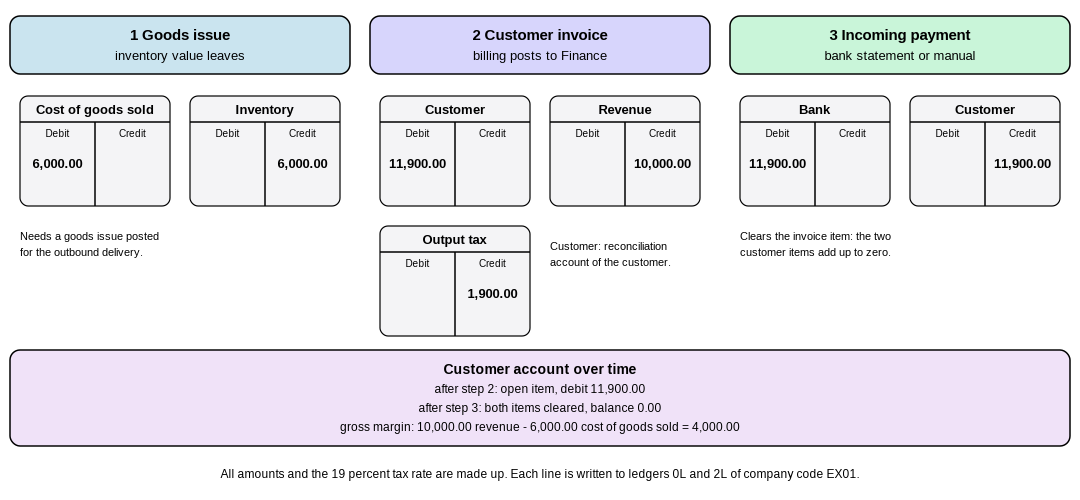
The order-to-cash process runs from the customer’s order to the money in the bank. Three of its steps post to the books:
the goods issue, the customer invoice and the incoming payment. The sale below is made up. Example Trading Co. (EX01,
euro) sells goods for EUR 10,000.00 net, with an illustrative output tax of 19 percent, and the goods cost EUR 6,000.00.
| Step | Account | Debit EUR | Credit EUR |
|---|---|---|---|
1 Goods issue |
Cost of goods sold |
6,000.00 |
|
1 Goods issue |
Inventory |
6,000.00 |
|
2 Customer invoice |
Customer (reconciliation account) |
11,900.00 |
|
2 Customer invoice |
Revenue |
10,000.00 |
|
2 Customer invoice |
Output tax |
1,900.00 |
|
3 Incoming payment |
Bank |
11,900.00 |
|
3 Incoming payment |
Customer (reconciliation account) |
11,900.00 |
Each posting balances, and the sums are checked here: step 1 debits and credits 6,000.00; step 2 debits 11,900.00 and
credits 10,000.00 + 1,900.00 = 11,900.00; step 3 debits and credits 11,900.00. The customer account carries a debit of
11,900.00 after step 2 and, after step 3, items that add up to zero, so clearing marks them as cleared. The gross margin
of the sale is 10,000.00 - 6,000.00 = 4,000.00. Each line is written to ledgers 0L and 2L, and the group currency
amounts in GBP follow from the exchange rate rules of the ledgers page, so they are left out to keep the lines readable.
What SAP’s help says about each step:
-
Goods issue. Posting goods issue for an outbound delivery reduces the warehouse stock by the delivery quantity and posts value changes to the balance sheet account in inventory accounting. In a separate help page about cost of goods sold, SAP states that when the goods issue of a product is posted, the total cost of the product is posted to the cost of goods sold account. Which accounts are used is account determination again.
-
Customer invoice. A customer item and the revenue items it balances. SAP’s own example of document splitting shows a customer invoice with one customer debit and two revenue credits that add up to it.
-
Incoming payment. The next section.
Requires an SAP system; not run here. The postings are shown as a bookkeeping model, not as a listing of a system.
Incoming payments
The Post Incoming Payments app posts and clears a single incoming payment in one step. SAP describes the situation it is for: you usually check for incoming payments in online banking, but when payments do not arrive as electronic bank statements you enter the payment data by hand and ask the system to search for matching open items. Ideally the system proposes the matching items, and you post and clear in one step. The same help page lists what the app can do, among them:
-
search open items by invoice number, journal entry number or payment reference, and for one customer or for all customers with fuzzy logic;
-
add or change the discount applied to each invoice;
-
create a residual item for the difference, with reason codes, or create a dispute case for a partial payment;
-
post the payment on a G/L account, or on account, which means to the customer account without reference to any item when clearing is not possible;
-
simulate the journal entry, and attach notes.
Three outcomes of a payment cover most of the cases. The numbers continue the example, with the invoice of EUR 11,900.00 from the previous section:
| The customer pays | What the system can do | Open item left on the customer account |
|---|---|---|
EUR 11,900.00 with the invoice number as payment reference |
Proposes the invoice, balance is zero, post and clear in one step. |
None. |
EUR 11,000.00 with the invoice number |
Clear the invoice and create a residual item for the difference of 11,900.00 - 11,000.00 = 900.00, with a reason code, or open a dispute case for it. |
Residual item of EUR 900.00, if the configuration posts it to the customer account. |
EUR 11,900.00 with no usable reference |
Post the payment on account. |
A credit item of EUR 11,900.00 beside the open invoice, until someone assigns them to each other and clears. |
Whether a residual item is posted to the business partner account or cleared against the difference is a business configuration setting, according to the app’s description. SAP also names two cases the app cannot handle, for which it points to the Post Incoming Payments - For Customers app: clearing invoices that contain withholding tax, and clearing invoices of several customer accounts when a payment difference cannot be assigned to the invoices directly.
If a payment cleared the wrong invoices, the Reset Cleared Items app resets the clearing, as the page on open items
explains. Electronic bank statements feed the same clearing: SAP’s process description lists Manage Bank Statements,
Reprocess Bank Statement Items and Clear Incoming Payments for that route, and Manage Payment Advices for payment advices.
To look at what is open for a customer, the Manage Customer Line Items app (app ID F0711) finds customer line items by
a wide range of criteria and also lets you set a payment block or a dunning block on an item.
Requires an SAP system; not run here.
Dunning
Sometimes customers fall behind on payments. Dunning is the system’s automatic way to send them a payment reminder or a dunning notice. SAP’s help describes the dunning program: it selects the overdue open items of business partner accounts in which the overdue items create a debit balance, determines the dunning level, creates a dunning notice, and saves the dunning data it determined for the items and accounts. It serves customers and suppliers alike; a supplier may need to be dunned when a credit memo leaves a debit balance on the supplier account. In some countries dunning customers is not usual: SAP gives the USA as an example and says that company-code-specific settings can hide the dunning fields.
The dunning procedure
The dunning procedure, a four-character key, is the most important setting. SAP lists what it decides:
-
the dunning frequency or interval, the number of days between dunning runs for an account;
-
the grace days and the minimum days in arrears that decide whether an item or an account is dunned at all;
-
the number of dunning levels, and for each level how many days in arrears an item must have;
-
which transactions are dunned with the same procedure, among them special G/L transactions such as down payment requests.
You can define several procedures when accounts are to be dunned differently. SAP’s example has two: a one-level procedure for customers who get a single payment reminder and a three-level procedure for everyone else. The procedure that applies to an account is entered in the master record of the account, in the company-code-specific data on the Correspondence tab, together with the dunning area, an alternative dunning recipient and the dunning clerk. Only accounts with a dunning procedure in their master record take part in a dunning run.
Days in arrears and dunning levels
SAP’s help gives the rule for overdue items: the baseline date for payment and the latest possible payment date from the terms of payment are added together and subtracted from the issue date of the dunning run, which you enter when you run it. If the result is a number of days in arrears, the item is overdue. Grace days lengthen the payment period, for example to account for bank processing days; the system adds them to the due date to get the due date for the dunning program. As an alternative, minimum days in arrears for an account mean the account is dunned only when its most overdue item reaches that number, and then only the items that are overdue despite the grace days are dunned.
Dunning levels decide the text of the notice. A procedure has at least one level and at most nine, and each level names the days in arrears an item needs. A procedure with one level is a payment reminder. An item reaches a level when its days in arrears are at least those of the level and less than those of the next level. When you set up a procedure, the system fills the days in arrears for you: the first level gets the grace days and each further level adds the dunning interval to the previous one, and you can overwrite the values. For each level you can also say that:
-
interest is charged;
-
dunning is always carried out, even when the proposal is unchanged since the last run (the dunning interval still applies), which suits a one-level procedure;
-
all items are printed;
-
a payment period is printed, counted in days from the issue date.
The program raises the dunning level of an item by one level at a time, even after a block is removed. You can change the level by hand in the dunning proposal (lower by any amount, higher by one level) or in the line item or account change. When the notices are printed, the dunning level is stored in the items and the highest level is stored in the account master record.
Sources: Dunning (SAP Help Portal, on premise), Dunning procedures (SAP Help Portal, on premise), Grace Days for Line Items and Minimum Numbers of Days in Arrears for Accounts (SAP Help Portal, on premise), Dunning Levels (SAP Help Portal, on premise), Dunning Levels: Additional Specifications (SAP Help Portal, on premise), Determining Dunning Levels (SAP Help Portal, on premise)
Blocks, keys and areas
A dunning block keeps an account or an item out of the dunning run: you enter a blocking key in the Dunning block field of the master record or of the item, and texts explain the reason. Blocked accounts and items are not dunned and are listed with the reason on an exception list. A dunning key limits the dunning level of an item and can make the item show in a separate section of the notice; dunning keys do not depend on the company code. A dunning area is an organizational unit within a company code, such as a division or a sales organization, that you assign to an open item when posting, so you can dun separately by area. In the Manage Customer Line Items app you can set or remove a dunning block on an item.
The dunning run in three steps
company codes, accounts, issue date"] --> B["2 Edit the proposal
set or remove blocks, change levels"] B --> C["3 Print or send the notices
levels and dates are stored"] C --> D["Dunning history
runs, notices, overdue items"] A -. "can be repeated, nothing is stored yet" .-> A
SAP describes the process this way. First you start the dunning program, enter the company codes and, if you want, restrict the accounts; the program determines the accounts and items to dun, the level and the other details and writes a dunning proposal list sorted by account and level. You can create the proposal as often as you like, because the dunning data in the item and the account is not updated until the notices are printed. Second, you edit the proposal: set or reset dunning blocks and change levels. Third, the print program prints the notices, and at that moment the dunning data is stored in the items and in the master record of the business partner. The forms and texts must be set up before the run; the text depends on the dunning level and on the language key of the customer. After printing, the dunning history shows all runs and their status. To keep from dunning what has been paid, post and clear incoming payments before the run; the open item page covers automatic clearing.
The two editions reach the run differently:
| Step | On premise (2025 FPS02) | Public Edition (2608) |
|---|---|---|
Settings |
Customizing for Financial Accounting, Accounts Receivable and Accounts Payable, Business Transactions, Dunning; dunning data in the customer master record, on the Correspondence tab. |
Configuration activities Define Dunning Block Reasons and Define Dunning Procedures, found with the search function of the configuration environment; the dunning procedure is assigned to the customer in the Business Partner master record. |
Proposal and notices |
The dunning program under Periodic Processing, Dunning; the Fiori apps My Dunning Proposals and Display Dunning History are in SAP’s list of Accounts Receivable apps. |
My Dunning Proposals (app ID |
Interest rates |
Interest rates are defined for each interest indicator. |
Manage Dunning Interest Rates app, for the interest rate, currency and validity date of each interest indicator. |
Output |
Forms and printing from the spool, as the page on printing dunning notices describes. |
Output control: output type |
Requires an SAP system; not run here.
Sources: Dunning Process (SAP Help Portal, on premise), Creating Dunning Proposals (SAP Help Portal, on premise), Printing Dunning Notices (SAP Help Portal, on premise), My Dunning Proposals (SAP Help Portal, Public Edition), Configuring Dunning and Outputs (SAP Help Portal, Public Edition), Display Dunning History (SAP Help Portal, on premise)
Charges and interest
For dunning notices the system can calculate charges and interest and print them on the letters. SAP states that the amounts are not posted. Charges are defined for each dunning procedure, currency and dunning level, either as an amount or as a percentage, and can be scaled by the dunning amount. If no charge is defined in the currency the program determines, no charge is printed. Interest is usually switched on at the higher levels, to make the letter more urgent. The interest indicator can be set in the master record of the business partner and in the dunning procedure, and the master record wins. The rates valid on the dunning date apply, the interest is determined and printed in the currency of the item, a minimum amount per level can switch it off for small amounts, and the result is rounded by the currency’s rounding rules. On the Public Edition, the Manage Dunning Interest Rates app sets the rate, currency and validity date per interest indicator, and SAP states that the system always calculates with 360 days per year as a standard setting.
SAP’s pages do not show the interest formula. The one used below is the plain simple-interest form that matches what the pages say, a rate for a year and a 360-day year, and it is an illustration, not a statement of the system’s exact algorithm:
where is the overdue amount, the annual rate in percent and the days in arrears.
Worked example: dunning the invoice of Example Trading Co.
The invoice of EUR 11,900.00 from the order-to-cash example is dated 2026-04-01 with payment terms of 30 days net, so it is due on 2026-05-01. Example Trading Co. uses a made-up three-level dunning procedure. It grants 3 grace days and has a dunning interval of 14 days; the days in arrears of the levels are set by hand to 1, 15 and 29: level 1 starts one day after the grace period and each further level adds the 14-day interval. The due date for the dunning program is therefore 2026-05-01 plus 3 days, which is 2026-05-04.
| Issue date of the run | Days in arrears | Level | What happens |
|---|---|---|---|
2026-05-03 |
none |
none |
The item is due on 2026-05-01 but is within the grace days: it is not dunned. |
2026-05-05 |
1 |
1 |
Payment reminder. |
2026-05-19 |
15 |
2 |
More insistent text. |
2026-06-02 |
29 |
3 |
Final notice, with interest and a charge. |
Days in arrears are the issue date minus 2026-05-04: 1, 15 and 29 days.
At level 3 the notice also carries interest and a charge. The made-up rate is 8 percent a year and the made-up charge is EUR 4.00 for this level and amount:
The notice therefore asks for EUR 11,980.69. SAP states that interest and charges on a dunning notice are printed and not posted, so the customer account still shows only the original invoice item of EUR 11,900.00 with dunning level 3 stored in it; when the customer pays, the payment clears that item. Requires an SAP system; not run here.
Dunning reports
Two analytical apps help managers watch the dunning result. Dunning Level Distribution shows the open dunning amounts per dunning level and customer, can be broken down by account group, accounting clerk, company code, country, reconciliation account or region, and shows the ten customers with the highest open dunning amounts. Display Dunning History is for collection specialists: it gives an overview of dunned customers, the notice details at line item level and the letters sent.
Credit management
Dunning reacts after a customer is late. Credit management acts before: it limits how much a customer can owe. SAP’s help describes SAP Credit Management as the solution that lets a company determine the risk of losses on receivables from customers and business partners, using information from several departments and from external credit agencies. Connected systems such as Sales and Distribution, Logistics Execution and Financial Accounting report a business partner’s commitment to it, and an automatic credit decision mechanism uses the reports and can recalculate the credit limit.
Credit master data
The credit master data of a business partner sits in the business partner and is maintained in the Manage Credit Accounts
app (app ID F4596). SAP’s help lists the credit limit, one or more externally determined ratings and the risk class, each
with a change history, plus notes and stored documents. The credit profile holds the scoring and the credit segments. A credit
segment is the level at which credit is usually checked, so a customer can have one limit per segment. The app also shows
the credit exposure and credit limit utilization per segment, simulates a credit check, releases documents that have a credit block,
and shows payment behavior with key dates for dunning, last payment and oldest open item.
The credit check
SAP states that the credit check evaluates the creditworthiness of a business partner, for example when a sales order or a delivery is created. A check rule is assigned to the credit profile of each business partner, and a rule has one or more check steps. The check normally runs at credit segment level, and the data SAP lists as examples for the check steps are credit limit utilization, credit exposure, highest dunning level and oldest open item. This is where dunning and credit meet: a check step on the highest dunning level can lead to an alert or a block. The check leads to a credit decision: the system can raise an alert or block the order or delivery, and the responsible credit manager can release or cancel the process after a detailed validation. The Credit Limit Utilization app compares the credit limit granted with the amount of the limit used up, which is the credit exposure, and shows the business partners above a threshold you define.
For the example, assume Example Trading Co. grants a customer a credit limit of EUR 50,000.00 and the customer’s credit exposure is EUR 38,000.00. Utilization as a percentage is the exposure divided by the limit:
With a threshold of 80 percent the customer is not yet above it, and an order that would raise the exposure by EUR 5,000.00 would bring it to 43,000.00 and 86 percent. Whether the order is blocked depends on the check rule of the profile. The percentage is the plain ratio described above; the exact formula of the app is shown by SAP only as a figure.
Payment behavior key figures
SAP’s help describes how the key figures in the Manage Credit Accounts app are calculated. Basic Credit Management shows dunning, last payment, oldest open item, days sales outstanding and cash discount figures. Advanced Credit Management also shows the average days late: the average difference between the net due date and the payment date of all paid and overdue customer items, with each invoice weighted by its amount. Three invoices of the customer, with made-up amounts, were paid 6,000.00 ten days late, 2,000.00 two days late and 4,000.00 four days late:
The average days late is 6.67, which is higher than the simple average of the three delays, 5.33 days, because the largest invoice was also the latest.
Basic and Advanced Credit Management
On the Public Edition SAP distinguishes Basic Credit Management from Advanced Credit Management; the features available depend on the licensing situation. SAP lists features that belong to the advanced option only: scoring of the customer portfolio into risk classes with configurable formulas, automatic credit limits from calculation rules, a multi-level approval process for credit limit requests, a multi-level approval process for single documents with a credit block, and follow-on processes that events trigger, such as recalculating the risk class when an external rating changes. The apps in Advanced Credit Management only include Manage Credit Limit Requests, Manage Credit Management Rules and Manage Formulas in Credit Management. SAP’s list of Accounts Receivable apps for credit controllers also names Analyze Credit Exposure, Credit Limit Utilization, Manage Credit Accounts, Manage Documented Credit Decisions, Display Credit Exposure and Rebuild Credit Management Data.
Sources: Credit Master Data for Business Partner (SAP Help Portal, on premise), Manage Credit Accounts, F4596 (SAP Help Portal, on premise), Credit Check (SAP Help Portal, on premise), Credit Limit Utilization (SAP Help Portal, on premise), How the Key Figures in Credit Management Are Calculated (SAP Help Portal, Public Edition), Advanced Credit Management (SAP Help Portal, Public Edition), Available Features (SAP Help Portal, Public Edition)
Converting from FI-AR-CR to SAP Credit Management
The credit management component of SAP ERP, FI-AR-CR, is not the credit management of SAP S/4HANA. SAP’s task list for the conversion says that a system that used Credit Management (FI-AR-CR) on its start release must convert to SAP Credit Management (FIN-FSCM-CR) on SAP S/4HANA, that the migration is mandatory, and that the migration steps are done after the technical system conversion, the run of the Software Update Manager. The task list is valid only for the conversion of one-system landscapes. In short it asks for:
-
the business settings of SAP Credit Management, among them activating the business partner role for credit management and the settings for documented credit decisions;
-
the preparatory activities in the migration path of Customizing, including migrating the credit management Customizing and defining groups for credit analysts and customers;
-
the data migration activities: credit management master data, credit exposure and documented credit decisions, each with a status display, and a reconciliation of the documented credit decisions;
-
process changes to check in the Simplification List, in the chapter on business process related information.
The migration is configuration work, so it requires an SAP system; not run here. A beginner reading an old description of FI-AR-CR should treat its screens and Customizing as predecessor behavior and use the Manage Credit Accounts app and the business partner for new work.
Common errors and pitfalls
-
Expecting the dunning notice to post interest. In Accounts Receivable dunning, the interest and charges on the notice are printed and not posted.
-
Dunning an account that has no dunning procedure. Only accounts with a procedure in the master record are dunned.
-
Dunning already paid invoices. Post and clear incoming payments before the run, or the notice asks for money that has arrived.
-
Reading days in arrears from the invoice date. They are counted from the due date, after grace days.
-
Raising a level by more than one. In the proposal the level can go up by one only, and the program raises items one level at a time.
-
Posting a payment on account and forgetting it. The on-account credit stays beside the open invoice until the two are assigned and cleared, so the customer may be dunned although the money has arrived.
-
Printing from the Create Outgoing Invoices app. It does not print; use Create Correspondence in Manage Customer Line Items or the billing apps.
-
Using the old credit management screens. FI-AR-CR is converted to SAP Credit Management on SAP S/4HANA.
Summary
-
Accounts Receivable keeps the customer subledger. Each customer account posts to a reconciliation account in the general ledger, and invoices, payments and clearing are the daily work.
-
In order-to-cash, goods issue posts cost of goods sold against inventory, billing posts customer against revenue and tax, and the incoming payment posts bank against customer and clears the invoice. In the example the invoice is EUR 11,900.00 and the gross margin EUR 4,000.00.
-
A payment can clear an invoice, leave a residual item or be posted on account; the Post Incoming Payments app handles the three.
-
Dunning is controlled by the dunning procedure in the customer master record: days in arrears after grace days select the dunning level, and the proposal, edit and print steps store the result. Interest and charges are printed, not posted. In the example the level 3 notice asks for EUR 11,980.69.
-
SAP Credit Management limits what a customer can owe before the invoice is late: credit master data, a check rule per profile and credit decisions. FI-AR-CR credit management is converted to it, and Advanced Credit Management is a licensed extension.
Try it
To do this by hand, follow the guide Follow a Purchase and a Sale through the Ledger: it follows a purchase and a sale from goods receipt and invoice to payment and clearing.
References
-
Accounts Receivable Accounting (SAP Help Portal, on premise)
-
Apps for Accounts Receivable (FI-AR) - Overview (SAP Help Portal, on premise)
-
Defining Reconciliation Accounts (SAP Help Portal, on premise)
-
Entering Business Transactions in Accounts Receivable (SAP Help Portal, on premise)
-
Customer Invoice, Business Transaction 0200 (SAP Help Portal, Public Edition)
-
Dunning Levels: Additional Specifications (SAP Help Portal, on premise)
-
Dunning Blocks and Dunning Keys (SAP Help Portal, on premise)
-
Settings for Dunning: Overview (SAP Help Portal, on premise)
-
Configuring Dunning and Outputs (SAP Help Portal, Public Edition)
-
Manage Dunning Interest Rates (SAP Help Portal, Public Edition)
-
Credit Master Data for Business Partner (SAP Help Portal, on premise)
-
How the Key Figures in Credit Management Are Calculated (SAP Help Portal, Public Edition)
-
Advanced Credit Management (SAP Help Portal, Public Edition)
-
Task List for the Conversion of Credit Management to SAP S/4HANA (SAP Help Portal, on premise)
-
Settings in SAP Credit Management, FIN-FSCM-CR (SAP Help Portal, on premise)