Sample app
| This documentation was generated with the assistance of AI. Please report any inaccuracies. |
The app/ module is a minimal View-based application (package com.irurueta.android.recyclerviewmanager.app) that
shows RecyclerViewManager animating list updates.
What it does
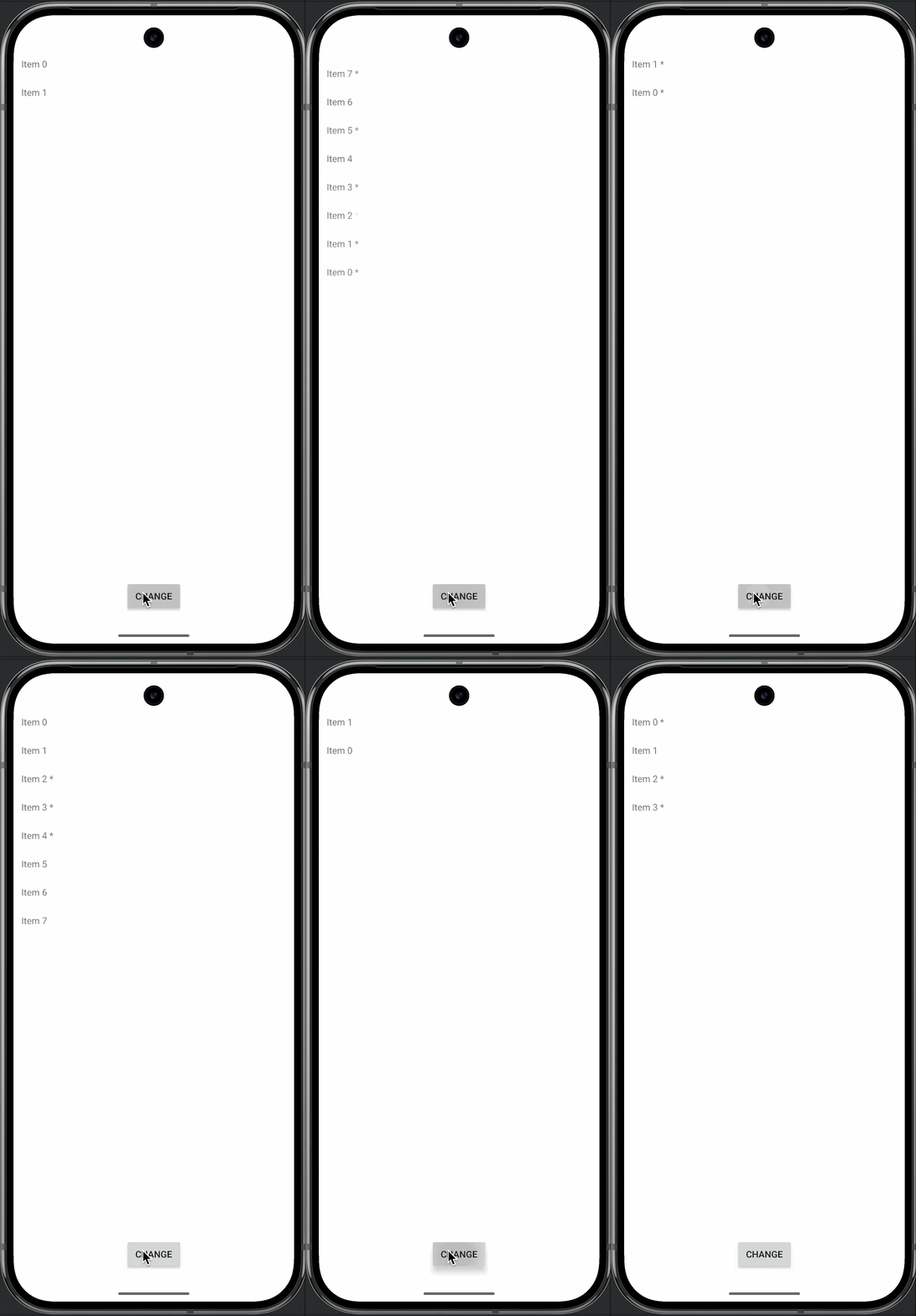
The single screen (MainActivity) shows a RecyclerView and a Change button. Each tap generates a random list of
up to 10 Item(id, name) entries:
-
the number of items changes, which produces insertions and removals;
-
the order is randomly reversed, which produces moves; and
-
some names get a trailing
*, which produces content updates for items whoseidis unchanged.
The manager turns each new list into the matching notifications, so every kind of animation can be seen.
Source files
| File | Role |
|---|---|
|
Data model: |
|
Custom |
|
|
|
Adapter with a replaceable |
|
Wires the |
The relevant code
The manager is created next to the adapter:
private val adapter = ItemAdapter(emptyList())

private val manager = RecyclerViewManager<ItemViewHolder, Item>(
    adapter,
    // ItemComparator: are both items the same entity?
    { item1, item2 -> item1.id == item2.id },
    // ItemContentComparator: is the content of the same entity unchanged?
    { item1, item2 -> item1.name == item2.name }
)
And the button handler follows the two-step update described in Usage:
private fun updateItems() {
    val oldItems = adapter.items
    val newItems = generateItems()

    // update the adapter with the new items before notifying the adapter
    adapter.items = newItems
    // compute changes and notify the adapter
    manager.notifyChanges(oldItems, newItems)
}
Running it
From the repository root, with a device or emulator connected:
./gradlew :app:installDebugOr open the project in Android Studio and run the app configuration. See User interface for the
screen and component inventory.